 ChatGPT,
  Claude,
  Gemini,
  Grok — all four for
 Bluehost Professional Email: How to Set Up a Vacation Responder
Setting up an automated out-of-office message helps keep clients, colleagues, and contacts informed whenever you are away from your desk. If your email is hosted through Bluehost Professional Email, configuring a vacation responder allows you to schedule automated replies, define a custom reply message, and adjust reply frequency directly inside your webmail settings.
A vacation responder (also called an out-of-office auto-reply) automatically replies to incoming emails with a prewritten message while you are away. With your Professional Email on Bluehost, you can customize:
- Active duration: Set a specific start and end date, or keep the responder running until you manually turn it off.
- Custom messaging: Add your own subject line and body text, including emergency contact details and your anticipated return date.
- Reply frequency: Help reduce repeat replies by selecting how many days (from 1 to 7 days) must elapse before the responder replies to the same sender again.
Follow the instructions below to configure and enable your out-of-office auto-reply in Professional Email.
How to Configure Your Out-of-Office Auto-Reply
- Log in to your Bluehost Portal.
- From the left-hand navigation menu, click on the Email tab.
- Optional: In Professional Email, if multiple plans are listed, click Manage for the plan you want to use.

- You’ll be automatically redirected to the Email Management page, where you can manage your email settings and subscriptions.
- Click the Login to Webmail button to log in.
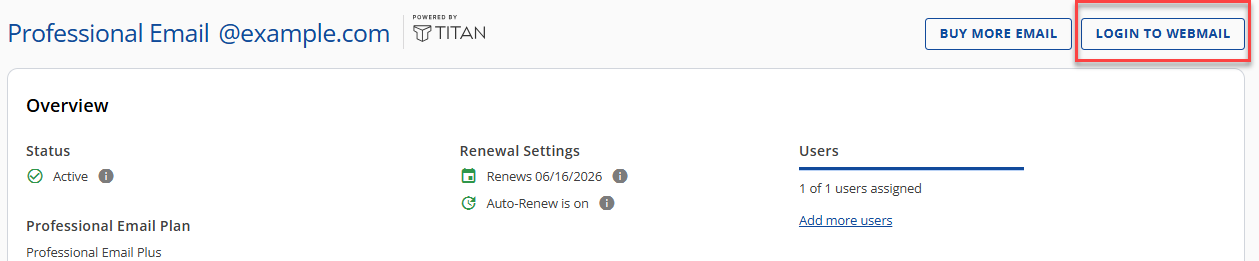
You can also go directly to the Bluehost Webmail login page and sign in with your email address and password. For other ways to log in, see How to Access Webmail: Log into Your Email Account.
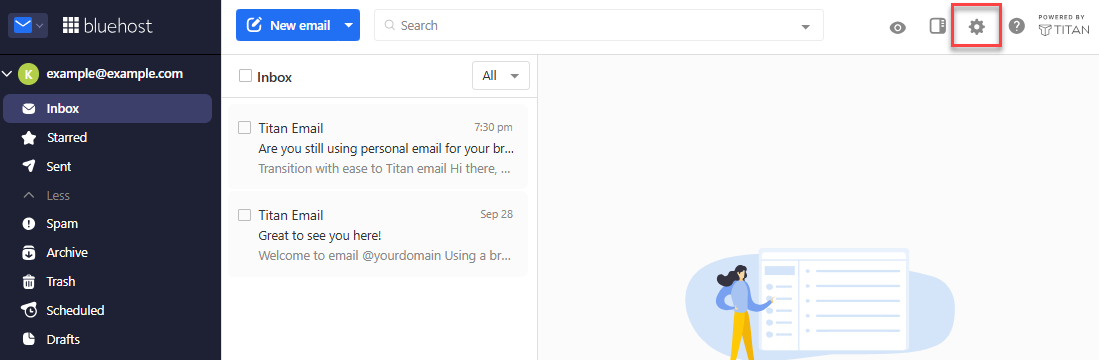
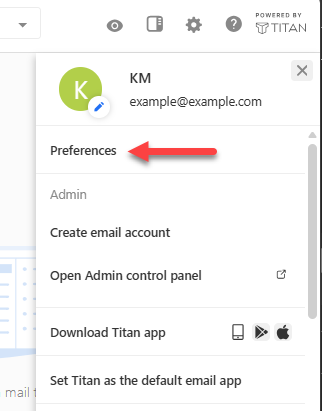
- Click the Settings (gear) icon in the upper-right corner of the webmail interface and select Preferences.
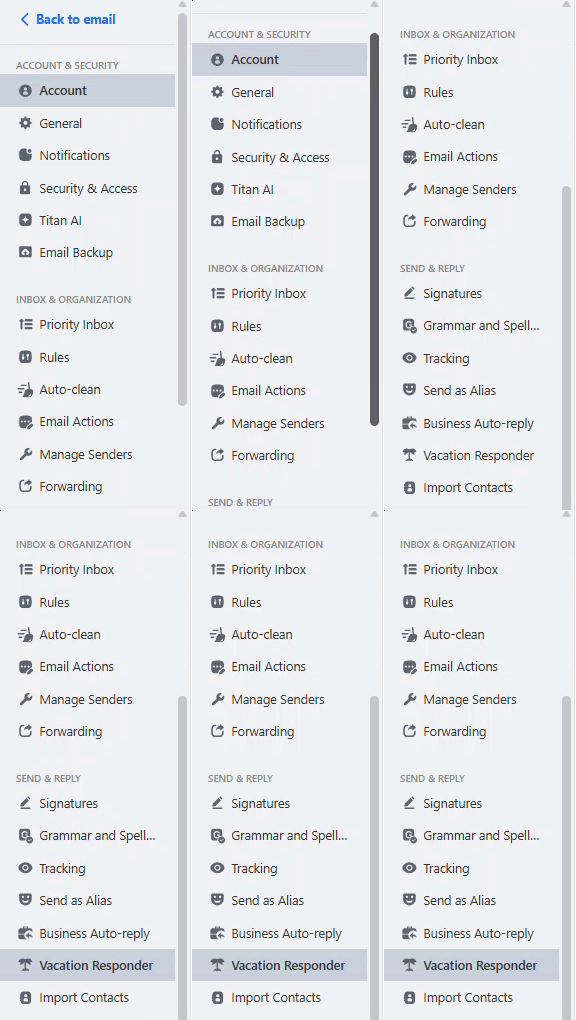
- In the left-hand menu, scroll down to the Send & Reply section and select Vacation Responder.
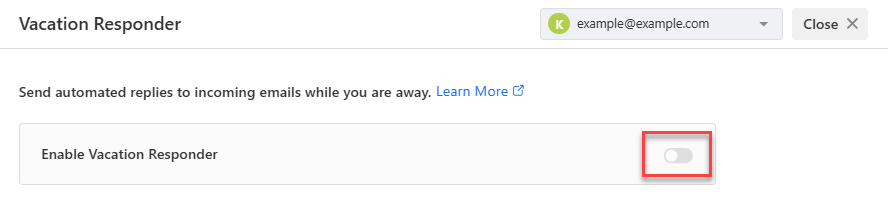
- Switch the Enable Vacation Responder toggle to ON.
- Under From, select the date you want your replies to begin. Under To, select Pick an end date and choose a date, or leave Until I turn it off selected.
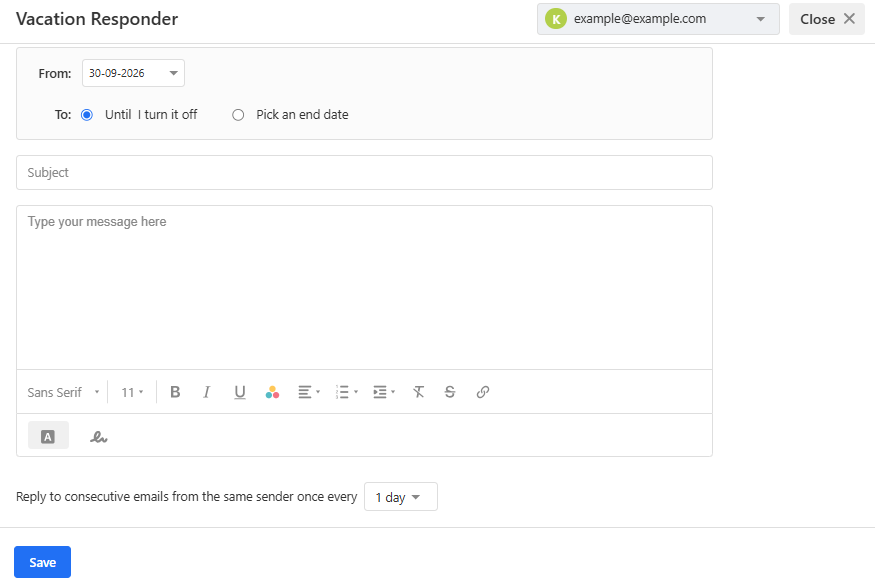
- Enter a clear subject line in the Subject field, then type your message in the message field, including your expected return date and alternate contact details for urgent inquiries.
- Use the dropdown next to Reply to consecutive emails from the same sender once every to select how many days (1 to 7) must pass before the responder replies to the same sender again, to help reduce repeat replies.
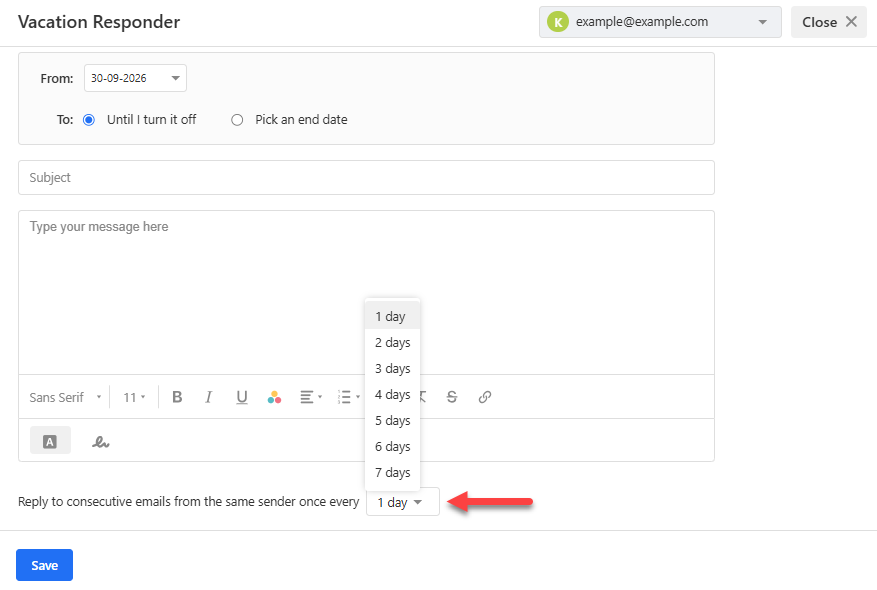
- Click Save to activate your vacation responder.
Best Practices for Out-of-Office Messages
- Confirm alternate contact availability: Verify that any coworker or department mentioned in your message is available and prepared to handle inquiries on your behalf.
- Send a test message: Email your own address from an external account to verify that the auto-reply triggers as expected.
- Turn off the responder when you return: If you chose the Until I turn it off option, remember to return to Settings > Preferences > Vacation Responder to switch the toggle to OFF.
Summary
Enabling a vacation responder helps your contacts receive clear, timely updates whenever you step away from your email. By defining scheduled dates, crafting a helpful away message, and setting an appropriate reply frequency inside your Professional Email preferences, you establish clear communication expectations while your messages remain unread. Once you return to your regular schedule, review your settings or toggle the feature off to resume normal inbox management.
If you need further assistance, Bluehost Chat Support is available 24 hours a day, 7days a week while Bluehost Phone Support is available 7 days a week from 7 am-12 midnight EST.
- Chat Support - While on our website, you should see a CHAT bubble in the bottom right-hand corner of the page. Click anywhere on the bubble to begin a chat session.
- Phone Support -
- US: 888-401-4678
- International: +1 801-765-9400
You may also refer to our Knowledge Base articles to help answer common questions and guide you through various setup, configuration, and troubleshooting steps.