 ChatGPT,
  Claude,
  Gemini,
  Grok — all four for
 How to Disable Softaculous Email Notifications in cPanel
Softaculous automatically sends email notifications for script installations, backups, updates, and other actions. While helpful for some users, these alerts can quickly become unnecessary or overwhelming. This guide will walk you through how to disable Softaculous email notifications in cPanel by adjusting your Email Settings.
What You’ll Learn
By the end of this guide, you’ll be able to:
- Stop email alerts for script installations and removals
- Disable backup and restore notifications
- Turn off update, staging, and clone email alerts
- Manage template‑related email notifications
Disable Softaculous Email Notifications
- Log in to your Bluehost Portal.
- In the left-hand menu, click Hosting, then select My Plans.
- On the hosting details page, click the cPanel button.

- Your cPanel will open in a new tab.

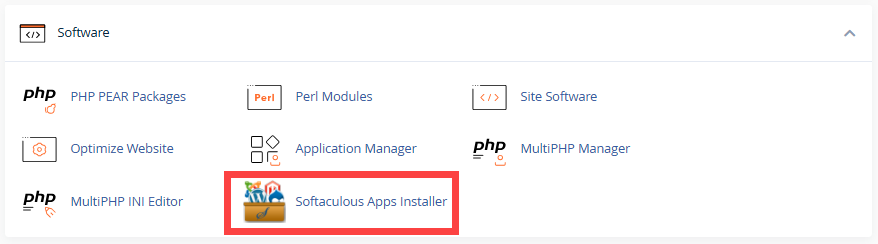
- From the cPanel dashboard, locate and click Softaculous Apps Installer.
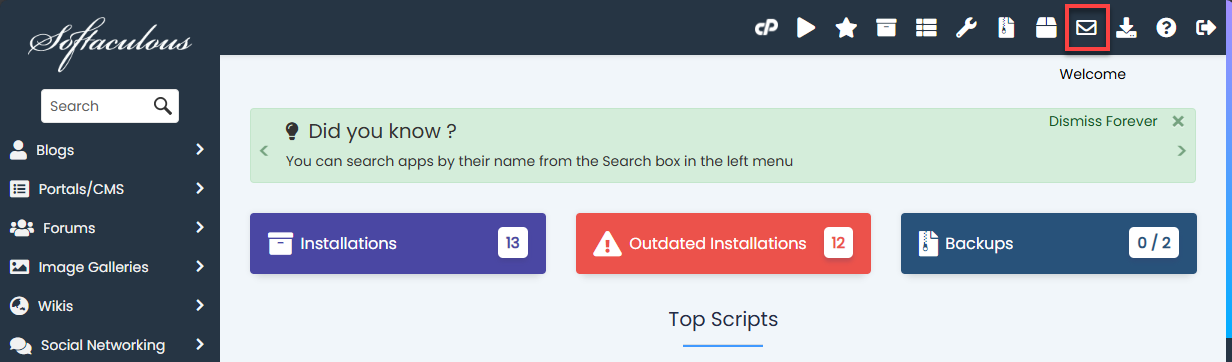
- On the Softaculous Home page, click Email Settings.
- Under Manage Your Email Settings, uncheck the boxes for the notifications you want to disable:
Available Email Options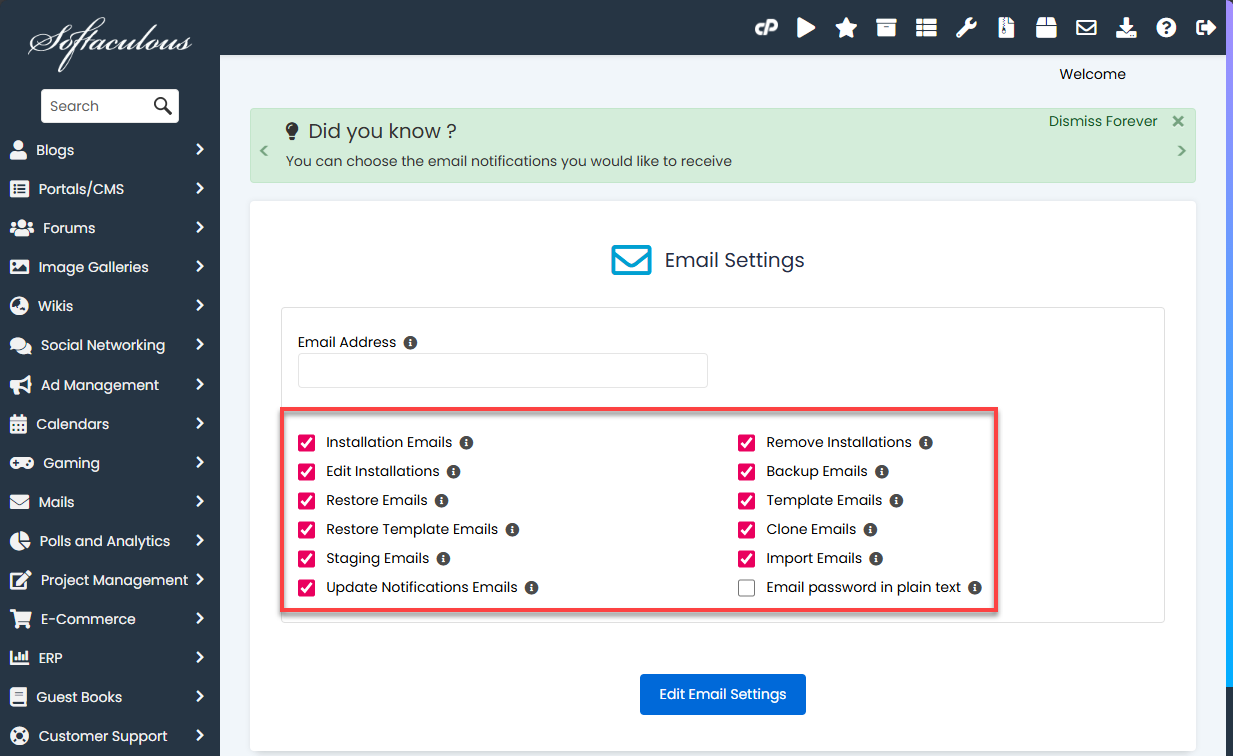
- Installation Emails – Disable alerts when installing a script
- Remove Installations – Disable alerts when uninstalling scripts
- Edit Installations – Disable alerts for installation edits
- Restore Emails – Disable restore confirmation emails
- Template Emails – Disable email alerts for new template creation during setup
- Restore Template Emails – Disable email notification when restoring template
- Clone Emails – Disable alerts when cloning installation
- Backup Emails – Disable backup notification emails
- Clone Emails – Disable clone installation emails
- Staging Emails – Disable staging environment notifications
- Import Emails – Disable alerts when importing scripts
- Update Notification Emails – Disable notifications for ALL available updates
- Email password in plain text - Disable plain‑text password emails for installs, clones, and other actions.
- Click Edit Email Settings to apply and save your new configuration.
Your Softaculous email notifications are now disabled.
When Should You Disable These Emails?
Disabling Softaculous email notifications is useful if:
- You manage multiple websites or scripts
- You prefer manual checks instead of alerts
- You want reduced inbox clutter
- Updates are handled by administrators or automation tools
Summary
Softaculous email notifications can be helpful, but they’re not always necessary. By adjusting the Email Settings in your cPanel Softaculous dashboard, you can easily control or fully disable alerts for installations, backups, restores, updates, staging, and template actions. This ensures a cleaner inbox while keeping full control over your scripts.
If you need further assistance, Bluehost Chat Support is available 24 hours a day, 7days a week while Bluehost Phone Support is available 7 days a week from 7 am-12 midnight EST.
- Chat Support - While on our website, you should see a CHAT bubble in the bottom right-hand corner of the page. Click anywhere on the bubble to begin a chat session.
- Phone Support -
- US: 888-401-4678
- International: +1 801-765-9400
You may also refer to our Knowledge Base articles to help answer common questions and guide you through various setup, configuration, and troubleshooting steps.