 ChatGPT,
  Claude,
  Gemini,
  Grok — all four for
 How to Execute PHP in HTML Files on Bluehost
By default, web servers only process PHP code in files with a .php extension. If you want to execute PHP in HTML files, additional configuration is required so the server treats .html files as PHP scripts.
This is considered an advanced setup and is not typically required for most websites.
Should You Run PHP in HTML Files?
Before proceeding, it’s important to understand best practices.
- PHP is designed to run in .php files
- HTML files are not processed server-side by default
- Running PHP in .html files forces the server to process all HTML files as PHP
Because of this, Bluehost recommends:
- Using .php files whenever possible
- Only use this method if you cannot change existing file extensions
Running PHP in HTML files may impact performance since all .html files must be processed by the server.
Why Use PHP in HTML Files?
You may need to execute PHP in HTML files if:
- You are working with an existing website built in .html
- Changing file extensions could break links or scripts
- You want to add server-side functionality (forms, authentication, dynamic content)
PHP enables features like:
- Form processing
- Database connections
- Dynamic content generation
How to Execute PHP in HTML Files on Bluehost
To enable PHP execution in .html files, you must modify your .htaccess file.
- Log in to your Bluehost Portal.
- Click Hosting in the left-hand menu.
- In the hosting details page, click the File Manager button.
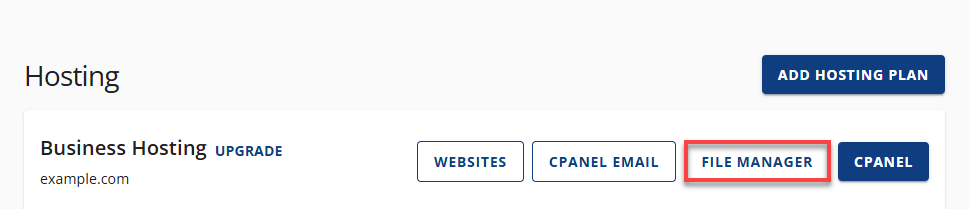
- Your File Manager will open in a new tab.
- Search for the Settings button in your screen's upper right corner.
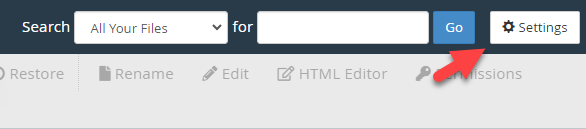
- The Preferences window will appear on your screen. Switch on the radio button for Show Hidden Files (dotfiles). Once you're done, click Save.
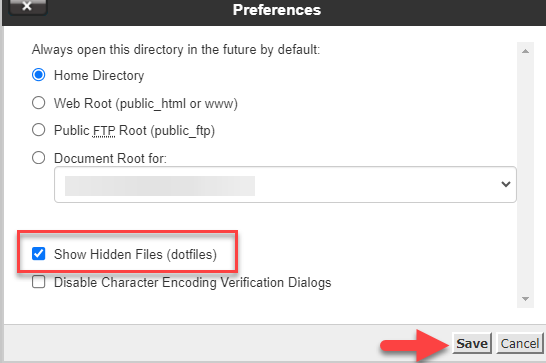
- Find the .htaccess file in the list of files, right-click on it, and choose the Edit option.
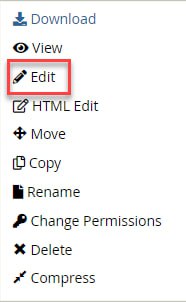
- At the top of the file, add the PHP handler corresponding to the version you desire to use. If there's an existing handler in the file, remove it or substitute it with your preferred handler.
AddHandler application/x-httpd-php .html .htmThis tells the server to process .html and .htm files as PHP.
Some configurations may require specifying a PHP version (e.g., php81, php82).Below are the available PHP handlers for each version:
- PHP 7.4
#php – BEGIN cPanel-generated handler, do not edit #Set the “ea-php74” package as the default “PHP” programming language. <IfModule mime_module> AddHandler application/x-httpd-ea-php74___lsphp .php .php7 .phtml </IfModule> #php – END cPanel-generated handler, do not edit - PHP 8.0
#php – BEGIN cPanel-generated handler, do not edit #Set the “ea-php80” package as the default “PHP” programming language. <IfModule mime_module> AddHandler application/x-httpd-ea-php80___lsphp .php .php8 .phtml </IfModule> #php – END cPanel-generated handler, do not edit - PHP 8.1
#php – BEGIN cPanel-generated handler, do not edit #Set the “ea-php81” package as the default “PHP” programming language. <IfModule mime_module> AddHandler application/x-httpd-ea-php81___lsphp .php .php8 .phtml </IfModule> #php – END cPanel-generated handler, do not edit - PHP 8.2
#php – BEGIN cPanel-generated handler, do not edit #Set the “ea-php82” package as the default “PHP” programming language. <IfModule mime_module> AddHandler application/x-httpd-ea-php82___lsphp .php .php8 .phtml </IfModule> #php – END cPanel-generated handler, do not edit - PHP 8.3
                    #php – BEGIN cPanel-generated handler, do not edit
                    #Set the “ea-php83” package as the default “PHP” programming language.
                    <IfModule mime_module>
                      AddHandler application/x-httpd-ea-php83___lsphp .php .php8 .phtml
                    </IfModule>
                    #php – END cPanel-generated handler, do not edit
- PHP 7.4
- Upload and test it by editing an HTML file to include a PHP code:
<?php echo "PHP is working!"; ?> - Visit the page in your browser to confirm it executes correctly.
Important Considerations
Before implementing this setup, keep the following in mind:
- Performance impact: All HTML files will be processed as PHP
- Security risks: Improper configuration may expose vulnerabilities
- Compatibility issues: Some scripts or caching systems may be affected
For most users, converting files to .php is the safer and more efficient approach.
Troubleshooting PHP Execution Issues
If your PHP code does not execute:
- Ensure PHP is enabled on your hosting account
- Check for syntax errors in your PHP code
- Confirm your .htaccess file is correctly formatted
- Review our troubleshooting article Troubleshooting PHP Pages that Do Not Display
If PHP stops working, it may be due to process limits or server configuration issues.
When to Use an Alternative Approach
Instead of executing PHP in HTML files, consider:
- Renaming files from .html to .php
- Using PHP includes within .php files
- Structuring your site with proper server-side scripting
These approaches are more efficient and easier to maintain.
Summary
To execute PHP in HTML files on Bluehost, you must configure your .htaccess file to treat .html files as PHP scripts. While this allows you to add dynamic functionality to existing HTML pages, it is not recommended for most use cases due to performance and security considerations. When possible, use .php files for better compatibility and efficiency.
If you need further assistance, Bluehost Chat Support is available 24 hours a day, 7days a week while Bluehost Phone Support is available 7 days a week from 7 am-12 midnight EST.
- Chat Support - While on our website, you should see a CHAT bubble in the bottom right-hand corner of the page. Click anywhere on the bubble to begin a chat session.
- Phone Support -
- US: 888-401-4678
- International: +1 801-765-9400
You may also refer to our Knowledge Base articles to help answer common questions and guide you through various setup, configuration, and troubleshooting steps.