 ChatGPT,
  Claude,
  Gemini,
  Grok — all four for
How to Locate My Server Address
The server address is categorized into two: External and Internal Address. You may see your server address in many of our articles in many different ways, as shown in the tables below.
Here are some common terminologies you will find useful and may encounter in other support articles
External Address
The external address (public) allows you to connect your computer to an Internet Service Provider (ISP), which then allows access to websites around the world.
Sample Uses: Connect from your computer, from another server, or from your phone to your FTP, cPanel, or email.
| Server IP Address |
This will often not be the same IP address your website uses and should NOT ever be used for an A record when setting up DNS for a domain. |
| Server Name or Hostname | This is the fully qualified domain name of your server. |
| Shared IP Address, or Control Panel IP Address |
This is the IP address linked to your control panel or website. How you find it depends on your hosting package and control panel type. Note: This is the IP where you should point your website to (A records). |
| exampledomain.tld (yourdomain.ext, example.net, etc.) | This serves as a placeholder that indicates any domain you have installed in your control panel and correctly pointed to your server by either using our name servers or the Shared IP via third-party DNS. |
Internal Address
Those on the same network can only use the internal address (private).
Sample Use: WordPress plugins trying to connect to your email account or any application or software that needs access to your server's database.
Where is my Server Address?
For these hosting packages, you will find your server address (Server Name or Shared IP Address) in your Bluehost Portal, and cPanel.
How to find your IP address in the Bluehost Portal
- Log in to your Bluehost Portal.
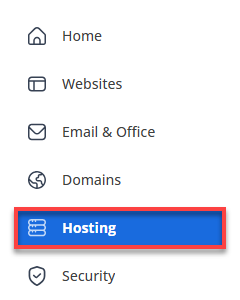
- In the left-hand menu, click Hosting, then select My Plans.
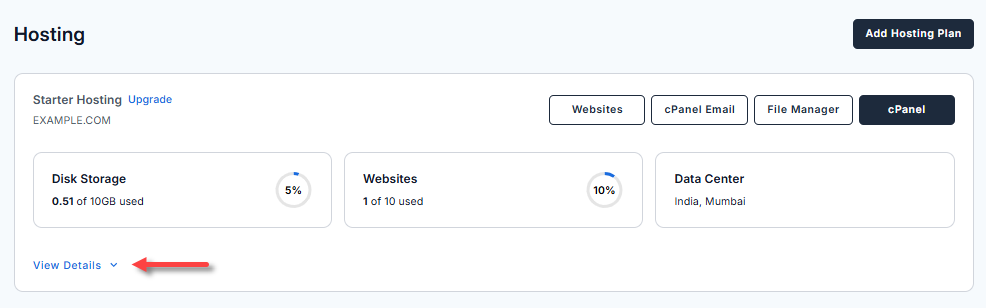
- Expand the View Details dropdown.
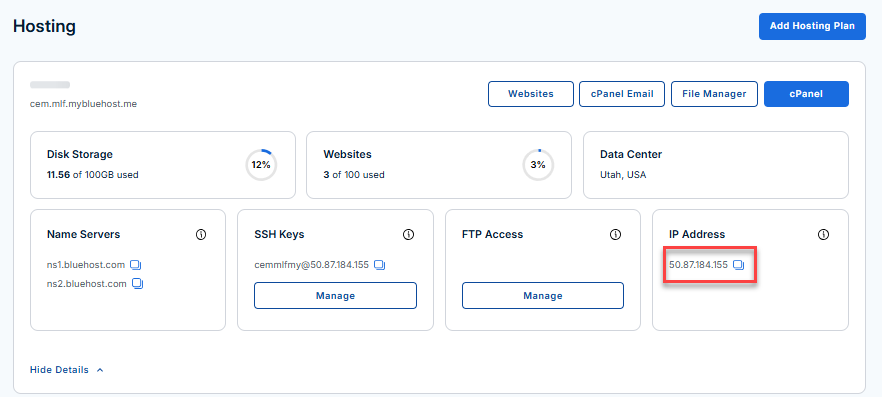
- Your IP address will be displayed in the IP Address card.
How to find the Shared IP in your cPanel
- Log in to your Bluehost Portal.
- In the left-hand menu, click Hosting, then select My Plans.
- On the hosting details page, click the cPanel button.

- Your cPanel will open in a new tab.

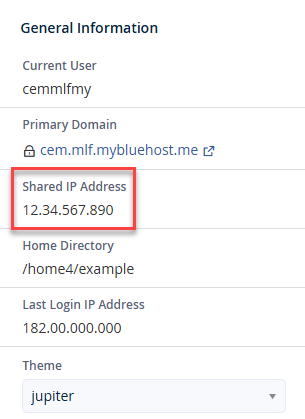
- Your IP address will be displayed in the General Information section.
Summary
In summary, understanding the different types of server addresses and where to find them helps ensure proper connectivity and configuration.
If you need further assistance, Bluehost Chat Support is available 24 hours a day, 7days a week while Bluehost Phone Support is available 7 days a week from 7 am-12 midnight EST.
- Chat Support - While on our website, you should see a CHAT bubble in the bottom right-hand corner of the page. Click anywhere on the bubble to begin a chat session.
- Phone Support -
- US: 888-401-4678
- International: +1 801-765-9400
You may also refer to our Knowledge Base articles to help answer common questions and guide you through various setup, configuration, and troubleshooting steps.