 ChatGPT,
  Claude,
  Gemini,
  Grok — all four for
 How to Manage DNSSEC for Your Domain on Bluehost
DNSSEC (Domain Name System Security Extensions) is a protocol that helps protect your domain by allowing DNS resolvers to verify that DNS responses are authentic and have not been altered. It adds an extra layer of trust to DNS lookups, helping reduce the risk of certain DNS-based attacks.
While DNSSEC does not protect against every type of online threat, it plays an important role in strengthening DNS security and helping applications and services rely on validated DNS data.
How to Manage DNSSEC
Bluehost allows you to enable or disable DNSSEC for supported domains directly from the Bluehost Portal.
Note DNSSEC may not be available for all domains. If you do not see the DNSSEC option in the DNS tab, your domain extension or current DNS configuration may not support DNSSEC management through Bluehost. Contact support for additional assistance.
Warning If you plan to change your nameservers or manage DNS with another provider, disable DNSSEC before making the change. Leaving DNSSEC enabled when DNS is managed elsewhere can cause your domain to stop resolving correctly.
To enable or disable DNSSEC for your domain:
- Log in to your Bluehost Portal.
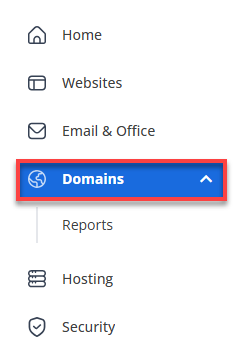
- In the left-hand menu, click Domains.
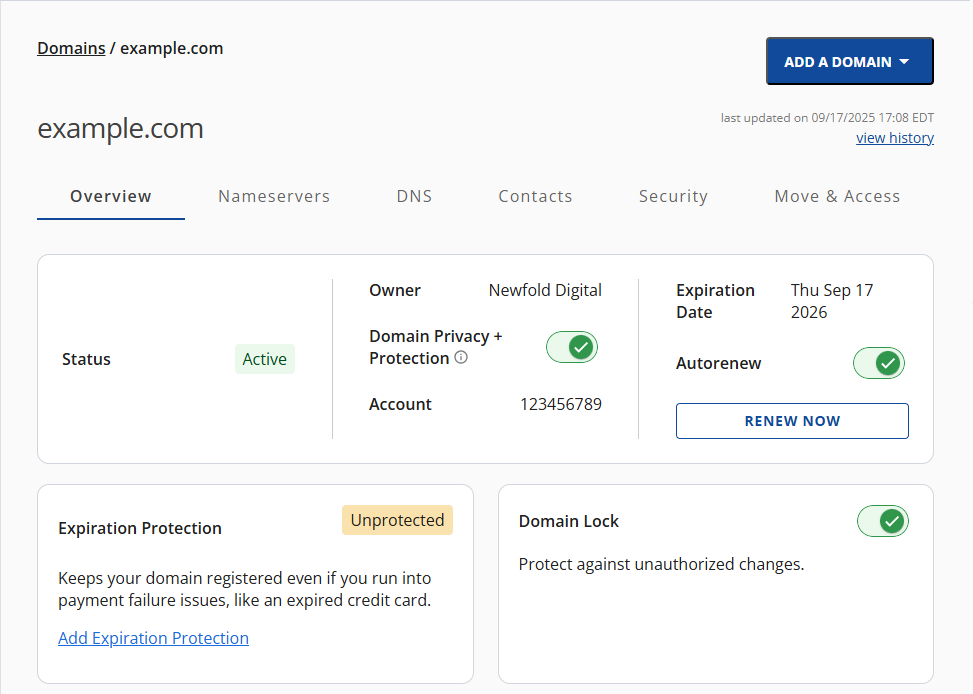
- If you have one domain in your account, you will be taken directly to the domain management panel.
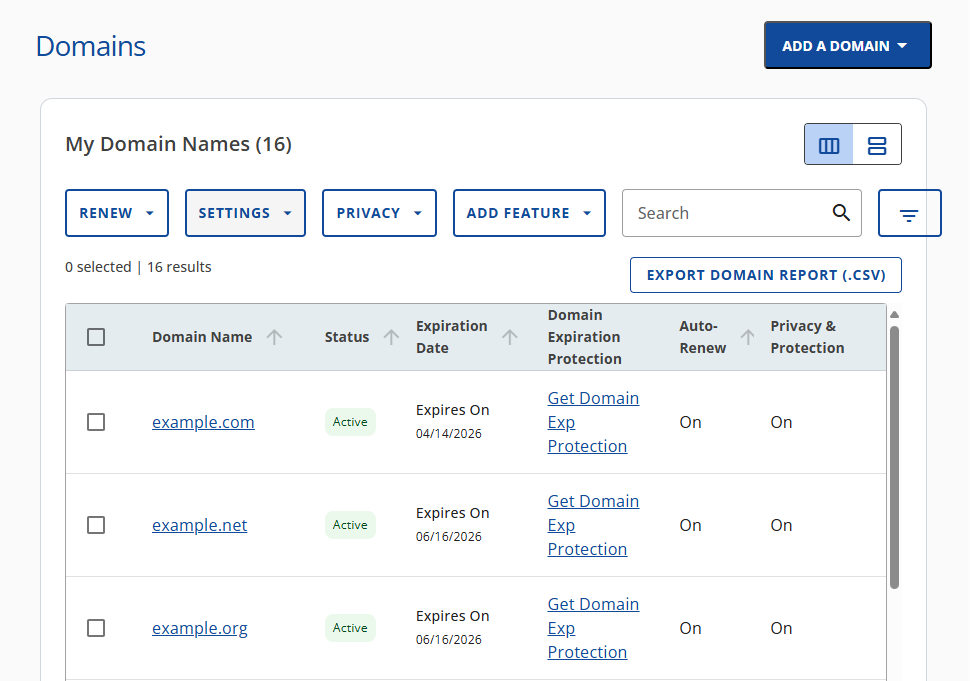
- If you have multiple domains in your account, click the domain you wish to manage to access the domain management panel.
- If you have one domain in your account, you will be taken directly to the domain management panel.
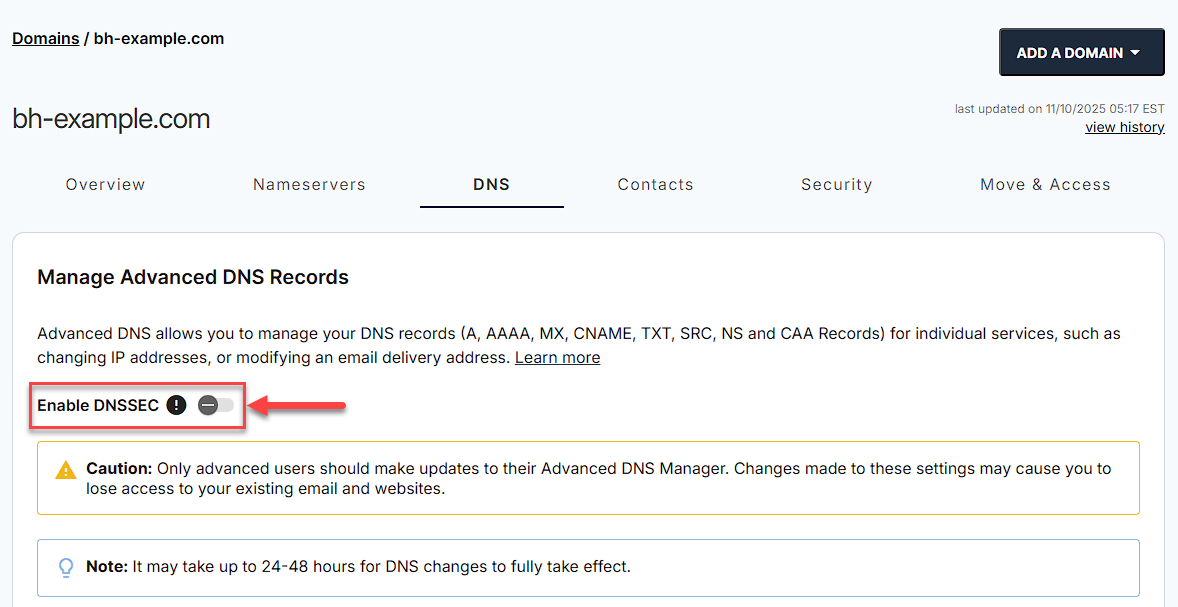
- Click the DNS tab.

- To enable or disable DNSSEC, click the toggle button.
- In the pop-up box, click the ENABLE or DISABLE button to continue.
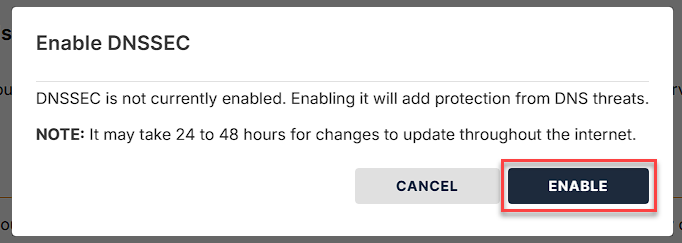
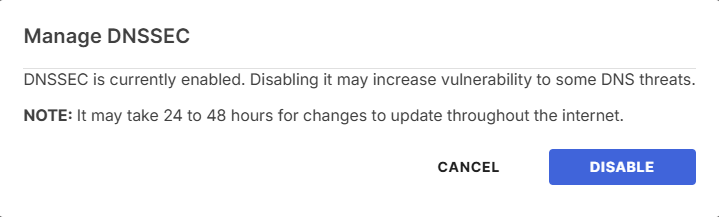
Note It may take 24 to 48 hours for changes to update throughout the internet.
Summary
DNSSEC helps improve domain security by allowing DNS resolvers to verify that DNS responses are authentic and have not been altered. You can manage DNSSEC directly from the DNS tab in your Bluehost Portal. After enabling or disabling DNSSEC, allow 24 to 48 hours for DNS changes to propagate before testing.
If you need further assistance, Bluehost Chat Support is available 24 hours a day, 7days a week while Bluehost Phone Support is available 7 days a week from 7 am-12 midnight EST.
- Chat Support - While on our website, you should see a CHAT bubble in the bottom right-hand corner of the page. Click anywhere on the bubble to begin a chat session.
- Phone Support -
- US: 888-401-4678
- International: +1 801-765-9400
You may also refer to our Knowledge Base articles to help answer common questions and guide you through various setup, configuration, and troubleshooting steps.