 ChatGPT,
  Claude,
  Gemini,
  Grok — all four for
 How to Remove Malware from Your WordPress Site
In this article, we'll provide you with a step-by-step guide on how to remove malware from WordPress websites manually and secure your site against future attacks. You'll learn how to diagnose the issue and take the necessary steps to protect your website from future attacks.
Signs Your WordPress Site Is Compromised
Here are some indicators that your WordPress site has been compromised.
- Viewer Complaints - Users are reporting that they are being redirected to malicious or spammy websites. It is important to listen to these complaints, as these hacks may only display spammy content if you identify as the site administrator.
- Hidden Spam - Spam is often inserted into the site's header or footer, including ads for pornography, drugs, or illegal services. This kind of content can be disguised, appearing as dark text on a dark background, making it difficult for site owners to notice while remaining visible to search engines.
- Google Search Issues - Searching for your website on Google may reveal unfamiliar pages or harmful material.
- Hosting Provider Notifications - Your hosting provider notifies you that your website is engaging in malicious or spammy behavior. For example, if your host informs you that they are receiving reports of spam emails containing a link to your website, there is a problem.
How to Manually Remove Malware from Your WordPress Site
If your website has been hacked and you notice unusual behavior or have been blacklisted by Google, it's important to act quickly to minimize potential losses. The first step is to promptly remove any malware from your website.
Step 1: Back up Website Files and Database
Important! Make sure your backup is malware-free. If you have a pre-infection backup, prefer using that for restoration.
You have several options for backing up your website files. We recommend checking the Backups tab in your Bluehost Portal to determine which option works best for you. For more information, please refer to the article.
Bluehost also offers Basic Weekly Backup and Jetpack, a premium backup service for enhanced security.
If you prefer to create a manual backup, you can use an FTP client, such as FileZilla, to download your site's core files.
Helpful guides:
Step 2: Examine the Backup Files
You may want to check your backup files. Unzip your backup file and look for the following essential files and folders.
- WordPress Core Files - These are the main files that enable WordPress to function. Some of these core files are index.php, wp-login.php, etc. You can check if these files are intact by comparing them to a fresh download of the same WordPress version from WordPress.org.
- wp-config.php File - This is a very important file. It has your WordPress site's database connection details, such as the database name, username, and password. You will need this file to restore and connect your site to your database.
- wp-content Directory - Make sure you have these sub-folders inside your wp-content folder.
- themes - Contains all themes you've installed.
- plugins - Contains all plugins you've installed.
- uploads - Contains all media, such as images and documents, you've uploaded into your WordPress site.
- Database Backup - Check if you have an SQL file. The .sql file contains the export of your database repository.
- .htaccess File - The .htaccess file is an Apache file that controls important rules for your permalinks and server. It guides how your website operates by using these rules to manage content delivery.
Step 3: Uninstall WordPress
You can use the Remove WordPress functionality under the Bluehost Portal's Advanced tab to completely uninstall WordPress in your Bluehost hosting account.
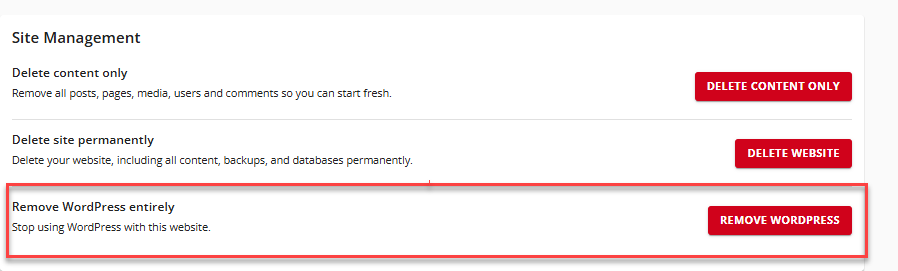
Please note that using this functionality will also delete all files in your site's document root.
You can check out the How to Uninstall WordPress article for the complete instructions.
Step 4: Reinstall WordPress
Once the old WordPress site is uninstalled, you can now install a new WordPress instance through your Bluehost Portal's Add Website functionality.
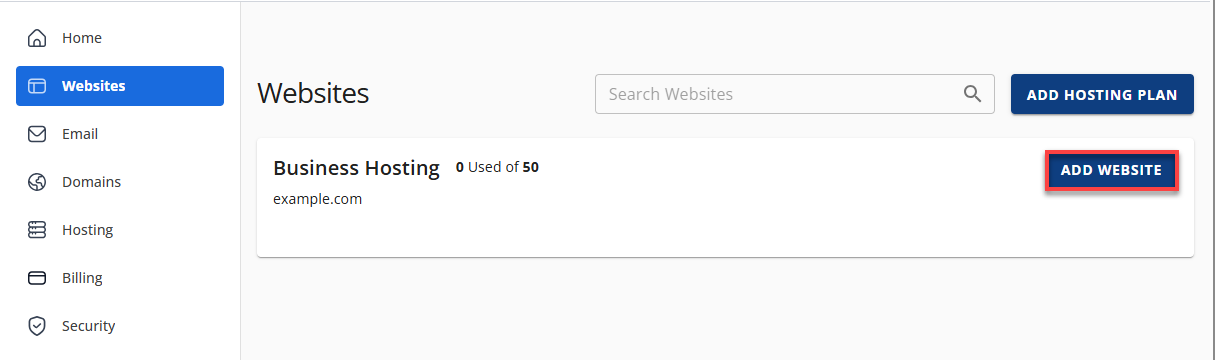
Here is an article to guide you with the re-installation: How to Install WordPress Using the Bluehost Portal.
If you prefer to manually install WordPress, you can do so. Please visit the How to Install WordPress - WordPress Manual Installation article for the instructions.
Step 5: Password and Permalink Recovery
Access your WordPress dashboard to recover all usernames and passwords. If you discover any unknown users, then your database has been hacked. You should call a specialist to ensure that no malicious code has been left behind.
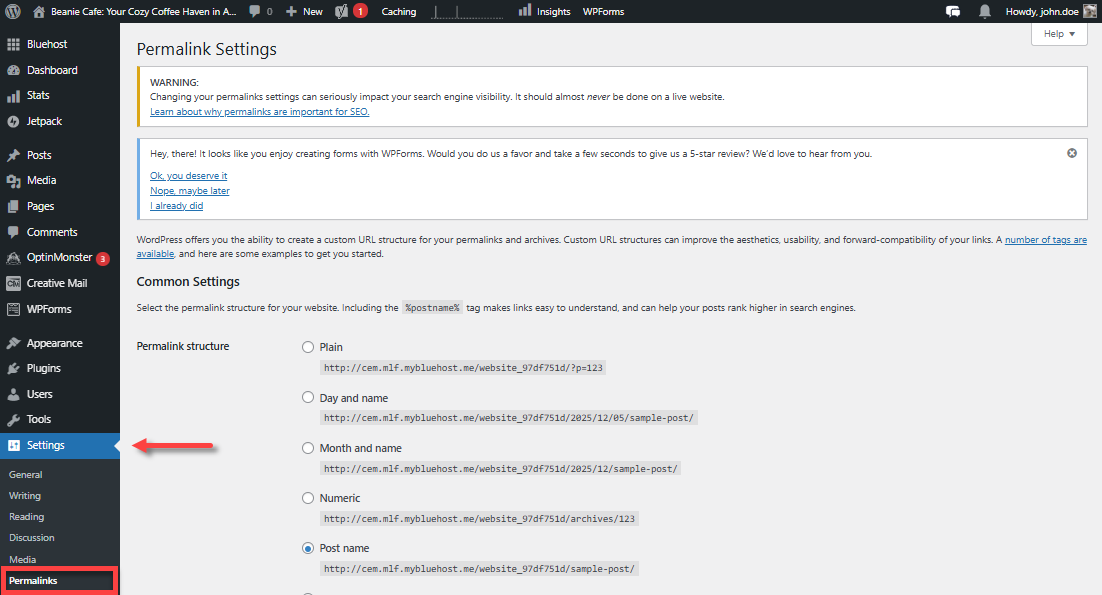
Check your permalinks in your WordPress dashboard. Navigate to the Settings tab, then to the Permalinks section. Save the current settings to refresh the permalink structure.
Step 6: Reinstall Themes and Plugins
To ensure the safety and functionality of your website, reinstall all your plugins directly from official sources or download them from reputable developers of premium plugins. Avoid installing outdated plugins that are no longer supported, as this can lead to security vulnerabilities.
Reinstall your theme from a trusted source. If you have made modifications to the theme files, consult your backup files and replicate your changes on a fresh copy of the theme. Avoid using an outdated theme, as it is difficult to determine if any files have been compromised.
Step 7: Upload Backup Media Files
The next step is to upload the content of your "old" wp-content folder to the "new" wp-content folder of your fresh WordPress installation. These files should be free from compromised files.
To accomplish this, double-check that each folder in your backup contains only picture files and no PHP scripts, JavaScript files, or other things you did not add to your Media Library.
Step 8: Configure WordPress Security
We recommend using a security service, such as Bluehost Malware Protection, to scan your WordPress site.
You may also want to set up correct file permissions in your document root. Files should be 444, and folders are set to 755.
How to Secure Your WordPress Site
Malware attacks on websites are becoming increasingly common these days. They can cause data breaches, theft of sensitive information, and damage a website's reputation. Therefore, it is important to take proactive measures to prevent malware attacks. Here are some ways to increase website security and prevent such attacks:
- Keep the Website Software Up-to-Date - Make sure all the software, including WordPress and PHP versions, plugins, and themes, are updated regularly. This ensures that any vulnerabilities in the software are fixed, preventing attackers from exploiting them.
- Use Strong Passwords - Use complex and unique passwords for all user accounts, including admin accounts. This makes it harder for attackers to gain access to your website.
- Install an SSL Certificate - SSL encrypts communication between your site and visitors, boosting both security and SEO. Bluehost provides free SSL certificates for all domains. You may need to enable it manually in some cases.
- Use a Web Application Firewall (WAF) - A WAF filters malicious traffic and prevents attacks, such as SQL injections and cross-site scripting (XSS). Tools, such as the Bluehost Malware Protection ThreatShield Smart WAF, are offered by Bluehost.
- Back up your Site Regularly - Set up automated backups so you can restore your site quickly if needed. Services like Basic Weekly Backup and Jetpack provide daily backups and monitoring to keep your website safe.
Summary
Removing malware from your WordPress site can be stressful, but it’s important to act quickly to reduce potential losses. By following the steps in this article, you can effectively remove malware and secure your site. To prevent future attacks, keep your software updated, use strong passwords, install an SSL certificate, use a web application firewall, and back up your site regularly.
Always be vigilant and take website security seriously to protect your site and visitors from harm.
If you need further assistance, Bluehost Chat Support is available 24 hours a day, 7days a week while Bluehost Phone Support is available 7 days a week from 7 am-12 midnight EST.
- Chat Support - While on our website, you should see a CHAT bubble in the bottom right-hand corner of the page. Click anywhere on the bubble to begin a chat session.
- Phone Support -
- US: 888-401-4678
- International: +1 801-765-9400
You may also refer to our Knowledge Base articles to help answer common questions and guide you through various setup, configuration, and troubleshooting steps.