 ChatGPT,
  Claude,
  Gemini,
  Grok — all four for
Purchase a Self-Managed VPS with Claude Code Installation
Claude Code changes the game by bringing a powerful AI coding partner directly into your command line, allowing you to fix bugs, automate repetitive tasks, and manage your entire project without ever breaking your focus. To get the best performance and total control over this tool, pairing it with a Self-Managed VPS is the way to go. This guide will walk you through exactly why this setup is a must-have for your workflow and show you how to get everything up and running on a Bluehost VPS in just a few simple steps.
To get the most out of Claude Code, consider a Self-Managed VPS hosting plan for better control and performance.
Why Use Claude Code?
Stop jumping between your code and your browser just to get help. Claude Code puts a smart assistant directly inside your terminal, allowing you to fix bugs, manage complex tasks, and search through large projects without ever leaving your workspace. By keeping everything in one place, it cuts out the distraction of switching windows and helps you stay focused on building your project.
Uses of Claude Code
Claude Code helps you manage your project from start to finish:
- Explore Your Project: Manage customer relationships, track leads, and automate sales workflows.
- Fix Bugs Faster: When you hit an error, Claude can investigate the cause, suggest a fix, and even run the code to make sure it actually works.
- Automate Big Changes: Update your entire codebase at once—like renaming variables or restructuring folders—while keeping everything consistent.
- Write and Run Tests: Automatically create tests for your new features and run them in the terminal to catch mistakes early.
- Handle Git Tasks: Claude can help you stage your changes, write clear commit messages, and prep your work for a pull request.
- Manage Your System: Manage your system by running scripts, installing libraries, or organizing files with just simple commands.
The platform’s deep integration with the developer's local environment makes it an indispensable tool for engineers looking to maximize their output and maintain a flow state during complex builds.
How to Purchase a Self-Managed VPS with Claude Code Installation
To get started with Claude Code on Bluehost, you first need to purchase a Self-Managed VPS plan. Follow the steps below:

New to VPS or not sure where to start? No worries! At the top of the Self-Managed VPS purchase page, you’ll see the Pre-configured Setup section. This handy feature is perfect if you’re feeling a bit unsure—just pick the type of project you want, like WordPress Site, AI Agent/Claude Code, Dev/Staging, or eCommerce Store. We’ll take care of the rest by automatically filling in the best plan, operating system, and template for you.
- Super simple for beginners or anyone who just wants a quick setup
- Instantly get the recommended settings for your project
- Skip the guesswork and save time
- You can still customize things later if you want
- In your browser, go to https://www.bluehost.com/vps-hosting.
- Click the Choose Plan button for the Self-Managed VPS hosting plan you prefer.
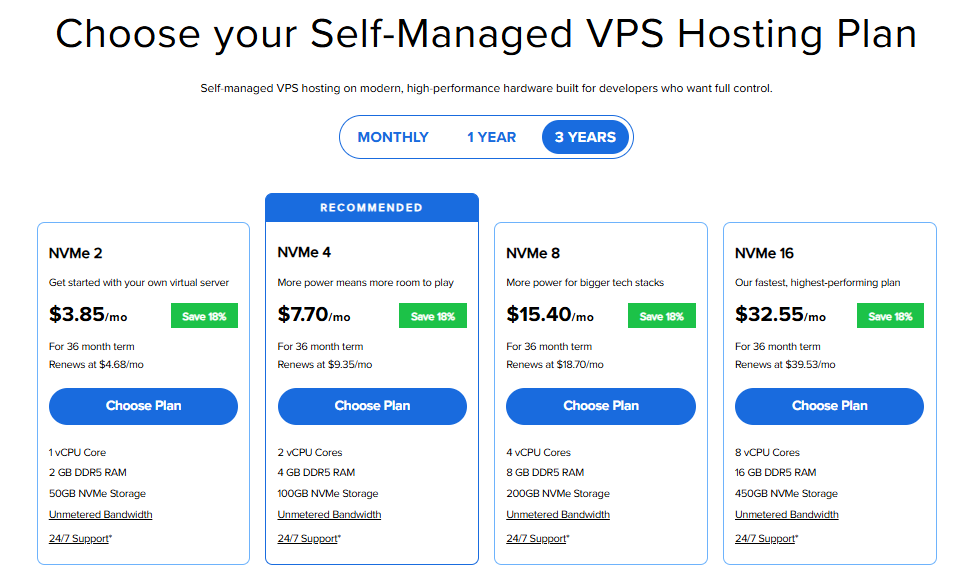
Pricing is subject to change. Please visit https://www.bluehost.com/vps-hosting for the current introductory/sign-up offer for Bluehost Self-Managed VPS Hosting. For the most up-to-date renewal pricing, visit your Bluehost Portal's Renewal Center. - Select your preferred Data Center location.

- On the Cart page, you can configure your server to fit your needs in the following section:
- Hardware:
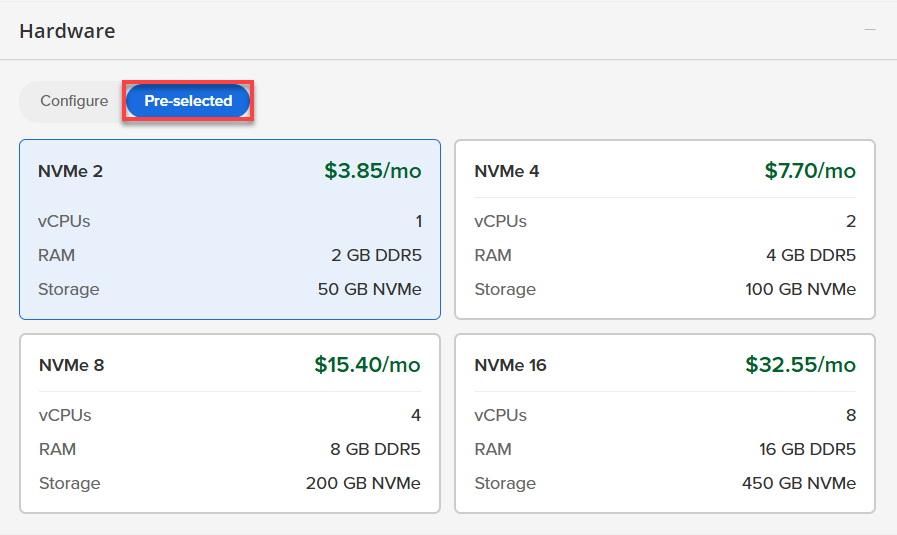
- Pre-selected:
You can select a different Self-Managed VPS plan in this section.
- Configure:
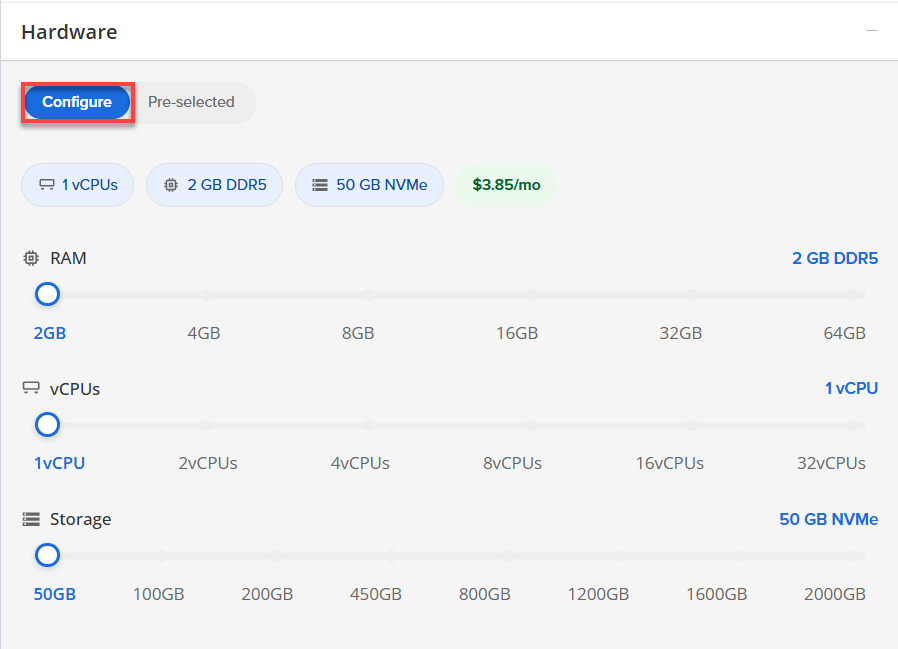
Click Configure to customize your package.
Note that your changes help customize your plan, and the overall cost will adjust accordingly to fit your needs.
- Pre-selected:
- Software:
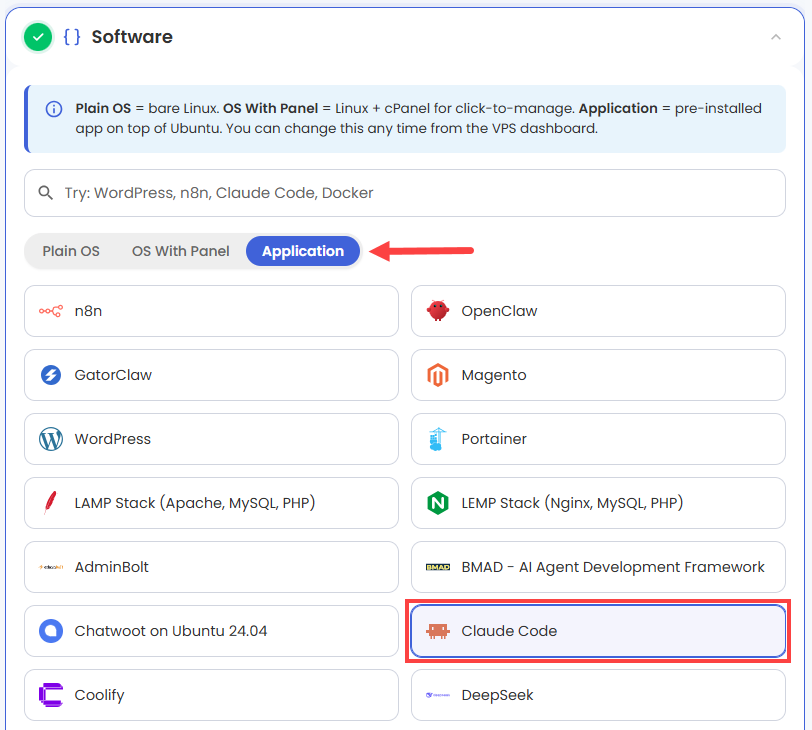
If the selected plan does not meet the app's minimum requirements, the app will be grayed out.
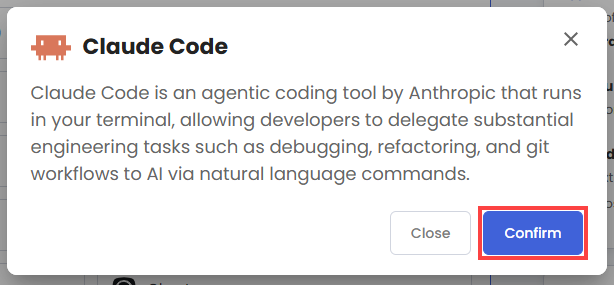
- Click the Application tab.
- Select Claude Code.
- In the pop-up, click Confirm.
- Hardware:
- Add-Ons: You can add Premium Support here, which gives you priority access to expert assistance and faster response times.

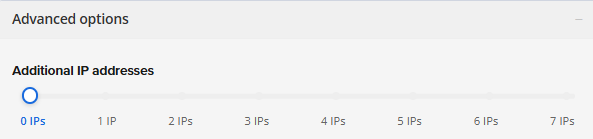
- In the Advanced options:
- Extra IP's: You can add extra IP addresses for an additional fee.
Pricing changes based on how many IPs you add. - Hostname: Assign a custom hostname to easily identify your server. This is optional.
- Extra IP's: You can add extra IP addresses for an additional fee.
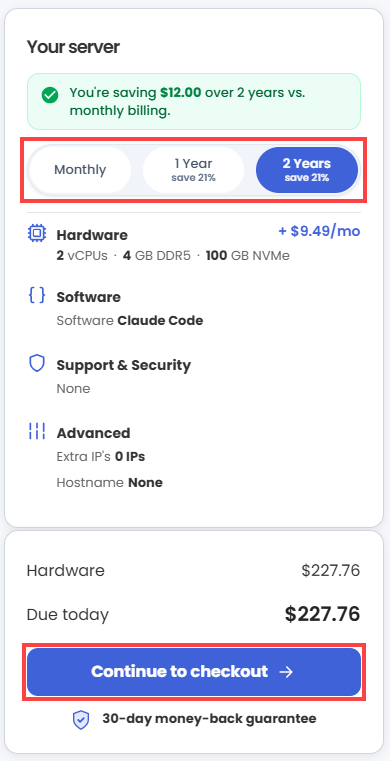
- Next, select your preferred billing term and review your Order Summary, then click Continue to Checkout.
- Do the following on the Checkout page:
If you're new with Bluehost:
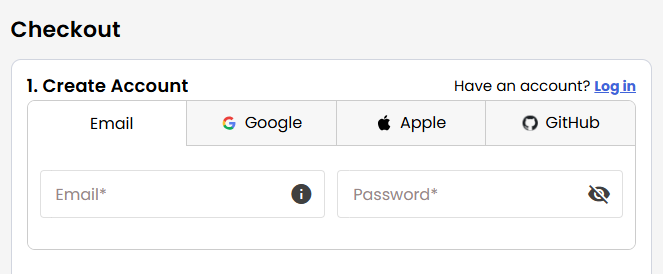
- Create your Bluehost account by using your email address or by connecting with your Google, Apple, or GitHub account — whichever you prefer!
- Select your preferred payment method: credit card, Google Pay, or PayPal. Enter your billing information.
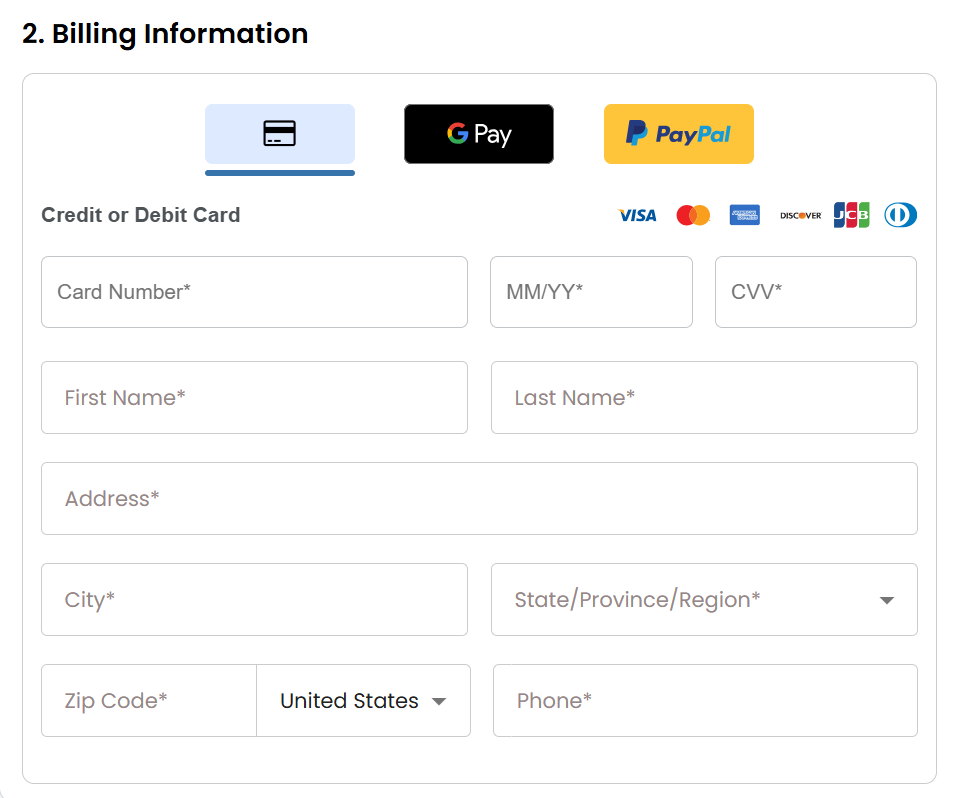
If you have an account with us, you will see your Bluehost login details when you are logged into your Bluehost Portal. If you are not logged in, please click the Log In link.
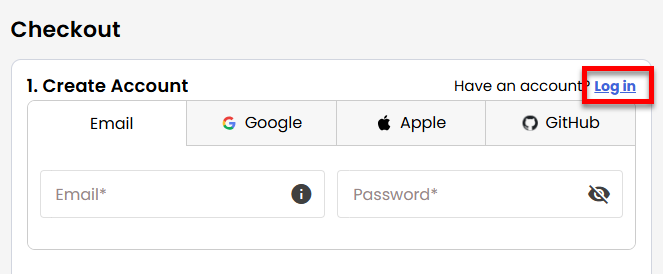
- Create your Bluehost account by using your email address or by connecting with your Google, Apple, or GitHub account — whichever you prefer!
- In the Shopping Cart section, you can still adjust your billing term if needed.
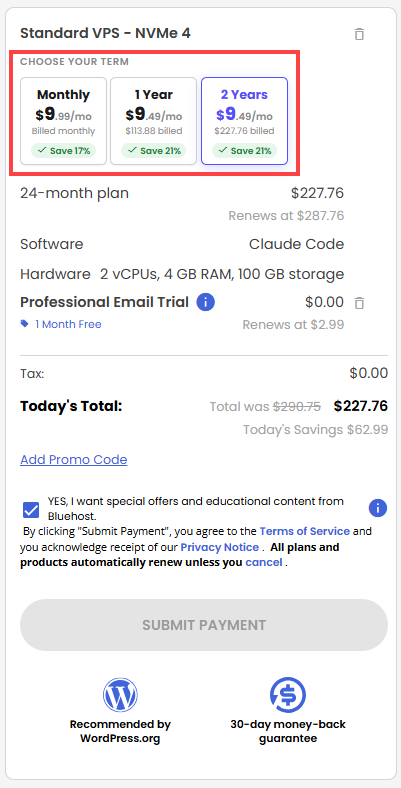
- Review the items in your cart, add a Promo Code if you have one, and then click Submit Payment to complete the purchase.
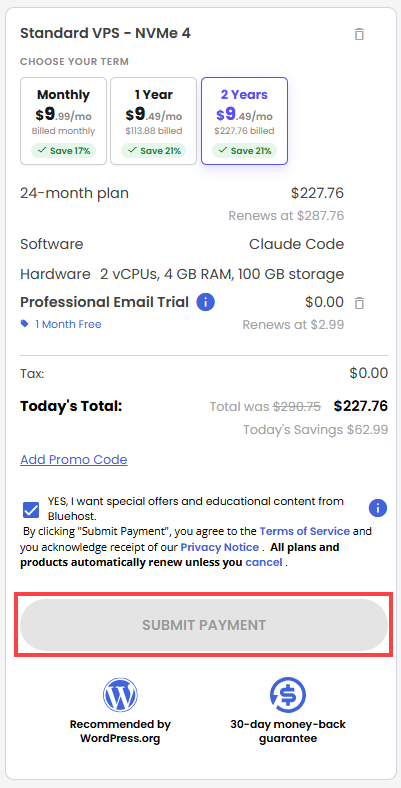
After completing the purchase, your VPS hosting will begin provisioning. You can access and manage your new VPS hosting in the Hosting tab of your Bluehost Portal.
How to Get and Set Up Your Anthropic API Key
To use Claude Code on your Bluehost Self-Managed VPS, you'll need to supply an Anthropic API Key (ANTHROPIC_API_KEY). This key allows your server to securely connect to the Claude API.
Quick Start:
When you log in to your server for the first time via SSH, you're greeted with a welcome message that includes all the essential commands and instructions for setting up your Anthropic API key right in your terminal. This message makes it easy to follow the setup process step-by-step.
For example, after connecting via SSH, you'll see:
Welcome to Ubuntu 24.04.4 LTS (GNU/Linux 6.8.0-111-generic x86_64)
********************************************************************************

Claude Code Ubuntu 24.04 image is installed and ready.

ANTHROPIC_API_KEY is not configured yet.

Set it for current shell:
  export ANTHROPIC_API_KEY="sk-ant-..."

Persist it for root:
  echo 'export ANTHROPIC_API_KEY="sk-ant-..."' >> /root/.profile
  source /root/.profile

Verify installation:
  claude --version

Start Claude Code:
  claude

Documentation:
  /root/README.md

********************************************************************************
Where to get your API key:
- Go to the Anthropic Console and sign up for an account.
- Navigate to the API Keys or Account Settings section and create a new API key.
(Your API key will look similar to:sk-ant-xxxxxxxxxxxxxxxx) - Copy this key. Keep it safe — do not share your real API key with others.
Creating an Anthropic account is free. However, generating an API key and accessing Claude typically requires entering billing information and may incur charges. Please refer to Anthropic's pricing page for current details.
How to set your API key
Once you have your key, add it to your server environment using the commands displayed in your welcome message, or use the following:
- For the current terminal session (temporary):
export ANTHROPIC_API_KEY="sk-ant-xxxxxxxxxxxxxxxx"
- To persist the key (recommended):
echo 'export ANTHROPIC_API_KEY="sk-ant-xxxxxxxxxxxxxxxx"' >> /root/.profile source /root/.profile
- Verify Claude Code is installed:
Expected output:claude --version
Claude Code CLI version 1.2.3 - Start Claude Code:
Expected prompt:claude
claude>
Error: ANTHROPIC_API_KEY not set. Please export your API key and try again.For advanced usage or troubleshooting, see the local documentation on your server:
cat /root/README.md
Additional Information and Example Documentation Output
When you run the following command to check the local documentation:
Sample output:
Last login: Wed Jun  3 14:08:04 2026 from 203.0.113.5
root@server-123456:~# cat /root/README.md
# Claude Code

## Description

Claude Code is an agentic coding tool by Anthropic that runs in your terminal, allowing developers to delegate substantial engineering tasks such as debugging, refactoring, and git workflows to AI via natural language commands.

## Services

- SSH on port 22 (protected by UFW)
- Claude Code CLI available in terminal sessions

## Links

- Claude Code Installation: https://claude.ai/install.sh
- Anthropic Claude: https://www.anthropic.com/claude
- Node.js: https://nodejs.org/

## What's Included

- Ubuntu 24.04 minimal base image
- Node.js 22.x from NodeSource repository
- Claude Code CLI installed globally
- UFW firewall configured (SSH only)
- Automated first-boot configuration check
- MOTD support via /etc/update-motd.d/99-claude-code
- Test suite for validation

## Installation Process

The build process performs the following steps:

1. Prerequisites: Installs required packages (curl, ca-certificates, gnupg, xz-utils)
2. Node.js Setup: Removes any distro-provided Node.js/npm to avoid vulnerabilities, installs Node.js 22.x from NodeSource
3. Claude Code Installation: Attempts native installer first (curl -fsSL https://claude.ai/install.sh | bash), falls back to npm (npm install -g @anthropic-ai/claude-code) if needed
4. Configuration: Sets up PATH, permissions on copied files, and writes installation notes
5. Validation: Verifies Node.js, npm, and Claude Code are working
6. Firewall: Configures UFW with SSH access only
7. Cleanup: Removes package caches and temporary files

## Configuration

### PATH Setup

The image configures the shell PATH to include common Claude Code installation locations via /etc/profile.d/claude-code.sh:

- /usr/local/bin
- ~/.local/bin
- ~/.claude/bin
- ~/.npm-global/bin

### First Boot

On first boot, the system (/var/lib/cloud/scripts/per-instance/001_onboot) checks for an Anthropic API key in:

- Environment variable ANTHROPIC_API_KEY
- /etc/environment
- /root/.profile

If found, it writes a ready-to-use message to /root/.app_passwords/claude-code-firstboot.txt. If not, it provides setup instructions in the same file.

## Usage

### Setting API Key

Before using Claude Code, you need an Anthropic API key from https://console.anthropic.com/.

For current shell only:
export ANTHROPIC_API_KEY="sk-ant-..."

Persist for root user sessions:
echo 'export ANTHROPIC_API_KEY="your_api_key_here"' >> /root/.profile
source /root/.profile

### Running Claude Code

Verify installation:
claude --version

Start Claude Code:
claude

If claude is not found after logging in, reload your shell environment:
source /etc/profile
source ~/.bashrc
claude

## Security

- UFW firewall enabled with default deny incoming
- Only SSH (port 22/tcp) allowed inbound
- All outbound traffic allowed
- Root login via SSH with key authentication only

## Testing

The image includes a test suite (/root/app_test/main.t) that validates:

- Claude Code binary is executable in expected locations
- claude --version works in shell environment with PATH loaded

Run tests:
cd /root/app_test
perl main.t
Summary
Using Claude Code with a Bluehost Self-Managed VPS makes your terminal super powerful. It stops you from switching between windows, so you stay focused on coding. With Claude doing the hard work, like debugging and managing projects, development becomes easier. After choosing your plan and setting up the app, you're good to go with a pro environment that ramps up your workflow.