 ChatGPT,
  Claude,
  Gemini,
  Grok — all four for
Power your Paperclip agents with the AI Credits balance tied to your Bluehost account. AI Credits route through the Bluehost AI Gateway, a single OpenAI-compatible endpoint. This lets you run GPT, Claude, Gemini, Grok, and other supported models without signing up with each provider separately.
Tip: This guide assumes you already have Paperclip running on a Bluehost Self-Managed VPS or Virtual Dedicated Server (VDS) with your admin account created.
If you haven't installed Paperclip yet, see:
Important: Before you start, get these ready:
- Root/SSH access to your Paperclip server
- A Bluehost account with an active AI Credits balance
You will need an AI Credits API key and a Gateway endpoint. If you haven't created a key yet, see How to Manage Your Bluehost API Keys. For an overview of how the system works, see Understanding AI Credits. If you don't have a credit balance yet, see How to Purchase Bluehost AI Credits.
Point Paperclip at the Bluehost Gateway
Paperclip delegates task execution to claude-code. You need to point Paperclip's OpenAI-compatible client environment variables to the Bluehost AI Gateway.
-
Connect to your server via SSH.
Important: Replace
your_server_ipwith your actual server IP address.ssh root@your_server_ip -
Open the service editor:
systemctl edit paperclip -
Paste this under
[Service], replacing the key with your Bluehost AI Gateway key:Important: Replace
your_bluehost_ai_gateway_keywith your actual API Key.[Service] Environment="PAPERCLIP_CODEX_PROVIDERS={\"providers\":{\"bluehost\":{\"name\":\"Bluehost AI Gateway\",\"base_url\":\"https://gateway.ai.bluehost.com/v1\",\"env_key\":\"OPENAI_API_KEY\",\"wire_api\":\"responses\"}},\"model_provider\":\"bluehost\"}" Environment="OPENAI_API_KEY=your_bluehost_ai_gateway_key"Example Output
### Editing /etc/systemd/system/paperclip.service.d/override.conf ### Anything between here and the comment below will become the contents of the drop-in file [Service] Environment=BETTER_AUTH_SECRET=test123a1abce4783bcee11950e30d48544961779a Environment=BETTER_AUTH_BASE_URL=http://12.3.3.123:3100 Environment=HOST=12.3.3.123 Environment=PAPERCLIP_PUBLIC_URL=http://12.3.3.123:3100 Environment=PAPERCLIP_DEPLOYMENT_MODE=authenticated Environment="PAPERCLIP_CODEX_PROVIDERS={\"providers\":{\"bluehost\":{\"name\":\"Bluehost AI Gateway\",\"base_url\":\"https://gateway.ai.bluehost.com\",\"env_key\":\"OPENAI_API_KEY\",\"wire_api\":\"responses\"}},\"model_provider\":\"bluehost\"}" Environment="OPENAI_API_KEY=sk-abctest123LidI6612" ### Edits below this comment will be discarded ### /etc/systemd/system/paperclip.service # [Unit] # Description=Paperclip # Documentation=https://github.com/paperclipai/paperclip # After=network.target # # [Service] # Type=simple # User=paperclip # WorkingDirectory=/opt/paperclip/app # ExecStart=/bin/bash -c 'pnpm dev --tailscale-auth' # Restart=always # RestartSec=5 # StartLimitIntervalSec=60 # StartLimitBurst=3 # Environment=NODE_ENV=production # Environment=PORT=3100 # Environment=HOME=/opt/paperclip # StandardOutput=append:/var/log/paperclip/paperclip.log # StandardError=append:/var/log/paperclip/paperclip.log - Save and exit (
Ctrl+O,Enter,Ctrl+X). -
Restart the Paperclip service:
systemctl daemon-reload && systemctl restart paperclipThen confirm it started successfully:
systemctl status paperclipExample Output
● paperclip.service - Paperclip
     Loaded: loaded (/etc/systemd/system/paperclip.service; enabled; preset: enabled)
    Drop-In: /etc/systemd/system/paperclip.service.d
             └─override.conf
     Active: active (running) since Mon 2026-09-21 22:54:04 UTC; 9s ago
       Docs: https://github.com/paperclipai/paperclip
   Main PID: 19112 (node)
      Tasks: 169 (limit: 9500)
     Memory: 555.2M (peak: 745.9M)
        CPU: 19.092s
     CGroup: /system.slice/paperclip.service
Configure Models inside Paperclip UI
Once your environment variables are configured, finalize the integration by setting up your preferred default model within the Paperclip dashboard.
-
Open your Paperclip dashboard at
http://your_server_ip:3100.
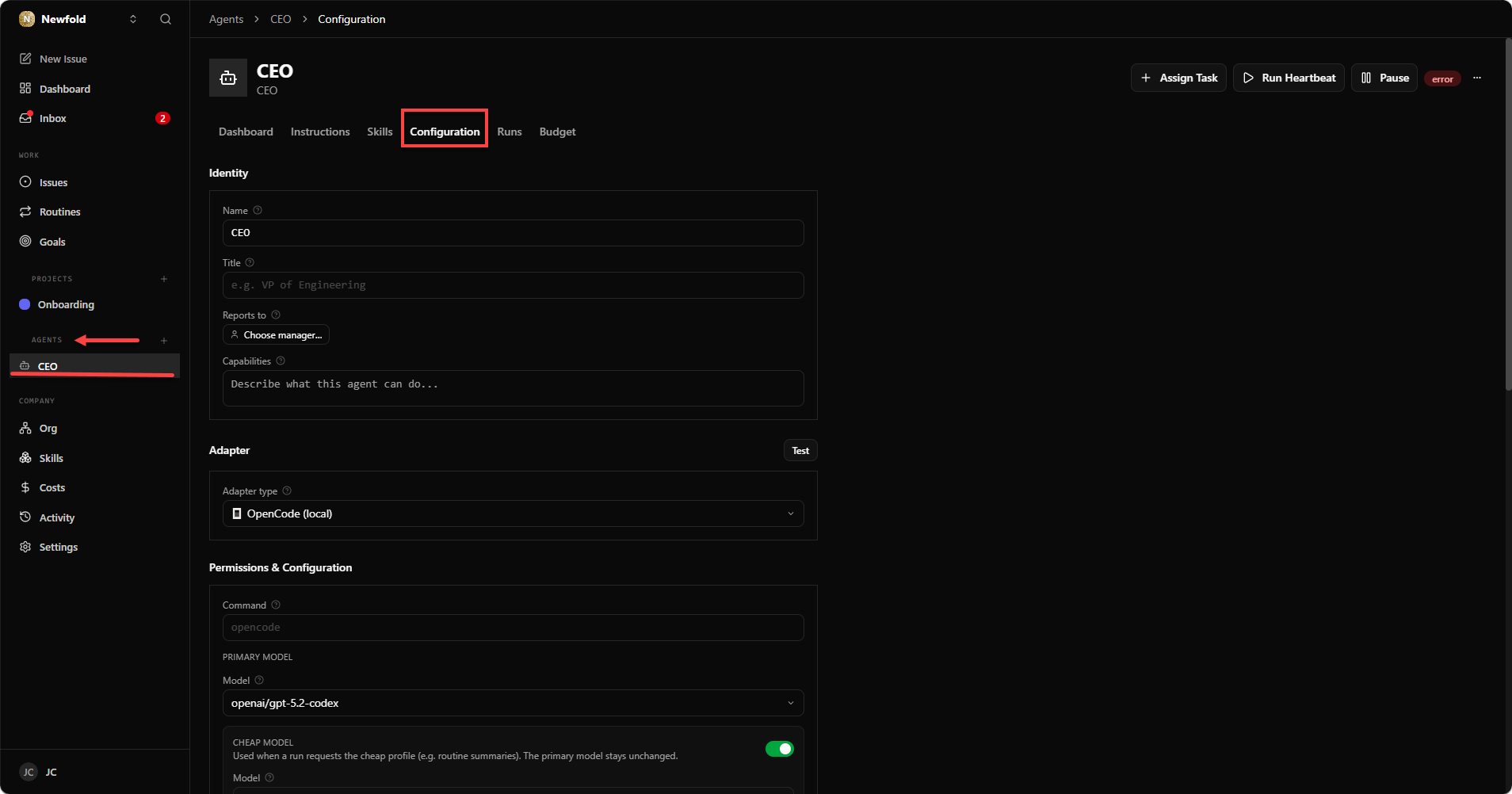
Replaceyour_server_ipwith your actual server IP address. - Navigate to Agents → CEO → Configurations.
-
Set the default agent model, depending on what your Bluehost Gateway route supports.
Tip: Check AI Models and Credit Pricing for more information about the models supported.
- Ensure your desired Adapter type is selected.
Test the Connection
Validate your gateway configuration by testing the connection directly inside your Paperclip dashboard.
- Send a test prompt such as "reply with the word ready", or click Test Environment (or Run Heartbeat) to trigger a diagnostic run.
-
Navigate to the Runs tab to review the live execution status and output.
Important: How to verify success
- Success: Your agent responds with "ready", and the run log confirms requests pass through your configured Bluehost Gateway URL.
- Failure: If you receive a
401 Unauthorizederror pointing toapi.openai.com, verify thatOPENAI_API_KEYis set correctly in your server's service environment and restart Paperclip usingsystemctl daemon-reload && systemctl restart paperclip.
- No reply? See Troubleshooting below.
Troubleshooting Quick Reference
If you encounter issues connecting Paperclip to the Bluehost AI Gateway, refer to the common problems and solutions below to quickly resolve setup errors.
401 Unauthorized / "Invalid API key"
- Cause: Invalid, expired, mistyped, or deleted AI Credit key.
- Fix: Check key status in Bluehost Portal → AI Tooling, copy the key, and replace
OPENAI_API_KEY.
402 Payment Required / "Insufficient credits"
- Cause: AI Credit balance is depleted.
- Fix: Top up your credit balance in Bluehost Portal → AI Tooling.
Connection Refused / 404
- Cause: Incorrect
base_urlvalue inside yourPAPERCLIP_CODEX_PROVIDERSenvironment variable. - Fix: Ensure the
base_urlis set tohttps://gateway.ai.bluehost.com/v1(without a trailing slash).
Agent Bypasses Gateway or Chat Sends Nothing
- Cause: Service wasn't restarted, or the agent is not using the correct adapter (
codex_local). - Fix: Run
systemctl daemon-reload && systemctl restart paperclipafter updating environment variables, and confirm the agent runs on the Codex adapter rather than another runtime.
Model Rejected
- Cause: Model ID isn't supported by your AI Credits plan.
- Fix: Verify the supported model list in Bluehost Portal → AI Tooling.
Summary
Connecting Bluehost AI Credits to Paperclip allows you to route agent requests through the Bluehost AI Gateway using your existing credit balance. The process involves generating an API key in your Bluehost dashboard, setting the appropriate environment variables on your server, and selecting the correct model and adapter inside the Paperclip Web UI. Once configured and restarted, your multi-agent workflows will automatically execute using your unified AI credits across supported models.