 ChatGPT,
  Claude,
  Gemini,
  Grok — all four for
 Purchase a Self-Managed VPS with n8n Installation
n8n is an open-source workflow automation tool that connects different apps and services to simplify and streamline processes. Its node-based approach allows each step of a workflow to be represented clearly, making it easier to build and manage automations.
With its visual interface, users can create workflows without needing advanced programming skills. At the same time, it offers flexibility for more complex setups, making it suitable for both simple tasks and more advanced automation needs.
Watch this short video for a quick guide on purchasing Self-Managed VPS with n8n installation.
Why Use n8n?
In today’s fast-moving digital world, using multiple tools is common—but managing them manually can quickly become overwhelming. That’s where n8n comes in. It helps connect your apps and automate repetitive work, saving time and reducing the chance of mistakes. Since it’s open-source, you also get more control over your data and the freedom to customize workflows to fit your specific needs.
Uses of n8n
Here are some practical ways you can use n8n in your day-to-day tasks:
- Data Integration: Keep everything up to date by connecting your apps so information flows smoothly between them.
- Task Automation: Let the system handle repetitive tasks like sending emails or updating records for you.
- Notifications: Stay informed with alerts when important events happen.
- ETL Processes: Easily move and organize data across systems to keep everything structured and efficient.
- Workflow Management: Build step-by-step processes with conditions to handle more complex tasks.
Overall, n8n makes it easier to stay organized, work smarter, and focus on more important tasks.
How to Purchase a Self-Managed VPS with n8n Installation
To get started with n8n on Bluehost, you first need to purchase a Self-Managed VPS plan. Follow the steps below:

New to VPS or not sure where to start? No worries! At the top of the Self-Managed VPS purchase page, you’ll see the Pre-configured Setup section. This handy feature is perfect if you’re feeling a bit unsure—just pick the type of project you want, like WordPress Site, AI Agent/Claude Code, Dev/Staging, or eCommerce Store. We’ll take care of the rest by automatically filling in the best plan, operating system, and template for you.
- Super simple for beginners or anyone who just wants a quick setup
- Instantly get the recommended settings for your project
- Skip the guesswork and save time
- You can still customize things later if you want
- In your browser, go to https://www.bluehost.com/vps-hosting.
- Click the Choose Plan button under your preferred VPS hosting plan.
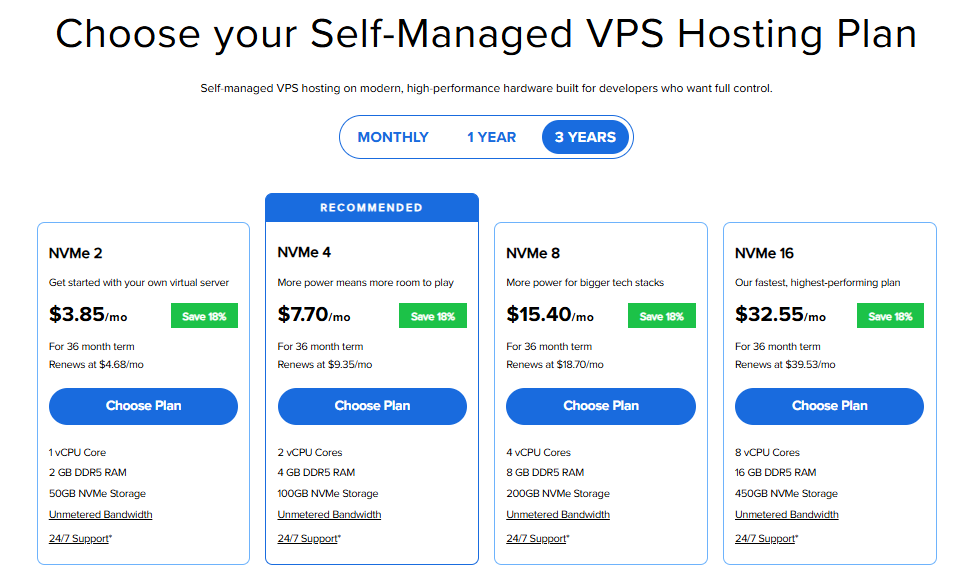
Important: Pricing is subject to change—please visit https://www.bluehost.com/vps-hosting for the current introductory/sign-up offer for Bluehost VPS Hosting. For the most up-to-date renewal pricing, visit your Bluehost Portal Renewal Center.
- Select your preferred Data Center location.

- On the Cart page, you can configure your server to fit your needs in the following section:
- Hardware:
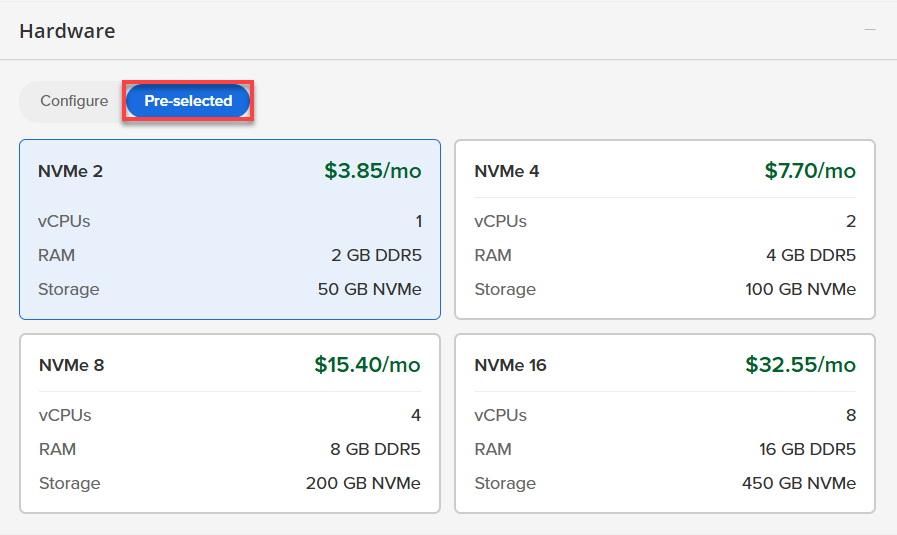
- Pre-selected:
You can select a different Self-Managed VPS plan in this section.
- Configure:
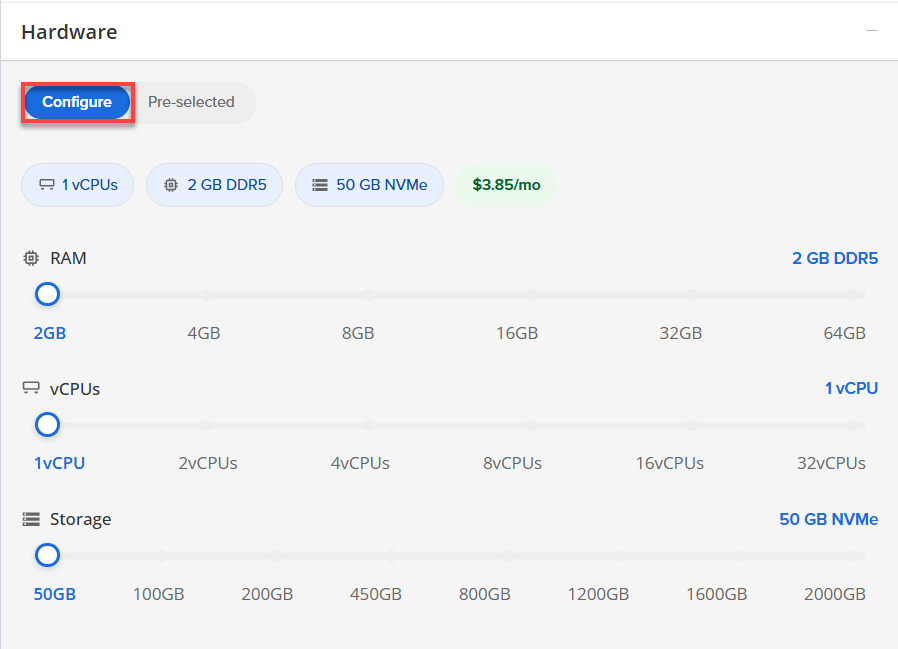
Click Configure to customize your package.
Note that your changes help customize your plan, and the overall cost will adjust accordingly to fit your needs.
- Pre-selected:
- Software:
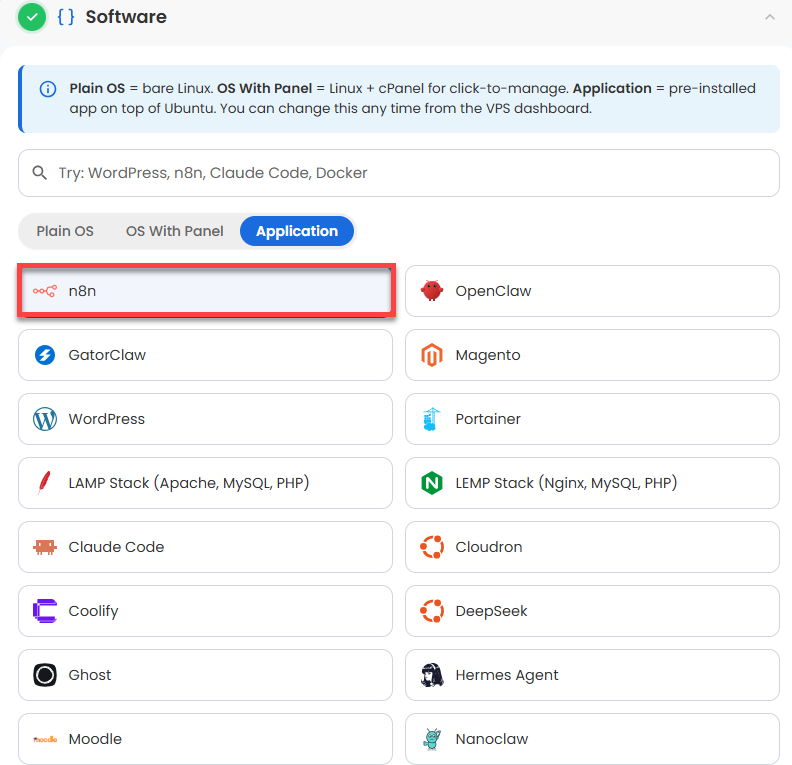
If the selected plan does not meet the app's minimum requirements, the app will be grayed out.
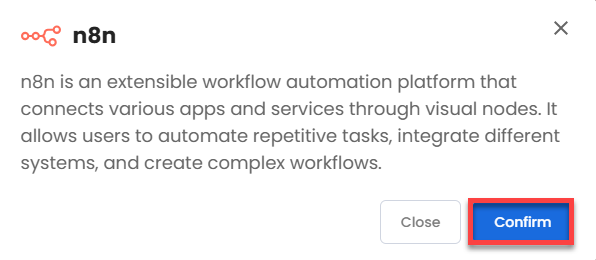
- Click the Application tab.
- Select n8n.
- In the pop-up, click Confirm.
- Hardware:
- Add-Ons:
- Support & Security:
- Premium Support - Recurring:
This service provides you with priority access to our expert team for faster responses and personalized assistance whenever you need it.

- Premium Support - Recurring:
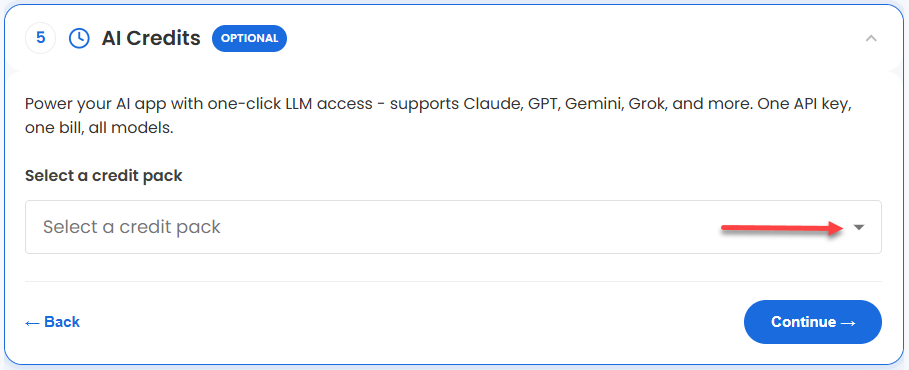
- AI Credits:
Purchase an AI credit package to effortlessly connect your application to leading LLMs through a single API key and bill. This step is optional.
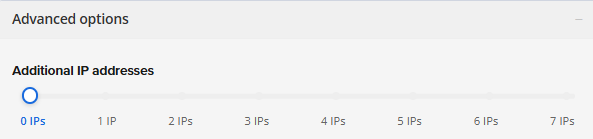
- In the Advanced options:
- Extra IP's: You can add extra IP addresses for an additional fee.
Pricing changes based on how many IPs you add. - Hostname: Assign a custom hostname to easily identify your server. This is optional.
- SSH Key: Add an SSH public key for secure, password-less access after provisioning.
- Extra IP's: You can add extra IP addresses for an additional fee.
- Support & Security:
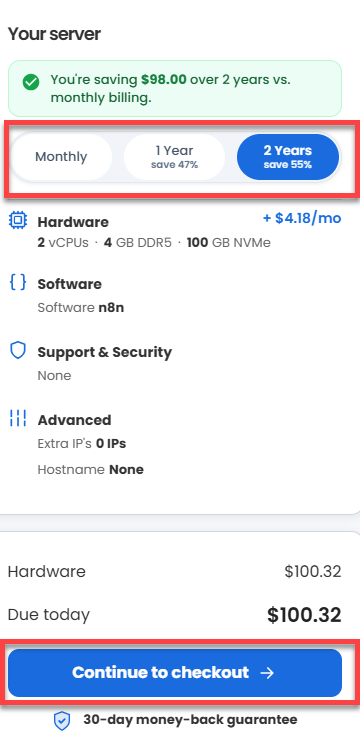
- Next, select your preferred billing term and review your Order Summary, then click Continue to Checkout.
- Do the following on the Checkout page:
If you're new with Bluehost:
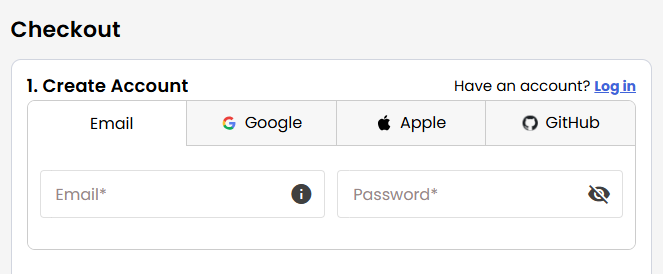
- Create your Bluehost account by using your email address or by connecting with your Google, Apple, or GitHub account — whichever you prefer!
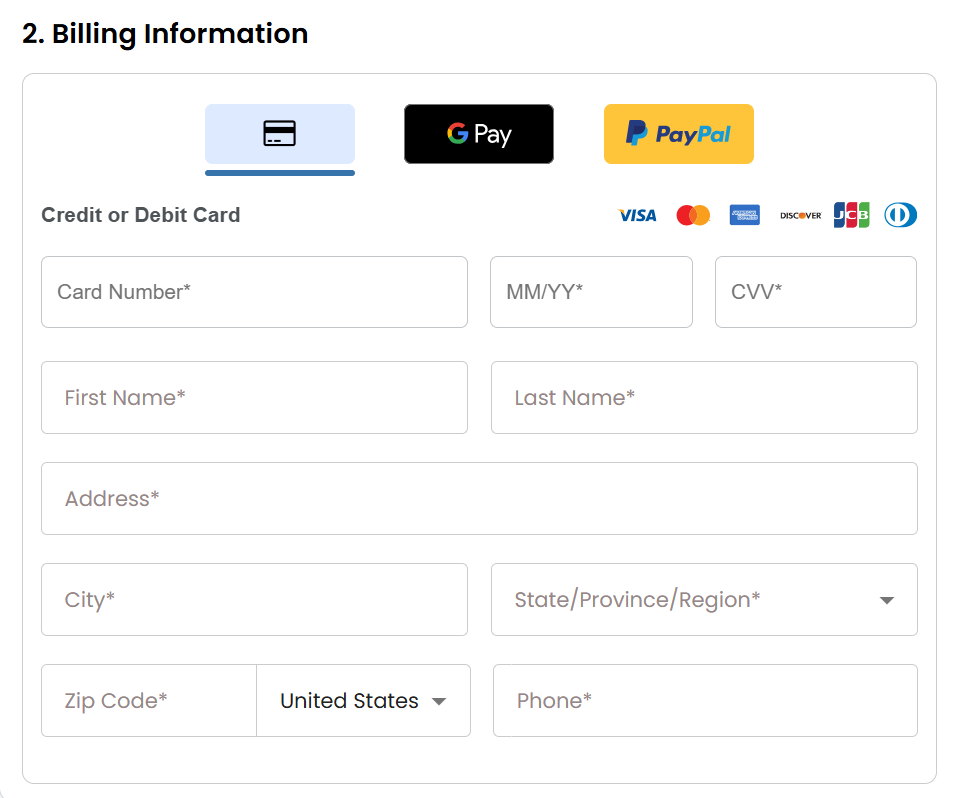
- Select your preferred payment method: credit card, Google Pay, or PayPal. Enter your billing information.
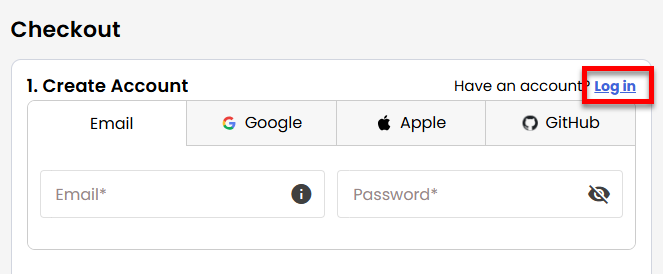
If you have an account with us, you will see your Bluehost login details when you are logged into your Bluehost Portal. If you are not logged in, please click the Log In link.
- Create your Bluehost account by using your email address or by connecting with your Google, Apple, or GitHub account — whichever you prefer!
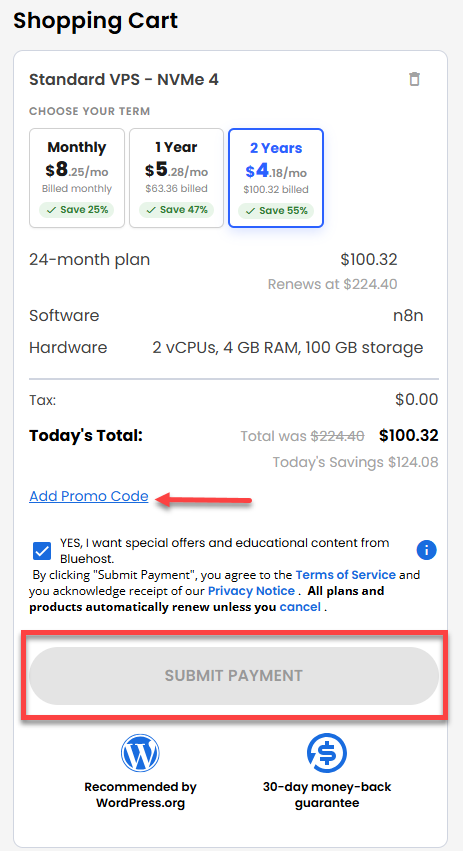
- In the Shopping Cart section, you can still adjust your billing term if needed.
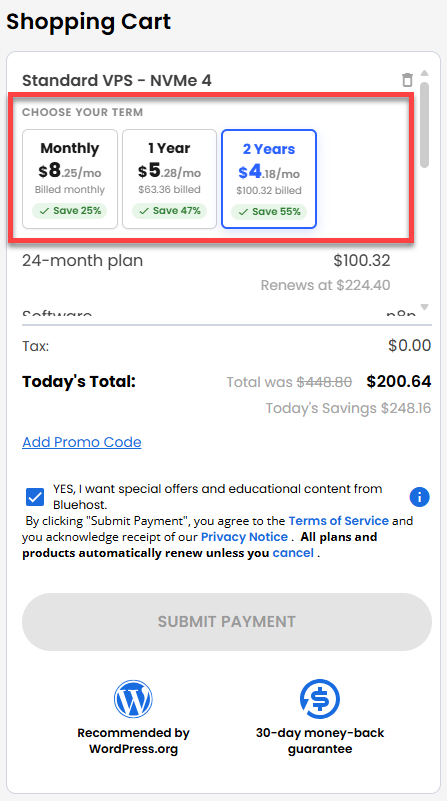
- Review the items in your cart, add a Promo Code if you have one, and then click Submit Payment to complete the purchase.
After completing the purchase, your VPS hosting will begin provisioning. You can access and manage your new VPS hosting in the Hosting tab of your Bluehost Portal.
Summary
n8n is an open-source tool that lets you connect your apps and automate tasks through a simple, visual interface. It’s easy to get started with—even if you don’t have much coding experience—but still powerful enough for more advanced workflows. Automating repetitive tasks, helps you save time, cut down on errors, and keep things running more smoothly. You can use it to sync data between apps, send automatic updates, manage notifications, or build step-by-step processes. To get started, you can either self-host it for more control or go with a hosted option—whatever fits your setup best.