 ChatGPT,
 Claude,
 Gemini,
 Grok — all four for

Key highlights
- Understand what is a favicon and how it enhances brand visibility and trust.
- Learn how to create favicon images using free tools and generators.
- Discover favicon size requirements and file formats for desktop, mobile and retina displays.
- Follow step-by-step instructions to add a favicon with Bluehost WordPress AI Builder or HTML.
- Avoid common mistakes and ensure your favicon works across browsers.
Every website has small visual signals that help people recognize it quickly. One of the most important is the favicon: the tiny icon you see in browser tabs, bookmarks, browser history, mobile shortcuts and sometimes search results.
It may seem like a small design detail, but in practice, a favicon plays a real role in website usability and brand recognition. When users have several tabs open, revisit a bookmarked page or scan search results, a clear favicon can help them identify your site faster.
In this guide, we’ll explain what a favicon is, where it appears, which favicon sizes and file formats work best and how to create and add one to your website.
What is a favicon?
A favicon, short for “favorites icon,” is the small image that represents a website across browsers and devices. It usually appears next to a website’s name or page title, helping visitors recognize the site at a glance.
Most favicons are simplified versions of a logo, brand mark or initials. Because they display in very small spaces, the best favicons are simple, high-contrast and easy to recognize even at 16×16 or 32×32 pixels.
Favicons are commonly saved as ICO, PNG or SVG files to match your brand identity. In WordPress, a favicon is often called a site icon.
Favicon examples
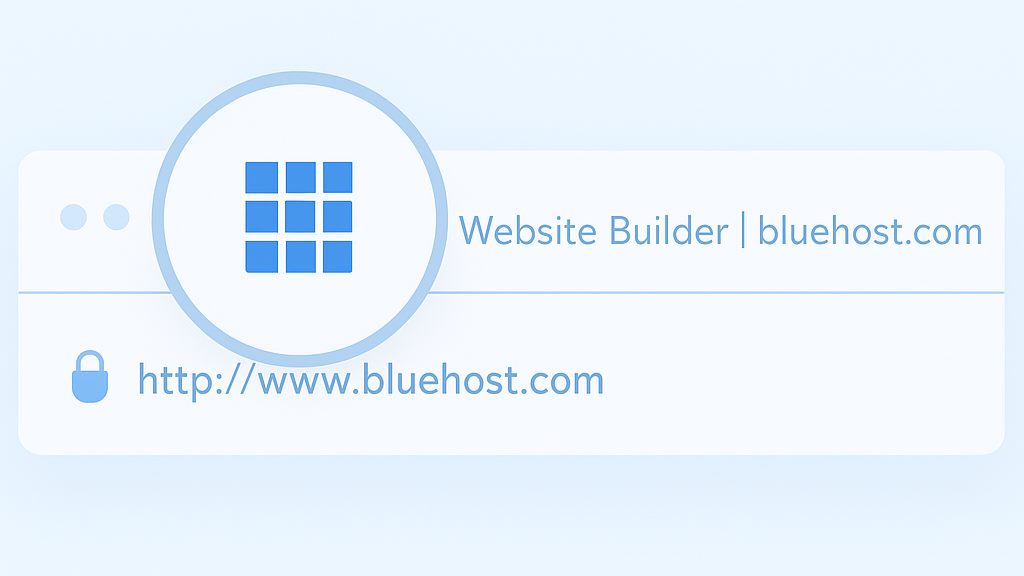
Favicons can look different depending on the website, brand and design style. The best favicon is usually a simplified version of a brand element that stays recognizable at a very small size.
Here are a few common favicon examples:
| Favicon type | What it looks like | Best for |
|---|---|---|
| Logo mark | A simplified version of the company logo | Brands with a recognizable symbol |
| Initial or letter | One or two letters from the brand name | Blogs, service businesses and personal brands |
| Product icon | A small symbol related to the product or service | Apps, SaaS tools and ecommerce websites |
| Shape or mascot | A simple icon, character or visual mark | Brands with playful or visual identities |
For example, a bakery might use a small cupcake icon, while a photography website might use a camera symbol. A business with a detailed logo may use only the strongest part of that logo, such as an initial, icon or brand mark, so it remains clear in browser tabs and bookmarks.
When designing a favicon, avoid using small text, detailed illustrations or complex logos. Favicons are often displayed at 16×16 or 32×32 pixels, so simple shapes, strong contrast and clean spacing usually work best.
Why does your website need a favicon?
A favicon may be small, but it affects how people recognize and experience your website. When visitors have multiple tabs open, scan their bookmarks or return to your site later, a familiar icon makes your website easier to find.
It also helps your site look more complete and professional. A missing favicon can make a website feel unfinished, while a clear, branded icon reinforces trust and consistency across browsers and devices.
Favicons are especially useful in places where your full logo or website name may not be easy to see, such as browser tabs, bookmark lists, browser history, mobile shortcuts and some search results. When your favicon matches your visual identity, it gives users a quick brand cue wherever your site appears.
A favicon is not a direct ranking factor, but it can support search performance indirectly. When Google shows a favicon next to your listing, a recognizable icon may help users identify your brand faster and choose your result with more confidence.
Whether your site is a blog, an HTML website or a WordPress site, your favicon makes it easier for visitors to find you again.
Want to give your website a professional edge? Add a favicon in minutes using Bluehost WordPress Hosting. Get started with Bluehost.
Favicons and SEO
Favicons do not directly change search engine rankings, but they can support SEO indirectly by improving brand recognition, user experience and click confidence in search results. By acting as a small visual identifier, a favicon can help users recognize your website more easily across search results, browser tabs and bookmarks.
Favicons support SEO in a few indirect ways:
- Search result visibility: When Google displays a favicon next to your website listing, it gives users a quick visual cue. A clear, recognizable favicon can help your result stand out when people are comparing similar pages.
- Brand recall: A consistent favicon across browser tabs, bookmarks, browsing history and search results helps users remember your website. Over time, this can make your brand easier to recognize when users return.
- User experience: A well-designed favicon makes your site look more complete and professional. It also helps visitors find your website faster when they have multiple tabs open or save your page for later.
In short, a favicon is not a ranking factor by itself. But when it is clear, consistent and aligned with your brand, it can make your website easier to recognize and more trustworthy wherever it appears.
Where do favicons appear?
Favicons appear in several places where users interact with your website. Their exact placement can vary by browser, device and platform, but they usually show up in the following areas:
1. Browser tabs: Favicons appear next to the page title, helping users identify your site when multiple tabs are open.

2. Bookmarks and favorites: When someone saves your website, the favicon often appears next to the saved page name, making it easier to find later.

3. Search results: Google may show your favicon next to your website listing, giving users a small visual cue before they click.

4. Browser history: Favicons can appear beside previously visited pages, helping users recognize your site when reviewing their browsing history.

5. Mobile shortcuts: On some devices, a favicon or site icon can appear when users save your website to their home screen.
This is also why favicon design matters. The icon should be simple enough to stay recognizable wherever it appears, whether it is shown in a browser tab, a bookmark list or a search result.
What is the best favicon size?
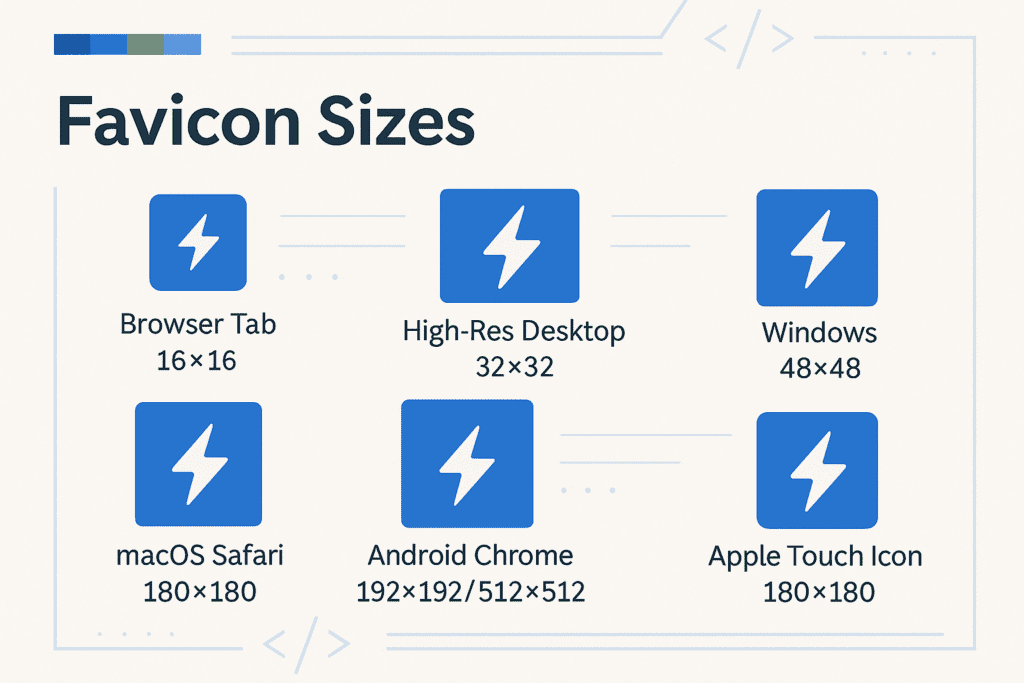
The best favicon size depends on where the icon appears. For most websites, you should create more than one favicon size so the icon looks clear across browser tabs, bookmarks, mobile devices and high-resolution screens.
A standard favicon for browser tabs is usually 16×16 pixels or 32×32 pixels. However, larger sizes are useful for desktop shortcuts, mobile home screen icons and retina displays.
Common favicon sizes include:
- 16×16 px for browser tabs
- 32×32 px for bookmarks and browser shortcuts
- 48×48 px for Windows shortcuts and taskbar icons
- 180×180 px for Apple touch icons
- 192×192 px for Android and Chrome home screen icons
- 512×512 px for high-resolution app icons and progressive web apps
For the best compatibility, use a favicon package that includes multiple sizes instead of relying on one small image. This helps your favicon stay sharp and recognizable across different browsers, devices and screen resolutions.
What favicon file format should you use?
The best favicon format depends on the browser, device and use case. Most websites should use more than one format to make sure the favicon displays correctly across modern browsers, older browsers and mobile devices.
- ICO: The ICO format is the traditional favicon format and is still useful because one .ico file can contain multiple favicon sizes. It is commonly used as a fallback file, especially when browsers look for /favicon.ico automatically.
- PNG: PNG is one of the most common favicon formats for modern websites. It supports transparency, looks sharp and works well for browser tabs, bookmarks and mobile icons.
- SVG: SVG favicons are scalable, which means they can stay sharp at different sizes. They work best for simple logos, icons and brand marks, but they may not be supported in every older browser.
- JPG: JPG can be used in some cases, but it is not ideal for favicons because it does not support transparency and may lose quality when resized.
For most websites, a good setup includes a favicon.ico file for fallback support, PNG files for common icon sizes and, when appropriate, an SVG version for modern browsers.
How can you create a favicon for your website using free tools?
Creating a favicon is simple, even if you’re not a designer. The key is to start with a clear, simple image that still looks recognizable at small sizes.
Here’s how to create one step by step:
- Choose your design
Start with your logo, brand mark or initials. If your logo has small text or detailed artwork, simplify it before turning it into a favicon. Use bold shapes, strong contrast and enough spacing so the icon stays clear in browser tabs, bookmarks and mobile shortcuts.
- Create a square image
Favicons should be designed on a square canvas. A larger starting size, such as 512×512 pixels, gives you more flexibility when exporting smaller versions.
- Export the right favicon sizes
Create multiple favicon sizes so your icon displays clearly across browsers and devices. Common sizes include 16×16, 32×32, 48×48, 180×180 and 192×192 pixels.
- Choose the correct file format
Use ICO for broad browser compatibility, PNG for modern browsers and mobile icons, and SVG if your favicon is a simple scalable graphic.
- Use a free favicon generator
Tools like Favicon.io, Canva and RealFaviconGenerator can turn your logo, text or image into favicon files. These tools can also export multiple sizes and formats for different browsers and devices.
- Save and organize your files
Keep a favicon.ico file as a fallback, especially for browsers that look for it automatically. You can also save PNG or SVG versions for modern browsers and mobile devices.
Before publishing, preview your favicon at a small size. If it looks blurry, crowded or hard to recognize, simplify the design and export it again.
How to add a favicon to your website?
Once your favicon is ready, you can add it to your website through your content management system, website builder or HTML code. The exact steps depend on how your site is built, but most platforms let you upload a favicon from the site settings, branding settings or theme customizer.
If you use WordPress website, the favicon is usually called a site icon, which you can add it from the WordPress Customizer in a few steps:
Step 1: Log into your dashboard and go to “Appearance”
After logging into your WordPress admin panel, click “Appearance” on the left-hand menu. This section manages your website design.

Step 2: Click “Customize”
Next, click “Customize” to open the WordPress Customizer, where you can adjust theme settings and visual layout options.

Step 3: Go to “Site Identity”
In the Customizer, click Site Identity. This is where you can manage your site title, tagline, logo and site icon.

Step 4: Upload your favicon under “Site Icon”
Click Select Site Icon and upload your favicon image. WordPress usually recommends a square image that is at least 512×512 pixels.

Step 5: Publish your changes
After uploading and cropping the image, if needed, click Publish to save your changes.

Step 6: Confirm it works
Open your website in a new browser tab to confirm that the favicon appears next to your page title. If you still see the old icon, clear your browser cache or check the page in incognito mode.

Your favicon will now appear in most modern browsers, including Google Chrome, Firefox and others. This is a small but important step in building a complete, recognizable web presence.
Also read: How to Add a Favicon (favicon.ico) to Your Website
How to add a favicon in HTML?
If your website is built with a website builder or CMS, you can usually upload a favicon through the dashboard, site identity settings or theme settings. But if your website is custom-coded, you can add the favicon directly in your HTML.
To add a favicon in HTML, place a tag inside the section of your page:
<link rel="icon" type="image/png" href="/favicon.png">You can also include multiple favicon formats for better browser and device support:
<link rel="icon" href="/favicon.ico" sizes="any">
<link rel="icon" type="image/svg+xml" href="/favicon.svg">
<link rel="apple-touch-icon" href="/apple-touch-icon.png">
After adding the code, upload the favicon files to the correct location on your site and test the page in a browser tab. If the favicon does not appear right away, clear your browser cache or open the page in incognito mode.
How to grow your brand with Bluehost?
Creating a favicon is one part of building a recognizable online brand. With Bluehost, we help you bring the rest of your website setup together, from your domain and hosting to your site design, security and ongoing updates.
1. Start with AI-guided website creation
With Bluehost WordPress AI Builder, you do not have to start from a blank page. Tell us about your business or upload brand visuals, and we’ll help create templates you can review and customize.
You can adjust your content, images, colors, buttons and pages, so the final site reflects your business and brand.
2. Build on WordPress with less setup work
The WordPress AI builder gives you the flexibility of WordPress with a simpler setup experience. We help with end-to-end website creation so you can focus on shaping your site instead of figuring out themes, plugins and page structure from scratch.
Once your website is ready, you can manage routine updates, including your logo, site title and favicon, without needing to code.
3. Manage your site from one place
Your website needs more than design. You also need a domain, hosting, SSL, security, backups and tools to keep everything running.
We bring these essentials into one platform, so you can build your website, connect your domain, manage your hosting and update key site settings from a single place.
4. Get support when you need help
If something does not look right, such as your favicon not updating, your site icon not appearing or your settings not saving, our support team can help you troubleshoot.
5. Keep improving as your business grows
Your website will change as your business grows. You may update your logo, add new services, publish new pages or refresh your site design. With Bluehost hosting, you can keep building, updating and managing your online presence from the same platform, so your brand stays consistent as your website grows.
Ready to build a website that looks and feels like your brand? Explore Bluehost WordPress Hosting to create, customize and launch your site with confidence.
Final thoughts
A favicon may be small, but it plays an important role in how people recognize your website. It helps your site look complete, makes your brand easier to spot across tabs and bookmarks and gives visitors a familiar visual cue when they return.
The best favicons are simple, clear and built for small spaces. Use the right sizes and file formats, test how your icon appears across browsers and update it whenever your brand identity changes.
If you’re building a new website, add your favicon as part of your early setup. It is a quick detail, but it helps your site feel more polished from the start.
Ready to build a website that reflects your brand? With Bluehost, you can create your site, connect your domain, add your brand details and manage your website from one place. Start your online journey with Bluehost.
FAQs
A favicon helps people recognize your website in browser tabs, bookmarks, browser history, mobile shortcuts and some search results. It acts as a small visual identifier for your site and makes your brand easier to remember.
No. A favicon is usually a simplified version of your logo, brand mark or initials. A full logo may include text or details that do not display clearly at small sizes, so a favicon should be simpler and easier to recognize.
A standard favicon is usually 16×16 pixels or 32×32 pixels for browser tabs and bookmarks. For better compatibility, also create larger versions such as 48×48, 180×180 and 192×192 pixels for shortcuts and mobile devices.
The most common favicon formats are ICO, PNG and SVG. ICO works well as a fallback, PNG is widely used for modern browsers and mobile icons, and SVG is useful for simple icons that need to scale cleanly.
Start with a simple version of your logo, brand mark or initials. Design it on a square canvas, export it in common favicon sizes and save it as an ICO, PNG or SVG file. You can also use a favicon generator to create the files automatically.
Yes. Tools like Favicon.io, Canva and RealFaviconGenerator can help you create a favicon from text, a logo or an existing image. They can also export favicon files in multiple sizes and formats.
In WordPress, a favicon is usually called a site icon. Go to Appearance → Customize → Site Identity, upload your site icon and publish your changes. WordPress usually recommends using a square image that is at least 512×512 pixels.
Add a favicon link inside the section of your page:
Your favicon may not show because of browser caching, an incorrect file path, the wrong file format, theme settings or a missing favicon link in your HTML. Try clearing your cache, opening the site in incognito mode and confirming that the favicon file is uploaded correctly.
A favicon is not a direct ranking factor, but it can support SEO indirectly. When a favicon appears in search results, it can help users recognize your brand faster and may improve click confidence. It also improves user experience across tabs, bookmarks and browsing history.

Write A Comment