 ChatGPT,
 Claude,
 Gemini,
 Grok — all four for
Key highlights
- Start with the Bluehost free WordPress migration tool to move an eligible WordPress site without handling every file and database step manually.
- Back up your full website before migration so you have a recovery point if anything goes wrong.
- Keep your old hosting active temporarily until the Bluehost version is tested and DNS propagation is complete.
- Protect SEO during the move by keeping URLs the same where possible, setting redirects if needed and checking indexing settings.
- Test the migrated site before launch including pages, images, forms, SSL, mobile layout, plugins and SEO settings.
Migrating a WordPress site can feel like a big technical project. Your website is not just one file that can be moved from one place to another. It includes themes, plugins, images, posts, pages, databases, users, settings, domain records, SSL configuration and SEO data.
That is why many website owners delay migration even when their current host is slowing them down.
Maybe your site takes too long to load. Maybe support tickets go unanswered. Maybe your renewal price keeps increasing without better performance. Or maybe your website has simply outgrown the hosting plan that worked when you first launched.
If any of that sounds familiar, it may be time to move your WordPress site to a new host.
This guide explains how to migrate a WordPress site to Bluehost safely. You’ll learn what WordPress migration includes, how to prepare before the move, the different migration methods available, how to complete a manual migration and how to avoid common issues like downtime, broken links, missing images and SEO disruption.
Quick overview: How to migrate a WordPress site to Bluehost
Migrating a WordPress site to Bluehost usually starts with the Bluehost free WordPress migration tool. It is the recommended first option for eligible WordPress sites because it reduces manual file, database and configuration work.
Use this quick overview to choose the right path before you get into the full steps.
| If your situation is… | Recommended path | What to expect |
|---|---|---|
| You are moving a standard WordPress site | Use WordPress migration tool | A guided migration process that helps move your site files, database, themes, plugins and media. |
| You want to avoid manual file and database work | Use WordPress migration tool | Less need to work with FTP, phpMyAdmin or wp-config.php. |
| Your site is large, custom or complex | Contact support | Support can help you review the best next step if the tool is not suitable. |
| You want full technical control | Use manual migration | You’ll export the database, move files, import the database and update configuration settings yourself. |
| You are changing domains during migration | Use manual migration or connect with support | You may need extra care with DNS, redirects, stored URLs and SEO settings. |
| The migration tool does not complete the move | Contact support | Support can help troubleshoot migration issues and guide the next steps. |
Before choosing a migration method, it helps to understand what actually moves during a WordPress migration. Your site includes more than visible pages, so let’s understand what all is involved in the process.
What does it mean to migrate WordPress site to new host?
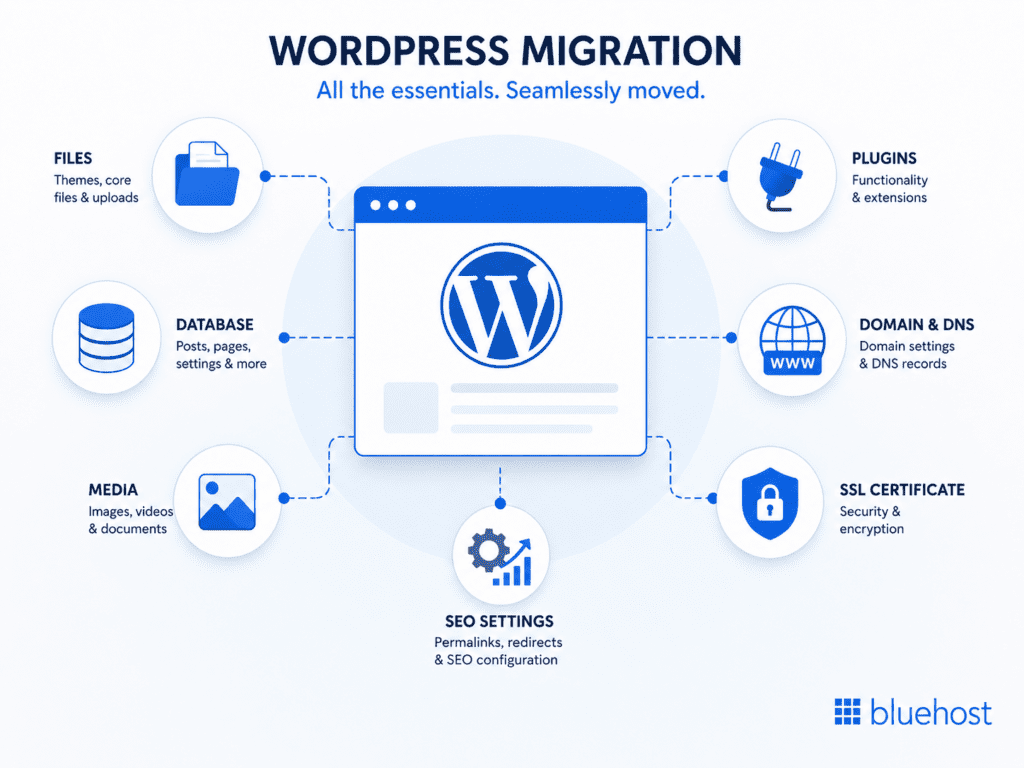
Migrating a WordPress site means moving your website from one hosting environment to another.
If your site currently lives with another hosting provider and you want it to load from Bluehost, you need to move the parts that make your WordPress site work.
A WordPress website has two main components:
- Website files
- Website database
Your website files include WordPress core files, themes, plugins, images, documents and uploaded media. These files control how your site looks and functions.
Your database stores your content and settings. It includes posts, pages, comments, users, menus, plugin settings, theme settings and other site data.
A complete WordPress migration may involve:
| Migration component | What it includes |
|---|---|
| WordPress files | Themes, plugins, uploads, media files and core files |
| WordPress database | Posts, pages, users, comments, menus and settings |
| Domain settings | DNS records or nameservers that point your domain to the host |
| SSL settings | HTTPS certificate and secure loading configuration |
| SEO settings | Permalinks, redirects, metadata, canonical tags and sitemap |
| Email settings | Email records if your email is connected to your hosting account |
If you are only changing hosts and keeping the same domain, the goal is to move your site without changing your URLs. This is usually the safest migration type for SEO.
If you are changing both your host and your domain, the process becomes more complex because you need to set up redirects from old URLs to new URLs.
When should you move WordPress site to new host?
You do not need to migrate your WordPress site just because a new hosting provider exists. But there are clear signs that your current hosting environment may be limiting your website.
Most site owners do not leave a host because of one dramatic failure. The decision usually builds slowly. A page takes five seconds to load. A checkout page times out during a campaign. A support chat gives generic answers instead of real help. Renewal prices increase, but performance stays the same.
Before blaming WordPress itself, look at your hosting provider. Your host affects performance, security, reliability and scalability.
Signs your current host is holding your site back
| Warning sign | Why it matters |
|---|---|
| Slow page load times | Visitors may leave before your site finishes loading. |
| Frequent downtime | Your site becomes unavailable to users and search engines. |
| Poor support | Technical issues take longer to resolve. |
| Renewal price spikes | Your hosting costs increase without meaningful improvements. |
| No staging environment | You have to test plugin, theme or design changes on your live site. |
| Resource throttling | Your site slows down when traffic increases. |
| Limited security features | Your website may be more exposed to malware, attacks or data loss. |
| No clear upgrade path | You may need another migration when your traffic grows. |
One issue alone may not be enough to justify a move. But if several of these problems sound familiar, migrating your WordPress site to Bluehost may give your website a stronger foundation.
What to look for in your next WordPress host
Moving to a new host is not just about finding a lower monthly rate. The better question is whether the provider can support your website now and as it grows.
Before you migrate your WordPress site, evaluate your next host across these areas.
1. Performance
Your host should provide the infrastructure needed for fast page loading. Look for hosting features that support speed, such as solid-state storage, caching, CDN support and scalable resources.
If your current website is slow even after image compression, caching and plugin cleanup, hosting performance may be a key issue.
2. Reliability
A reliable host helps keep your website online. This matters for every site, but especially for business websites, lead generation pages, ecommerce stores and membership websites.
Frequent downtime can damage trust, reduce conversions and create search engine crawling issues.
3. WordPress support
WordPress websites can run into issues with plugins, themes, PHP versions, database settings and updates. A WordPress-friendly host can make those issues easier to diagnose and resolve.
Look for support options such as live chat, phone support, documentation and migration guidance.
4. Security features
Your hosting provider should help you protect your website. Important security-related features may include SSL certificates, backups, malware protection, secure account access and update tools.
Some features may be included, while others may be add-ons. Review what is available before choosing a plan.
5. Scalability
A hosting plan that works today may not be enough in a year. Choose a provider with upgrade options so your website can grow without requiring another migration too soon.
6. Migration assistance
If you do not want to move your site manually, look for a host that offers migration resources or professional migration support.
This can be especially useful if your site is important to your business or if you are not comfortable working with FTP, databases or DNS records.
Your next host should do more than receive your migrated files. It should support how your WordPress site runs after the move: performance, security, SSL, domain management, updates and room to grow. Bluehost brings these essentials into one WordPress-focused hosting environment, with migration resources to help eligible sites move from another host.
Before you begin, use the checklist below to prepare your site and account access.
Website migration checklist
Before you start the migration, make sure your site, domain and hosting access are ready. A little preparation helps prevent missing files, downtime, DNS issues and SEO problems after the move.
Use this checklist before, during and after migrating your WordPress site to Bluehost.
| Stage | Checklist item | Why it matters |
|---|---|---|
| 1. Before migration | Back up your full WordPress site | Gives you a recovery copy if anything goes wrong |
| Back up your WordPress database | Protects posts, pages, users, comments and settings | |
| Save WordPress admin login details | Ensures you can access your site before and after the move | |
| Save current hosting login details | Needed to access files, backups and database tools | |
| Confirm Bluehost account access | Makes sure your new hosting destination is ready | |
| Confirm domain registrar access | Needed to update nameservers or DNS records | |
| Check your email setup | Helps avoid email disruption if email is tied to your old host | |
| List active themes and plugins | Makes troubleshooting easier after migration | |
| Keep your old hosting active | Gives you a fallback while DNS updates and testing happen | |
| 2. During migration | Start with the Bluehost free WordPress migration tool | Recommended first step for eligible WordPress sites |
| Use manual migration only if needed | Useful for larger, custom or technical site setups | |
| Point your domain to Bluehost | Sends visitors to the migrated version of your site | |
| Activate SSL | Helps your site load securely over HTTPS | |
| 3. After migration | Test key pages and blog posts | Confirms your content loads correctly |
| Check images and media files | Ensures uploads transferred properly | |
| Test forms, menus and checkout flows | Confirms important user actions still work | |
| Review SEO settings and sitemap | Helps protect search visibility after the move | |
| Monitor Google Search Console | Helps catch crawl, indexing or 404 errors | |
| Keep old hosting active temporarily | Gives you time to verify the Bluehost version fully |
Once you complete the checklist, choose the migration method that fits your site. Bluehost gives you a few ways to move your WordPress site, starting with the free WordPress migration tool.
3 ways to migrate a WordPress site to Bluehost
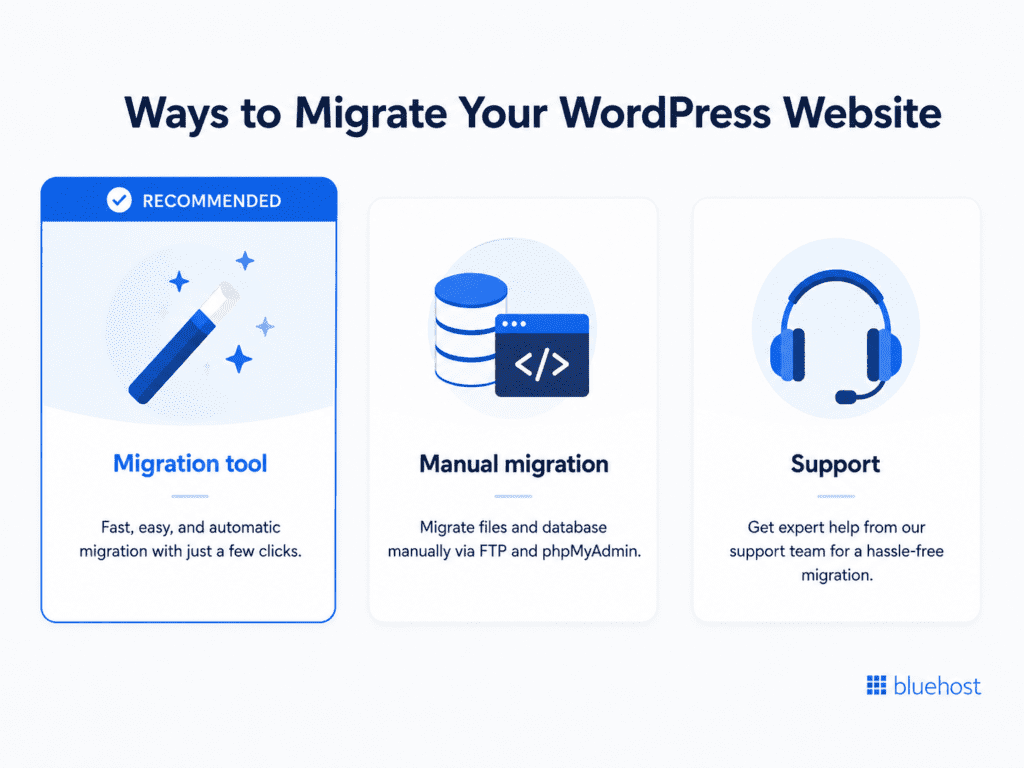
There are three main ways to migrate a WordPress site to Bluehost:
- Use the Bluehost free WordPress migration tool — recommended.
- Migrate your WordPress site manually.
- Get help from Bluehost support or a professional migration service.
The best method depends on your website size, current hosting setup, technical comfort level and how much control you want over the migration.
| Migration method | Best for | Difficulty | Recommended for |
|---|---|---|---|
| Bluehost free WordPress migration tool | Standard WordPress sites moving to Bluehost | Low | Site owners who want a guided migration path |
| Manual migration | Advanced users and developers | High | Users comfortable with files, databases and DNS |
| Bluehost support or professional help | Complex or business-critical sites | Low effort for site owner | Ecommerce, high-traffic or custom WordPress sites |
1. Use the Bluehost free WordPress migration tool – Recommended
The recommended way to migrate a WordPress site to Bluehost is to use the Bluehost free WordPress migration tool. This option helps reduce manual work because the tool guides the transfer instead of requiring you to move files, export databases or edit configuration files yourself.
This option is best if:
- You want a guided migration process.
- You are moving a standard WordPress site to Bluehost.
- You prefer not to manage FTP or phpMyAdmin.
- You want to reduce manual migration errors.
- You want to avoid editing files like
wp-config.php.
Step 1: Set up your Bluehost account
Create your Bluehost account and choose the hosting plan that fits your website’s needs. Once your account is active, you’ll have a destination environment ready for your WordPress site.
Step 2: Install the Bluehost migration tool
Log in to the WordPress dashboard of the site you want to move.
Go to Plugins > Add New, search for the Bluehost migration tool and install it if it is available for your site. Activate the tool and follow the setup prompts.
Step 3: Connect your current site to Bluehost
Follow the on-screen prompts to connect your current WordPress site to your Bluehost account.
You may need to confirm the Bluehost destination so the tool knows where to move your website.
Step 4: Start the migration
Once the tool is connected, start the migration.
The tool helps transfer key WordPress components, including:
- WordPress files
- Database content
- Themes
- Plugins
- Media uploads
- Site settings
Migration time can vary depending on your site size, media library and current hosting environment.
Step 5: Review and launch your migrated site
After the migration is complete, review the copied version of your site on Bluehost.
Check your homepage, key pages, images, forms, menus, WordPress admin access, plugin functionality and mobile layout.
Once everything looks correct, point your domain to Bluehost, activate SSL and run a final check. Keep your old hosting active temporarily until the migrated site is fully verified.
2. Migrate your WordPress site to Bluehost manually
Manual migration gives you more control, but it is more technical. This method is best for advanced users, developers or site owners who are comfortable working with files, databases and DNS records.
A manual WordPress migration involves moving your website files and database from your old host to Bluehost, then updating your configuration so WordPress connects to the new database.
This option is best if:
- You want full control over the migration.
- Your site is too large for a migration tool.
- You are comfortable using FTP or file manager.
- You know how to use phpMyAdmin or database tools.
- You are working with a developer.
Step 1: Back up your current WordPress site
Before doing anything else, create a full backup of your current WordPress website.
Your backup should include:
- WordPress files
- Themes
- Plugins
- Uploads
- Database
- Configuration files
Download a local copy of the backup to your computer. This protects you if anything goes wrong during the manual migration.
Step 2: Export your WordPress database
Log in to your current hosting account and open phpMyAdmin or your host’s database management tool.
Select the database connected to your WordPress site and export it in SQL format.
Your database includes:
- Posts
- Pages
- Comments
- Users
- Menus
- Plugin settings
- Theme settings
- Site options
Save the exported SQL file locally.
Step 3: Download your WordPress files
Next, download your WordPress files from your old host.
You can do this using FTP, SFTP or your hosting file manager. Download the full WordPress installation, including:
wp-content- Themes
- Plugins
- Uploads
- WordPress core files
wp-config.php.htaccess, if present
The wp-content folder is especially important because it contains your themes, plugins and media uploads.
Step 4: Set up your Bluehost hosting environment
Log in to Bluehost and prepare the destination environment.
Depending on your setup, you may need to:
- Add your domain to Bluehost.
- Create a new database.
- Create a database user.
- Assign the user to the database.
- Prepare the correct website directory.
Save your database details:
- Database name
- Database username
- Database password
- Database host
You will need these in a later step.
Step 5: Upload your WordPress files to Bluehost
Connect to Bluehost using FTP, SFTP or file manager.
Upload your WordPress files to the correct website directory. For many sites, this may be a folder such as public_html, but the exact location can vary depending on your setup.
Make sure the upload completes fully. Missing files can cause broken images, missing styles, plugin errors or a broken website layout.
Step 6: Import your WordPress database into Bluehost
Open phpMyAdmin or the database tool in Bluehost.
Select the new database you created and import the SQL file from your old host.
Once the import is complete, your posts, pages, settings and users should be available in the new database.
Step 7: Update the wp-config.php file
Your WordPress files need to connect to the new Bluehost database.
Open your wp-config.php file and update the database details:
- Database name
- Database username
- Database password
- Database host
If any of these details are incorrect, your website may show an “error establishing a database connection” message.
Save the file and upload it back to Bluehost if you edited it locally.
Step 8: Update URLs if your domain changed
If you are keeping the same domain, you may not need to update stored URLs.
If your domain changed, update old URLs in the database so links, images and internal paths point to the correct domain.
Use a safe search-and-replace tool or plugin to avoid damaging serialized WordPress data.
Step 9: Point your domain to Bluehost
Once the files and database are in place, update your domain settings so visitors reach your site on Bluehost.
You may need to update:
- Nameservers
- A records
- CNAME records
DNS updates can take time. Keep your old hosting active while the changes propagate.
Step 10: Activate SSL and test the site
After the domain points to Bluehost, activate SSL so your site loads securely over HTTPS.
Then test the migrated site carefully.
Check:
- Homepage
- Key pages
- Blog posts
- Images
- Menus
- Contact forms
- Admin login
- Plugin functionality
- Mobile layout
- HTTPS status
- SEO settings
- Sitemap
- Analytics tracking
Manual migration is not complete until the Bluehost version of the site is fully tested and working correctly.
3. Get help from Bluehost support
If the free WordPress migration tool does not work for your site, Bluehost support can assist you with the next steps.
This option is useful when your site needs extra attention or when you are unsure how to troubleshoot a migration issue.
Bluehost support may be able to help you:
- Understand why the migration tool is not working.
- Review your current site setup.
- Identify what needs to be moved.
- Guide you through DNS or domain updates.
- Help troubleshoot issues after migration.
Before contacting support, keep these details ready:
- Your current hosting provider
- WordPress admin access
- Bluehost account details
- Domain registrar information
- Whether your site uses WooCommerce, membership features or custom code
- Any error messages from the migration tool
Even when support assists you, create a full backup of your WordPress site before making changes. Keep your old hosting active until the migrated site is tested and working correctly on Bluehost.
Which WordPress migration method should you choose?
Start with the Bluehost free WordPress migration tool. It gives you a guided way to move your WordPress site to Bluehost without handling the full manual process yourself.
| Your situation | Best option |
|---|---|
| You want a guided migration | Bluehost free WordPress migration tool |
| Your site is a standard WordPress site | Bluehost free WordPress migration tool |
| You want full control | Manual migration |
| Your site is large or custom | Bluehost support |
| You run WooCommerce | Bluehost support |
| The migration tool does not work | Bluehost support |
| You are changing domains | Manual migration or Bluehost support |
In most cases, use the Bluehost free WordPress migration tool first. Choose manual migration only if you have the technical experience to manage files, databases and DNS. Contact Bluehost support if your site needs extra assistance or the tool does not complete the move.
Once your site is migrated, do not update everything and walk away. Test the Bluehost version first. Check your homepage, key pages, blog posts, forms, images, menus, SSL, mobile layout, plugins and WordPress admin access. After the site works correctly for users, review the SEO checks below.
How to protect SEO when migrating your WordPress site to Bluehost
A WordPress migration can be safe for SEO if the process is handled carefully. Most SEO issues happen when URLs change unexpectedly, pages become unavailable, redirects are missing or search engines are blocked from crawling the migrated site.
Use the steps below to protect your search visibility during the move.
1. Keep the same URL structure where possible
If you are only changing hosts, keep your domain and permalink structure the same.
For example, if a page currently lives at:
example.com/services/
it should still live at:
example.com/services/
after migration.
Keeping URLs the same reduces the need for redirects and lowers the risk of ranking disruption.
2. Set up 301 redirects if URLs change
If any URLs change during the migration, set up 301 redirects from the old URLs to the new ones.
This is especially important if you are changing domains, changing permalink structure, removing pages or moving content to new locations.
A 301 redirect tells browsers and search engines that a page has permanently moved. It also helps visitors avoid broken pages.
3. Check robots.txt and indexing settings
Make sure your migrated site is not blocking search engines.
Sometimes staging or development sites use settings that discourage indexing. If those settings carry over to the live version, search engines may not be able to crawl your pages.
After migration, check your WordPress reading settings, SEO plugin indexing settings, robots.txt file and noindex tags on important pages.
4. Review your XML sitemap
After migration, check that your XML sitemap loads correctly and includes the right live URLs.
If needed, resubmit your sitemap in Google Search Console. This helps search engines discover and recrawl the migrated version of your site.
5. Check canonical tags
Canonical tags should point to the correct live URLs.
If they still point to an old domain, staging URL or temporary URL, search engines may get confused about which version of a page should be indexed.
Review canonical tags on your most important pages after the move.
6. Monitor Google Search Console
After your site is live on Bluehost, monitor Google Search Console for crawl errors, indexing issues, sitemap errors, 404 pages, mobile usability issues and ranking or click changes.
Some short-term movement can happen after technical changes, but major drops or crawl errors should be reviewed quickly.
Common WordPress migration issues and how to fix them
Even a well-planned migration can run into issues. After moving your WordPress site to Bluehost, check for the problems below.
1. Database connection error
If your site shows an “error establishing a database connection” message, WordPress cannot connect to the database.
This usually happens when the database name, username, password or host is incorrect. Check your wp-config.php file and confirm that the database details match the database settings in Bluehost.
2. Missing images after migration
Missing images usually mean the media files did not transfer completely or the image paths still point to the old host or domain.
Check that the wp-content/uploads folder exists on Bluehost and contains your media files. If your domain changed, update old media URLs in the database.
3. Broken links
Broken links can happen when URLs change or permalink settings need to be refreshed.
In WordPress, go to your permalink settings and save them again. Then check your most important internal links to make sure they point to the right pages.
4. SSL or mixed content warnings
If your site loads over HTTPS but some images, scripts or stylesheets still load over HTTP, browsers may show a warning.
Update old HTTP URLs to HTTPS, clear your cache and test the page again.
5. WordPress admin login issues
If you cannot access the WordPress dashboard after migration, check whether the database transferred correctly and whether the site URL settings are correct.
You may also need to clear cookies, disable conflicting plugins or review the siteurl and home values in the database.
6. Plugin or theme errors
A plugin or theme may behave differently on Bluehost because of PHP version differences, server settings or missing files.
If your site breaks after migration, disable plugins temporarily and reactivate them one by one to find the issue. You can also switch to a default WordPress theme while troubleshooting.
7. Downtime after DNS changes
DNS changes can take time to propagate. During that period, some visitors may reach the old server while others reach Bluehost.
To reduce disruption, keep your old hosting active until the Bluehost version of your site is fully tested and DNS propagation is complete.
Why migrate your WordPress site to Bluehost?
Moving to Bluehost gives your WordPress site more than a new hosting account. It gives you a connected setup for migration, site management, security and growth.
- Guided WordPress migration
Bluehost offers a free WordPress migration tool to help move eligible sites without requiring a fully manual transfer.
This helps simplify the move from your current host to Bluehost.
- WordPress-focused hosting environment
Bluehost hosting is built to support WordPress files, databases, themes, plugins and updates.
That makes it easier to manage your site after the migration is complete.
- Built-in site security essentials
Bluehost supports important security needs such as SSL setup and secure site access.
This helps your migrated site load safely over HTTPS.
- Performance support for growing sites
Bluehost offers hosting options with performance features such as caching, CDN options and scalable hosting paths.
That gives your site room to support more traffic, content and functionality over time.
- Centralized website management
With Bluehost, you can manage hosting, domains, SSL, WordPress tools and site settings from one place.
This makes post-migration site management more straightforward.
- Support for migration and setup questions
If you need help during or after the move, Bluehost support can assist with migration issues, DNS setup, SSL setup and WordPress troubleshooting.
That gives you a support path if the migration tool does not complete the move or your site needs extra attention.
Ready to move your site? Start with the Bluehost free WordPress migration tool, then test your migrated site before switching fully from your old host.
Final thoughts
Migrating your WordPress site to Bluehost is easier when you follow a clear plan.
Start with a full backup, confirm your domain access and keep your old hosting active until the move is complete. Then choose the migration path that fits your site: the Bluehost free WordPress migration tool, manual migration or support assistance if your site needs extra help.
After the move, test your pages, forms, images, SSL, mobile experience and SEO settings before fully switching away from your old host.
A careful migration helps protect your content, reduce downtime and give your WordPress site a stronger foundation. With Bluehost WordPress hosting, you can manage your site, domain, SSL and hosting tools from one place while giving your website room to grow.
Ready to build on a stronger WordPress hosting setup? Explore Bluehost WordPress hosting and choose the plan that fits your site’s next stage.
For more details contact us at 8443031730 today.
FAQs
Yes. You can migrate your WordPress site to Bluehost using the Bluehost free WordPress migration tool, manual migration or help from Bluehost support.
The easiest way is to start with the Bluehost free WordPress migration tool. It guides the migration and reduces the need to manually move files, export databases or edit configuration files.
Bluehost offers a free WordPress migration tool for eligible WordPress sites. Check your Bluehost account or support resources to confirm current eligibility and availability.
Yes. You can manually migrate your WordPress site by backing up your site, exporting the database, downloading files, uploading them to Bluehost, importing the database and updating wp-config.php.
Downtime can be reduced by preparing the site on Bluehost before updating DNS, testing the migrated version first and keeping your old hosting active while DNS changes propagate.
A host migration should not cause lasting SEO issues if URLs stay the same, redirects are handled correctly and your site remains crawlable. Problems usually happen when pages break, redirects are missed or indexing is blocked.
No. You can keep your existing domain and point it to Bluehost by updating your nameservers or DNS records.
Test your homepage, key pages, images, forms, menus, WordPress admin login, SSL, mobile layout, plugins, SEO settings and sitemap.
If your email is connected to your current hosting provider, review your email setup before changing DNS. You may need to update email records or move email separately.
Keep your old hosting active until the Bluehost version of your site is fully tested, DNS propagation is complete and you are confident everything is working correctly.

Write A Comment