 ChatGPT,
 Claude,
 Gemini,
 Grok — all four for

Key highlights
- WooCommerce hooks let you customize your store at specific trigger points without editing core plugin files, keeping your changes safe through every update.
- There are two hook types: action hooks execute custom functions at a defined moment, while filter hooks intercept and modify data before it renders.
- WooCommerce contains over 300 hooks across its core files, with a dedicated source file (
wc-template-hooks.php) serving as the single reference point for all template hooks. - Hook performance impact is minimal when written correctly, but unoptimized database queries inside hook functions can add 50ms to 200ms+ of latency to your TTFB.
- Strategic use of the priority parameter in the
add_action()andadd_filter()functions enables developers to precisely manage the execution order of multiple customizations attached to the same trigger.
Are you a WooCommerce developer looking to take your online store to the next level? Do you want to customize your shop’s functionality and appearance without modifying core files?
WooCommerce hooks are the solution.
Hooks are powerful tools that let you tailor your WooCommerce store to fit your unique business needs. They let you add, modify or remove features at key points in the WooCommerce process. This flexibility lets you create a personalized shopping experience for your customers.
In this comprehensive guide, we’ll dive deep into the technicalities of WooCommerce hooks. We’ll explore what hooks are, how they work and how you can use them to enhance your online store.
Before we dive in, here’s a quick orientation:
→ If you are new to PHP, start with “What are WooCommerce hooks?” and work through the action and filter sections.
→ If you are already comfortable with WordPress development, jump directly to the Quick Reference Table, remove_action / remove_filter or the Advanced Applications section.
What are WooCommerce hooks?
WooCommerce hooks build on the same foundation as WordPress hooks. They let developers insert custom code at specific points in the WooCommerce plugin without editing core files.
Because your changes live outside WooCommerce itself, updates do not overwrite them. That separation is what makes hook based customization safe over time.
Find your perfect plan
📋 View PlansThere are two types of hooks in WooCommerce: action hooks and filter hooks. Action hooks run code at a moment, while filter hooks modify data before it is displayed or saved.
| Feature | Action hooks | Filter hooks |
|---|---|---|
| Purpose | Execute code at a specific point | Modify a value before it’s used |
| Returns a value? | No | Yes, always |
| Core function | add_action() | add_filter() |
| Typical use case | Add a banner, trigger an email | Change price, modify button text |
| Example hook | woocommerce_before_cart | woocommerce_product_get_price |
Now that you know what hooks are and how they differ, the next step is understanding why they matter in real WooCommerce work. That context makes the syntax easier to apply.
Why do hooks matter in WooCommerce development?
Hooks are central to WooCommerce development because they let you customize store functionality to match your needs. With the right hook, you can add custom fields to checkout, modify product title formatting or change how prices display.
That flexibility stays maintainable because your customizations do not live in WooCommerce core files. As a result, you can update WooCommerce without losing your changes.
Also read: Customize Your WooCommerce Store in 5 Steps
How do WooCommerce hooks work?
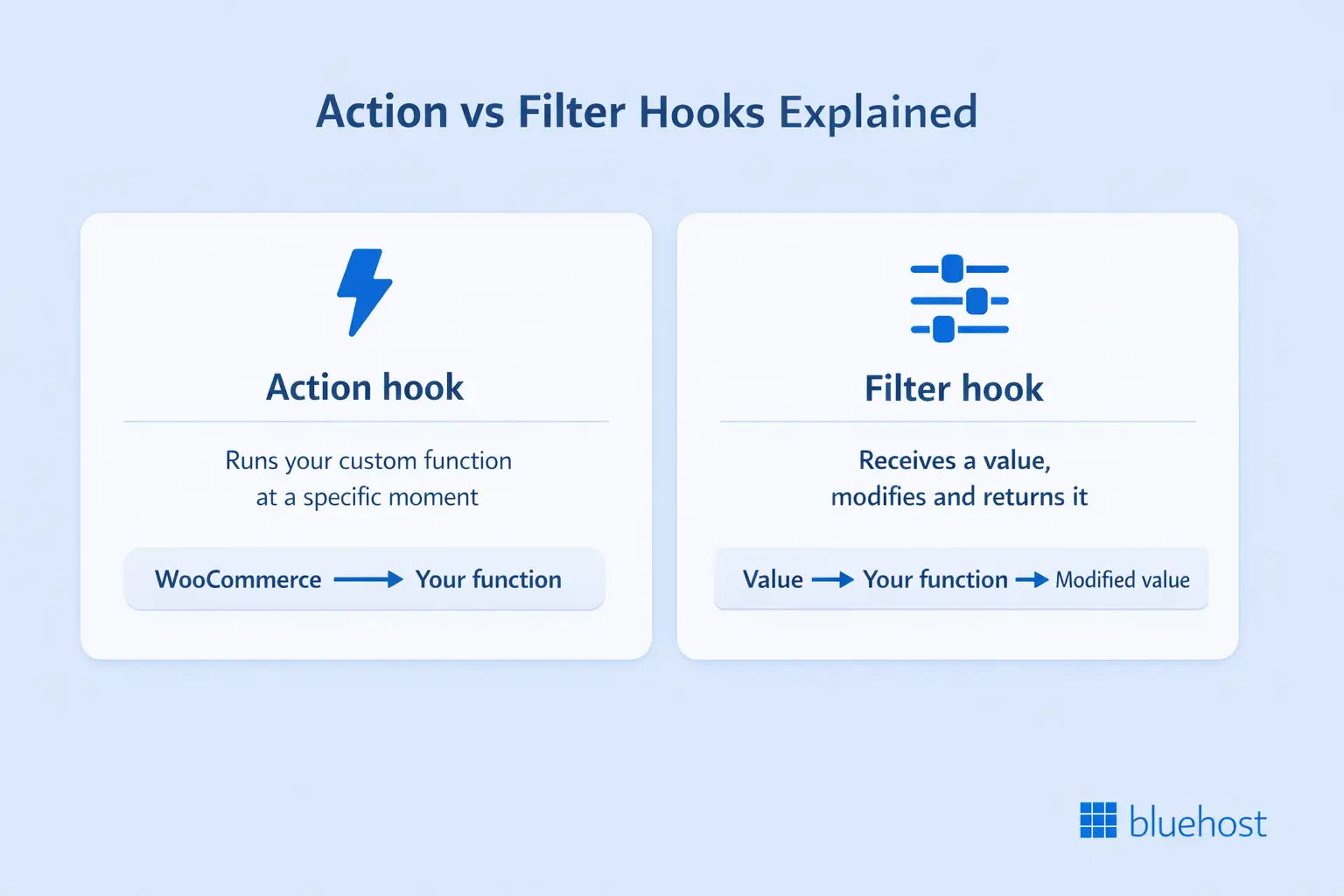
To use hooks effectively, you need to understand how action and filter hooks interact with your custom code. Both rely on registering your function to a named hook so WooCommerce can call it at the right time.
The difference is in what happens next. Actions run your code, while filters pass a value through your code and expect a returned result.
1. Action hooks
Action hooks let you execute custom functions at specific points during the WooCommerce page load process. When WooCommerce encounters an action hook, it fires and runs any function attached via add_action().
Action hooks do not return values; they simply execute your code at the right moment.
The basic syntax is:
add_action( 'hook_name', 'your_function_name', priority, accepted_args );hook_nameis the action hook you want to targetyour_function_nameis the custom function you want to executeprioritycontrols execution order (default: 10, lower runs earlier)accepted_argsis the number of arguments your function accepts (default: 1)
Here’s a simple example:
function my_custom_function() {
    // Your custom code here
}
add_action( 'woocommerce_before_main_content', 'my_custom_function' );
Some common WooCommerce action hooks include:
woocommerce_before_shop_loop: fires before the product loop on archive pageswoocommerce_before_single_product: fires before the single product page contentwoocommerce_after_add_to_cart_form: fires after the add to cart formwoocommerce_checkout_order_processed: fires after an order is processed
Action hooks cover “do something here,” which is often layout and event driven. Filters cover “change this value,” which is how WooCommerce data becomes customizable.
2. Filter hooks
Filter hooks let you manipulate and return a value before it is displayed or saved. When WooCommerce encounters a filter hook, it passes a value through any functions attached via add_filter(), and each function modifies then returns that value. WooCommerce uses the final modified version for all subsequent rendering.
The syntax is identical to add_action():
add_filter( 'hook_name', 'your_function_name', priority, accepted_args );The key difference is structural. Your function must accept the filtered value as a parameter and return the modified version. Using echo inside a filter instead of return is one of the most common mistakes in WooCommerce development.
function my_custom_price( $price, $product ) {
    // Modify the price here
    return $modified_price;
}
add_filter( 'woocommerce_get_price', 'my_custom_price', 10, 2 );
Some common WooCommerce filter hooks include:
woocommerce_product_get_price: filters the product pricewoocommerce_product_title: filters the product titlewoocommerce_checkout_fields: filters the checkout fieldswoocommerce_add_to_cart_redirect: filters the redirect URL after add to cart
Removing hooks with remove_action() and remove_filter()
Most tutorials only cover adding hooks. Knowing how to remove them is equally important.
You use remove_action() and remove_filter() to detach functions from hooks, whether they originate from WooCommerce core, a theme or a third-party plugin. The syntax mirrors the add functions exactly:
remove_action( 'hook_name', 'function_name', priority );
remove_filter( 'hook_name', 'function_name', priority );
The priority value must match the original registration exactly. If the values do not match, the removal silently fails and the original function continues to fire.
Here’s a practical example. WooCommerce displays related products on every single product page by default. You can remove them with this:
remove_action( 'woocommerce_after_single_product_summary', 'woocommerce_output_related_products', 20 );Common use cases for removing hooks include:
- Remove related products from product pages
- Strip default WooCommerce breadcrumbs and replace with your own
- Remove the sale flash badge from products
- Clean up checkout fields added by a plugin
One important rule: Always call remove_action() or remove_filter() after the original function has been registered. Wrap your removal code inside an init hook to guarantee safe execution order.
With action and filter hooks fully understood, the next challenge is knowing where to find the right hook for any given task.
How do you find and use hooks in WooCommerce?
WooCommerce contains over 300 action and filter hooks across its core files. Finding the right hook can be challenging, but a few reliable methods cut through the complexity quickly.
One approach is to browse WooCommerce template files directly. Files like single-product.php and archive-product.php contain action hooks you can target to insert your own content. These files give you a visual map of where hooks fire within each page layout.
The most reliable source for developers is the wc-template-hooks.php file inside the WooCommerce plugin directory. This file is the single source of truth for all template-related action hooks.
You can find it at:
wp-content/plugins/woocommerce/includes/wc-template-hooks.php
You can also browse the full WooCommerce hook reference on the official WooCommerce GitHub repository. That reference gives you hook names, parameters and the exact line numbers where each hook fires. For a more visual approach, the Simply Show Hooks plugin displays active hooks directly on your WooCommerce pages as you browse.
Where should you place your hook code?
This is one of the most common beginner mistakes: placing hook code in the wrong location. Choosing the wrong file means your customizations disappear the moment you update your theme or plugin.
You have two safe options. First, use your child theme’s functions.php file for simple, theme-specific customizations and never modify your parent theme’s functions.php directly. Second, use a custom plugin for any hook that should work regardless of your active theme, because your customizations then remain intact even after a full theme switch.
Avoid placing hook code in WooCommerce’s core files or your parent theme. Those changes get wiped out during updates. Once you have identified the right hook, create a custom function and attach it.
The example below shows how to inject a message into a single product summary at a specific priority.
function custom_single_product_message() {
    echo '<p class="custom-message">Free shipping on orders over $50!</p>';
}
add_action( 'woocommerce_single_product_summary', 'custom_single_product_message', 15 );
With placement and discovery covered, you can focus on the hooks you will reach for most often. A quick reference list helps you move faster in real projects.
What are the most important WooCommerce hooks to know?
The most important WooCommerce hooks are the ones commonly used across product pages, cart, checkout and emails for layout and behavior customization. This section provides a quick reference list of the 15 most commonly used WooCommerce hooks:
| Hook name | Type | What it does | Best for |
|---|---|---|---|
woocommerce_before_main_content | Action | Fires before main WooCommerce content | Banners, announcements |
woocommerce_after_main_content | Action | Fires after main content | Footer content, widgets |
woocommerce_before_single_product | Action | Fires before single product page | Above-product messaging |
woocommerce_single_product_summary | Action | Fires inside product summary | Rearranging product elements |
woocommerce_after_single_product_summary | Action | Fires below product summary | Related products, upsells |
woocommerce_before_cart | Action | Fires before the cart table | Promotions, notices |
woocommerce_cart_totals_before_shipping | Action | Fires before shipping options | Shipping messages |
woocommerce_review_order_before_submit | Action | Fires before Place Order button | Trust badges, checkboxes |
woocommerce_after_shop_loop_item | Action | Fires after each product in loop | Quick view buttons |
woocommerce_email_header | Action | Fires in email header | Custom logos, branding |
woocommerce_product_get_price | Filter | Filters the product price | Dynamic pricing |
woocommerce_product_title | Filter | Filters the product title | Title modifications |
woocommerce_checkout_fields | Filter | Filters all checkout fields | Add/remove/modify fields |
woocommerce_add_to_cart_redirect | Filter | Filters redirect URL after add to cart | Custom redirect flows |
woocommerce_product_tabs | Filter | Filters single product tabs | Add/remove/reorder tabs |
This table gives you a working set of hooks to start with. Next, you can improve your workflow by using tools that make editing and debugging safer.
Tools for working with WooCommerce hooks
Your child theme’s functions.php file handles simple hook additions, but dedicated tools make the entire process faster and safer. Three tools stand out for developers at every skill level.
The Code Snippets plugin lets you add custom code to your WordPress site without editing theme files directly. It includes a built-in code editor with syntax highlighting and a clean interface for managing multiple snippets.
The WooCommerce Code Reference lists all available action and filter hooks along with descriptions and parameters. You can search by hook name or browse by category.
Simply Show Hooks displays hooks on the current page as you browse, which helps you pinpoint exactly where a hook fires in your layout. That visual context is useful when you are aligning custom content to design.
wc-template-hooks.php is still your ground truth for template hooks, as mentioned earlier. Bookmark it so you can confirm registrations and priorities quickly.
Every tool above helps you write better hooks. But no tool replaces the safety of testing those hooks in an isolated environment before your customers see them.
Bluehost WooCommerce Hosting includes a built-in staging environment on both eCommerce Essentials and eCommerce Premium plans. You get a full mirror of your live store, including NVMe storage and managed PHP updates, with zero risk to your production site. Test your hook customizations on staging, confirm the output and push only when you are confident the changes are clean.
Visual guide to WooCommerce hooks
Now that you have a solid understanding of how WooCommerce hooks work, let’s look at commonly used hooks across different parts of your store. Each area of your store has its own set of hooks, and knowing which ones apply where the fastest path is to confident customization.
As you read, pay attention to where each hook sits in the page flow. That placement often determines whether you should use an action or a filter.
1. Hooks in WooCommerce single product pages
Single product pages are where customers view detailed product information. WooCommerce provides several hooks to customize layout and content on these p
Some popular hooks for single product pages include:
woocommerce_before_single_productfires before the single product content. Use it to add custom content above the product title.
woocommerce_single_product_summaryfires inside the product summary area. Use it to rearrange elements or insert additional information.
add_action( 'woocommerce_single_product_summary', 'custom_product_stock_status', 15 );function custom_product_stock_status() {
    global $product;
    if ( $product->is_in_stock() ) {
        echo '<p class="stock-status in-stock">In stock and ready to ship!</p>';
    } else {
        echo '<p class="stock-status out-of-stock">Currently out of stock. Check back soon!</p>';
    }
}woocommerce_after_single_product_summaryfires below the product summary. Use it for related products or custom product tabs.
woocommerce_product_thumbnailsfires within the product image gallery. Use it to modify thumbnail appearance or add custom content.
Once you can shape product pages, the next conversion sensitive area is cart and checkout. Those pages have their own hook patterns and their own risk profile.
2. Hooks for cart and checkout pages
The cart and checkout pages are critical stages in the customer journey. WooCommerce provides hooks that help you add reassurance, reduce friction and insert key details at the right time.
Common cart and checkout hooks include:
woocommerce_before_cartfires before the cart table. Use it to add promotions or custom content above the cart.
woocommerce_cart_totals_before_shippingfires before shipping options. Use it to display shipping-related messages.
add_action( 'woocommerce_cart_totals_before_shipping', 'custom_shipping_message' );function custom_shipping_message() {
    echo '<p class="shipping-message">Free shipping on orders over $50!</p>';
}woocommerce_review_order_before_submitfires before the Place Order button. Use it to add trust badges or custom agreement checkboxes.
woocommerce_checkout_after_customer_detailsfires after the customer details section. Use it to add custom fields.
After checkout, customers still interact with your store through accounts and archives. Those pages are often overlooked, but hooks make them just as customizable.
3. Hooks in WooCommerce account and archive pages
WooCommerce account pages let customers view orders and manage addresses. Archive pages display product lists, and both areas support hook based customization.
Useful hooks in these sections include:
woocommerce_before_account_navigationfires before the account navigation menu. Use it to add custom menu items.
woocommerce_after_account_ordersfires after the orders table. Use it to display review requests or custom messaging.
add_action( 'woocommerce_after_account_orders', 'custom_account_message' );function custom_account_message() {
    echo '<p class="account-message">Thank you for your orders! Please leave a review for the products you purchased.</p>';
}woocommerce_before_shop_loopfires before the product loop. Use it to add filters or promotional content.
woocommerce_after_shop_loop_itemfires after each product in the loop. Use it to add Quick View buttons or product meta.
With the page map in mind, you can now revisit a broader list of hooks. The next section groups common hooks by type so you can scan faster.
Common WooCommerce hooks you should know
WooCommerce ships with hundreds of built-in hooks that let you modify store behavior without touching core files. Understanding which hooks are available – and when they fire – is the foundation of clean, maintainable WooCommerce development.
1. Frequently used action hooks
woocommerce_before_main_content
add_action( 'woocommerce_before_main_content', 'custom_content_before_main' );function custom_content_before_main() {
    echo '<div class="custom-content">Check out our latest products!</div>';
}
woocommerce_after_shop_loop_item
add_action( 'woocommerce_after_shop_loop_item', 'custom_button_after_product' );function custom_button_after_product() {
    echo '<a href="#" class="custom-button">Buy Now</a>';
}
woocommerce_before_cart
add_action( 'woocommerce_before_cart', 'custom_message_before_cart' );function custom_message_before_cart() {
    echo '<div class="custom-message">Spend $50 or more for free shipping!</div>';
}woocommerce_checkout_before_customer_detailsis useful for a progress bar or a message about required fields before customer details.
woocommerce_checkout_order_review
add_action( 'woocommerce_checkout_order_review', 'custom_order_review_content' );function custom_order_review_content() {
    echo '<div class="custom-order-review">Your order will be processed within 1 to 2 business days.</div>';
}woocommerce_email_headerlets you modify the header of WooCommerce email templates by adding content, changing the logo or adjusting styling.
woocommerce_email_footerlets you customize the footer of WooCommerce email templates by adding social links or adjusting styling to match your brand.
Action hooks handle insertion and timing, but filters handle transformation. The next list focuses on filters that directly change store output.
2. Popular filter hooks
woocommerce_product_title
add_filter( 'woocommerce_product_title', 'custom_product_title' );function custom_product_title( $title ) {
    return 'Best ' . $title . ' Available!';
}
woocommerce_product_tabs
add_filter( 'woocommerce_product_tabs', 'custom_product_tab' );function custom_product_tab( $tabs ) {
    $tabs['custom_tab'] = array(
        'title'    => 'Custom Tab',
        'priority' => 50,
        'callback' => 'custom_tab_content'
    );
    return $tabs;
}function custom_tab_content() {
    echo '<h2>Custom Tab Content</h2>';
    echo '<p>This is the content of the custom tab.</p>';
}
woocommerce_add_to_cart_redirect
add_filter( 'woocommerce_add_to_cart_redirect', 'custom_add_to_cart_redirect' );function custom_add_to_cart_redirect( $url ) {
   return get_permalink( 123 );
} woocommerce_cart_totalslets you modify cart totals before display, so you can add totals or change ordering.
woocommerce_product_related_posts_querylets you modify the related products query by changing count, order or filtering criteria.
woocommerce_checkout_fields
add_filter( 'woocommerce_checkout_fields', 'custom_checkout_fields' );function custom_checkout_fields( $fields ) {
   $fields['billing']['custom_field'] = array(
       'label'     => 'Custom Field',
       'required'  => true,
       'clear'     => true,
       'type'      => 'text',
       'class'     => array( 'form-row-wide' )
   );
   return $fields;
} - woocommerce_payment_gateways lets you add, remove or modify the available payment gateways.
Also read: Best WooCommerce Payment Gateways 2026 for Online Stores
You now have the hook vocabulary. Next comes application, which is where patterns like “add content” and “modify output” become practical recipes.
Practical examples of how to use WooCommerce hooks
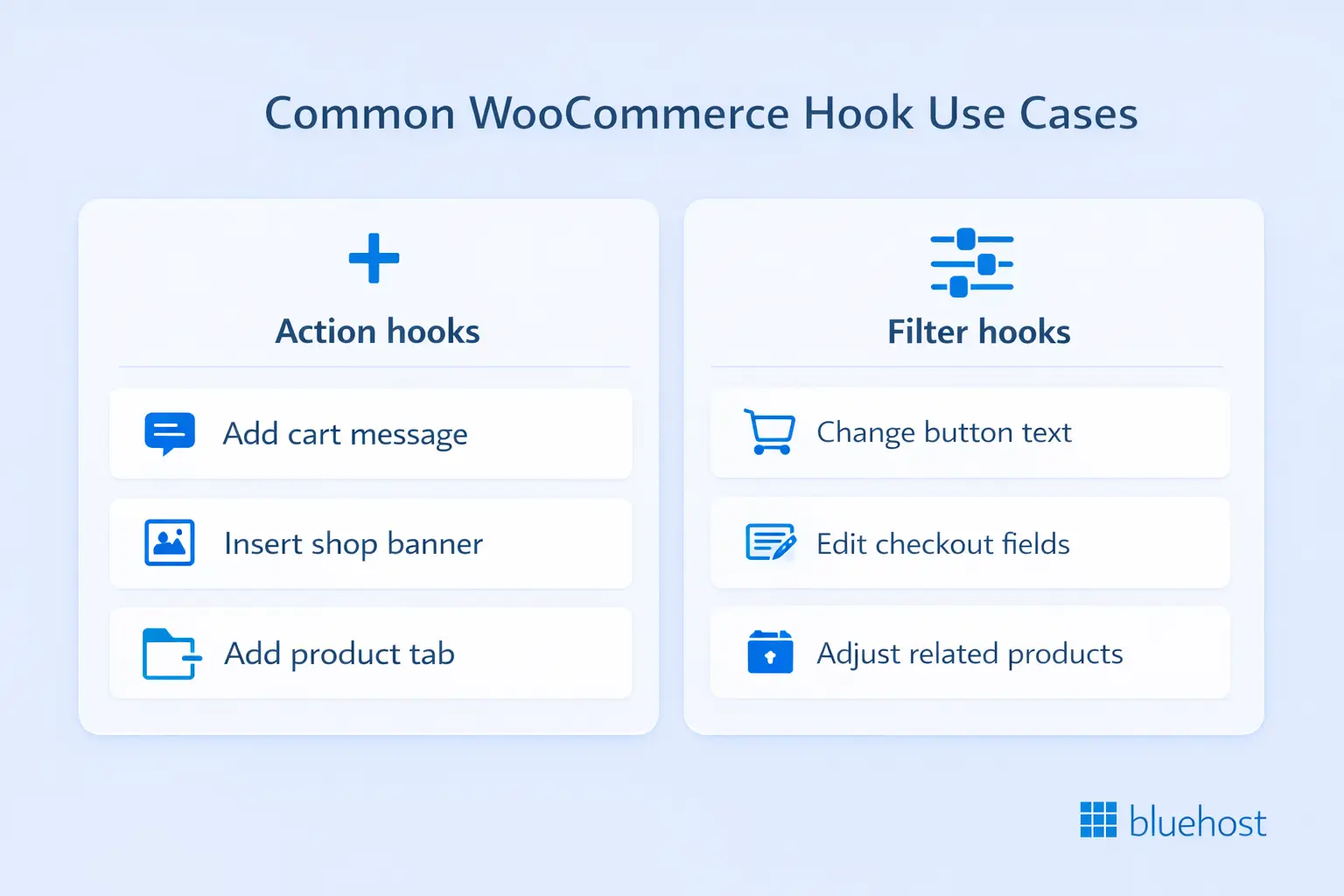
The examples below cover the most common customization scenarios developers encounter across product pages, cart flows and checkout.
1. Adding custom content using action hooks
Example 1: Adding a custom message to the cart page
add_action( 'woocommerce_before_cart', 'custom_cart_message' );
function custom_cart_message() {
    echo '<div class="custom-message">Thank you for shopping with us! Please review your cart before proceeding to checkout.</div>';
}
Example 2: Inserting a banner on the shop page
add_action( 'woocommerce_before_main_content', 'custom_shop_banner' );
function custom_shop_banner() {
    echo '<div class="custom-banner">
        <img src="path/to/banner-image.jpg" alt="Shop Banner">
        <h2>Welcome to our shop!</h2>
        <p>Discover our latest products and special offers.</p>
    </div>';
}
Example 3: Adding a custom tab to the single product page
add_action( 'woocommerce_product_tabs', 'custom_product_tab' );
function custom_product_tab( $tabs ) {
    $tabs['custom_tab'] = array(
        'title'    => 'Custom Tab',
        'priority' => 50,
        'callback' => 'custom_tab_content'
    );
    return $tabs;
}
function custom_tab_content() {
    echo '<h2>Custom Tab Content</h2>';
    echo '<p>This is the content of the custom tab.</p>';
}
Action hooks add things, but filters reshape things. The next set focuses on changing output in place, which is often how store specific behavior is implemented.
2. Modifying output with filter hooks
Example 1: Changing the “Add to Cart” button text
add_filter( 'woocommerce_product_single_add_to_cart_text', 'custom_add_to_cart_text' );
function custom_add_to_cart_text() {
    return 'Buy Now';
}
Example 2: Modifying the checkout fields
add_filter( 'woocommerce_checkout_fields', 'custom_checkout_fields' );
function custom_checkout_fields( $fields ) {
    unset( $fields['billing']['billing_company'] );
    $fields['billing']['billing_phone']['required'] = true;
    $fields['billing']['custom_field'] = array(
        'label'     => 'Custom Field',
        'required'  => true,
        'clear'     => true,
        'type'      => 'text',
        'class'     => array( 'form-row-wide' )
    );
    return $fields;
}
Example 3: Changing the number of related products
add_filter( 'woocommerce_output_related_products_args', 'custom_related_products_args' );
function custom_related_products_args( $args ) {
    $args['posts_per_page'] = 6;
    $args['columns'] = 3;
    return $args;
}
Once you have patterns for adding and modifying, you can map them to common business needs.
Real-world use cases for WooCommerce hooks
- Adding a custom shipping method with the
woocommerce_shipping_methodsfilter, such as local delivery or a custom calculator. - Customizing the order confirmation email with
woocommerce_email_order_detailsto add a thank you message, recommendations or a coupon code. - Modifying product search results with
pre_get_poststo include or exclude categories, change ordering or add filters. - Adding custom fields to the product editor with
woocommerce_product_options_general_product_datato store custom SKUs, manufacturer part numbers or video URLs. - Customizing cart and checkout logic with
woocommerce_cart_calculate_feesfor custom fees, orwoocommerce_payment_completeto trigger actions after payment.
Practical use cases lead naturally into advanced implementations. The next section extends the same concepts into emails, pricing logic and third-party integrations.
Advanced applications of WooCommerce hooks
Once you’re comfortable with basic hook usage, you can apply the same pattern to more complex store logic.
1. Customizing emails with WooCommerce hooks
1.1 Modifying email templates
add_action( 'woocommerce_email_header', 'custom_email_header' );
function custom_email_header( $email_heading ) {
    $custom_logo_url = 'https://example.com/path/to/custom-logo.png';
    echo '<div style="text-align: center; margin-bottom: 20px;"><img src="' . $custom_logo_url . '" alt="Custom Logo" /></div>';
}
1.2 Adding custom content to emails
add_action( 'woocommerce_email_order_details', 'custom_email_order_details', 20, 4 );
function custom_email_order_details( $order, $sent_to_admin, $plain_text, $email ) {
    if ( ! $sent_to_admin && ! $plain_text ) {
        echo '<p>Thank you for your order! We appreciate your business and hope you enjoy your purchase.</p>';
    }
}
Email customization is a common starting point, but hooks can also change pricing in real time. Those pricing changes usually live in cart calculations and product price retrieval.
2. Dynamic pricing and discounts using hooks
2.1. Applying a custom discount
add_action( 'woocommerce_cart_calculate_fees', 'custom_discount' );
function custom_discount( $cart ) {
    if ( is_user_logged_in() ) {
        $discount_amount = $cart->subtotal * 0.1;
        $cart->add_fee( 'Custom Discount', -$discount_amount );
    }
}
2.2 Dynamic pricing based on quantity
add_action( 'woocommerce_before_calculate_totals', 'dynamic_pricing_quantity' );
function dynamic_pricing_quantity( $cart ) {
    if ( is_admin() && ! defined( 'DOING_AJAX' ) ) {
        return;
    }
    foreach ( $cart->get_cart() as $cart_item ) {
        $product = $cart_item['data'];
        $quantity = $cart_item['quantity'];
        if ( $quantity >= 10 ) {
            $price = $product->get_price() * 0.9;
            $product->set_price( $price );
        }
    }
}
Many stores also rely on third-party extensions for shipping, inventory or pricing. Hooks are often the cleanest way to integrate those tools without editing their code.
3. Integrating third-party plugins with WooCommerce hooks
3.1 Integrating a custom shipping provider
add_filter( 'woocommerce_shipping_methods', 'add_custom_shipping_method' );
function add_custom_shipping_method( $methods ) {
    $methods['custom_shipping'] = 'Custom_Shipping_Method';
    return $methods;
}
3.2 Modifying product data with a third-party plugin
add_filter( 'woocommerce_product_get_price', 'custom_product_price', 10, 2 );
function custom_product_price( $price, $product ) {
    $custom_price = get_post_meta( $product->get_id(), 'custom_price', true );
    if ( ! empty( $custom_price ) ) {
        $price = $custom_price;
    }
    return $price;
}
Advanced hooks can be powerful, but they also raise an operational question. The next section addresses performance cost and how to avoid slowdowns as your customizations scale.
What is the performance cost of WooCommerce hook customization?
Hooks are lightweight by design, so a single well written hook function adds negligible overhead to page load. The bigger risk is hook bloat, which builds up when complexity stacks across templates and plugins.
Hook bloat is a real problem, and it usually shows up when:
- Too many hooks fire on the same page
- Hook functions run unoptimized database queries
- Third party plugins stack conflicting hooks without priority management
The cumulative effect often appears in TTFB (Time to First Byte) and LCP (Largest Contentful Paint), which are the two metrics that directly impact search rankings and conversion rate. When those numbers rise, the store feels slower even if each hook looked harmless in isolation.
Here’s what hook bloat looks like in practice:
| Scenario | Performance impact |
|---|---|
| 1–5 lightweight hooks | Negligible – under 5ms total |
| 10+ hooks with DB queries | Noticeable – 50–150ms added TTFB |
| Plugin-stacked hooks (no auditing) | Significant – 200ms+ latency spikes |
To minimize the impact:
- Audit your active hooks regularly and remove what is not serving a purpose.
- Cache the output of hook functions that display static content.
- Use a staging environment to benchmark TTFB before and after adding new hook functions.
Hosting infrastructure is the other variable. Bluehost’s WooCommerce plans now run on Oracle Cloud Infrastructure, which provides the same baseline used for enterprise scale operations.
That headroom matters when your functions.php is doing real work. A faster baseline means your hook functions execute against a lower latency floor, which is especially relevant for stores running dynamic pricing, custom checkout logic or real-time inventory hooks.
Ready to give your hook customizations a stable, high-performance foundation? Explore Bluehost WooCommerce Hosting, with NVMe storage, a built-in staging environment and a 99.9% uptime guarantee.
Now that performance tradeoffs are clear, the next step is diagnosing issues quickly.
Troubleshooting WooCommerce hooks
When a hook does not fire as expected, the cause is almost always one of a small set of common errors. The table below maps the most frequent problems to their likely cause and the fastest fix.
| Problem | Likely cause | Fix |
|---|---|---|
| Hook not working / no output | Syntax error in your function | Use a code editor with syntax highlighting. Enable WP_DEBUG to surface errors. |
| Hook not working | Wrong hook name | WooCommerce hook names are case-sensitive. Verify against wc-template-hooks.php or the WooCommerce Code Reference. |
| Hook fires out of order | Priority conflict | Multiple functions on the same hook run in priority order. Assign a unique priority value to your function. |
| Duplicate content on page | Same function hooked twice | Check your code for duplicate add_action() calls. Each function should be registered once. |
| Filter outputs content instead of returning it | Wrong output method in filter | Filter functions must use return, not echo. Using echo inside a filter causes unexpected output. |
| Slow page load after adding hooks | Unoptimized hook functions | Minimize database queries inside hook functions. Use caching for static output. Profile with Query Monitor. |
Debugging hook errors in WooCommerce
1. Enable WP_DEBUG
Add this to your wp-config.php file:
define( 'WP_DEBUG', true );WordPress will display warnings, notices and error messages, making it easier to identify hook-related issues. Once errors are visible, you can usually trace them to a specific function or file.
2. Use a hook debugger plugin
- Simply Show Hooks displays all hooks fired on the current page with their priorities
- WP Hooks Viewer provides a visual map of hook execution order
- Hook Monitor logs all hooks fired on your site with a searchable interface
3. Use error_log() for debugging
add_filter( 'woocommerce_product_get_price', 'custom_product_price', 10, 2 );
function custom_product_price( $price, $product ) {
    error_log( 'Processing product ID: ' . $product->get_id() );
    error_log( 'Original price: ' . $price );
    // Your custom pricing logic here
    error_log( 'Modified price: ' . $price );
    return $price;
}
Logging is useful when a hook runs but does not behave as expected. It also helps you confirm that your callback is being called with the arguments you think it is.
4. Test on a staging site
Test all hook changes on a staging environment before pushing to production. This approach protects your live store from errors and gives you a clean performance benchmark for comparison.
Once you can debug hooks confidently, you can choose when to code and when to use visual tools.
Simplified WooCommerce customization with WordPress AI Builder Blocks
Hooks provide powerful customization options. For many visual and layout-level changes, though, you do not need to write a single line of PHP.
Bluehost WordPress AI Builder Blocks, part of our WordPress AI Builder, is a library of customizable block patterns and templates that enhances the WordPress block editor with a visual, drag-and-drop design experience. It helps you build and design your site pages quickly and professionally without coding.
The WordPress AI Builder Blocks focuses on the presentation layer, specifically design and layout within WordPress, and works alongside WooCommerce rather than acting as a dedicated WooCommerce page builder.
Think of the division this way: hooks handle your logic and data layer, while WordPress AI Builder Blocks handles your visual presentation layer. Used together, they give you greater control over your store by balancing code flexibility with visual editing. That combination means you are not forced to choose between a developer workflow and a visual one.
Key benefits of using WordPress AI Builder Blocks alongside your WooCommerce store:
- Pre-built block patterns and page templates help you create professional layouts without coding
- Drag-and-drop design experience speeds up page building significantly
- Custom blocks adjust to match your store’s branding and style
- Full compatibility with your existing hook customizations
Final thoughts
Throughout this guide, you have explored the full power of WooCommerce hooks, from basic action and filter syntax to advanced dynamic pricing, email customization and third-party integrations. You have also seen how to remove hooks cleanly, where to find hooks in the WooCommerce source and how to keep your customizations from affecting server performance.
Armed with this knowledge, you are ready to take your WooCommerce development to the next level.
Ready to put these customizations into action on infrastructure that will not slow them down? Get started with Bluehost WooCommerce hosting today and build your custom store on a platform trusted by 5M+ websites.
FAQs
Action hooks execute code at a specific point without returning a value; use them to add content or trigger events. Filter hooks modify a value and return it; use them to change prices, labels or field configurations. The distinction comes down to whether your function outputs something new or transforms something existing.
Start with the Simply Show Hooks plugin, which displays active hooks as you browse your store. For a complete reference, check wc-template-hooks.php in the WooCommerce plugin directory or the official WooCommerce GitHub repo. Both sources give you hook names, parameters and exact firing locations.
Lightweight hooks have minimal impact, typically under 5ms each. Performance issues arise from unoptimized database queries inside hook functions or too many hooks firing on the same page. Test on staging and cache static output where possible to keep your store fast.
Basic PHP knowledge is enough to get started because many simple customizations involve adapting existing code examples. For visual customizations, Bluehost WordPress AI Builder Blocks lets you adjust layouts without writing code at all. The two approaches complement each other and cover the full range of store customization needs.
Yes, as long as you place your hooks in a child theme’s functions.php or a custom plugin and not in WooCommerce core files. Always test on a staging environment after major WooCommerce version updates to confirm nothing has changed in the hooks your customizations depend on.

Write A Comment