 ChatGPT,
 Claude,
 Gemini,
 Grok — all four for
Key highlights
- Understand what WordPress cache is and how it affects your site’s speed.
- Learn when and why you should clear your WordPress cache.
- Explore different methods to clear cache using browser, plugins and server tools.
- Compare the best WordPress caching plugins including W3 Total Cache, WP Super Cache, WP Rocket and WP Fastest Cache.
- Discover how Bluehost makes cache management simple with built-in caching tools and plugin support.
Page load speed, which directly affects loading speed, is an essential factor for your website’s user experience. Website pages that take more than three seconds to load lose up to 40% of visitors.
One of the best ways to boost your website speed is to enable caching and cache your website pages.
Using a WordPress cache plugin to cache your pages can help speed up your website, which you can manage through the wordpress admin dashboard but you also need to clear your WordPress cache now and then.
Clearing your cache helps ensure all your changes and updates go into effect and your website runs smoothly. However, if issues like net::ERR_SSL_PROTOCOL_ERROR persist, further troubleshooting may be required.
Keep reading to learn:
- How caching works and when to clear your WordPress cache
- How to clear WordPress cache
- What the best WordPress cache plugins are
Skip the jargon and get live human help 24/7
? Chat with an ExpertWhat is WordPress cache and how does it work?
When someone visits your WordPress website, the platform usually pulls data from the server, processes it and builds the page in real time. That takes effort and time.
To speed things up, WordPress uses cache. Think of it as a ready-made copy of your web page that gets stored temporarily. The next time a visitor comes, instead of rebuilding everything from scratch, WordPress serves this cached content.
Furthermore, websites use caching to reduce the number of data requests and speed up page load time. The first time a user visits a website, WordPress needs to make requests to the database using PHP. Then, it combines the information and uses it to generate the HTML page your visitor sees.
It takes a lot of time to request and reformat data from the primary database.
If WordPress needed to communicate with the central database every time a user returned to the website, pages would take too long to load.
So, how does caching help?
After WordPress requests website pages for the first time, it stores the static HTML pages in a high-speed temporary storage system known as a cache.
The next time someone requests a website page, WordPress displays the saved page instead of querying the central database.
Displaying a static HTML file from the cache requires fewer steps and increases page load time.
However, since the cached pages are static, they don’t include updates or edits made after the first visit. A stored copy is often referred to as the cached versionof a website page.
What are the different types of web caches?
There are several types of web caches. Each cache has benefits and works with a specific data type.
These different caches work simultaneously to reduce the number of data requests needed to load your website. This, in turn, increases your overall website speed.
- Site cache: The site cache stores old copies of your website pages to increase load speed. As a website owner, you can manually clear your site cache or set cache expiration dates for your website pages.
- Browser cache: Web browsers store HTML pages, CSS files and other site data in the browser cache. End-users (as opposed to website owners) can clear a browser cache. Many browsers also have schedules to flush out cached data.
- Server cache: Server cache refers to cached data stored on your website server. It includes the use of content delivery networks (CDNs) plus object and opcode caching.
Each type of cache must be cleared separately. Learning how to do so will help you ensure your website changes and updates take effect.
What does clear cache mean?
When you clear the wordpress cache, you’re erasing the temporarily saved files in your cache data layer. Once you clear your cache, browsers will load the most recent version of your website pages and use those to create new cache data.
Clearing your cache files does not delete your website’s permanent data. Only the snapshots of your website pages that were previously saved get cleared.
Enable WordPress caching
Many website owners wonder why their site is sluggish. Slow load times frustrate visitors and hurt your search rankings. Before you learn how to clear WordPress cache, you first need to enable it. Enabling caching solves performance issues by creating a temporary storage system for your web pages. Instead of your server building a page from scratch for every single visitor, it delivers a saved snapshot instantly. This drastically speeds up page loads for your end-users and reduces the strain on your server.
If you are new to website management, this might sound overly technical. Fortunately, top hosting platforms provide built-in caching solutions that make the setup effortless for beginners. Once enabled, your site runs much faster and you simply need to clear WordPress cache whenever you make major updates to keep your content fresh.
When do you need to clear WordPress cache?
By now, you might be thinking, “If my WordPress cache increases my page load speed, why would I want to clear it?”
Regularly clearing your WordPress cache is part of good website hygiene. Likewise, if you’ve made changes to your website, but you don’t see them, check the last time you cleared your cache. Below are some of the scenarios where you would ideally want to clear WordPress cache.
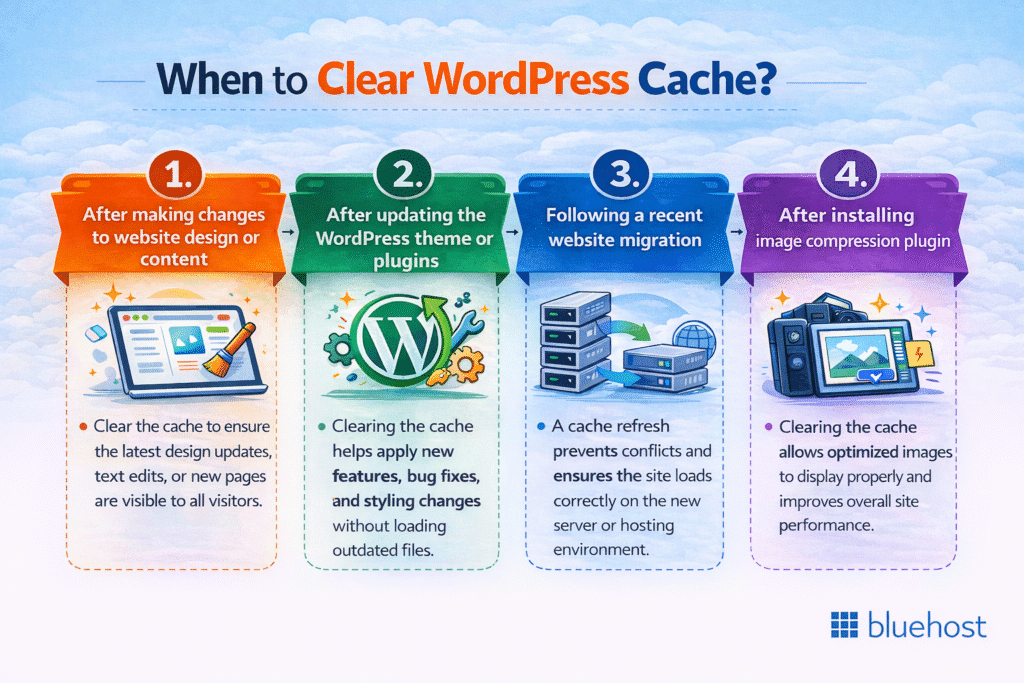
1. You changed your website design or content
As mentioned before, when you use a cache, you show your visitors saved (or cached) versions of your website pages.
If you’ve made changes to your design or content, returning visitors won’t see the difference. So, after you publish any significant changes, it’s best to clear WordPress cache.
2. You updated your WordPress theme or plugins
Developers frequently release updated versions of WordPress themes and plugins. Typically, updates lead to faster and better performance. In some cases, updates are released to patch security issues.
Any time you update your theme or plugin on WordPress, it’s recommended to clear your WordPress cache. Without a clear WordPress cache, the changes made in the update might not go into effect.
3. You recently migrated your website
People migrate websites for various reasons, including to change a name or look for a better web hosting service.
Whatever your reason, if you migrate your website, you should clear out your cache if you use caching plugins.
Changes to your server and database can result in weird website behavior and poor user experience if you forget to clear your cache.
4. You installed a plugin to compress your images
Image compression plugins are excellent tools to help you increase your page load speed and website performance.
However, if you don’t clear your cache in wordpress, your website will show the old previously cached images.
So, clearing out the cache after you install an image compression plugin ensures your website displays the optimized version of each image.
How to clear cache in WordPress?
If you’ve made changes to your website, but they aren’t showing up, it might be time to clear your cache.
Here’s how to get a clear WordPress cache and ensure your website is operating properly.
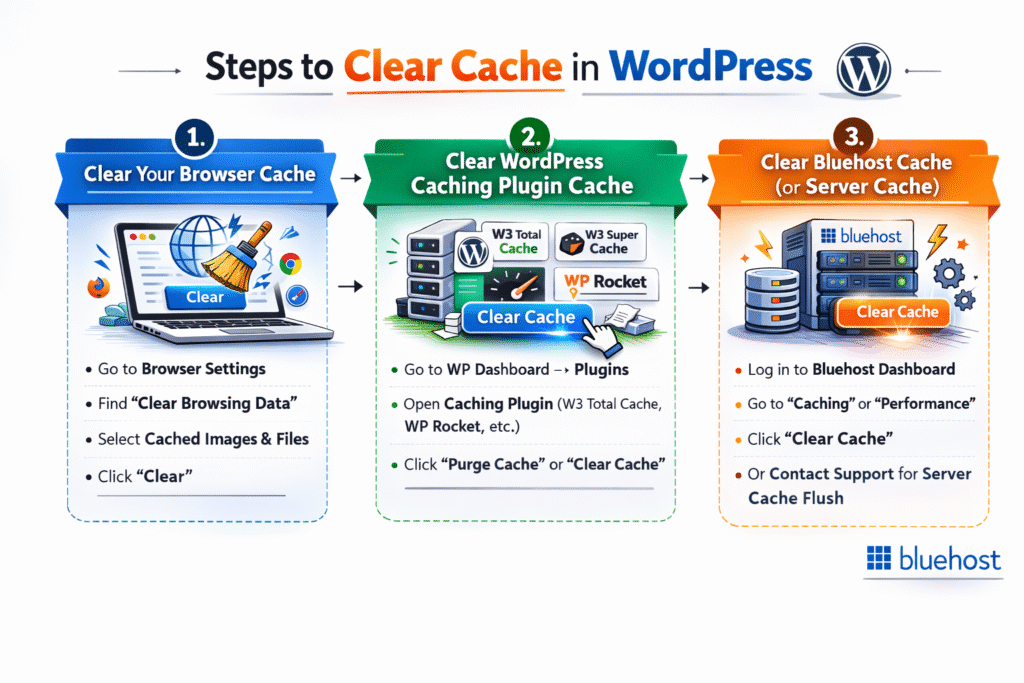
1. Clear your browser cache
If you can’t see the changes you made to your website, your personal browser cache might be the culprit.
Your browser cache stores data such as HTML pages and it might show you old copies of your website.
If you use Google Chrome, you can clear your browser cache by going to your browser menu (three dots in the top right corner) and select “Settings” followed by “Privacy and security” and clear cache.
You can find a step-by-step guide online to clear browsing data for all other major web browsers, including Firefox and Safari.
2. Clear WordPress caching plugin cache
To speed up your WordPress website with caching, you’ll need a WordPress cache plugin.
Several WordPress caching solution plugins are available and most of them have a “delete cache” option or clear cache button on the settings page. You can also check to see if your plugin provider offers tutorials for clearing out the cache.
Keep reading to compare the top three WordPress Cache plugins.
3. Clear Bluehost cache (or server cache)
Finally, clear your server cache. You can clear your cache on Bluehost by using your WordPress dashboard
Click on caching in your WordPress admin menu and select Purge All to purge all caches.
Why use a WordPress caching plugin?
Nothing is more frustrating than watching your website traffic bounce because of sluggish load times. When visitors face a slow website, they quickly leave, costing you valuable engagement and revenue. As your site grows with more images, complex themes and traffic, your server works harder to process and deliver content to every single user. This constant strain can cripple your overall site performance and hurt your search engine rankings.
A WordPress caching plugin solves this problem by doing the heavy lifting automatically. Instead of forcing your server to build every page from scratch for each visitor, a plugin creates and stores a static HTML version of your site. This drastically reduces server strain and delivers content almost instantly. Faster load times keep your visitors happy and provide a massive boost to your SEO since search engines heavily prioritize speedy websites.
Once you install one of these tools, managing your site’s performance becomes effortless. While the plugin automates the storage process, you will still need to know how to clear WordPress cache when you make design changes or publish new posts. Whether you rely on a dedicated speed optimization tool or integrate with specific Yoast SEO cache features, understanding when to clear WordPress cache ensures your audience always sees your most recent updates without ever sacrificing speed.
Key features of a WordPress caching plugin
When learning how to clear WordPress cache, it is important to select a plugin that matches your technical comfort level and website needs. The best plugins offer a mix of automated features to streamline your site performance.
- Page caching: Creates static HTML files of your dynamic WordPress pages to dramatically reduce server processing time.
- Minification: Shrinks the size of your website files by removing unnecessary characters from HTML, CSS and JavaScript.
- Database optimization: Cleans up your database by removing post revisions, trashed comments and expired transient options.
- Browser caching integration: Instructs visitor browsers to store common static files for faster repeat visits.
Keep in mind that while advanced features offer more control, beginners should look for a plugin with a simple clear cache WordPress button to avoid breaking site functionality.
Clear WordPress cache from the WordPress dashboard
To clear WordPress cache directly from your dashboard, log in to your admin area and locate the caching or performance tab on the top menu bar. Click the “Purge All” or “Clear Cache” button to instantly remove saved temporary files and refresh your site content.
Learning how to clear WordPress cache this way is the quickest method for users with integrated hosting tools. When your hosting provider includes a built-in performance solution, these convenient shortcuts automatically appear right on your screen. This allows you to clear cache WordPress data without navigating through complex plugin settings, managing a Yoast SEO cache separately or touching backend code. Using this direct approach to execute a WordPress clear cache command ensures your visitors always experience your most recent updates.
Clear the cache using your WordPress caching plugin
If you want granular control over your website’s performance, using a dedicated plugin is one of the best ways to manage and clear WordPress cache. While dashboard tools are great for a quick purge, caching plugins allow you to target specific pages, posts or database elements without affecting the entire site. This is especially helpful if you only updated a single blog post or tweaked your Yoast SEO cache settings and don’t want to rebuild the cache for your entire website.
Most popular plugins also make it incredibly easy to clear cache WordPress style—right from your top menu. They typically add a convenient shortcut directly to your WordPress admin bar. This feature allows you to perform a one-click purge from any screen without ever touching a line of code or navigating through complex settings.
Clear cache with W3 Total Cache
Learning how to clear WordPress cache using W3 Total Cache takes just a few clicks. First, locate the Performance tab in your top WordPress admin bar. Hover over it and select Purge All Caches from the drop-down menu. This specific action is crucial because it does more than just clear basic HTML pages. It thoroughly refreshes all minified files and clears cached database queries, ensuring your newest content and design changes display perfectly for your visitors.
Clear cache with WP Super Cache
If you use WP Super Cache, managing your temporary files is a highly beginner-friendly process. To clear WordPress cache, simply navigate to your dashboard settings and select WP Super Cache. From there, click the “Delete Cache” button located under the main tab. This straightforward action instantly flushes out old static HTML files so your new content appears seamlessly for visitors. Understanding how to clear WordPress cache using this tool takes only seconds and ensures your audience always sees your most recent updates without needing any technical expertise.
Clear WordPress cache in WP Rocket
If you use WP Rocket, learning how to clear wordpress cache is incredibly simple. Just hover over the WP Rocket menu located in your top admin bar and click ‘Clear cache’ from the dropdown list. Premium users heavily rely on this tool for an all-in-one speed enhancement that optimizes overall performance without breaking complex eCommerce functionality. With just one click, you can safely clear cache WordPress files and ensure your customers always experience a fast, up-to-date storefront.
Clear WordPress cache manually via file manager
For web professionals managing complex sites, knowing how to clear WordPress cache manually is essential if you ever lose access to the admin dashboard. When a broken update or conflicting plugin locks you out, you must clear cache WordPress files directly through your server instead of the interface.
Connect using an FTP client or cPanel File Manager and navigate to the wp-content/cache directory. To execute a WordPress clear cache operation, simply select and delete all the contents inside this folder. Exercise extreme caution to only delete the files inside the directory and never the root cache folder itself or other core site files. This advanced technique forces your server to rebuild its temporary data, quickly resolving lockouts and ensuring components like your Yoast SEO cache regenerate properly.
Clear your CDN cache
A Content Delivery Network (CDN) stores copies of your website’s static assets on servers around the world to speed up load times for global visitors. When figuring out how to clear WordPress cache, remember that emptying your local server or plugin cache is sometimes not enough. Your CDN will often continue serving older, distributed files even after your main site updates.
To ensure all visitors see your latest content, you must clear your CDN cache directly. Simply log into your CDN provider’s dashboard, locate the caching settings and select the option to purge everything. This forces the global network to fetch the most recent files from your web host, completing the process to clear cache WordPress efficiently.
Best WordPress cache plugins
If you want to use caching to speed up your WordPress website, you need to install a caching plugin. Finding the right plugin for your website depends on your budget and needs.
There are several free and premium options available. Here are three popular caching plugins.
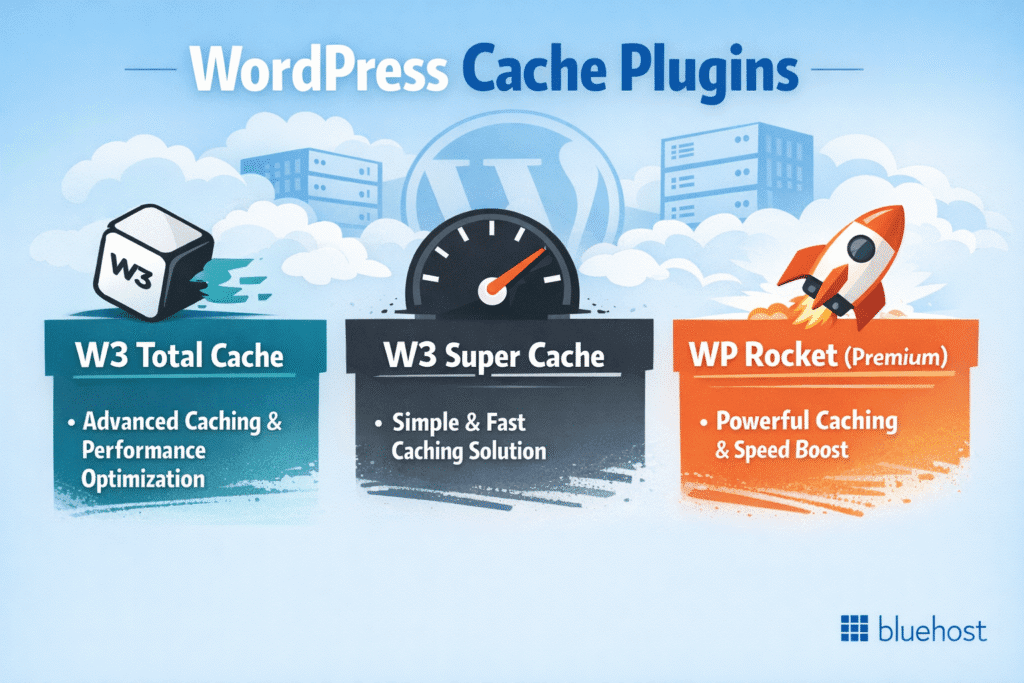
1. W3 Total Cache
More than one million WordPress users use W3 Total Cache. It offers ten times speed improvements, easy setup features and mobile support. Advanced users can opt for
Total Cache Pro, which includes features like fragment caching and rest API caching.
W3 Total Cache key features:
- Page caching
- CDN integration
- Accelerated mobile pages (AMP) support
- SSL support
- Caching of pages, post and search engine results
Best WP cache plugin for: Mobile-optimized websites
Price: Free version available or $99/year for Total Cache Pro
2. W3 Super Cache
W3 Super Cache offers straightforward and effective caching options for your WordPress website. Users can choose simple or expert mode caching based on their technical knowledge.
W3 Super Cache key features:
- Page caching
- CDN support
- Compressed pages
- Cache rebuilds
- Homepage checks
Best WP cache plugin for: Beginners
Price: Free
3. WP Rocket (Premium)
WP Rocket is a premium WordPress cache plugin with a comprehensive set of tools to help speed up your website. With WP Rocket, you can set up page caching as well as browser caching and database optimization.
WP Rocket key features:
- Page caching
- Browser caching
- Cloudflare compatibility
- CDN support
- Defer JavaScript loading
- Minified pages
Best WP cache plugin for: All-around website speed enhancement
Price: $59/year for one website
Next steps for clearing your WordPress cache
Now that you understand how to clear WordPress cache and have selected the right plugin for your needs, it is time to focus on ongoing website maintenance. Installing a caching solution is just the first step. To keep your platform running smoothly, you must establish a routine that ensures your audience always sees your latest content.
Every time you clear cache WordPress files, you should measure the impact of your efforts. Test your site speed using generic tools like [businessname].com speed testers to see exactly how quickly your pages load. Monitoring these metrics helps verify that your chosen setup – whether it involves standard page caching or optimizing a specific Yoast SEO cache – is actively improving your overall performance.
Finally, remember that knowing when to clear WordPress cache goes hand in hand with keeping your digital environment secure. Make it a habit to regularly update your themes and plugins. Whenever you process a major update or make significant design changes, be sure to use your WordPress clear cache feature to prevent visitors from experiencing broken layouts or outdated information.
The best WordPress caching plugins compared
Choosing the right tool to clear WordPress cache depends on your technical expertise and website goals. If you are learning how to clear WordPress cache, a beginner-friendly free option is the best starting point. However, when you need to clear cache, WordPress premium plugins offer advanced features for demanding eCommerce stores and compatibility with tools like the Yoast SEO cache integration. Review the table below to compare the top options.
| Plugin | Plan types | Ease of use | Best use case |
| W3 Total Cache | Free and Premium | Advanced | Technical users needing deep server control |
| WP Super Cache | Free | Beginner | Simple static HTML generation |
| WP Rocket | Premium Only | Intuitive | All-in-one speed enhancement |
Once you select the right tool, automating your WordPress clear cache settings becomes a hands-off process that permanently protects your loading speeds.
Final thoughts
Caching is one of the simplest ways to make your WordPress website faster and more reliable. It reduces server load, improves user experience and helps your site perform better. However, to keep everything running smoothly, you need to clear the cache regularly, so your visitors always see the latest version of your content.
At Bluehost, we make cache management effortless with built-in caching tools, seamless integration with popular WordPress caching plugins and 24/7 expert support. So, start today with Bluehost WordPress hosting and keep your site fast, fresh and ready to perform at its best.
Find your perfect plan
? View PlansFAQs
We at Bluehost provide caching management options, including a Clear Cache button within your “Account Manager” under the “Speed” or “Performance” settings. This way you can still clear your cache through us without using a caching plugin.
The other option is by clearing your own browser cache. In Google Chrome, go to Settings > Privacy and security > Clear browsing data to remove stored files. This ensures you see the most up to date version of your WordPress site instead of an outdated cached version.
Yes. Removing outdated cache files ensures visitors see the up-to-date version of your content. It also prevents errors caused by outdated files or cached data and helps search engines crawl frequently accessed data and fresh content.
Whether you clear it via a plugin dashboard such as WP Rocket or WP Fastest Cache or through your hosting provider’s server cache, regular cache clearing keeps your WordPress site’s cache optimized and makes your site load faster.
Absolutely. From the WordPress admin area, you can click “delete cache” or use the “delete cache tab” in popular tools like WP Super Cache plugin. This clears temporary storage and cached version files so that your site shows updated content.
Manual clearing also helps when you’re updating plugins, changing designs or fixing issues caused by outdated files.
W3 Total Cache is a powerful caching plugin designed for advanced users. It offers features like object cache, opcode cache, CDN cache integration and support for database queries. WP Super Cache, on the other hand, focuses on simplicity.
It generates static HTML files so your WordPress website can load faster with reduced server load. Both of these options improve website performance. However, W3 Total Cache comes with more technical caching features, while WP Super Cache is easier for beginners.
Yes. WP Super Cache plugin is free and maintained by Automattic. It provides a delete caches button so you can clear your site’s cache or refresh cached files manually. While the plugin itself is free, pairing it with a strong hosting provider like Bluehost or a content delivery network (CDN cache) further boosts your WordPress website.
For advanced features such as lazy loading or database optimization, you may need additional plugins.
Some of the popular WordPress caching plugins include W3 Total Cache, WP Super Cache, WP Rocket and WP Fastest Cache. Each offers different caching features like page cache, object cache or CDN cache integration.
The right choice depends on your needs. A powerful caching plugin like W3 Total Cache suits advanced users, while plugins with a simple delete cache button like WP Super Cache are ideal for beginners.


Write A Comment