 ChatGPT,
 Claude,
 Gemini,
 Grok — all four for
Key highlights
- Learn the core difference between domain forwarding vs DNS pointing and how each connects your domain to the web.
- Find out which method suits your goals, from launching a site to rebranding.
- Learn how DNS records work and which ones you need on Bluehost.
- Follow the exact steps to set up redirect and DNS pointing inside your web host account.
- Discover how your redirect type affects search rankings and whether your email is at risk.
- Learn how long DNS changes take and how to verify your domain has updated globally.
You’ve registered your domain. Everything looks good until you hit a choice you did not expect: do you want to forward your domain or point it using DNS? If those two options sound like they do the same thing, you are not alone. Most beginners get stuck right here.
This guide breaks down domain forwarding vs DNS pointing in plain English. You will learn how each one works, when to use which, how to set them up and what happens to your SEO and email along the way.
Domain forwarding vs DNS pointing: Key differences and when to use each
Choosing between domain forwarding vs DNS pointing comes down to your goal – whether you need to redirect traffic or host a site that loads under your original domain. The table below summarizes the core differences at a glance.
| Feature | Domain forwarding | DNS pointing |
|---|---|---|
| URL in browser | Changes to destination URL | Stays as your domain |
| HTTP redirect involved | Yes (301 or 302) | No |
| Hosting required | Not at the forwarded domain | Yes |
| Email compatible | Limited – needs separate MX setup | Fully compatible |
| SEO impact | Moderate – 301 passes link equity | Neutral – standard hosting |
| Best for | Redirects, old domains, campaign URLs | Active websites, full domain setup |
What is domain forwarding?
Domain forwarding automatically sends visitors from one domain to a different web address. No hosting is required. You only need a registered domain and a forwarding rule configured in your domain management panel.
It is most commonly used when you own multiple domain variations, such as yoursite.net and yoursite.co, and want all of them to send traffic to one main site. It is also used during rebranding, so your old domain keeps driving visitors to your new one.
Think of it like a mail forwarding service. You moved to a new house, but instead of updating your address everywhere, the post office automatically redirects your mail to the new location. Domain forwarding works the same way for web traffic.
How domain forwarding works step by step?
- A visitor types your forwarded domain into their browser.
- The registrar’s DNS server resolves the domain and returns an HTTP redirect response.
- The browser reads the redirect instruction and sends a new request to the destination URL.
- The destination page loads in the visitor’s browser.
You can use this setup to forward domain to another domain or to forward domain to URL – for example, forwarding a short branded domain directly to a specific landing page on your main site. The forwarded domain doesn’t need to have its own hosting plan to work.
Types of domain forwarding
There are two types of domain forwarding and choosing the right one matters, especially for SEO.
1. 301 Permanent redirect
A 301 redirect signals to search engines that the move is permanent. It passes the original page’s authority and ranking signals to the destination URL. If you are permanently moving your domain or consolidating traffic, always use a 301 redirect.
2. 302 Temporary redirect
A 302 redirect tells search engines the move is temporary. It does not transfer SEO value to the destination, so the original domain retains its standing in search results. Use this only when you plan to bring the original URL back into active use.
Also read: How to Redirect a URL (301, 302 & More) – Beginner’s Guide
Domain forwarding with masking explained
A variation worth understanding is domain forwarding with masking, also known as URL masking or stealth forwarding. With this method, the visitor is redirected to the destination page, but the original domain stays visible in the browser’s address bar throughout the visit. The destination content is loaded inside an inline frame (iframe).
While masking can be useful for maintaining a branded URL, it comes with significant drawbacks. Search engines may struggle to index masked pages correctly, social sharing can display incorrect metadata and iframe-based loading interferes with many modern website features. For most use cases, standard 301 forwarding is the better and safer choice.
Also read: What is the Difference Between Domain Forwarding and Masking
Benefits of domain forwarding
Domain forwarding gives you a reliable way to consolidate multiple domains and redirect web traffic without requiring separate hosting for every URL you own. It ensures your visitors always reach your primary site, regardless of the branded address or domain extension they enter in their browser.
- Protect your brand by registering common domain variations like .net, .co and .org and forwarding them all to your primary domain so competitors cannot capture your audience through similar addresses.
- Keep your traffic flowing during a rebrand by forwarding your old domain to your new one so visitors and any existing search engine referrals find you automatically without needing to update every link.
- Create short memorable campaign URLs that redirect to specific landing pages on your main site, giving you clean trackable links without building separate pages or subdomains.
- Retire old domains gracefully by forwarding any legacy URLs to your current site so you do not lose residual organic traffic or backlink value built up over time.
- Manage a multi-domain portfolio efficiently without purchasing a separate hosting plan for each domain, which keeps all your traffic centralized under one hosted site.
What is DNS pointing?
DNS pointing takes a fundamentally different approach. Instead of redirecting visitors to another domain, DNS pointing connects your domain directly to a web server using DNS records. The domain resolves to the server’s IP address and your website loads under that original domain – no redirect involved.
To understand what is DNS pointing, you first need to understand how DNS works. DNS stands for Domain Name System and it functions like a phone book for the internet. When someone enters your domain into a browser, DNS translates that human-readable name into a machine-readable IP address so the correct server can be located and the content delivered to the visitor.
With DNS pointing, you’re updating the DNS records tied to your domain to direct traffic to a specific server. Your domain name stays the same in the address bar for the entire visit. This is the standard approach used when hosting a live website.
How does DNS pointing work?
- A visitor enters your domain into their browser.
- The browser queries a DNS resolver, which looks up the domain’s DNS records.
- The DNS resolver returns the IP address from the domain’s A record.
- The browser connects directly to that IP address and loads the website.
Unlike domain forwarding, there’s no redirect involved. The visitor experience is seamless and the setup is fully compatible with email hosting, SSL certificates and all the capabilities of a properly hosted website.
DNS records explained: Types, A records and CNAME records
Whether you’re configuring domain forwarding or DNS pointing, you’ll interact with DNS records. Understanding the types of DNS records – and specifically the distinction between an A record vs CNAME record – gives you precise control over how your domain behaves across the web.
Common types of DNS records
DNS records are instructions stored on authoritative DNS servers that tell the internet how to handle requests for your domain. Here are the record types you’ll encounter most often:
- A record: Maps your domain directly to an IPv4 address. This is the core record for connecting a domain to a web server.
- AAAA record: The same as an A record but designed for IPv6 addresses.
- CNAME record: Maps one domain name to another domain name rather than an IP address. Commonly used for subdomains.
- MX record: Directs email traffic to the correct mail servers for your domain.
- TXT record: Stores text-based data, used for domain verification and email authentication like SPF and DKIM.
- NS record: Identifies the authoritative nameservers responsible for your domain’s DNS.
A record vs CNAME record: What’s the difference
Here is a side-by-side comparison to help you decide:
| Features | A Record | CNAME Record |
|---|---|---|
| Points to | An IP address | Another domain name |
| Used for | Root domain (example.com) | Subdomains (www.example.com) |
| Flexibility | Less flexible | More flexible |
| Bluehost use case | Point domain to server IP | Point subdomain to another host |
The CNAME record explained simply: a CNAME (Canonical Name) record is an alias. Instead of pointing to an IP address, it points to another domain name. For example, you might configure a CNAME so that [www.yourdomain].com points to [yourdomain].com, which itself has an A record pointing to the server IP.
When comparing CNAME vs A record, the key distinction is what they ultimately resolve to. An A record resolves directly to an IP address – it’s the final destination in the lookup chain. A CNAME record resolves to another domain name, which must then be resolved through its own DNS records. This means CNAME records add a lookup step, though the real-world performance impact is typically negligible.
One important rule: you cannot use a CNAME record for your root domain (e.g., [yourdomain].com without the www prefix). The root domain must use an A record. CNAME records are suited for subdomains like www, mail or shop.
Also read: What Are DNS Records? Understanding the Basics
Which one is right for you?
Use domain forwarding if:
- You’ve rebranded and need to forward domain to another domain hosting your new site.
- You own multiple domain variations (e.g., .net, .org) and want them all redirecting to your primary domain.
- You’re running a campaign and want a short, memorable URL that redirects to a specific landing page.
- You need to redirect a retired domain while migrating your content.
Use DNS pointing if:
- You’re launching a website and need your domain to resolve to your hosting server.
- You need full email functionality under your domain name.
- You want the domain to remain visible in the address bar throughout every page visit.
- You need SSL certificates, subdomains and complete server-side capabilities.
How to redirect a domain on Bluehost?
Redirecting a domain on Bluehost takes just a few minutes. Follow these steps:
- Log in to your Bluehost Portal.
2. In the left-hand menu, click ‘Websites’
3. Click the ‘Manage’ button next to the website you want to manage.
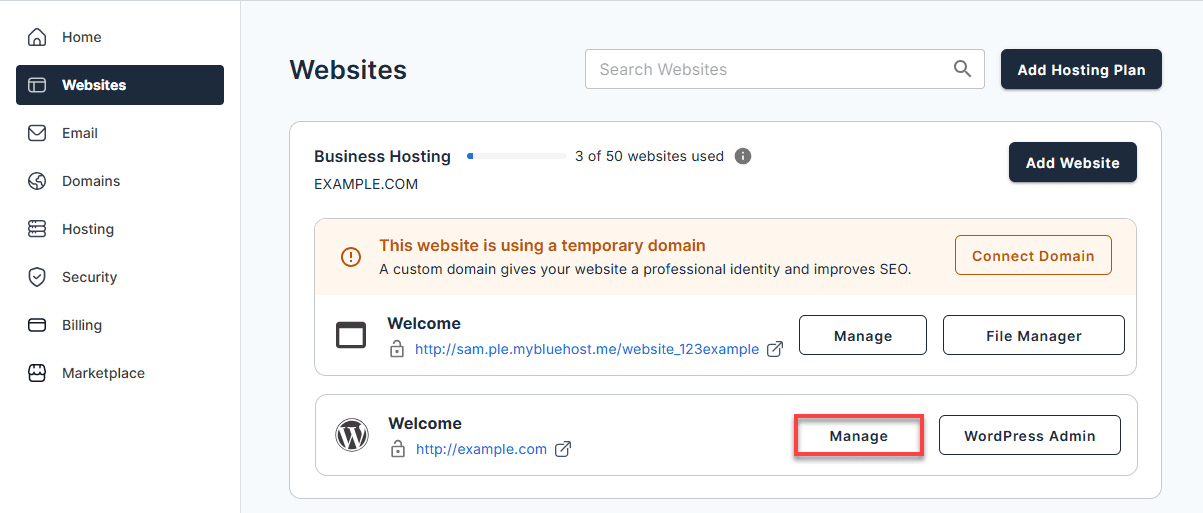
4. Click the ‘Domains’ tab on the top menu

5. Scroll down to the ‘Redirects’ section and click the ‘Manage’ button.
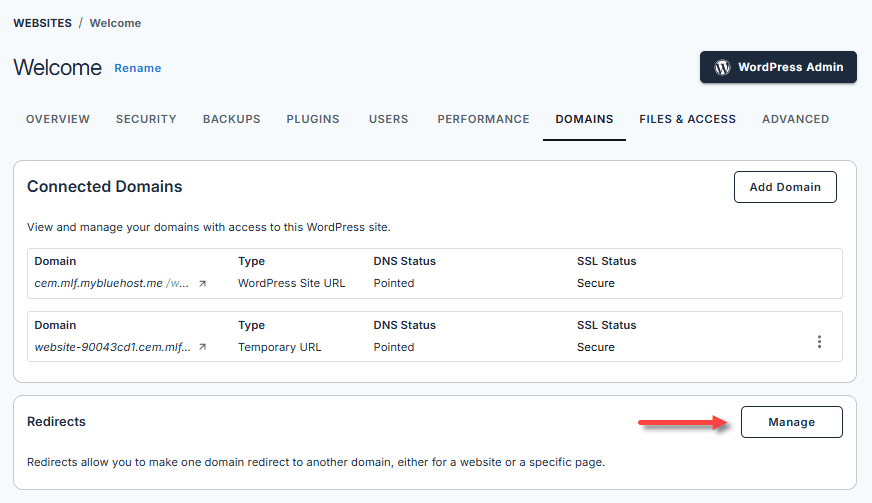
6. On the ‘Manage Redirects’ page, click the ‘Add Redirect’ button at the top right.
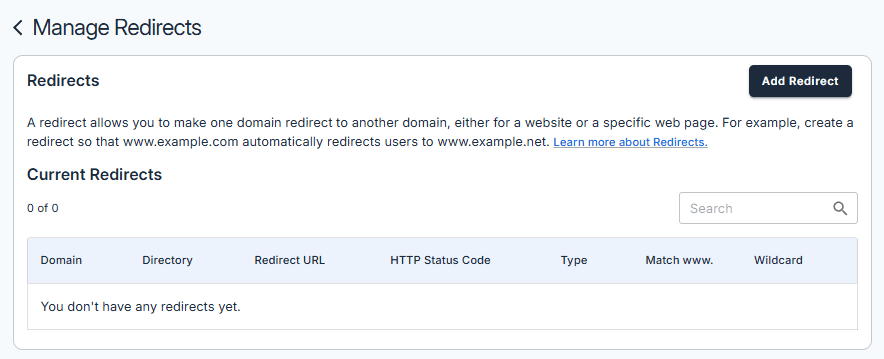
7. In the pop-up, fill in the following fields:
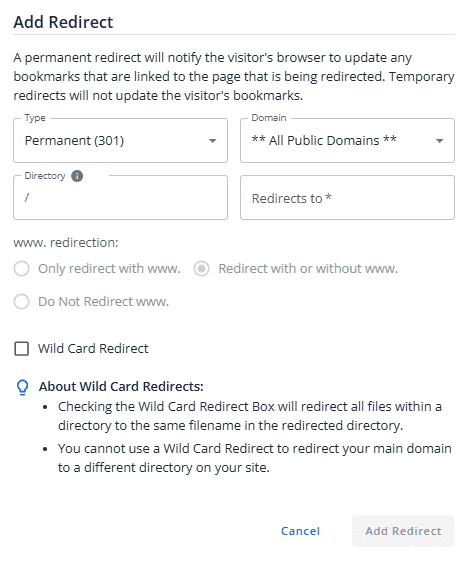
- Type: Select Permanent (301) for a lasting redirect or Temporary (302) if the change is short-term
- Domain: Select the domain you want to redirect
- Directory: If redirecting a single page or subfolder, enter the path here. Leave blank to redirect the entire domain
- Redirects to: Enter the full destination URL including https://
- www redirection: Choose whether to redirect with www, without www or both
- Wild Card Redirect: Check this box if you want all files within a directory to redirect to matching filenames on the new destination
8. Click Add Redirect to save.
To remove a redirect at any time, go back to the Manage Redirects page, click Delete next to the redirect and confirm the removal in the pop-up.
Also read: Redirect a Domain
How to redirect a domain to another domain
If you want to forward one domain to another domain you own, follow the same steps above and enter the second domain as the destination URL in the Redirects to field. For example, if you want yoursite.net to forward to yoursite.com, enter [https://yoursite].com as the destination.
Make sure the destination domain has active hosting and a live website. Forwarding to a domain that does not resolve will result in an error for your visitors.
How to point a domain to Bluehost using DNS records
If your domain is registered with Bluehost, pointing it to your hosting is handled automatically. If your domain is registered elsewhere, you have two options: update your nameservers to Bluehost’s nameservers to manage DNS fully through Bluehost or manually update individual DNS records at your current registrar. Here is how to do both.
- Log in to your Bluehost Account Manager.
- Navigate to the Domains tab from the left-hand menu or go to Websites, click Manage next to your site, then click the Domains tab.
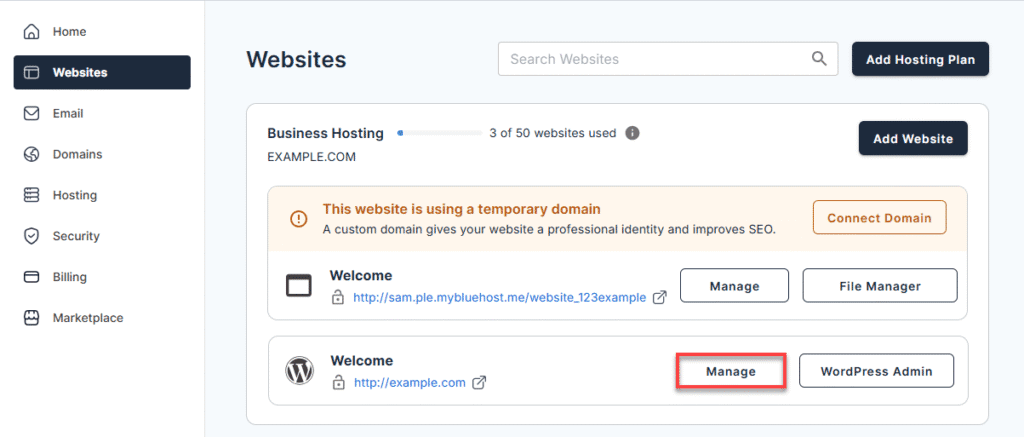
- If your domain is registered elsewhere, log in to your domain registrar’s control panel separately.
- At your registrar, update the A record to point to Bluehost’s IP address and add or update the CNAME record for www to point to your root domain.
- If you prefer to manage all DNS records through Bluehost, update your nameservers at your registrar to Bluehost’s nameservers.
- Save your changes and allow up to 48 hours for DNS propagation to complete.
- Back in Bluehost, confirm your domain is connected correctly in the Domains tab.
How to update your A record on Bluehost
If your domain DNS is already managed through Bluehost, you can update your A record directly from the Bluehost Account Manager:
- Log in to your Bluehost Account Manager.
2. Click on Domains in the left-hand menu and select the domain you want to update.
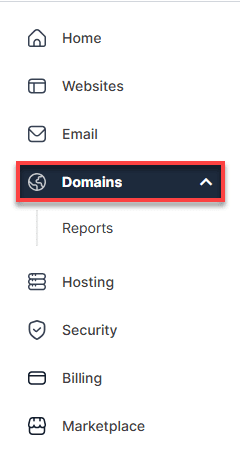
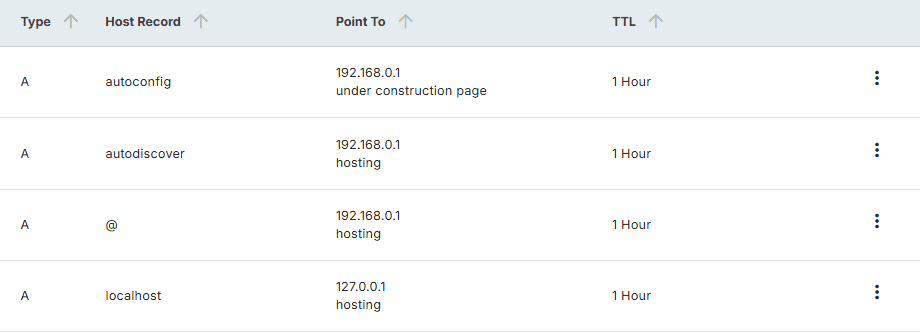
3. Click the DNS tab and find the existing A record, click the three-dot menu next to it and select Edit.
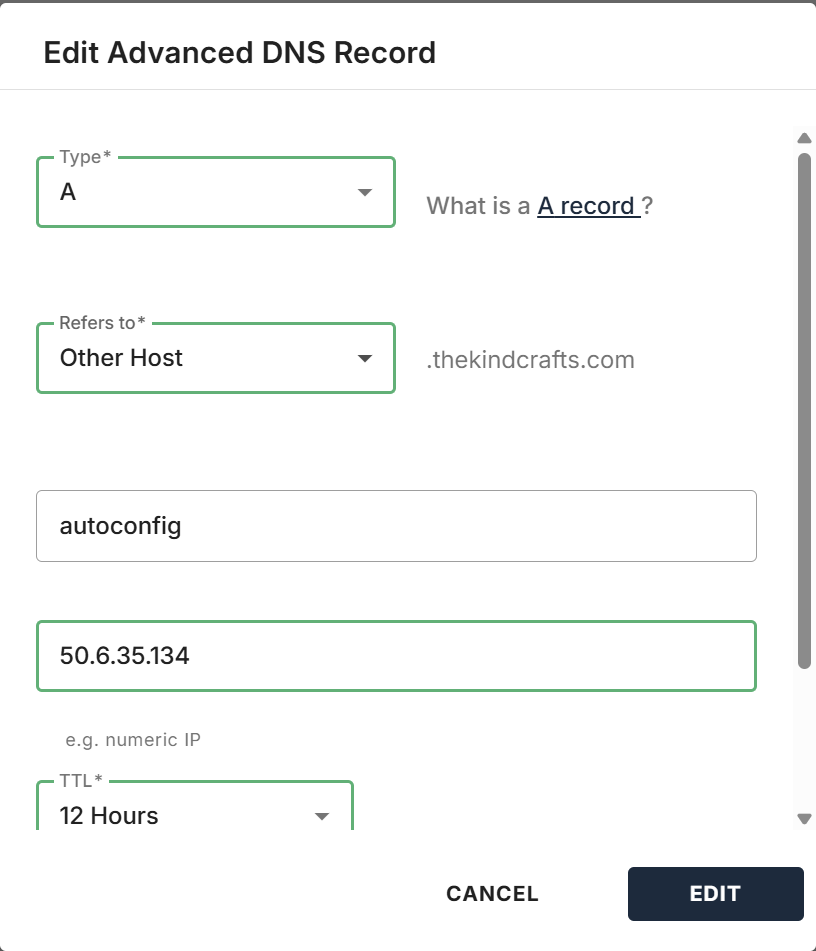
4. Enter the new IP address in the value field and click Edit to save your changes.
You can also update your A record through cPanel. Go to Hosting in the left menu, click the cPanel button, open Zone Editor under the Domains section, find your domain, click Manage, locate the A record, click Edit, enter the new IP address and click Save Record.
How to update your CNAME Record on Bluehost
To point your www subdomain to Bluehost, you need a CNAME record that maps www to your root domain:
- Log in to your Bluehost Account Manager.
2. Click on Domains in the left-hand menu and select the domain you want to update.
3. Click the DNS tab and find the existing CNAME record, click the three-dot menu next to it and select Edit.
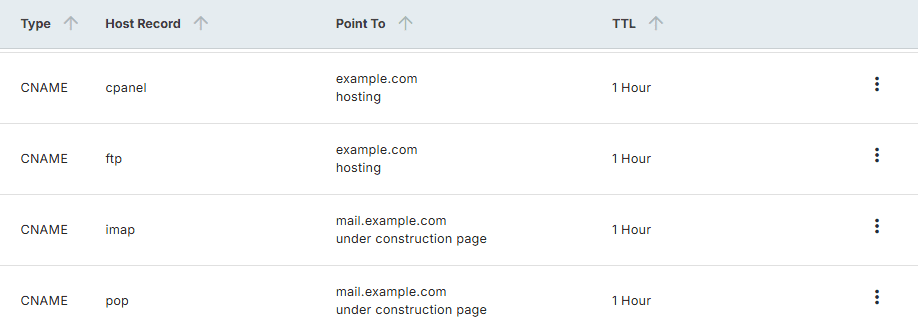
4. Find the CNAME record for www, click the three-dot menu and select Edit.
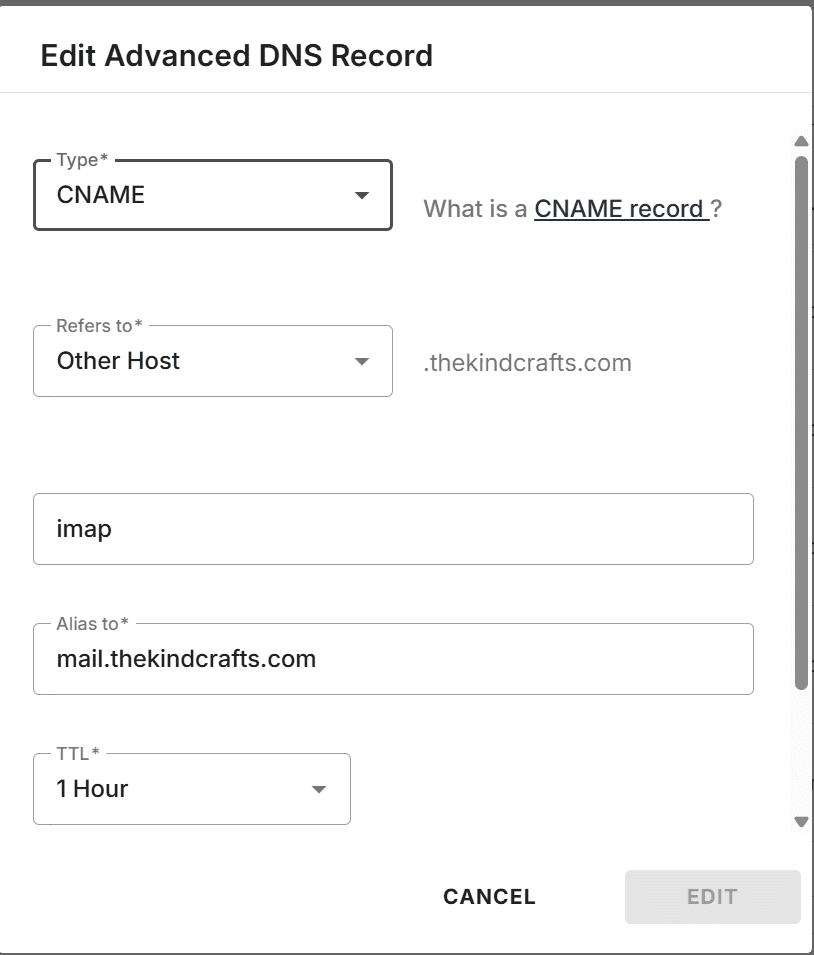
5. Set the value to your root domain, for example, [example].com. Save the record by clicking on Edit.
With both the A record and CNAME in place, yoursite.com and www.yoursite.com will both resolve correctly to your Bluehost-hosted website. DNS changes can take up to 24 to 48 hours to fully propagate.
Does domain forwarding affect SEO and email?
Two of the most common concerns when implementing forwarding are SEO impact and email deliverability. Both deserve direct answers.
Does domain forwarding affect SEO?
A properly implemented 301 permanent redirect passes approximately 90-99% of the original page’s link equity to the destination URL, based on guidance from Google. Search engines understand 301 redirects and will eventually update their index to reflect the new destination, consolidating authority appropriately.
Domain forwarding with masking, however, is a genuine SEO risk. When content loads inside an iframe, crawlers may fail to index it correctly, canonical signals can break down and duplicate content issues may surface. Always prefer a clean 301 redirect over masking when SEO performance matters to your site. Also expect a short-term ranking fluctuation after implementing any redirect – this is normal and typically stabilizes once crawlers have re-processed the affected pages.
Does domain forwarding affect email?
Yes – and this is one of the most frequently overlooked complications. Domain forwarding on its own does not support email hosting. HTTP redirects handle web browser traffic only; email routing is managed entirely through MX records in your DNS configuration.
If you forward a domain without configuring MX records, any email sent to [yourname@yourdomain].com will fail to deliver. If you need email at the forwarded domain — even while web traffic redirects elsewhere – you must separately configure MX records pointing to your mail hosting provider. These two functions operate completely independently of each other.
What is DNS propagation and how long does it take
Whenever you make changes to your DNS records – whether you’re updating an A record, configuring a CNAME or setting up domain forwarding – those changes don’t take effect instantly across the entire internet. This delay is called DNS propagation.
What is DNS propagation exactly? It’s the time required for updated DNS records to spread across all DNS servers worldwide. DNS resolvers cache records for a duration determined by the TTL (Time to Live) value in your DNS configuration. Until that cache expires and the resolver fetches fresh records, some users may still be directed to the old server or URL.
How long does DNS propagation take
DNS propagation typically takes anywhere from a few minutes to 48 hours, with most changes becoming visible globally within 4-8 hours. Several factors influence propagation speed:
- TTL settings: A lower TTL (e.g., 300 seconds) means resolvers refresh records more frequently, speeding up propagation.
- DNS provider speed: Some providers push updates to their nameservers faster than others.
- Geographic location: Changes may appear in some regions before others.
- ISP caching: Some internet service providers cache records longer than the specified TTL.
To check DNS records and verify whether your changes have propagated, use tools like Google’s Dig tool, MXToolbox or DNSChecker. These tools let you query specific record types from multiple global locations, showing which regions already reflect your new configuration and which are still serving cached data. To speed up propagation for a planned change, lower your TTL to 300 seconds at least 24 hours before making the update.
Also read: DNS Propagation: Timeframes, Tools and Troubleshooting
Final thoughts
Domain forwarding and DNS pointing solve two different problems. Choosing between domain forwarding and DNS pointing comes down to one question: are you redirecting traffic or hosting a website? If you are building on Bluehost, DNS pointing is what connects your domain to your site. If you own extra domain variations, a 301 redirect keeps your traffic consolidated without losing SEO value.
Both options are available in your Bluehost dashboard. Log in and get your domain connected today.
New to Bluehost? Get your domain and hosting set up in one place. Start building today.
FAQs
What is the difference between domain forwarding and DNS pointing?
Domain forwarding redirects visitors from one domain to another using an HTTP redirect code (301 or 302), causing the URL in the browser to change to the destination. DNS pointing connects your domain directly to a web server using DNS records like A records, so the original domain remains visible in the address bar throughout the entire visit. Forwarding doesn’t require hosting at the original domain; pointing does.
Does a 301 redirect pass SEO value to the destination page?
Yes. A 301 permanent redirect signals to search engines that a page has moved permanently and passes approximately 90-99% of the original page’s link equity to the destination URL. Search engines update their index over time to reflect the new destination, consolidating ranking signals appropriately. A 302 temporary redirect does not pass the same level of authority.
Can I use domain forwarding and still have working email?
Domain forwarding only redirects HTTP web traffic and has no effect on email routing. To receive email at a forwarded domain, you must separately configure MX records in your DNS settings pointing to your mail hosting provider. Without those MX records, email sent to addresses at the forwarded domain will fail to deliver entirely.
What is the difference between an A record and a CNAME record?
An A record maps a domain name directly to an IPv4 address and is the foundational record for DNS pointing to a web server. A CNAME (Canonical Name) record maps one domain name to another domain name, acting as an alias rather than pointing to an IP address. CNAME records are used for subdomains; the root domain must always use an A record because CNAME records are not permitted at the zone apex.
How long does DNS propagation take after changing DNS records?
DNS propagation typically takes between a few minutes and 48 hours, with most changes visible globally within 4-8 hours. The propagation speed depends on your TTL settings, the speed of your DNS provider, geographic distribution of DNS servers and how aggressively ISPs cache records. To accelerate propagation before a planned change, lower your domain’s TTL to 300 seconds at least 24 hours in advance.

Write A Comment