 ChatGPT,
 Claude,
 Gemini,
 Grok — all four for
Key highlights
- Learn how to set up an online booking system step by step and launch it with confidence.
- Choose the booking approach that fits your business, whether you have a website or not yet.
- Know which booking rules and calendar settings help prevent double bookings and overbooked days for your team.
- Discover how reminders, deposits and a clear cancellation policy can lower the risk of no-shows.
- Explore how an artificial intelligence (AI) assistant can answer customer questions and book into Google Calendar.
To create an online booking system, list your services and booking rules, choose a booking tool, connect your calendar and set your availability. Then add a booking form, payments and reminders, embed the system on your website and test it before launch.
Taking appointments by phone, text or direct message works until it starts eating your day. Each booking can turn into a chain of messages, and customers who want to book after hours have to wait for your reply. Some may book somewhere else instead.
This guide shows you how to create an online booking system that fits a small business. You’ll compare four approaches side by side, then follow eight setup steps that apply to most tools. It finishes with a test checklist and simple ways to keep your booking page current after launch.
What is an online booking system and how does it work?
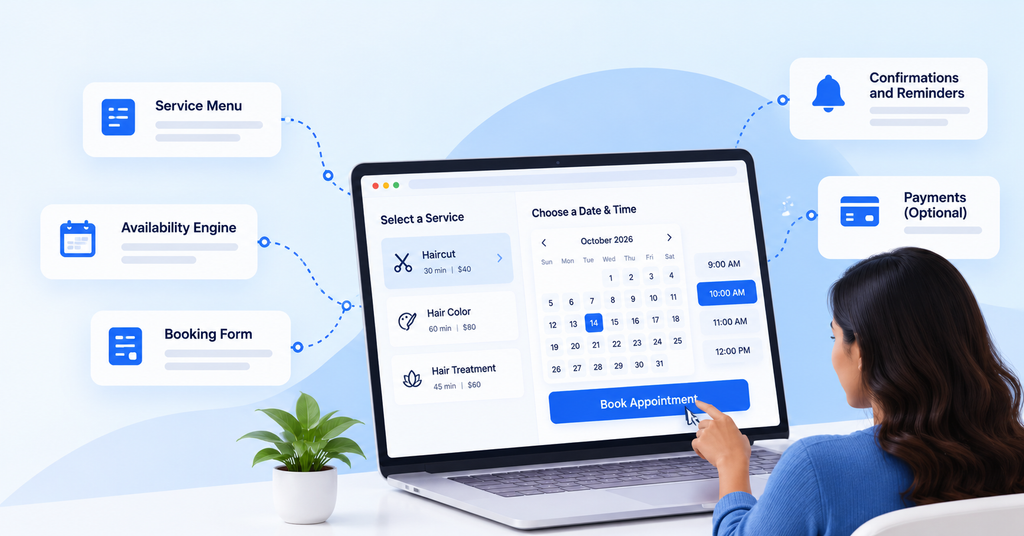
An online booking system is software that shows customers your real-time availability and lets them pick a service and time. It then collects their details and confirms the appointment on your calendar. Customers book themselves, so you spend less time trading messages to find a slot.
Many systems combine the same few parts. Once you know what each one does, the setup steps later in this guide make more sense.
- Service menu: The list of services customers can book, with durations and prices.
- Availability engine: Your working hours minus the events already on your calendar.
- Booking form: The short set of questions you need answered before the appointment.
- Confirmations and reminders: Messages that tell customers what they booked and when to show up.
- Payments: An optional step to collect a deposit or full payment at booking.
The availability engine is the part people overlook. It reads your calendar to decide which times to show, so a calendar that isn’t connected or kept up to date leads to double bookings.
Salons, clinics, consultants, tutors, fitness studios and home service businesses all use an online appointment booking system for this reason. Customers can book when it suits them, you get fewer back-and-forth messages and your calendar stays accurate. Knowing these parts makes it easier to decide how to make an online booking system that fits your business.
Also read: Best AI Chatbots for Small Business: 7 Tools Compared
Choose your approach: booking tool, plugin, custom build or AI assistant
The right approach depends on three things: who maintains the system, where customers book and whether customers need answers before they pick a time. A tool that works well for a barber with fixed services may frustrate a contractor whose customers ask about coverage first. The table below compares four common ways to build an online booking system for small business owners using the same criteria.
| Approach | Best for | Setup effort | Where customers book | Answers questions before booking? | What you maintain |
|---|---|---|---|---|---|
| Standalone booking tool or booking page | Businesses that want to start fast, with or without a website | Low: sign up, add services and share a link | A hosted booking page or an embed on your site | Limited to the service descriptions you write | Services, availability and plan settings |
| Website booking plugin or widget | Businesses that already run a website, such as a WordPress site | Moderate: install, configure and style it | Pages on your own website | Limited to the text you add to the page | Plugin updates, settings and compatibility with your site |
| Custom-built system | Businesses with unusual booking rules and a developer budget | High: plan, build and test with a developer | Wherever you design it | Only if you build that capability | Code, hosting, security updates and fixes |
| AI assistant that books through conversation | Businesses whose customers ask questions before they book | Low: share your goals and content while the Bluehost team connects your calendar and trains it | A chat on your website | Yes, based on the content you train it on | Your website content and documents, which it can be retrained on as they change |
The main split is between approaches that show a list of times and an assistant that can talk customers through a decision first. If your customers rarely ask questions, a booking tool or plugin is usually enough.
- Booking tool: You want the fastest start, with or without a website.
- Plugin: You run WordPress and want booking on your own pages, so compare WordPress appointment plugins before you install one.
- Custom build: You have unusual booking rules and the budget to pay a developer for the build and upkeep.
- AI assistant: Your customers usually ask about services, hours or rates before they book.
If that last scenario sounds familiar, Bluehost AI Receptionist is trained on your website and documents to answer customer questions. It can book, reschedule or cancel appointments through Google Calendar based on your real-time availability and blackout dates. That frees your staff to focus on more complex conversations.
How to set up an online booking system in 8 steps
These steps show how to create an online booking system with whichever approach you pick. Work through them in order, because each step feeds the settings in the next one.
1. List your services, durations and booking rules
Start by writing down what customers can book and the rules around it, before you open any software. When your rules are on paper, each setting in your tool takes minutes to fill in.
Use this checklist to capture what your booking system needs to know:
- Services and durations: For example, a 30-minute consult or a 90-minute color appointment.
- Prices: The price for each service, or a note that you quote after a consult.
- Staff: Who performs each service, if more than one person takes bookings.
- Buffer time: The gap you need between appointments to clean up, travel or prepare.
- Minimum notice: How close to the start time customers can still book.
- Booking window: How far ahead customers can book, such as four or eight weeks.
- Cancellation policy: How much notice you need and what happens with late cancellations.
A salon, for example, might add a 15-minute cleanup buffer after color services but none after a quick trim. Small rules like this are what keep a self-booked calendar realistic.
2. Decide which features you need
Pick your must-have features now so you can judge tools against your own list. Booking tools vary widely in what their free versions include. A long feature list matters less than having the few features your business relies on.
Score each tool against these common features:
- Two-way calendar sync: Busy times on your calendar block slots, and new bookings appear on your calendar.
- Confirmations and reminders: Customers get the details right away and a nudge before the appointment.
- Online payments or deposits: You can collect money at booking instead of chasing it later.
- Self-service changes: Customers can reschedule or cancel without contacting you.
- Mobile-friendly booking: The page is easy to use on a small screen.
- Time-zone handling: Virtual appointments show the right time for customers in other states.
- Staff calendars: Each team member has separate availability and services.
- Answers before booking: Customers can get common questions answered before they choose a time.
Split your list into must-haves and nice-to-haves. Then check whether each tool’s free tier includes your must-haves, since some tools reserve payments or reminders for paid plans.
3. Pick your tool and where customers will book
Decide where the booking experience will live: on your own website, on a hosted booking page or on both. If you have a website, booking there keeps customers on your brand, with your services and contact pages one click away.
If you don’t have a site yet, a hosted booking page from your tool can work while you build a small business website. You can share the link with customers today and embed the same booking system on your site later.
Shortlist two or three tools that match your approach. Try the free version or trial of each with your real service menu, and book a few practice appointments before you commit.
4. Set your availability, buffers and calendar sync
Connect the calendar you actually use, so existing events block those times from your booking page. This setting keeps customers from booking over your existing commitments.
Next, enter your working hours and block holidays, vacations and other time off as blackout dates. Add the buffer times from step 1. Then set a minimum lead time and a maximum number of bookings per day to avoid an overloaded schedule.
Many booking tools use similar names for these settings. When you create a Google appointment schedule, for example, appointment duration, availability, buffer time and maximum bookings per day are all built-in settings.
5. Build a short, accessible booking form
Ask only for what you need to deliver the appointment. That’s usually a name, a contact method and a few service-specific questions. A shorter form takes less effort to finish, and it leaves you with less customer data to protect.
The W3C guidance on accessible forms from the World Wide Web Consortium (W3C) recommends asking users only for information the process requires. Apply that idea along with a few other practical habits:
- Clear labels: Give each field a visible label that says exactly what to enter.
- Instructions: Explain any required format, such as how to enter a phone number.
- Helpful errors: Show a clear message that explains what went wrong and how to fix it.
- Grouped fields: Keep related questions, such as contact details, together.
Skip sensitive details you have no use for, such as birth dates or ID numbers. Let your booking tool store customer records instead of copying them into spreadsheets or email threads.
6. Add payments, deposits and a cancellation policy
Choose whether to take full prepayment, a deposit or no payment at booking. Deposits suit longer or high-demand appointments, while quick, low-cost services may not need any upfront payment.
Use your booking tool’s built-in payment processor, so card details go straight to the processor. Don’t ask customers to type card numbers into your own form or send them by email.
Payment features often sit on paid plans. Google Calendar appointment schedules, for example, require payments through Stripe along with an eligible Google Workspace plan. Google doesn’t process the payment itself, since Stripe handles it.
Publish your cancellation and no-show policy on the booking page and repeat it in the confirmation message. That way, customers see your terms before they pay.
Also read: If you sell bookable services through an online store, review these WooCommerce booking plugin options for booking plus checkout.
7. Turn on confirmations and reminders
Enable instant booking confirmations and at least one reminder before each appointment.
- Include key details: Date, time, location or meeting link, and preparation notes.
- Make rescheduling easy: Add a reschedule link to each reminder so customers can change their appointments instead of missing them.
- Track attendance: A 2026 meta-analysis found that appointment reminders improved attendance by about 11% in hospital outpatient clinics, though results varied. Monitor your own booking data to see what works for your business.
8. Embed it on your site, test every path and launch
Add a “Book now” button or an embedded booking widget to your homepage, services page and contact page. If your site doesn’t have one yet, create a contact page so customers who prefer to ask first can still reach you.
Before you share the link, run through each scenario a customer might hit. A few minutes of testing can catch a broken setting before a real customer finds it.
- Test booking: Book an appointment on your phone as a customer would.
- Reschedule: Move that appointment to a new time.
- Cancel: Cancel it and confirm the slot opens up again.
- Calendar and reminders: Check that the calendar entry and reminder messages look right.
- Conflict check: Try to book a time that overlaps an existing event and confirm it’s blocked.
- Payments: Run a test payment and refund, if you take payments.
- Time zones: Book from a different time zone, if you offer virtual appointments.
Once each test passes, announce your booking link. Add it to your email signature, your social media profiles and any signs or cards at your location.
Promote your booking page and keep it current
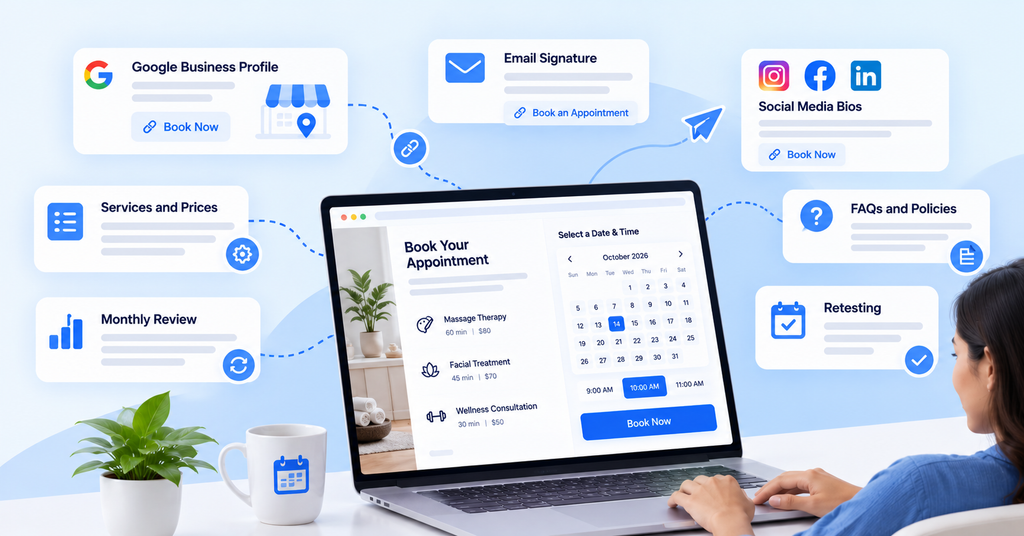
A booking page only helps when customers can find it and trust what it shows. Put the link where people already look for you, then review it on a regular schedule. These habits keep your booking website for small business customers accurate after launch.
- Google Business Profile: Set up Google Business Profile and add your booking link so local searchers can book from your listing.
- Email and social bios: Put the booking link in your email signature and social media bios.
- Services and prices: Update the service menu as soon as offerings or prices change.
- Monthly review: Check your booking data for popular times, gaps and no-show patterns, then adjust availability.
- FAQs and policies: Refresh your common questions and cancellation policy when customers keep asking the same things.
- Retesting: Book a test appointment after any website or calendar change.
Why Choose Bluehost AI Receptionist for Your Small Business?
If customers need answers before booking, Bluehost AI Receptionist helps you handle those conversations without adding to your team’s workload.
- Answer questions 24/7: Respond to customer questions using your website content and documents, even outside business hours.
- Automate appointment management: Let customers book, reschedule or cancel 30-minute appointments through Google Calendar, based on real-time availability and blackout dates.
- Maintain your brand voice: Customize the assistant’s tone and train it on your business information for consistent, relevant responses.
- Get setup support: Bluehost’s team helps configure the assistant and train it on your content, so you don’t have to manage the entire setup yourself.
At $25/month, Bluehost AI Receptionist offers a practical option for small businesses that want to automate routine customer conversations and appointment scheduling without hiring additional staff. Explore Bluehost AI Receptionist to get started.
Final thoughts
The approach you pick matters most, and it comes down to whether your customers need answers before they choose a time. Write down your services and rules today, then try one tool that fits that answer with your real service menu.
Bluehost AI Receptionist suits businesses where customers ask about services, hours or rates before they commit. It answers from your own website and documents and books into Google Calendar, while the Bluehost team handles setup with no coding required. Explore Bluehost AI Receptionist to add question answering and booking to your website.
FAQs
Yes, a free personal Google account can use Google Calendar appointment schedules to create a single booking page. As of October 2026, payments, automatic email reminders and email verification need an eligible paid plan. You can review current Google appointment schedule plan features before you decide. Schedules can’t be created in the Calendar mobile apps, so set yours up in a web browser.
Yes, Square Appointments offers a free online booking site for businesses without a website. If you have a site, you can set up Square online booking with a button, URL or embed code. Clients can prepay by card, Apple Pay, Google Pay and more once card processing is activated. The Free plan has no monthly subscription, but processing fees apply, as listed on Square Appointments plans.
It can cost nothing to start, because several booking tools offer free tiers for basic booking. Costs rise when you need paid plans for payments, reminders or staff calendars, and payment processors charge fees when you take payments. A custom-built system adds developer time plus ongoing hosting and maintenance. Price out the plan that covers all your must-have features before you commit.
No, booking tools, website builders and plugins let you set up booking without writing code. Coding matters only if you choose a custom-built system. To add a booking tool to your site, you usually paste its embed code into an embed block in your site editor. The tool’s help pages typically show where to find that code.
Yes, some AI assistants can book appointments for you. Bluehost AI Receptionist answers customer questions on your website using your own content, then books, reschedules or cancels appointments in Google Calendar. It works with a website hosted anywhere, and a dashboard tracks bookings, chat trends and lead volumes. Our team provides AI Receptionist setup support, and bookings follow your real-time availability and blackout dates.

Write A Comment