


Key highlights
- Master PostgreSQL database creation through cPanel’s intuitive interface.
- Set up secure database users with proper permission levels.
- Learn essential database management tasks including backups and restores.
- Troubleshoot common PostgreSQL database issues effectively.
- Discover how Bluehost streamlines your PostgreSQL hosting experience.
Setting up a database for your web application shouldn’t be complicated. Yet many website owners struggle when creating reliable database environments, often facing confusing interfaces, technical jargon and security concerns. PostgreSQL, a powerful open-source relational database system, powers countless modern applications with exceptional performance and reliability. However, without the right tools, managing PostgreSQL can feel overwhelming.
cPanel changes this entirely. This user-friendly control panel transforms complex database tasks into simple point-and-click operations. Whether you’re building your first website or managing multiple applications, knowing how to create and manage PostgreSQL databases properly prevents data loss, security vulnerabilities and costly errors. This guide walks you through every step, from initial setup to advanced management, ensuring your databases run smoothly and your data stays protected.
What is cPanel and why is it used for database management?
cPanel is a web-based control panel that simplifies every aspect of your hosting account management. Think of it as your command center for website administration. Instead of typing complex commands or navigating confusing server configurations, you get a clean, visual interface that makes database management accessible to everyone.
The platform handles everything from database creation to file management, email setup and security configurations. For PostgreSQL databases specifically, cPanel eliminates the technical barriers that typically stop beginners. You can create databases, add users, set permissions and manage backups through straightforward menus and forms.
This approach works perfectly for both newcomers and experienced developers. Beginners appreciate the guided workflows and clear instructions, while professionals value the time saved on routine tasks. The visual tools streamline your entire database workflow, letting you focus on building your application rather than wrestling with server administration.
How do you get started with PostgreSQL in cPanel?
Before creating your first PostgreSQL database, verify whether these essential requirements are in place:
- Active hosting plan with PostgreSQL support: Not all hosting plans include PostgreSQL by default. Contact your hosting provider to confirm your account has this feature enabled. Many providers offer PostgreSQL on shared, VPS and dedicated hosting plans, but availability varies by package.
- Valid cPanel login credentials: You need your cPanel username and password to access the control panel. If you’ve lost these credentials or can’t log in, reach out to your hosting provider’s support team. They can verify your account status and help you regain access.
- Database creation permissions: Your hosting account must have sufficient privileges to create and manage databases. Some shared hosting plans restrict database operations to prevent resource overuse. Check with your provider if you’re unsure about your permission level, especially on entry-level plans.
How do you access PostgreSQL in cPanel?
Accessing PostgreSQL management tools in cPanel takes just three simple steps:
- Log in to your cPanel account using your credentials
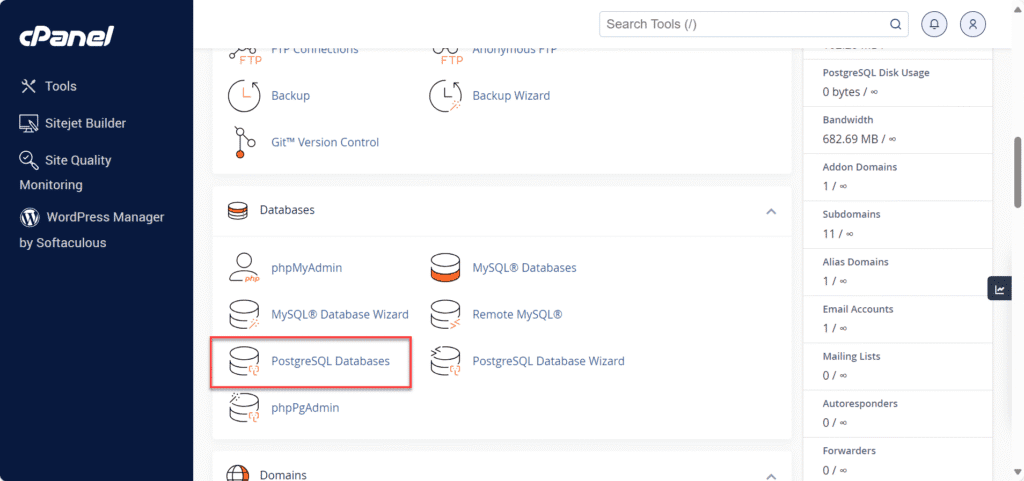
- Scroll down to locate the Databases section in your dashboard
- Click on PostgreSQL Databases to open the management interface
The PostgreSQL Databases page serves as your central hub for all database operations. From here, you can create new databases, add users, assign permissions and manage existing database configurations.
How do you create a PostgreSQL database in cPanel?
Creating a new PostgreSQL database follows a straightforward process:
- Access your cPanel dashboard by logging in with your credentials
- Navigate to the Databases section and select PostgreSQL Databases
3. Locate the Create New Database section on the page.
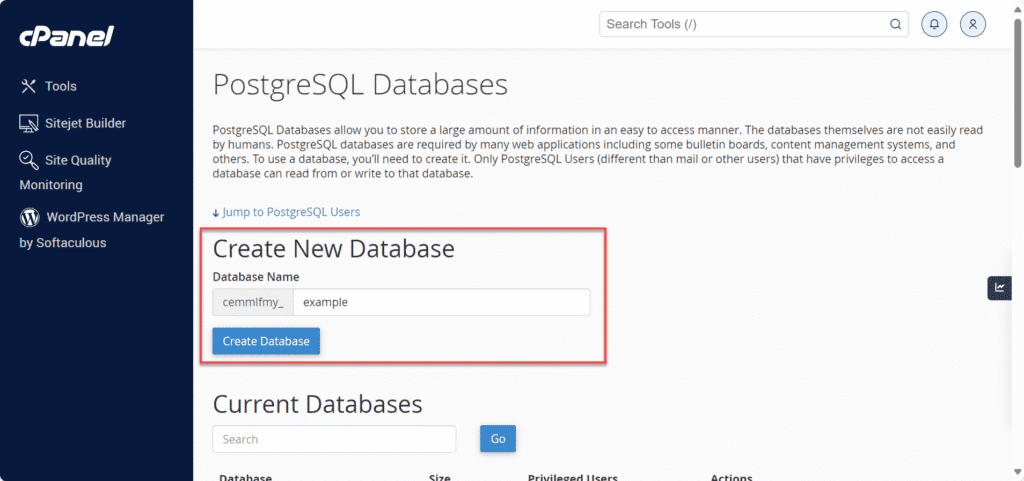
4. Enter your desired database name in the provided field
5. Click the Create Database button to finalize the setup
6. Select Go Back to return to the database management screen
The system confirms successful database creation and displays your new database in the Current Databases list. This confirmation ensures your database is ready for user assignments and application connections.
What does a sample PostgreSQL database setup look like?
Understanding proper database naming helps maintain organized projects and clear documentation. When you create a database, cPanel automatically adds your username as a prefix. For example, if your username is “johndoe” and you name your database “store”, the final database name becomes “johndoe_store”.
This automatic prefixing serves several purposes. It prevents naming conflicts between different users on shared hosting servers and helps you identify your databases quickly. Choose descriptive names that reflect your database’s purpose, such as “blog_data”, “shop_inventory” or “app_users”.
Keep names concise but meaningful. Good database names make future management tasks easier, especially when you’re working with multiple databases or collaborating with team members.
How do you create a PostgreSQL user and assign database privileges?
Database users function as gatekeepers for your data. Each user account controls who can access your database and what actions they can perform. This security layer protects your information from unauthorized changes and prevents accidental data corruption.
Proper permission management ensures users only access what they need. A website visitor doesn’t need the same database privileges as your site administrator. By assigning appropriate permission levels, you create a secure environment that balances functionality with protection.
User-level access control also improves audit trails and troubleshooting. When issues arise, you can quickly identify which user performed specific actions, making it easier to diagnose problems and maintain database integrity.
How do you create a PostgreSQL user in cPanel?
Creating a database user requires careful attention to security. Follow these steps to add a new user:
- Click Jump to PostgreSQL Users for quick access to the user creation section
- Find the Add New User section on the page
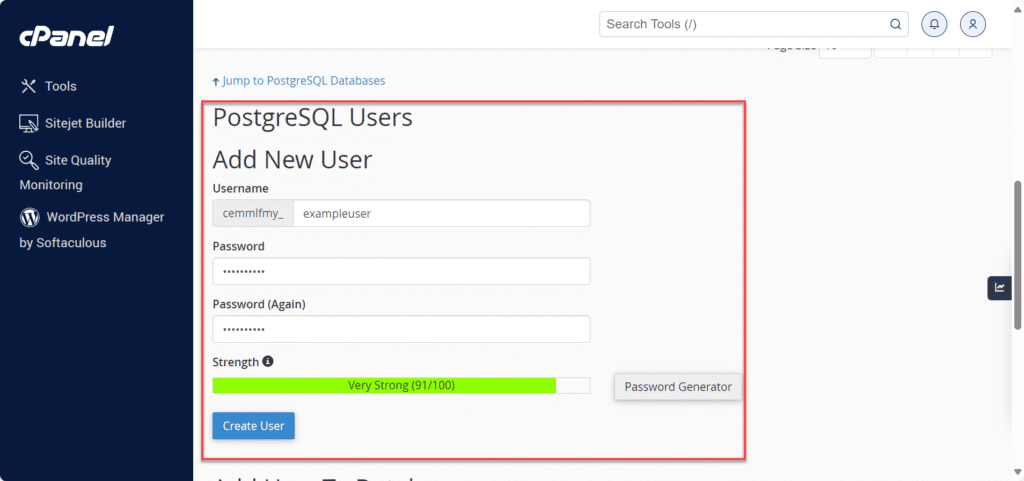
3. Enter a unique username in the Username field
4. Create a strong password in the Password field
5. Re-enter the password in the Password (Again) field for verification
6. Click Create User to complete the process
Important considerations for username creation:
- Username length cannot exceed 63 characters, including any automatic prefix and underscore
- Choose strong passwords combining uppercase letters, lowercase letters, numbers and special characters
- PostgreSQL user accounts are separate from email accounts, MySQL users and web administrator accounts
- Keep your credentials secure and never share them unnecessarily
Essential PostgreSQL management tips:
- Specific PostgreSQL versions comply with ANSI SQL-92 standards but don’t support recursive, wildcard or future grants. Click the Synchronize Grants button regularly to maintain proper access to your database tables. Synchronize grants after adding new users, assigning users to databases and creating new tables in phpPgAdmin
- Remember that phpPgAdmin manages PostgreSQL databases while phpMyAdmin handles MySQL databases. These are separate tools designed for different database systems
How do you grant database privileges to a PostgreSQL user?
After creating users and databases separately, you must connect them through privilege assignment. This process determines what actions each user can perform on specific databases.
Complete these steps to assign database privileges:
- Locate the Add User to Database section on the PostgreSQL Databases page
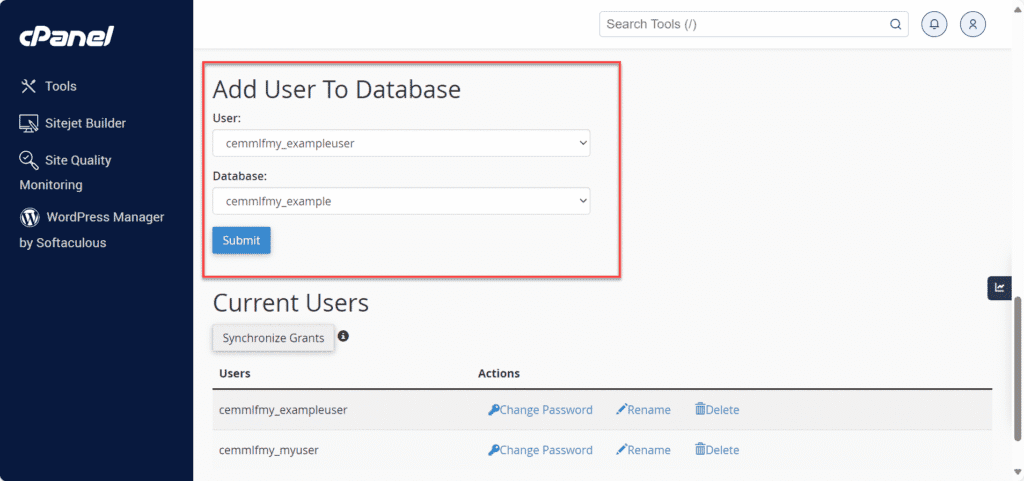
2. Select your desired user from the User dropdown menu
3. Choose the target database from the Database dropdown menu
4. Click the Submit button to create the association
5. Configure specific privileges based on user requirements (read, write, delete permissions)
6. Confirm your changes to apply the new permissions
The system now allows your selected user to access the specified database with their assigned privileges. This connection enables your applications to interact with the database using the user’s credentials.
How do you manage PostgreSQL databases in cPanel?
cPanel provides comprehensive tools that simplify ongoing database administration:
- Current Databases listing: View all your existing databases at a glance. This organized list shows database names, associated users and quick access links for modifications or deletions.
- User permission controls: Modify user privileges without recreating accounts. Adjust access levels as your application requirements change or team members shift roles.
- phpPgAdmin interface: Access advanced database management through this web-based tool. Execute SQL queries, browse table contents and perform complex administrative tasks.
- Database removal options: Delete unused databases cleanly when projects end or testing completes. The system ensures proper cleanup of associated resources.
How do you backup and restore PostgreSQL databases?
Regular backups protect your data from hardware failures, software errors and accidental deletions. cPanel offers multiple backup approaches to match different needs.
- Manual backup through cPanel: Navigate to the Backup section in cPanel and select Download a PostgreSQL Database Backup. Choose your target database and save the generated file to your local computer. Store these backups in multiple locations for maximum safety.
- Automated backup solutions: Many hosting providers offer scheduled automatic backups as part of their service. Check your hosting plan details to understand your backup options and retention periods.
- Database restoration: When data corruption occurs or you need to revert changes, upload your backup file through cPanel’s Restore section. Select your backup file and specify the target database. The system rebuilds your database from the backup, restoring your data to its previous state.
Test your backups periodically by performing trial restorations. This verification ensures your backup files contain complete, usable data when emergencies strike.
What are common issues when you create PostgreSQL database setups?
Even straightforward database creation can encounter obstacles. Understanding common errors helps you resolve them quickly.
- Database name conflicts: You cannot create two databases with identical names. If you see a naming error, check your Current Databases list for existing entries. Choose a different name or delete the old database if it’s no longer needed.
- Permission-related issues: If database creation fails despite correct procedures, your account may lack necessary privileges. Contact your hosting provider to verify your account permissions and upgrade your plan if required.
- Unsupported hosting plans: Some budget hosting packages exclude PostgreSQL support to reduce server resource usage. Review your plan features or upgrade to a plan that includes PostgreSQL databases.
How can you troubleshoot PostgreSQL issues in cPanel?
Systematic troubleshooting resolves most PostgreSQL problems efficiently:
- Verify PostgreSQL availability: Confirm your hosting plan includes PostgreSQL support. Check your hosting control panel’s features list or contact support for verification. If PostgreSQL isn’t available, discuss upgrade options with your provider.
- Review user privileges and assignments: Database connection errors often stem from incorrect user permissions. Double-check that users are properly assigned to databases with appropriate privilege levels. Use the Synchronize Grants feature to refresh permissions after making changes.
- Check connection settings: Verify your application uses correct database names, usernames, passwords and host information. Remember that cPanel adds prefixes to database and user names automatically.
- Contact hosting support for server-level errors: Some issues require administrator access to resolve. If you encounter persistent errors after checking basic settings, reach out to your hosting provider’s technical support team. They can investigate server configurations, resource limitations and system-level problems.
These issues often come down to hosting limitations, configuration support, and database-level access. This is where having strong hosting partner such as Bluehost can be your best partner.
Why use Bluehost for PostgreSQL database hosting?
Bluehost provides comprehensive PostgreSQL database hosting with enterprise-grade infrastructure, intuitive management tools and round-the-clock support—making it an excellent choice for developers and database administrators who need reliable PostgreSQL hosting within cPanel.
1. PostgreSQL-optimized hosting infrastructure
Our hosting environments come pre-configured with optimizations specifically tailored for PostgreSQL database performance. This includes proper memory allocation, connection pooling settings and query caching mechanisms that ensure your databases operate at peak efficiency without requiring manual server tuning.
2. Integrated cPanel database management
The platform seamlessly integrates PostgreSQL management into cPanel’s familiar interface. Whether you’re creating your first database or managing dozens across multiple projects, you can handle all database operations through an intuitive dashboard. Create databases, configure user permissions and manage connections without touching a command line—though SSH access remains available for advanced users who prefer it.
3. Built-in security and encryption
Every Bluehost hosting plan includes free SSL certificates that encrypt data transmission between your applications and PostgreSQL databases. This protects sensitive information during transit without requiring additional security purchases or complex configuration.
4. Expert PostgreSQL support available 24/7
Bluehost’s support team provides assistance with PostgreSQL-specific issues at any time. From initial database setup and connection troubleshooting to performance optimization queries, expert help ensures your databases remain operational and your applications stay available to users.
5. Scalable hosting options for growing databases
Start with shared hosting for development projects and proof-of-concepts, then seamlessly upgrade to VPS or dedicated servers as your database workload increases. This scalability protects your investment while supporting growth—you can expand resources without migrating to a new provider or rebuilding your infrastructure.
With these capabilities in place, you’re equipped to create and manage PostgreSQL databases effectively within your Bluehost cPanel environment.

Final thoughts
PostgreSQL provides the robust data management foundation that modern web applications demand. When combined with cPanel’s user-friendly interface, you gain complete control over your database infrastructure without needing advanced technical expertise.
This guide covered essential PostgreSQL database management skills: creating databases, setting up secure users, assigning appropriate permissions, performing backups and troubleshooting common issues. These fundamentals ensure your applications run smoothly while protecting your valuable data.
Remember that proper database management prevents costly problems. Regular backups protect against data loss, appropriate user permissions maintain security and understanding troubleshooting techniques minimizes downtime. By following these best practices, you build reliable database systems that support your success.
Start implementing these techniques today. Whether you’re launching a new website or improving existing database setups, the skills you’ve learned here provide the foundation for professional-grade PostgreSQL management through cPanel.
Ready to put your PostgreSQL skills to work? We offer powerful hosting solutions with cPanel access, making it simple to create and manage PostgreSQL databases for your projects. With reliable performance, 24/7 support and seamless database management tools, you’ll have everything you need to build and scale your applications with confidence.
FAQs
You need a hosting plan with PostgreSQL support enabled, active cPanel login credentials and appropriate database creation permissions on your account. Some shared hosting plans restrict database features, so verify your plan includes PostgreSQL before attempting to create databases.
PostgreSQL users are separate accounts that control database access. After creating a user with a secure password, you must assign them to specific databases through the Add User to Database section. Then configure their privileges (read, write, delete) based on their role. This system prevents unauthorized access while enabling proper application functionality.
Common problems include database name conflicts with existing databases, permission restrictions on your hosting account and unsupported hosting plans that don’t include PostgreSQL. Verify PostgreSQL is enabled on your plan, check your user privileges and ensure you’re using unique database names to avoid these issues.
cPanel transforms complex database administration into simple point-and-click operations through its visual interface. You can create databases, manage users, set permissions and perform backups without command-line knowledge. This accessibility makes PostgreSQL management achievable for beginners while saving time for experienced developers.
1. Log in to cPanel and navigate to the Databases section.
2. Click PostgreSQL Databases, then locate the Create New Database section.
3. Enter your desired database name and click Create Database.
The system confirms creation and your new database appears in the Current Databases list ready for user assignment.


Write A Comment