


Key highlights
- Know where to find the cPanel error log and identify the exact cPanel error log location for faster issue detection.
- Learn how to access error logs in cPanel and how to check error logs in cPanel without advanced technical skills.
- Understand how the cPanel PHP error log helps diagnose theme, plugin and script-related problems.
- Explore cPanel Apache error logs to troubleshoot server-side and configuration-related issues effectively.
- Uncover how to cPanel view error logs to resolve website errors quickly and reduce downtime.
Seeing a blank screen or a sudden error on your website can be frustrating. Instead of guessing what went wrong, your cPanel error log tells you exactly what happened behind the scenes. These logs capture everything from PHP warnings to Apache server errors, making them essential for quick fixes.
In this guide, you’ll learn how to access error logs in cPanel, locate the correct cPanel error log location and understand how to check error logs in cPanel without technical headaches. We’ll also walk through cPanel PHP error log, cPanel Apache error logs and show you how to view error logs in cPanel step by step.
What is the error log?
The cPanel Error Logs tool is useful when debugging scripts and finding missing files or broken links you may not be aware of. If the error messages you find are related to your website and you are unsure what they mean or how to fix the issue, it is advisable to contact the script developer for further troubleshooting.
There are a few different sections of the Error logs page you should be aware of:
1. Main error log
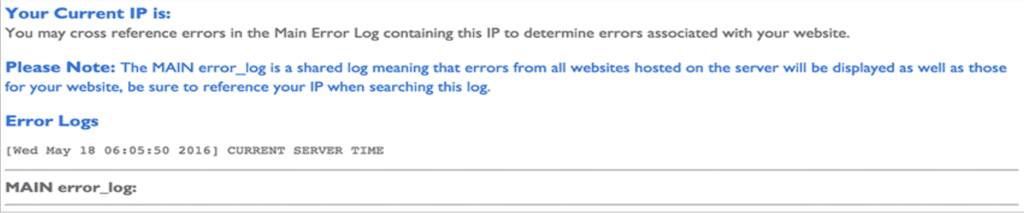
This section shows the last few lines of the server’s main error log. These lines are displayed in chronological order with the time, IP address of the visitor and the error message. Because this is a shared server, you will see errors for all accounts on the server.
If you are trying to locate error messages originating from your hosting account, you may need to refresh your URL, which has the error/problem and then refresh the Error Logs page.
2. PHP error logs
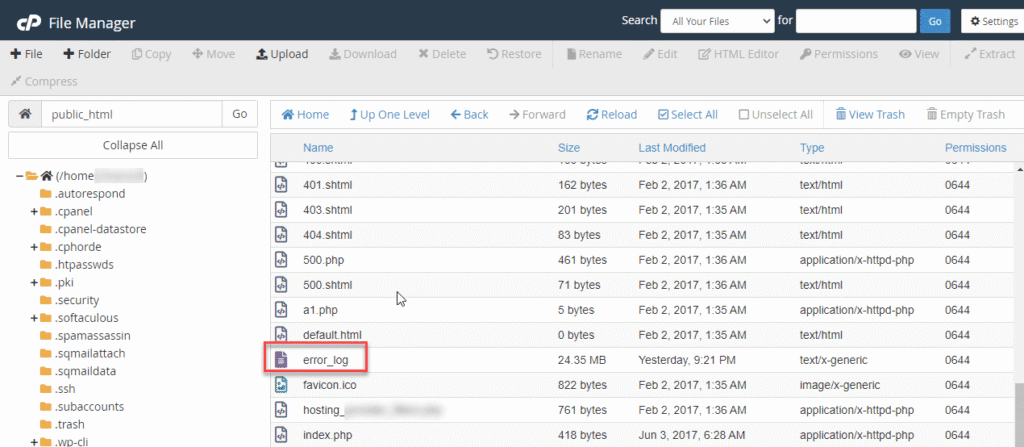
The PHP Error Logs will show errors related to PHP scripts only for your account. These errors are sorted by directory and do not automatically disappear, as do the main error logs. The errors shown are stored in the error_log file within each directory. If you would like to clear the PHP error_logs, simply delete the error_log files in each directory using File Manager or FTP.
Also read: WordPress Logs: How to Find & Use Them for Troubleshooting
Note: At the bottom of the Error Logs page, you can limit each section’s output to a specific number of lines. There is also a link to the Process Manager cPanel tool.
1. Access File Manager.
2. Look for error_log file, right-click, then click view.
3. Shared and reseller
You can log in to cPanel and click the Error Log icon. This contains the last 300 Apache errors triggered by your website.
4. VPS and dedicated server
On a Dedicated Server or VPS without a cPanel installation, most log files would be located in the /var/log/ directory. The Apache log would be in the /var/log/httpd/ directory.
However, for our servers with cPanel installs, the Apache error log’s actual location is /usr/local/apache/logs/error_log, where “error_log” is simply a plain text file.
Note: On Bluehost VPS/Dedicated, many cPanel-related logs live under /usr/local/cpanel/logs, while OS/service logs are commonly under /var/log/. OS caveat: “Apache log paths vary by OS (e.g., /var/log/httpd/ vs /var/log/apache2/).”
5. cPanel log file locations
Log files in cPanel environments can be accessed through two primary methods: the cPanel interface and direct server access. Through cPanel’s Error Log tool, you can view recent error entries without needing technical file system knowledge.
However, understanding actual file locations becomes crucial when you need deeper analysis or when working with hosting providers that offer server-level access.
On shared and reseller plans, your access is typically limited to the cPanel error log viewer, with actual file locations restricted for security. VPS and dedicated server users can access log files directly via File Manager or SSH, finding cPanel access log and error files in directories like /usr/local/apache/logs/ for Apache logs and error_log files within individual domains’ directories.
Remember that file access permissions vary significantly between hosting types, so always check with your provider about available log access methods for your specific plan.
6. Apache logs
Apache logs capture server-level activity and are essential for diagnosing website issues that occur before your content management system processes requests. These logs help troubleshoot common problems like 404 errors (missing pages), 500 errors (server malfunctions), redirect loops, file permission issues and sudden traffic spikes that might slow your site.
Each log entry includes timestamps, the specific request made, HTTP status codes (like 200 for success or 404 for not found), visitor IP addresses and user agent information (browser/device details).
While cPanel’s Error Log view focuses on recent server errors in an easy-to-read format, Apache logs provide comprehensive historical data and technical details for deeper analysis. Use Apache logs when: investigating specific visitor behavior, analyzing traffic patterns or troubleshooting server-level issues.
Use PHP logs when: debugging website functionality, plugin conflicts or database connection errors. Apache logs show what happened at the server level, while PHP logs reveal issues within your website’s code execution.
7. Email logs
Email logs in cPanel help diagnose delivery issues including bounces, authentication failures, spam blocks and exceeded sending limits. These logs contain essential details such as sender and recipient addresses, timestamps, message IDs and delivery status codes that reveal why emails fail to reach their destination.
Common failure reasons include invalid recipient domains, reputation issues, oversized attachments or mail server rejections due to authentication problems like missing SPF or DKIM records.
Before contacting support about email delivery problems, gather the message ID, specific time range when the issue occurred and the recipient domain from your email logs.
Remember that email delivery issues are typically separate from website code problems and may require different troubleshooting approaches.
While the cPanel error log focuses on website functionality, email logs specifically track mail server communication and can help identify whether problems stem from server configuration, reputation or external mail provider restrictions.
Note: Log visibility varies by hosting plan. On shared hosting you may only see limited mail-related info in cPanel, while VPS/Dedicated users (with root/WHM access) can review deeper logs
8. cPHulk logs for login security
cPHulk is a built-in security feature on cPanel and WHM servers that protects against brute-force login attempts by automatically blocking suspicious IP addresses. These logs record critical security information including failed login attempts, blocked IP addresses, usernames, timestamps and the specific services being targeted.
Understanding cPHulk logs becomes essential when troubleshooting repeated login failures or investigating suspicious activity on your server.
Users with WHM access can view these logs to distinguish between legitimate lockouts (like forgetting your own password) and malicious attacks by examining IP addresses, frequency patterns and targeted usernames. If you notice many blocked attempts, consider enabling additional security settings, carefully whitelisting your own IP address or updating password policies.
Rather than modifying server configurations directly, focus on recognizing patterns that indicate whether blocks are protecting your server or preventing your own access and contact support when patterns seem concerning.
Note: cPHulk logs are typically available only via WHM/root-level access (common on VPS/Dedicated with cPanel)
9. MySQL logs for database errors
MySQL logs capture database-level activity and errors that often surface as familiar website problems like “Error establishing a database connection” messages or unexpected slow page loads.
These logs help troubleshoot database connection failures, slow queries, corrupted tables and authentication issues that can break your site’s functionality. Error logs show critical database failures and startup problems, while general query logs track all database interactions to identify performance bottlenecks.
On shared hosting plans, check your cPanel’s database error messages and phpMyAdmin logs first, as direct MySQL log access is typically restricted. VPS and dedicated server users (or their developers) can review MySQL logs directly via SSH or File Manager for deeper analysis.
However, avoid making database configuration changes yourself – instead, use log information to provide specific details to your hosting support team or developer for safe resolution.
10. Roundcube logs for webmail issues
Roundcube is a popular webmail client available through cPanel that allows you to access your email directly from your web browser. Unlike general email delivery logs that track server-to-server communication, Roundcube maintains its own application logs that focus specifically on webmail interface interactions and user experience issues.
These logs capture problems like login failures when accessing webmail, interface loading errors, message display problems, attachment upload issues and session timeout errors.
When users experience difficulties accessing their email through the web interface rather than email delivery problems, Roundcube logs become invaluable for troubleshooting.
If you encounter webmail errors, note the exact error message, timestamp and specific action you were attempting. This detailed information from Roundcube’s interface, along with any available log entries if you have server access, provides support teams with precise technical details needed to quickly diagnose and resolve webmail-specific issues rather than broader email server problems.
How to log in to your cPanel hosting account?
Accessing your cPanel hosting account is straightforward and can be done through multiple entry points. The most reliable method is logging into your Bluehost account dashboard first, then clicking the “cPanel” button to access your control panel directly.
Alternatively, you can access cPanel by typing your domain name followed by “/cpanel” (like [yourdomain].[com]/cpanel) or using your server’s direct cPanel URL, which you’ll find in your welcome email.
You’ll need your cPanel username and password to log in – these credentials are typically provided in your hosting welcome email or can be found in your main hosting account dashboard. If you’re having trouble accessing cPanel, first ensure you’re using a secure HTTPS connection and try clearing your browser cache.
Common login issues include outdated passwords or domain DNS propagation delays if you’ve recently set up your account. Most hosting providers offer password reset options through your main account portal if needed.
For enhanced security, always use strong, unique passwords for your cPanel account and enable two-factor authentication when available. Avoid accessing cPanel from public networks and consider bookmarking your secure login URL for quick future access.
If you continue experiencing login difficulties, don’t hesitate to contact your hosting provider’s 24/7 support team – they can quickly verify your account status and help resolve any access issues.
Reading error logs
Tip: If you want to quickly jump around to focus on or look for something specific, use
- “CTRL” + “F” (for Windows) or
- “Command” + “F” (for Mac).
Jump around and find specific things you wish to look for faster (whole or partial words, numbers, IP addresses, pieces of code, etc.). The options are endless!
Error Log output results you view will vary and they may not always be the same or appear similar. Each line is a log (or record), providing information about the code for your review that may need attention. Each error log contains some basic information, such as:
▲Timestamp: Date and Time.
▲IP Address: identifies a visitor’s or a script’s location where they are in the world when a website is visited or a script accesses a database to perform a task.
▲Name of the File, Folder or Database: Error logs provide the name of the file or folder. This applies to all files or folders (e.g., .html, .php, etc.).
▲File/Folder/Database directory’s location: Includes the file name, as mentioned above. In most cases, error logs usually provide the specific location of a file, folder and directory. This can sometimes include opposite information, the error message from the script may also alert you where it attempted to look for specific data and it did not exist or not found so one can make necessary adjustments to the website or database files.
▲Error messages and numbers:The log provides a specific error message. Helpful information may be available in this knowledgebase for popular error messages (for example, 404 error or 500 error). A better resource strongly recommended for use is support pages provided by the script, software or database creator. Typically, their resources provide greater detail explaining what the error means and how to fix the error.
Common error log terminology
Here are common error log terminology you may see:
- ‘File does not exist’: The file is in the wrong place or will need to be republished. All your files and folders should be uploaded inside the [public_html] for the primary domain name or appropriate [subdomain folder] for the addon domains.
- Permission denied: The item (file or user) does not have permission to access. This guide will show you: How to Change File Permissions.
Here are common databases (such as PHP) and other types of error log terminology you may see:
- Error Log Type – Warning Error:
- The cause is usually a file path that does not exist. Recommendation: Check the file name on the script or directory for a typo and the file’s location.
- Error Log Type – Notice Error:
- The cause is usually an undefined variable.
- The execution of the script will, in most cases, still run.
- Error Log Type – Parse Error or Syntax Error:
- Parse or syntax error means you have a typo in the code, a wrong symbol, an unclosed quote missing, a misspelling of script syntax missing, etc. It can stop the script and trigger an error message or an error message on WordPress sites.
- The error log will provide specific details about what caused it, the file and the code line so you know exactly where to go to fix the syntax error.
- Error Log Type – Fatal Error:
- A fatal error may occur for a few reasons: when the script/database attempts to perform an action or function, but something is missing or does not exist in the location where the script/database code is told to pull the data. In other words, where the script/database needs to look and pull the data, it needs to be defined clearly or more accurately.
- It cannot run the code script/database installed or during the program execution.
- A fatal error may crash the application.
Reading cPanel Error Logs with PHP Examples
Here is an example related to website files in the error logs, located in PHP error logs providing great information informing it cannot locate the specific file/folder/directory, including the exact file, folder/directory and specific line number on the database to review.
[03-Jul-2024 14:10:12 UTC] PHP Fatal error: require(): Failed opening required ‘EXAMPLEFOLDER/blocks/a-coolexample-widget.php‘ (include_path=’.:/opt/cpanel/ea-php74/root/usr/share/FOLDERNAME‘) in /home/exampledatabaseusername/public_html/wp-includes/blocks/index.php on line 11
Here is an example related to a cPanel error log informing there is an issue (typo, incorrect name or special character used) causing an issue when someone tries to access an invalid URL. Check the file name is correct and it is also recommended to review cPanel/logs/access_log to view who is attempting to access the URL and if you should block their IP or update the accessing the URL.
[2024-01-31 00:42:24 -0700] warn [whostmgrd] (XID 000000) Documents are not permitted to contain null characters or new lines. at filename.extension line 3292, <EXPLE> line 2.
cpanel::cpsrvd::parse_request_headers() called at filename.extension line 1845
Here is an example of a cPanel error log notifying a ‘file does not exist’, meaning it was unfortunately not located in the folder based on where the program/script says to look for that information.
[Fri Oct 07 12:34:00 2014] [error] [client 227.27.27.2] File does not exist: /home/etc/public_html/Foldername
Here is an example of an Apache error log notifying that a file or folder is not found or present.
[Wed Jul 03 11:12:13.111111 2024] [:error] [pid 20202:tid 12345678987654321] [client 101.110.10.10:45678] File does not exist: /var/www/html/phpinfo.php
Here is an example of an Apache/cPanel error log with a ‘modsec’ (security) alert. If a script or part of a script is blocked or cannot execute properly as the script or database was programmed to function, the action or request may look like this. This example shows a web-crawler (‘crawler’) with a specific name (‘ExampleWebCrawlerbot’) is viewed as a potential (‘security’) risk.
Note: Some web crawlers are embedded in code or installed used for website SEO/marketing purposes.
As a precaution, it is being blocked (‘Access denied’) and you should investigate the code script/database. The block may need to be lifted to function correctly. The error log’s helpful info below provides the date and IP address where the request is coming from, including the exact file, database and even the name of the script. Like any computer, mobile phone, email or server, systems will attempt to protect you automatically, sometimes you may need to let the system or server know an item is safe to prevent it from future blocks.
This example shows a web-crawler being blocked from making requests.
[Wed Jul 03 17:12:24.000000 2024] [security2:error] [pid 437700:tid 22533470926592] [client 01.01.127.001:0] [client 01.01.127.001] ModSecurity: Access denied with code 406 (phase 1). Pattern match “ExampleWebCrawlerbot/[0-9]” at REQUEST_HEADERS:User-Agent. [file “/opt/mod_security/EXAMPLE_rules.conf“] [line “587”] [id “999888”] [msg “Problematic Crawler”] [hostname “domainexample.com”] [uri “/magicalunicorn-conjunct-axis-symmetry/“] [unique_id “ZoXz2Xz08_Z1XzxZXZXzxzxZZZZz”]
How to find common log files on WHM and cPanel servers?
For advanced users managing VPS or dedicated servers, WHM (Web Host Manager) provides admin-level access to server-wide log files that go beyond individual cPanel accounts. While cPanel’s Error Log tool shows account-specific entries in a user-friendly interface, WHM and direct server access via SSH or File Manager reveal the complete picture of your server’s activity.
This becomes essential when managing multiple cPanel accounts or investigating server-wide issues that affect all hosted websites rather than just individual domains.
The main log categories on cPanel servers include web server logs (typically Apache or Nginx), mail server logs, authentication logs (including cPHulk security logs) and system logs. These are generally stored in directories like /usr/local/apache/logs/ for web server logs, /var/log/ for system logs and account-specific locations within each cPanel user’s directory structure.
When accessing logs directly, you can view complete cPanel apache error log files and cPanel access log data without the filtering applied by cPanel’s interface, giving you raw access to all server activity including detailed timestamps and full error messages.
Remember that direct server access requires significant technical knowledge and proper file permissions. If you’re not comfortable navigating server file systems or interpreting raw log data, contact your hosting provider’s support team for assistance.
They can help locate specific log entries, explain server-level issues or guide you through WHM’s log management tools safely without risking server stability.
Final thoughts
Understanding these logs helps identify errors, optimize performance and enhance security for a smoother user experience. Accessing them involves navigating through cPanel’s error logs section, where you can view both main server errors and PHP-specific errors.
Depending on your hosting setup, the location of these logs may vary, but they provide valuable information for troubleshooting and maintaining your website’s functionality and security.
FAQs
The cPanel error log is usually found in the root directory of your hosting account. You can access it directly from the Errors section inside cPanel or via the File Manager, depending on your hosting setup.
The cPanel PHP error log records issues related to themes, plugins and scripts. You can check it through the Errors section in cPanel or by locating the error_log file inside your website’s folder using File Manager.
cPanel Apache error logs track server-level issues like permissions or misconfigurations, while the cPanel PHP error log focuses on script and code-related errors within your website.
Yes, you can view error logs in cPanel using the built-in Errors tool. It displays recent issues in a readable format, making it easy for beginners to identify and troubleshoot common problems.



Write A Comment