 ChatGPT,
 Claude,
 Gemini,
 Grok — all four for
- Learn how to configure a Linux VPS for Ruby on Rails and Paperclip image uploads.
- Discover the exact storage path configurations required for seamless media handling.
- Understand how to install critical system dependencies like ImageMagick via the command line.
- Explore troubleshooting steps to fix common permission denied errors on your server.
Ruby on Rails developers often face image processing issues when hosting environments lack system dependencies. Paperclip requires external tools like ImageMagick to resize and format media correctly. Without ImageMagick, applications often suffer from broken links or failed uploads.
A Virtual Private Server provides the administrative access required to install these utilities. Overall, a VPS creates a reliable environment that scales as your application grows. The following guide explains how to host Paperclip by configuring dependencies and managing storage permissions.
Proper server configuration prevents common deployment errors and ensures media processing works correctly from the start.
What are the prerequisites for hosting Paperclip on a VPS?
Before diving into the setup process, ensure your server environment meets a few fundamental requirements. Preparing these elements ahead of time makes your deployment process much smoother. You should start by choosing a VPS plan that matches your expected traffic and storage needs.
- Full root access: You need administrative control over a Linux VPS. We recommend using AlmaLinux or Ubuntu for the best compatibility.
- An existing application: Your Ruby on Rails project should already be built. It must be configured to use the Paperclip gem for handling file attachments.
- Command-line knowledge: Basic terminal familiarity is required to install system packages and configure directory permissions.
With these prerequisites in place, we can move on to the actual server configuration.
How do you set up and deploy Paperclip on your VPS?
Deploying a Rails application with custom file upload requirements takes a bit of planning. Follow these instructions to prepare your server, configure your application and ensure images load properly.
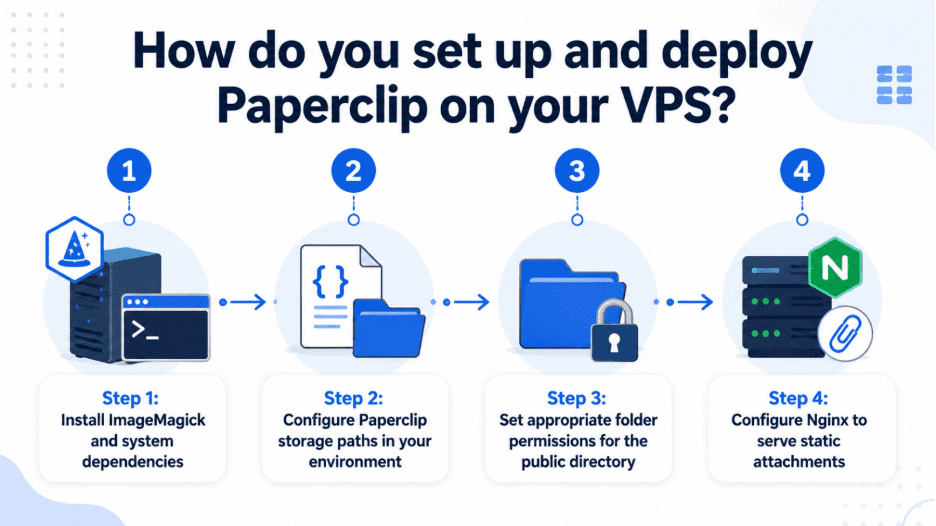
Step 1: Install ImageMagick and system dependencies
Paperclip relies on external software to process, resize and crop image attachments. Use your server’s package manager to install ImageMagick. Running the appropriate installation command ensures the core image processing libraries are available to your application.
Step 2: Configure Paperclip storage paths in your environment
By default, Paperclip saves uploaded files locally. You must define this local storage path within your application environment file. Ensure the configuration points to the public system folder. This keeps uploaded media files separate from your core application code.
Step 3: Set appropriate folder permissions for the public directory
Your web server needs explicit permission to read and write files within the upload directory. Use the terminal to grant your web server user write access to the correct folder. Proper permissions prevent frustrating errors when visitors try to upload profile pictures.
Step 4: Configure Nginx to serve static attachments
Routing every image request through your Rails application wastes valuable server resources. Update your Nginx server block to serve static files directly from the public folder. Bypassing the Rails application for media delivery dramatically improves load times and overall performance.
Once your server is configured, it helps to know how to resolve lingering access issues.
How do you troubleshoot common Paperclip permission errors?
Even with a careful setup, access issues can occur when users try to upload files. Use these steps to track down and fix common permission denied errors on your server. Implementing these fixes helps you secure your VPS against unauthorized access attempts.
Step 1: Verify user group assignments
Check that both your deployment user and the web server user belong to the correct groups. If they do not share the right group permissions, the web server will fail. Incoming files will not save to the designated folder.
Step 2: Check SELinux contexts
If you are using AlmaLinux, security modules might block write access to the filesystem. Review your audit logs to see if SELinux is preventing Nginx from writing files. You can then update the context rules accordingly.
Now that your deployment is running smoothly, let’s explore why the right scalable VPS hosting plans.
Why choose Bluehost for your Rails deployment?
Bluehost offers scalable VPS hosting plans plans that are well-suited for custom Ruby on Rails applications. A Self-Managed VPS provides the full root access you need to install specific software stacks. Every plan features NVMe SSD speed benefits that significantly accelerate heavy server-side tasks like resizing images with ImageMagick.
| VPS plan tier | Introductory price |
| Standard VPS – NVMe 2 | Starts at $2.09/mo |
| Standard VPS – NVMe 4 | Starts at $4.18/mo |
| Enhanced VPS – NVMe 8 | Starts at $8.36/mo |
| Ultimate VPS – NVMe 16 | Starts at $17.67/mo |
However, it is important to note a limitation of this tier. Self-Managed VPS scalable VPS hosting plans include 24/7 expert human support for server administration.
You must be comfortable handling command-line troubleshooting and deployment tasks yourself. If you have the technical skills, this environment offers the unmetered bandwidth your project requires.
Let’s wrap up with a quick summary of what we covered today.
Final thoughts on Paperclip hosting
Hosting Paperclip locally is an effective choice for Rails developers seeking control over media assets. Managing files on your own server keeps architecture simple. Overall, success relies on configuring Nginx correctly and setting proper directory permissions. This approach allows your Ruby on Rails application to serve content quickly without third-party overhead.
Bluehost VPS hosting provides the root access and dedicated resources needed for custom Paperclip hosting environments. With NVMe SSD storage and instant provisioning, your media remains fast. Get started with Bluehost today – power your business with Paperclip hosting.
FAQs
Yes, Paperclip is officially deprecated. Many developers now use ActiveStorage, which is built directly into modern versions of Ruby on Rails. However, legacy applications still rely on Paperclip. This makes configuration knowledge valuable for maintaining older projects.
It is highly unlikely. Paperclip requires ImageMagick to process files. Shared scalable VPS hosting plans do not provide the root access needed to install system-level packages. A VPS gives you the freedom to install exactly what your application requires.
Image processing can be resource-intensive. Small images might process fine on 2 GB of RAM. Handling large uploads or concurrent tasks often requires 4 GB to 8 GB of RAM to prevent server crashes.
By default, Paperclip stores uploaded images in the local filesystem. It places them inside the public system directory of your Rails application. This allows your web server to serve them directly to visitors.

Write A Comment