 ChatGPT,
 Claude,
 Gemini,
 Grok — all four for
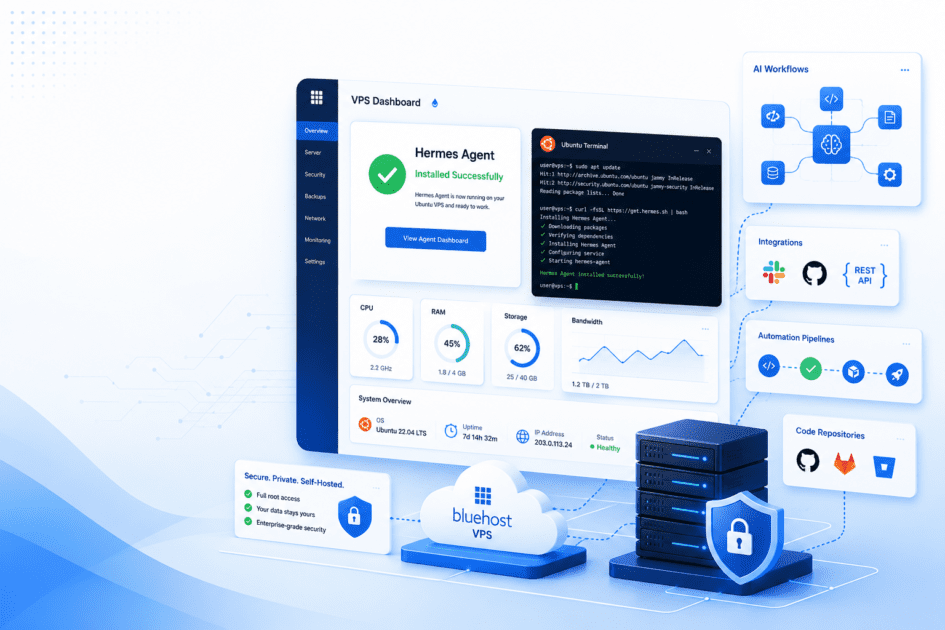
Installing Hermes Agent on an Ubuntu VPS gives your AI agent a server that stays online after your laptop or terminal session shuts down.
To install Hermes Agent on Ubuntu VPS, you will:
- Connect to your VPS with SSH.
- Update Ubuntu and install the required Linux packages.
- Create a dedicated Hermes user.
- Run the official Nous Research installer.
- Complete the Hermes setup wizard.
- Verify the installation with
hermes doctor. - Run the Hermes gateway with systemd if you want the agent to stay online.
For example, you might want Hermes Agent to monitor a task, respond through Telegram or Discord, keep memory across sessions or stay available for browser automation while your laptop is shut. Running Hermes Agent on an Ubuntu VPS gives the same agent a persistent server environment instead of tying it to a local machine.
This guide walks you through the complete setup, from server preparation to installation, configuration, gateway testing, firewall hardening and troubleshooting. By the end, you will have a working Hermes Agent installation on Ubuntu VPS that is ready for real workloads.
Quick answer: How to install Hermes Agent on Ubuntu VPS
The fastest way to install Hermes Agent on Ubuntu VPS is to run the official Linux installer from Nous Research.
The command below uses the official one-line Hermes installer, making it the quickest way to install Hermes Agent on an Ubuntu VPS. If you prefer to review the installation process before running the installer, refer to the official Hermes installation documentation.
curl -fsSL https://hermes-agent.nousresearch.com/install.sh | bash
After the installer finishes, reload your shell and run the setup checks:
source ~/.bashrc
hermes setup
hermes doctor
Use hermes setup to configure your LLM provider, API keys, tools and runtime preferences. Use hermes gateway if you want the same agent to connect with messaging channels such as Telegram, Discord, Slack, Signal or email.
Note: This guide shows the manual Ubuntu VPS setup. If you want to skip most of the server preparation, Bluehost Hermes Agent VPS Hosting gives you a one-click deployment path for running Hermes Agent on a self-managed VPS. The manual steps below are still useful if you want to understand, customize or troubleshoot the server environment yourself.
What you need before installing Hermes Agent
Before you install Hermes Agent on Ubuntu VPS, make sure you have:
- An Ubuntu 22.04 LTS or Ubuntu 24.04 LTS VPS
- SSH access to the server
- A user with sudo privileges
- A stable internet connection from the server
curlinstalled or available throughapt- An LLM provider plan, API keys or Nous Portal setup path
- A domain name or static IP if you plan to expose webhooks, a web dashboard or external access
- Basic comfort with Linux commands, terminal access and command-line setup
For most API-backed agent workloads, you can start with modest server resources. If you plan to run local models on the same VPS, you will need more CPU, RAM, storage and more headroom.
Recommended Ubuntu VPS requirements for Hermes Agent
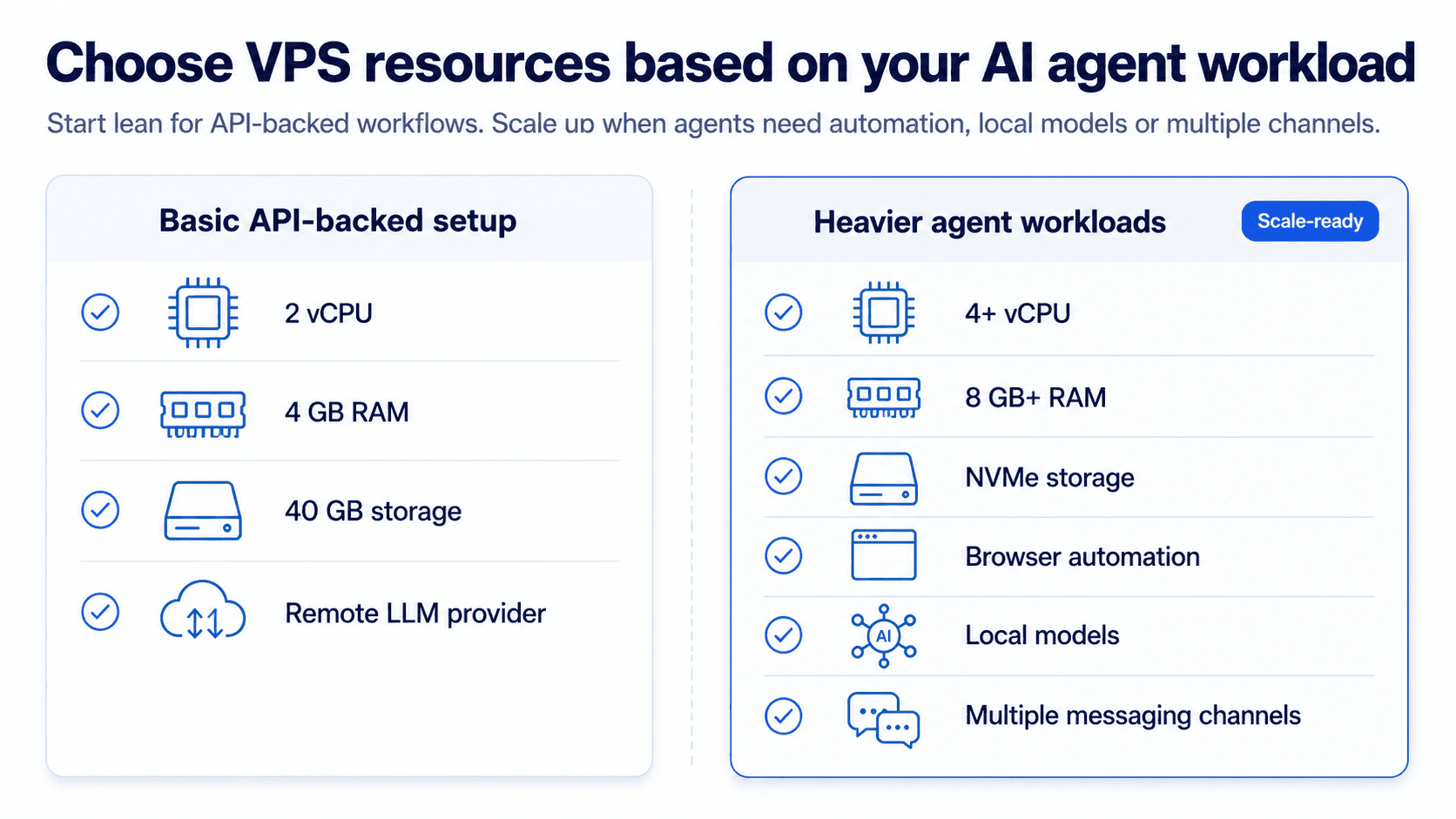
Your VPS should match the type of agent workload you plan to run.
For a basic Hermes Agent setup using remote model APIs, start with:
- 2 vCPU cores
- 4 GB RAM
- 40 GB storage
- Ubuntu 22.04 LTS or 24.04 LTS
- Root or sudo access
- A dedicated IP address
For heavier workflows, concurrent tasks, browser automation or local model experiments, consider:
- 4 or more vCPU cores
- 8 GB RAM or higher
- NVMe storage
- More disk space for logs, memory, project files, config files and model assets
- A VPS plan that lets you upgrade or scale resources without rebuilding the server
If you only want to install Hermes Agent on Ubuntu VPS and connect it to cloud-hosted LLM provider APIs, the baseline setup is enough to begin. If you want the VPS to handle local inference, choose more RAM before you deploy.
Step 1: Connect to your Ubuntu VPS and update packages
Log in to your VPS through SSH:
ssh username@your-server-ip
Then update Ubuntu before installing anything:
sudo apt update && sudo apt upgrade -y
If the update includes a kernel upgrade, reboot the server:
sudo reboot
Reconnect after the reboot:
ssh username@your-server-ip
Updating first helps avoid package conflicts and gives Hermes Agent a clean Ubuntu environment to work from.
Step 2: Install curl and basic system packages
The official Hermes Agent installer handles the main dependencies, but your server still needs basic Linux tools such as curl.
Note: This guide uses the official Hermes Agent Linux installer, which handles the main runtime setup for you. You do not need to manually create a Python virtual environment or install Hermes Agent with pip unless the official documentation for your specific version tells you to use a manual Python-based setup.
Run:
sudo apt install curl git ca-certificates -y
You can also check that curl is available:
curl --version
This prepares the Ubuntu server for the official installer command. The same general approach may feel familiar on Debian-based Linux systems, but this guide focuses on Ubuntu VPS deployment.
Step 3: Create a dedicated Hermes Agent user
Do not run long-lived agent processes as root. Create a dedicated user for Hermes Agent instead:
sudo adduser --disabled-password --gecos "" hermes
sudo usermod -aG sudo hermes
Then switch to that user:
sudo -iu hermes
Using a dedicated user keeps the Hermes Agent files, configuration, .env files and runtime environment separate from the root account. It also makes systemd service management cleaner later.
Step 4: Install Hermes Agent on Ubuntu VPS
Now run the official Linux installer as the hermes user:
curl -fsSL https://hermes-agent.nousresearch.com/install.sh | bash
This is the key command for how to install Hermes Agent on Ubuntu VPS. It is also the main step for installing Hermes from the terminal.
After the installer completes, reload your shell configuration:
source ~/.bashrc
If your shell uses Zsh instead of Bash, run:
source ~/.zshrc
Then check that the hermes command is available:
command -v hermes
You should see a path similar to:
/home/hermes/.local/bin/hermes
If the command is not found, close the SSH session, log back in as the hermes user and try again.
Step 5: Verify the Hermes Agent installation
Check the installed version:
hermes --version
Then run the diagnostic command:
hermes doctor
hermes doctor checks the environment and reports missing dependencies, path issues or configuration problems. Run this before you configure the agent for production use.
You can also start Hermes Agent from the command line:
hermes
This opens the interactive CLI. For a new Ubuntu VPS installation, this is the simplest way to confirm that Hermes Agent starts correctly and that you can run Hermes from the terminal.
Step 6: Configure Hermes Agent
After installation, run the setup wizard:
hermes setup
The setup flow helps configure the model provider, tools, skills and runtime preferences. You can also configure the model separately:
hermes model
To review or configure tools, run:
hermes tools
If you want to use Nous Portal for setup, you can run:
hermes setup --portal
Use the setup path that matches your provider and workflow. Some users bring their own API keys. Others use a portal-based setup. The important part is to complete the Hermes config and configuration before trying to run Hermes Agent as a long-lived service.
This guide focuses on an Ubuntu VPS setup, not a Hermes Desktop install. The goal is to keep the same agent available on a server instead of depending on a local desktop session.
Step 7: Test Hermes Agent from the command line
Before you create a systemd service, confirm that Hermes Agent works in a normal shell session.
Run:
hermes
Start a basic conversation, chat or simple task. Then exit the CLI.
If you plan to use messaging platforms or messaging channels, configure the gateway:
hermes gateway
Depending on your setup, you may also use:
hermes gateway setup
Then test the gateway manually:
hermes gateway start
For a Hermes gateway install, this is where you confirm that the gateway can run before systemd manages it. This matters if you want the agent or bot to work across multiple channels such as Telegram, Discord, Slack, Signal, email or a Discord bot.
Do not skip this test. If Hermes Agent fails during a manual run, it will also fail under systemd. Manual testing gives you clearer error messages and makes troubleshooting easier.
Step 8: Run Hermes Agent with systemd
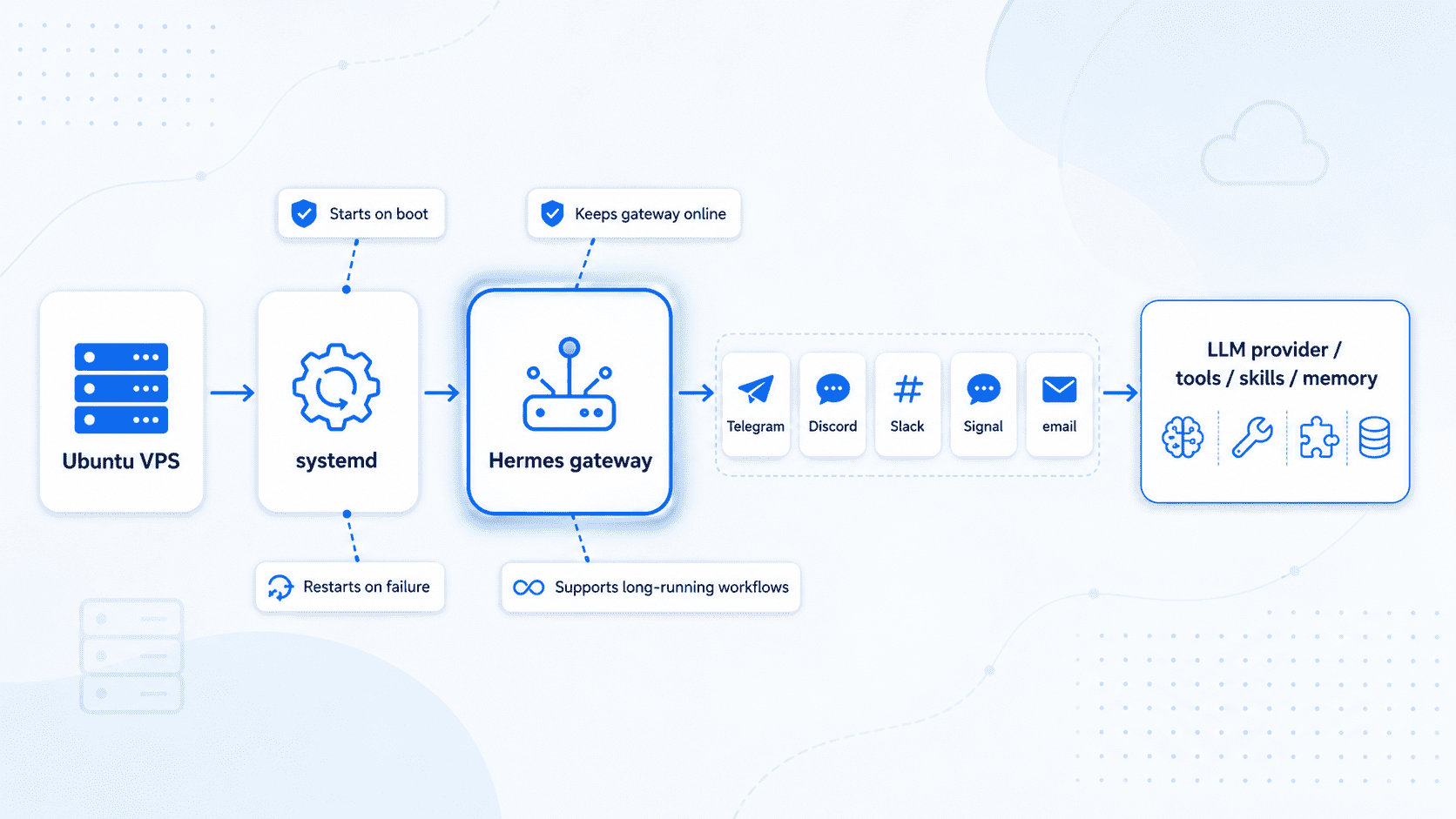
A direct CLI session closes when your SSH session closes. On a VPS, you may want Hermes Agent’s gateway to restart automatically after a crash or server reboot.
Persistent uptime is especially important because Hermes builds context over time through memory files, user profiles and accumulated task history. The longer the agent stays active, the more useful that retained knowledge becomes. See how Hermes Agent Memory works.
Use systemd for that.
First, confirm the Hermes command path:
command -v hermes
If you installed as the hermes user, the path will usually be:
/home/hermes/.local/bin/hermes
Exit back to your sudo user if needed:
exit
Create a systemd service file:
sudo nano /etc/systemd/system/hermes-agent.service
Important: Replace the ExecStart path in the service file with the exact path returned by command -v hermes on your server. The example below uses /home/hermes/.local/bin/hermes, but your path may differ depending on the user, shell and installation location.
Add this configuration:
[Unit]
Description=Hermes Agent Gateway
After=network-online.target
Wants=network-online.target

[Service]
Type=simple
User=hermes
WorkingDirectory=/home/hermes
Environment=HOME=/home/hermes
ExecStart=/home/hermes/.local/bin/hermes gateway start
Restart=on-failure
RestartSec=5

[Install]
WantedBy=multi-user.target
Save and close the file.
Reload systemd:
sudo systemctl daemon-reload
Enable the service at boot:
sudo systemctl enable hermes-agent
Start the service:
sudo systemctl start hermes-agent
Check the status:
sudo systemctl status hermes-agent
View live logs:
sudo journalctl -u hermes-agent -f
Keep RestartSec=5. A short restart delay prevents rapid crash loops from making the server harder to debug.
Important: use this service when you want the Hermes gateway to run continuously. If you only use Hermes Agent as an interactive CLI, you may not need systemd. In that case, you can run Hermes manually when needed.
Step 9: Secure your Hermes Agent VPS before going live
A VPS running an AI agent should not expose unnecessary services to the public internet. Start by enabling the firewall and allowing SSH:
sudo ufw allow OpenSSH
sudo ufw enable
Check the firewall status:
sudo ufw status
Only open additional ports when your Hermes Agent setup actually requires inbound traffic. For example, if you place a reverse proxy in front of a web interface, web dashboard or webhook endpoint, you may need HTTPS:
sudo ufw allow 443/tcp
Avoid opening broad port ranges. If a service only needs to be accessed from your own IP address, restrict it:
sudo ufw allow from your-ip-address to any port 443 proto tcp
Also follow these basic security practices:
- Use SSH keys instead of password-based login.
- Disable root SSH login if your workflow allows it.
- Keep Ubuntu packages updated.
- Do not hardcode API keys in public repositories.
- Keep provider credentials out of project files and
.envfiles. - Review Hermes Agent logs regularly.
- Rotate API keys if you suspect exposure.
- Use a reverse proxy such as Nginx or Caddy if you need HTTPS access.
- Keep the Hermes Agent service under a dedicated user.
These steps help reduce the risk of exposing API keys, tool access, bot access or agent runtime data.
Quick setup overview: Install Hermes Agent on Ubuntu VPS
| Step | Action | Main commands | Why it matters |
|---|---|---|---|
| 1 | Connect to your Ubuntu VPS and update packages | ssh username@your-server-ipsudo apt update && sudo apt upgrade -ysudo reboot | Gives Hermes Agent a clean, updated Ubuntu environment and helps avoid package conflicts. |
| 2 | Install curl and basic system packages | sudo apt install curl git ca-certificates -ycurl --version | Installs the basic tools needed to run the official Hermes Agent installer. |
| 3 | Create a dedicated Hermes Agent user | sudo adduser --disabled-password --gecos "" hermessudo usermod -aG sudo hermessudo -iu hermes | Keeps Hermes files, configuration, API keys and runtime activity separate from the root account. |
| 4 | Install Hermes Agent on Ubuntu VPS | curl -fsSL https://hermes-agent.nousresearch.com/install.sh | bashsource ~/.bashrccommand -v hermes | Installs Hermes Agent and confirms that the hermes command is available. |
| 5 | Verify the Hermes Agent installation | hermes --versionhermes doctorhermes | Checks that Hermes Agent installed correctly and can start from the command line. |
| 6 | Configure Hermes Agent | hermes setuphermes modelhermes toolshermes setup --portal | Connects Hermes to your model provider, API keys, tools, skills and runtime preferences. |
| 7 | Test Hermes Agent from the command line | hermeshermes gatewayhermes gateway setuphermes gateway start | Confirms that Hermes and the gateway work before you run them as a background service. |
| 8 | Run Hermes Agent with systemd | command -v hermessudo nano /etc/systemd/system/hermes-agent.servicesudo systemctl daemon-reloadsudo systemctl enable hermes-agentsudo systemctl start hermes-agent | Keeps the Hermes gateway running continuously after SSH disconnects, crashes or server reboots. |
| 9 | Secure your Hermes Agent VPS before going live | sudo ufw allow OpenSSHsudo ufw enablesudo ufw statussudo ufw allow 443/tcp | Reduces exposure by limiting public access, protecting SSH and opening only the ports your setup needs. |
Troubleshooting when you install Hermes Agent on Ubuntu VPS
Installation issues are common on fresh servers. Use this table to identify the most likely cause and fix.
| Problem | Likely cause | Fix |
|---|---|---|
hermes: command not found | Your shell path has not reloaded | Run source ~/.bashrc, reopen SSH or check command -v hermes |
| Installer fails | Missing basic packages or network issue | Install curl, git and ca-certificates, then retry |
| Permission denied | Hermes was installed under a different user | Switch to the correct user or reinstall as the dedicated hermes user |
hermes doctor reports missing dependencies | The installer did not complete cleanly | Re-run the installer and review the output |
| Gateway service fails under systemd | ExecStart path is wrong | Run command -v hermes as the hermes user and update the service file |
| Service starts then exits | Gateway is not configured | Run hermes gateway setup manually first |
| API authentication fails | Provider setup is incomplete or credentials are wrong | Run hermes setup, hermes model or your provider setup flow again |
| SSH disconnect stops the agent | You are running Hermes manually instead of through systemd | Use systemd for the gateway or run interactive sessions manually only |
| Server runs out of memory | Workload exceeds available RAM | Upgrade the VPS or use remote model inference |
When systemd logs are unclear, test manually as the hermes user:
sudo -iu hermes
hermes doctor
hermes gateway start
Manual runs usually show clearer errors than service status output.
How to update Hermes Agent
To update Hermes Agent after installation, switch to the hermes user:
sudo -iu hermes
Then run:
hermes update
After updating, run:
hermes doctor
If you use the systemd gateway service, restart it:
exit
sudo systemctl restart hermes-agent
sudo systemctl status hermes-agent
Check the logs after every update:
sudo journalctl -u hermes-agent -n 100
This confirms that the updated version starts cleanly and that your gateway configuration still works.
What to look for in a Hermes Agent VPS
The best VPS for Hermes Agent depends on how you plan to use it. For basic API-backed workflows, a smaller VPS can work well. For local models, parallel tasks, browser automation or heavier automation, choose more CPU, RAM and storage.
Look for these features:
- Full root or sudo access
- Ubuntu 22.04 LTS or Ubuntu 24.04 LTS support
- NVMe storage
- Dedicated resources
- Scalable CPU and RAM
- Static IP or dedicated IP support
- Reliable uptime
- Easy SSH access
- Firewall control
- Support for long-running background services
- One-click provisioning or simple dashboard access where available
When Bluehost Hermes Agent VPS Hosting makes sense
Bluehost Hermes Agent VPS Hosting makes sense if you want to run Hermes Agent on a self-managed VPS without starting from a blank server. Instead of preparing every layer manually, you get a one-click deployment path for Hermes Agent, then continue configuring the model provider, API keys, gateway workflows, memory, skills and server settings yourself.
This is useful if your goal is not just to install Hermes Agent once, but to keep the same agent running beyond a laptop session. A VPS gives Hermes Agent a persistent runtime for scheduled tasks, messaging channels, browser automation and long-running workflows. Bluehost adds a faster setup path while still giving technical users control over the environment.
It is still worth understanding the manual steps in this guide. They help you troubleshoot the installation, secure the server, verify the Hermes gateway and know what is happening behind the one-click setup.
Give Hermes Agent a server it can grow into
Installing Hermes Agent on Ubuntu VPS is more than a setup task. It is the step that turns a local AI agent into a persistent system that can keep working after your laptop shuts, your terminal closes or your session ends.
The manual path gives you full visibility into how the server is prepared, how Hermes Agent is installed, how the setup wizard connects your model provider and how the Hermes gateway stays online through systemd. Those details matter because an agent is only as reliable as the environment it runs in. A clean install, a dedicated user, secure API key handling, firewall rules and restart behavior all shape how stable the agent becomes in real workloads.
If you want more control, follow the manual Ubuntu VPS setup. If you want a faster starting point, Bluehost Hermes Agent VPS Hosting gives you a one-click deployment path while still leaving room to configure the agent, gateway, memory, skills and provider settings yourself. Either way, the real decision is not just where to install Hermes Agent. It is whether you want your agent to remain a temporary tool on a machine you open occasionally, or a persistent worker with a server of its own.
Frequently asked questions
Yes. You can install Hermes Agent on Ubuntu 24.04 LTS. Ubuntu 22.04 LTS is also a good option if you already use it on your VPS. Both versions work well for a Hermes Agent Ubuntu VPS setup because they support modern Linux packages, SSH access, systemd services and long-running server workloads.
For a basic Hermes Agent setup that uses a cloud-hosted LLM provider, start with at least 2 vCPU cores, 4 GB RAM and 40 GB storage. If you plan to run local models, browser automation, multiple messaging channels or heavier AI agent workflows, choose a VPS with more CPU, RAM and NVMe storage. More headroom helps Hermes Agent stay stable as your tasks, tools and gateway workflows grow.
You need sudo access to install Hermes Agent on Ubuntu VPS because server preparation, user creation, firewall setup and systemd configuration require elevated permissions. The Hermes Agent installer itself should run under a dedicated hermes user instead of root. This keeps the agent, configuration files, API keys and runtime environment better isolated.
Yes. In most Hermes Agent setups, you need an LLM provider, API keys or a Nous Portal setup path before the agent can run useful workflows. After installation, run hermes setup to configure your model provider, API credentials, tools, skills and runtime preferences. Without this configuration, the Hermes Agent installation may complete, but the agent will not be ready for real tasks.
To run Hermes Agent continuously on a VPS, use systemd to manage the Hermes gateway as a background service. Confirm the Hermes command path with command -v hermes, add that path to the ExecStart line in your systemd service file and then run:
This usually happens because systemd is using a different command path or environment than your interactive terminal session. Run command -v hermes as the hermes user and make sure the ExecStart path in /etc/systemd/system/hermes-agent.service matches that exact path. After editing the service file, run sudo systemctl daemon-reload, restart the service and check the logs with sudo journalctl -u hermes-agent -n 100.

Write A Comment