 ChatGPT,
 Claude,
 Gemini,
 Grok — all four for
Key highlights
- Learn how to deploy local LLMs securely using n8n Ollama on a self-managed VPS.
- Understand the VPS, RAM, CPU and NVMe storage requirements for running local AI workflows without expensive GPUs.
- See how n8n connects to Ollama through Docker container networking and local API requests.
- Explore how self-hosted AI automation can improve privacy, reduce API dependency and keep sensitive workflow data inside your own server environment.
AI automation becomes far more powerful when your workflows can think, act and process data privately. That is where n8n Ollama becomes a practical advantage. n8n gives you the workflow engine. Ollama gives you local LLM processing. A self-managed VPS gives both tools the private, always-on server environment they need to run securely.
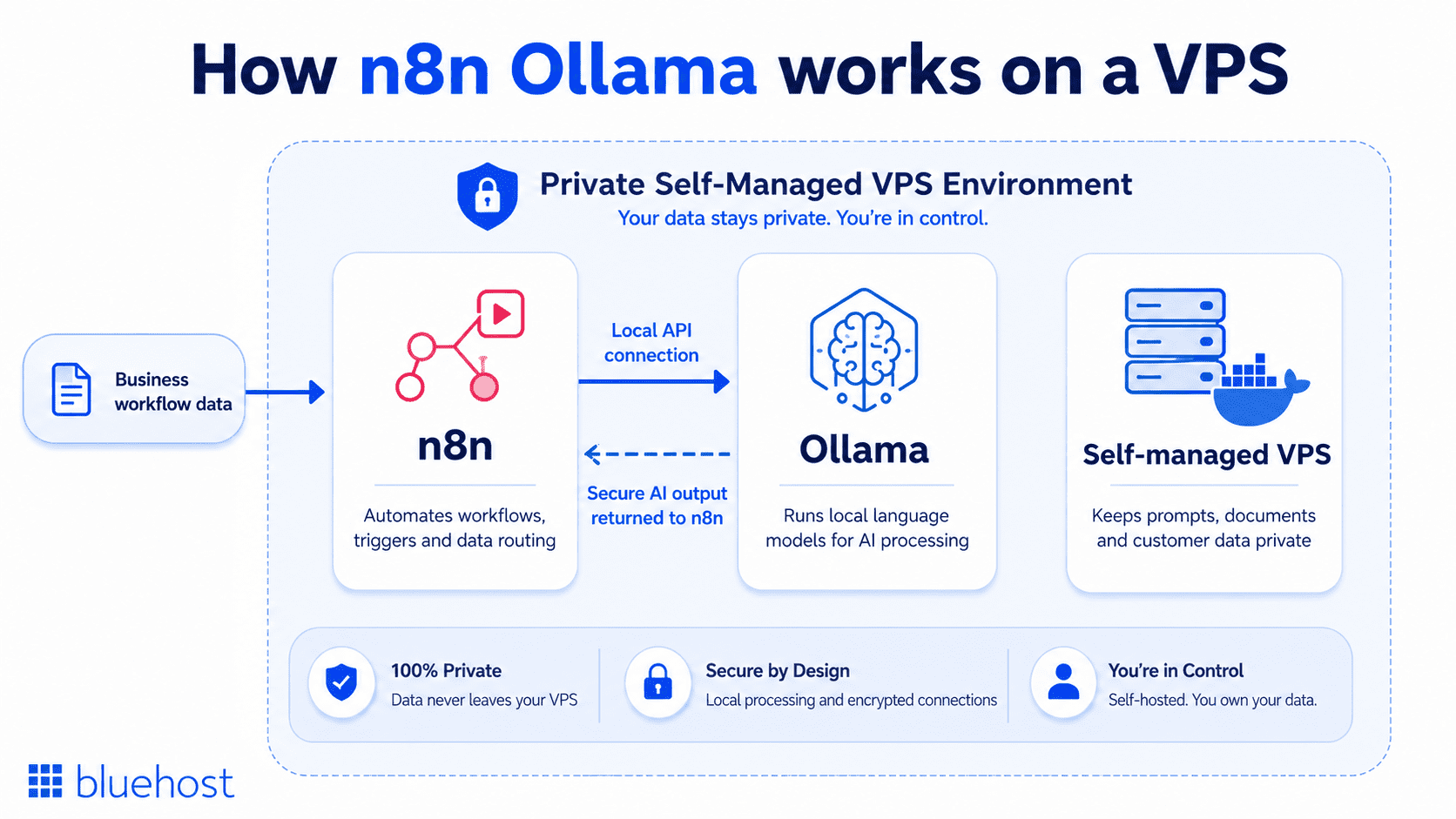
So, how does Ollama work with n8n? Ollama runs local language models on your server, while n8n connects those models to real business workflows like lead routing, document summaries, customer support tasks, internal alerts and data enrichment. Instead of sending sensitive prompts and records to third-party AI APIs, your automation stays inside your own infrastructure.
In this Ollama n8n automation tutorial, we will walk through how to deploy both tools on a VPS, connect them through Docker and build a private AI automation setup that gives you more control over performance, cost and data security. First up, let us start with learning about the prerequisites for integrating Ollama with n8n.
What prerequisites are required before integrating Ollama with n8n?
Before building a n8n Ollama workflow, you need a self-managed VPS with root access. It should support Docker and run on a stable Linux operating system. You also need fast NVMe storage, enough RAM and basic firewall protection. These prerequisites help n8n connect to Ollama locally and run private AI automation workflows without relying on third-party AI APIs.
This matters because Ollama runs local language models on your server. n8n then sends workflow prompts, data and automation tasks to those models through a local API connection. A weak server setup can slow down model loading, break container networking or cause workflows to fail during inference.
| Prerequisite | Why it matters for n8n Ollama |
|---|---|
| Self-managed VPS with root access | You need full control to install Docker, configure ports, manage containers and secure the local connection between n8n and Ollama. |
| Stable Linux operating system | Use Ubuntu or AlmaLinux for strong compatibility with Docker, Ollama and self-hosted automation tools. |
| Docker and Docker Compose | Docker lets you run n8n and Ollama in isolated containers, making setup, updates and troubleshooting easier. |
| Fast NVMe SSD storage | NVMe storage helps large language models load faster and supports smoother file and container operations. |
| Sufficient RAM | Local LLMs depend heavily on memory. Start with at least 8GB RAM for lightweight models and use 16GB or more for better stability. |
| Adequate CPU resources | If you are running Ollama without a GPU, CPU capacity becomes important for inference speed and workflow responsiveness. |
| Firewall and secure access | Lock down SSH, expose only required ports and protect n8n endpoints before connecting automation workflows to business data. |
For this Ollama n8n automation tutorial, the most important requirement is control. A self-managed VPS gives you root access to install Docker and run Ollama locally. You can connect n8n through internal networking and keep sensitive workflow data inside your own server environment.
Once these prerequisites are in place, you can deploy Ollama and n8n as Docker containers and begin building private AI automation workflows.
With the right VPS foundation in place, the next step is to deploy Ollama and n8n, connect them through Docker and test your first private AI automation workflow.
How do you deploy the Ollama and n8n integration step-by-step?
To deploy an n8n Ollama integration on a VPS, start by provisioning a secure server. Install Docker, then run Ollama in a container. Next, launch n8n and connect it to the local Ollama API. Once everything is linked, test your first private AI automation workflow.
Here is the basic deployment process:
- Provision and secure your NVMe VPS.
- Install Docker and Docker Compose.
- Deploy the Ollama container and pull a local LLM.
- Launch n8n and configure the Ollama connection.
- Test your private AI automation workflow.
This Ollama n8n automation tutorial uses Docker because it keeps both applications isolated, easier to manage and simpler to update. Docker also helps n8n and Ollama run on the same VPS without software conflicts.
Step 1: Provision and secure your NVMe VPS
Start by choosing a self-managed VPS with root access, enough RAM and fast NVMe storage. Log in through SSH, update your server packages and configure basic firewall rules before installing any application.
This step matters because n8n and Ollama will process automation data, prompts and local model requests on the same server. A secure VPS setup helps protect your n8n endpoints and keeps your local LLM environment private.
Step 2: Install Docker and Docker Compose
Install Docker and Docker Compose so you can run Ollama and n8n in separate containers. This keeps each service isolated while allowing them to communicate through a controlled local network.
Docker hosting on VPS is useful for a n8n Ollama setup because you can start, stop, update and troubleshoot each container without disturbing the rest of your server environment.
Step 3: Deploy the Ollama container and pull a local LLM
Next, deploy Ollama in a Docker container and pull a lightweight local language model, such as Llama 3 or another model suited to your server resources.
This is the step where Ollama works with n8n by exposing a local API that n8n can call during automation workflows. Ollama handles the local AI inference, while n8n sends prompts, workflow data and task instructions to the model.
Step 4: Launch n8n and configure the Ollama connection
Deploy n8n in its own Docker container and connect it to your Ollama instance. You can use a shared Docker bridge network or the correct host address so n8n can send local API requests to Ollama securely.
Once connected, n8n can use Ollama inside workflows for tasks like summarization, classification, customer support routing, internal alerts and document processing.
Step 5: Test your private AI automation workflow
Open the n8n interface in your browser and add the Ollama node or HTTP request node to your workflow. Run a simple prompt, such as summarizing a short text field, to confirm that n8n can communicate with Ollama successfully.
If the test works, your self-hosted AI automation setup is ready. Your workflows can now process data through a local LLM on your VPS instead of sending every request to a third-party AI API.
Why choose Bluehost for self-hosted AI automation?
A n8n Ollama setup works best when your AI model and automation engine run in a private, always-on server environment. n8n manages the workflow. Ollama runs the local language model. Your VPS gives both tools the control, storage and isolation they need to process data securely.
That is where Bluehost Ollama VPS Hosting fits into the larger automation stack. It gives technical teams a self-managed VPS environment designed for hosting Ollama, with the root access needed to install Docker, run local LLMs and connect Ollama to tools like n8n.
For teams asking how Ollama works with n8n, the answer is simple. Ollama handles local AI inference on your VPS. n8n sends prompts, workflow data and automation tasks to Ollama through a local API connection. This lets you build private AI workflows without sending every request to a third-party AI service.
Bluehost Ollama VPS Hosting supports this setup with:
- Full root access: Install Docker, configure containers and control how n8n connects to Ollama.
- NVMe SSD storage: Load local language models and handle automation workloads with faster storage performance.
- Self-managed control: Configure your server, security rules, ports and application stack your way.
- Scalable VPS resources: Upgrade your server as your Ollama n8n automation tutorial grows from simple prompts to more complex AI workflows.
- Private infrastructure: Keep sensitive prompts, documents and workflow data inside your own VPS environment.
This makes Bluehost a strong fit for developers, technical operators and teams that want to run Ollama privately and connect it to n8n for self-hosted AI automation.
However, this setup is best for users who are comfortable with server management. You are responsible for installing, configuring and maintaining Docker, Ollama, n8n and related software. Bluehost provides the VPS infrastructure, while your team controls the AI automation stack.
Once your n8n Ollama workflow is live, the next step is understanding what it changes for your business. It can reshape how you handle AI automation, data privacy and long-term operating costs.
Ready to build that stack on your own terms?
Use Bluehost Ollama VPS Hosting to run local LLMs, connect them with n8n workflows and keep your automation data inside an environment your team
From AI automation to AI ownership
AI automation is not just about what your workflows can do. It is about where they run and who controls the data.
With n8n Ollama on a VPS, n8n connects the workflow, Ollama runs the local AI model and your server keeps the entire process private. Prompts, documents and customer data stay inside your own environment instead of moving through third-party APIs.
It gives technical teams the root access, NVMe storage and self-managed control needed to run Ollama privately and connect it with n8n.
The future of AI automation is not only faster workflows. It is owned infrastructure.
So the real question is: will your AI workflows live on someone else’s stack, or on one you control?
FAQs
Ollama works with n8n by running local language models on your VPS and exposing them through a local API. n8n connects to that API inside your workflow, sends prompts or workflow data to Ollama and receives the AI-generated response. This lets you build private AI automation workflows without sending sensitive data to third-party AI platforms.
A n8n Ollama setup is used to build self-hosted AI automation workflows. You can use it for document summaries, lead routing, support ticket classification, internal alerts, data enrichment, content processing and other business tasks. n8n handles the automation logic, while Ollama runs the local AI model that processes the data.
You can test n8n and Ollama locally, but a VPS is better for serious workflows. A self-managed VPS gives you an always-on environment, root access, Docker support, private networking and scalable resources. This helps your n8n Ollama workflows keep running even when your local machine is offline.
Yes, you can run Ollama on a VPS without a GPU by using CPU inference and lightweight models. However, performance depends on your server’s CPU, RAM and storage. For smoother results, choose a VPS with fast NVMe storage and enough memory for the model you plan to run.
For a basic n8n Ollama setup, start with at least 8GB RAM for lightweight local models. If you plan to run larger models or multiple automation workflows, 16GB RAM or more is better. More memory helps reduce crashes, slow responses and model-loading issues during AI inference.
Docker makes the setup cleaner and easier to manage. It lets you run n8n and Ollama in separate containers while allowing them to communicate through a shared network. This reduces software conflicts, simplifies updates and makes troubleshooting easier when you are hosting both tools on the same VPS.
Yes, n8n Ollama can be secure when it is configured properly. Since Ollama runs the model on your VPS, prompts and workflow data can stay inside your own server environment. To protect the setup, use firewall rules, secure SSH access, limited exposed ports and private container networking wherever possible.
Bluehost Ollama VPS Hosting gives technical teams a self-managed VPS foundation for running Ollama privately and connecting it with n8n. You get root access, NVMe storage and control over your server environment. It is best for users who are comfortable managing Docker, Ollama, n8n, updates and server-level configuration themselves.

Write A Comment