 ChatGPT,
 Claude,
 Gemini,
 Grok — all four for
Key highlights
- Learn how to securely access cPanel directly from your Bluehost dashboard without needing a secondary login.
- Discover the exact steps to manage your Managed VPS or Dedicated Server hosting tools.
- Understand where to find advanced server management features within the user portal.
- Explore quick troubleshooting solutions if you encounter unexpected login issues.
Managing your website should not require juggling multiple passwords. Through the Bluehost portal, you can access your cPanel dashboard directly from your main hosting account, no secondary login needed. This guide walks you through the exact steps to reach your server tools quickly and securely. Whether you are new to hosting or simply looking for a faster path in, the process is straightforward. Review the requirements below before getting started.
What do you need before logging in?
Before accessing your control panel, make sure you have the right setup ready.
- An active Bluehost account that includes cPanel access, like a Managed VPS or Dedicated Server.
- Your primary Bluehost portal login credentials.
- A modern web browser with pop-ups enabled for the hosting dashboard.
Once you confirm these requirements, you are ready to open your dashboard. This leads you directly to the login process.
How do you access cPanel Bluehost portal?
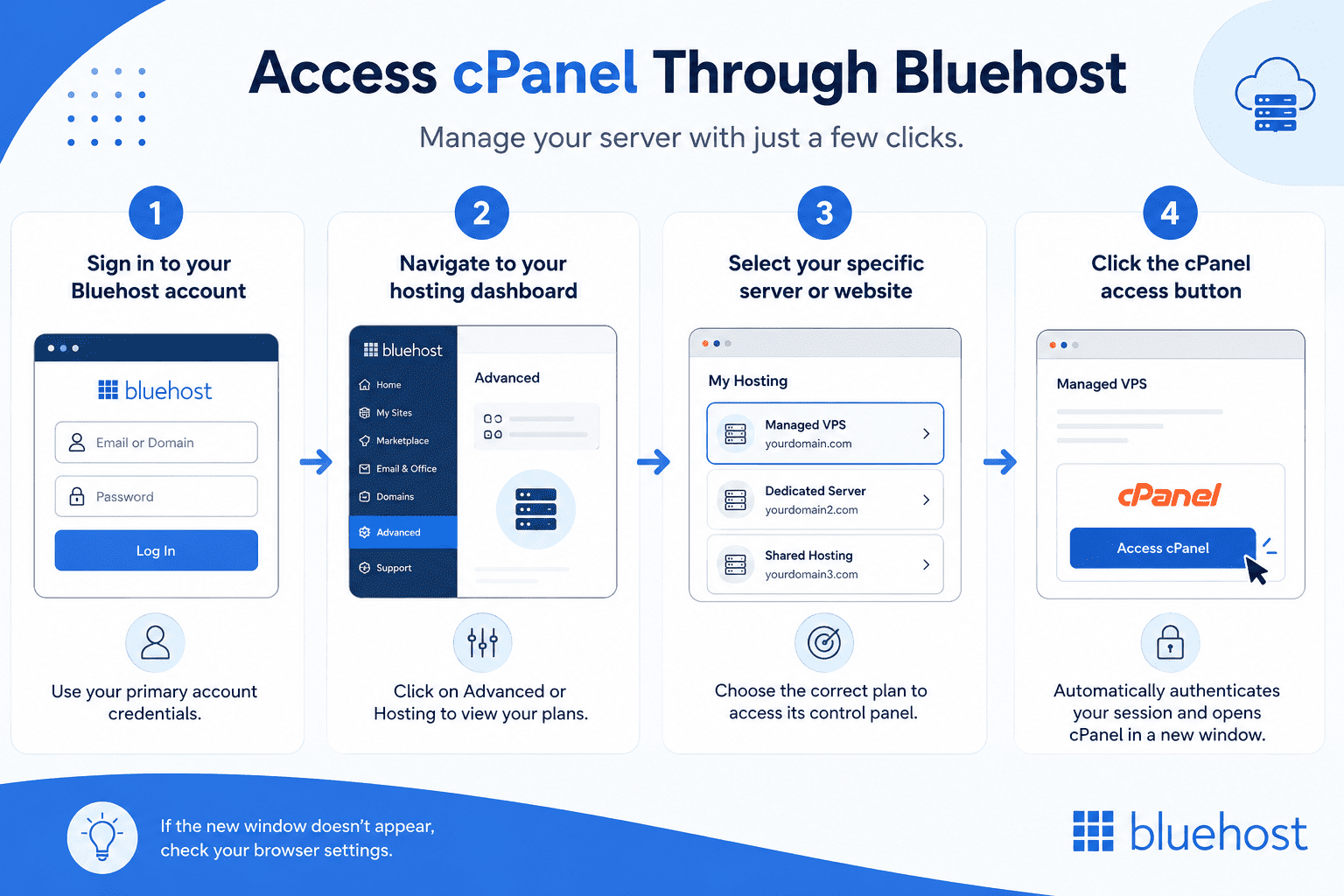
Follow these streamlined steps to bypass separate logins and seamlessly access your server management tools.
Step 1: Sign in to your Bluehost account
Navigate to the Bluehost homepage and click the login button at the top. Enter your primary account credentials to access the main hosting dashboard. This is the same portal used for managing your billing panel or contacting Bluehost support.
Step 2: Navigate to your hosting dashboard
Look at the left-hand navigation menu once you are logged in. Click on the Advanced or Hosting tab to view your active plans. This section houses all your server settings and configurations.
Step 3: Select your specific server or website
You might manage multiple plans or websites from one account. Make sure to click on the correct Managed VPS or Dedicated Server. This ensures you open the control panel for the right project.
Step 4: Click the cPanel access button
Click the cPanel button to automatically authenticate your secure session. This action safely opens your control panel in a new window. You now have full access to your server tools to manage databases and emails.
If the new window does not appear, you might need to troubleshoot your browser settings.
Why can’t you access cPanel on your Bluehost account?
Sometimes things do not work exactly as expected when trying to log in.
- Your browser cache or strict ad blockers might prevent the cPanel popup window from opening.
- A standard WordPress plan does not use cPanel like a VPS or Dedicated Server.
- Your hosting session may have timed out and requires a fresh login.
Checking these common issues usually restores your access quickly. This lets you explore why Bluehost is a great hosting choice.
Why choose Bluehost for cPanel-managed hosting?
We include cPanel with every Managed VPS and Dedicated Server plan. Our dashboard simplifies how to log into cPanel Bluehost provides for your administrative tasks. You gain access to high performance hardware:
- AMD EPYC processors
- DDR5 RAM
- NVMe SSD storage
- Instant provisioning
Our Managed VPS plans start at $49.99 per month for the Standard tier. These plans provide dedicated resources to ensure your website remains fast and reliable.
You can learn more about us and our infrastructure on our company page. Operating a VPS requires more technical knowledge than standard shared hosting. We provide 24/7 expert human support with every Managed VPS plan.
Our support team bridges the technical gap so you never have to solve server issues alone. Experts remain available at all times to keep your business running.
Access to reliable support makes managing your server a simple routine. These advantages lead to our final recommendations.
Final thoughts
The single-sign-on approach saves you valuable time every day. You can skip memorizing extra passwords and jump straight into managing your website. A secure portal keeps your data safe while improving your daily workflow. Ready to upgrade? Bluehost Managed VPS Standard plan starts at $49.99 per month, giving you easy cPanel access and expert support from Bluehost to help your business grow.
Frequently asked questions
No, you do not need a secondary password. You can access it directly through your main portal. The direct cPanel login method is an alternative, but the dashboard is easier.
You can control almost every server setting. This includes managing domains, creating professional email addresses and configuring security rules.
You rarely need to reset it since the main dashboard handles authentication. Manual logins can be reset via the main account settings.
Some legacy shared plans include it. However, our modern WordPress hosting uses a customized dashboard instead of traditional cPanel.

Write A Comment