


Key highlights
- Understand that missing or invalid ‘From’ headers cause the server to substitute its default system address
- Learn to format email headers correctly using valid syntax with working code examples
- Verify that email addresses used in scripts exist in cPanel to prevent delivery rejection
- Discover platform-specific solutions for WordPress, custom PHP and other environments
- Configure SPF, DKIM and DMARC records to prevent emails from being flagged as spam
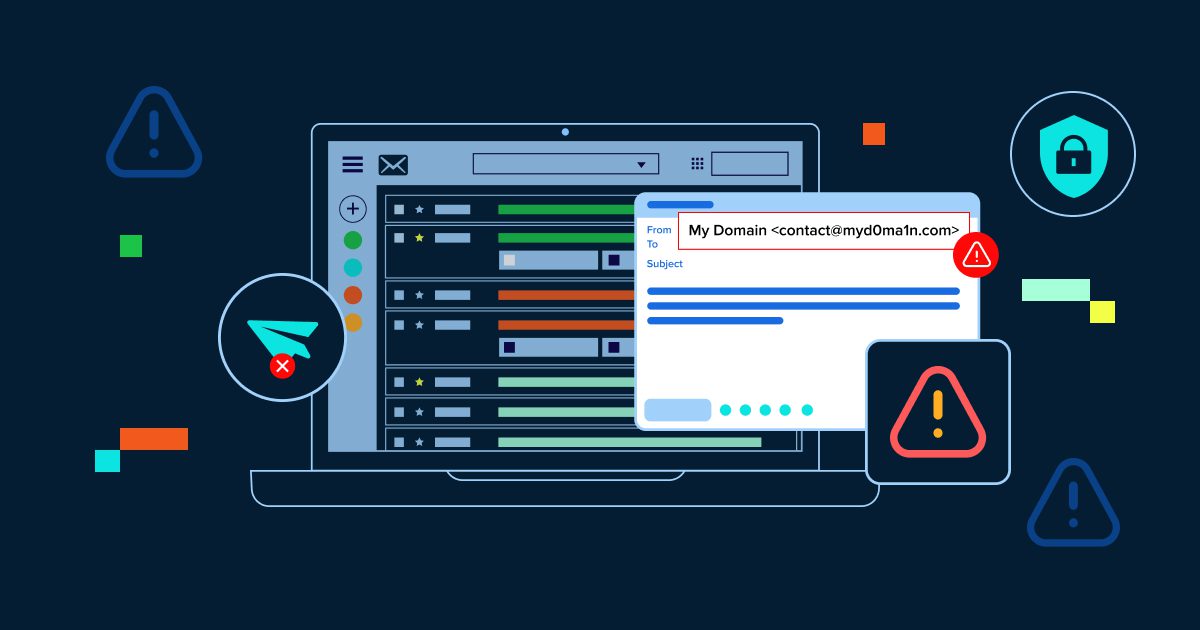
You’ve just finished building a scripted email form or automation. You run a test and—instead of seeing your professional email address as the sender—the message arrives from something like [apache]@[server].[hostname].[com] or [nobody]@[yourdomain].[com]. This isn’t just unprofessional; it triggers spam filters and damages your sender reputation, often causing legitimate emails to vanish before recipients ever see them.
This scripted email from server address issue isn’t just unprofessional. It actively triggers spam filters, damages your sender reputation and often causes legitimate emails to disappear before recipients ever see them.
This common configuration problem occurs when email scripts rely on default server settings instead of explicitly defining a valid sender address. The good news? It’s completely fixable with a few straightforward adjustments.
In this guide, we’ll explain exactly why your server overrides your sender identity, show you multiple methods to fix it (with actual code examples) and walk through the security protocols needed to ensure your emails reach the inbox every time.
TL;DR: Immediate solution for scripted email from server address error
If you need an immediate solution:
- Add a proper ‘From’ header to your PHP script: $headers = “From: [sender]@[yourdomain].[com]\r\n”;
- Ensure the email address exists in cPanel (create it if needed)
- For WordPress: Install WP Mail SMTP plugin and configure authenticated SMTP
Keep reading for detailed explanations, code examples and security best practices.
Understanding the ‘scripted email from server address’ problem
When you send email through PHP’s mail() function or similar scripting methods, the server requires a valid, properly formatted ‘From’ field in the email header. If this field is missing, malformed or points to a non-existent email address, the mail server automatically substitutes a default system address to ensure delivery.
Common default addresses you might see:
- [nobody]@[servername[.[com] – The web server’s system user
- [apache]@[hostname].[com] – The Apache web server process
- [username]@[server].[hostname].[com] – Your cPanel username with server hostname
Why this matters:
- Professional credibility: Generic server addresses signal amateur implementation to recipients
- Spam filtering: Email providers heavily penalize messages from unverified system addresses
- Deliverability: Messages may be rejected entirely or routed to spam folders
- Security concerns: Default addresses mimic email spoofing techniques, raising red flags
Solution 1: Correctly format email headers in PHP
The most direct fix is to explicitly define a valid ‘From’ address in your email script. The server requires specific syntax and even minor formatting errors will cause it to revert to defaults.
Valid header formats
| Valid formats (use these) | Invalid formats (avoid) |
| From: [user]@[domain].[com] | From: “[user]@[domain].[com]” (email in quotes) |
| From: “Name” | From: [user] @ [domain].[com] (spaces in email) |
| From: John Smith | From: [ |
Important note: The server flags duplicate declarations (using the email address as both the name and address) as configuration errors and will revert to system defaults.
PHP code examples
Basic PHP mail() function with proper headers:
With display name:
$headers = “From: \”Company Name\”
Critical requirements:
- The email address ([sender]@[yourdomain].[com]) must be an active, existing email account in your cPanel
- Use \r\n for proper line breaks in headers (CRLF format required by email standards)
- Escape quotes in display names with backslashes
Solution 2: Modify php.ini settings
If you cannot or prefer not to edit individual scripts, you can configure the default sender at the PHP level by modifying the sendmail_path directive in your php.ini file.
Locate your php.ini file:
# In cPanel or via SSH, find your php.ini locationphp -i | grep php.ini# Typical location: /home/username/public_html/php.ini
Add or modify the sendmail_path line:
sendmail_path = /usr/sbin/sendmail -t -i -f [sender]@[yourdomain].[com]
What this does:
- -t – Extract recipients from message headers
- -i – Ignore dots alone on lines (prevents premature message termination)
- -f [sender]@[yourdomain].[com] – Force this address as the envelope sender
Important: If you later specify a ‘From’ header directly in a script, it will override this php.ini setting. This method works best as a server-wide default when scripts don’t define their own headers.
Solving scripted email issues with WordPress SMTP configuration
WordPress sites
WordPress uses wp_mail(), which wraps PHP’s mail() function. The most reliable fix is to bypass the default mail function entirely and use authenticated SMTP through a plugin.
Recommended plugins:
- WP Mail SMTP by WPForms – Most popular, supports major email services
- Post SMTP Mailer – Advanced logging and error tracking
- Easy WP SMTP – Lightweight and beginner-friendly
Configuration steps for WP Mail SMTP:
- Install and activate the plugin from WordPress dashboard
- Navigate to WP Mail SMTP → Settings
- Enter your From Email [noreply0]@[9yourdomain].[com] and From Name
- Choose your mailer (SMTP, Gmail, Outlook, SendGrid, etc.)
- Enter SMTP host, port and authentication credentials
- Send a test email to verify configuration
Custom PHP applications
For custom-built PHP applications, consider using a dedicated email library instead of the basic mail() function. PHPMailer is the industry standard.
PHPMailer example:
isSMTP(); $mail->Host = ‘smtp.yourdomain.com’; $mail->SMTPAuth = true; $mail->Username = ‘[sender]@[yourdomain].[com]’; $mail->Password = ‘your_password’; $mail->SMTPSecure = PHPMailer::ENCRYPTION_STARTTLS; $mail->Port = 587; $mail->setFrom(‘[sender]@[yourdomain].[com]’, ‘Company Name’); $mail->addAddress(‘[recipient]@[example].[com]’); $mail->Subject = ‘Test Email’; $mail->Body = ‘This is the message body’; $mail->send(); echo ‘Message sent successfully’;} catch (Exception $e) { echo “Message failed: {$mail->ErrorInfo}”;}?>
Laravel framework
Laravel has built-in email configuration. Update your .env file:
MAIL_MAILER=smtpMAIL_HOST=smtp.yourdomain.comMAIL_PORT=587MAIL_USERNAME=[sender]@[yourdomain].[com] MAIL_PASSWORD=your_passwordMAIL_ENCRYPTION=tlsMAIL_FROM_ADDRESS=[sender]@[yourdomain].[com] MAIL_FROM_NAME=”Company Name”
Ensuring valid server email address configuration for scripted messages
A technically correct header format isn’t enough. The email address you specify must actually exist and be properly configured on your mail server. Here’s what constitutes a valid email address for this purpose.
Email address format requirements
A valid email address follows the format [username]@[domain].[com] with two components:
- Username (before ‘@’): Identifies the specific mailbox, can contain letters, numbers, dots, hyphens and underscores
- Domain (after ‘@’): Must be a registered domain with properly configured MX (Mail Exchange) records
Authentication and existence verification
Beyond correct formatting, the email address must pass authentication checks:
- Account existence: Create the email account in cPanel before using it in scripts
- MX record verification: Domain must have valid MX records pointing to your mail server
- SMTP authentication: Server must be configured to accept mail from this address
- Active status: Mailbox must be active and capable of receiving mail (even if auto-forwarding)
To verify in cPanel:
- Log into cPanel → Email Accounts
- Confirm the email address exists in the list
- If missing, click ‘Create’ and set up the account
Best practices for securing server email authentication and delivery
Correcting header syntax solves the visual display issue, but ensuring consistent inbox delivery requires implementing robust authentication protocols. These security measures prove to receiving servers that you’re authorized to send email from your domain.
Implementing DNS authentication records
Three DNS records work together to authenticate your emails and prevent the server from reverting to default addresses:
1. SPF (Sender policy framework)
SPF lists which IP addresses and mail servers are authorized to send email for your domain.
Example SPF record:
v=spf1 include:_spf.yourdomain.com ip4:123.456.789.0 ~all
2. DKIM (DomainKeys identified mail)
DKIM adds a digital signature to every message, verifying that the email hasn’t been tampered with during transit. Most hosting providers can generate DKIM keys automatically in cPanel.
3. DMARC (Domain-based message authentication)
DMARC tells receiving servers what to do if an email fails SPF or DKIM checks.
v=DMARC1; p=quarantine; rua=mailto:[dmarc]-[reports]@[yourdomain].[com]
Using authenticated SMTP instead of mail()
The default PHP mail() function lacks proper authentication, which is why spam filters often flag it. Switching to authenticated SMTP dramatically improves deliverability:
- Professional email hosting: Services like Google Workspace, Microsoft 365 or dedicated providers like SendGrid handle authentication automatically
- SMTP relay services: Dedicated services (Mailgun, Amazon SES, Postmark) provide authenticated delivery infrastructure
- WordPress SMTP plugins: WP Mail SMTP and similar plugins integrate these services seamlessly
Script security measures
Protecting your email scripts from exploitation is essential to prevent your server from being used to send spam:
- Never run as root: Email scripts should never execute with root privileges, as this exposes your entire server if compromised
- Use dedicated accounts: Send automated emails from specific addresses like [notifications]@[yourdomain].[com] to isolate traffic
- Rotate credentials regularly: Change passwords and API keys frequently to prevent long-term unauthorized access
- Validate user input: Always sanitize and validate email addresses and content to prevent header injection attacks
- Implement rate limiting: Restrict the number of emails sent per hour to prevent abuse
Why email security prevents spoofing?
Attackers frequently exploit default server behaviors to mask their identity. When scripts leave the ‘From’ field undefined, the server substitutes a system user like nobody or the server hostname. This default behavior unintentionally mimics email spoofing techniques, causing legitimate notifications to trigger spam filters.
By explicitly defining a valid sender address and implementing SPF, DKIM and DMARC, you prove ownership of the sending domain. This alignment satisfies authentication checks, prevents the ‘Scripted Email from Server Address’ issue and distinguishes your legitimate communications from security threats.
How to test your configuration?
After implementing fixes, you must verify that changes have actually resolved the issue. Standard email clients often obscure the technical details that determine deliverability. Use specialized verification tools to confirm proper configuration.
Recommended email testing tools
- Mail-Tester (mail-tester.com): Comprehensive analysis with scoring system, checks SPF/DKIM/DMARC alignment and spam filter predictions
- MXToolbox (mxtoolbox.com): Professional DNS and email server diagnostic tools, blacklist checking
- Google Admin Toolbox: Message header analyzer shows exact authentication results
- Unspam.email: Detailed header analysis and deliverability recommendations
What to look for in email headers?
Send a test email to yourself and examine the full headers:
- From address: Should show your specified email, not nobody@server
- Return-Path: Should match your From address
- Authentication-Results: Should show spf=pass and dkim=pass
- X-Spam-Score: Should be low (ideally negative or close to zero)
How to view email headers:
- Gmail: Open email → Three dots menu → ‘Show original’
- Outlook: File → Properties → Internet headers
- Apple Mail: View → Message → All Headers
Advanced troubleshooting for scripted email from server address configuration issues
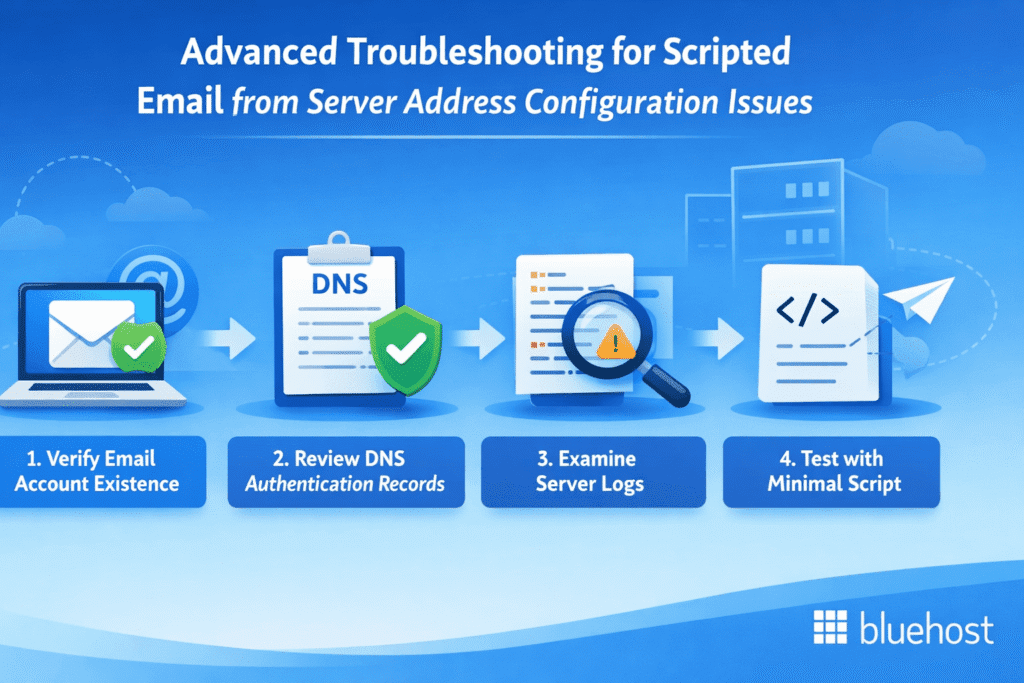
If basic header corrections haven’t resolved the issue, systematic troubleshooting can identify the specific configuration conflict causing the problem.
Systematic troubleshooting checklist
Step 1: Verify email account existence
This is the most common oversight. The email address specified in your script must exist as an active account in cPanel.
- Log into cPanel → Email Accounts
- Confirm [sender]@[yourdomain].[com] appears in the account list
- If missing, create it before proceeding
Step 2: Review DNS authentication records
Improperly configured SPF, DKIM and DMARC records can cause mail servers to reject your specified sender.
- Use MXToolbox to verify SPF record syntax
- Check that DKIM is enabled in cPanel → Email Deliverability
- Confirm DMARC policy isn’t too restrictive (p=none for testing)
Step 3: Examine server logs
Server logs reveal permission denials or syntax errors that generic troubleshooting might miss.
- Access cPanel → Errors (or view via SSH: tail -f /var/log/maillog)
- Look for error messages containing ‘relay access denied,’ ‘sender rejected,’ or ‘authentication failed’
- Search for your test timestamp to isolate relevant entries
Step 4: Test with minimal script
Isolate the problem by creating a simple test script:
If this minimal script works but your application doesn’t, the issue is in your application code, not server configuration.
Common error messages and solutions
| Error message | Solution |
| Sender address rejected | Email account doesn’t exist in cPanel. Create the account first. |
| Relay access denied | Server isn’t configured to allow mail relay from your script. Enable SMTP authentication or use localhost as mail server. |
| Authentication failed | SMTP credentials are incorrect. Verify username and password in your email client or script. |
| SPF validation failed | Your server’s IP isn’t listed in the SPF record. Add it to your DNS SPF record. |
| Message sent as nobody@server | ‘From’ header is missing or malformed in your script. Add proper header as shown in Solution |
For comprehensive deliverability troubleshooting beyond sender address issues, refer to our guide on Troubleshooting Email Deliverability Issues.
Continuous monitoring for scripted email server address security
Fixing the immediate issue is essential, but email security requires continuous vigilance. Server configurations can change, scripts can be compromised and authentication protocols can fail without warning.
Essential monitoring practices
- Review server logs weekly: Check for recurring ‘sent as’ errors or authentication failures
- Monitor DMARC reports: These show if unauthorized senders are attempting to use your domain
- Test periodically: Send test emails monthly through Mail-Tester to catch degradation
- Rotate credentials quarterly: Change SMTP passwords and API keys every 3-6 months
- Verify after updates: Server updates or cPanel migrations can reset php.ini modifications
Why vigilance matters?
- Server environment changes: Automatic system updates can revert manual php.ini changes
- Security threats evolve: Compromised scripts can be silently modified to send spam
- Authentication protocols update: Email providers regularly strengthen requirements
- Blacklist risks: A single spam complaint can damage your sender reputation for months
Take your business email to the next level with Bluehost
While the fixes above work, they require ongoing maintenance and technical expertise. Bluehost Professional Email eliminates these problems permanently with pre-configured SPF, DKIM and DMARC authentication—no manual DNS editing required.
Your emails always display your custom domain address ([you]@[yourbusiness].[com]), never generic server paths. Starting at just $1.67/month, you get enterprise-grade deliverability, 24/7 expert support, advanced anti-spam protection and seamless WordPress integration.
One-click migration makes switching effortless. Find Bluehost Professional Email to eliminate configuration headaches and ensure your business communications always reach the inbox with the professional identity you deserve.

Final thoughts
The ‘Scripted Email from Server Address’ issue frustrates developers and damages professional credibility, but the solution is straightforward. In most cases, it’s simply a matter of explicitly defining a valid ‘From’ header in your email scripts and ensuring that email address actually exists in your hosting account.
Whether you choose to modify individual scripts, adjust your php.ini configuration or implement authenticated SMTP through a plugin, the key is providing your mail server with a legitimate, verifiable sender identity. Combined with proper SPF, DKIM and DMARC authentication, your scripted emails will consistently display professional sender addresses and reach the inbox reliably.
Take a few minutes to implement these fixes, test thoroughly and establish a monitoring routine. Your recipients will see professional communications, spam filters will trust your domain and you’ll eliminate a common technical frustration permanently.
Want professional email that just works? Bluehost Pro Email delivers high deliverability and seamless WordPress integration for just $1.67/month.
FAQs
This occurs when scripts send mail without explicitly defining a sender in the ‘From’ header. Without this defined value, the mail server fills in the blank using its default system user (like [nobody]@[server] or [apache]@[hostname]). Fix this by adding a proper ‘From’ header to your script as shown in the PHP examples above.
Yes. Email providers heavily penalize messages from unverified system addresses because they closely resemble spoofing attempts. Generic server addresses lack proper authentication and signal amateur implementation. Setting a proper ‘From’ address with SPF/DKIM authentication dramatically improves inbox placement.
The easiest solution is installing an SMTP plugin like WP Mail SMTP. These plugins force WordPress to send emails through authenticated SMTP rather than the default PHP mail() function, automatically solving the sender address problem without requiring code changes. See the WordPress-specific section above for detailed setup instructions.
Absolutely. When using the PHP mail() function, simply add a ‘From’ header in the fourth parameter: $headers = “From: [sender]@[yourdomain].[com]\r\n”;. This tells the mail server to use your specified professional email address instead of defaulting to the system user. See the complete code examples in the PHP Headers section.
Nobody is the default username for the web server process on Unix/Linux systems. If you see this as the sender, it means your script didn’t provide a ‘From’ header, so the server substituted its web process user. Configure proper headers or SMTP settings to replace this generic identifier with your actual business email address.
Yes, this is essential. The email address you specify in the ‘From’ header must exist as an active, verified account in your cPanel or hosting control panel. If the address doesn’t exist, the mail server will reject it and revert to the default system address. Create the account first, then use it in your scripts.
Send a test email and check the full message headers (not just the visible sender). In Gmail, open the email and click ‘Show original.’ Look for the ‘From:’ field showing your specified address, Return-Path matching your sender and Authentication-Results showing spf=pass and dkim=pass. Use Mail-Tester for comprehensive validation.


Write A Comment