


Key highlights
- Learn how to set up Cron job in Cpanel step-by-step to automate repetitive tasks and save hours of manual work on your website.
- Understand the correct Cron job syntax and command formats to schedule scripts, backups and maintenance tasks with precision.
- Discover how to edit, manage and monitor your scheduled tasks through the cPanel interface for complete control over your automated processes.
- Master troubleshooting techniques to identify and fix common Cron job issues that could disrupt your website’s automated functions.
- Explore practical automation examples and best practices to optimize your server performance and streamline your workflow.
Looking to automate repetitive tasks on your website? A Cron job in cPanel is your go-to automation tool that runs specific commands or scripts on a schedule you define. Whether you want to automatically back up your database every night, send weekly newsletter emails or clean up temporary files to free up disk space, Cron jobs handle these tasks without manual intervention.
Think of it as your website’s personal assistant, working behind the scenes to keep everything running smoothly at precisely the times you specify.
In this comprehensive guide, we’ll walk you through exactly how to set up Cron job in cPanel, from creating your first automated task to editing existing schedules and safely deleting Cron jobs you no longer need. Whether you’re a beginner or just need a refresher, you’ll have your automated tasks up and running in no time.
What is a Cron job in cPanel?
A cron job in cPanel is an automated task that runs specific commands or scripts on your website’s server at scheduled intervals. Think of it as your website’s personal assistant that works behind the scenes, it can automatically execute maintenance tasks like creating backups, sending newsletter emails, cleaning up temporary files or updating your website’s content at precisely the times you specify.
Instead of remembering to manually perform these repetitive tasks, cron jobs handle them for you whether you’re sleeping, on vacation or focused on growing your business.
For small business owners and bloggers, Cron jobs are particularly valuable because they free up your time to focus on what matters most, creating content and serving customers.
Common examples include scheduling automatic database backups every night to protect your data, sending weekly email newsletters to your subscribers, clearing cache files to keep your website running smoothly or updating product inventory from your suppliers. These automated processes ensure your website stays secure, optimized and engaging without requiring constant manual attention.
Setting up and scheduling Cron jobs through cPanel is designed to be straightforward, even for users with limited technical experience. The interface provides user-friendly options to schedule tasks using simple dropdown menus or pre-defined intervals, making website automation accessible to everyone from busy entrepreneurs to creative bloggers who want reliable, hands-off maintenance for their online presence.
Getting started with Cron jobs in cPanel
Before diving into your first Cron job setup, you’ll need a few essentials in place to ensure a smooth experience. Most importantly, you’ll need an active hosting account with cPanel access, if you’re using Bluehost, this comes standard with most of the hosting plans. You should also know where your scripts or commands are located on your server, typically in your public_html folder or a subdirectory you’ve created for automated tasks.
Even if you’re new to server administration, setting up a Cron job in cPanel requires minimal technical expertise thanks to cPanel’s beginner-friendly interface. The platform streamlines the entire Cron job setup process with user-friendly dropdown menus and pre-configured scheduling templates, eliminating the need to master complex Cron syntax.
While basic understanding of file paths and server permissions can be beneficial, it’s not a prerequisite to get started with Cron job automation. Common beginner tasks for learning how to set up Cron job in cPanel include automating nightly database backups to protect your critical data, scheduling weekly cache cleanup operations to maintain peak site performance and configuring automated email reports to track your website’s key performance indicators.
Think of this preparation phase as building your foundation before constructing your automated workflow. With cPanel’s intuitive tools and Bluehost support available if you get stuck, you’re ready to move from understanding what Cron jobs do to creating your first safe, low-risk automated task. The next step will walk you through the actual setup process, transforming these preparation basics into a working Cron job that runs exactly when you need it.
Also read: What Is a Cron job? Automate Linux Tasks Easily with cPanel
How Cron jobs work in web hosting?
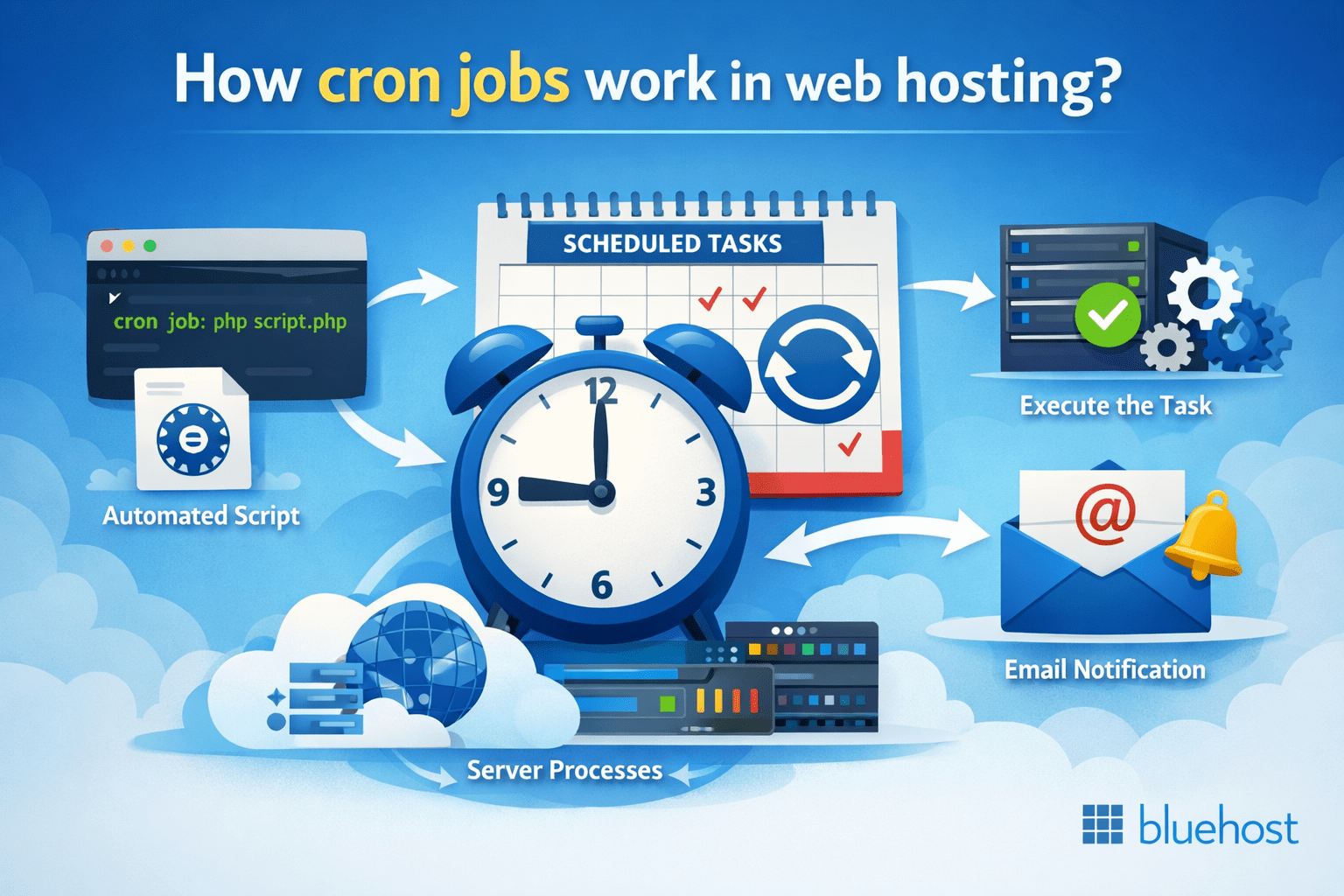
At its core, Cron jobs work through a system service called the Cron daemon that continuously runs in the background on your web server. This daemon reads a schedule file called a Crontab (Cron table) that contains all your automated tasks along with their specific timing instructions.
When the scheduled time arrives, the Cron daemon automatically executes the specified command or script exactly as programmed, whether that’s running a backup, sending emails or cleaning up temporary files.
The relationship between these components is straightforward: you define what should happen (the script or command), when it should happen (the schedule) and the Cron daemon handles the execution. In shared hosting environments, you typically configure these schedules through cPanel’s user-friendly interface rather than editing Crontab files directly via command line.
This makes setting up automated tasks accessible even without advanced technical knowledge.
What makes Cron jobs particularly powerful is their time-based scheduling system that operates completely independently of your website’s visitors. Whether your site has zero traffic at 3 AM or thousands of users during peak hours, your scheduled tasks will run exactly when programmed.
Each Cron job executes in its own process, ensuring that automated maintenance, backups or email campaigns happen reliably without impacting your site’s performance or requiring you to be online.
Cron permissions and security in cPanel
File permissions determine which users can read, write or execute your Cron job scripts, essential for both security and functionality. When you set up Cron jobs in cPanel, understanding these permissions helps protect your website while ensuring your automated tasks run smoothly.
Scripts often need execute permissions to run (the exact permission value depends on your file type and server setup), while configuration/data files are usually non-executable. In contrast, configuration files should use 644 permissions, making them readable but not executable, which adds an extra layer of protection.
Your cPanel Cron jobs run under your hosting account’s user privileges, automatically isolating them from other accounts on shared servers, a built-in security feature that prevents scripts from accessing files outside your account. To strengthen security further, store your automation scripts outside your public_html directory whenever possible, limiting what visitors can access directly.
Never embed plain-text passwords in your scripts; instead, use environment variables or secure configuration files. On VPS or dedicated servers, avoid running Cron jobs as root unless absolutely necessary, as this creates unnecessary security risks.
Before activating any Cron job, quickly verify: your script paths are correct and absolute (not relative), file permissions are set appropriately (755 for scripts, 644 for data files) and your scripts don’t expose sensitive information. These simple checks prevent most common issues and keep your automated tasks running securely.
Cron job syntax, scheduling and best use cases in cPanel
Understanding Cron job timing in cPanel begins with mastering five essential time fields that control when your automated tasks execute. These fields include minute (0-59), hour (0-23), day of month (1-31), month (1-12) and day of week (0-7). Together, they create precise schedules for your website’s automated processes.
When you set up Cron jobs in cPanel, you’ll work with syntax patterns that determine execution frequency. For instance, “0 2 * * *” runs a task daily at 2:00 AM, while “*/15 * * * *” executes every 15 minutes. Fortunately, cPanel simplifies this process through its user-friendly interface featuring dropdown menus for each field and convenient “Common Settings” options like “Once Per Day” or “Twice Per Month,” eliminating the need to memorize complex syntax.
Best practices for Cron job scheduling
Strategic scheduling is crucial for maintaining optimal website performance. Consider these essential practices when setting up your automated tasks:
- Schedule resource-intensive tasks like database backups during off-peak hours (typically 2-4 AM) when visitor traffic is lowest.
- Stagger multiple Cron jobs by at least 15-30 minutes to prevent server overload.
- Avoid running backup, cache clearing and email scripts simultaneously to maintain server stability.
Most valuable Cron job applications
For small business owners and bloggers, implementing the right automated tasks can significantly improve website management:
- Automated database backups for comprehensive data protection
- Regular cache clearing to maintain optimal site speed and performance
- Scheduled newsletter distributions to engage subscribers consistently
- Automated report generation for tracking website analytics and visitor behavior
Once you learn how to set up Cron job in cPanel, these automated processes ensure your website runs smoothly without constant manual intervention, letting you focus on growing your business while scheduled tasks handle the technical maintenance behind the scenes.
Cron job special strings in cPanel
Cron job special strings in cPanel offer convenient shortcuts for common scheduling patterns, eliminating the need to memorize complex five-field expressions. Instead of writing “0 2 * * *” for daily tasks, you can simply use @daily.
These predefined strings include @hourly (runs every hour), @daily (equivalent to “0 0 * * *”), @weekly (runs Sunday at midnight), @monthly (first day of each month) and @yearly (January 1st annually). These correspond directly to cPanel’s Common Settings dropdown options, making automation accessible for small business owners and bloggers.
Special strings work perfectly for routine tasks like running database backups @daily or generating weekly reports @weekly. However, when you need precise timing such as newsletter campaigns at 9 AM Tuesdays, custom Cron expressions provide better control. For most website owners, special strings offer the ideal balance of simplicity and reliability, letting you focus on growing your business while cPanel handles technical scheduling automatically.
Crontab operators in cPanel Cron jobs
Understanding Crontab operators helps you create more precise scheduling patterns in cPanel beyond the basic “Common Settings” presets. The asterisk (*) means “every value” – so placing an asterisk in the minute field runs your job every minute, while an asterisk in the hour field runs it every hour. The comma (,) lets you specify multiple specific values, like “0,15,30,45” in the minute field to run every 15 minutes or “1,3,5” in the day field to run only on the 1st, 3rd and 5th of each month.
The hyphen (-) creates ranges, making it simple to schedule jobs for specific time periods. For example, “9-17” in the hour field runs your Cron job only during business hours (9 AM to 5 PM), while “1-5” in the day-of-week field restricts execution to weekdays only. The slash (/) operator creates step values, where “*/5” in the minute field means “every 5 minutes” and “*/2” in the hour field means “every 2 hours.”
When you set up Cron jobs in cPanel, these scheduling operators combine to create powerful automation rules that you enter into cPanel’s time and date fields. Beyond cPanel’s convenient preset options like “Once Per Hour” or “Twice Per Month,” mastering these operators unlocks advanced scheduling capabilities – such as configuring a backup script to run at 2:30 AM only on weekdays (30 2 * * 1-5) or automating reminder emails every 10 minutes during business hours (*/10 9-17 * * 1-5), giving you complete control over when and how your Cron jobs execute.
Cron job examples for website automation
Small business owners and bloggers can leverage cPanel Cron jobs to automate essential website maintenance tasks that would otherwise consume valuable time. Scheduling automated processes means you can focus on growing your business while critical tasks run in the background without manual intervention.
Key automation opportunities include:
- Database backups: Schedule nightly backups to protect your content and customer data. A simple Cron job can run
/usr/bin/mysqldump [database] > /home/[username]/backups/db_backup_$(date +%Y%m%d).sqlevery night at 2 AM during low-traffic hours, giving you peace of mind without lifting a finger. - File cleanup tasks: Automatically remove temporary files and cached data to prevent your hosting account from accumulating unnecessary storage that could slow performance.
- Security scans: Run regular security checks and vulnerability scans to keep your site protected around the clock.
Content creators benefit tremendously from automated maintenance routines. When you’re focused on publishing quality content, automated tasks handle the technical side seamlessly. Daily sitemap generation helps search engines discover your new blog posts quickly, improving your SEO visibility without extra effort on your part.
Other valuable automation tasks for content creators include:
- XML sitemap updates: Refresh your sitemap daily so search engines can index new content faster.
- Performance optimization: Weekly cache cleanup keeps your site running smoothly and prevents slowdowns.
- Analytics reports: Automatically compile and email monthly summary reports about website traffic, new subscribers or sales metrics to stay informed without constant monitoring.
- Social media posting: Schedule automated content sharing across your social platforms to maintain consistent engagement.
The key to successful Cron job automation lies in choosing appropriate frequencies that align with your business needs. Database backups should run daily, file cleanup weekly and performance-intensive tasks during off-peak hours to maintain optimal site speed. Start with one or two essential tasks, test them thoroughly, then gradually expand your automation as you become more comfortable with the process.
Use Cron directories for recurring scripts
Some Linux servers provide system Cron directories like /etc/Cron.hourly, /etc/Cron.daily, /etc/Cron.weekly and /etc/Cron.monthly that automatically run executable scripts at fixed intervals. While these directories offer a simplified approach, just drop your script in the appropriate folder and the server handles the scheduling, most shared hosting users won’t need them.
The cPanel Cron Jobs interface remains your best option for setting up Cron jobs with a user-friendly interface and precise control.
While VPS and dedicated server users with root access may encounter these system directories for routine maintenance, they’re best suited for basic recurring tasks like nightly log cleanup or weekly backups. When your website requires more precise scheduling such as running critical reports every Tuesday at 9 AM or executing business-specific automation, learning how to set up Cron jobs in cPanel provides the granular control and flexible scheduling capabilities your growing site demands.
How to create a Cron job in cPanel?
- Log in to your Bluehost Account Manager.
- Once logged in to your account, click the Hosting tab on the left menu.
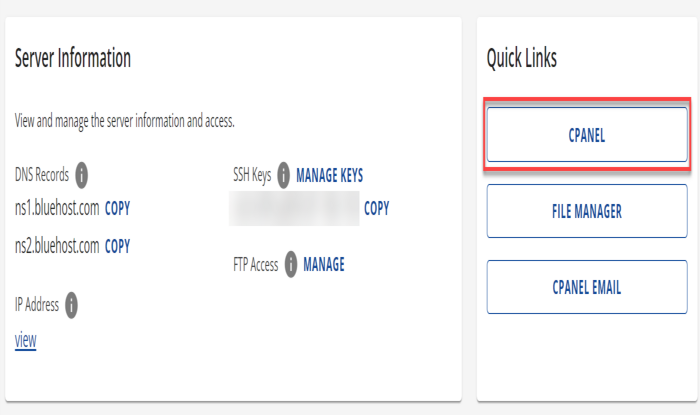
- Look for Quick Links, then click the CPANEL button.

- Scroll down to the Advanced section, then select Cron jobs.
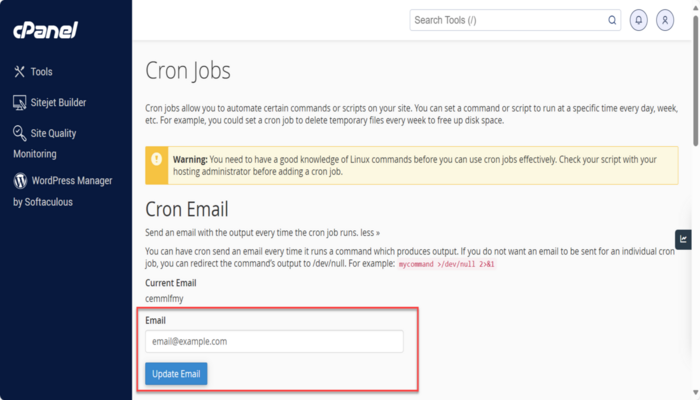
- Enter a valid email address in the current email address field and click the Update Email button.
- You will then see your Cron job scheduling options:
- Common Settings– You can use this drop-down list to populate all but the last fields.Minute – The minute setting for the Cron job.Hour – The hour setting for the Cron job.Day – The day setting for the Cron job.Month – The month setting for the Cron job.Weekday – The weekday setting for the Cron job.Command – The Cron job command to execute. If you want to execute a script, it would look similar to the command below.
- Set the frequency of your Cron Job using the drop-down box for each setting or use the Common Settings to choose from a list of regularly used intervals. Common Settings include every 15 minutes to once a year.
- Enter the desired command and click the Add New Cron job button.
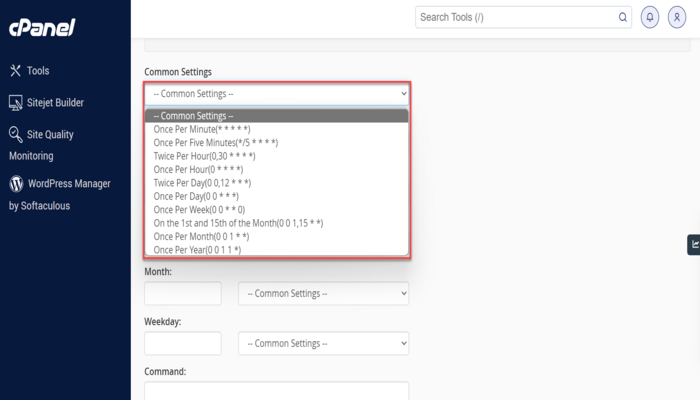
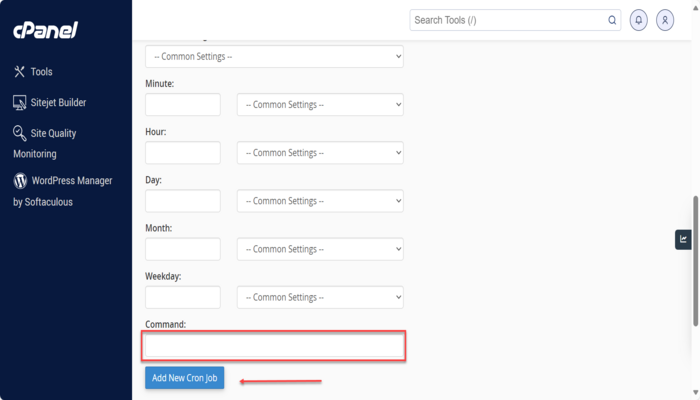
You have successfully created a Cron job to execute a file at a specific time and date with the desired repetition.
Cron job troubleshooting in cPanel
If your Cron job isn’t working as expected, don’t worry—most issues have straightforward solutions. Start by checking your cPanel Cron job settings to ensure the schedule is correct and the command path is accurate. Verify that your script has the proper file permissions (typically 755) and double-check that you’ve entered the full server path to your script, not just a relative path.
Review any email notifications cPanel sends when your Cron job runs, as these often contain valuable error messages that pinpoint the problem.
For jobs running too frequently or causing script errors, examine your Cron schedule syntax carefully and test your script manually first to ensure it works independently. Enable logging within your script to track its execution and identify where issues occur.
If you’re still having trouble, temporarily set your Cron job to run every few minutes while testing, then adjust the frequency once everything works properly. Remember that cPanel’s email notifications are your best friend for diagnosing Cron job problems, they’ll show you exactly what’s happening when your automated tasks attempt to run.
How to set up a Cron job from the command line?
For advanced users comfortable with SSH access, you can set up Cron jobs directly through the command line using Crontab, though cPanel’s Cron Jobs interface remains the recommended approach for most users. Before proceeding with command line setup, ensure you have SSH access to your server, are logged in with the correct user account and have tested your scripts manually to verify they work as expected.
To configure a Cron job via command line, connect to your server via SSH and run crontab -e to open the crontab editor. Add your scheduled task using the standard Cron syntax format (minute hour day month weekday command), save the file and exit the editor. For example, a line like 0 2 * * * /path/to/your/script.php would run your script daily at 2 AM.
Exercise extreme caution when editing Crontab directly, as incorrect entries can cause jobs to run too frequently, consume server resources or fail silently without notification. Always create a backup of your existing crontab with crontab -l > crontab_backup.txt before making changes and consider using cPanel’s user-friendly Cron jobs interface instead, which provides built-in validation and easier management of your automated tasks.
Create or edit a Crontab file
For advanced users with SSH access on VPS or dedicated hosting, the Crontab file provides direct command-line control over scheduled tasks independent of cPanel’s interface. Your user Crontab runs under your account’s permissions, making it safer than the system-wide Crontab that requires root access.
- Back up your existing crontab:
crontab -l > crontab_backup.txt - Open the crontab editor:
crontab -eand select your preferred editor (nano or vi) - Add, update or remove cron job lines using the format:
minute hour day month weekday command(e.g.,0 2 * * * /path/to/script.shruns daily at 2 AM) - Save and exit the editor to activate changes
- Verify your crontab entries:
crontab -l
Always test commands manually before scheduling them. Avoid overly frequent intervals that could overload server resources—space resource-intensive jobs at least 5-10 minutes apart.
How to view existing Cron jobs in cPanel?
The Current Cron jobs table displays your existing Cron jobs.

How to edit a Cron job in cPanel?
To edit a Cron job, perform the following steps:
- Locate the Cron job you wish to edit and click the Edit icon.
- Edit the settings you want to change and click Edit Line.
How to delete a Cron job in cPanel?
To delete a Cron job, perform the following steps:
- Click the Delete button next to the Cron job that you wish to delete.
- Click the Delete button again to delete it successfully.
The edit panel has fewer common settings, so if you are having trouble getting the correct interval, copy the command, delete the Cron job and recreate it using the Add New Cron job section.
Running a Cron job manually in cPanel
Sometimes you’ll want to test a Cron job manually before trusting it to run automatically, whether you’re verifying a new script works correctly, troubleshooting issues or confirming an updated command performs as expected.
The safest approach is to temporarily shorten your Cron schedule (like changing from daily to every few minutes) so you can observe the results in real-time. For web-based scripts, you can also test by accessing the script directly through your browser if it’s designed to handle HTTP requests.
When running Cron jobs manually, exercise caution with processes that send emails, process payments or perform other sensitive actions, you don’t want to accidentally duplicate communications or charges. Always review your script’s logic first and consider adding safeguards or test modes.
If testing database operations or file modifications, work with backup copies when possible to prevent unintended changes to your live site data.
What’s the next step after scheduling tasks with Cron?
Once your cPanel Cron job is running successfully, the real value comes from actively monitoring and optimizing your automated tasks. Regular monitoring ensures your scheduled tasks run smoothly while optimization helps you fine-tune performance to avoid any negative impact on your website operations.
Monitor your Cron jobs effectively
Start by establishing a monitoring routine that covers these essential areas:
| Monitoring area | What to check | Action to take |
|---|---|---|
| Email notifications | Review messages sent each time Cron jobs execute | Check for successful runs or error messages that need attention |
| Website performance | Monitor during scheduled tasks like database backups or cache clearing | Track site speed and resource usage during execution |
| Task frequency | Observe impact during peak traffic hours | Adjust scheduling if you notice performance issues or user experience degradation |
Expand your automation strategy
As you become more comfortable with Cron jobs, consider expanding your automation strategy to create a comprehensive site management system. This approach streamlines your workflow and ensures consistent website maintenance without manual intervention.
| Automation type | Examples | Bluehost integration |
|---|---|---|
| WordPress maintenance | Plugin updates, security scans, automated content publishing | Can be used alongside WordPress hosting workflows |
| Data protection | Automated backups, file versioning | Combine with CodeGuard for enhanced protection |
| Analytics & reporting | Scheduled performance reports, traffic analytics | Complement existing monitoring solutions |
Think of Cron job management as building an automation roadmap that grows with your website. Periodically review your scheduled tasks to remove outdated jobs or update commands as your site evolves.
This proactive approach ensures your automated processes continue supporting your business goals while freeing up time to focus on content creation and audience engagement rather than manual maintenance tasks.
Final thoughts
Learn how to use Cron jobs in cPanel to automate specific scripts or commands on your website. With Cron jobs, you can easily schedule a command or script to run at a particular time, day or week, saving you time and effort.
Our guide has step-by-step instructions on how to create, edit or delete a Cron job. Also, know the steps to view existing Cron jobs and edit them if needed.
You don’t need to be a Linux expert to use Cron jobs in cPanel, but you do want to test your script first and start with a low-risk task before scheduling anything critical.
FAQs
cPanel Cron jobs provide a user-friendly graphical interface for managing scheduled tasks, while Crontab is the traditional command-line method. Both accomplish the same goal, but cPanel makes it easier for users without extensive technical knowledge to set up and manage their automated scripts.
Yes, you can absolutely use a cpanel Cron job command url format. This is particularly useful for triggering web-based scripts or APIs. Simply use commands like wget or curl followed by your target URL. This method works great for WordPress Cron jobs, plugin updates or external API calls.
Monitor your email notifications if enabled, check your script’s output logs or look for the expected results of your automated task. Many hosting providers also show the last execution time in the cPanel Cron jobs interface. If something isn’t working, review your command syntax and file paths carefully.
First, verify your command syntax and file paths are correct. Check that your script has proper permissions (usually 755 for executable files). Review any error messages in your email notifications or server logs. Common issues include incorrect file paths, missing dependencies or insufficient server permissions.
Most hosting providers allow Cron jobs to run as frequently as every minute, though running tasks too frequently can impact server performance. Consider your hosting plan’s resource limits and the complexity of your scripts. For most websites, running maintenance tasks once daily or weekly is sufficient and more resource-friendly.

Write A Comment