


Key highlights
- Understand why your WordPress site shows blank pages, often caused by plugin conflicts, exhausted PHP memory or script errors.
- Learn 9 proven fixes to resolve WordPress blank pages, including isolating plugins, checking themes and enabling debug logs.
- Discover prevention strategies to avoid future downtime with staging environments, regular backups and safe update practices.
- Master systematic troubleshooting from fastest fixes like plugin isolation and cache purge to deeper solutions like debug logs.
- Know when to restore from backup when time is critical and stop troubleshooting to contact professional support instead.
A WordPress blank page, especially a sudden blank white page WordPress screen with no error message can feel like your site has vanished. One moment everything works; the next, your WordPress site is blank, your WordPress admin page blank or your WordPress new post blank page won’t load.
This problem is commonly called the WordPress White Screen of Death (often shortened to wp white screen of death or white screen WordPress). The good news: in most cases, it is fixable in minutes with a structured approach.
In this guide, you will learn what WSoD is, why a blank page in WordPress happens (including WordPress white screen after migration) and the 9 most reliable steps to restore your site safely without guesswork.
TL; DR: WordPress White Screen of Death: Causes vs fixes
| Scenario | What it means | Fastest fix |
|---|---|---|
| Blank white page on entire site | Plugin conflict or fatal PHP error | Disable all plugins and reload |
| White screen only in wp-admin | Admin-specific plugin or theme issue | Disable plugins via FTP |
| White screen after update | Failed or incompatible update | Reinstall or roll back the update |
| White screen after migration | Server or PHP mismatch | Check PHP version and permissions |
| Blank page on specific post/page | PHP memory exhausted | Increase PHP and WP memory limit |
What is the WordPress White Screen Of Death? (WordPress blank page explained)
The WordPress White Screen of Death is a failure mode where WordPress cannot complete a page request and outputs a blank white page instead of your site or dashboard. In many cases, PHP encounters a fatal error and stops rendering before WordPress can display an error message.
Users describe it in different ways depending on language and device: page blanche WordPress (French), weiße Seite WordPress (German) or even WordPress blank putih (Indonesian). They all point to the same symptom: a page that loads “successfully” but shows nothing.
What does the White Screen of Death look like in WordPress?
Common appearances include:
- A completely blank white page on the homepage (WordPress homepage blank)
- A blank page only in wp-admin (WordPress dashboard blank white page)
- The dashboard partially loads, then stops (WordPress dashboard not loading)
- A single page editor fails (WordPress new post blank page)
- A “white screen” after moving hosts (why WordPress page comes white after migration)
Important: Not every “white page” is WSoD. Sometimes the content loads but is invisible due to styling for example, WordPress white text on white background caused by CSS or a theme setting. This guide covers both true WSoD and common look-alikes where relevant.
Why does the WordPress White Screen of Death occur?
WSoD usually occurs when WordPress hits a blocking error and cannot continue executing. The root cause is commonly related to plugins, themes, PHP limits, corrupt updates or server configuration.
1. Plugin conflicts
Plugins can conflict with each other, with your theme or with your PHP version. A single incompatible update can cause a WordPress page blank issue site-wide or only on specific admin screens.
2. Theme-related issues
A faulty theme update, a broken template file or incompatible custom code can trigger a wp white page on the frontend, the backend or both.
3. PHP Memory limit exhausted
When PHP runs out of memory, WordPress may fail silently depending on server settings. This is common on image-heavy pages, complex builders or long posts, sometimes showing up as WordPress white screen only on certain URLs.
4. Syntax errors in code
A missing semicolon, unmatched bracket or accidental paste into a PHP file can immediately create a WordPress blank site scenario. These types of syntax errors in code often happens after editing functions.php or adding a snippet.
5. Failed WordPress core, theme or plugin updates
If an update times out, files can become partially written or version-mismatched. This can lead to WordPress website white screen behavior right after an update, especially on shared hosting during high load.
6. File permission & server configuration issues
Incorrect permissions, ownership problems, ModSecurityAF rules, PHP version mismatches or missing PHP extensions can also produce a wordpress site is blank outcome. After a host change, these server-level differences become a leading cause.
What causes blank pages specifically in WordPress blogs?
If your WordPress site is blank only on specific posts or archives, the cause is often distinct from general errors. Common triggers include memory exhaustion from high-resolution media (causing a WordPress new post blank page), conflicts with SEO or social plugins or corrupt RSS feeds affecting theme templates. Broken permalinks are another frequent culprit, causing category pages to fail while the homepage works.
To resolve these blog-specific blank page in WordPress issues:
- Resave Permalinks: Go to Settings > Permalinks and click “Save Changes” to fix structure errors.
- Optimize Media: Compress images and limit embedded content to reduce memory usage.
- Test Plugins: Temporarily disable social sharing or comment plugins to rule out conflicts.
For a worry-free blogging journey, Bluehost offers optimized hosting environments designed to handle resource-heavy content and prevent common performance glitches.
How to fix the WordPress White Screen of Death (Step-by-step) — including WordPress blank page scenarios
Follow these methods in order. They are arranged from least invasive to most involved, with clear rollback points. If your site is mission-critical, start by taking a backup (or a snapshot) before changing files.
Method 1: Check if the issue affects other sites
If you host multiple WordPress sites on the same account:
- Check whether only one site shows a blank white page WordPress screen.
- If all sites are affected, suspect server-wide issues (PHP, outage, WAF rules, disk space, resource limits).
Also test:
- Open your site in a private incognito window.
- Try a different device and network.
- Check a server status page (if available) or contact hosting support if the server appears unstable.
Method 2: Disable all WordPress plugins
Plugin conflicts are the most common cause of a WordPress blank page. The goal is to disable all plugins, confirm the site loads, then re-enable one by one to identify the culprit.
Disable plugins via WordPress dashboard
If you can still access wp-admin:
- Go to Plugins > Installed Plugins.
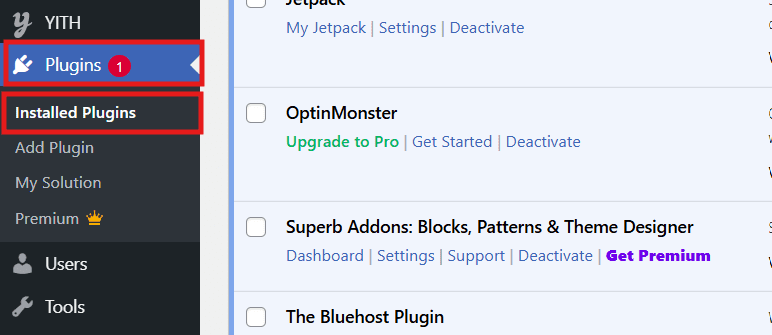
2. Select all plugins.
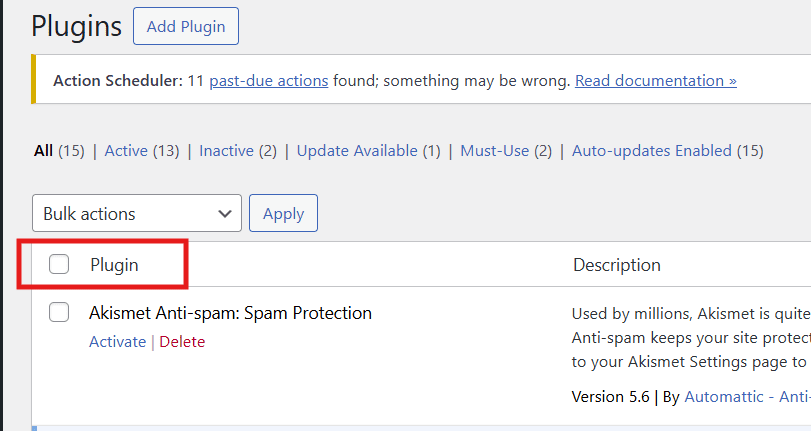
3. Choose Deactivate from the bulk actions dropdown.
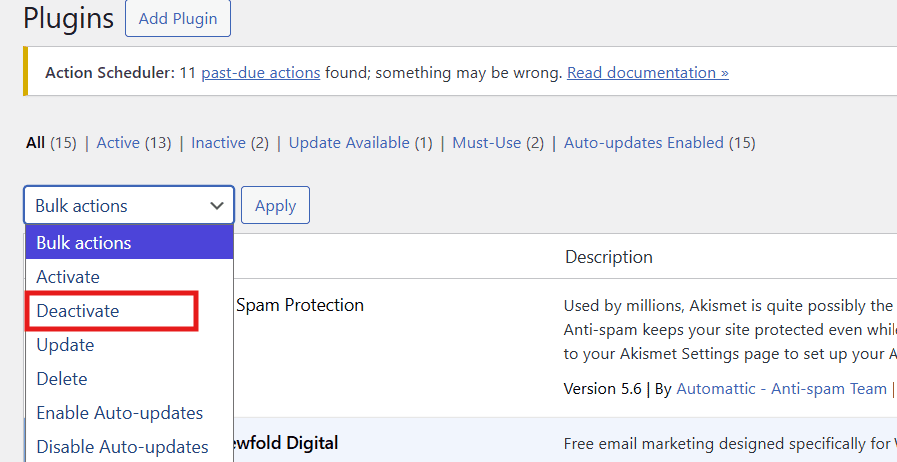
4. Reload the page that was blank.
If the WordPress new post blank page issue disappears after deactivation, re-enable plugins one at a time and test after each activation until the blank page returns.
Disable plugins via FTP or file manager
If your WordPress admin page blank and you cannot log in:
- Connect via FTPFTP.
- Open Bluehost dashboard and click on hosting.
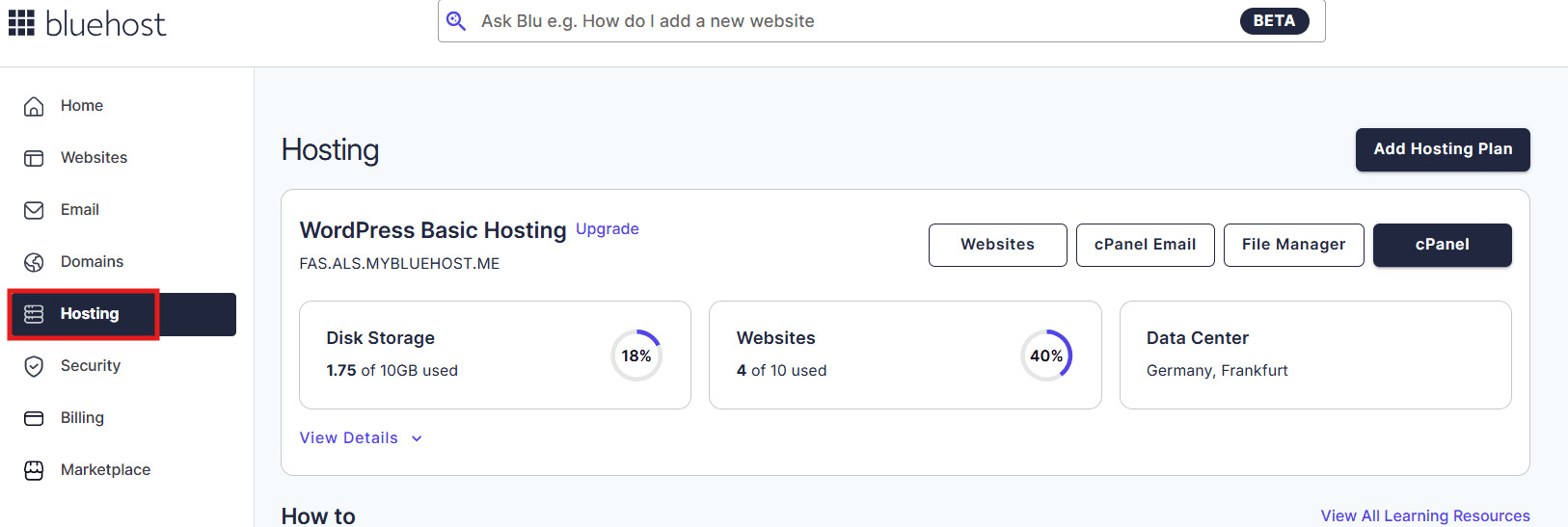
3. Click on cPanel and then in file manager.
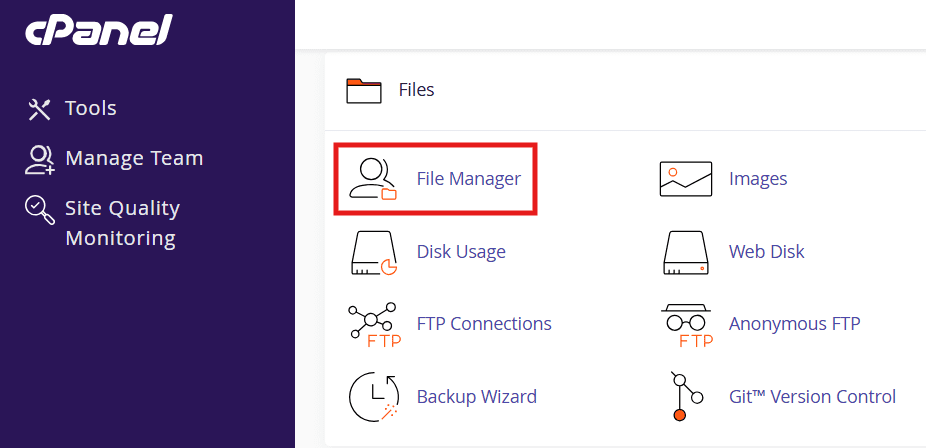
4. Navigate to /wp-content.
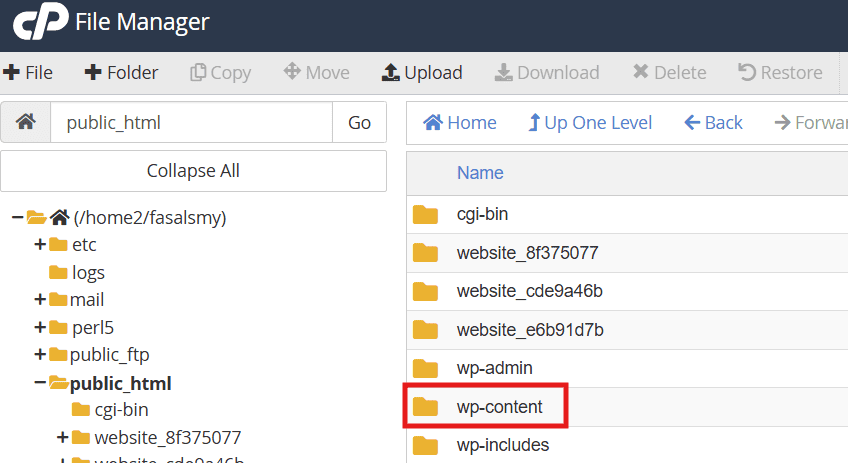
5. Rename the plugins folder to plugins.disabled.
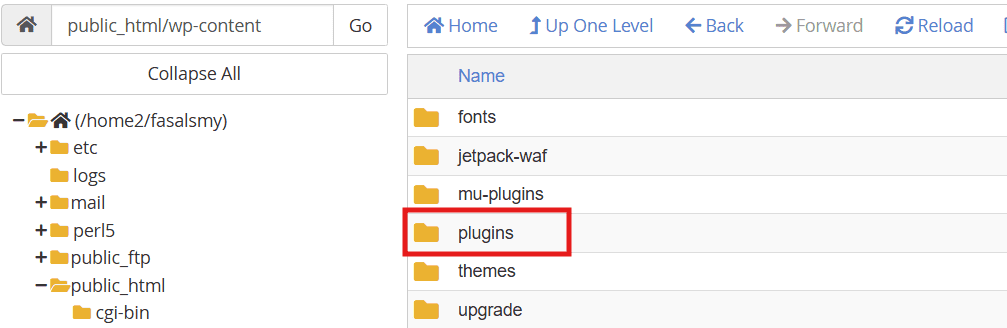
6. Reload your site.
If the site loads, rename the folder back to plugins, then go into it and rename individual plugin folders (for example plugin-name to plugin-name.off) to isolate the plugin causing the issue.
Method 3: Switch to a default WordPress theme
If disabling plugins does not help, your theme may be triggering the wp white screen of death. Switching temporarily to a default theme (like Twenty Twenty-Four) is a clean test.
If you can access wp-admin, change the theme in Appearance > Themes.
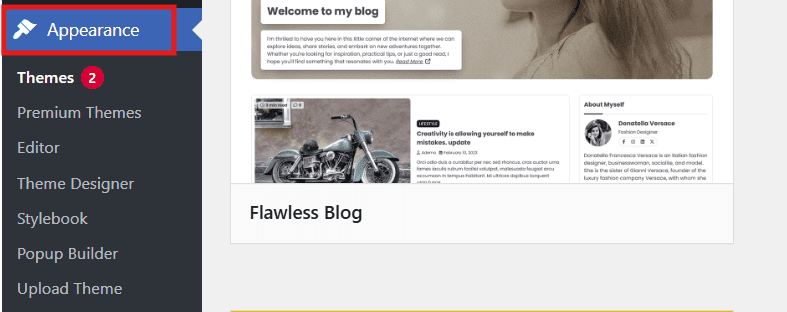
If you cannot access wp-admin:
- Use FTP Manager and rename your active theme folder in
/wp-content. - WordPress will fall back to an available default theme.
If the site loads after switching, the theme likely contains an incompatible template, function or builder integration. At that point, update the theme, roll back to a previous version or contact the theme developer with your error log (see debug method below).
Method 4: Clear WordPress & browser cache
Sometimes WordPress is functioning, but cached files serve a broken response making it appear as a WordPress page blank issue. This is also common after a migration where old cached paths persist.
1. Clear browser cache
- Hard refresh the page (cache-bypass refresh) and retest.
- Try incognito browsing to rule out local cache.
2. Clear cache via hosting panel
Many hosts provide server-level caching. Purge or disable it temporarily, then retest your homepage and wp-admin.
3. Clear cache using caching plugins
If you use a caching plugin and can access wp-admin, purge all caches. If you cannot access wp-admin, temporarily disable the caching plugin using the same folder-renaming approach used for plugins.
Method 5: Increase WordPress & PHP memory limit
Memory exhaustion is a frequent cause of the WordPress white screen of death fix search. Increasing the memory limit can restore the site immediately, but you should still investigate what caused the spike (plugin, builder, import, cron job or traffic surge).
1. Increase memory limit via wp-config.php
Add or update the following line in wp-config.php (above the “stop editing” line):
define('WP_MEMORY_LIMIT', '256M');2. Increase PHP memory via php.ini or .htaccess
Depending on your server setup, you may be able to increase PHP memory in one of these ways:
- php.ini: set
memory_limit = 256M(or higher if justified) - .htaccess (Apache setups):
php_value memory_limit 256M
If you are on managed hosting, memory may be controlled at the server level; in that case, request an increase through support.
3. When memory issues occur for long articles
If the blank screen happens when editing a large post (a classic WordPress new post blank page symptom), reduce editor load by:
- Disabling heavy editor add-ons temporarily
- Splitting extremely long posts into sections or multiple posts
- Reducing excessive embedded blocks, large tables or massive galleries
Method 6: Enable WordPress debug mode
If the page is blank with no clues, debugging is the fastest way to identify the failing file or function. This method is central to a reliable wp white screen of death diagnosis.
1. How to enable WP_DEBUG
In wp-config.php, set:

define('WP_DEBUG', true);
To log errors (recommended), also add:
define('WP_DEBUG_LOG', true);

define('WP_DEBUG_DISPLAY', false);
Then reproduce the issue and check /wp-content.log.
2. Understanding debug error messages
Common messages and what they usually mean:
- “Allowed memory size exhausted”: increase memory (Method 5) and investigate heavy pluginses.
- “Call to undefined function…”: version mismatch (PHP version or plugin expecting newer functions).
- “Syntax error, unexpected…”: a code typo in a theme file you edited or that updated incorrectly.
- “Failed to open stream”: missing files, wrong paths or permission problems (Methods 7–8).
Pro tip: Turn off debug mode after fixing
After resolving the issue, disable debugging to avoid exposing file paths and to keep logs from growing indefinitely:
define('WP_DEBUG', false);Method 7: Check file permissions
Incorrect permissions can prevent WordPress from reading critical files, producing a blank page in WordPress that looks like WSoD. As a baseline, many servers use:
- Folders: 755
- Files: 644
If permissions were changed during a migration, this is especially relevant to WordPress white screen after migration. Also check file ownership; mismatched ownership can cause subtle failures that do not always show a visible error.
Method 8: Fix failed auto-updates or corrupt core files
Partial updates can break WordPress at the core level. If your WordPress blank page started immediately after an update, assume files may be incomplete.
1. Re-Upload WordPress core files
Re-uploading clean core files replaces corrupted files without touching your content:
- Download a fresh copy of WordPress from the official source.
- Extract it locally.
- Upload and replace
wp-adminandwp-includeson your server.
Do not overwrite wp-content or wp-config.php.
2. Restore missing or corrupted files
If your debug log shows missing files in a plugin or theme:
- Reinstall the affected plugin from a trusted source.
- Replace only that plugin folder to avoid losing configuration files.
- Confirm compatibility with your WordPress and PHP versions.
Method 9: Restore your WordPress site from backup
If you need the fastest path back online, restoring from a recent clean backup is often the most effective WordPress white screen of death fix. This is particularly true if:
- You cannot access wp-admin or FTP comfortably
- The error began after multiple changes (update + migration + new plugin)
- Core files and the database may be out of sync
Best practice is to restore to a point before the blank screen started, then re-apply changes carefully, ideally on a staging site first.
Special case: White Screen of Death in WordPress admin only
When the frontend loads but the dashboard is blank (WordPress dashboard blank white page), focus on admin-specific triggers:
- Plugin conflict affecting admin screens: disable plugins via FTP (Method 2).
- Theme functions impacting wp-admin: switch to a default theme (Method 3).
- Browser-related issues: clear cache, disable extensions, test another browser (Method 4).
- Fatal error limited to admin routes: enable debug and inspect
debug.log(Method 6).
If your symptom is not a truly blank page but an interface that looks “white,” confirm it is not a stylingibility issue such as WordPress white text on white background. That scenario is usually caused by theme CSS, a custom admin color scheme or a minified CSS file that failed to load.
How to prevent the WordPress White Screen of Death in the future?
While any site can encounter WSoD, most incidents are preventable with disciplined updates, testing and monitoring. These steps reduce the odds of seeing a WordPress blank page again—especially after updates or migrations.
1. Keep plugins, themes and core updated safely
- Update one component at a time (not everything at once).
- Check changelogs for PHP compatibility and known conflicts.
- Remove unused plugins to reduce attack surface and conflicts.
2. Test changes on a staging site
A staging environment lets you validate updates, new plugins and code snippets without risking production. This is one of the most effective ways to avoid a WordPress blank site event after a major change.
3. Use reliable hosting & server monitoring
Many “random” white screens are actually resource issues: CPU throttling, PHP worker limits, disk space problems or aggressive security rules. Monitoring helps you catch patterns before they become outages—particularly during traffic spikes or scheduled tasks.
4. Regular backups & security scans
- Schedule automated backups and keep multiple restore points.
- Store backups off-site when possible.
- Run malware scans and keep admin accounts secured with strong passwords and least-privilege roles.
Migration note: If you frequently move sites, use a repeatable checklist to avoid WordPress white screen after migration: verify PHP version, required extensions, file permissions and replace for URLs (especially when moving between HTTP and HTTPS or changing domains).
Why choose Bluehost for worry-free WordPress hosting?
A sudden WordPress blank page often signals that your hosting environment is struggling with resource limits or configuration conflicts. Bluehost WordPress hosting proactively reduces the risk of WSoD by optimizing server configuration and intelligent resource allocation. As a provider officially recommended by WordPress.org, we ensure your site runs with optimized PHP settings and sufficient memory, significantly reducing the chance you see a screen.
- Risk-Free testing: Use our one-click staging environment to test plugins and updates safely, preventing a or site-wide crash.
- Reliability & performance: Count on 99.9% network uptime and automatic updates to keep your site secure and running fast.
- 24/7 expert support: Access WordPress-trained specialists any time you encounter a blank page in WordPress or other technical issues.
- Seamless scalability: Easily upgrade your resources as your traffic grows, ensuring your wordpress site is blank never because of server limitations.
By choosing a reliable partner with automated CodeGuard backups and robust security, you can focus on creating content while we handle the technical heavy lifting.
Explore our WordPress hosting plans to build your site on a platform designed for peace of mind.

Final thoughts
A WordPress blank page (the WordPress White Screen of Death) is disruptive, but it is rarely “mysterious” once you approach it methodically. In practice, most fixes come down to isolating plugins, clearing cache, increasing memory and using debug logs to identify the exact failing file or function.
If your WordPress site is blank after an update or migration, prioritize safety: take a backup first, change one variable at a time and restore from backup when time matters more than investigation. With these steps, you can resolve the immediate WordPress white screen and reduce the chances of it returning.
FAQs
It can be. WSoD itself is a symptom, not a cause. The underlying issue might be a harmless plugin conflict, but it could also indicate corrupted files, failed updates or (in rare cases) malicious code. Treat it as urgent: restore access, check logs and verify file integrity and security.
Yes. Server-level problems—PHP misconfiguration, resource limits, caching layers, security rules or version mismatches. It can produce a blank white page even when WordPress code is unchanged. This is especially common after switching hosts or changing PHP versions.
No. Memory increases help when logs show memory exhaustion, but they will not fix syntax errors, broken updates, incompatible plugins or permission issues. Use debugging (WP_DEBUG) to confirm the real cause rather than relying on memory as a universal solution.
Simple cases (cache, single plugin conflict, theme switch) often take 10–30 minutes. More complex cases (corrupt updates, migration mismatches, permissionownership problems) may take 1–3 hours. If you have a clean backup, restoring can bring the site back quickly while you troubleshoot safely on staging.



Write A Comment