 ChatGPT,
  Claude,
  Gemini,
  Grok — all four for
 How to Add Bluehost Malware Protection Site Seal
Displaying a Bluehost Malware Protection Site Seal is an effective way to enhance your website's credibility and highlight active malware protection to your visitors. A visible security badge reassures users that your site is monitored and protected, helping build trust and improve engagement.
This guide walks you through the simple steps to add the Bluehost Malware Protection Site Seal code directly from your hosting portal and display it on your website. By following these instructions, you'll be able to showcase your website security protection and strengthen your site's overall SEO performance and user confidence.
Monarx Site Seal
- Log in to your Bluehost Portal.
- In the left-hand menu, click Websites.
- Click the Manage Site button located next to the website you want to manage.

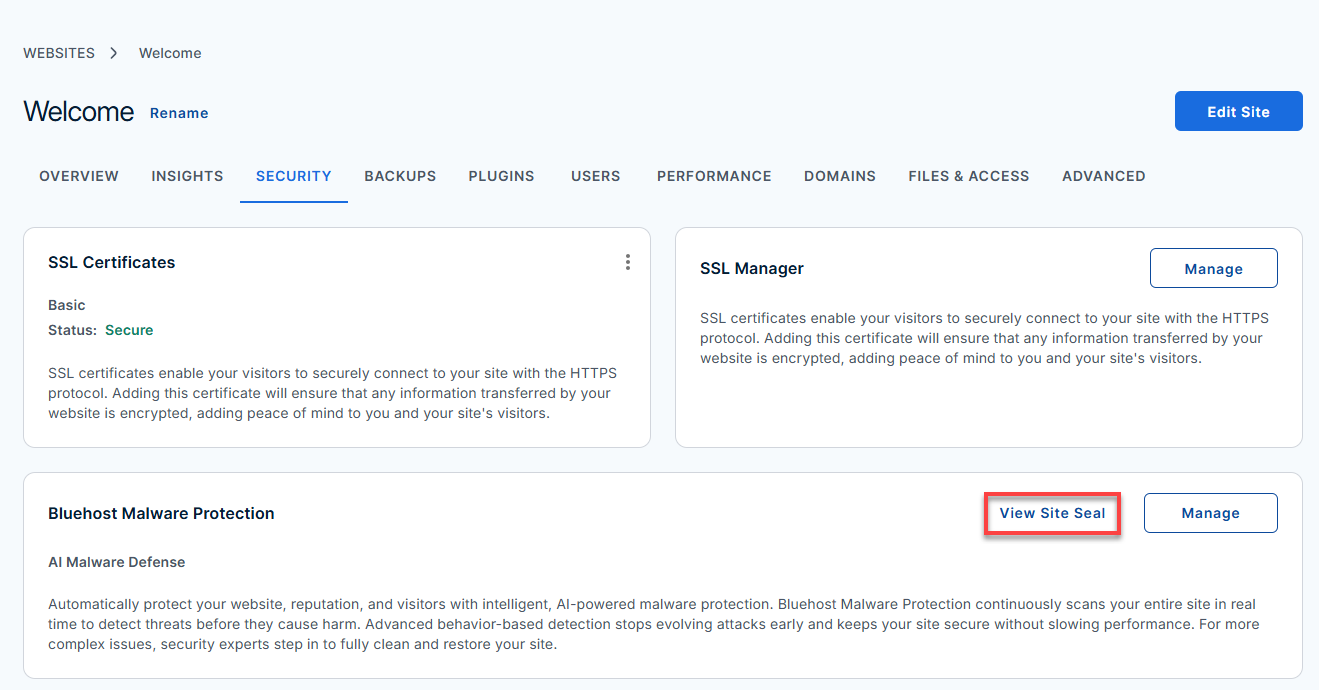
- Select Security from the horizontal menu. Click View Site Seal in Bluehost Malware Protection.
- Copy the generated Bluehost Malware Protection Site Seal code snippet provided on the screen.
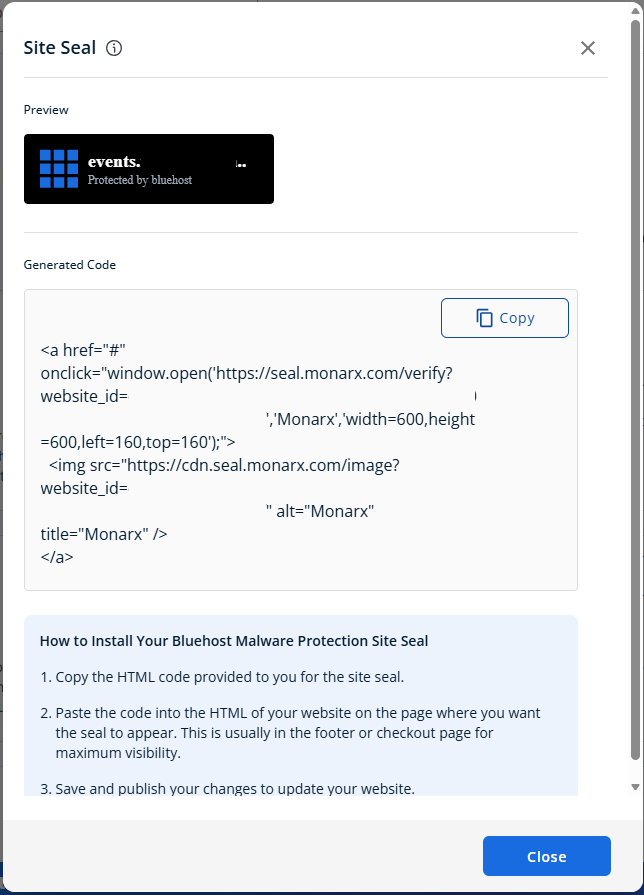
- Paste the code into your website where you want the security badge to appear, following your platform's instructions.
- Verify the Site Seal Display.
If the Bluehost Malware Protection Site Seal does not appear immediately, clear your browser cache and reload your website.
Summary
Adding the Bluehost Malware Protection Site Seal is a simple way to showcase malware protection and boost user trust. Just copy the Site Seal code from your security settings and add it to the pages on your website where you want the security badge to display.
Just copy the Site Seal code from your security settings and add it to the pages on your website where you want the security badge to display.
Once displayed, the security badge improves credibility, enhances user confidence, and supports better SEO performance.
If you need further assistance, Bluehost Chat Support is available 24 hours a day, 7days a week while Bluehost Phone Support is available 7 days a week from 7 am-12 midnight EST.
- Chat Support - While on our website, you should see a CHAT bubble in the bottom right-hand corner of the page. Click anywhere on the bubble to begin a chat session.
- Phone Support -
- US: 888-401-4678
- International: +1 801-765-9400
You may also refer to our Knowledge Base articles to help answer common questions and guide you through various setup, configuration, and troubleshooting steps.