 ChatGPT,
  Claude,
  Gemini,
  Grok — all four for
 How to Use Bluehost Basic Weekly Backup
Bluehost’s Basic Weekly Backup is an automated cloud‑based service that securely stores a complete copy of your website files and databases. It requires no setup and provides a simple, dependable way to protect your site from data loss. You can restore your website to a previous state, recover from errors, or download backups for offline storage.
Understanding Basic Weekly Backup
If you’re looking for a more advanced backup solution, you can upgrade to our Standard or Premium Bluehost Website Backup plans.
Standard Backup
Ideal for customers who want reliable protection with the ability to download backup copies.
Premium Backup
Recommended for customers who make frequent changes to their site, want on-demand backups, need downloadable copies, or manage larger or multiple sites.
Visibility & Limitations
- Backups are site‑level, meaning they include only the files associated with the selected domain.
- Email data is not backed up. For email recovery, contact Bluehost Support.
Databases
- Your hosting plan’s full list of databases is displayed.
- Non‑WordPress sites do not have automatic database mapping.
- For WordPress sites, the correct database is labeled “(Current Website)”.
Restore Point Guidelines
- A restore point is created automatically (enabled by default).
- Only one restore point is stored at a time—new ones overwrite the previous.
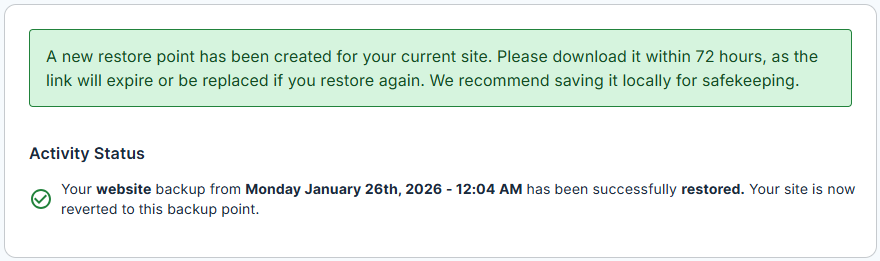
- Restore point downloads must be saved within 72 hours of the link's expiration or replacement.
Best practice: Download and save your restore files locally as soon as they are available.
Download Link Guidelines
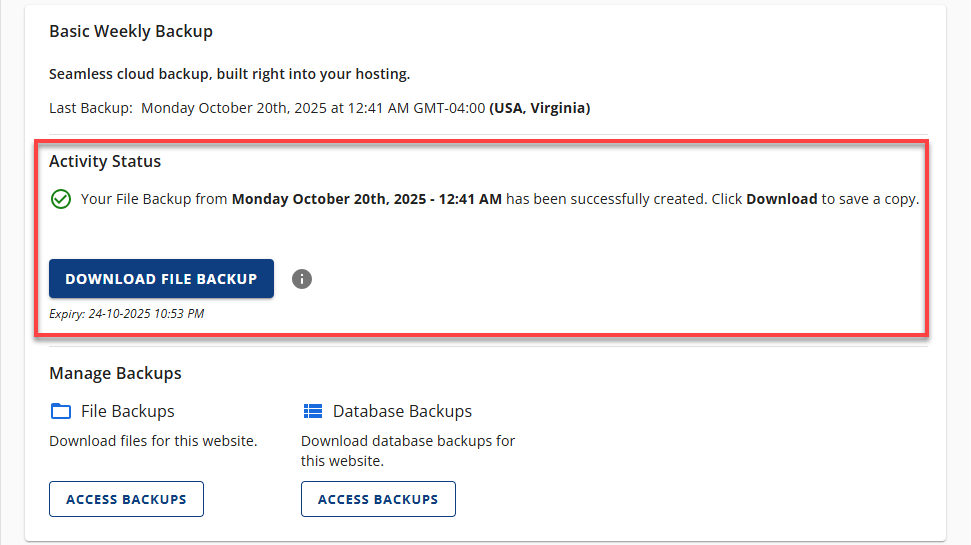
- File and database download links remain active for 24 hours.
- Expiry time appears below each generated link.
- Only one file backup and one database backup link can be active at a time.
- Requesting a new download while another link exists will overwrite the previous one.
Status Indicators
- Ongoing – Backup or restore process is in progress; new requests are temporarily disabled.
- Success – Download links or restore completion notices are available.
- Failed – An error message appears with details.
Navigating Basic Weekly Backup
- Log in to your Bluehost Portal.
- In the left-hand menu, click Websites.
- Click the Manage Site button located next to the website you want to manage.

- Click Backups in the top menu.

Managing and Restoring Backup
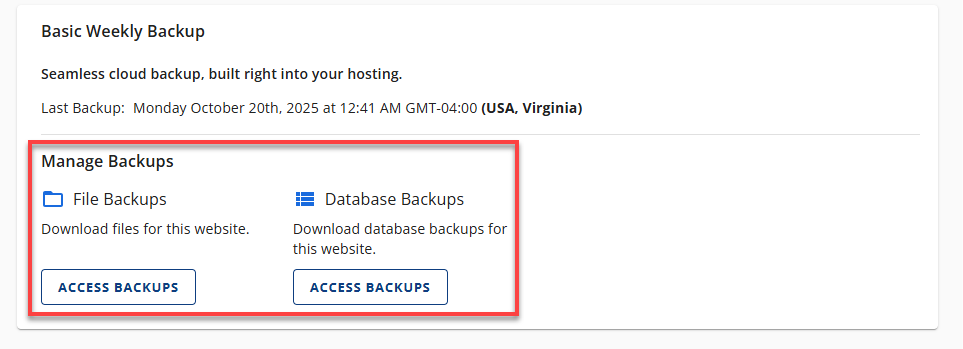
- Restore Website - This option lets you restore your entire website from a previous backup by replacing your current files and database with the selected backup.
- File Backups - File Backups enable you to restore and download your website files from a specific backup date. However, this option does not allow you to archive or recover database content without impacting your website files.
- Database Backups - Database Backups let you restore and download your site's databases to a selected backup date, enabling you to archive or recover database content without affecting your website files.
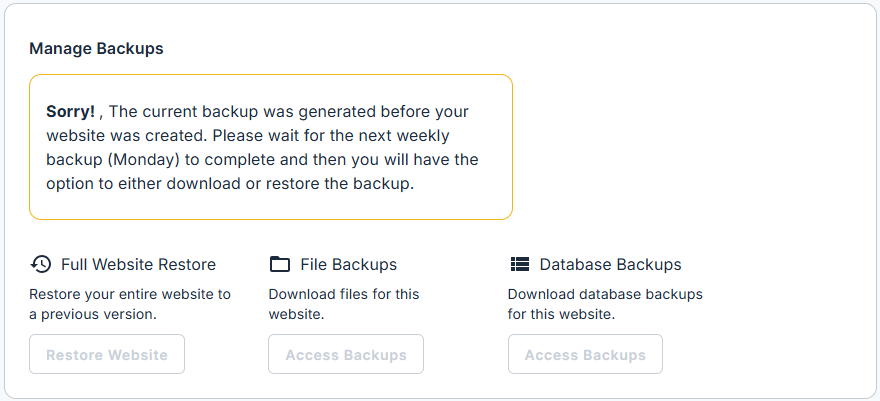
Backups generated before the website was created contain no site data; therefore, the download and restore options will be unavailable.
Restore Website
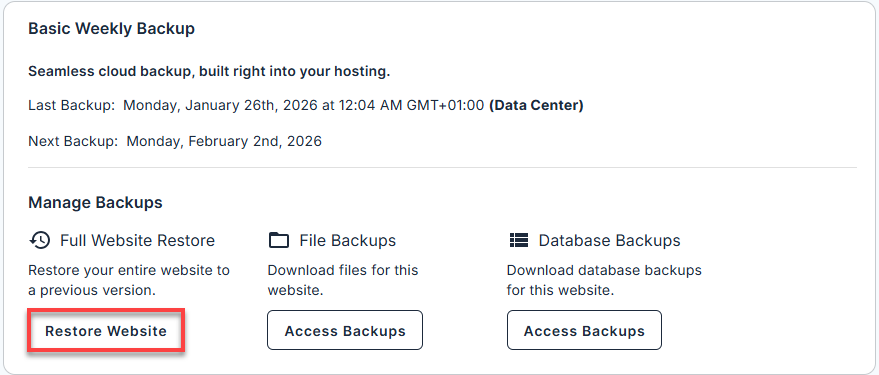
Restore your entire website by rolling back all files and selected databases to a previously saved backup, replacing the current version with the chosen restore point.
How to Restore Full Website Backups
- Under Restore Website, click Restore Website.
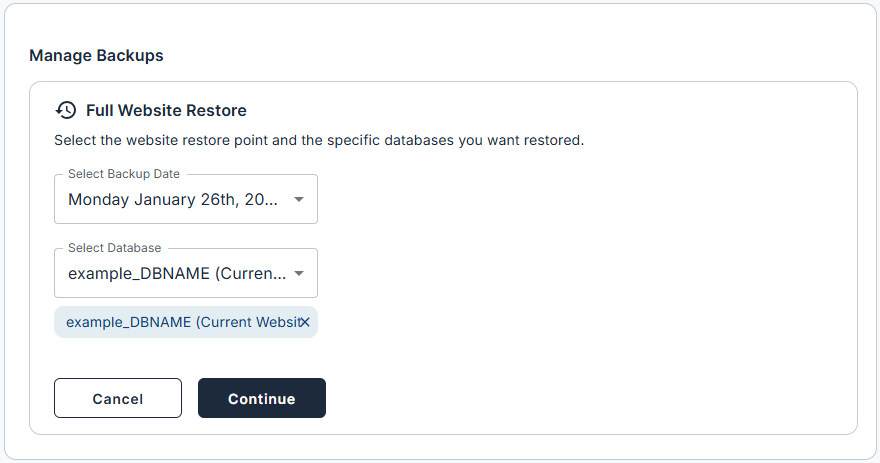
- Select the website's backup date and the specific databases to restore, then click Continue.
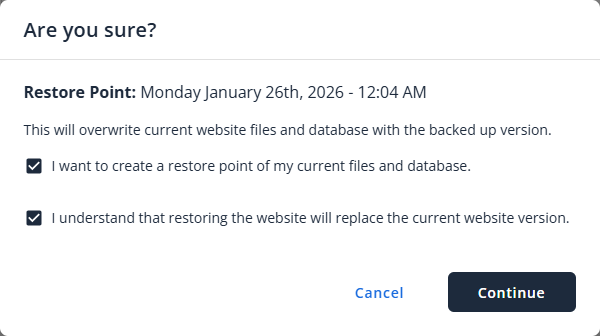
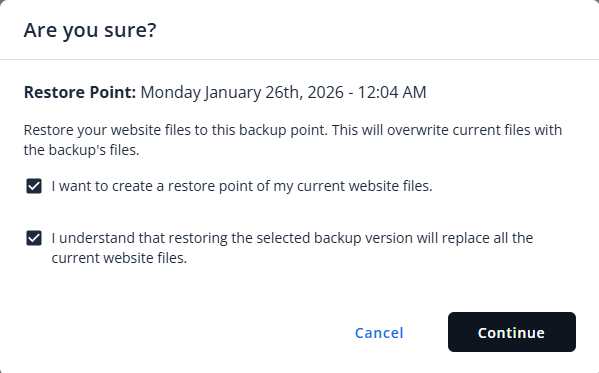
- In the Are you sure? pop-up, review the restore point, select both confirmation checkboxes, then click Continue to proceed with the website restore.
Restoring your website will overwrite your current website files and database with the backed-up version. Make sure this is the desired version before proceeding.
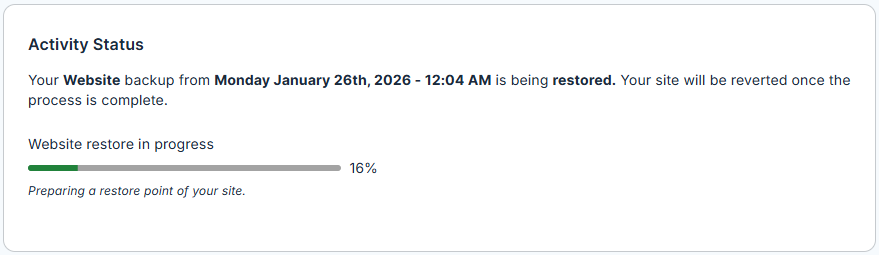
- Wait for the restoration process to complete. Your website will be reverted once the process finishes.
- If the restore is completed successfully, you will see a Completed status and a notification that a new restore point has been created for your current site. Successful restores automatically create a new restore point.
- If the restore fails, you will see an error message.

- If the restore is completed successfully, you will see a Completed status and a notification that a new restore point has been created for your current site. Successful restores automatically create a new restore point.
File Backups
Manage your website files by restoring individual website files from a previous backup or downloading backup copies for local storage.
How to Restore File Backups
- Click Access Backups under File Backups.
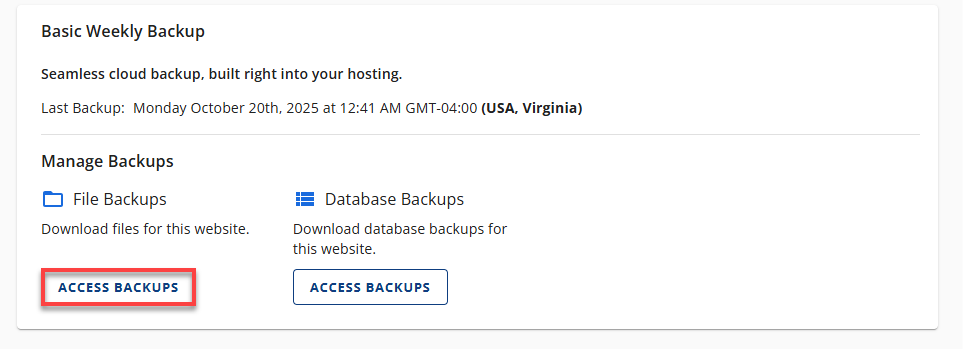
- Select a backup date and click Restore, then Continue.
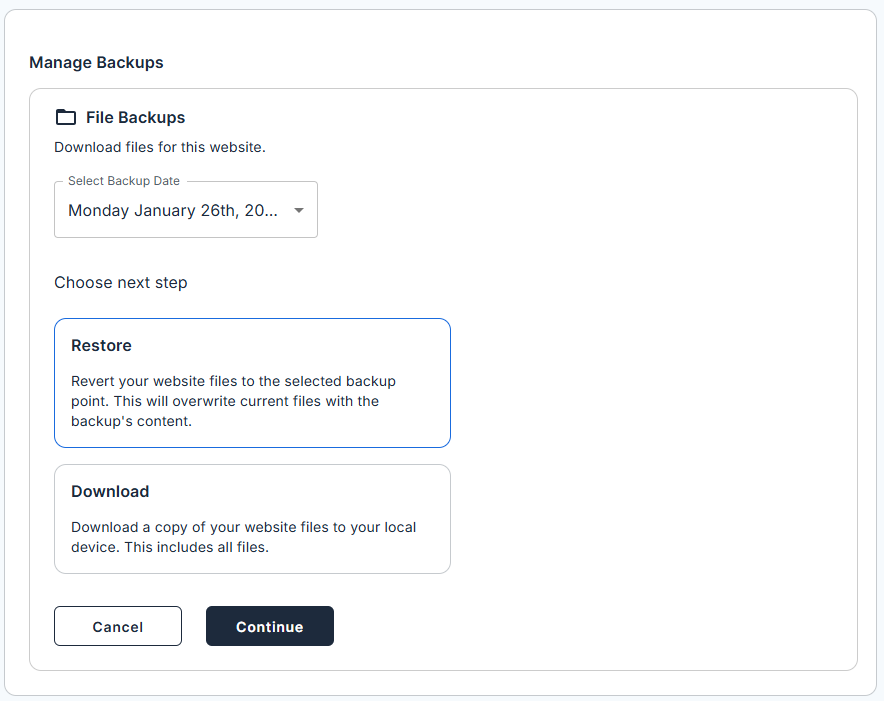
- Confirm the restoration details.
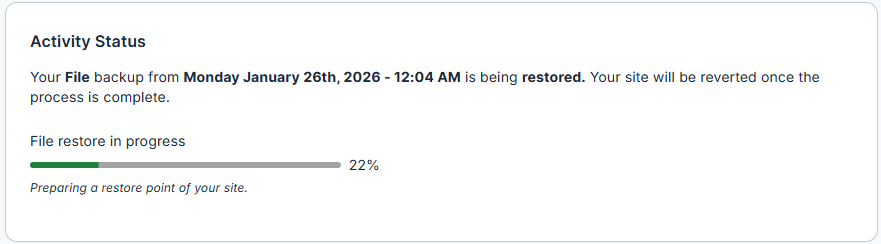
- Wait for the process to finish.
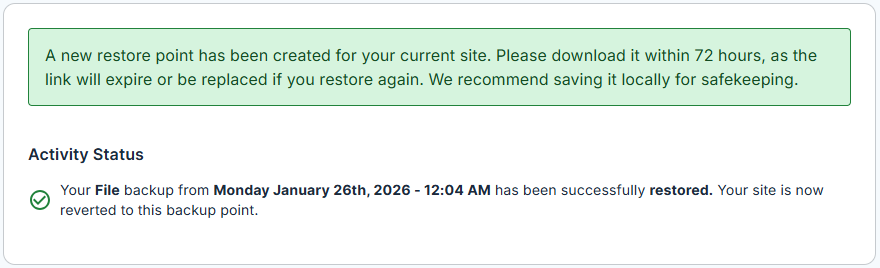
- If the restore is completed successfully, you will see a Completed status and a notification that a new restore point has been created for your current site. Successful restores generate a new restore point.
- If the restore fails, you will see an error message.

- If the restore is completed successfully, you will see a Completed status and a notification that a new restore point has been created for your current site. Successful restores generate a new restore point.
How to Download File Backups
- In File Backups, click Access Backups.
- Choose a backup date and click Download, then Continue.
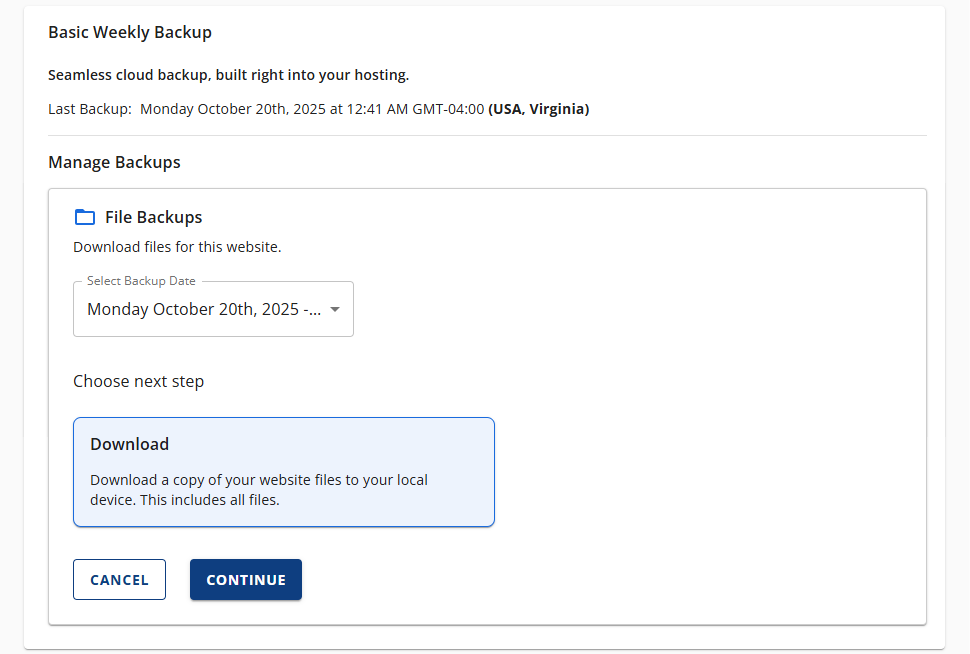
- (Optional) Resolve any overwrite warnings if an existing link is active.
- If you attempt to download a file while one is already available, a pop-up will prompt you to confirm whether you want to replace the existing download link.
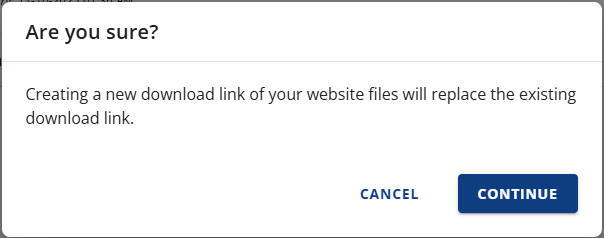
- If you attempt to download a file while one is already available, a pop-up will prompt you to confirm whether you want to replace the existing download link.
- Wait for the download link to generate, then save the file.
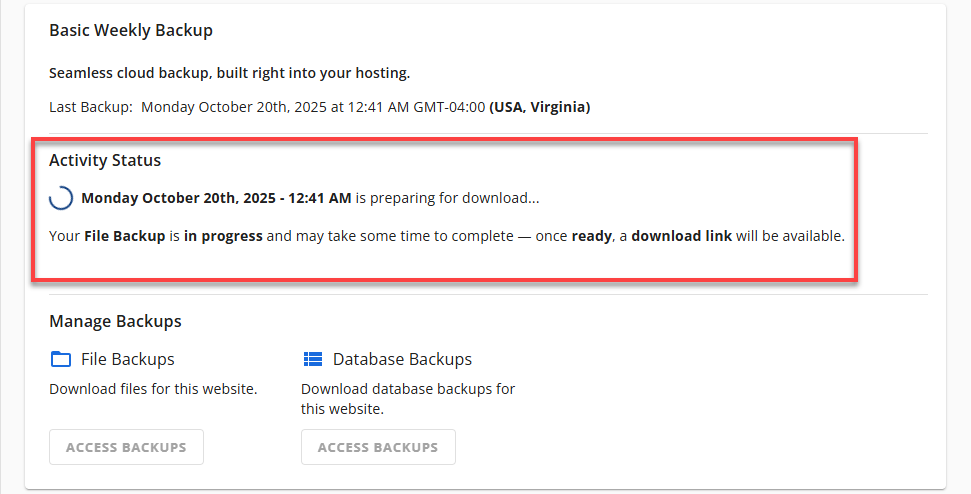
- If the download is completed successfully, you will see a Completed status and a download link, along with the link's expiry date.
For primary cPanel sites, the backup includes addon site data. Extract and restore only the files needed for your primary domain. - If the download fails, you will see an error message.
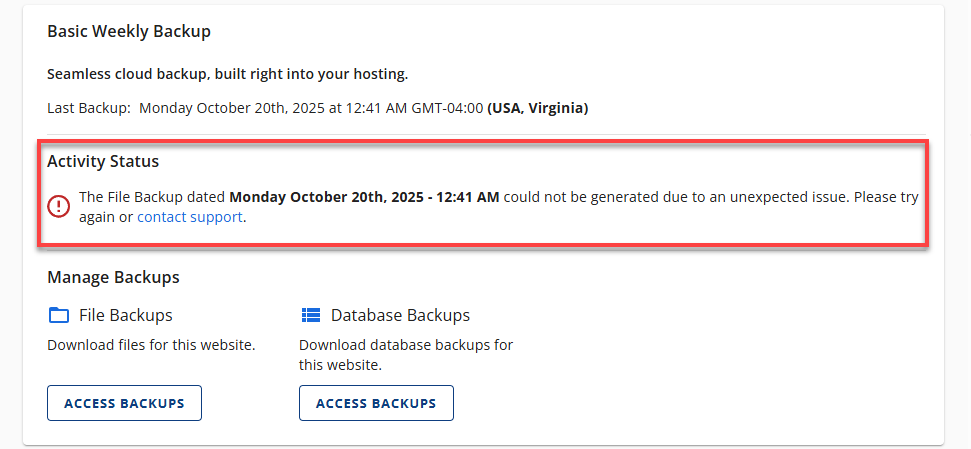
- If the download is completed successfully, you will see a Completed status and a download link, along with the link's expiry date.
Database Backups
Manage your website databases by restoring them from a previous backup or downloading backup copies for safekeeping.
How to Restore Database Backups
- In Database Backups, click Access Backups.
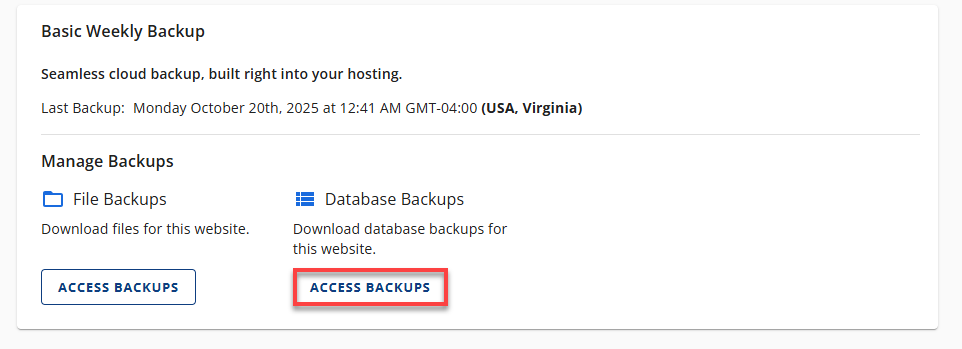
- Select a date and choose one or more databases (or Select All). Click Restore, then Continue.
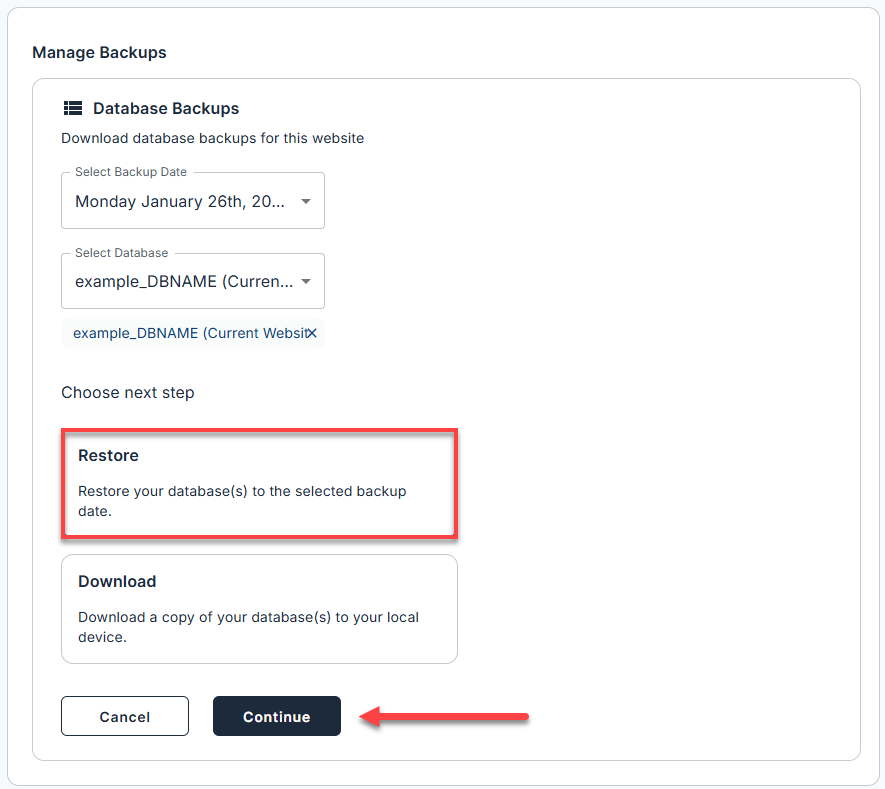
- You can choose to select one or more databases at the same time. We also have a Select all option to download the database all at once.
- For multiple databases, we will create a single download link that combines them into a single zip file.
- Confirm the restoration details.
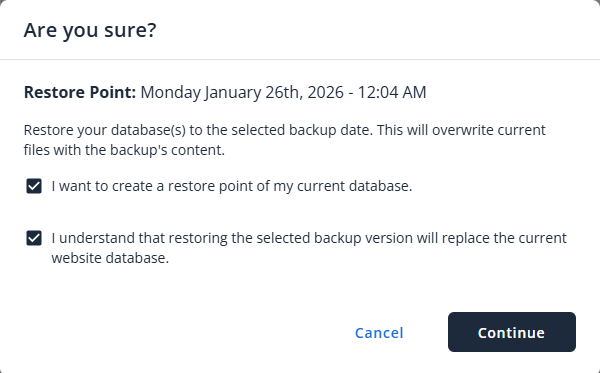
- Wait for the process to finish.
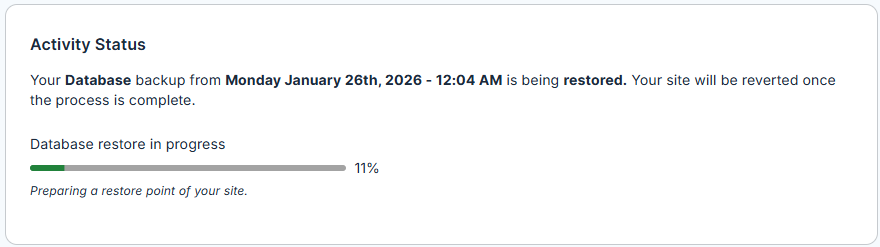
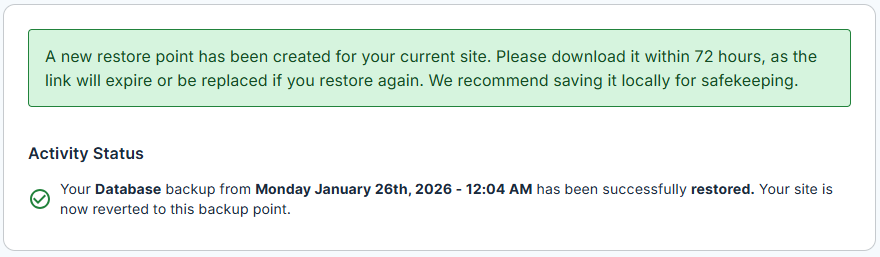
- If the restore is completed successfully, you will see a Completed status and a notification that a new restore point has been created for your current site. Successful restores generate a new restore point.
- If the restore fails, you will see an error message in the Manage Backups section indicating the failure.

- If the restore is completed successfully, you will see a Completed status and a notification that a new restore point has been created for your current site. Successful restores generate a new restore point.
How to Download Database Backups
- Click Access Backups under Database Backups.
- Select a date and choose one or more databases (or Select All). Click Download, then Continue.
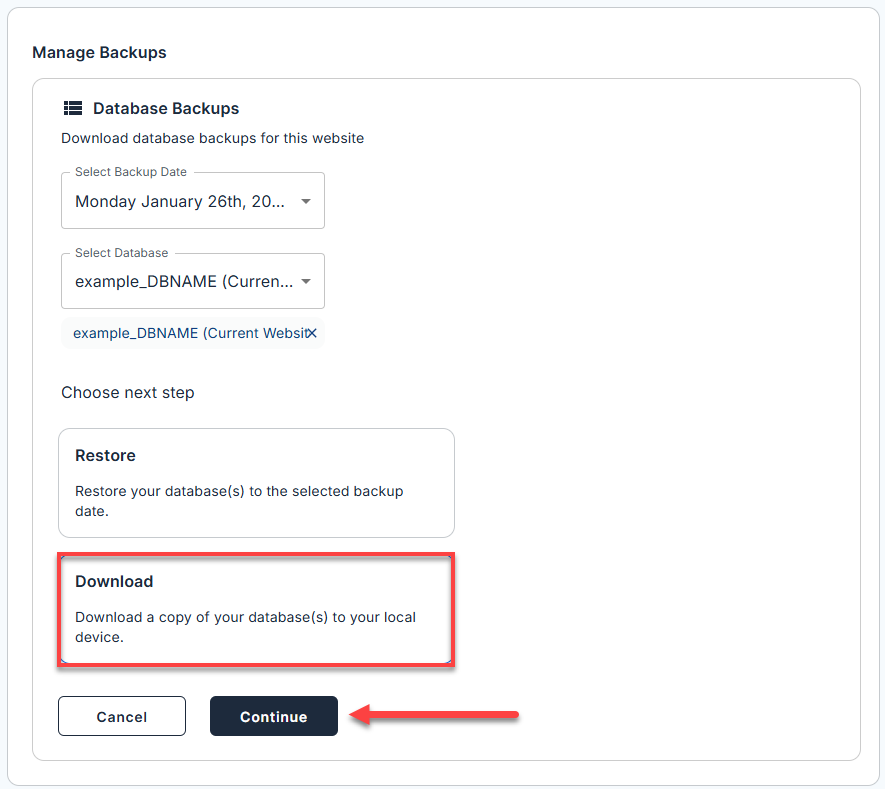
- You can choose to select one or more databases at the same time. We also have a Select all option to download the database all at once.
- For multiple databases, we will create a single download link that combines them into a single zip file.
- (Optional) Resolve any overwrite warnings if an existing link is active.
- If you attempt to download a file while one is already available, a pop-up will prompt you to confirm whether you want to replace the existing download link.
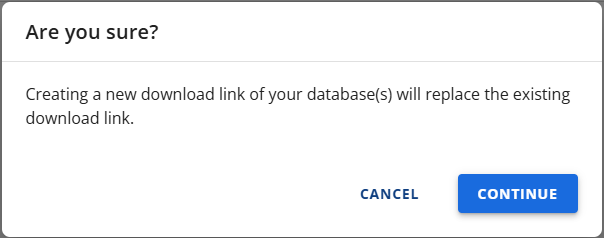
- If you attempt to download a file while one is already available, a pop-up will prompt you to confirm whether you want to replace the existing download link.
- Wait for the download link to generate, then save the database.
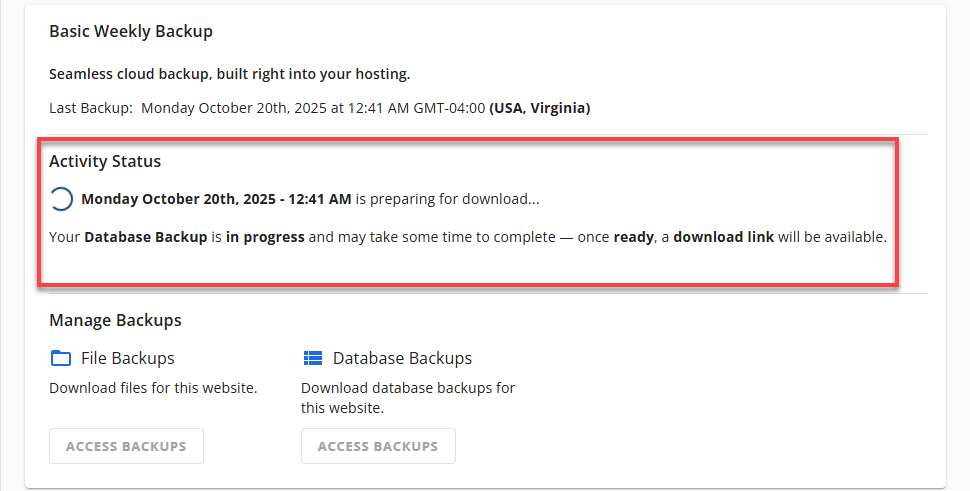
- If the download is completed successfully, you will see a Completed status and a download link, along with the link's expiry date.
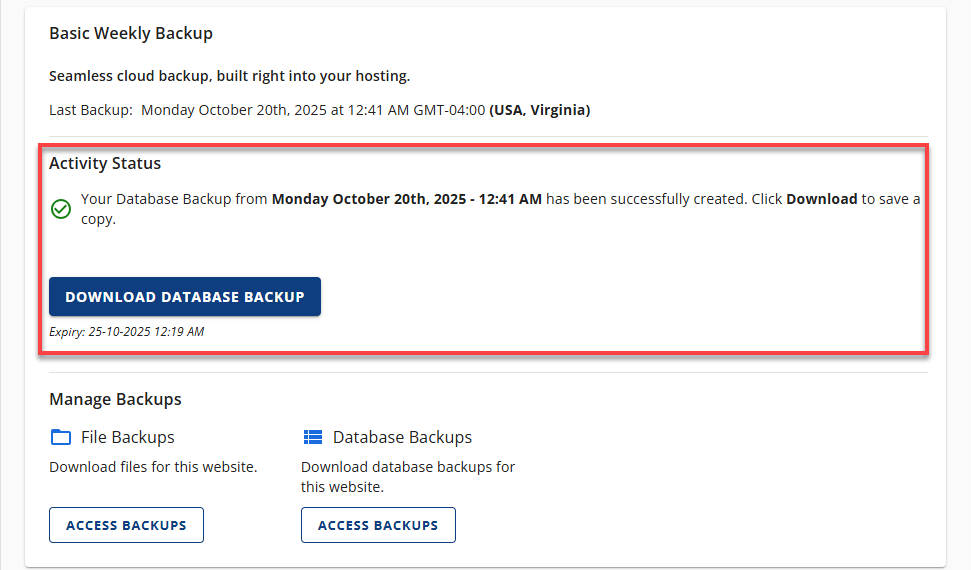
- If the download fails, you will see an error message.
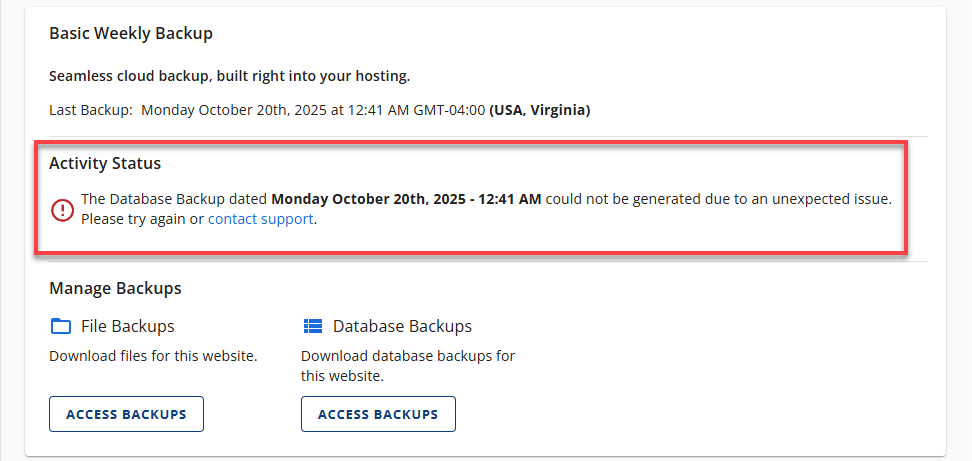
- If the download is completed successfully, you will see a Completed status and a download link, along with the link's expiry date.
Summary
Bluehost’s Basic Weekly Backup offers an easy, automated way to safeguard your website files and databases. With features like Full Website Restore, downloadable backups, and clear progress indicators, you can restore or save your site data quickly—without needing support assistance.
If you need further assistance, Bluehost Chat Support is available 24 hours a day, 7days a week while Bluehost Phone Support is available 7 days a week from 7 am-12 midnight EST.
- Chat Support - While on our website, you should see a CHAT bubble in the bottom right-hand corner of the page. Click anywhere on the bubble to begin a chat session.
- Phone Support -
- US: 888-401-4678
- International: +1 801-765-9400
You may also refer to our Knowledge Base articles to help answer common questions and guide you through various setup, configuration, and troubleshooting steps.