 ChatGPT,
 Claude,
 Gemini,
 Grok — all four for
Bluehost AI Builder: How to Add a Domain Name Registered Elsewhere
Already own a domain registered with another provider? You can use it for your Bluehost AI Builder site or app. This article shows you how to connect your existing domain or transfer it to Bluehost, then publish your site or app to that domain.
You can keep your domain with its current provider and connect it by adding DNS records there. This article walks you through that process first.
Connect or Transfer: Which Option to Choose
| Connect your existing domain | Transfer in a domain | |
|---|---|---|
| Where your domain stays | With your current registrar | Transfers to your Bluehost account |
| Where you add DNS records | At your current registrar or DNS provider | In your Bluehost account, after the transfer |
| Payment | No domain payment to Bluehost. Requires a paid AI Builder plan. | Requires payment and an eligible domain. Requires a paid AI Builder plan. |
| Best if you want to | Keep managing your domain where it is | Manage your domain and your site or app in your Bluehost account |
Before You Begin
- You need a paid AI Builder plan. If you're on the free plan, you'll be prompted to upgrade to the Lite plan during the steps below.
- Have a payment method ready, such as a credit card or another saved payment method.
- To connect your domain, make sure you can log in to your domain registrar or DNS provider, where your domain's DNS settings are managed.
- To transfer your domain, check that it meets the transfer eligibility requirements. See the How to Transfer a Domain Name To Us article.
Access Domain Setup Options
- Log in to your Bluehost Portal, then click AI Builder in the left-hand menu.
- Click your AI Builder site or app.
- Click Publish in the top toolbar.
- In the dialog window, click Connect a domain.
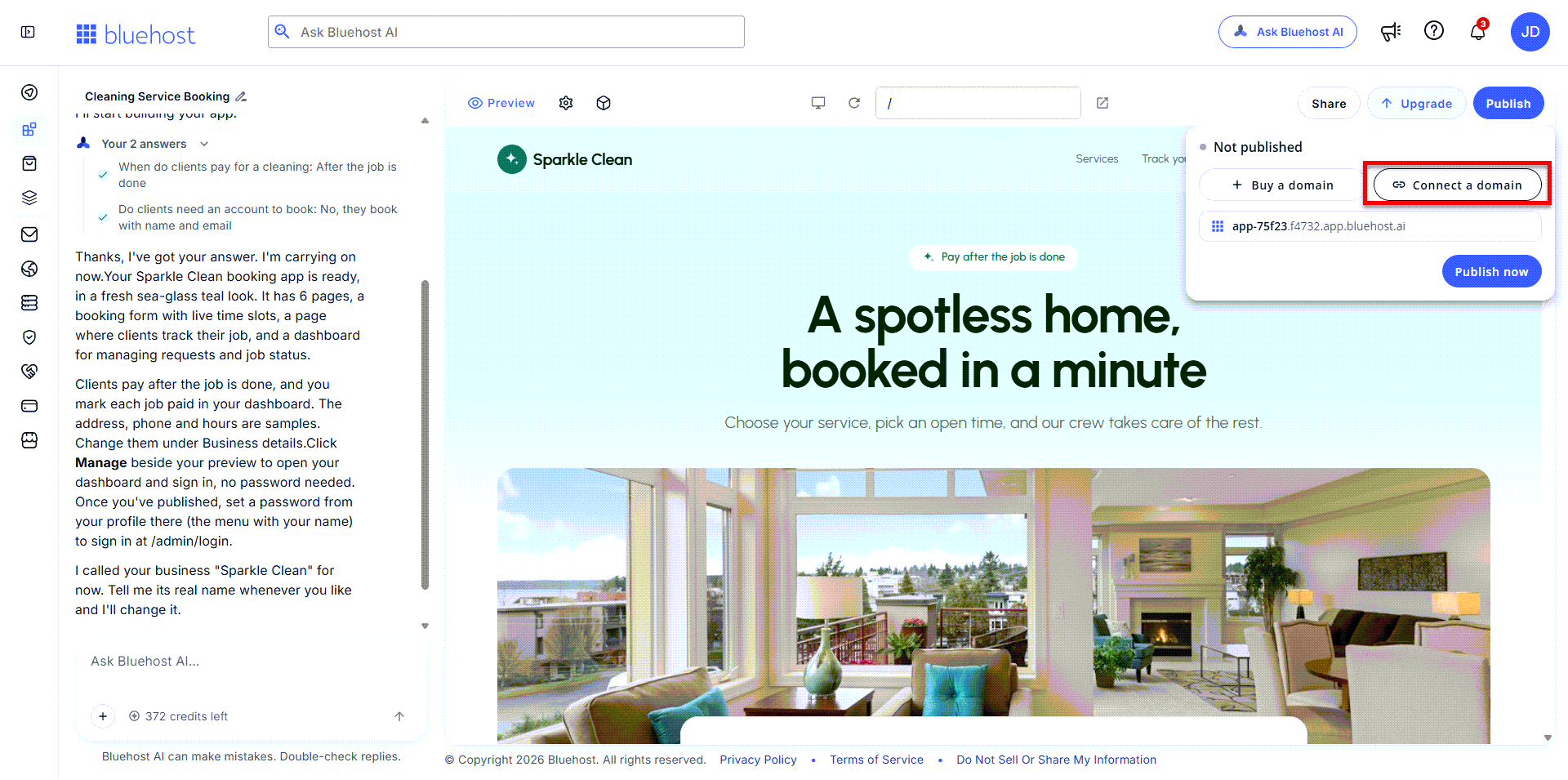
- If you're on the free AI Builder plan, you'll be prompted to upgrade first. Follow these steps:
- In the pop-up window, select your preferred billing term. If you're on the free plan, this upgrades you to the Lite plan.
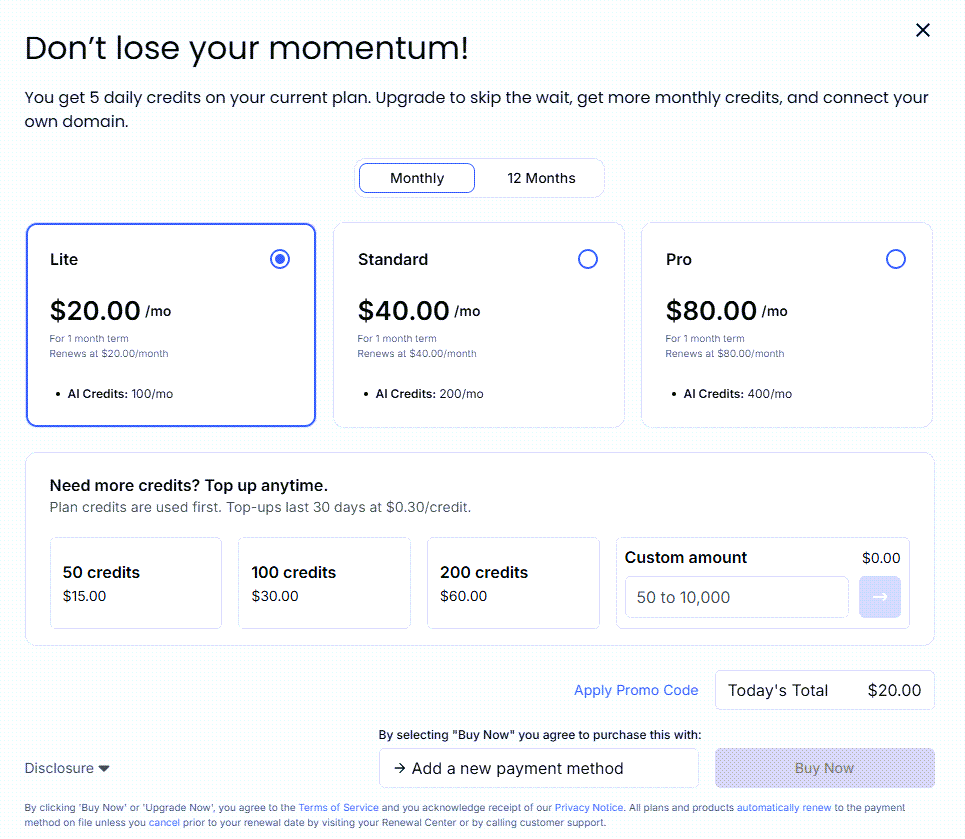
The pricing shown in the image above may change.
- If you need additional credits, you can purchase them from this pop-up as well.
- Add a payment method if needed.
- Click Buy Now to complete your purchase.
- In the pop-up window, select your preferred billing term. If you're on the free plan, this upgrades you to the Lite plan.
- If you're already on a paid AI Builder plan, skip to the next step.
- If you're on the free AI Builder plan, you'll be prompted to upgrade first. Follow these steps:
- You'll be redirected to the Domains tab, where you can:
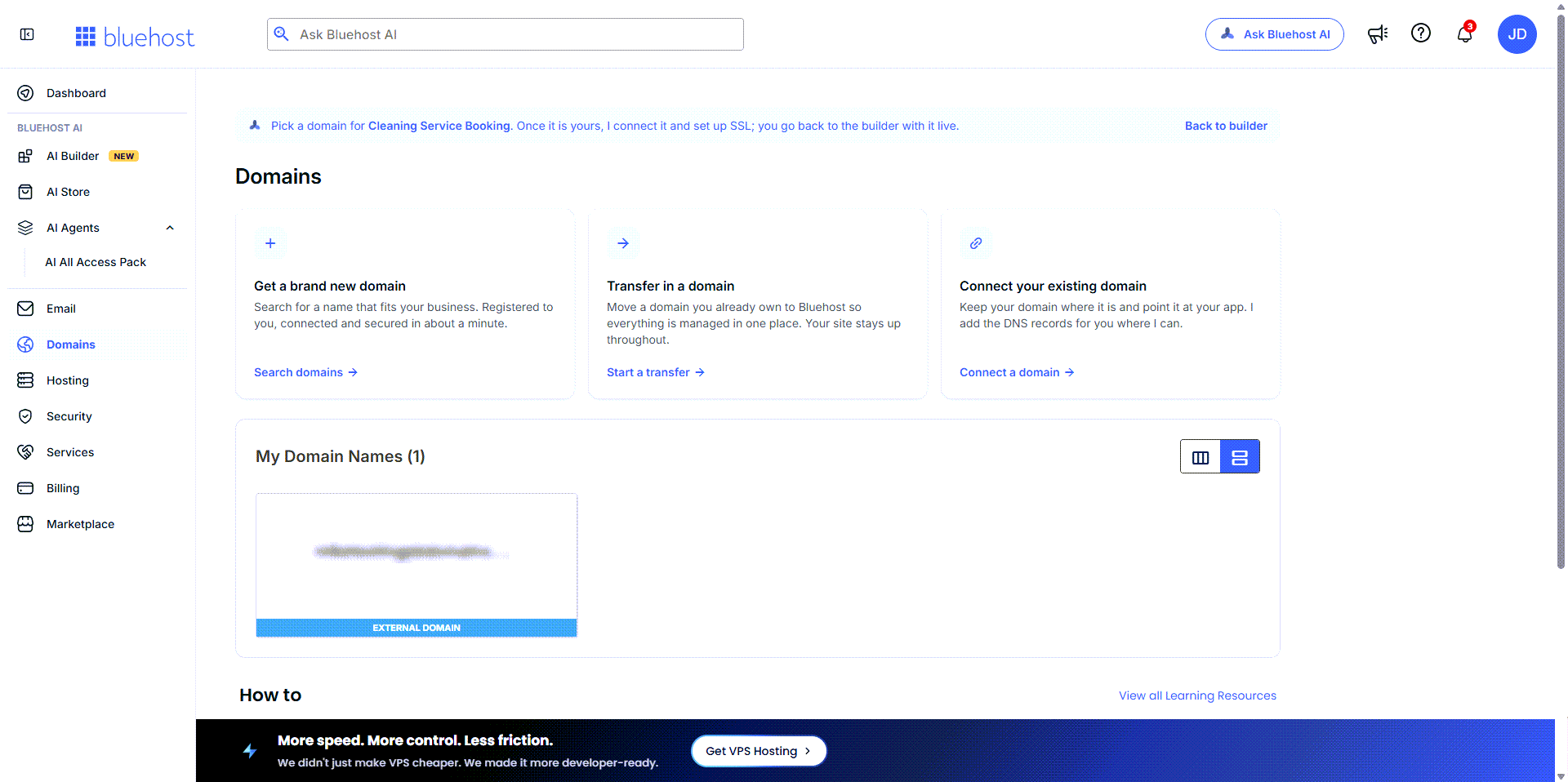
Connect Your Existing Domain
Use this option to connect a domain from another registrar or hosting provider to your AI Builder site or app. Your domain stays with its current provider. You only add DNS records there to point it to your site or app.
- In Domains, click Connect a domain under the Connect your existing domain card.
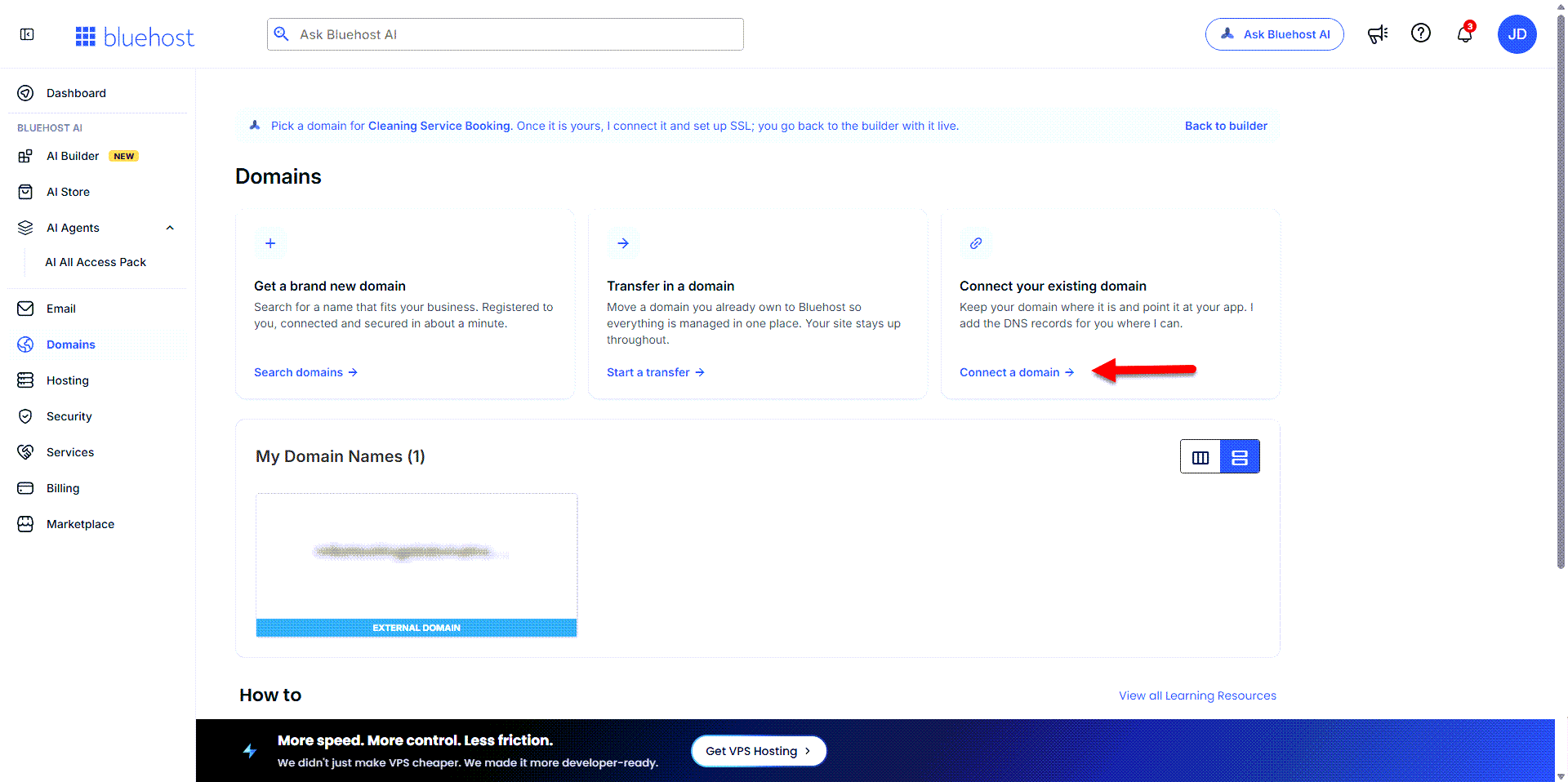
- In the pop-up, enter your domain, then click Check.
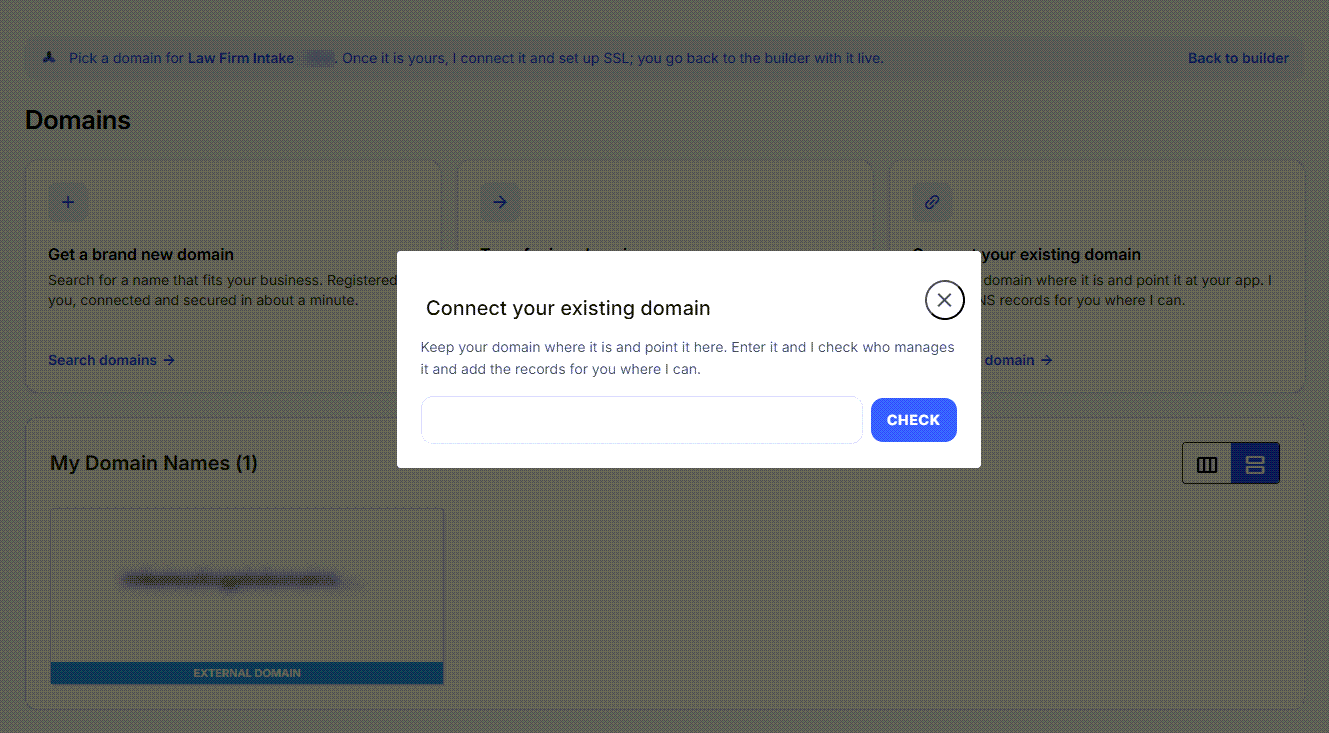
- The system will display the DNS records you need to add to your domain's DNS settings. Log in to your domain registrar or DNS provider and add the records exactly as shown.
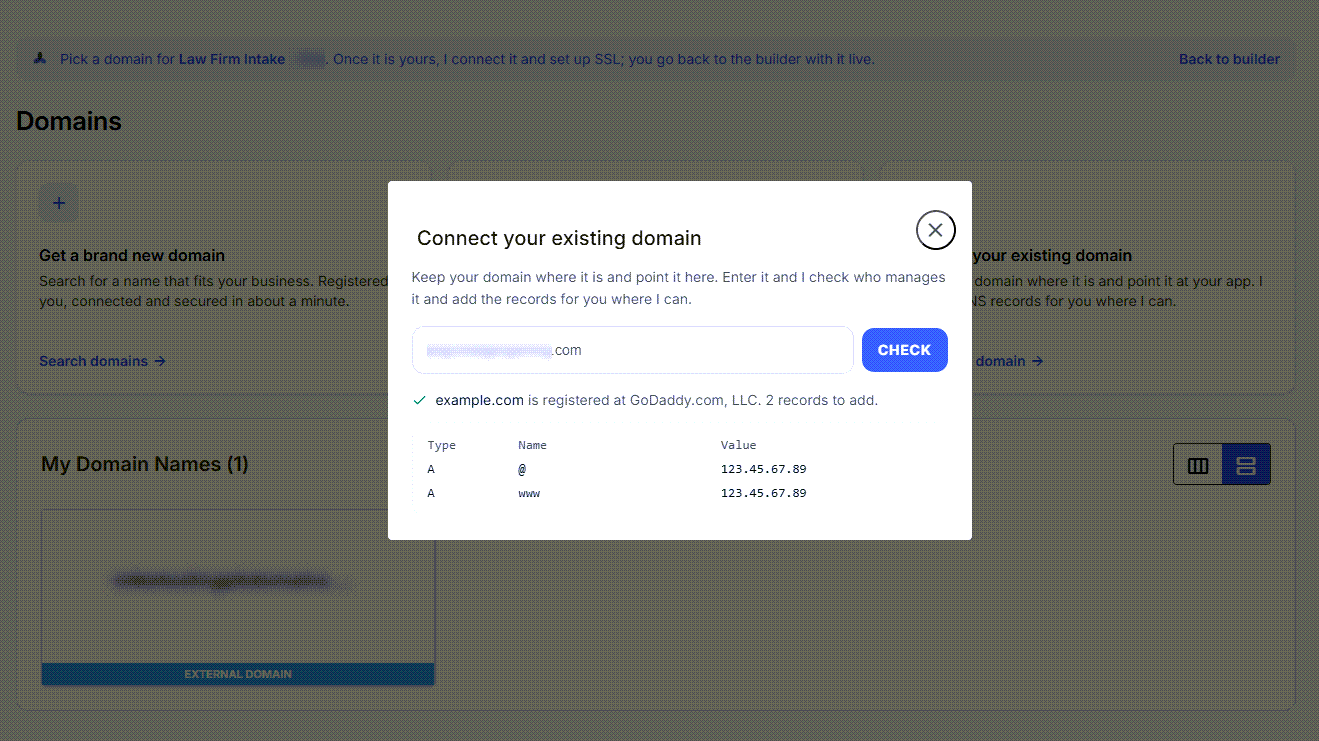
- If your domain is registered with Bluehost, for example, after a transfer or a new domain purchase, add the records to your Bluehost account instead.
- Allow time for the DNS records to propagate.
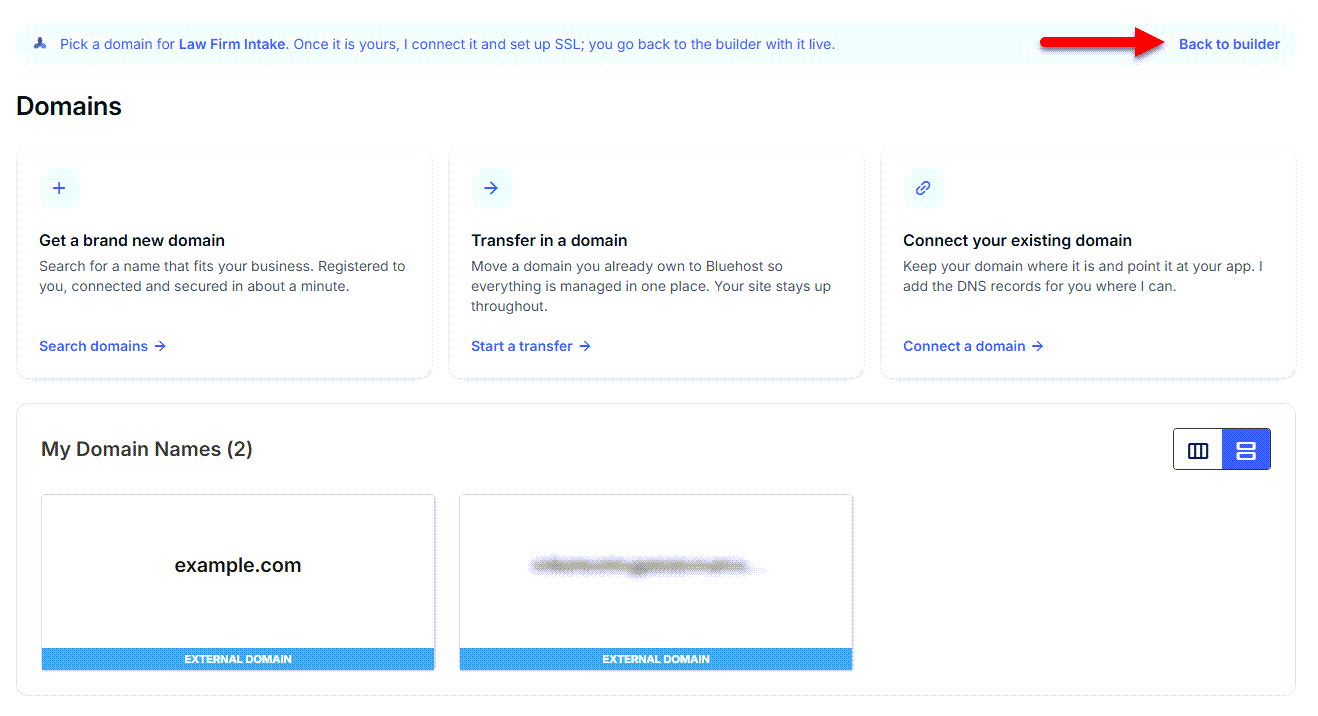
- Once propagation is complete, your domain will appear in the My Domain Names section. Click Back to builder.
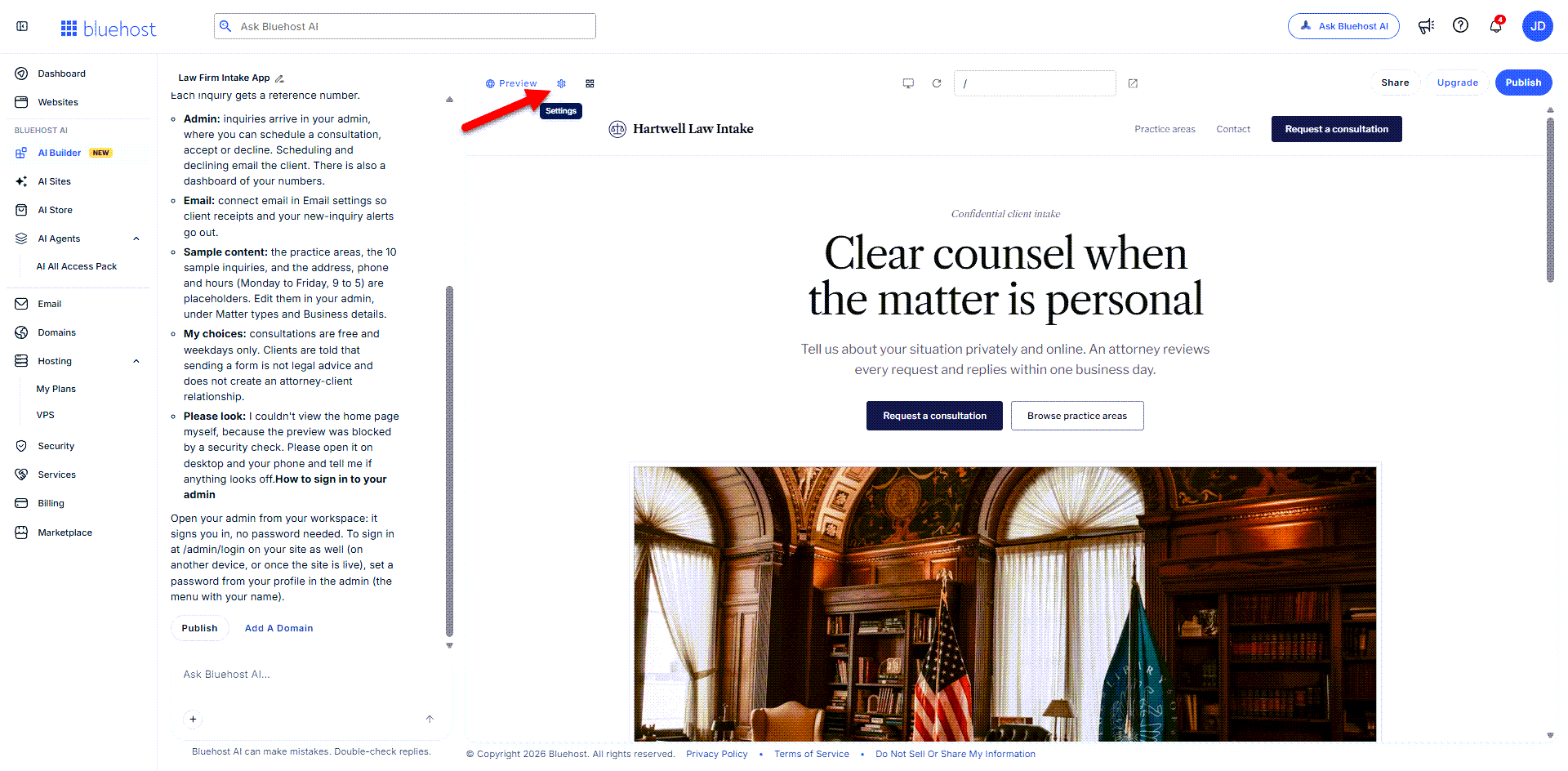
- In AI Builder, click Settings (gear icon).
- Click Domains.
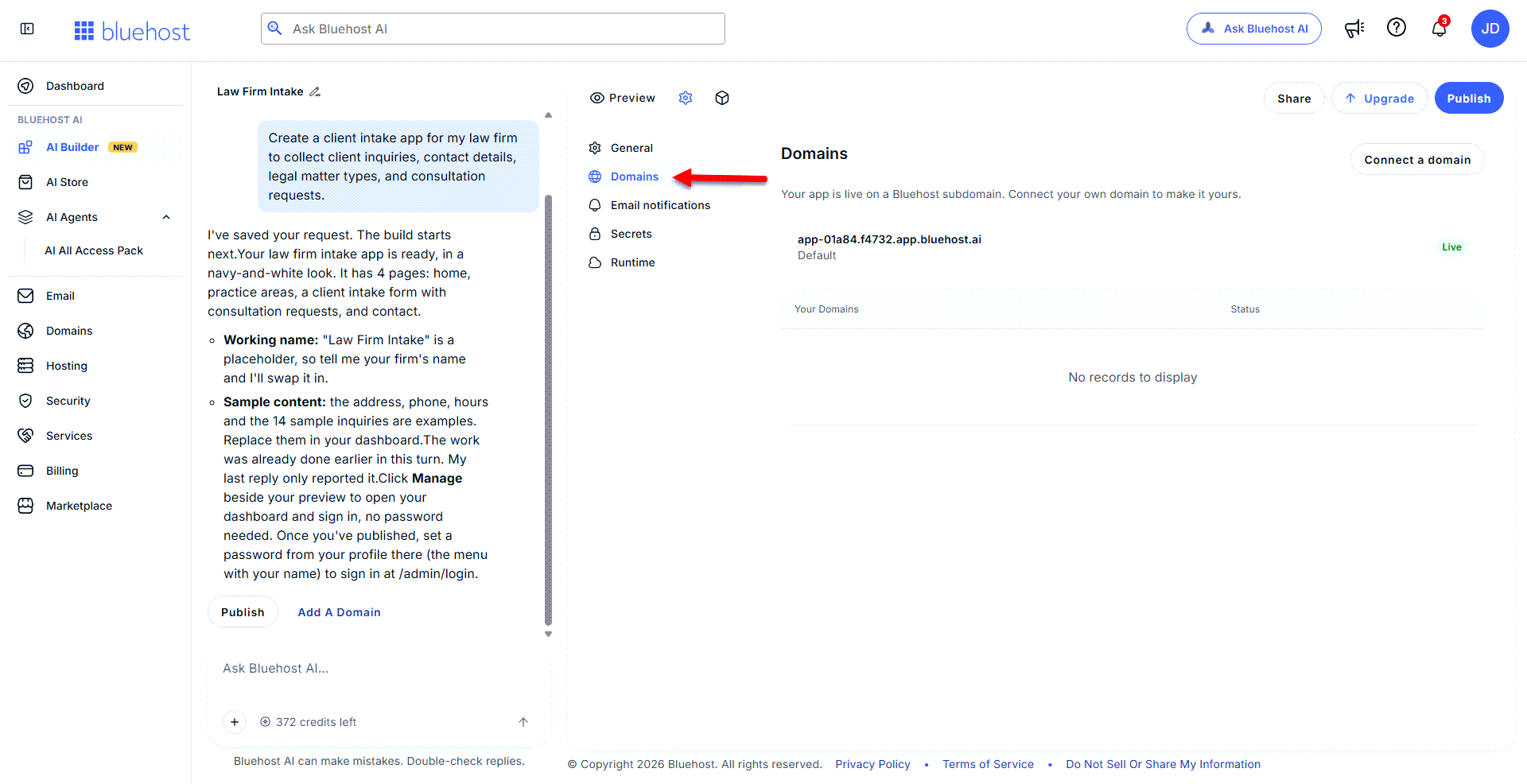
- Confirm that your domain shows the "Connected" status.
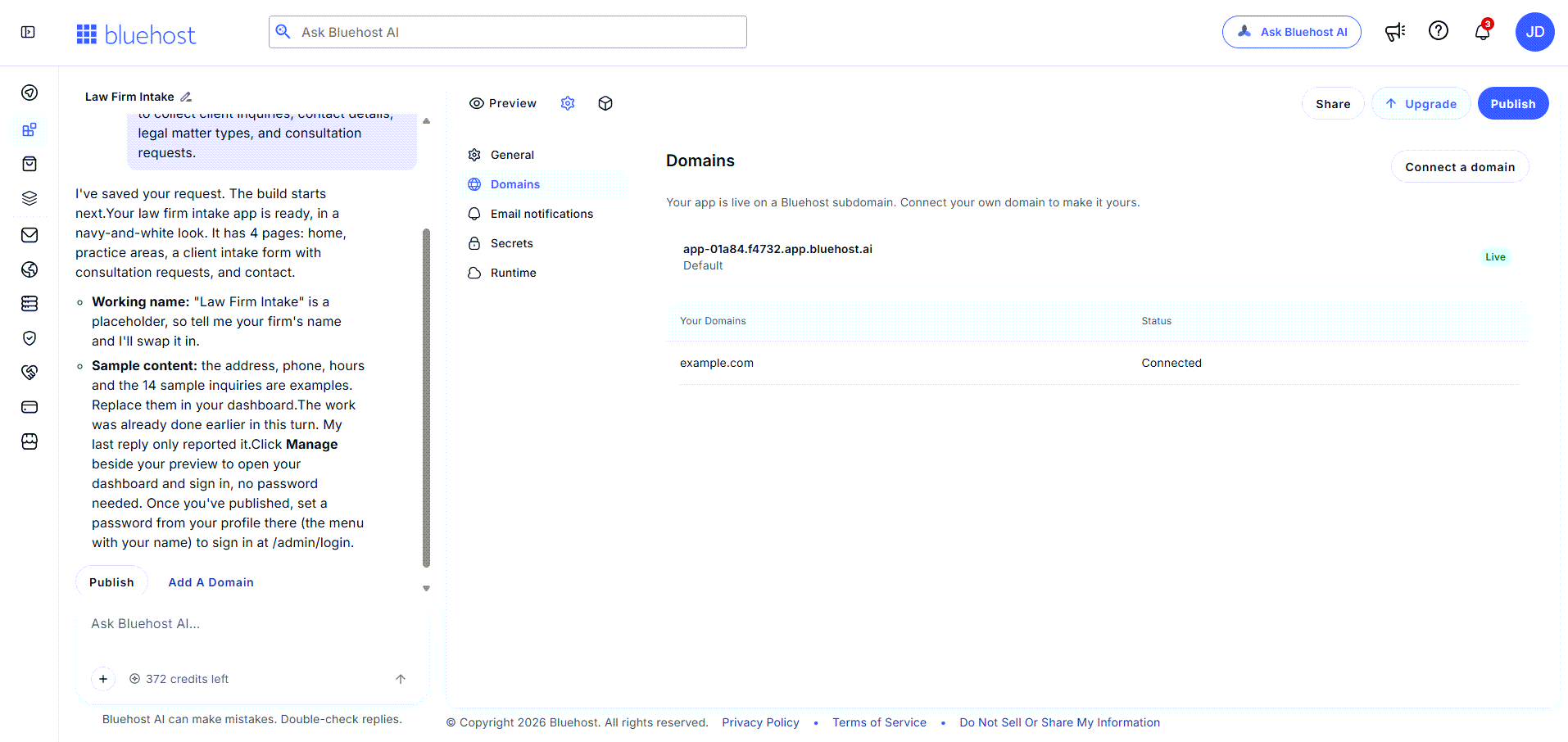
- Click Publish, then click Publish now to make your site or app available online.
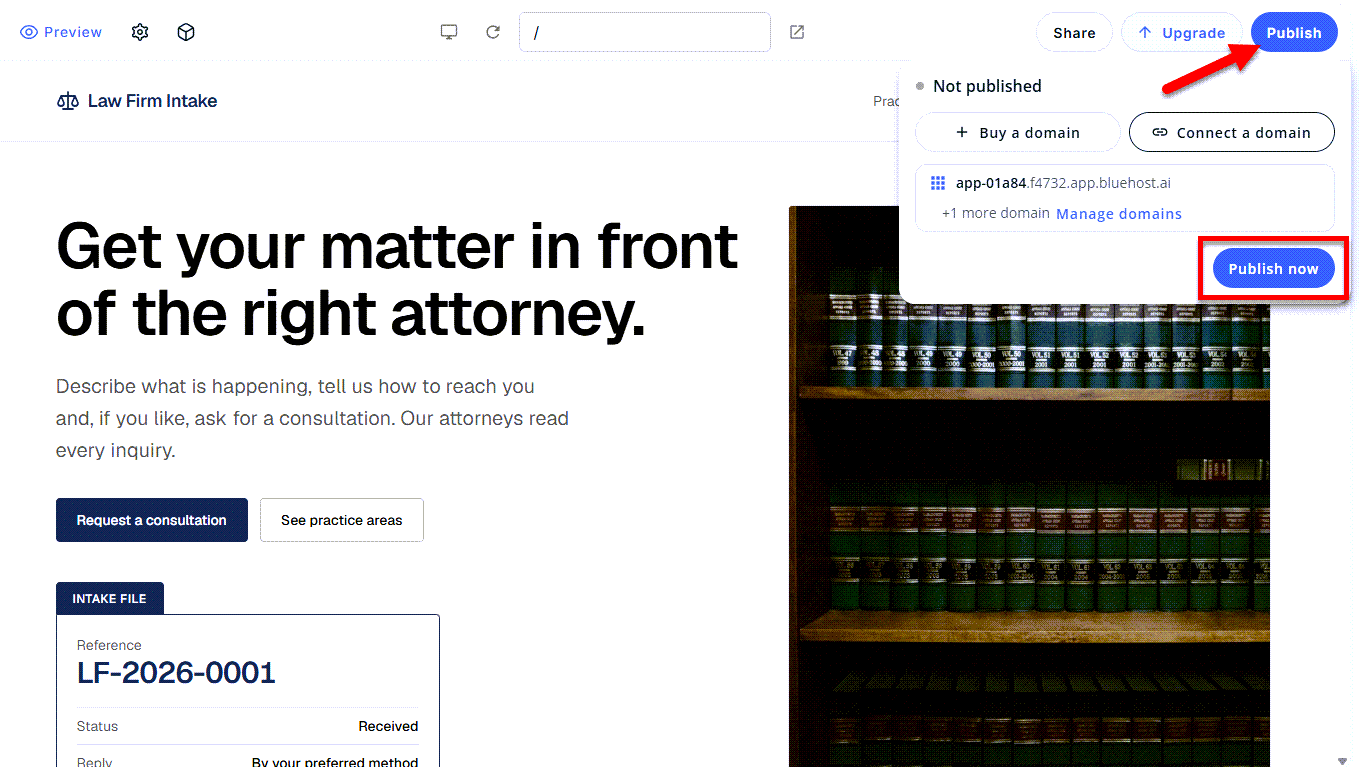
- Wait a few moments for your site or app to publish.
- Open your domain in a browser, or click Open Site.
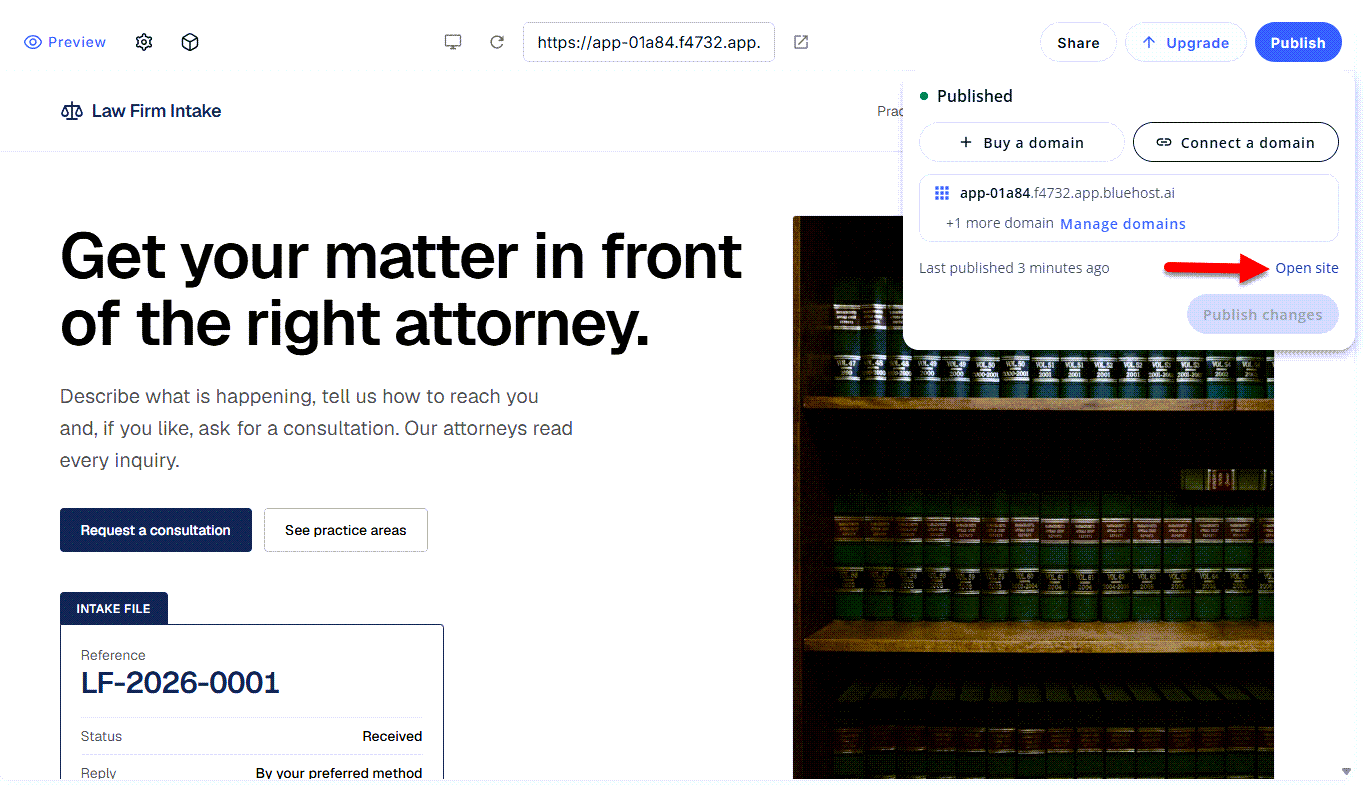
- If you make changes later, click Publish, then select Publish changes to update your live site or app.
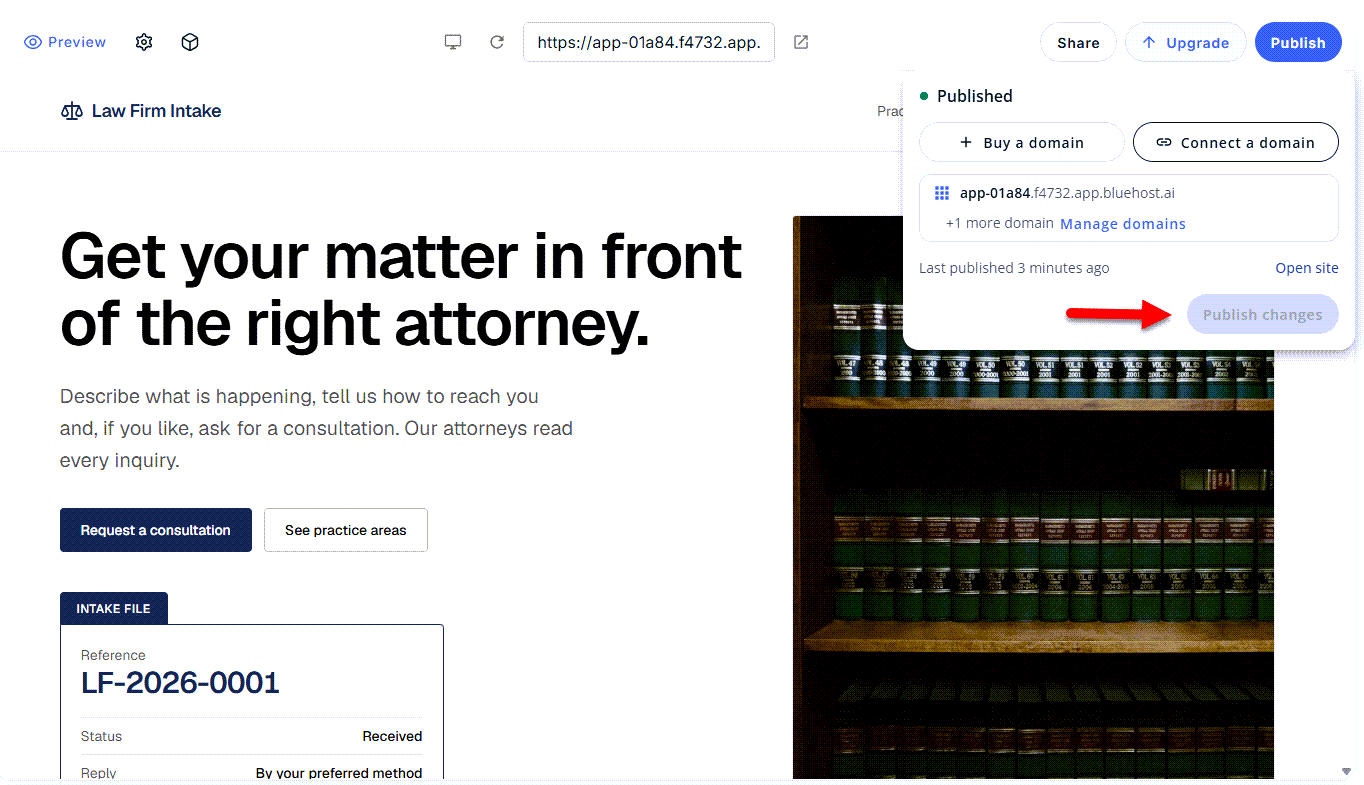
Transfer in a Domain
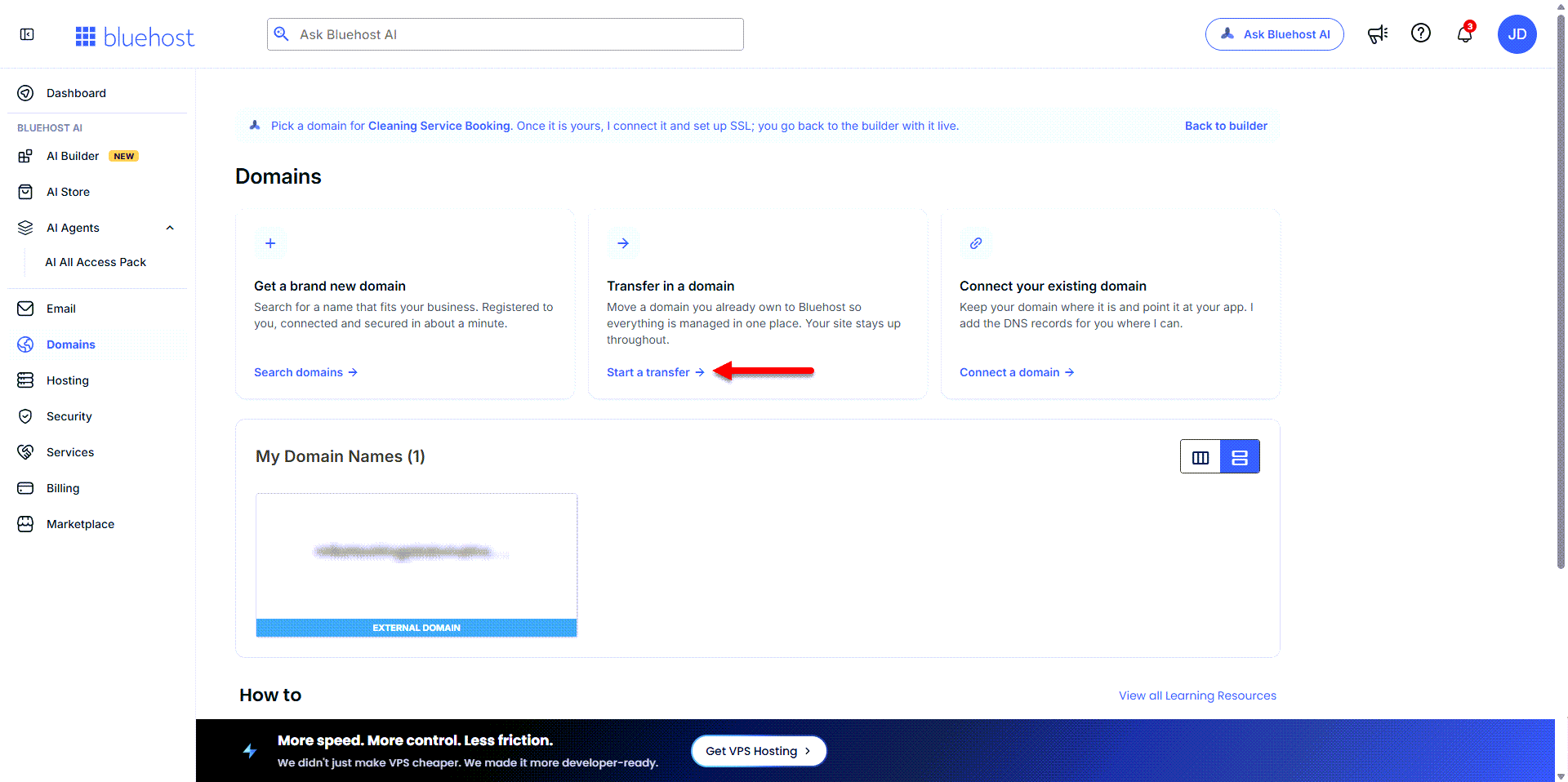
Use this option to move your domain registration from another registrar to your Bluehost account.
- In Domains, click Start a transfer under the Transfer in a domain card.
- Enter the domain you want to transfer to your Bluehost account.
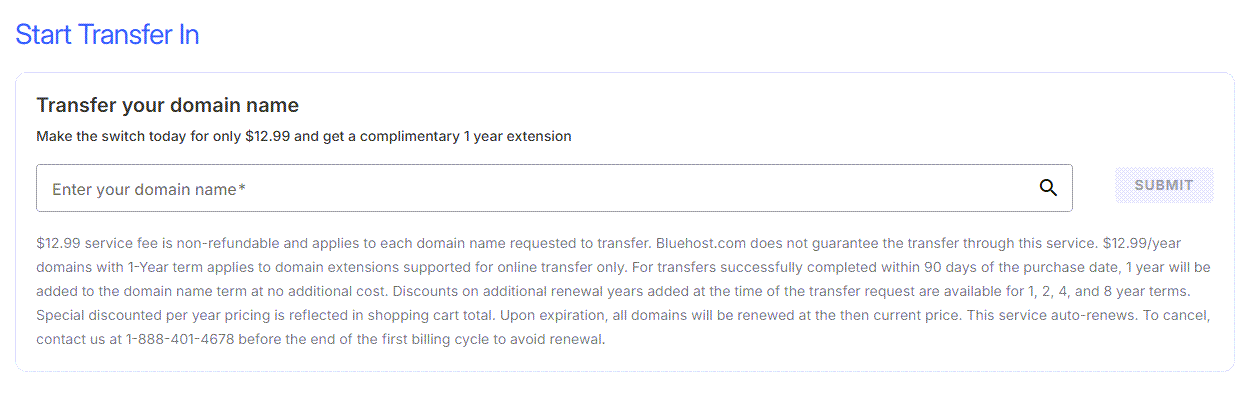
- The system will check whether the domain is eligible for transfer. If it is, you'll proceed to checkout.
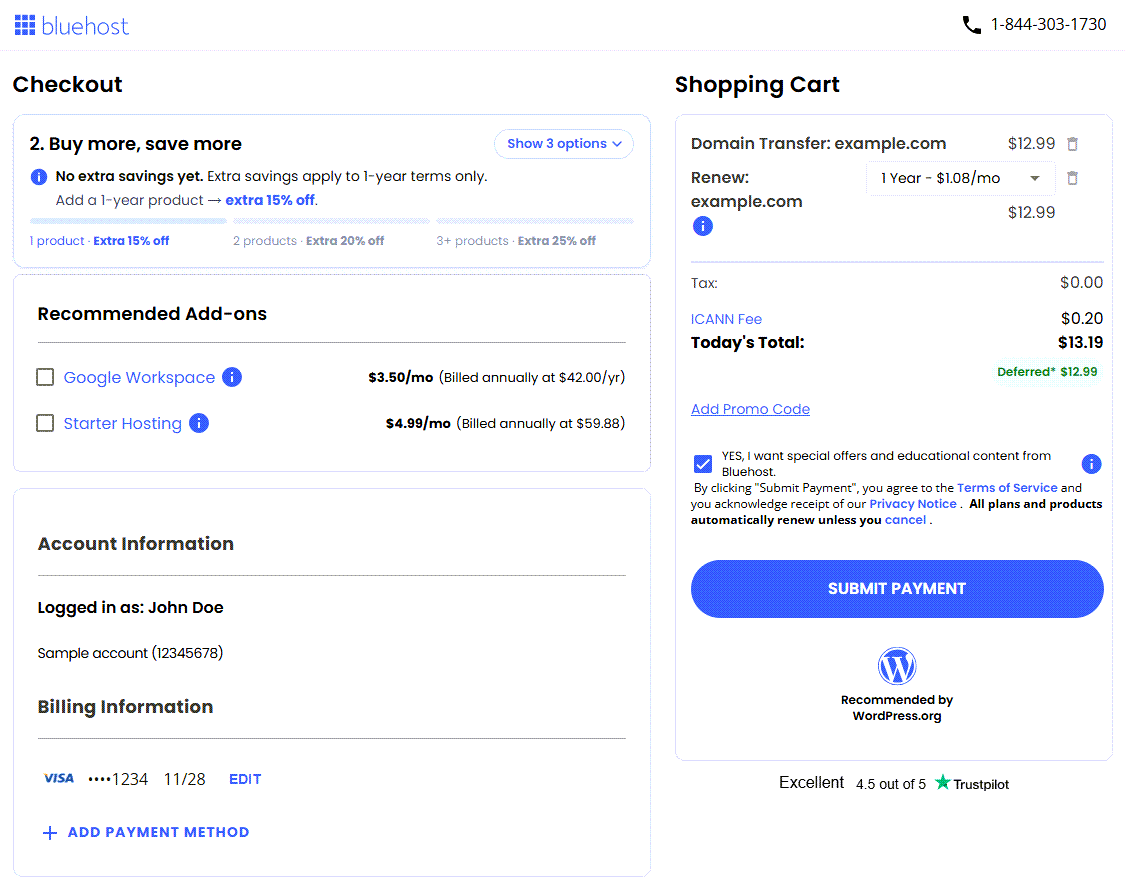
The pricing shown in the image above may change.
- Review your order.
- Add a payment method if needed.
- Click Submit Payment to start the domain transfer.
- After the transfer is complete, your domain will appear in the Domains tab. To connect it to your site or app, follow the steps in Connect Your Existing Domain and add the required DNS records to your domain.
To learn more about domain transfers and eligibility requirements, see the How to Transfer a Domain Name To Us article.
Get a Brand New Domain
The Domains tab also provides another way to purchase a new domain in AI Builder.
- In Domains, click Search domains under the Get a brand new domain card.
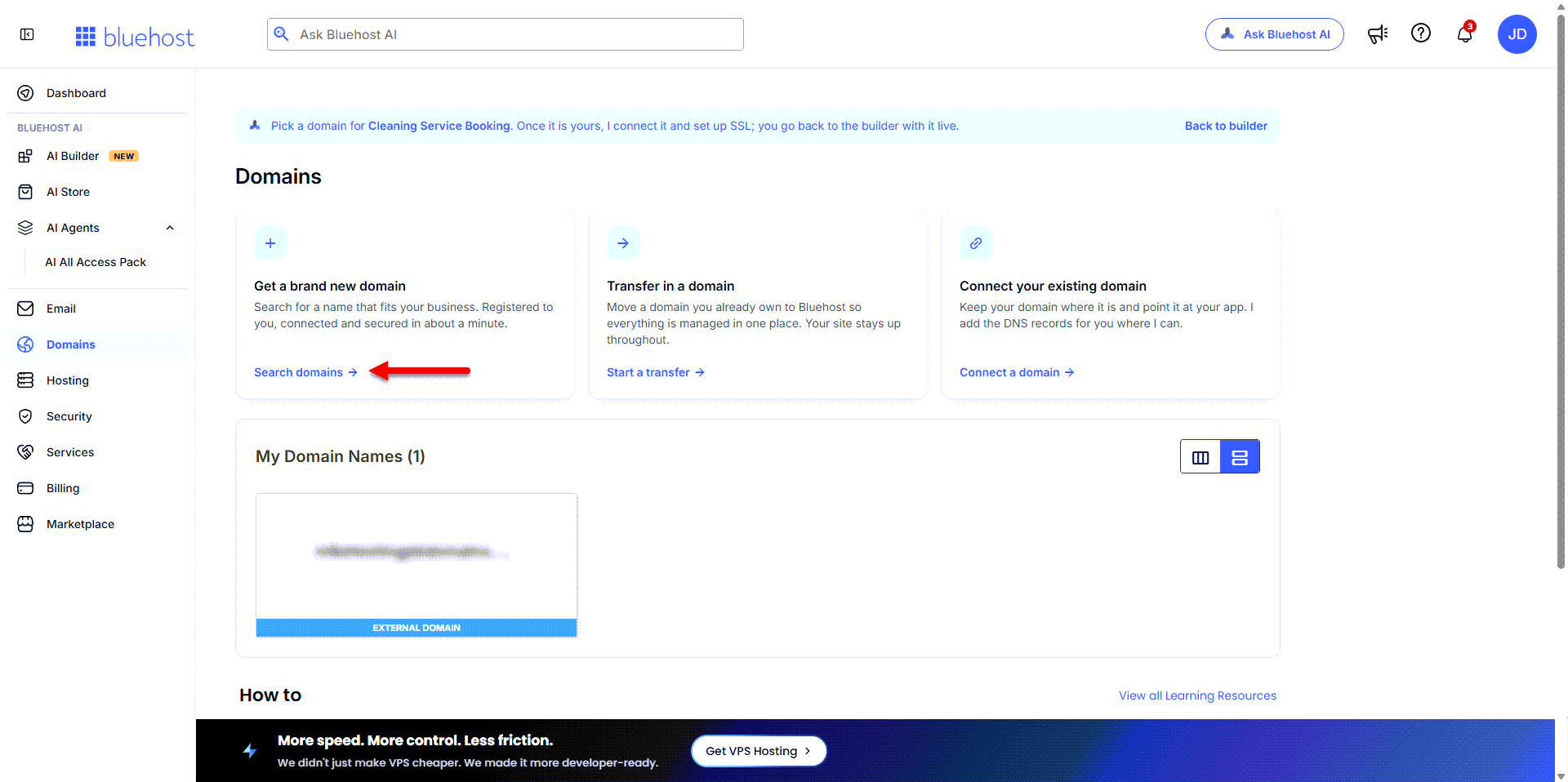
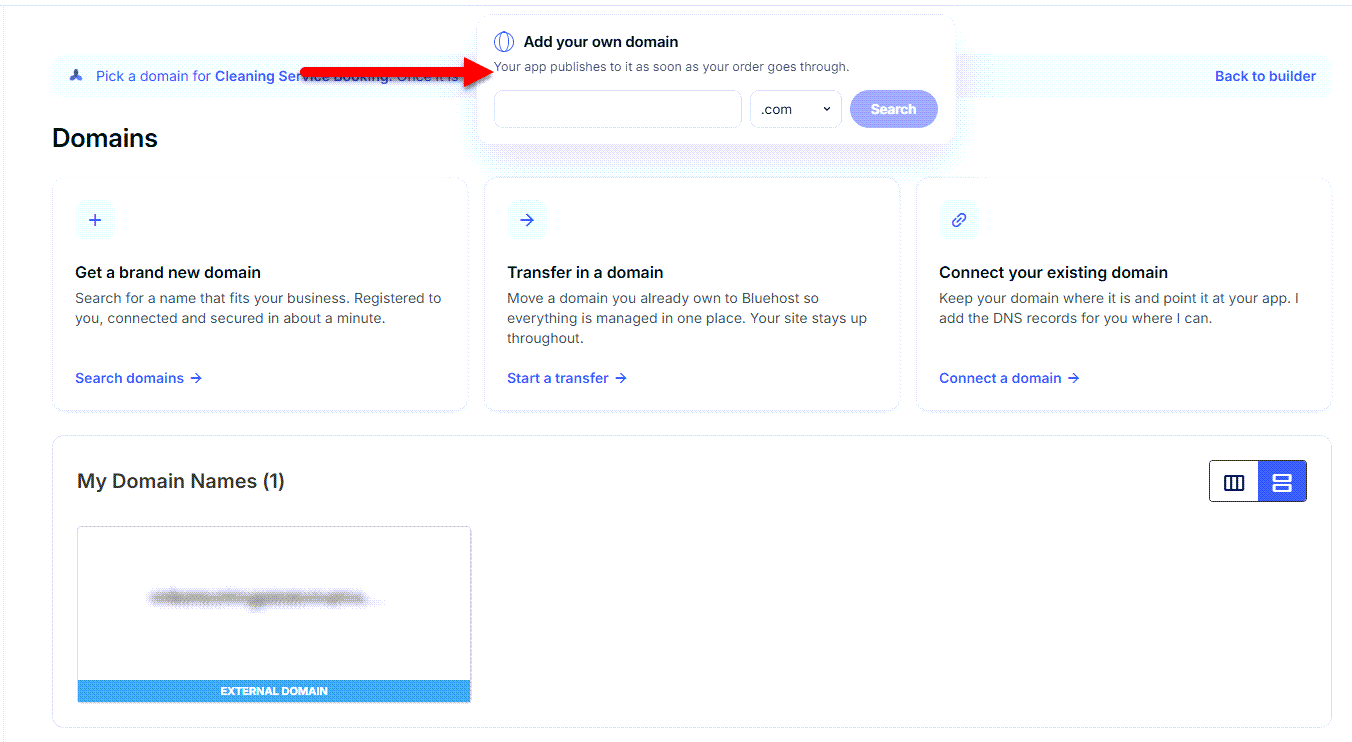
- In the pop-up, enter a domain to check its availability.
- Click Select next to the domain you want to purchase.
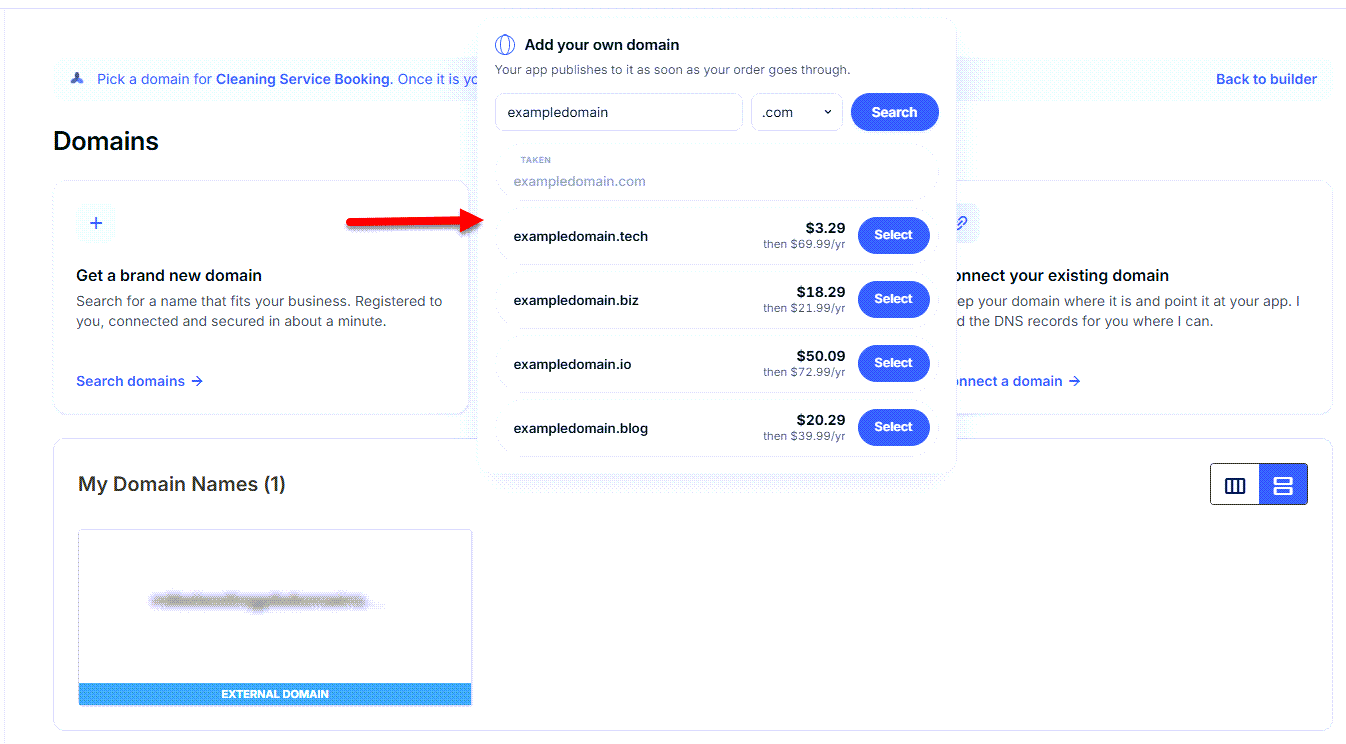
The pricing shown in the image above may change.
- Review your order.
- Add a payment method if needed.
- Click Buy Now to complete your purchase.
After your purchase is complete, your new domain will appear in the Domains tab. It isn't connected to your site or app automatically. To connect it, follow the steps in Connect Your Existing Domain, add the required DNS records to your domain, confirm the Connected status, and then publish.
Note: Buying a domain and connecting it are two separate steps. Your site or app won't load on the new domain until you connect it.
Summary
Learn how to use a domain registered with another provider for your AI Builder site or app. This article explains the difference between connecting and transferring a domain and when a plan upgrade may be required. You'll learn how to connect your domain by adding DNS records at your current provider, verify its status in the Domains tab, and confirm the connection before publishing your site or app. It also covers how to transfer a domain to your Bluehost account and another method of purchasing a new domain directly from the AI Builder, including why a domain you purchase or transfer still needs to be connected before you publish.
If you need further assistance, Bluehost Chat Support is available 24 hours a day, 7days a week while Bluehost Phone Support is available 7 days a week from 7 am-12 midnight EST.
- Chat Support - While on our website, you should see a CHAT bubble in the bottom right-hand corner of the page. Click anywhere on the bubble to begin a chat session.
- Phone Support -
- US: 888-401-4678
- International: +1 801-765-9400
You may also refer to our Knowledge Base articles to help answer common questions and guide you through various setup, configuration, and troubleshooting steps.