 ChatGPT,
  Claude,
  Gemini,
  Grok — all four for
 Bluehost Third-Party Domain Pointer
Entri is Bluehost’s smart solution for effortless external domain management. Designed to simplify connecting domains registered outside Bluehost, Entri provides a secure, automated way to update DNS settings without the hassle of manual configuration. With Entri, you can link your third-party domain to your Bluehost-hosted site in just a few clicks—streamlining setup and reducing downtime.
How to Connect a Domain to Your Website
There are several ways to connect a domain to your website. First, determine whether the domain you are trying to connect to is internal or external.
- Internal Domains: Domains registered directly with Bluehost. These can be domains you purchased under your account or domains registered within Bluehost but managed by another account. Internal domains are fully integrated with Bluehost services, making DNS management and hosting setup seamless.
- External Domains - An external domain is a domain name registered with a provider other than the one you're using for your hosting or hosting-related services, but which you can still use and manage, often by pointing the domain's DNS records to your hosting provider's servers. For instance, if you have a hosting account with us, external domains are those that are not registered with Bluehost. However, you can still point or connect your external domain to Bluehost and use our servers for your hosting needs.
Connect an Existing Domain to Your Account
Connecting a domain name that already exists in your account is simple. You can go through the steps provided in How to Connect a Domain Name from Websites Tab.
Connect a Domain While Creating a New Site
While creating a new website in your Bluehost account, you can connect to your existing domain already during the process. For a fast, beginner-friendly setup, we recommend installing WordPress via the Bluehost Portal.
Recommended Guides:
Connect a Domain with an Existing Site
If you have already created a website with a temporary domain name, you could follow the steps below:
- Log in to your Bluehost Portal.
- In the left-hand menu, click Websites.
- Click the Manage Site button located next to the website you want to manage.

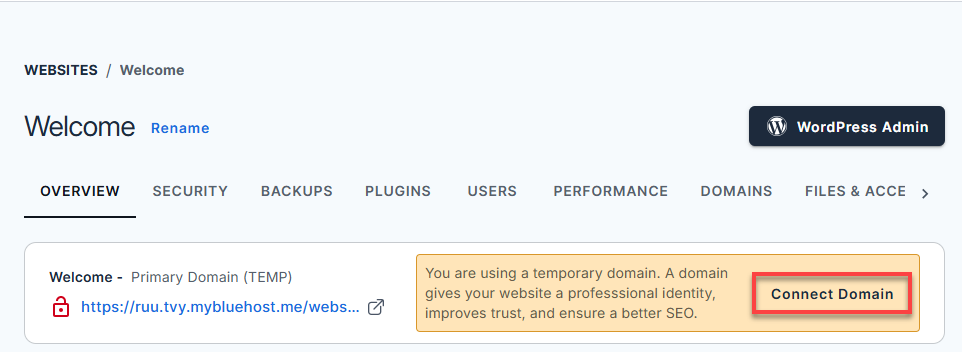
- In the Overview tab, click the Connect Domain button in the yellow alert box.
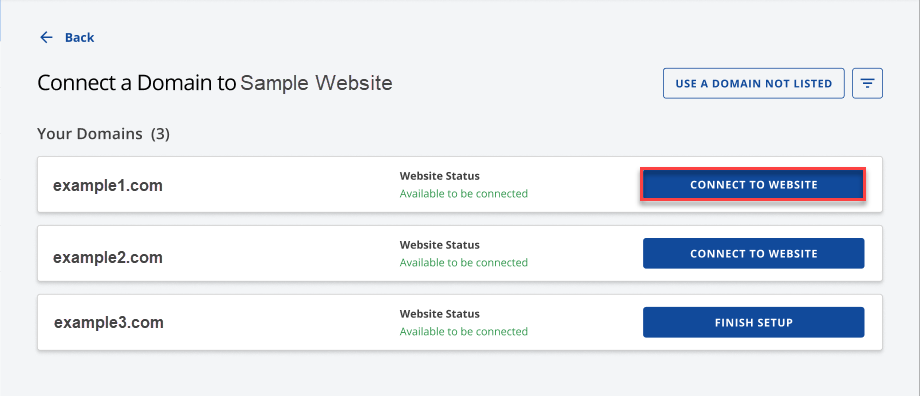
- Choose the domain name you want to use for the website, then click Connect to Website.
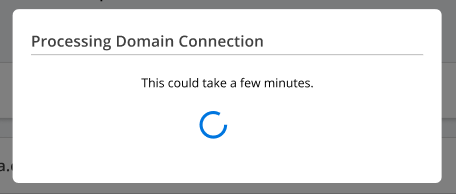
- Our system will try to process the domain connection. A pop-up will appear during the process.
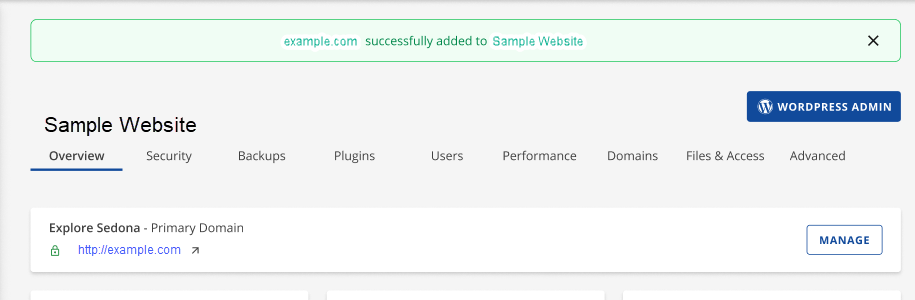
- Once done, a green banner will appear at the top to confirm that the connection is successful.
Connect an External Domain Name Supported by Entri
Connecting an external domain name has never been easier with Entri. This feature is designed only for domains not registered with us and provides a streamlined way to modify DNS via the added external domain process in the Bluehost Portal.
These are the steps on how you can connect your external domain to your website:
- Log in to your Bluehost Portal.
- In the left-hand menu, click Websites.
- Click the Manage Site button located next to the website you want to manage.
- In the Overview tab, click the Connect Domain button in the yellow alert box.
- Click Use a Domain Not Listed at the top to continue.
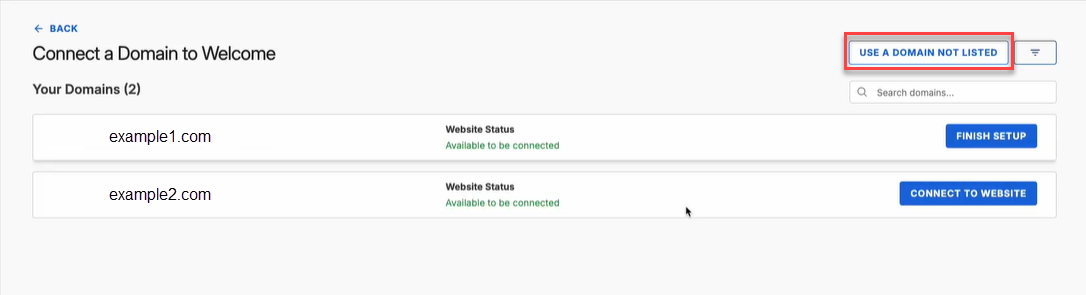
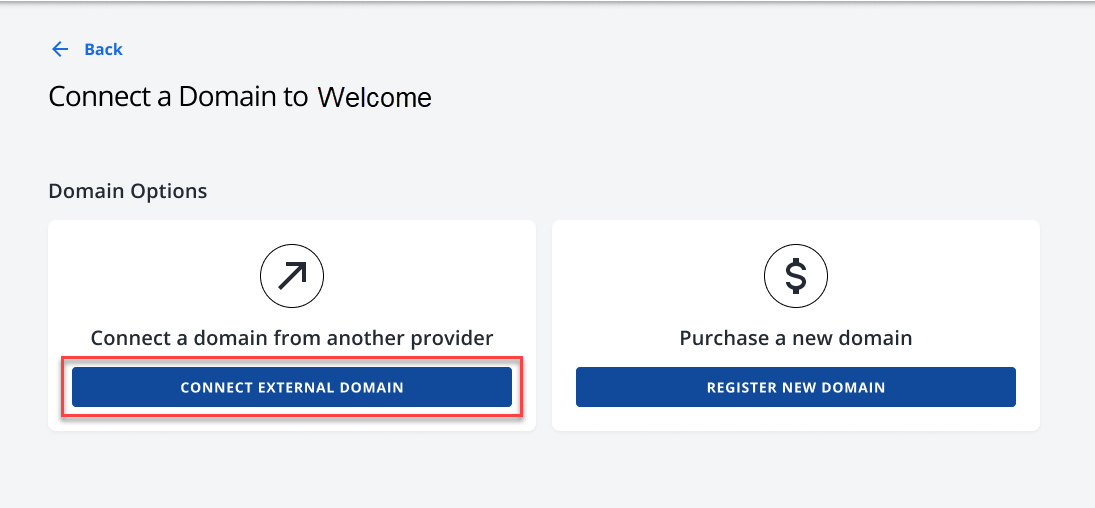
- Select Connect External Domain to continue.
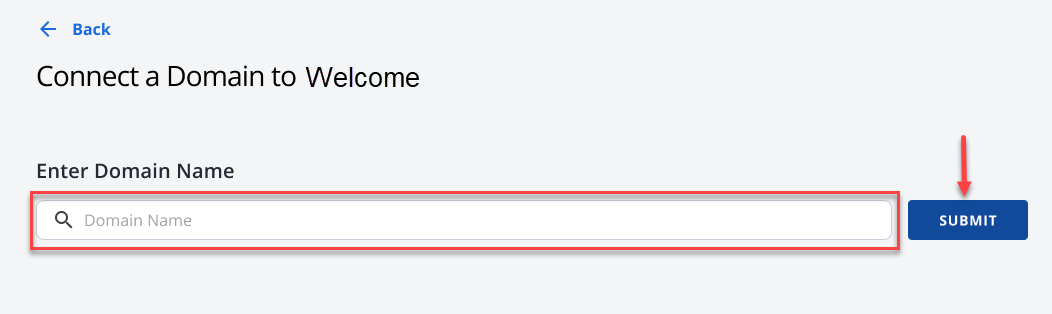
- Enter the external domain you want to use in the given text field and hit Submit.
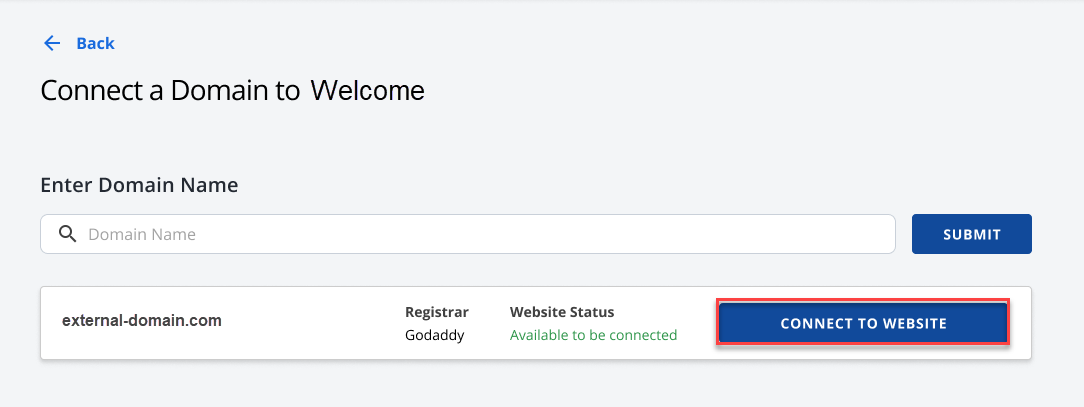
- Once you hit Submit, the external domain will appear below the text field with its Registrar and Website Status. Just hit Connect to Website at this point.
- Our system will try to process the domain connection. A pop-up will appear during the process.
- If you encounter an error with processing the domain connection, click the Try connecting domain button.
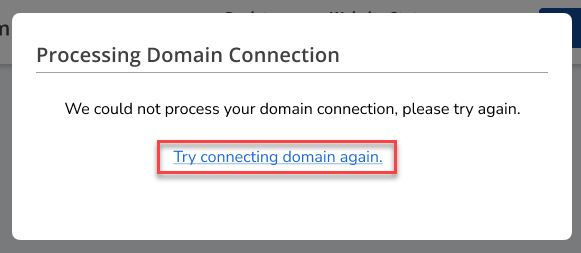
- If you encounter an error with processing the domain connection, click the Try connecting domain button.
- Once the domain connection is processed, you will be asked whether any services are currently connected to the domain.
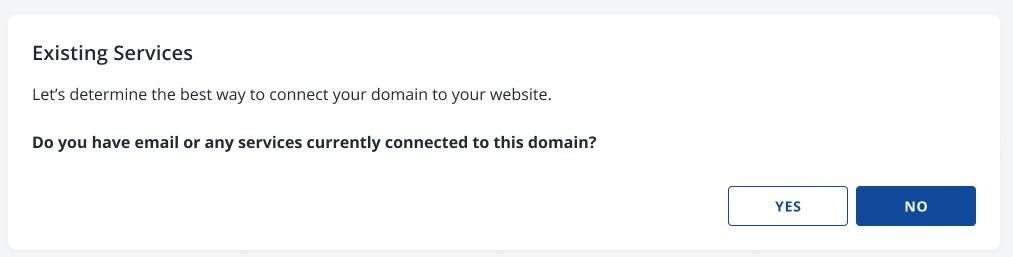
- If you choose YES, a warning will appear informing you that updating your DNS settings will overwrite all existing DNS records and may interrupt your services. If you wish to proceed, click on Continue.

- If you choose YES, a warning will appear informing you that updating your DNS settings will overwrite all existing DNS records and may interrupt your services. If you wish to proceed, click on Continue.
- If Entri supports the external domain name, you will see the image below before clicking Continue.
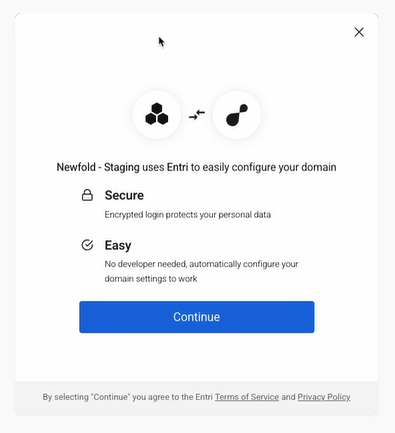
- Once you hit Continue, Entri will analyze the external domain name you're setting up.
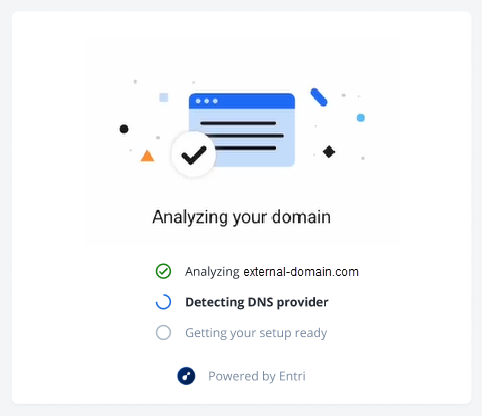
- Once you hit Continue, Entri will analyze the external domain name you're setting up.
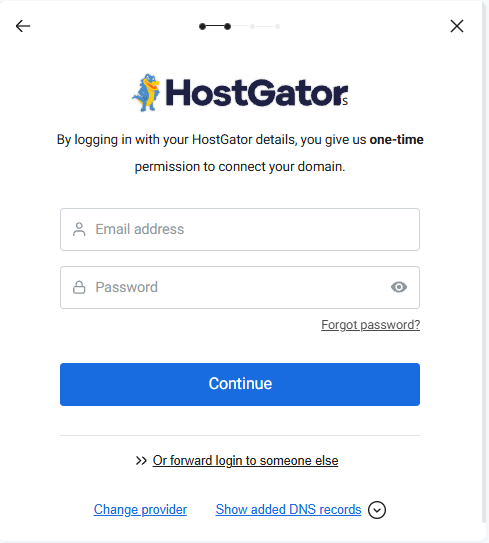
- A prompt will appear for you to log in to your account where the external domain is registered. Type your Username and password in the given text field and hit Continue.
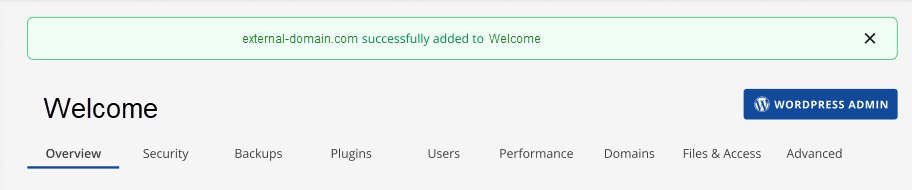
- Once the external domain is authenticated, you will see a confirmation banner at the top.
Connect an External Domain Name Not Supported by Entri
- Log in to your Bluehost Portal.
- In the left-hand menu, click Websites.
- Click the Manage Site button located next to the website you want to manage.
- In the Overview tab, click the Connect Domain button in the yellow alert box.
- Click Use a Domain Not Listed at the top to continue.
- Select Connect External Domain to continue.
- Enter the external domain you want to use in the given text field and hit Submit.
- Once you hit Submit, the external domain will appear below the text field with its Registrar and Website Status. Just hit Connect to Website at this point.
- Our system will try to process the domain connection. A pop-up will appear during the process.
- If you encounter an error with processing the domain connection, click the Try connecting domain button.
- If you encounter an error with processing the domain connection, click the Try connecting domain button.
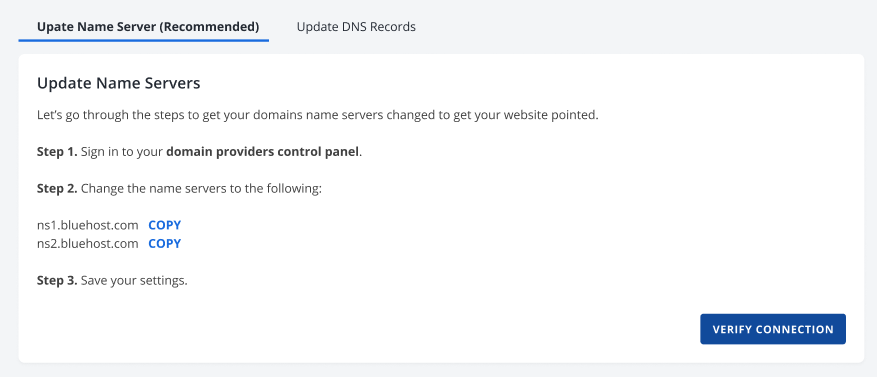
- If Entri does not support the external domain name, you will have to manually update your Nameservers and DNS records with your current registrar.
- Once updated, click Verify Connection below to complete the process.
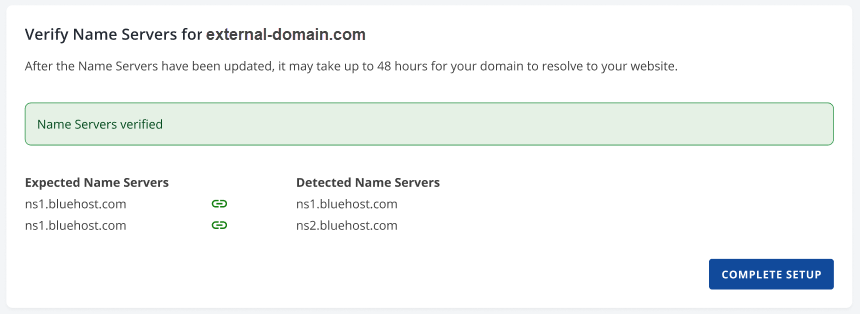
- You will see a green confirmation banner once the Name Servers and DNS records are verified. Click Complete Setup to finish the process.
Connect a New Domain Name
- Log in to your Bluehost Portal.
- In the left-hand menu, click Websites.
- Click the Manage Site button located next to the website you want to manage.
- In the Overview tab, click the Connect Domain button in the yellow alert box.
- Click Use a Domain Not Listed at the top to continue.
- Select Register New Domain to continue.
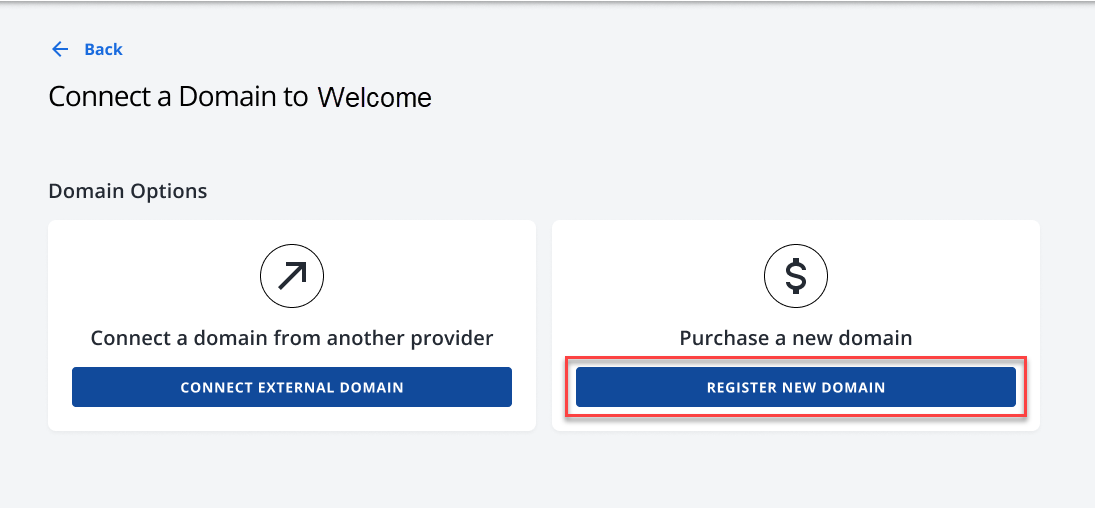
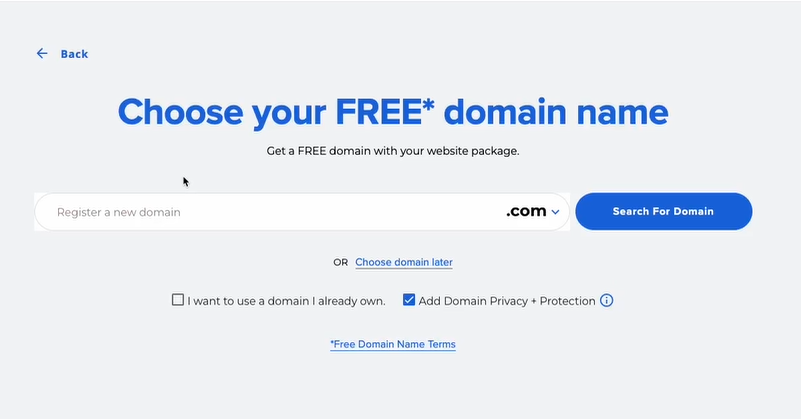
- You’ll be redirected to register a new domain name. Type the domain you want in the text field provided and complete the process.
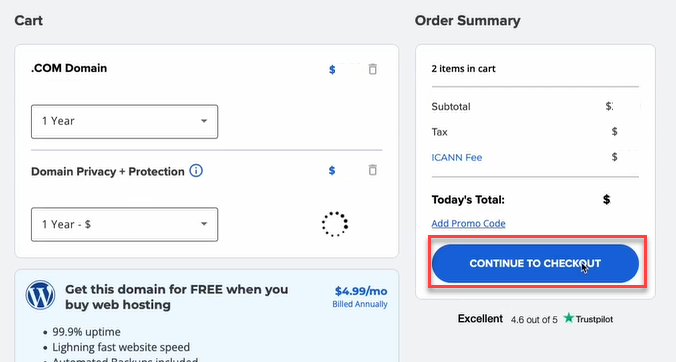
- Make sure to review your purchase before clicking the Checkout button.
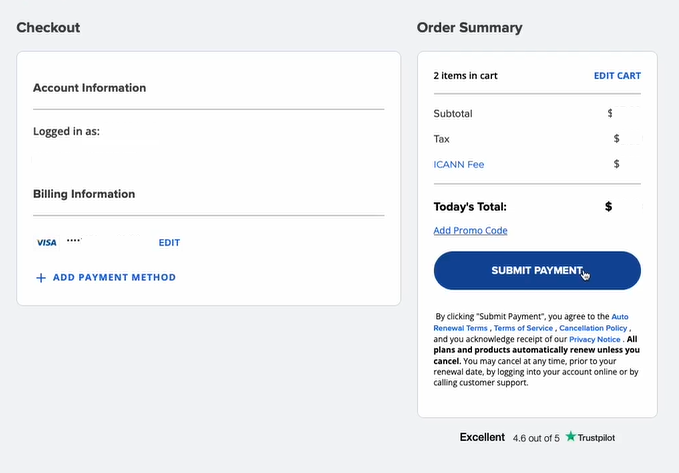
- Review your order one last time, then click Submit Payment.
Summary
Entri removes the complexity of managing external domains with a guided, automated connection process. Whether your domain supports direct integration or requires manual updates, Entri ensures a smooth experience with clear prompts and secure authentication. From DNS adjustments to domain verification, Entri empowers Bluehost users to connect and manage domains quickly, confidently, and without technical headaches.
If you need further assistance, Bluehost Chat Support is available 24 hours a day, 7days a week while Bluehost Phone Support is available 7 days a week from 7 am-12 midnight EST.
- Chat Support - While on our website, you should see a CHAT bubble in the bottom right-hand corner of the page. Click anywhere on the bubble to begin a chat session.
- Phone Support -
- US: 888-401-4678
- International: +1 801-765-9400
You may also refer to our Knowledge Base articles to help answer common questions and guide you through various setup, configuration, and troubleshooting steps.