 ChatGPT,
 Claude,
 Gemini,
 Grok — all four for
Bluehost AI Builder: How to Start a Builder Plan
Bluehost AI Builder lets you create a website or web app by describing your idea in plain language. It builds your site or app from your prompt. You can then customize it and publish it for free on an automatically generated Bluehost AI Builder address (ending in .app.bluehost.ai). No credit card is required.
Important: The AI Builder Free plan has no end date and doesn't require a card. It includes a limited number of credits (5 per day and 30 per 30-day period) for creating and changing your site or app. To get more credits, buy a credit top-up or upgrade to a paid AI Builder plan. To connect your own domain, upgrade to a paid plan. Inactive free workspaces are subject to the Bluehost Terms of Service.
Start Your Builder Plan
- In your browser, go to https://www.bluehost.com/.
- Click the Build tab in the top menu, then select AI Builder.
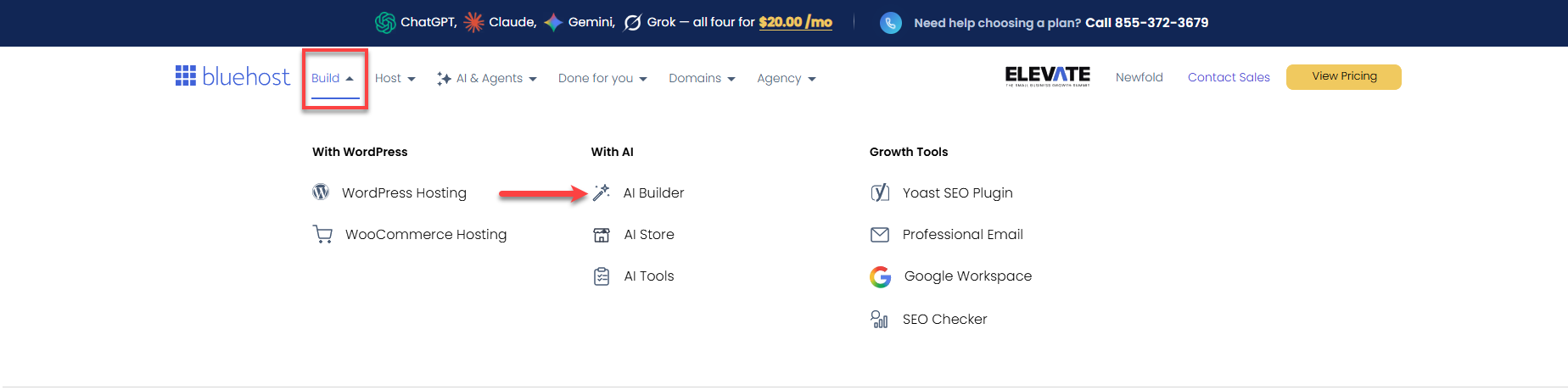
You can also go directly to:
- In the Describe it in your own words prompt field, describe the website or app you want Bluehost AI Builder to create.
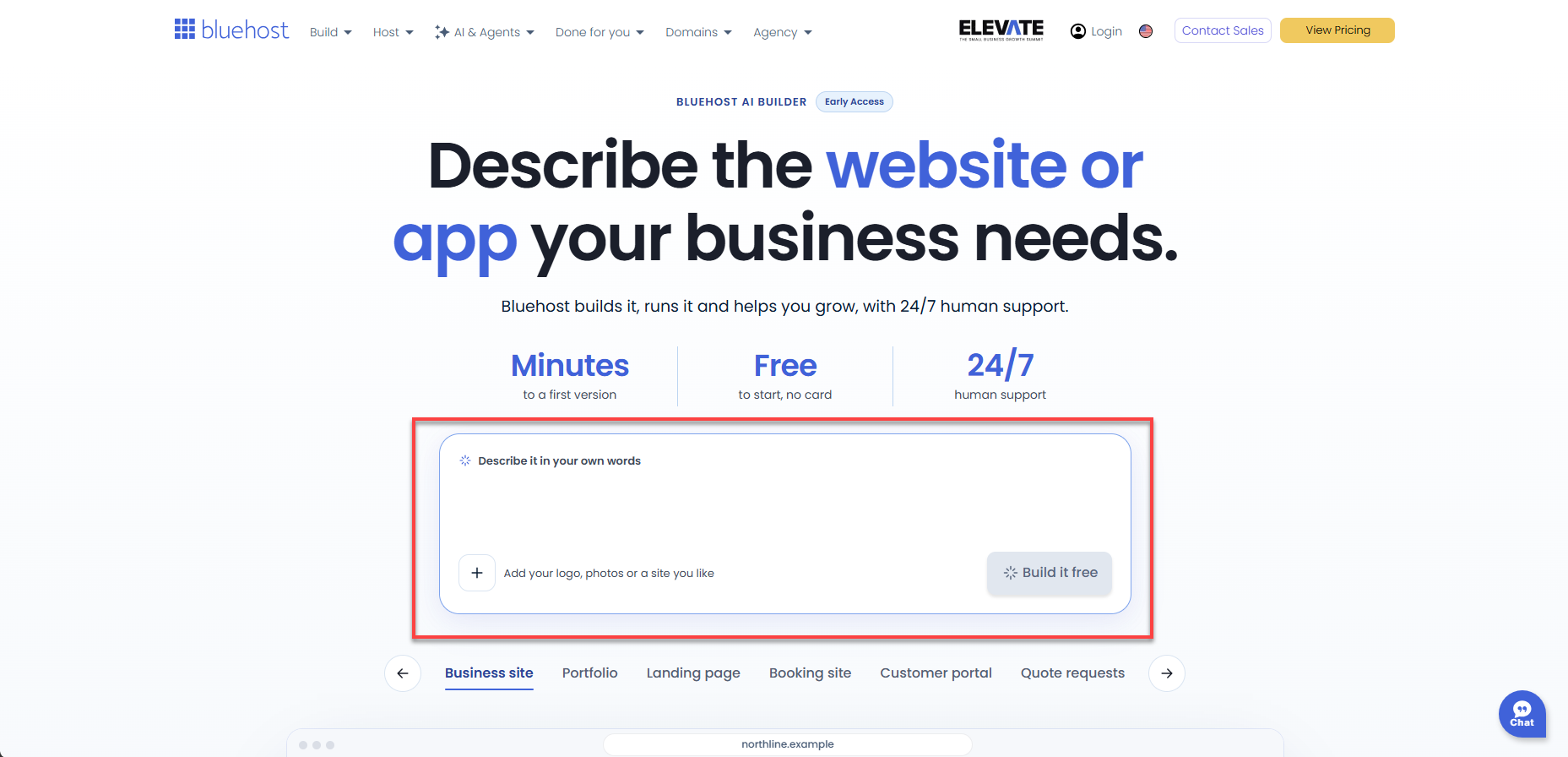
For best results, include details about:
- Whether you want a website, a web app, or both
- Your business, service, or project
- Your target audience
- Pages or features you want to include
- Any design preferences
Sample Prompts
Website: Create a website for my landscaping business with a home page, a services page, customer reviews, and a contact form.
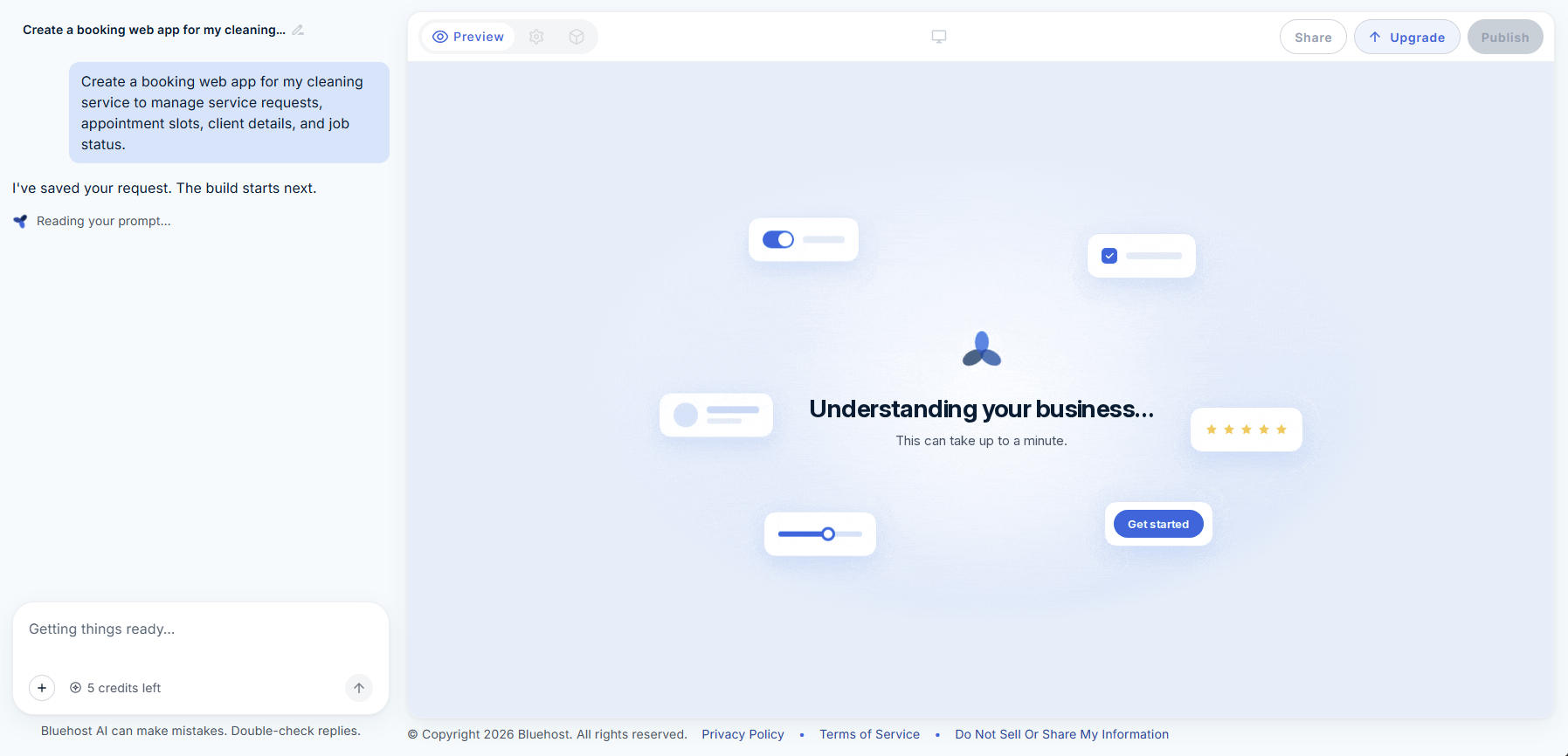
Web app: Create a booking web app for my cleaning service to manage service requests, appointment slots, client details, and job status.
- (Optional) Click the Add (+) icon, then choose an option:
- Add your logo or photos to upload images that Bluehost AI Builder builds around.
- Show us a site you like to share a website as a design reference.
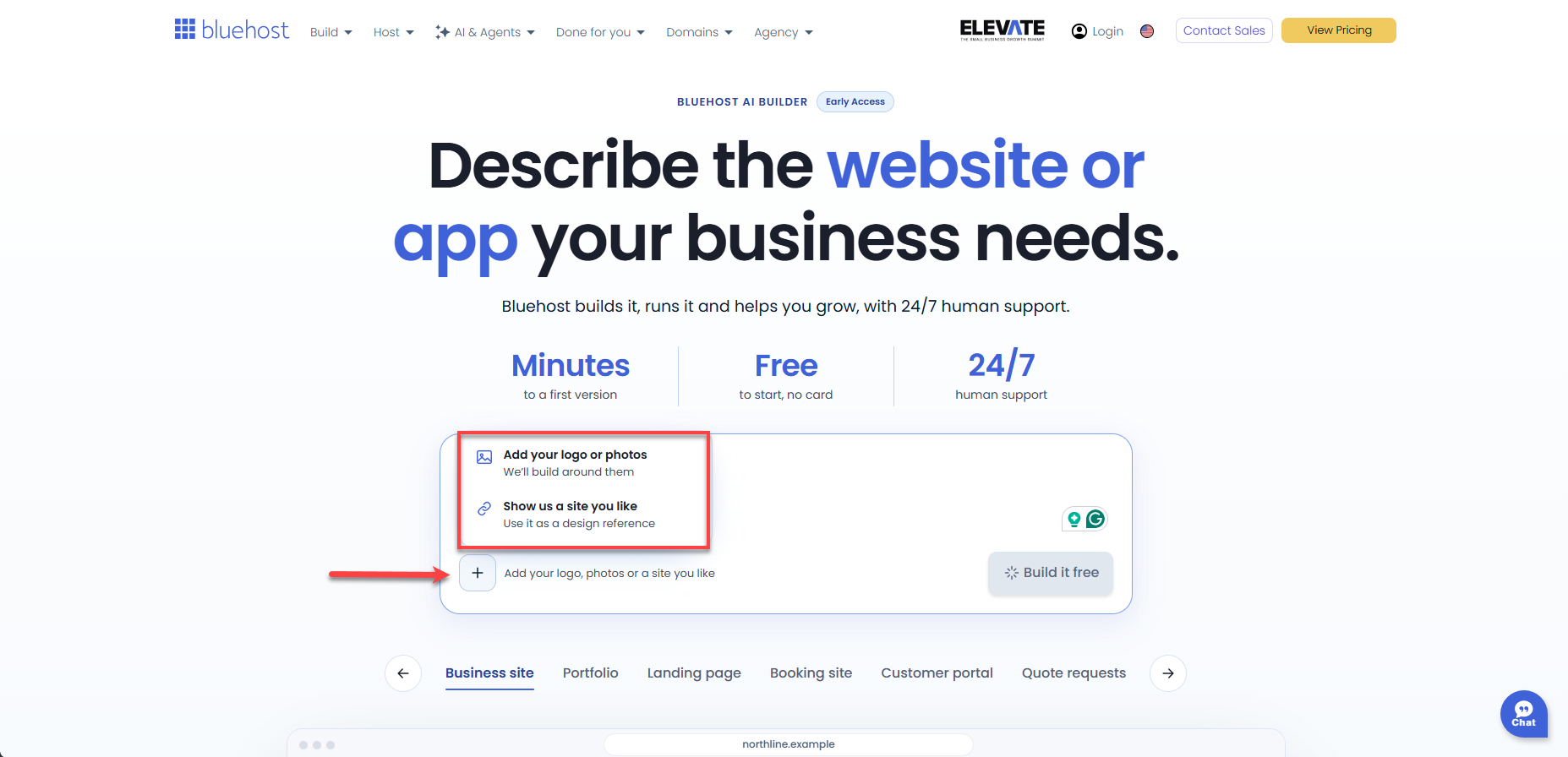
Important: You can upload images, such as photos, logos, and screenshots, and documents. File types, size limits, and upload restrictions may change. For current limits, visit the Bluehost AI Builder page.
Tip: If you have an existing website, choose Show us a site you like to use it as a design reference. Bluehost AI Builder doesn’t import existing sites directly.
- Click Build it free.
Create or Sign In to Your Account
After you click Build it free, you’ll be prompted to save your project by creating an account or signing in to an existing Bluehost account.
Option 1: Sign Up for a New Account
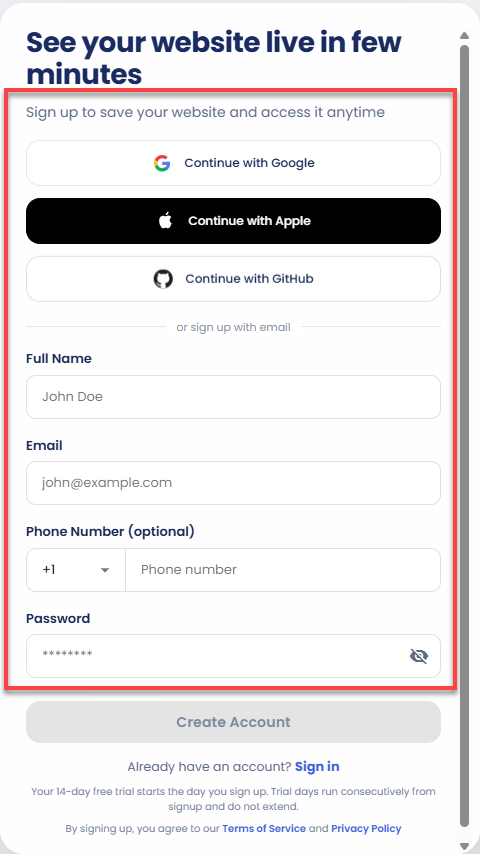
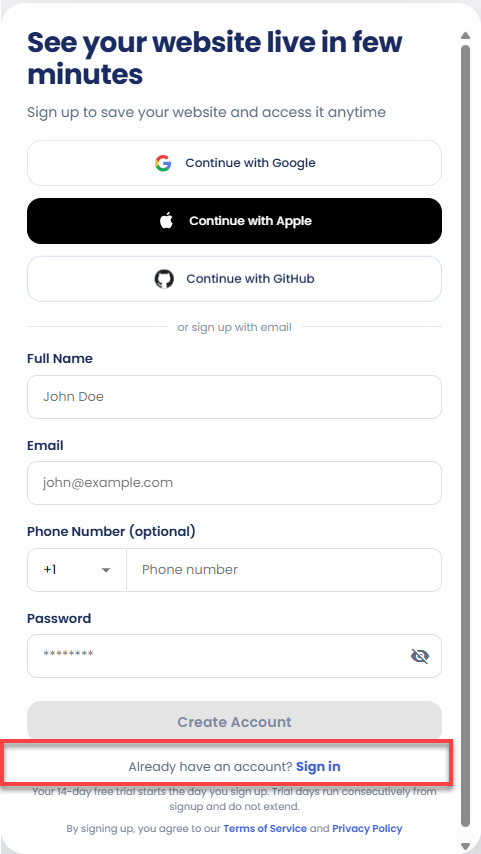
You can create an account using Continue with Google, Continue with Apple, or Sign up with email.
To sign up with email:
- Enter your Full Name.
- Enter your Email.
- (Optional) Enter your Phone Number.
- Create a Password.
- Click Create Account.
Important: By creating an account, you agree to the Bluehost Terms of Service and Privacy Policy.
Option 2: Sign In to an Existing Bluehost Account
If you already have a Bluehost account:
- Click Sign in below the Create Account button.
- Choose Continue with Google, Continue with Apple, or Sign in with email. If signing in with email:
- Enter your Email Address.
- Enter your Password.
- Click Sign In.
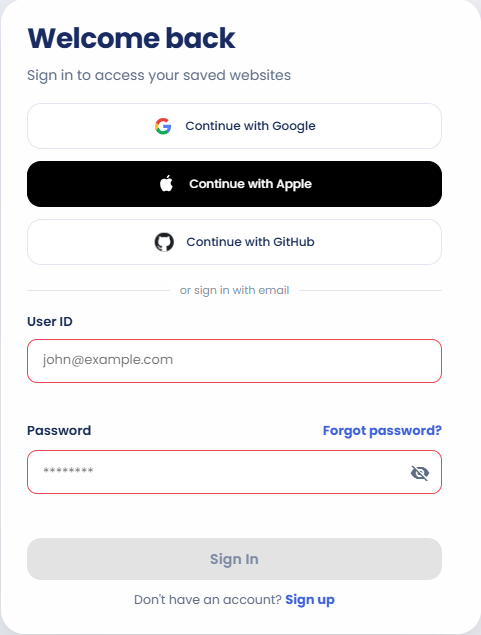
Tip: If you don’t remember your password, click Forgot password? and follow the prompts to reset it.
After you sign in or create an account, you're redirected to the Bluehost AI Builder editor, and your build starts.
Continue Exploring on the Free Plan
The AI Builder Free plan has no end date and doesn't require a card. You can create, customize, and publish websites and apps on a Bluehost AI Builder address using the credits included with your plan.
Each message that creates or changes your site or app uses 1 credit, regardless of length. Messages that don’t change your site or app, such as questions or asking Bluehost AI Builder to explain something, don’t use credits. To prevent abuse, these free messages are limited.
If you use all your credits, your published site or app stays online. Only new changes pause. To keep making changes, wait for your credits to refresh, buy a credit top-up, or upgrade to a paid plan. Top-up credits expire 30 days after purchase and are used after your plan credits.
To connect your own domain or get more monthly credits, upgrade to a paid AI Builder plan.
Note: For current Bluehost AI Builder plans, pricing, and credit limits, visit the Bluehost AI Builder page.
Frequently Asked Questions
Q: Can I publish on the free plan?
A: Yes. You can publish on a free, automatically generated Bluehost AI Builder address (ending in .app.bluehost.ai). Your free address can't be changed, and it isn't indexed by search engines. A paid plan is required only to connect your own domain.
Q: How many sites or apps can I create?
A: There's no limit on the number of sites and apps you can create on any plan, including the AI Builder Free plan, as long as you have credits available. You can publish them on free Bluehost AI Builder addresses (ending in .app.bluehost.ai). To connect a site or app to your own domain, you need a paid plan. Each one needs its own domain, which you can buy separately or connect if you already own one. Usage is also subject to limits that prevent abuse.
Q: Does the free plan include unlimited credits?
A: No. The AI Builder Free plan includes 5 credits per day and 30 credits per 30-day period. Daily credits reset at 00:00 UTC. The 30-credit limit resets every 30 days, counted from your signup date, not the calendar month. If you need more, buy a credit top-up or upgrade to a paid plan.
Q: What do the paid plans include?
A: Paid plans remove the daily credit limit, include more monthly credits, and let you connect your own domain. Your credits refill as soon as you upgrade. You can pay monthly or for a 12-month term.
| Plan | AI credits per month |
|---|---|
| AI Builder Lite | 100 |
| AI Builder Standard | 200 |
| AI Builder Pro | 400 |
For current pricing, visit the Bluehost AI Builder page.
Q: What uses a credit?
A: Each message that creates or changes your site or app uses exactly 1 credit, regardless of length. Your first build uses 1 credit. Answering the questions Bluehost AI Builder asks before it builds doesn't use extra credits.
These don’t use credits:
- Questions that don’t change your site or app
- Publishing or sharing your site or app
- Hosting your published site or app
- Answering the questions Bluehost AI Builder asks before your first build
Files you attach are part of the message you send them with and don’t use extra credits.
Q: What happens if I run out of credits?
A: Building pauses, but your published site or app stays online. Building pauses only when both your plan credits and any top-up credits are used up. To make more changes, wait for your credits to refresh, buy a credit top-up, or upgrade.
Q: Do unused credits roll over?
A: No. Unused credits don’t roll over to the next billing or usage period.
Q: Can I buy credits without upgrading to a paid plan?
A: Yes. You can buy a one-time credit top-up at any time, in packs of 50, 100, or 200 credits, or enter a custom amount from 50 to 10,000 credits. Top-up credits expire 30 days after purchase and are used after your plan credits. A top-up adds credits only. To connect your own domain, upgrade to a paid plan.
For current top-up pricing, visit the Bluehost AI Builder page.
Q: What happens if a build fails?
A: A build that fails or ends in an error still uses 1 credit. If this happens, contact Support, who can review it. Builds that take longer than usual don't cost extra.
Q: What happens if I stop using my free workspace?
A: Inactive free workspaces are subject to the inactivity terms in the Bluehost Terms of Service.
Summary
Bluehost AI Builder lets you create a website or web app by describing your idea in a prompt. On the AI Builder Free plan, you can build, customize, and publish on a free Bluehost AI Builder address. Buy credit top-ups when you need more credits, or upgrade to a paid AI Builder plan to connect your own domain and get more monthly credits.
If you need further assistance, Bluehost Chat Support is available 24 hours a day, 7days a week while Bluehost Phone Support is available 7 days a week from 7 am-12 midnight EST.
- Chat Support - While on our website, you should see a CHAT bubble in the bottom right-hand corner of the page. Click anywhere on the bubble to begin a chat session.
- Phone Support -
- US: 888-401-4678
- International: +1 801-765-9400
You may also refer to our Knowledge Base articles to help answer common questions and guide you through various setup, configuration, and troubleshooting steps.