 ChatGPT,
  Claude,
  Gemini,
  Grok — all four for
Bluehost AI Store: Dashboard KPIs Explained
The Dashboard is your Bluehost AI Store control center, providing a real-time snapshot of your store's performance, inventory, and setup progress. From a single screen, you can monitor sales, track orders, manage inventory, and quickly access common store management tools.
This article explains the key sections of the Bluehost AI Store Dashboard and how they can help you manage your online business more efficiently.
We've also created a short video to understand the key metrics in your Bluehost AI Store:
Accessing the Dashboard
- Log in to your Bluehost Portal.
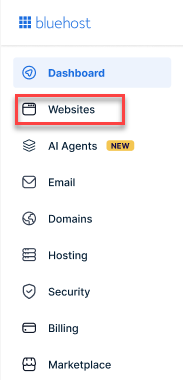
- From the left-hand menu, click the Websites tab.
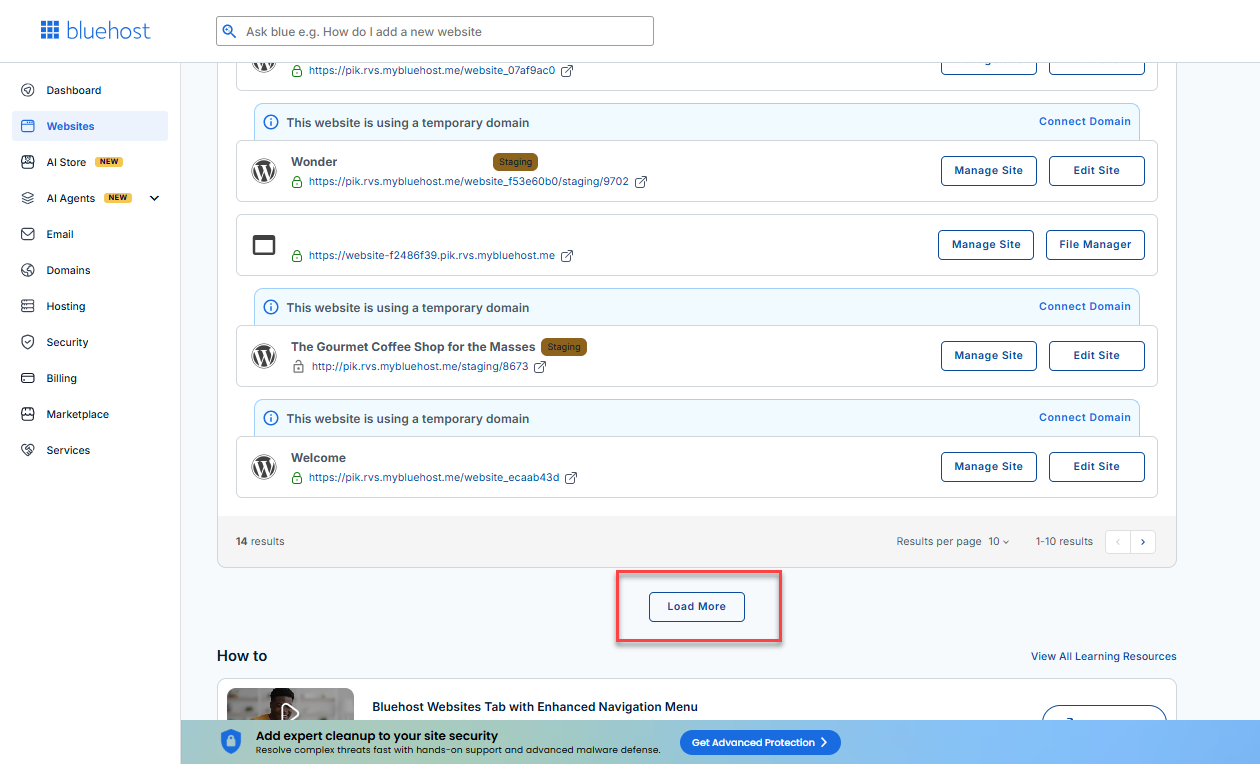
- Locate your Sell Online plan. If you have multiple websites, you need to scroll down and click the Load More link.
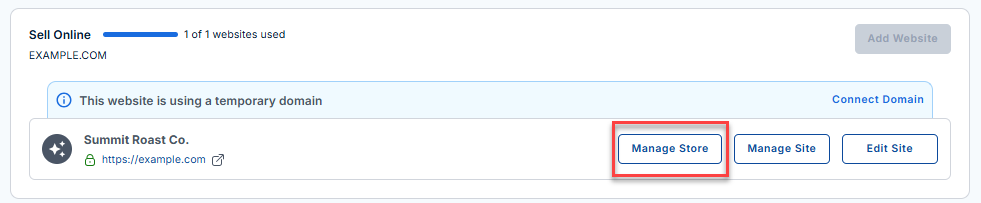
- Click the Manage Store button next to your site.
- You will be redirected to your Bluehost AI Store Dashboard.
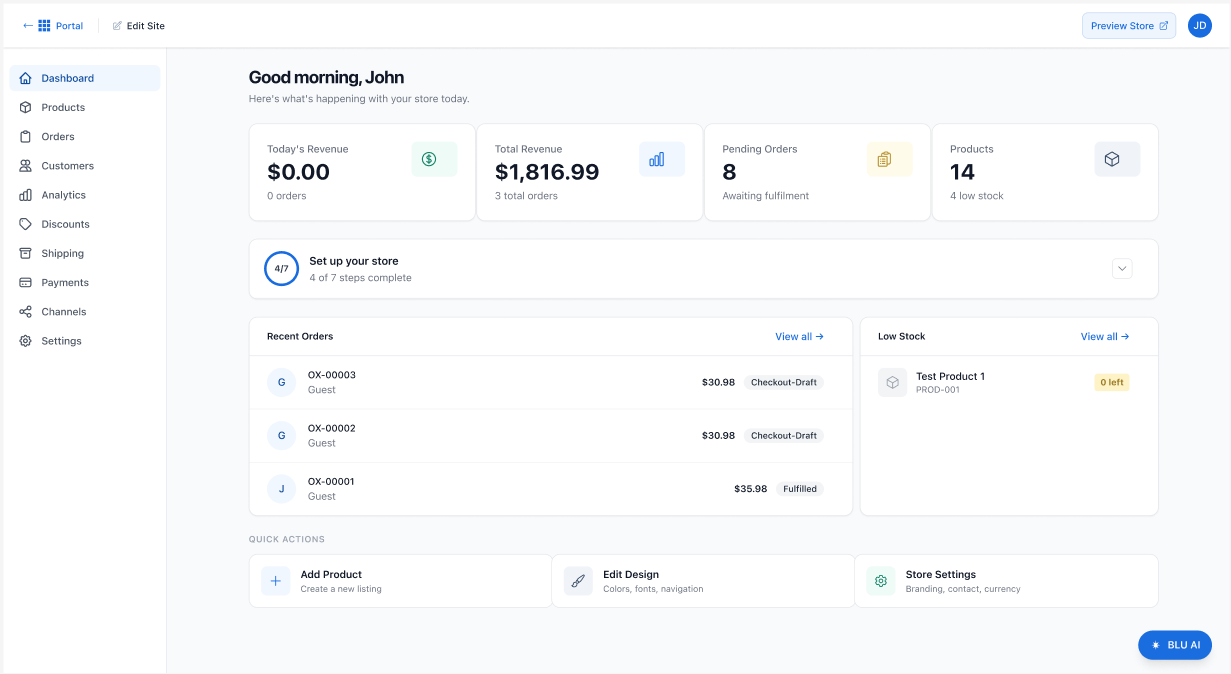
The dashboard displays your store metrics, pending tasks, recent activity, and quick-action shortcuts.
Dashboard Metrics
At the top of the dashboard, you'll find several performance indicators that provide an overview of your store's current status.
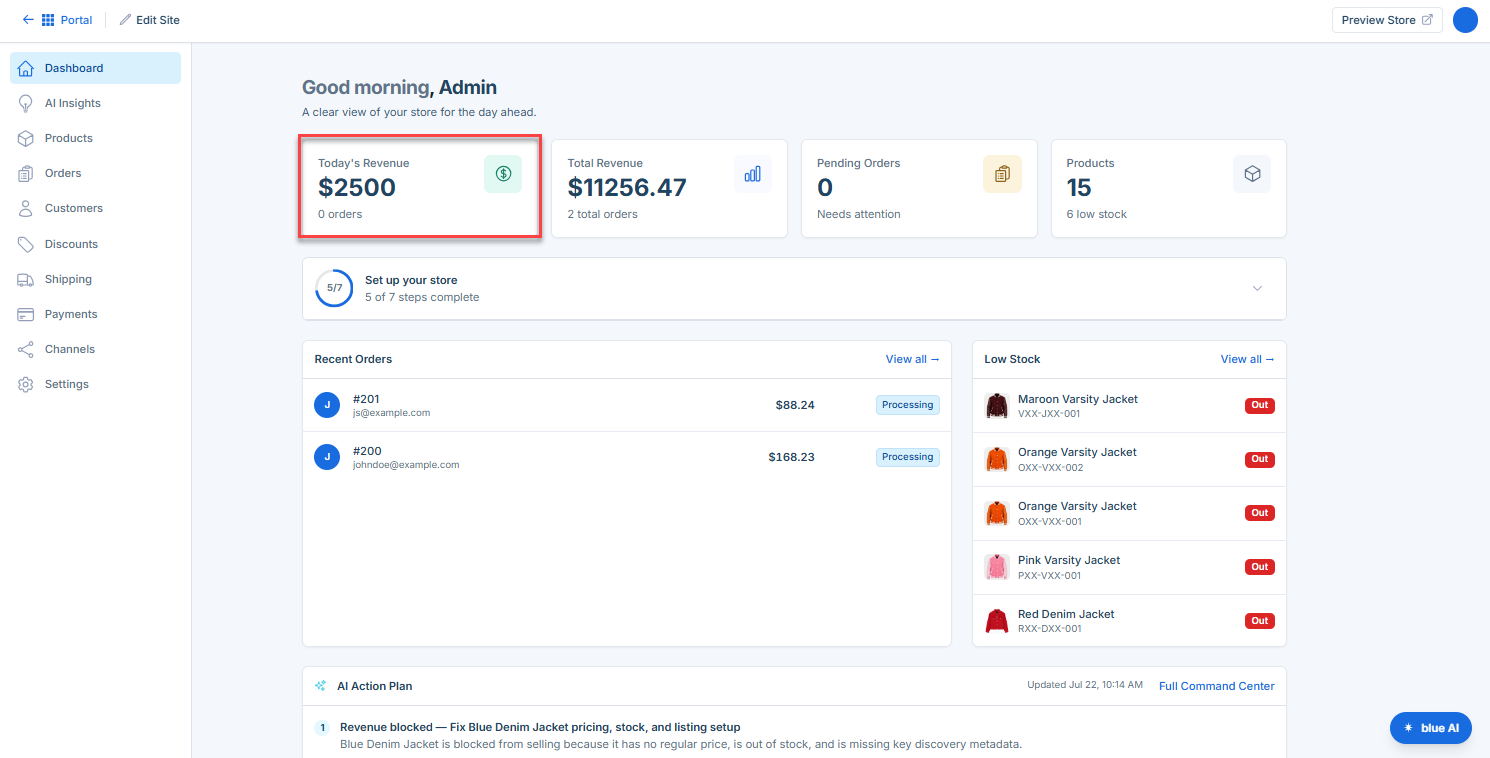
Today's Revenue
Today's Revenue displays the total revenue generated from completed orders during the current day.
- Monitor daily sales performance
- Measure the effectiveness of promotions and campaigns
- Track revenue trends in real time
Example: If your store receives two orders totaling $100 today, Today's Revenue will display $100.
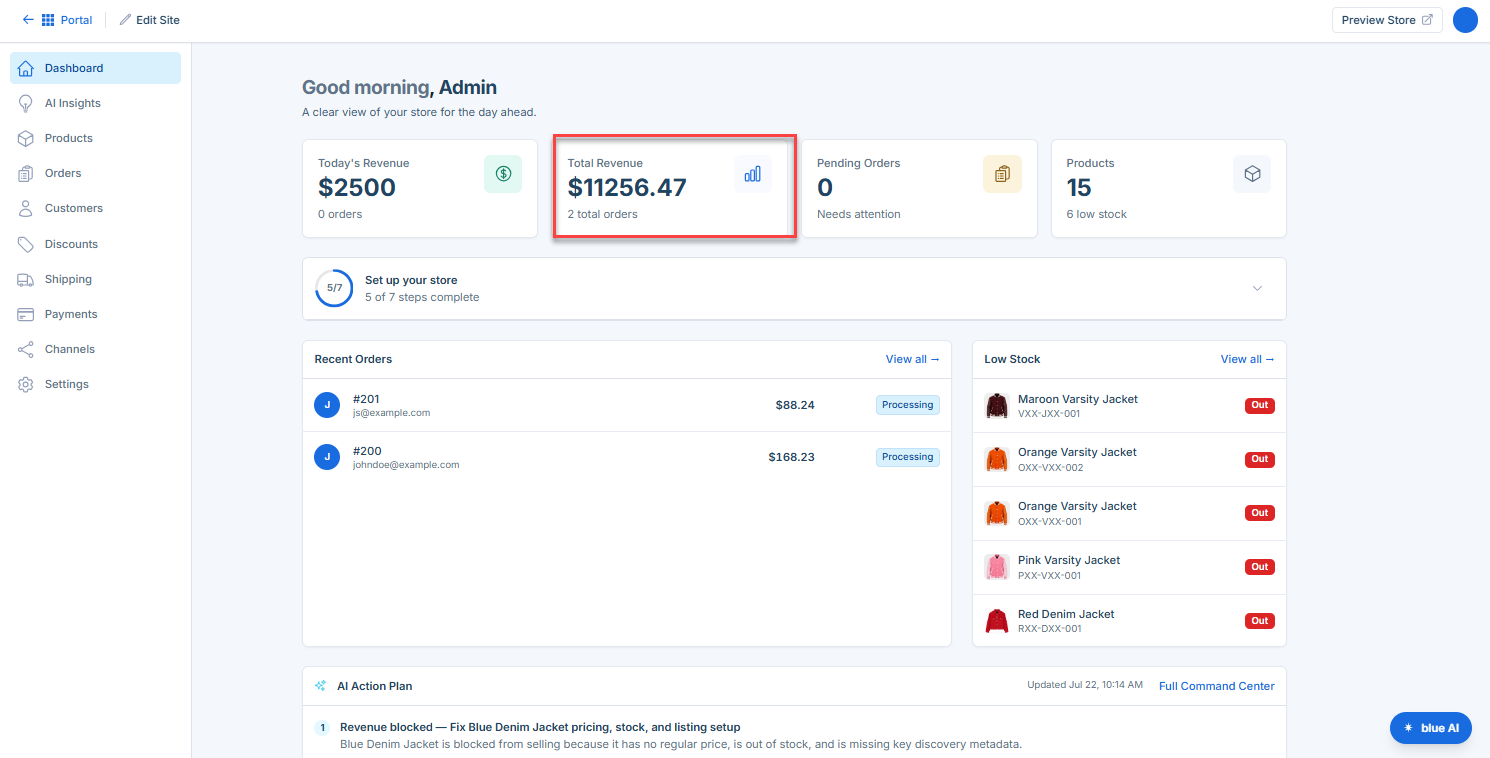
Total Revenue
Total Revenue represents the cumulative revenue your store has generated from completed orders.
- Measure overall store growth
- Track long-term sales performance
- Monitor revenue milestones
The dashboard may also display the total number of orders contributing to this amount.
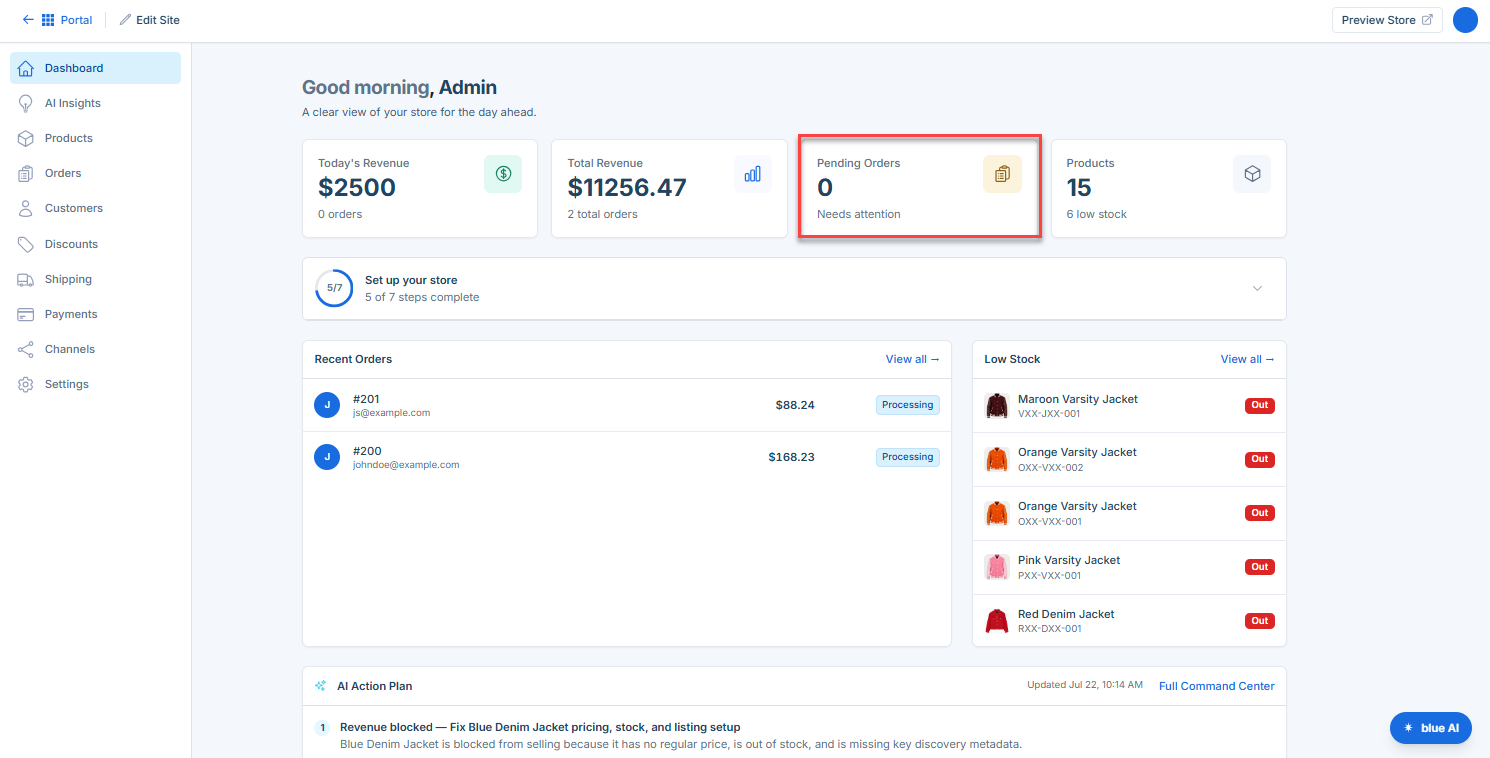
Pending Orders
Pending Orders shows the number of orders awaiting fulfillment, processing, or shipment.
- Identify orders that require action
- Prioritize fulfillment tasks
- Improve order processing efficiency
To view and manage pending orders, click Orders from the navigation menu.
Products and Low Stock Alerts
The Products card displays the total number of products currently available in your catalog.
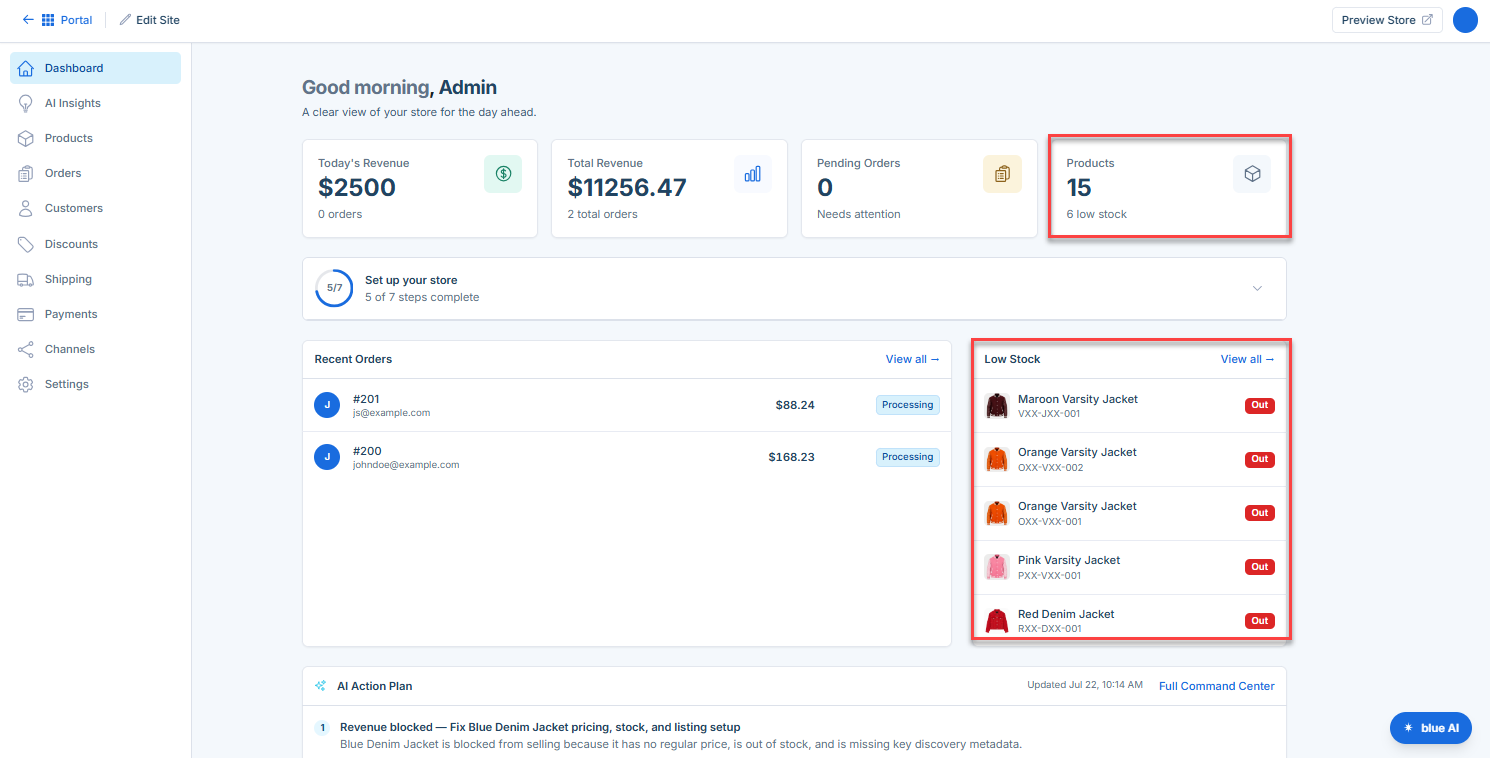
When applicable, the card also highlights products that have reached low inventory levels.
- Prevent inventory shortages
- Restock products before they sell out
- Maintain product availability for customers
Pending Store Setup
The Set Up Your Store section tracks your store setup progress.
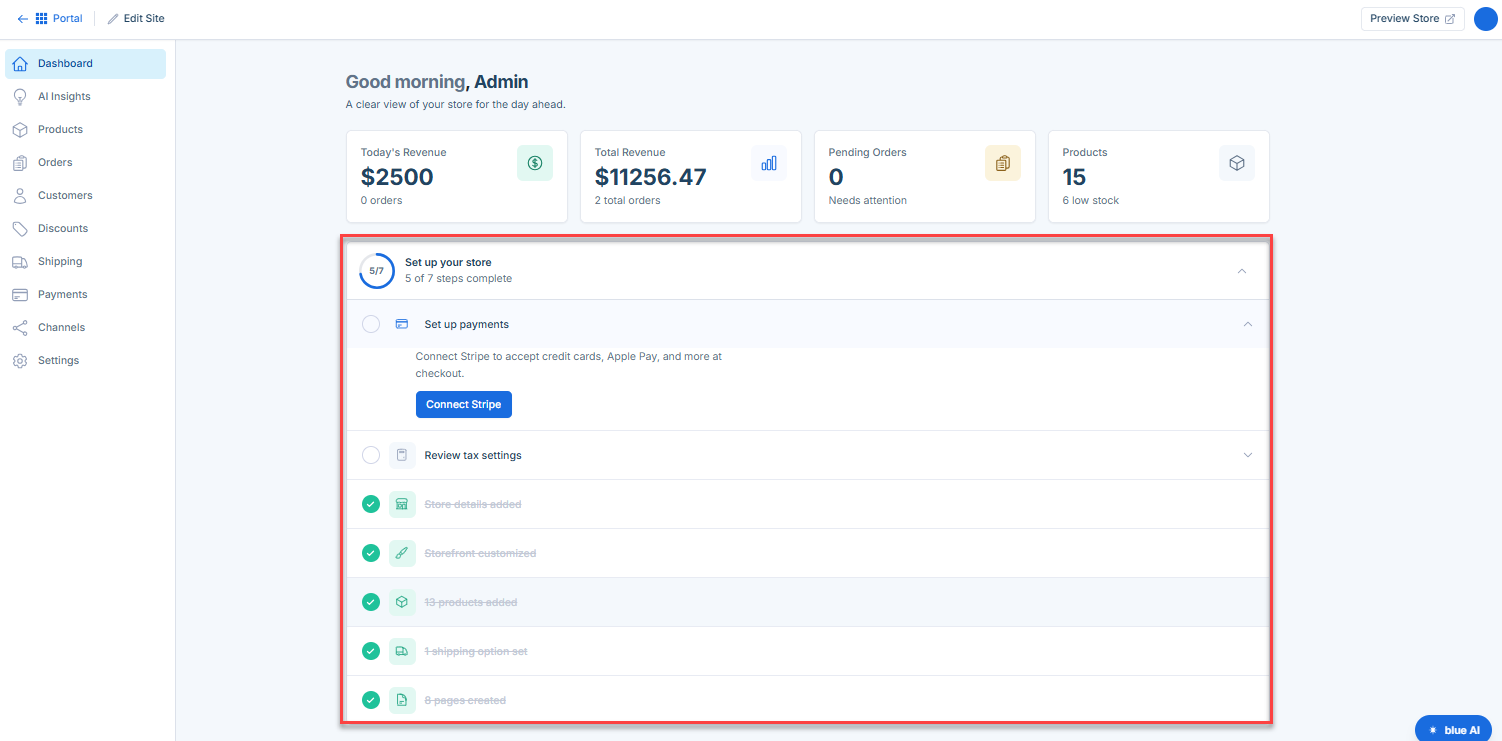
A progress indicator displays how many setup steps have been completed and identifies any remaining tasks required before your store is fully configured.
- Adding products
- Configuring store settings
- Setting up payment methods
- Configuring shipping options
- Updating branding and business details
Completing all setup steps helps ensure your store is ready to accept and process orders.
Recent Orders
The Recent Orders section provides a quick view of your latest customer orders.
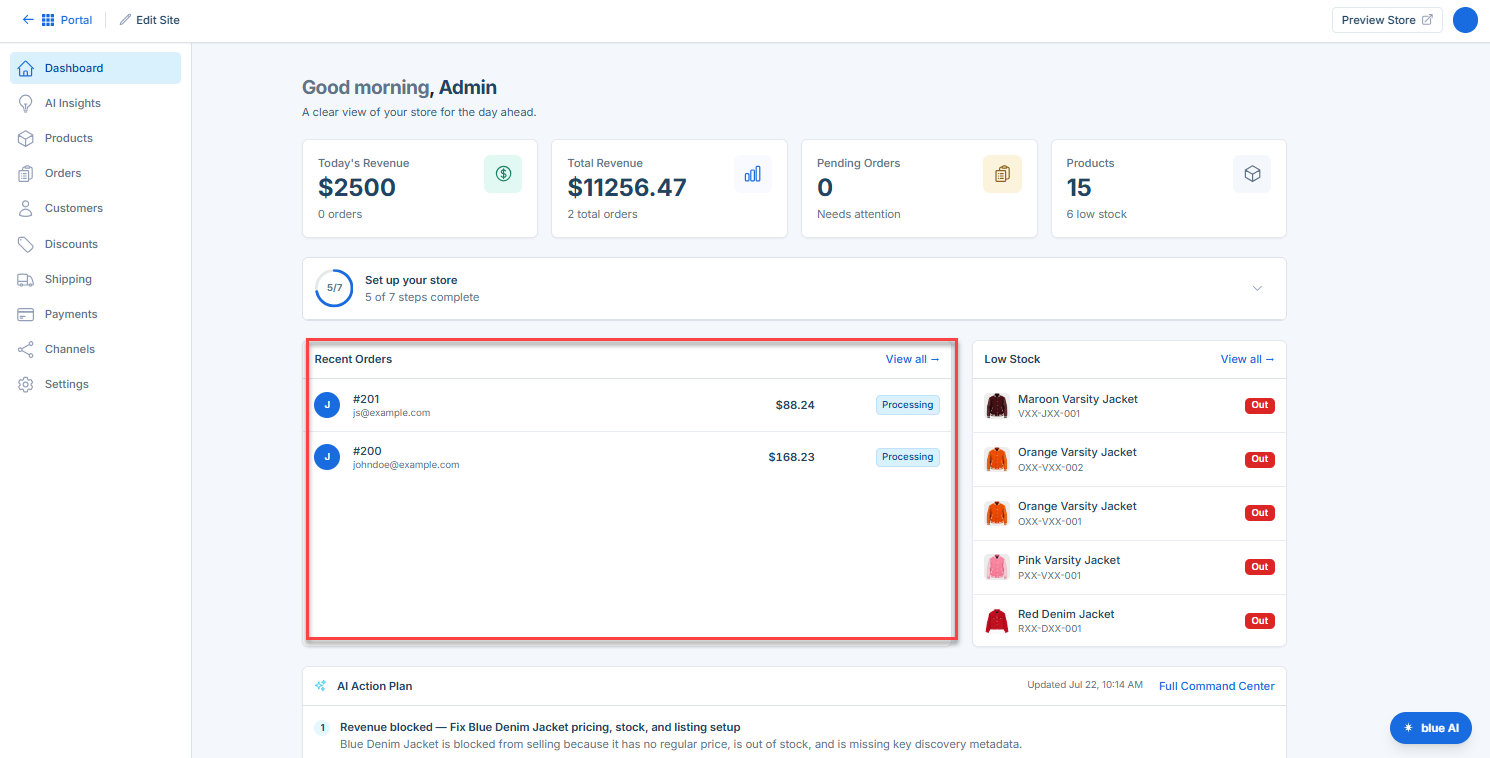
For each order, you can typically see:
- Order number
- Customer name
- Order amount
- Order status
Common order statuses include:
- Draft
- Pending
- Processing
- Fulfilled
- Completed
Click View All to open the full Orders page and access additional order details.
Benefits of Recent Orders
- Review recent purchases quickly
- Monitor order activity
- Track fulfillment progress
- Identify orders requiring attention
Low Stock Products
The Low Stock section highlights products with limited inventory remaining.
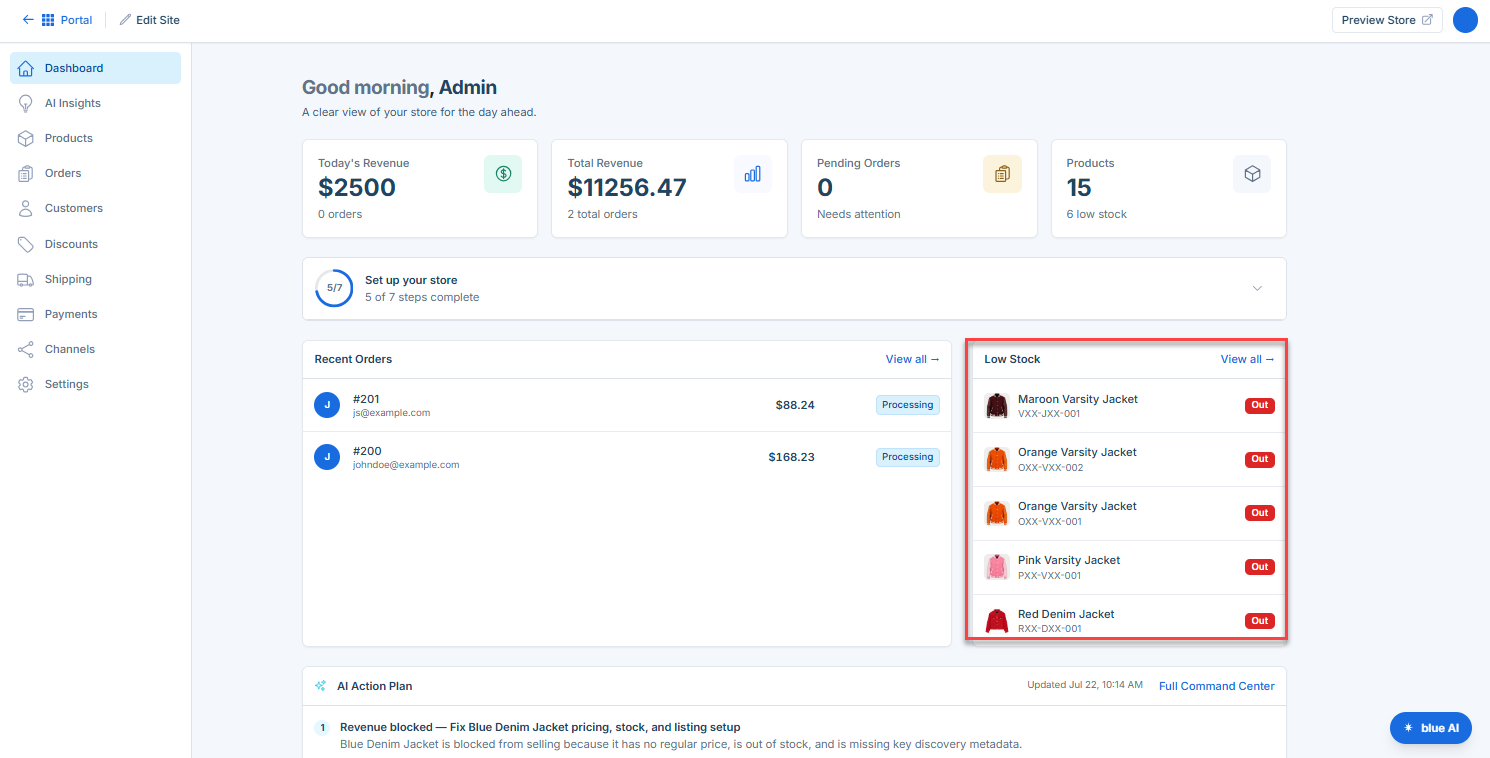
For each product, you may see:
- Product name
- SKU
- Remaining inventory quantity
- Reorder inventory before items sell out
- Avoid missed sales opportunities
- Improve inventory management
Click View All to access the complete Products catalog.
AI Action Plan
The AI Action Plan helps guide you through recommended tasks designed to improve your store's readiness and performance.
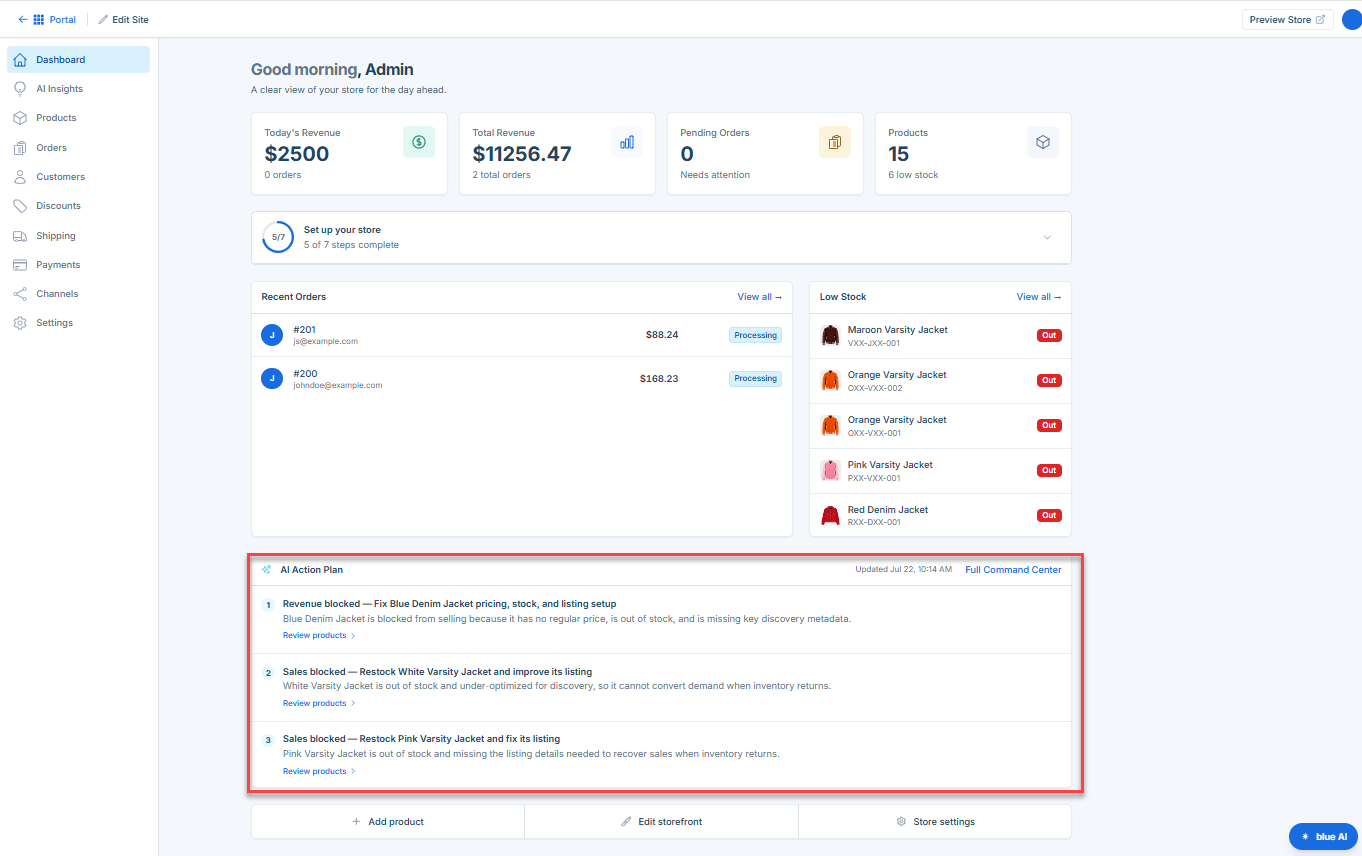
Depending on your store's status, the AI Action Plan may suggest actions such as:
- Completing store setup
- Adding products
- Updating product descriptions
- Configuring shipping settings
- Connecting payment methods
- Optimizing store information
Following these recommendations can help create a better shopping experience and improve store performance.
Quick Actions
The Quick Actions section provides shortcuts to commonly used store management tools.
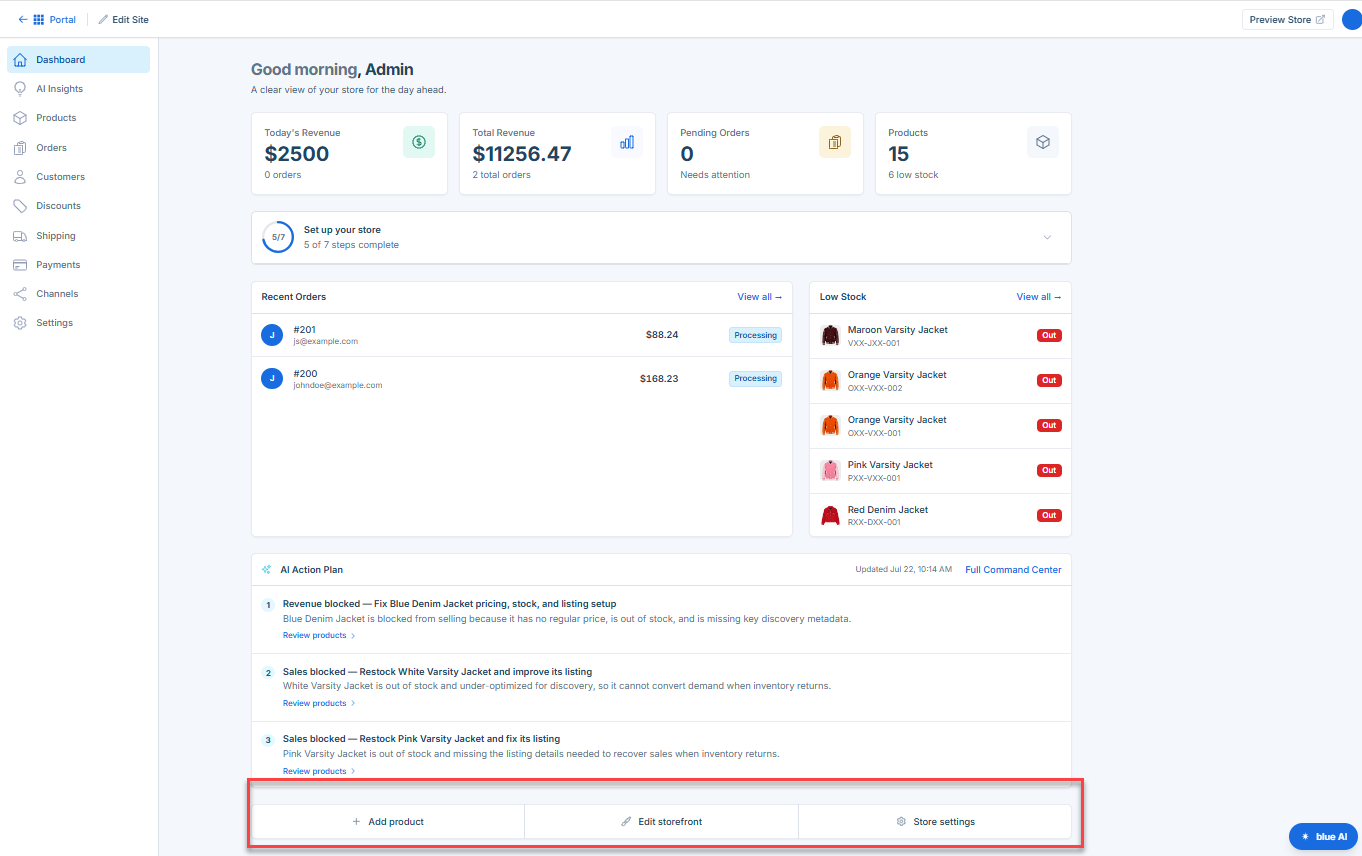
Add Product
Use Add Product to create and publish new products in your store.
- Add product information
- Upload product images
- Set pricing
- Configure inventory
- Create product variants
Edit Store
Use Edit Store to customize your storefront's appearance.
- Store design
- Colors
- Fonts
- Navigation menus
- Branding elements
This helps ensure your storefront matches your brand identity.
Store Settings
Use Store Settings to manage important store configuration options.
- Store name and branding
- Business contact information
- Currency settings
- Checkout preferences
- General store configuration
Keeping your settings up to date helps ensure smooth store operations.
Benefits of Using the Dashboard
The Bluehost AI Store Dashboard helps you:
- Monitor sales performance
- Track pending orders
- Manage inventory levels
- Complete store setup tasks
- Access store management tools quickly
- Stay informed about important store activity
Summary
The Bluehost AI Store Dashboard provides a centralized view of your store's performance and operational health. With metrics such as Today's Revenue, Total Revenue, Pending Orders, and Products, along with sections for Recent Orders, Low Stock Products, AI Action Plan, and Quick Actions, the dashboard makes it easy to monitor activity, manage inventory, and keep your store running smoothly.
If you need further assistance, Bluehost Chat Support is available 24 hours a day, 7days a week while Bluehost Phone Support is available 7 days a week from 7 am-12 midnight EST.
- Chat Support - While on our website, you should see a CHAT bubble in the bottom right-hand corner of the page. Click anywhere on the bubble to begin a chat session.
- Phone Support -
- US: 888-401-4678
- International: +1 801-765-9400
You may also refer to our Knowledge Base articles to help answer common questions and guide you through various setup, configuration, and troubleshooting steps.