 ChatGPT,
  Claude,
  Gemini,
  Grok — all four for
Bluehost AI Store: Navigating the AI Store Dashboard
Bluehost now offers the AI Store, a user-friendly tool that makes it easy to create your own online store. It uses AI technology to instantly generate everything you need, from the store's layout to its product listings, all based on your preferences and input.
The Bluehost AI Store focuses mainly on the following:
- Speed
- Guided automation
- Beginner-friendly dashboard interface
Once the AI Store Sell Online plan becomes available in your Bluehost account, you'll gain access to your store's dashboard through your Bluehost Portal. Users can easily create, manage, and maintain an eCommerce store through our AI Store dashboard—no coding or technical expertise required!
In this article, we'll walk you through the AI Store dashboard and its key features. We've also created a video to guide you through the dashboard and its functionality.
To learn how to access the AI Store dashboard, please visit the Bluehost AI Store: Accessing the Bluehost AI Store article.
If you're setting up your AI Store dashboard, the Bluehost AI Store: Setting Up the AI Store Dashboard article will walk you through the step-by-step process.
AI Store Dashboard
In the AI Store dashboard, you will find the following tabs:
- Dashboard
- AI Insights
- Products
- Orders
- Customers
- Discounts
- Shipping
- Payments
- Channels
- Settings
Dashboard
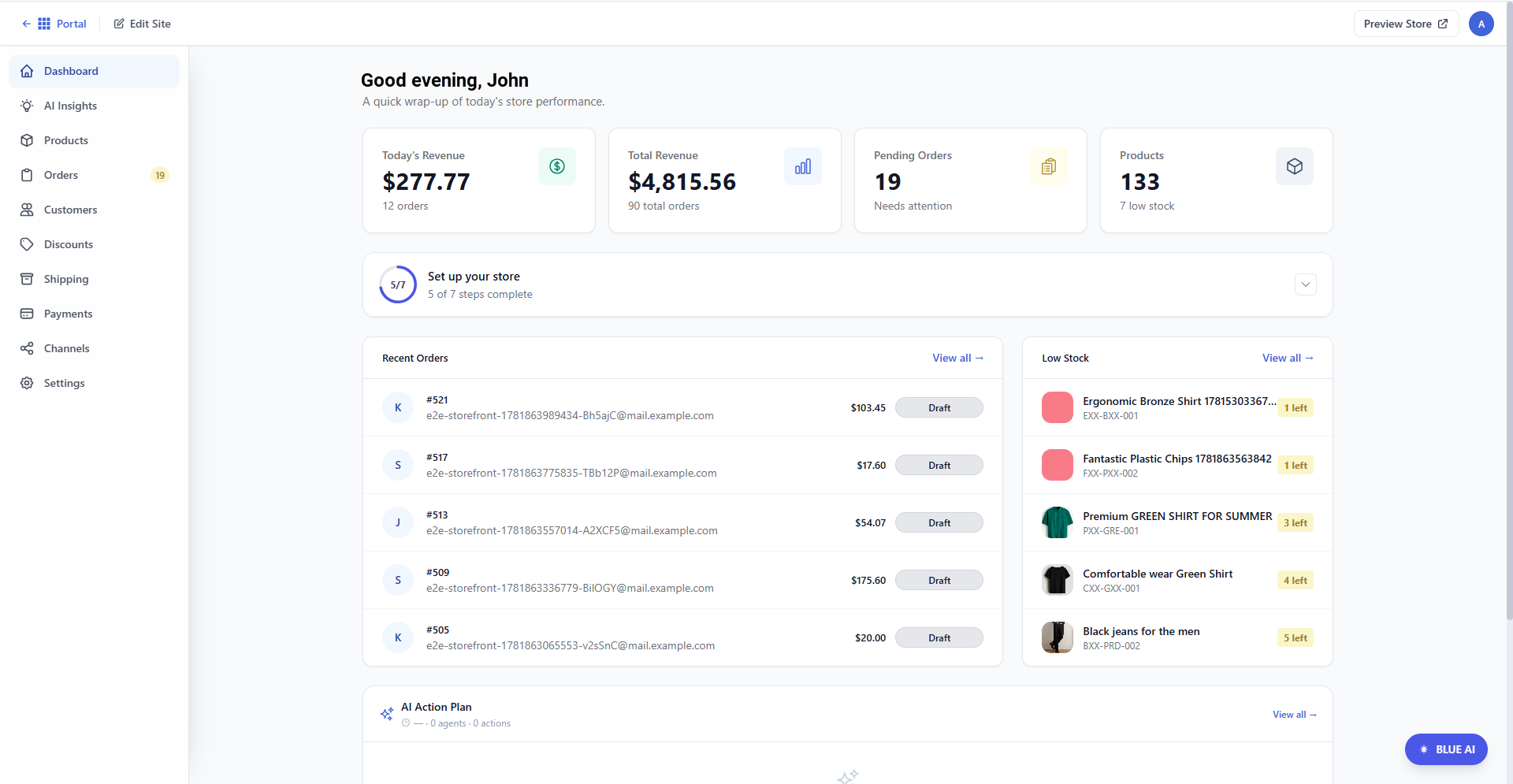
The Dashboard provides an overview of your store's performance, including Today's Revenue, Total Revenue, Pending Orders, and the total number of product listings. It also includes additional management tools, such as the onboarding setup checklist, a list of recent orders, low-stock alerts, Catalog Health, and AI-powered recommendations through the AI Action Plan.
To learn more, visit the following articles:
AI Insights Tab
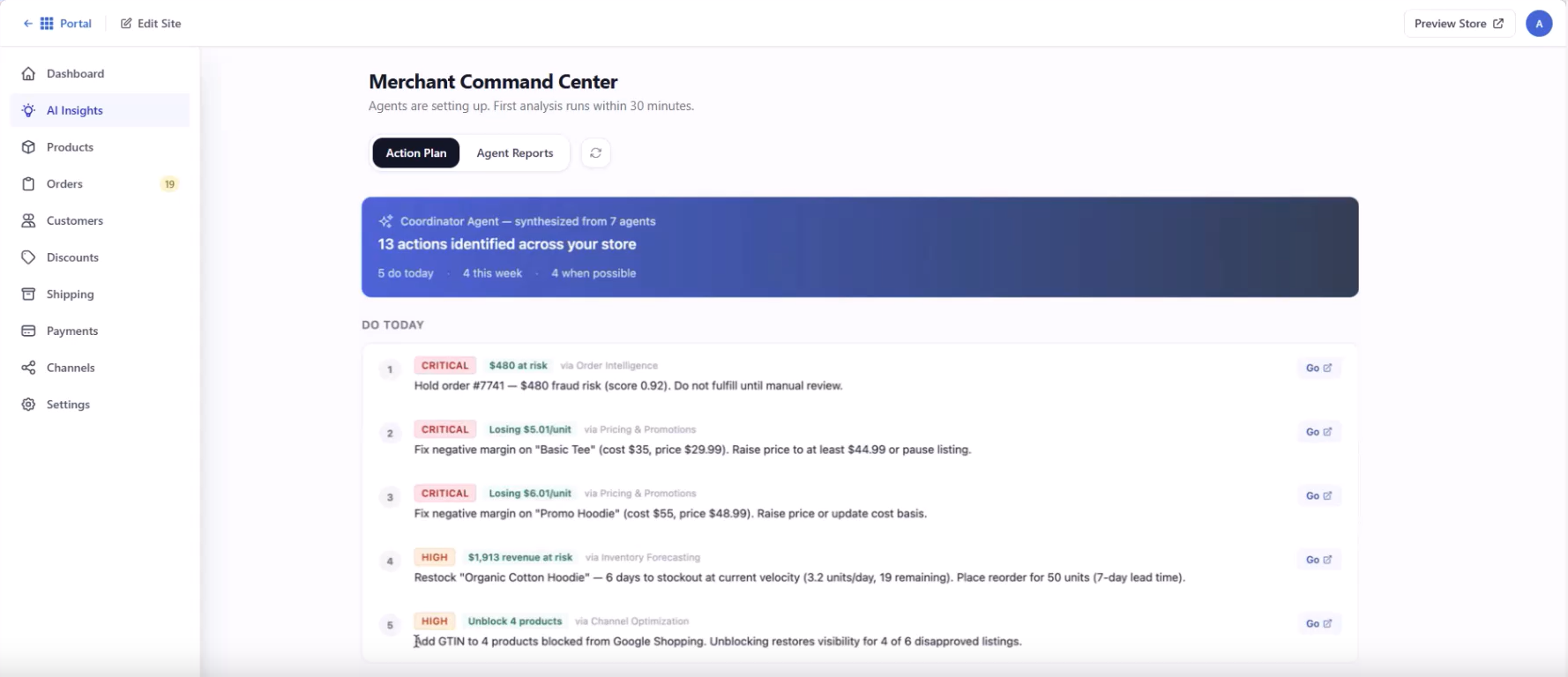
On the AI Insights tab, users can view an AI-recommended Action Plan that includes daily and weekly to-do tasks, each tagged with different priority levels. This helps users identify which items are most important to tackle first.
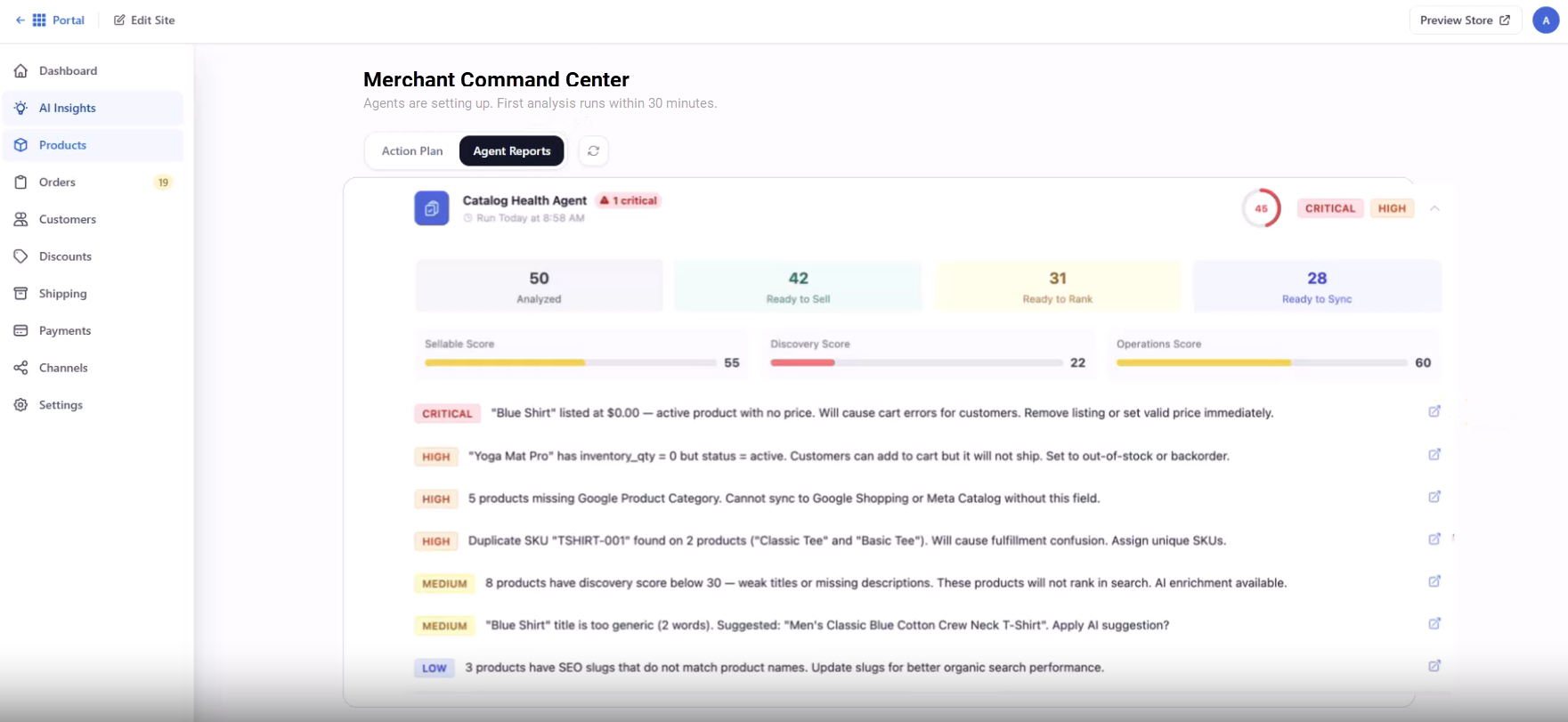
The Agent Reports tab provides insights into product performance, including sales potential, discoverability, and an operational score. By clicking the pop-out icon on the right, users can access the corresponding product listing directly.
For more information about the AI Insights tab and how to analyze the AI recommendations within it, see the following articles:
Products Tab
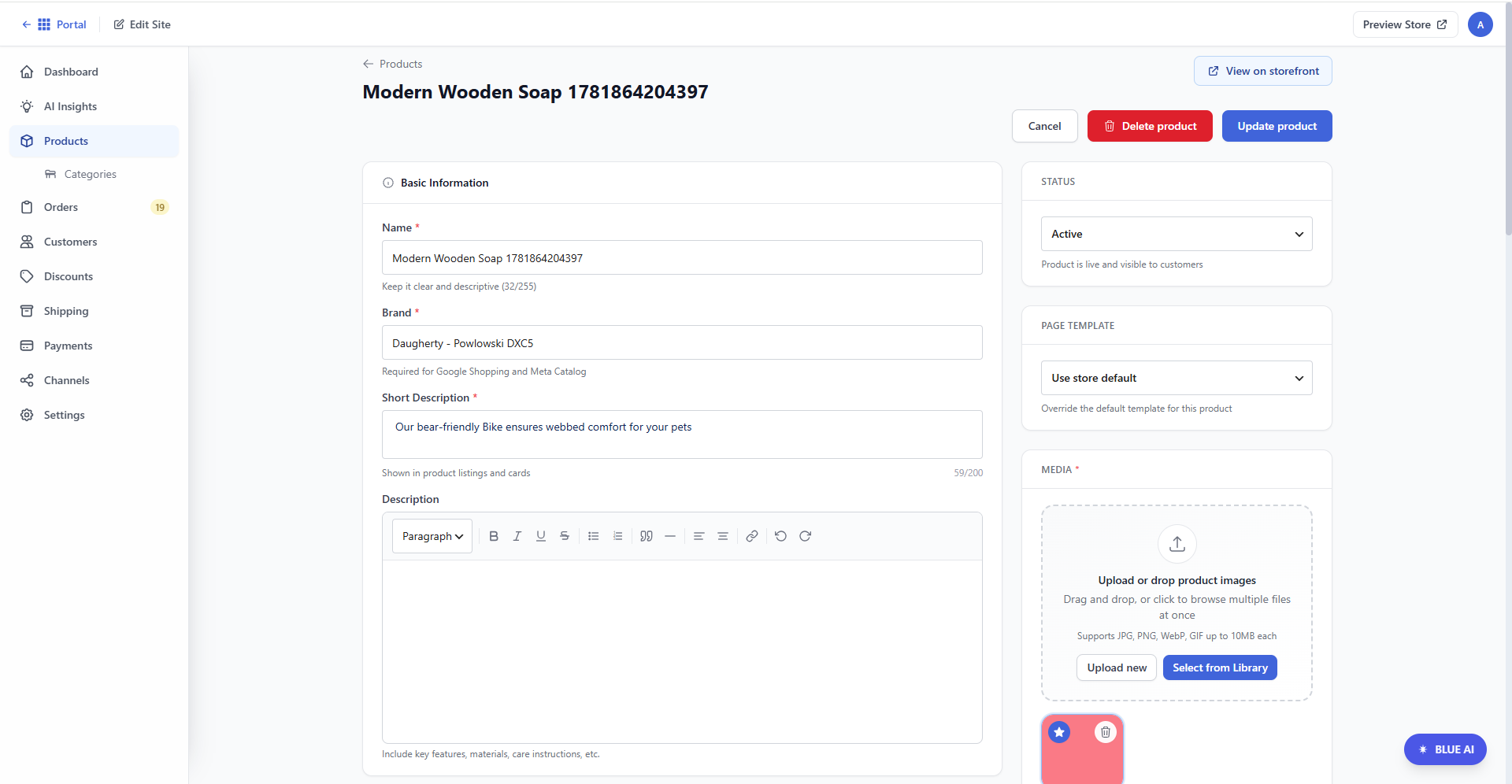
The Products tab is where users can create and manage all the products in their online store. They can view their entire product listing in a tile view and can create new products by importing a CSV file or through manual creation.
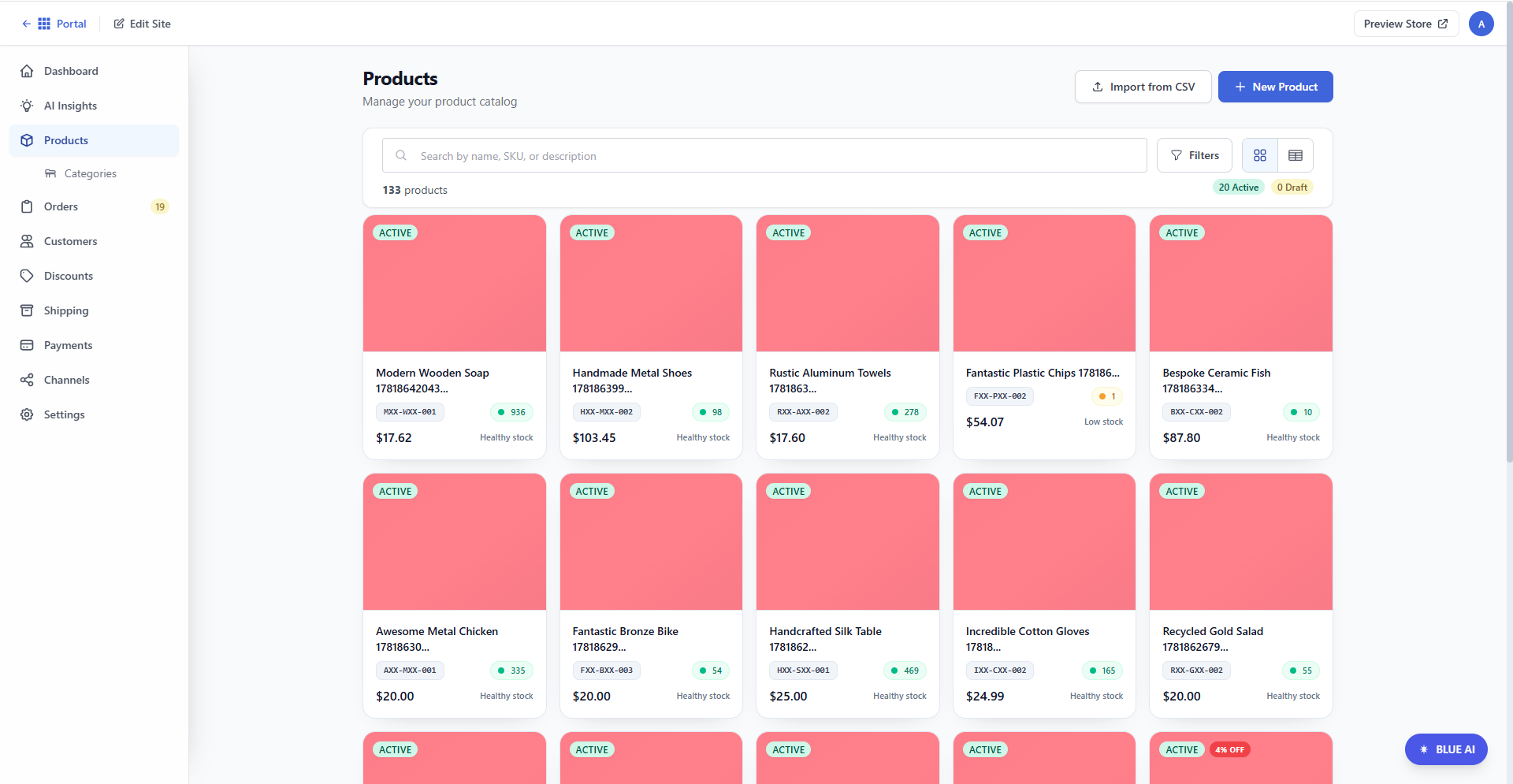
Once a product listing is clicked, users can create simple, virtual, downloadable, and variable products.
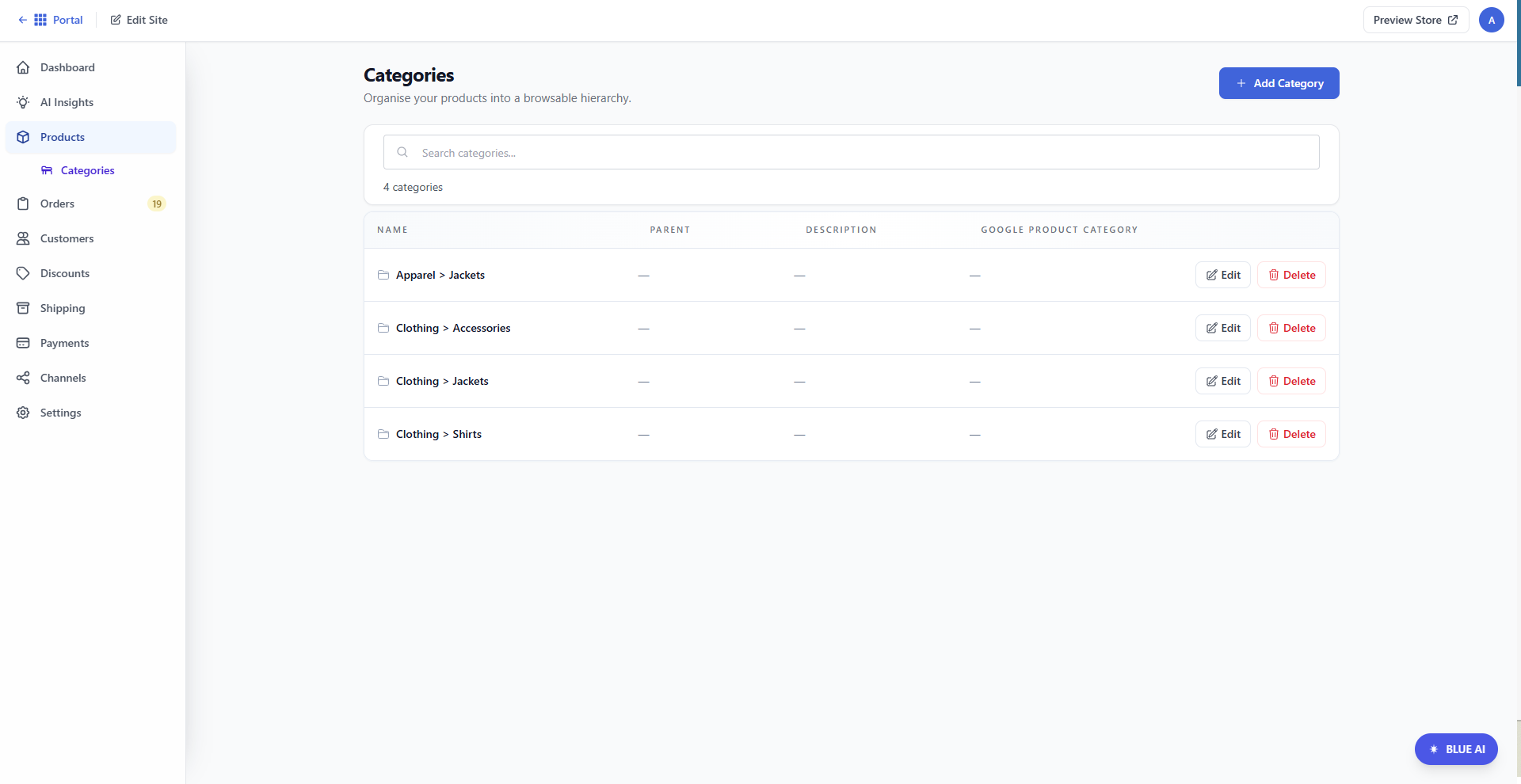
Categories
Product Categories allow users to organize their product listings and view the top-level categories at a glance.
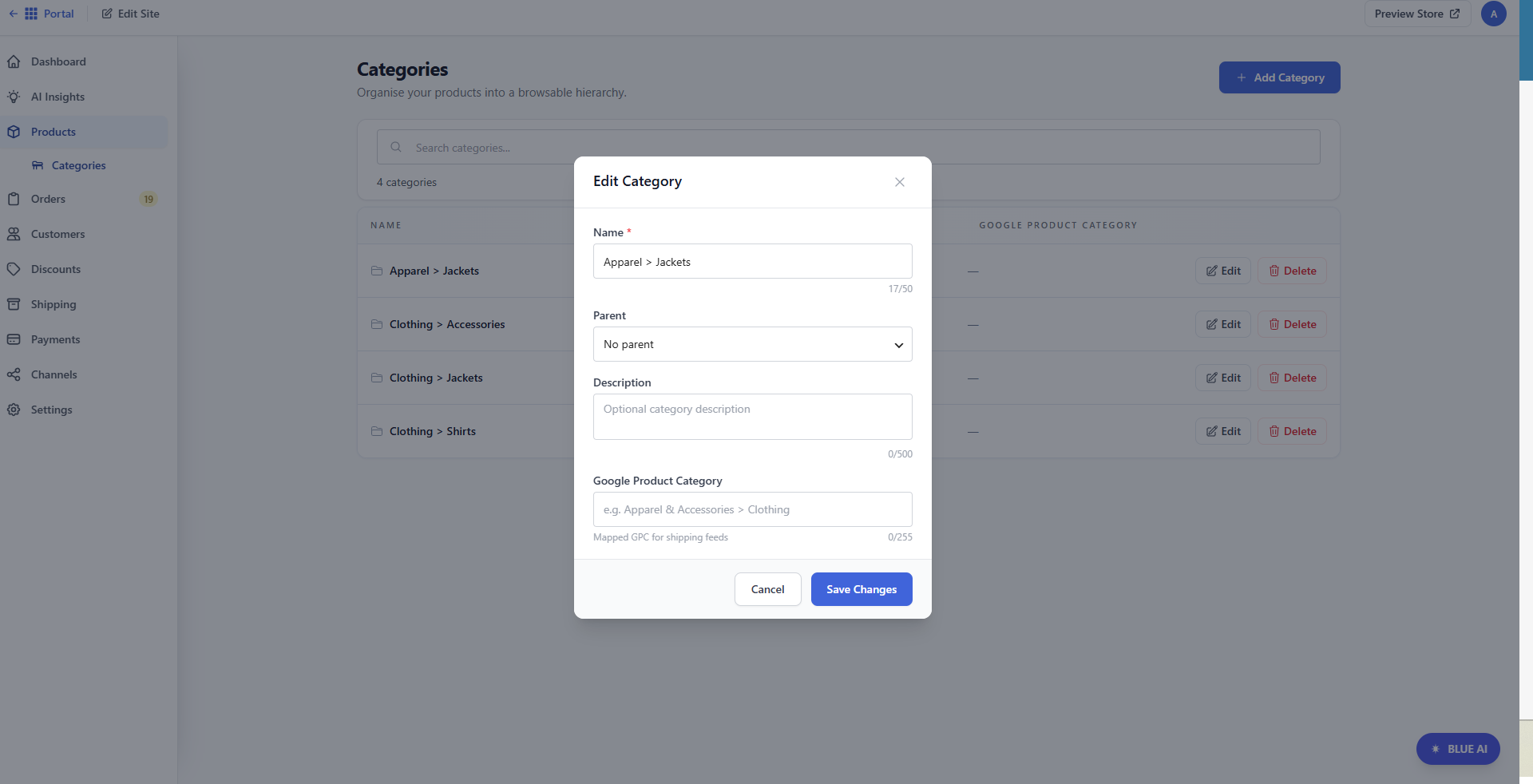
Clicking the Edit button on the right will open a pop-up window, allowing the user to update the product category information.
To walk you through the different functionalities available in the Products tab, see the following articles:
Orders Tab
The Orders tab displays all pending, processing, canceled, and completed orders, along with customer data and total revenue.
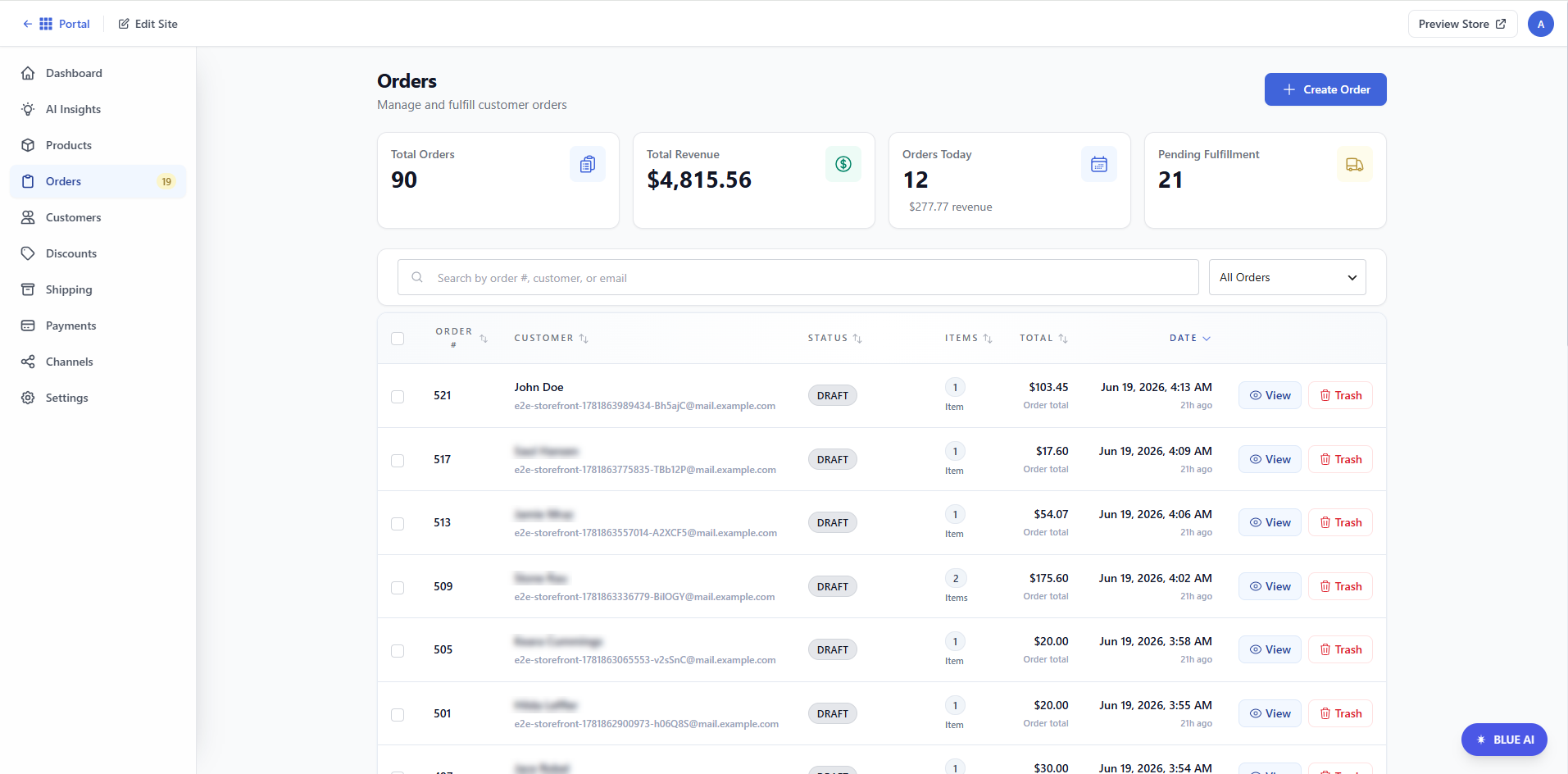
Click the View button for each order to access additional information. Users can see the line items from the order, the order timeline, payment details, customer information, fulfillment status, and order notes.
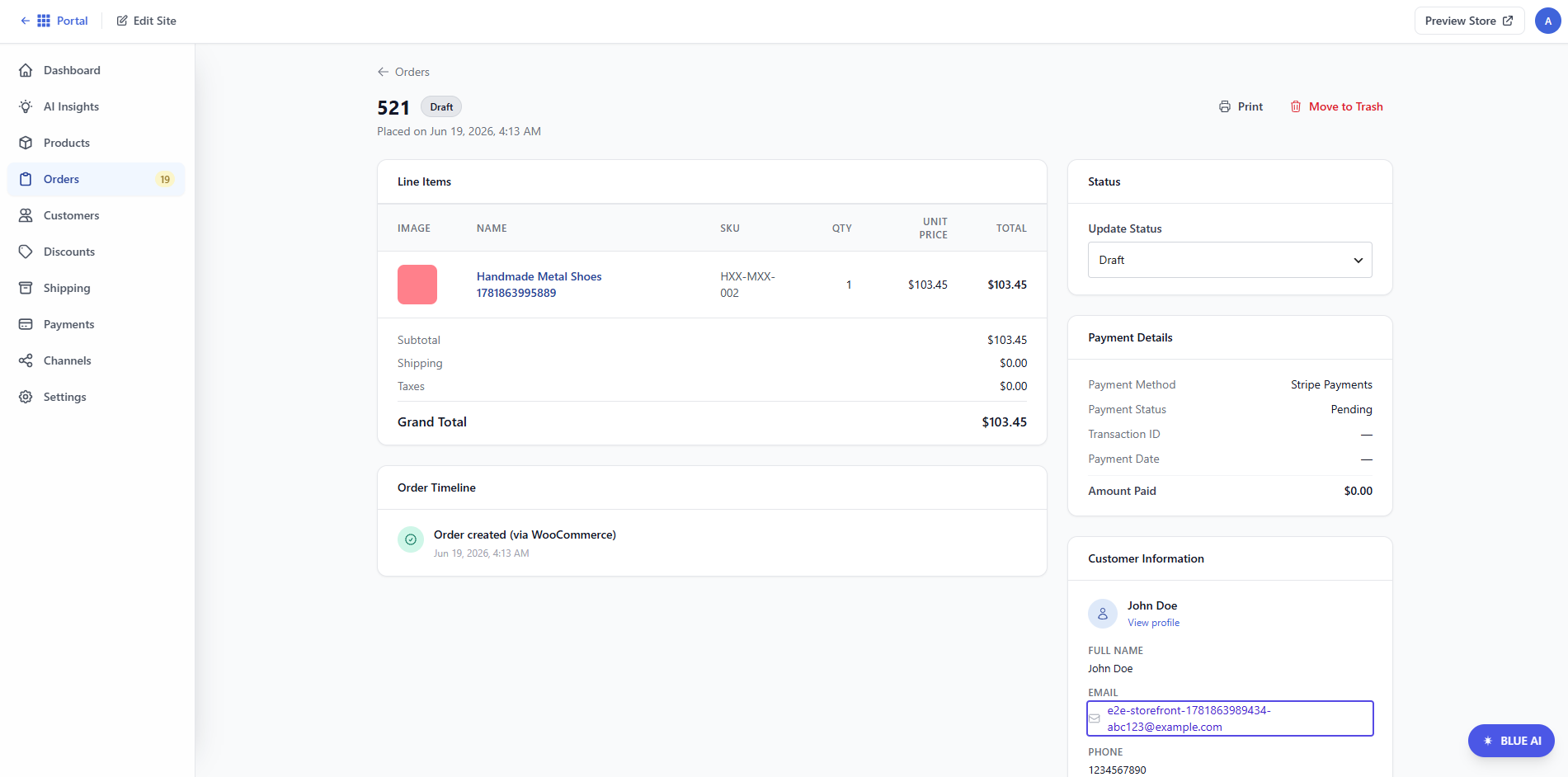
To learn more about managing orders, visit the following articles:
Customers Tab
The Customers tab allows users to view their existing customers. Users can also create new customer profiles or edit existing ones.
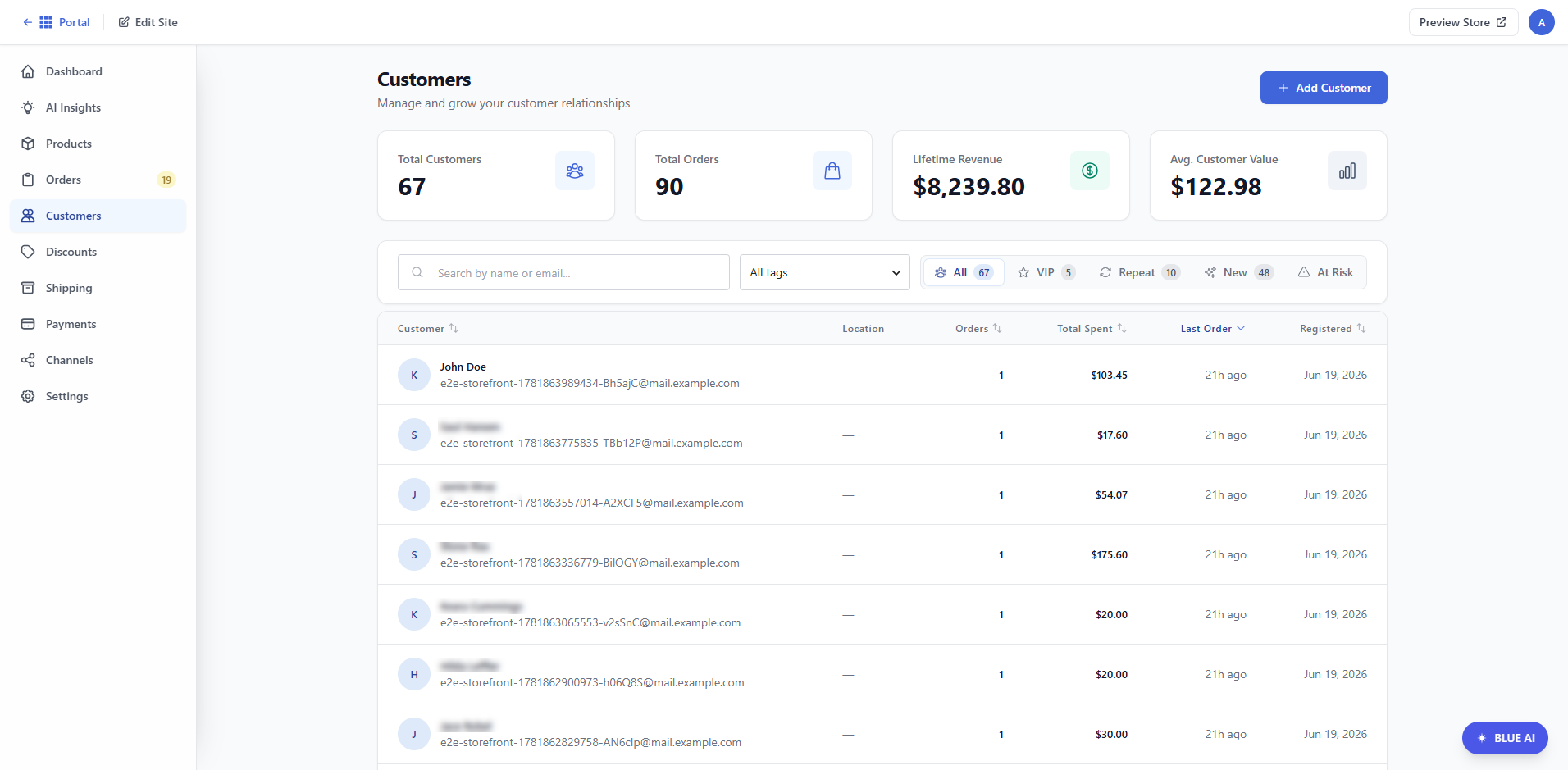
Clicking on a customer line item will take users to that customer's profile, where they can find details, such as total orders, total spent, average order amount, last purchase, and complete purchase history. Additionally, users can add tags or notes for each customer.
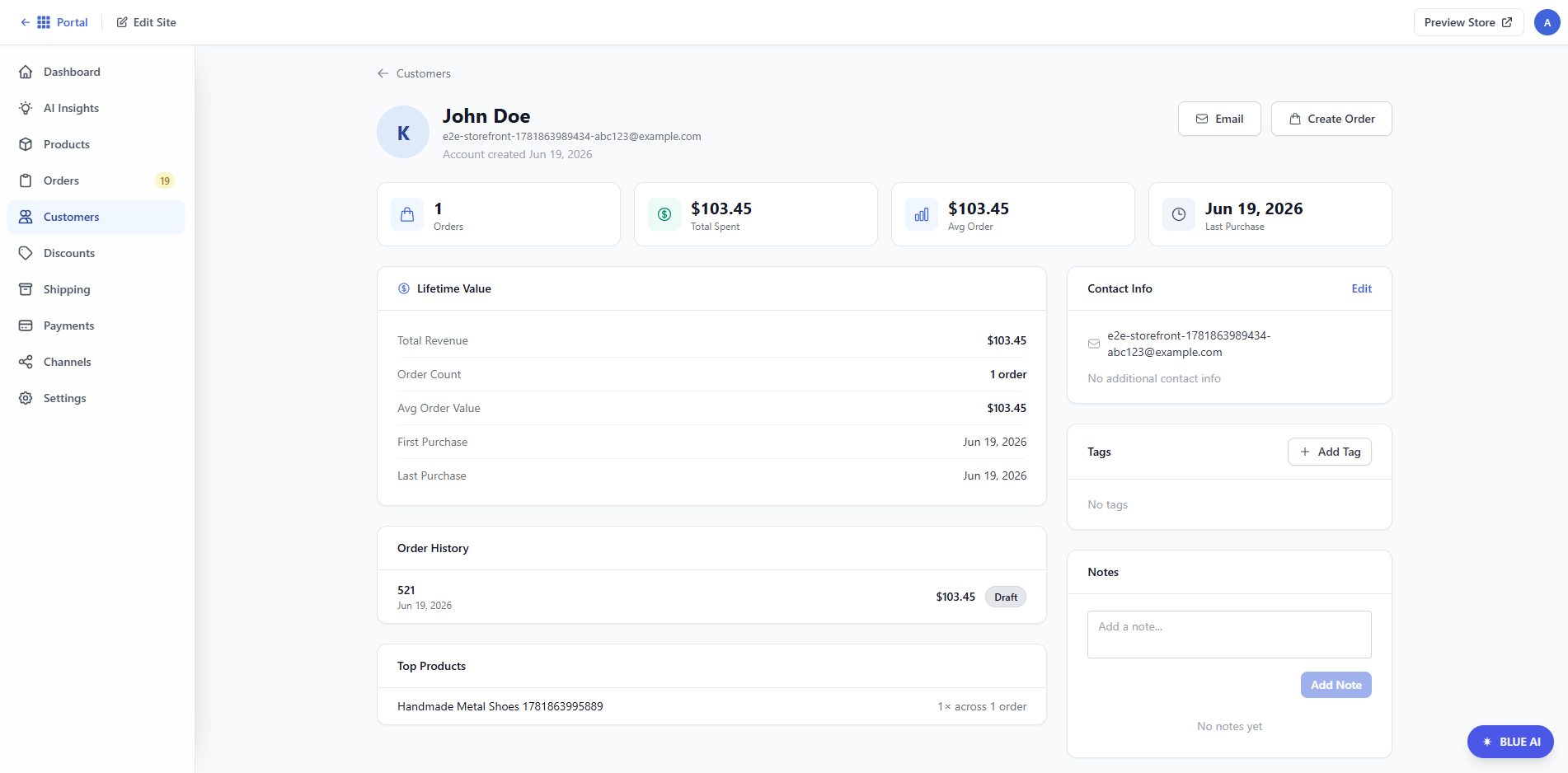
For more details about the Customers tab, visit the following articles:
Discounts Tab
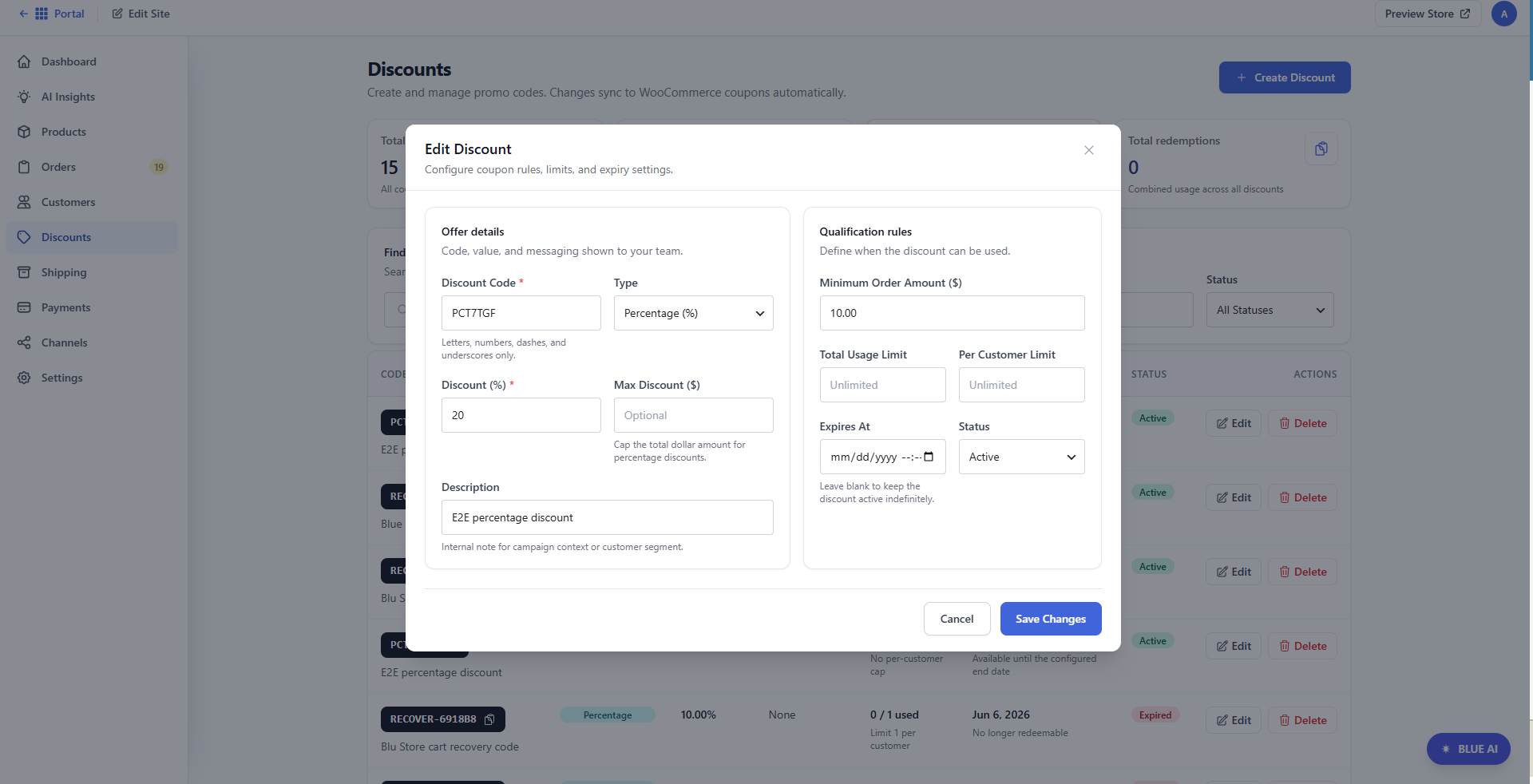
In the Discounts tab, users can easily create discount codes for their customers. They have a high-level overview of existing and expired discounts, can create new discounts, or edit existing ones.
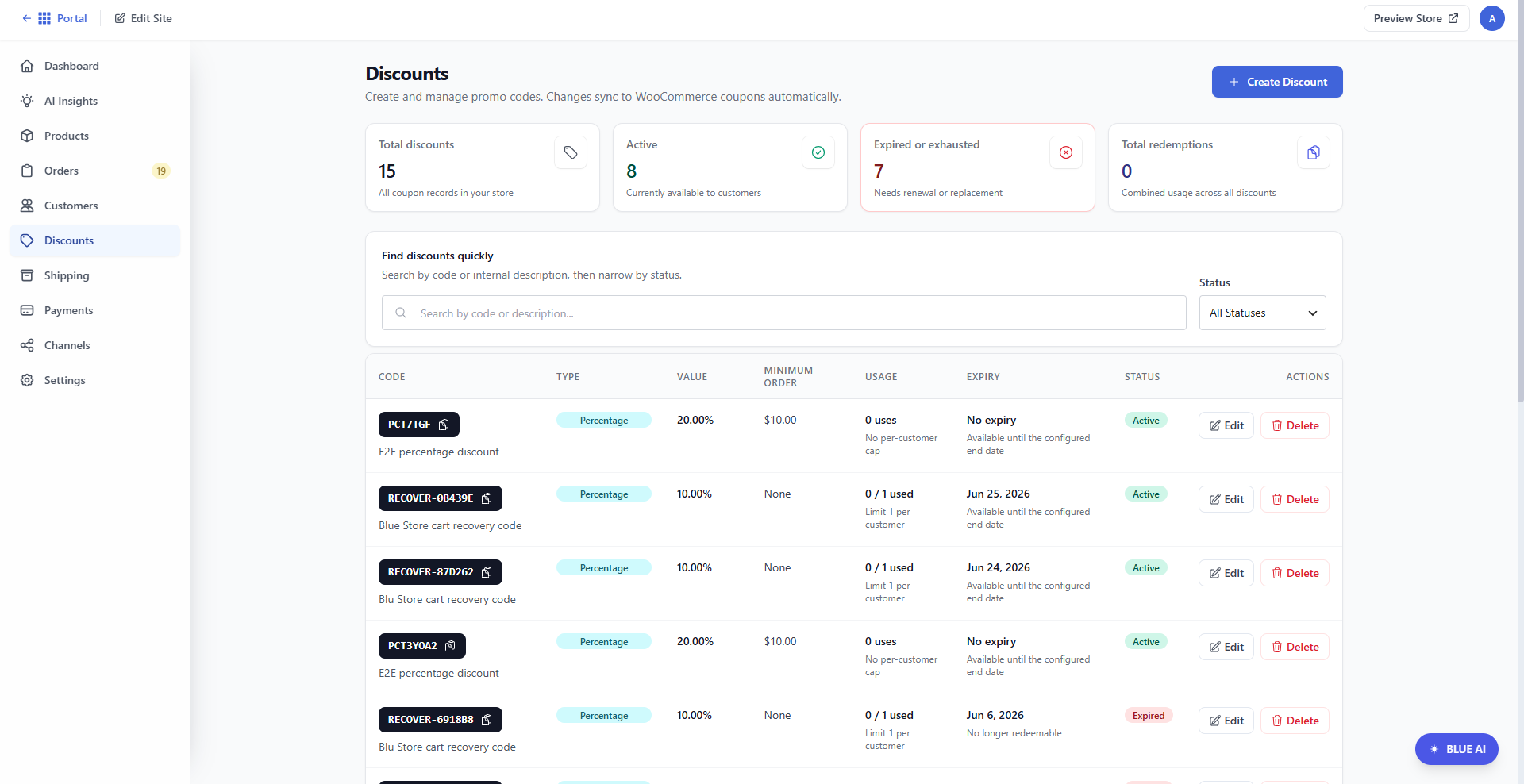
To configure the coupon rules, limits, and expiration settings, click Edit next to the relevant discount line item. This allows users to customize the discount codes, discount type, amount, description, and qualification rules.
For a walkthrough guide, visit the following articles:
Shipping Tab
In the Shipping tab, users can configure their shipping zones and methods.
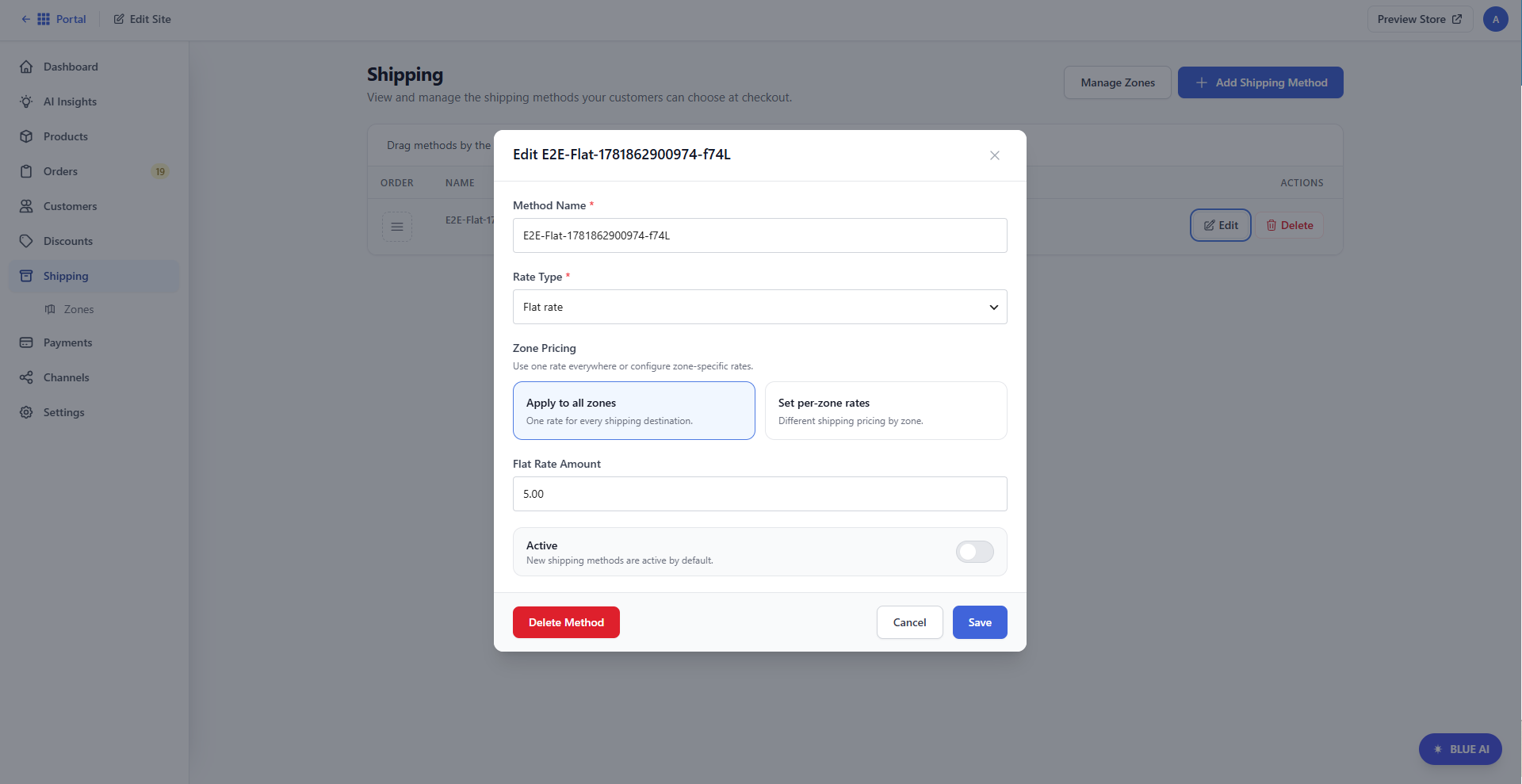
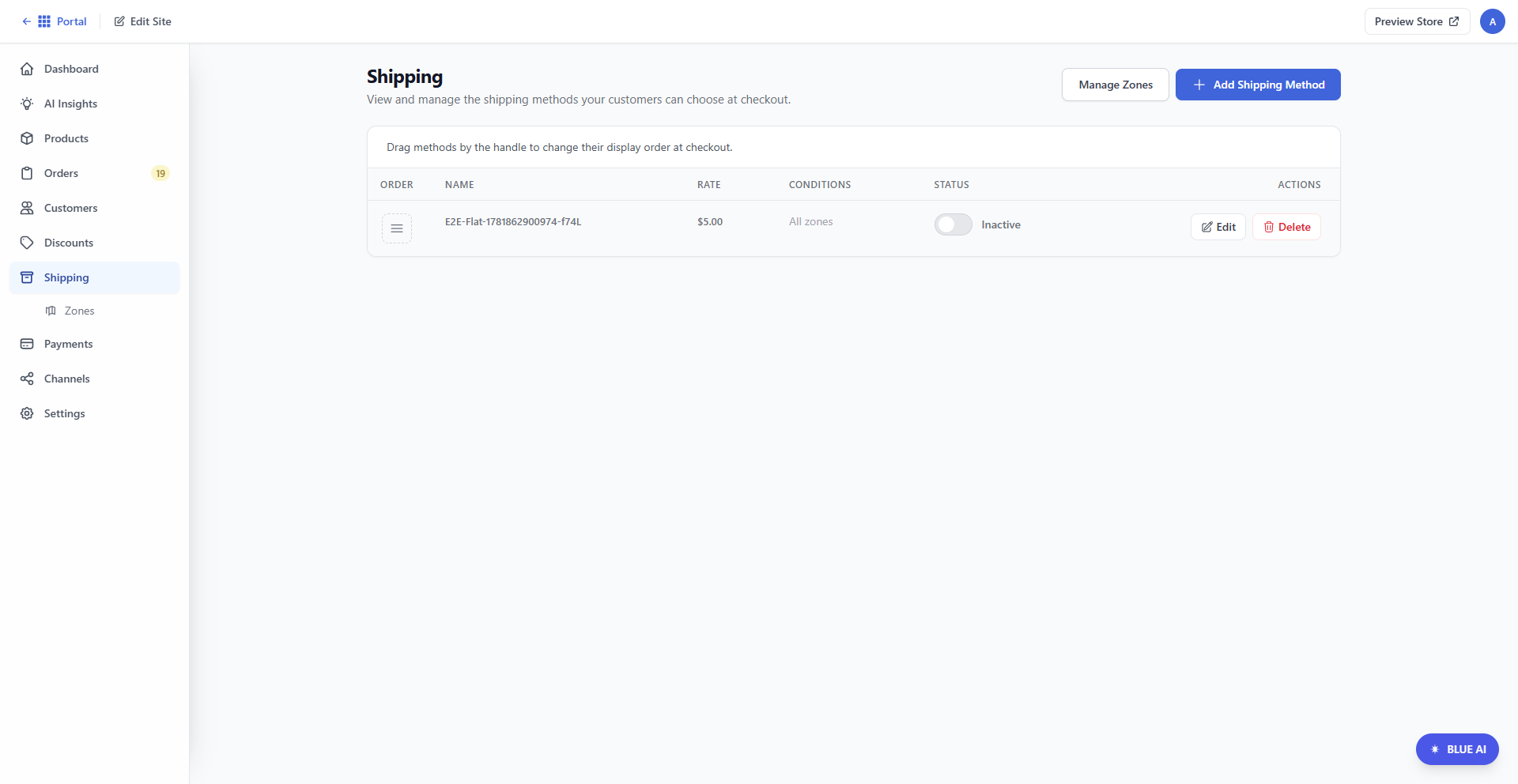 By adding or editing shipping methods, users can set up flat-rate shipping or offer free shipping. They can choose to apply these shipping options to all zones or to specific ones.
Shipping Zones
Shipping zones enable users to create custom shipping configurations for specific countries or regions.
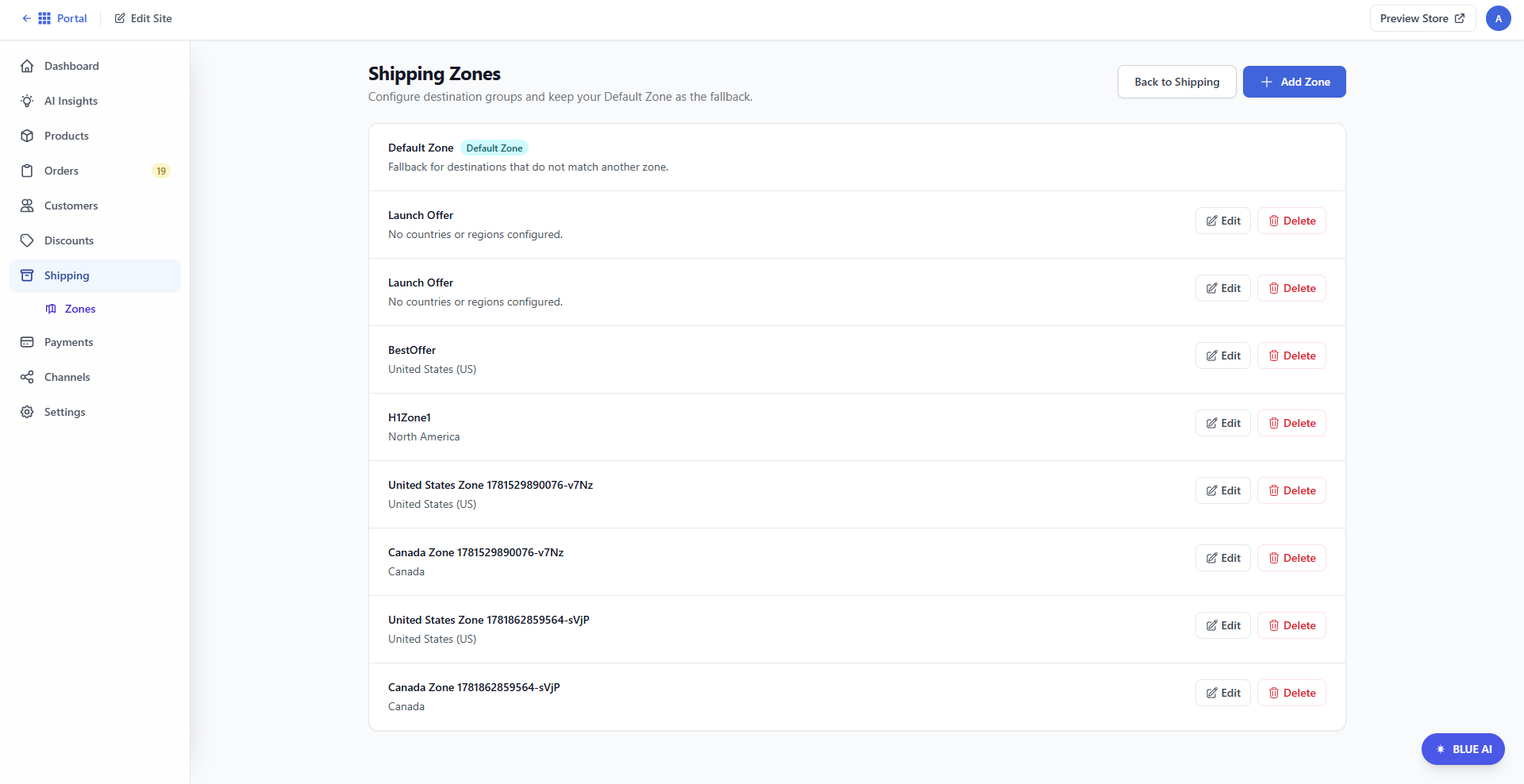
Click Edit next to a shipping zone to launch the pop-up editor.
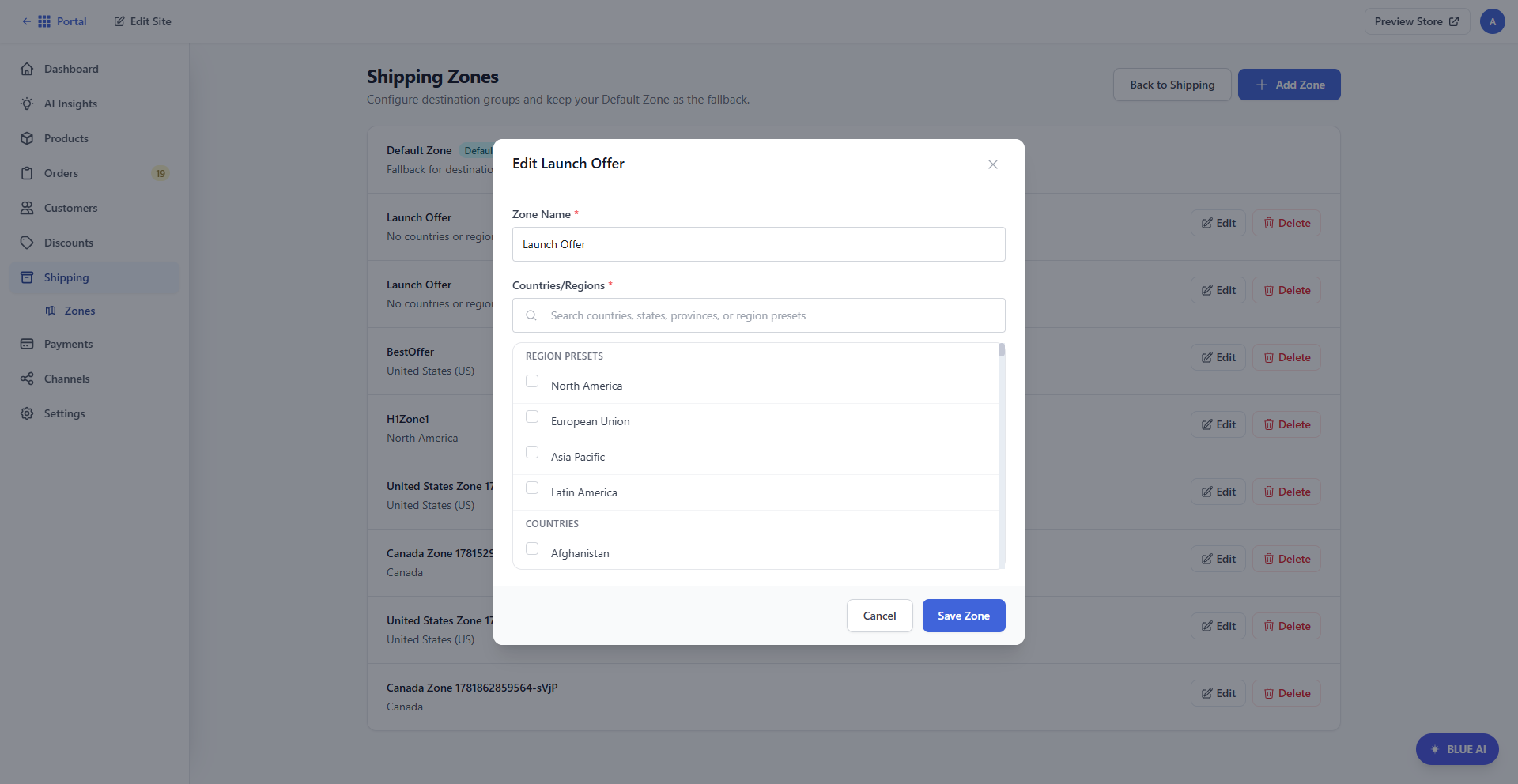
For more information about the shipping configuration, see the following articles:
Payments Tab
Users can manage their payment gateways through the Payments tab. Currently, we support Stripe payments, but we plan to add more payment methods in the future.
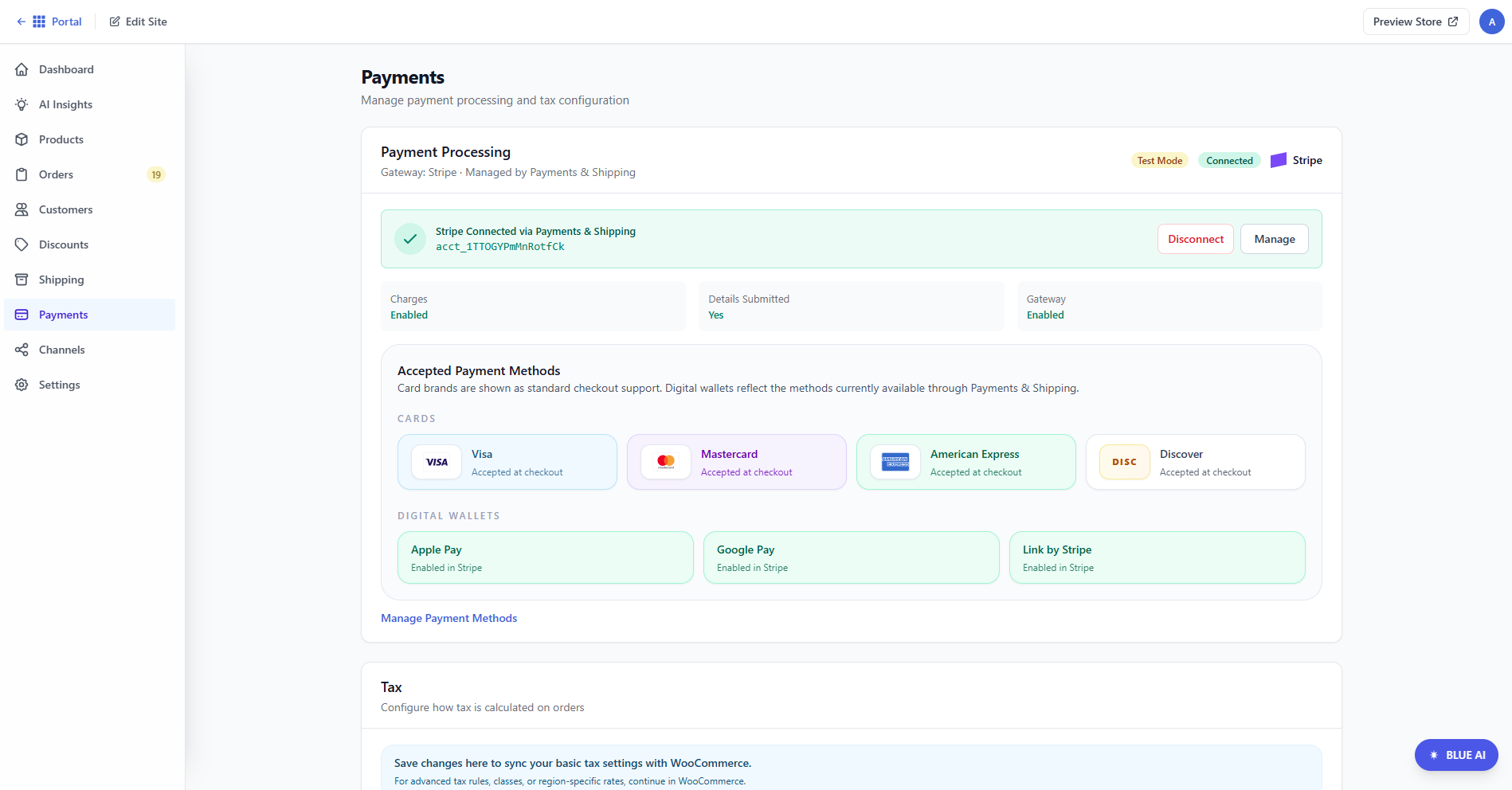
For more information on how to manage your payment methods and tax settings, please visit the following articles:
Channels Tab
The Channels tab allows users to connect their store to social media platforms like Meta and Google Merchant Center, with plans to introduce additional channels in the future.
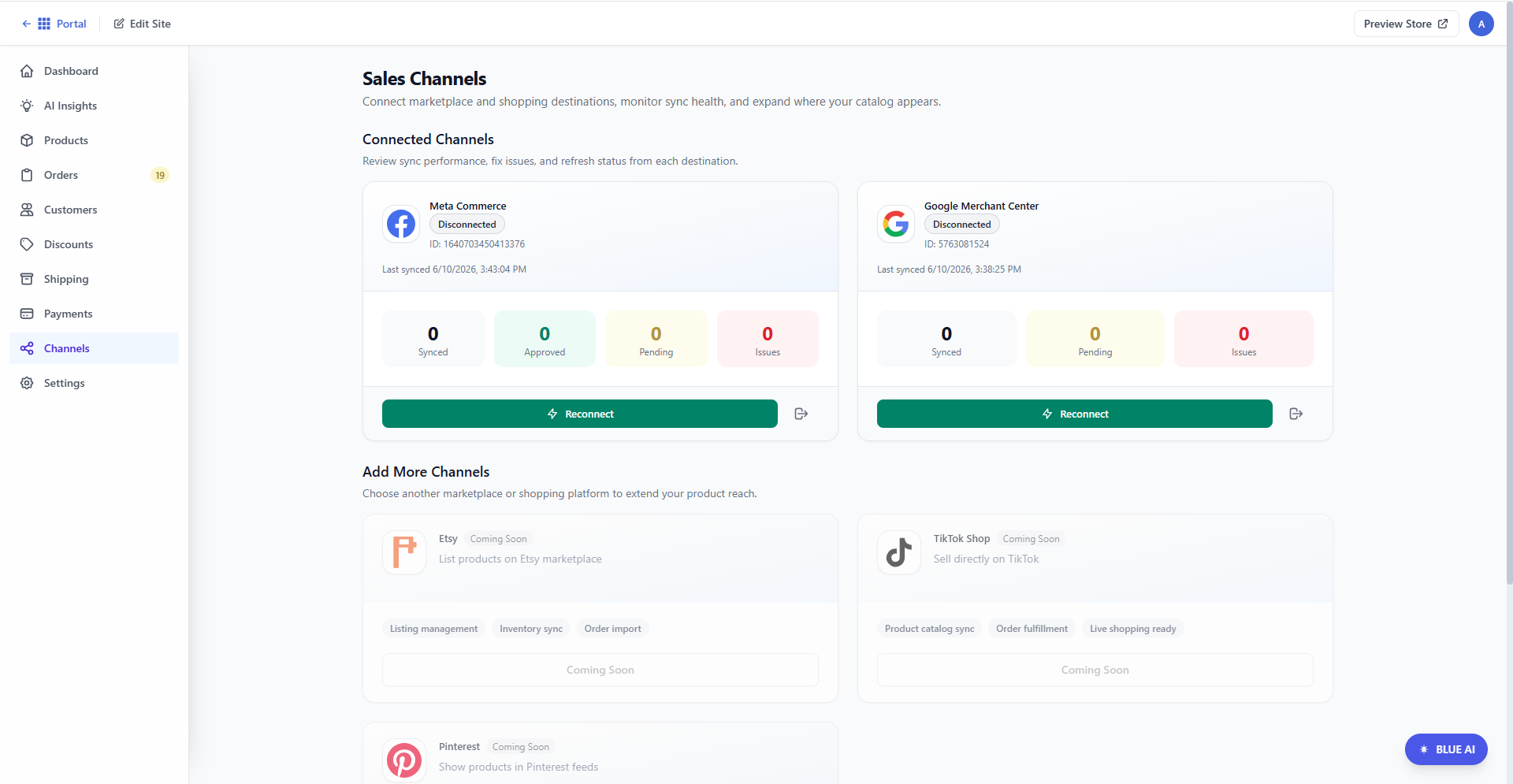
To learn more about the Channels tab, see the following articles:
Settings Tab
Within the Settings tab, users can set up their store identity, connect merchant channels, specify their business address, and choose a default store currency.
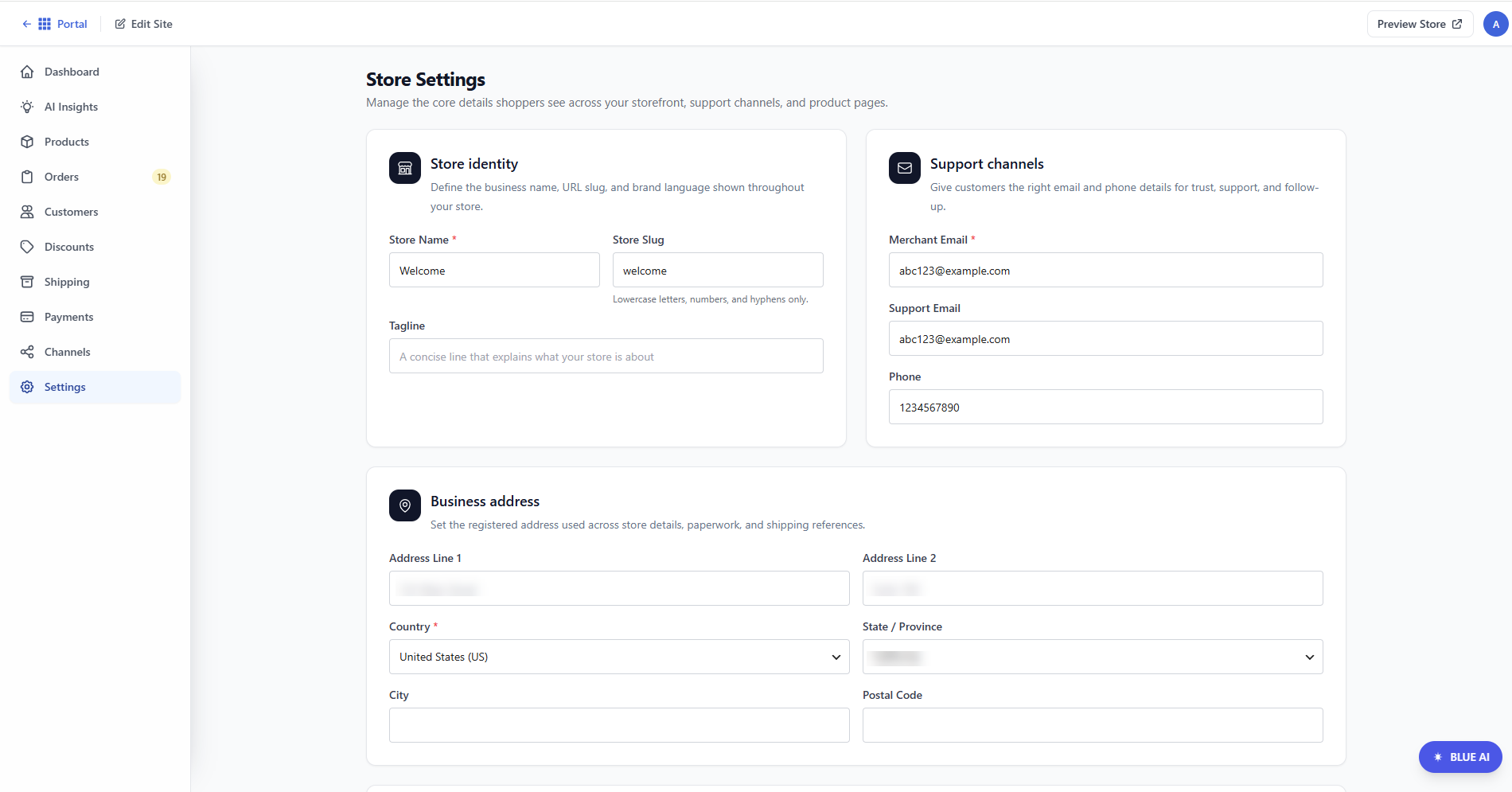
To manage your online store's identity, see the Bluehost AI Store: Settings Tab article.
AI Chat
For users who need additional guidance or prefer assistance, Bluehost AI Chat can help. The platform provides suggested prompts based on the tab the user is currently viewing. Users can ask questions, such as, "How healthy is my product catalog?" or "Can you give me a sales analysis?" The AI will provide recommendations and assistance based on the user's request.
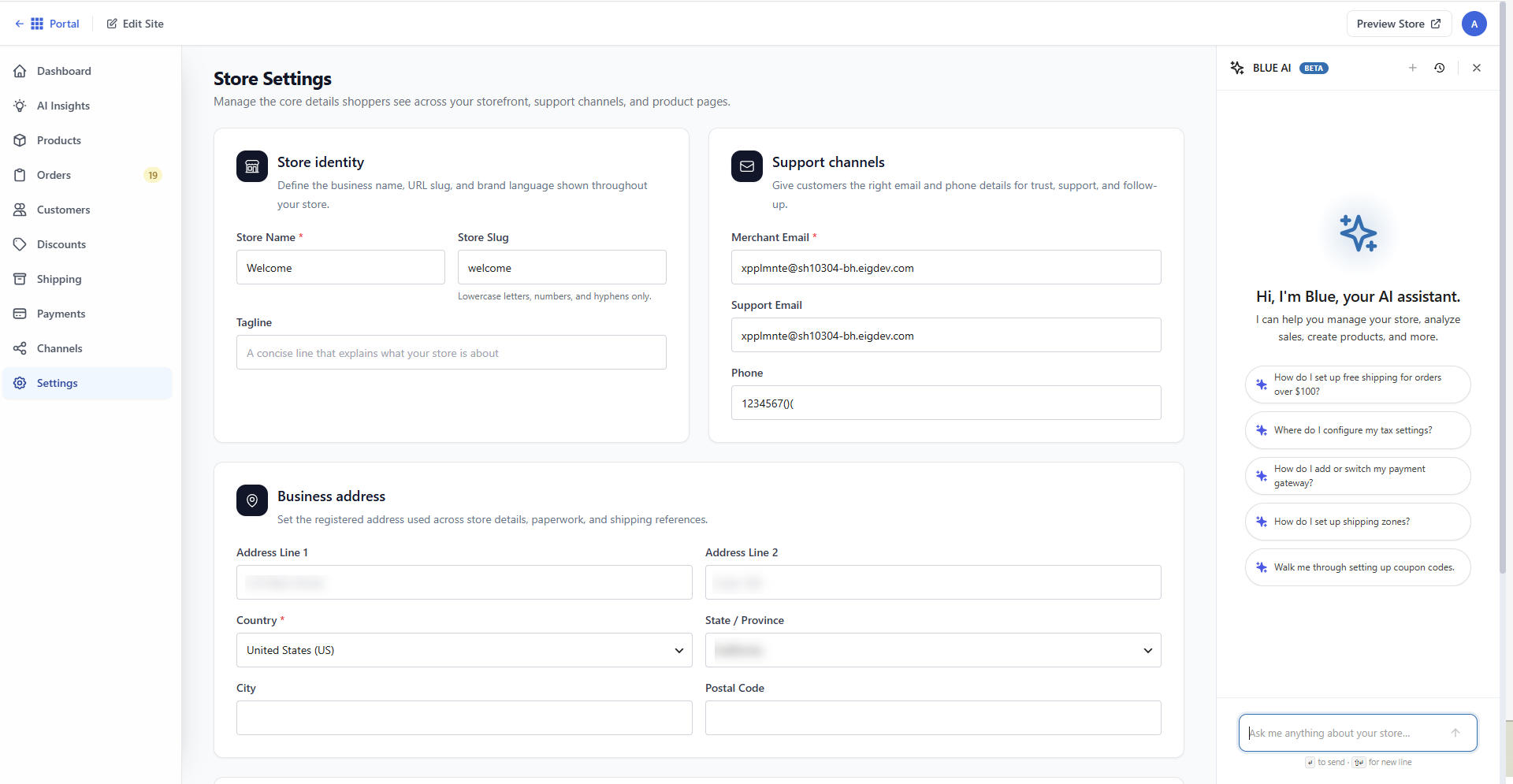
For more information, see the Bluehost AI Store: Using Bluehost AI Chat article.
Summary
Bluehost AI Store is an AI-powered eCommerce solution that allows users to quickly create and manage an online store with no technical expertise. Through guided automation and a beginner-friendly dashboard, it generates store layouts, product listings, and actionable insights based on user input. The AI Store dashboard includes important tools, such as performance analytics, AI-driven recommendations, product and order management, customer tracking, discounts, shipping, payments, and sales channels integration. With built-in AI features, you can efficiently optimize and grow your online store from one centralized platform.
If you need further assistance, Bluehost Chat Support is available 24 hours a day, 7days a week while Bluehost Phone Support is available 7 days a week from 7 am-12 midnight EST.
- Chat Support - While on our website, you should see a CHAT bubble in the bottom right-hand corner of the page. Click anywhere on the bubble to begin a chat session.
- Phone Support -
- US: 888-401-4678
- International: +1 801-765-9400
You may also refer to our Knowledge Base articles to help answer common questions and guide you through various setup, configuration, and troubleshooting steps.