 ChatGPT,
  Claude,
  Gemini,
  Grok — all four for
 Bluehost AI Store: How to Connect Your Domain
Connecting a domain to your Bluehost AI Store makes your website accessible online using your custom domain name. Follow the steps below to connect your domain and set it as your store's primary website address.
We have created a video to help you connect your domain to your AI Store:
Steps to Connect a Domain
- Log in to your Bluehost Portal.
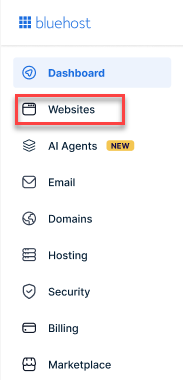
- From the left-hand menu, click Websites.
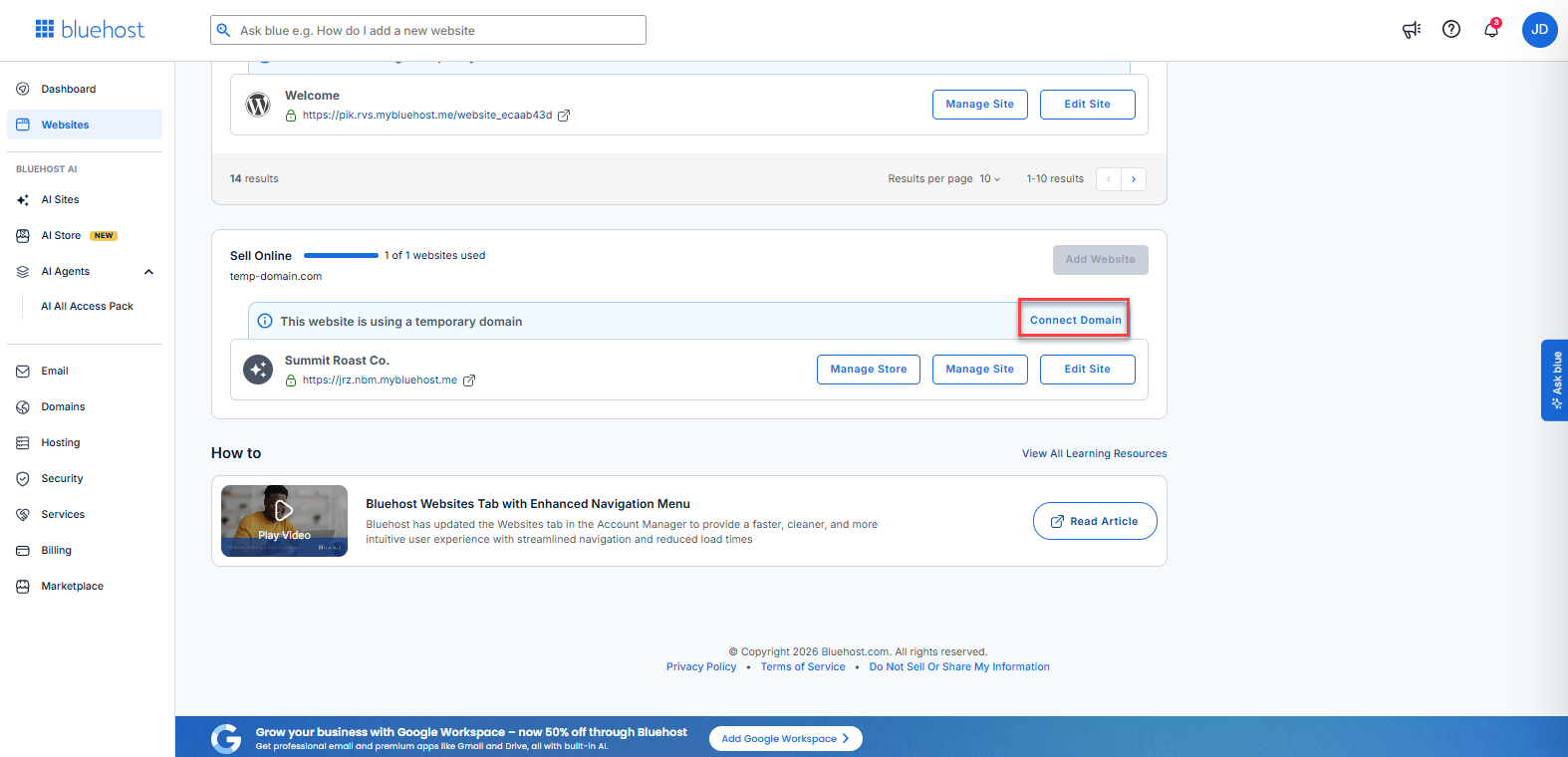
- Click Connect Domain.
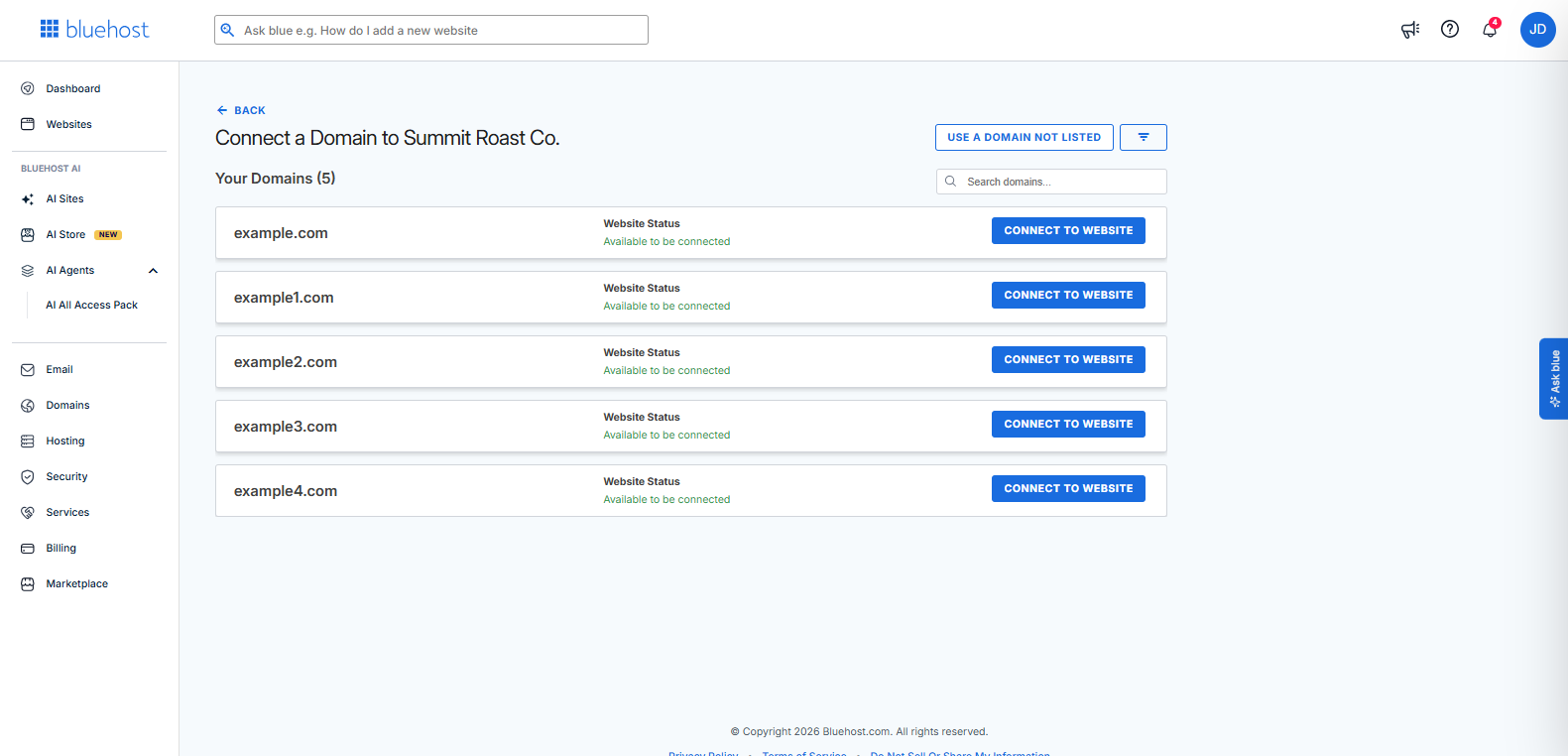
- Select the domain you want to use, then click Connect to Website.
- Follow the on-screen instructions to point your domain to Bluehost from your current registrar.
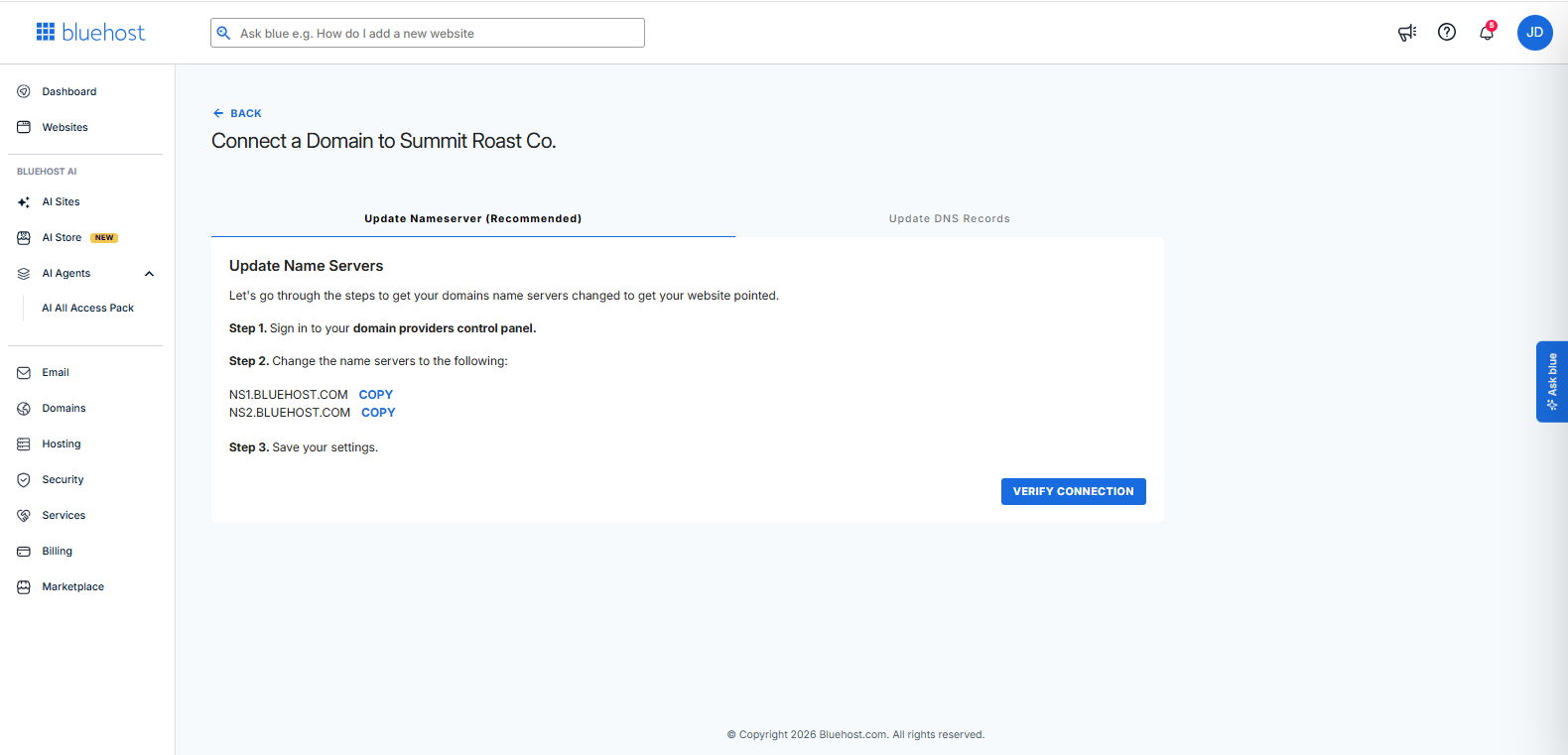
Keep in mind that Nameserver changes can take up to 24-48 hours to propagate globally. Individual DNS record updates may take a few minutes to process but can take up to 8 hours to complete.. For additional guidance, see How to Change Nameservers with Other Registrars. If preferred, you can transfer your domain to Bluehost for a more streamlined connection process. - Once the domain is connected and propagation is complete, you'll need to set it as your store's Site URL.
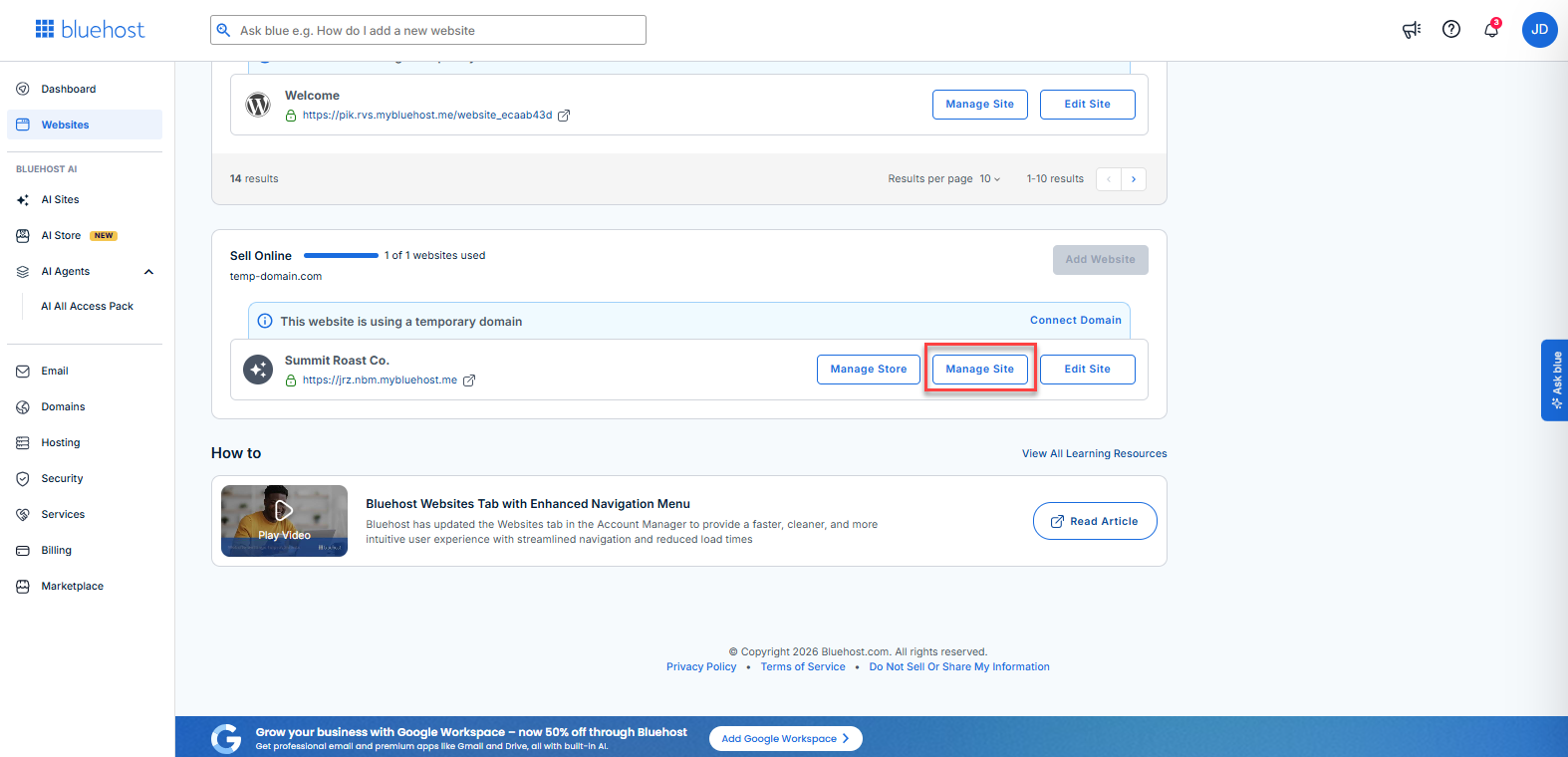
- Return to the Websites section of the Bluehost Portal and click Manage Site.
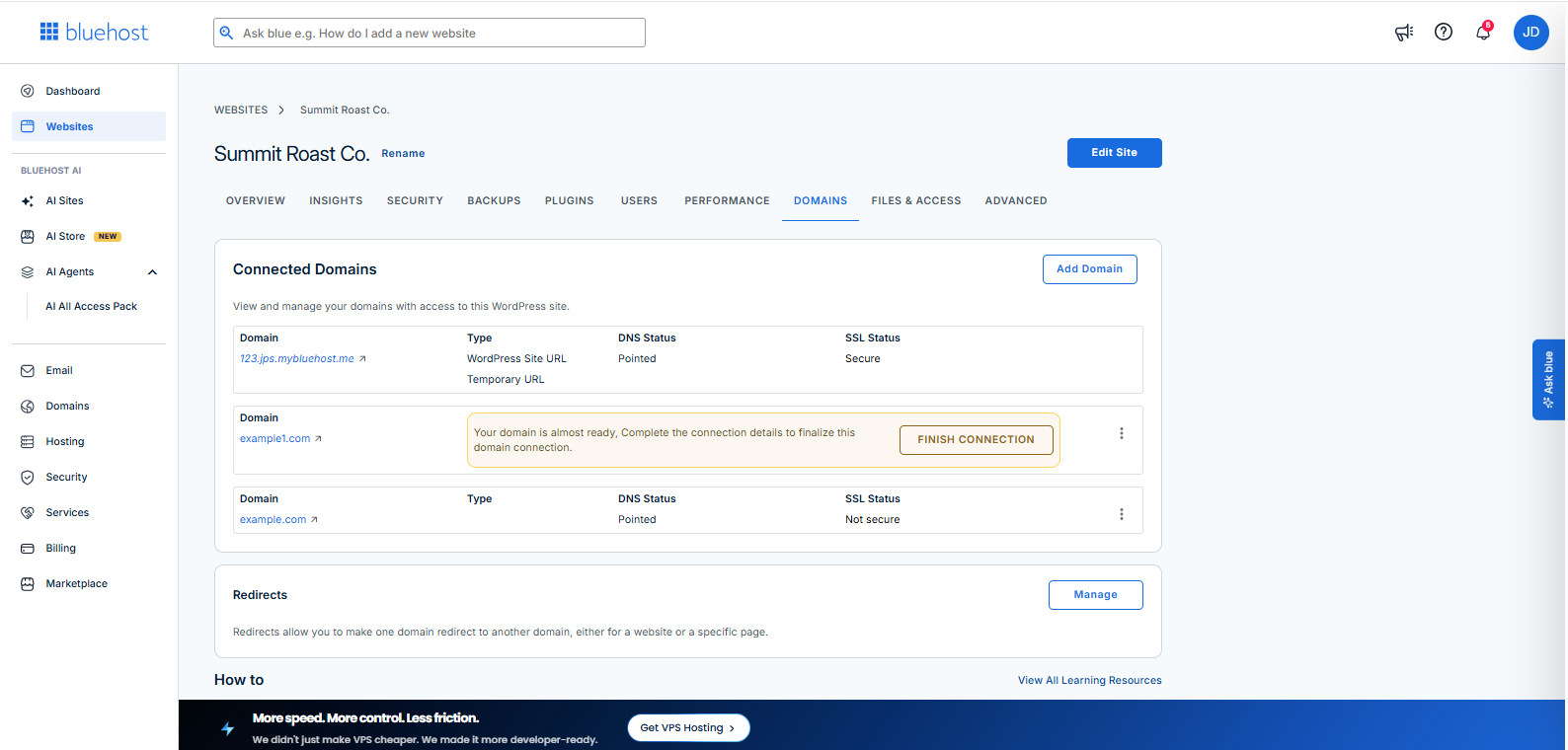
- Navigate to the Domains tab.
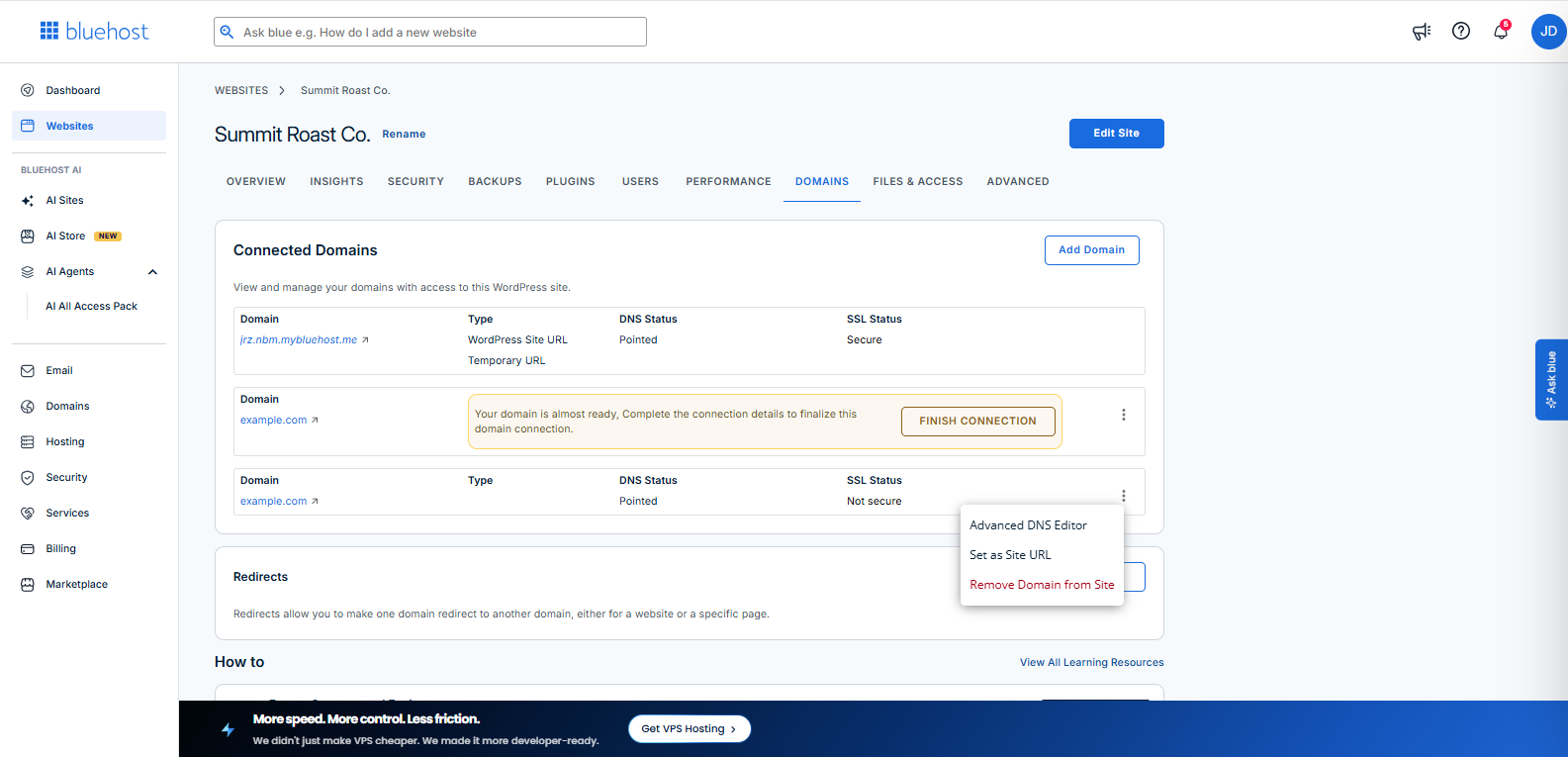
- Locate the connected domain, click the three-dot menu beside it, and select Set as Site URL.
Summary
Connected a domain to your Bluehost AI Store and set it as your Site URL. Using a custom domain helps strengthen your brand, builds customer trust, and makes it easier for visitors to find your store online.
If you need further assistance, Bluehost Chat Support is available 24 hours a day, 7days a week while Bluehost Phone Support is available 7 days a week from 7 am-12 midnight EST.
- Chat Support - While on our website, you should see a CHAT bubble in the bottom right-hand corner of the page. Click anywhere on the bubble to begin a chat session.
- Phone Support -
- US: 888-401-4678
- International: +1 801-765-9400
You may also refer to our Knowledge Base articles to help answer common questions and guide you through various setup, configuration, and troubleshooting steps.