 ChatGPT,
  Claude,
  Gemini,
  Grok — all four for
 Bluehost AI Store: How to Create, Edit and Delete a Category
Product categories help organize your inventory and improve the shopping experience for your customers. In the Bluehost AI Store, categories make it easier to group related products, simplify navigation, and help customers quickly find what they're looking for.
In Bluehost AI Store, you can create, edit, and delete product categories directly from the Categories section of the Products tab. This article walks you through the process of managing product categories. We've also created a short video to guide you through the steps.
To learn more about creating a product and product variants in your AI Store dashboard, visit the following articles:
How to Create a Category
Follow these steps to create categories in your AI Store dashboard.
- Log in to your Bluehost Portal.
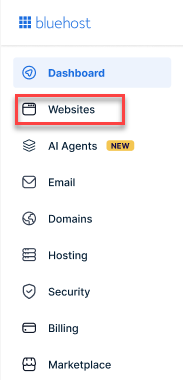
- From the left-hand menu, click the Websites tab.
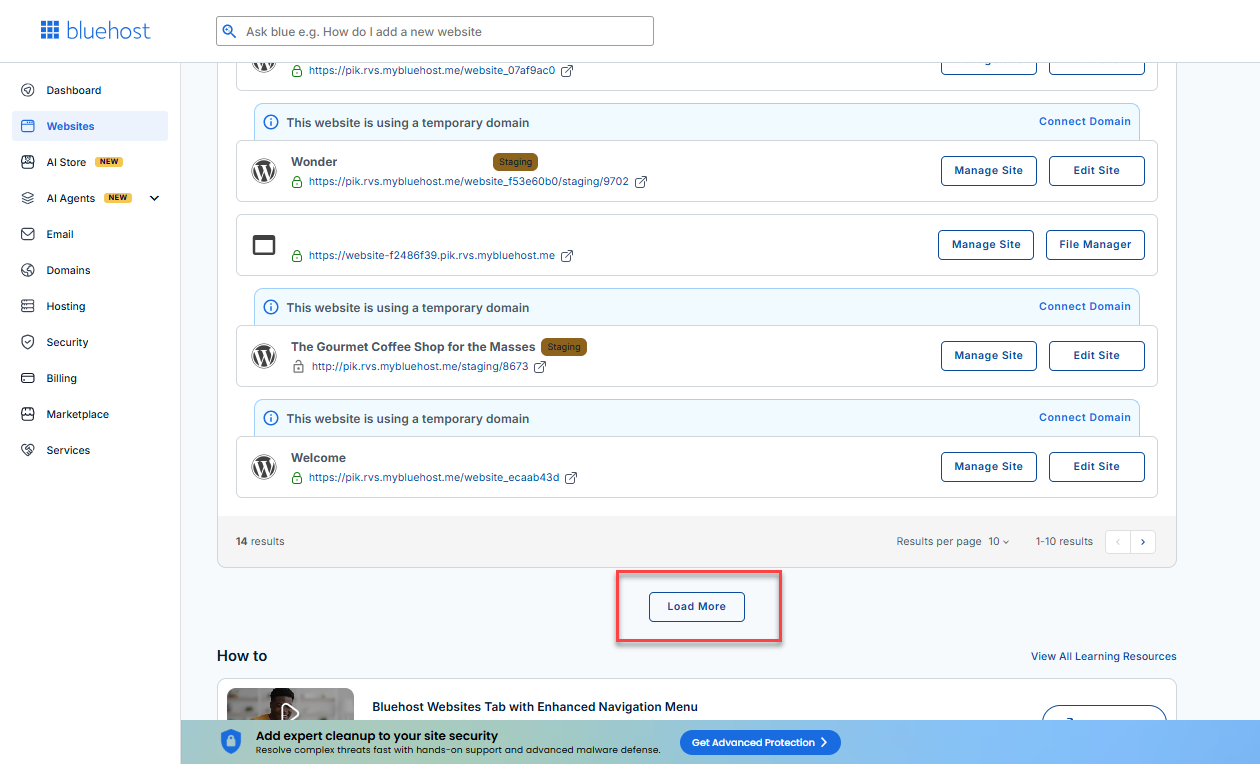
- Locate your Sell Online plan. If you have multiple websites, you need to scroll down and click the Load More link.
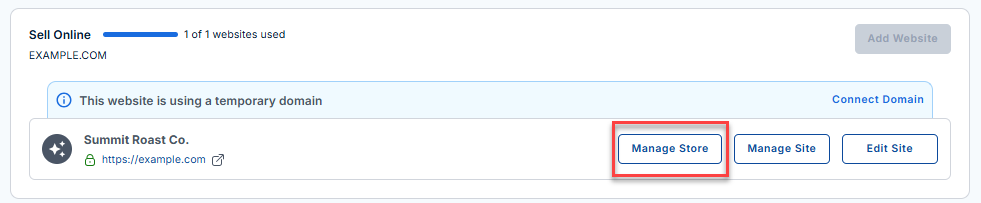
- Click the Manage Store button next to your site.
- You will be redirected to your Bluehost AI Store Dashboard.
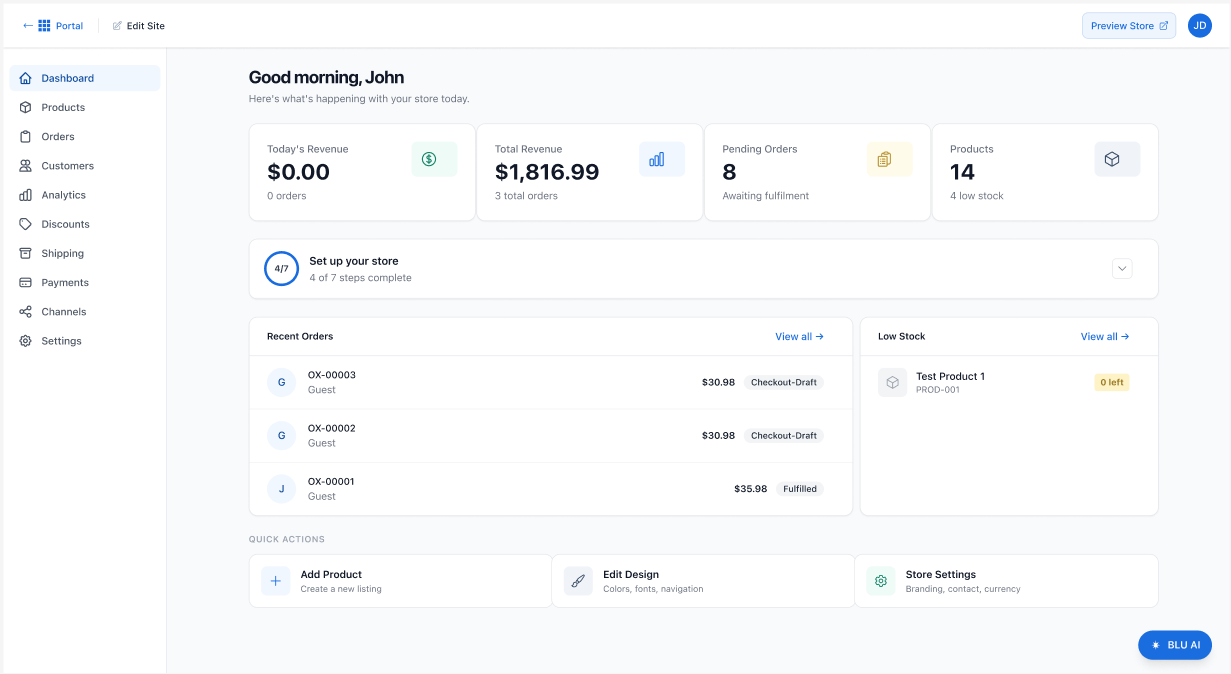
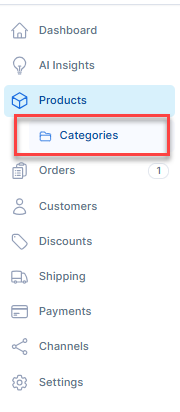
- Navigate to the Products tab in the left menu. Then, select Categories.
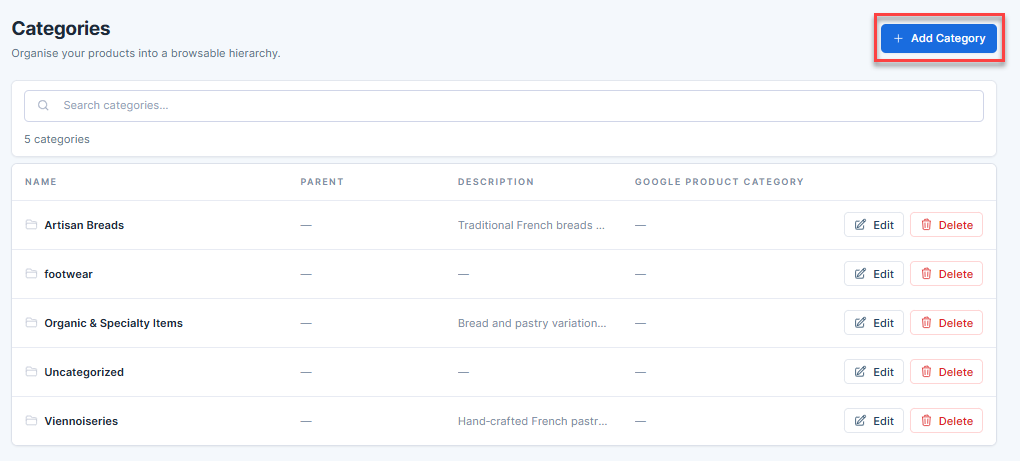
- Click the + Add Category button.
- On the pop-up, fill out the Category form with the following details:
- Name
- Parent
- Description
- Google Product Category
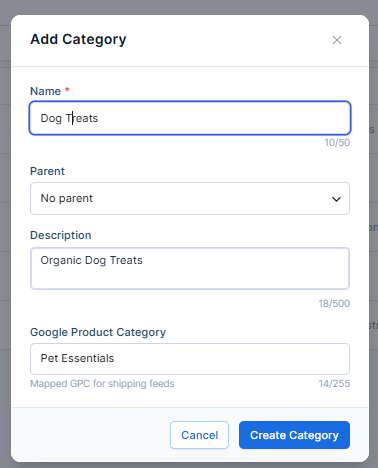
- Click Create Category.
- The new category will now appear in the Categories page.
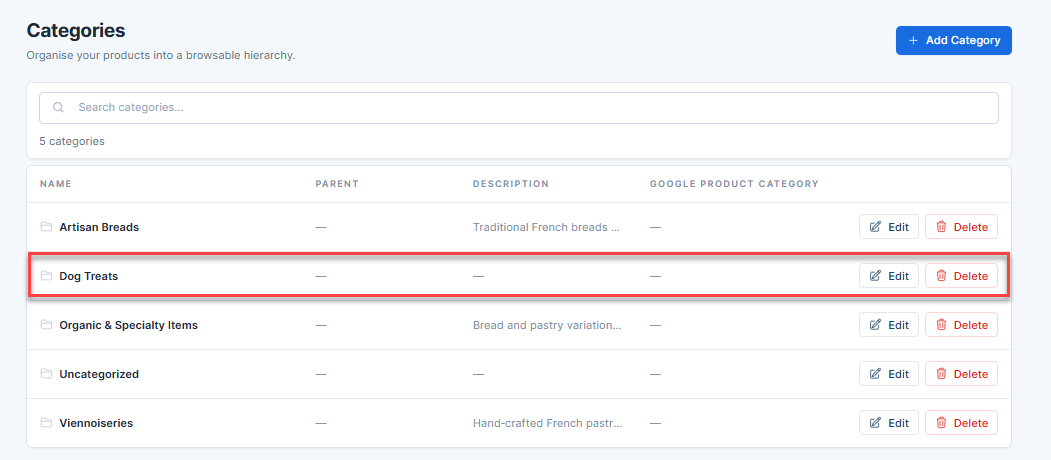
Categories can be used to organize products by type, brand, season, audience, or any structure that best fits your store.
How to Edit a Category
- Log in to your Bluehost Portal.
- From the left-hand menu, click the Websites tab.
- Locate your Sell Online plan. If you have multiple websites, you need to scroll down and click the Load More link.
- Click the Manage Store button next to your site.
- You will be redirected to your Bluehost AI Store Dashboard.
- Navigate to the Products tab in the left menu. Then, select Categories.
- Locate the category you want to edit.
- Click Edit.
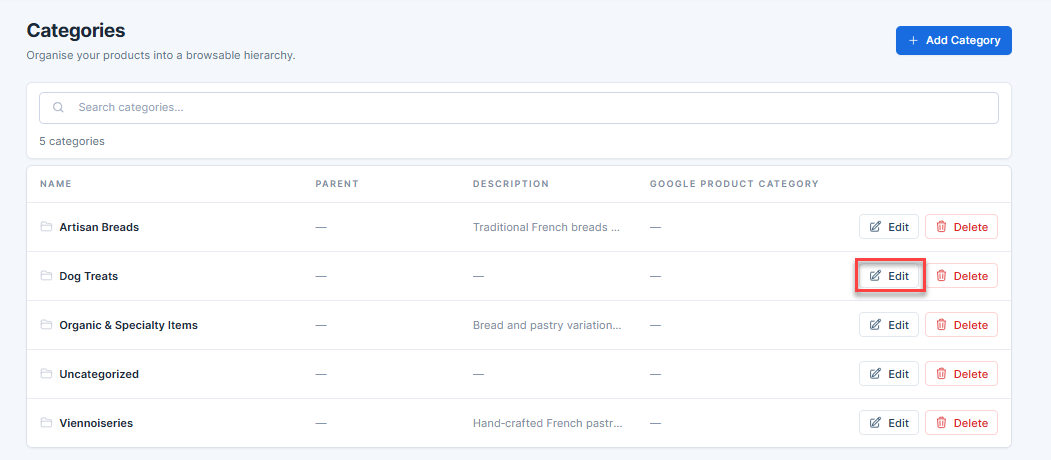
- In the pop-up, make the necessary updates to the category name, parent category, description, or Google Product Category.
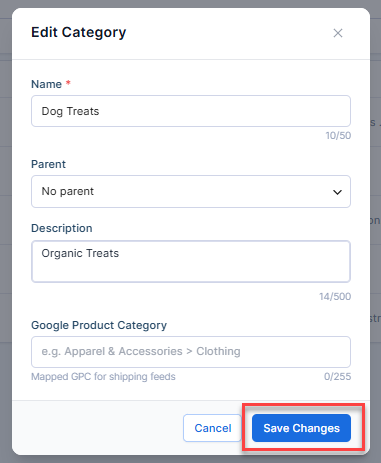
- Click Save Changes to apply your updates.
How to Delete a Category
Deleting a category removes it from the online store's organization structure. Products assigned to that category may need to be reassigned to another category.
- Log in to your Bluehost Portal.
- From the left-hand menu, click the Websites tab.
- Locate your Sell Online plan. If you have multiple websites, you need to scroll down and click the Load More link.
- Click the Manage Store button next to your site.
- You will be redirected to your Bluehost AI Store Dashboard.
- Navigate to the Products tab in the left menu. Then, select Categories.
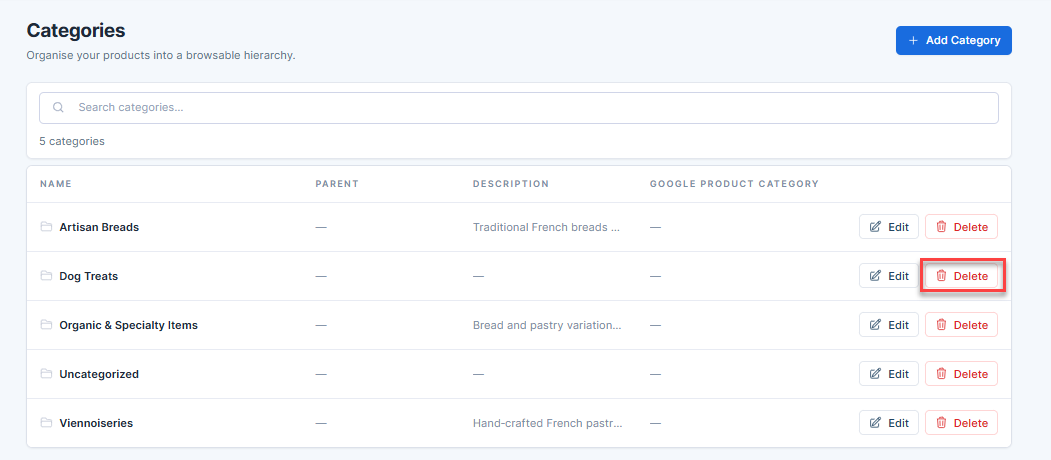
- Locate the category you want to delete.
- Click Delete.
- In the pop-up message, click Delete once again to confirm the deletion of the category.
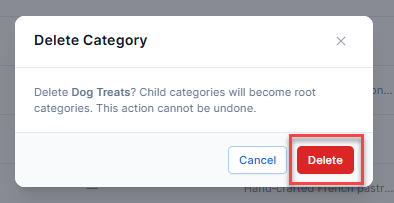
- The category is now deleted.
Summary
Product categories help keep your store organized and make it easier for customers to find products. Using the Categories section in Bluehost AI Store, you can quickly create, manage, and delete categories as your inventory grows and changes.
If you need further assistance, Bluehost Chat Support is available 24 hours a day, 7days a week while Bluehost Phone Support is available 7 days a week from 7 am-12 midnight EST.
- Chat Support - While on our website, you should see a CHAT bubble in the bottom right-hand corner of the page. Click anywhere on the bubble to begin a chat session.
- Phone Support -
- US: 888-401-4678
- International: +1 801-765-9400
You may also refer to our Knowledge Base articles to help answer common questions and guide you through various setup, configuration, and troubleshooting steps.