 ChatGPT,
  Claude,
  Gemini,
  Grok — all four for
 Bluehost AI Store: Managing Product Variants
Product variants allow you to offer multiple versions of the same product without creating separate product listings. Variants are ideal for products that come in different options, such as sizes, colors, materials, or styles.
This article explains how to create, manage, and update product variants in your Bluehost AI Store, with a video guide to walk you through the process.
What Are Product Variants?
A product variant is a version of a product based on one or more attributes. Instead of creating separate products, you can group all options under a single product listing.
The Bluehost AI Store allows you to create product options and variants, enabling customers to select different versions of a product while maintaining accurate inventory management.
Common variant examples:
- Clothing sizes (Small, Medium, Large)
- Colors (Black, Blue, Red)
- Materials (Cotton, Polyester)
- Styles (Hoodie, Crewneck, Zip-Up)
Customers can select their preferred option directly from the product page.
How to Add Product Variants
- Log in to your Bluehost Portal.
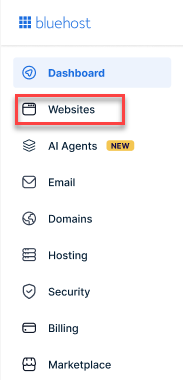
- From the left-hand menu, click the Websites tab.
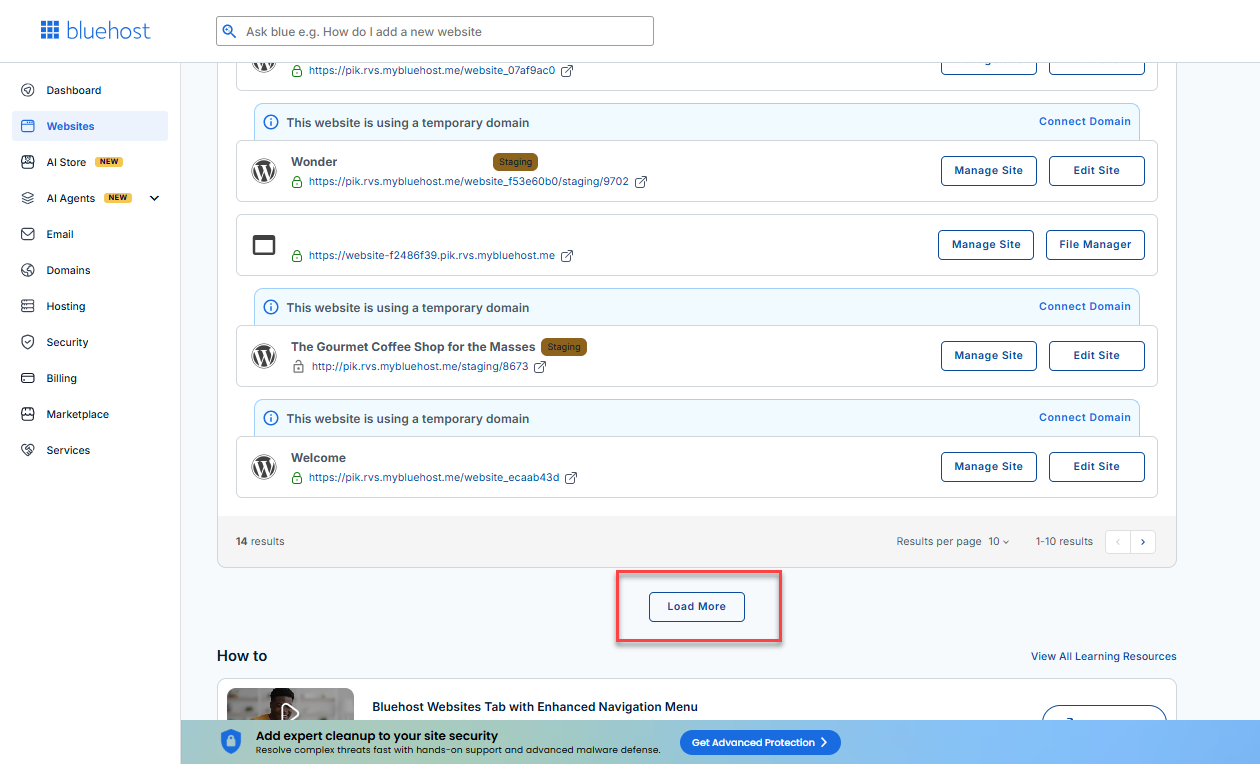
- Locate your Sell Online plan. If you have multiple websites, you need to scroll down and click the Load More link.
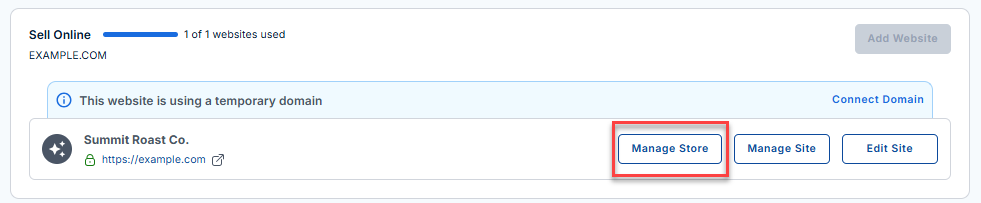
- Click the Manage Store button next to your site.
- You will be redirected to your Bluehost AI Store Dashboard.
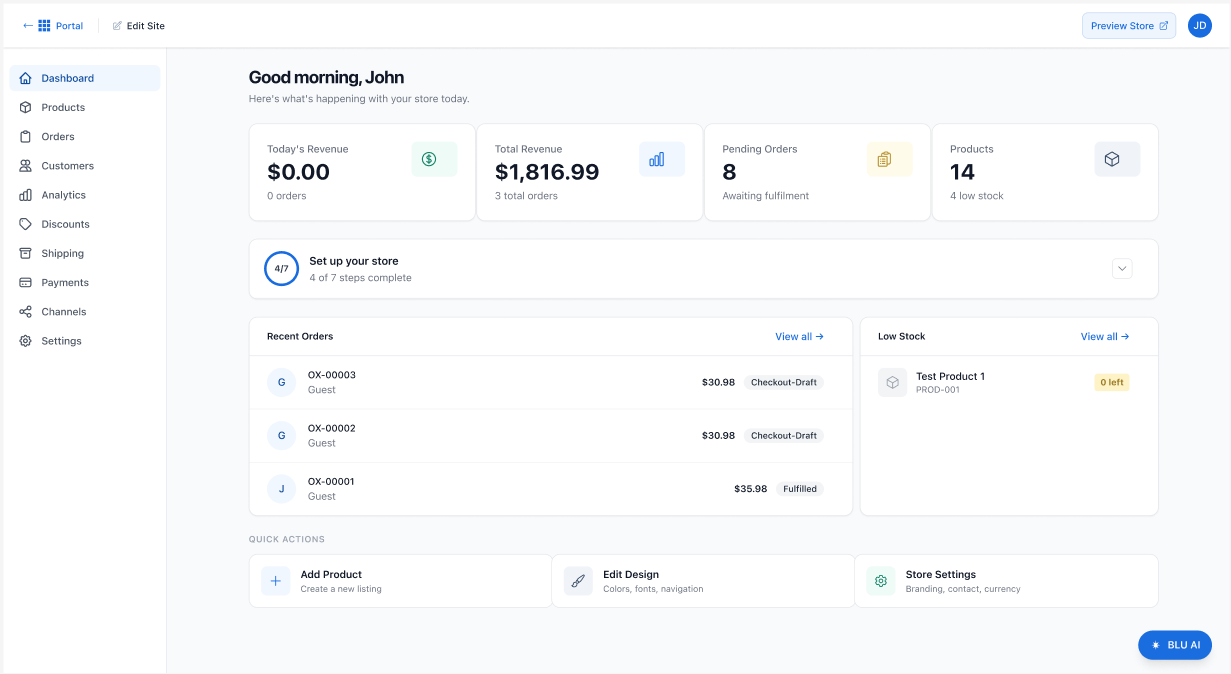
- Click Products from the left-hand menu.
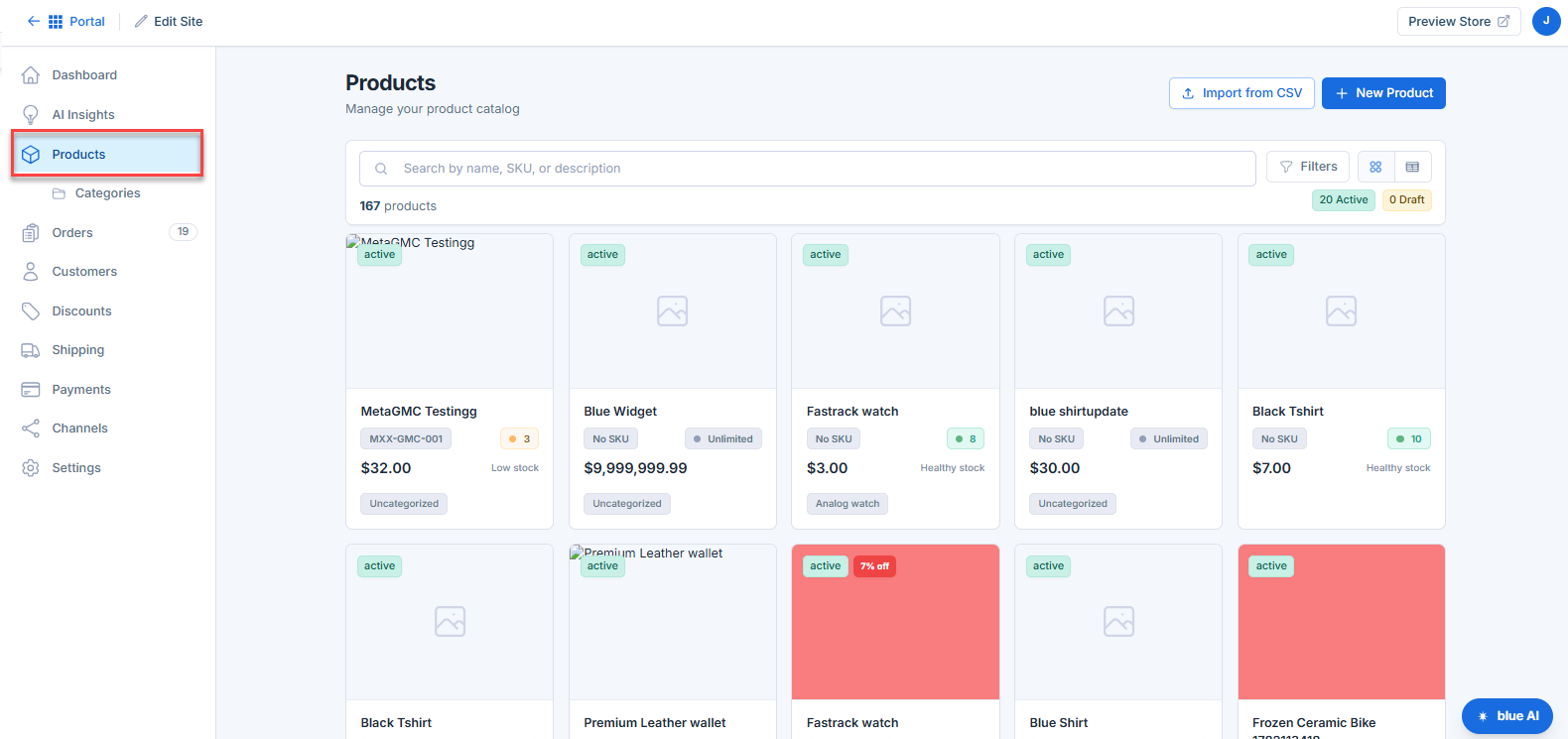
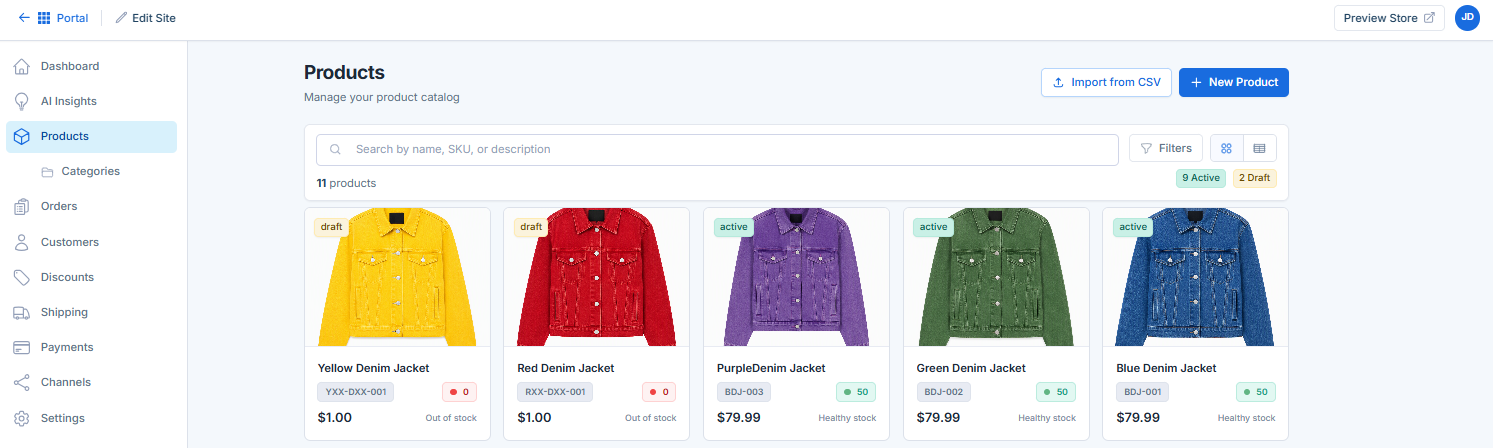
- Create a new product or select an existing product to edit.
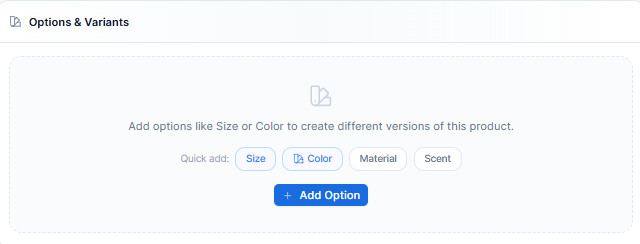
- Scroll to the Options & Variants section.
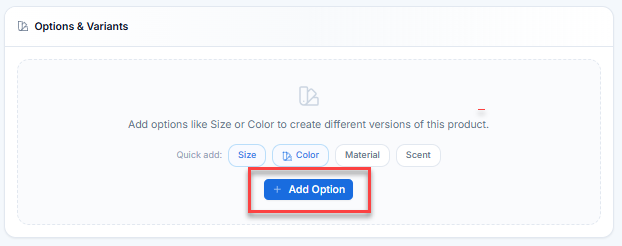
- Click + Add Option.
- Select the Option type (for example, size or color).
- Click Add Option.
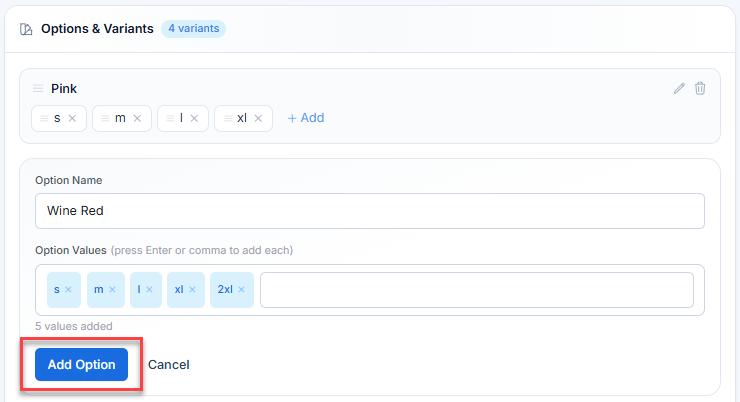
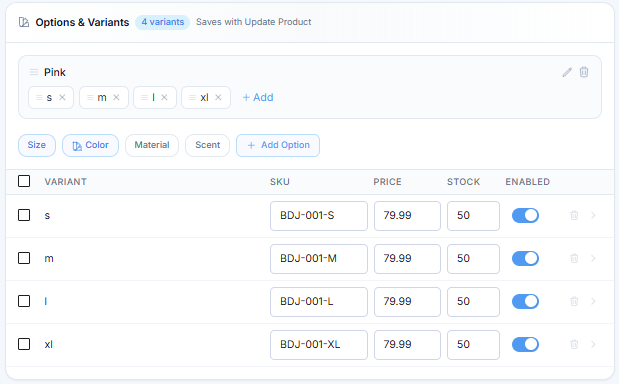
- The system automatically generates variants based on the options you select.
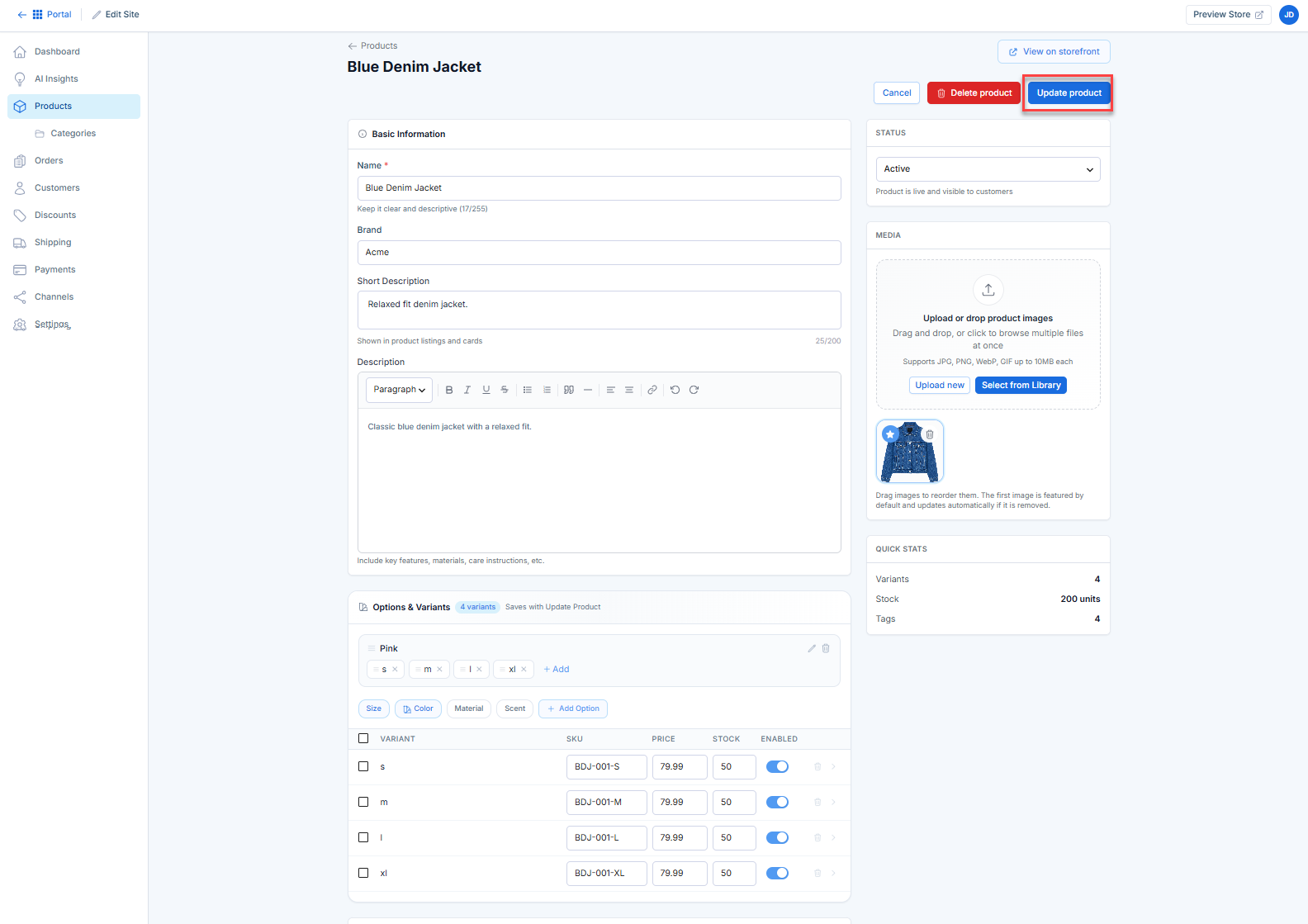
- Click Update Product to save your changes.
Managing Variant Details
After generating variants, you can customize settings for each one, including:
- Price – Set a unique price for specific variants.
- SKU – Assign a unique SKU for inventory tracking.
- Stock Quantity – Manage inventory per variant.
- Images – Associate images with specific variants.
- Availability – Enable or disable individual variants.
This allows greater flexibility when managing products with multiple options.
Editing Existing Variants
To update a product variant:
- Access your AI Store Dashboard within your Bluehost Portal. For instructions, visit the Bluehost AI Store: Accessing the Bluehost AI Store article.
- Click the Products tab in the left-hand menu.
- Click the Products tab in the left-hand menu.
- Open the product containing the variants.
- Locate the Variants section.
- Click the caret icon next to the variant you want to modify.
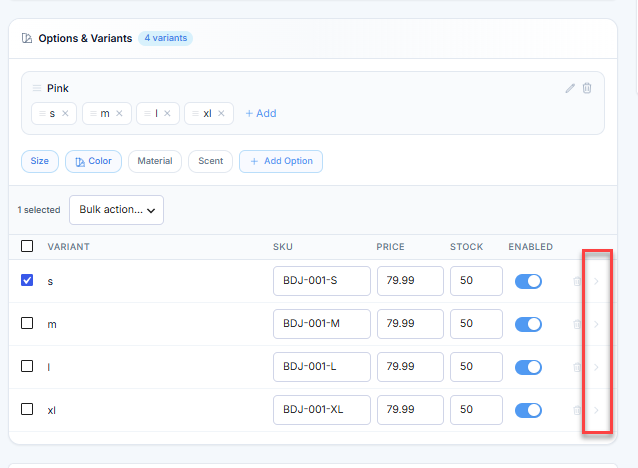
- Update the desired settings.
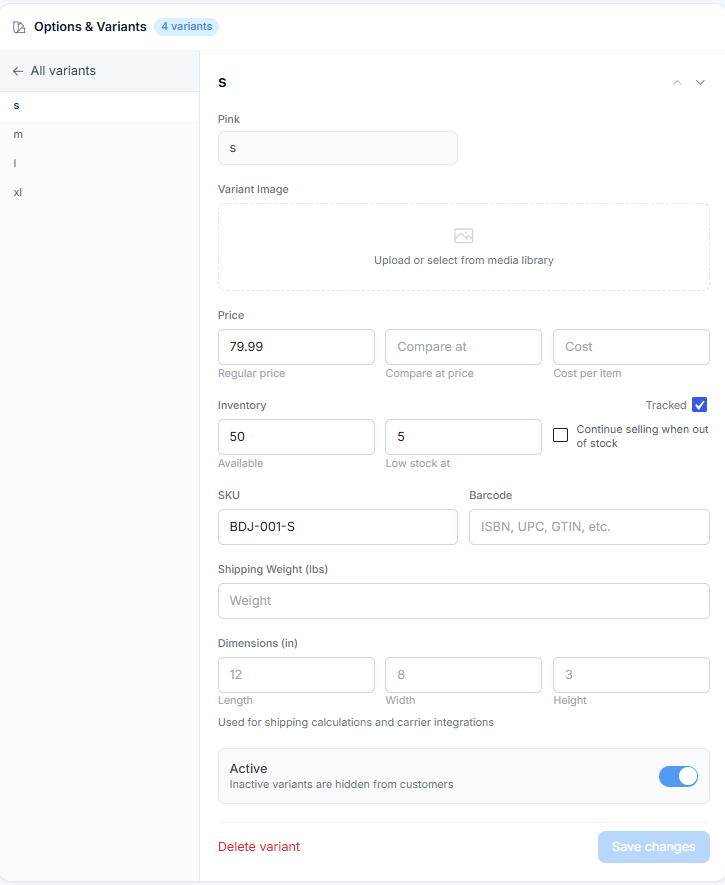
- Click Save.
Changes are reflected on your storefront immediately after they are saved.
Removing a Variant
If a variant is no longer available, you can remove it.
- Access your AI Store Dashboard within your Bluehost Portal. For instructions, visit the Bluehost AI Store: Accessing the Bluehost AI Store article.
- Click the Products tab in the left-hand menu.
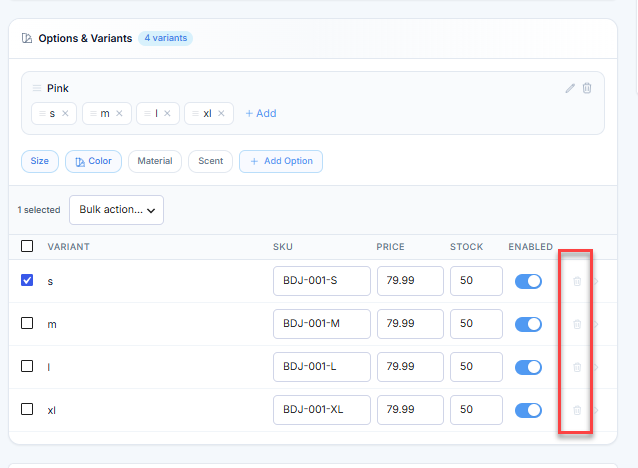
- Navigate to Variants.
- Locate the variant you want to remove.
- Click the Trash icon next to the variant.
- Confirm the deletion in the pop-up message.
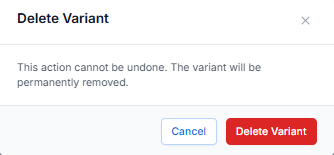
Removing unavailable options helps keep product listings accurate and improves the customer experience.
Best Practices for Product Variants
- Use variants instead of creating duplicate products.
- Assign unique SKUs to each variant for better inventory management.
- Upload accurate images for different colors or styles.
- Keep variant names simple and consistent.
- Regularly review stock levels to prevent overselling.
Summary
Product variants make it easy to offer multiple versions of a product from a single listing. By managing options such as size, color, and style within the Variants section, you can simplify inventory management, improve the shopping experience, and keep your Bluehost AI Store organized.
If you need further assistance, Bluehost Chat Support is available 24 hours a day, 7days a week while Bluehost Phone Support is available 7 days a week from 7 am-12 midnight EST.
- Chat Support - While on our website, you should see a CHAT bubble in the bottom right-hand corner of the page. Click anywhere on the bubble to begin a chat session.
- Phone Support -
- US: 888-401-4678
- International: +1 801-765-9400
You may also refer to our Knowledge Base articles to help answer common questions and guide you through various setup, configuration, and troubleshooting steps.