 ChatGPT,
  Claude,
  Gemini,
  Grok — all four for
 Bluehost AI Store: How to Import Products via CSV
The Import Products feature in Bluehost AI Store allows you to quickly add or update multiple products using a CSV (Comma-Separated Values) file. Instead of creating products one by one, you can upload product information in bulk, making it easier to manage large inventories and migrate products from another platform.
This guide covers CSV file formatting requirements, field mapping, and common troubleshooting steps to help ensure a successful product import.
Using the Product Import Tool
- Log in to your Bluehost Portal.
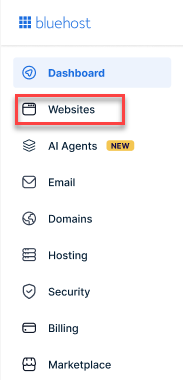
- From the left-hand menu, click the Websites tab.
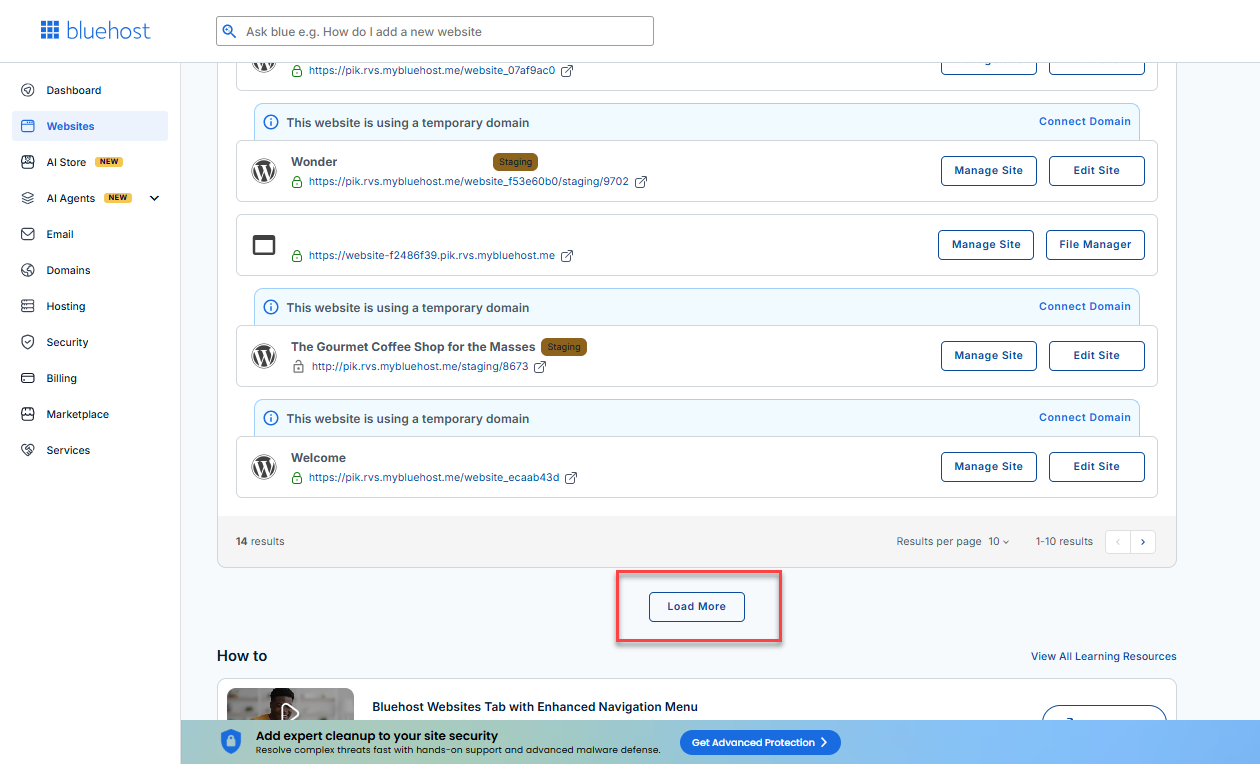
- Locate your Sell Online plan. If you have multiple websites, you need to scroll down and click the Load More link.
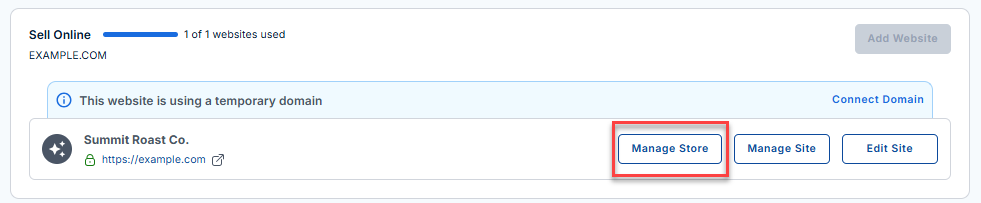
- Click the Manage Store button next to your site.
- You will be redirected to your Bluehost AI Store Dashboard.
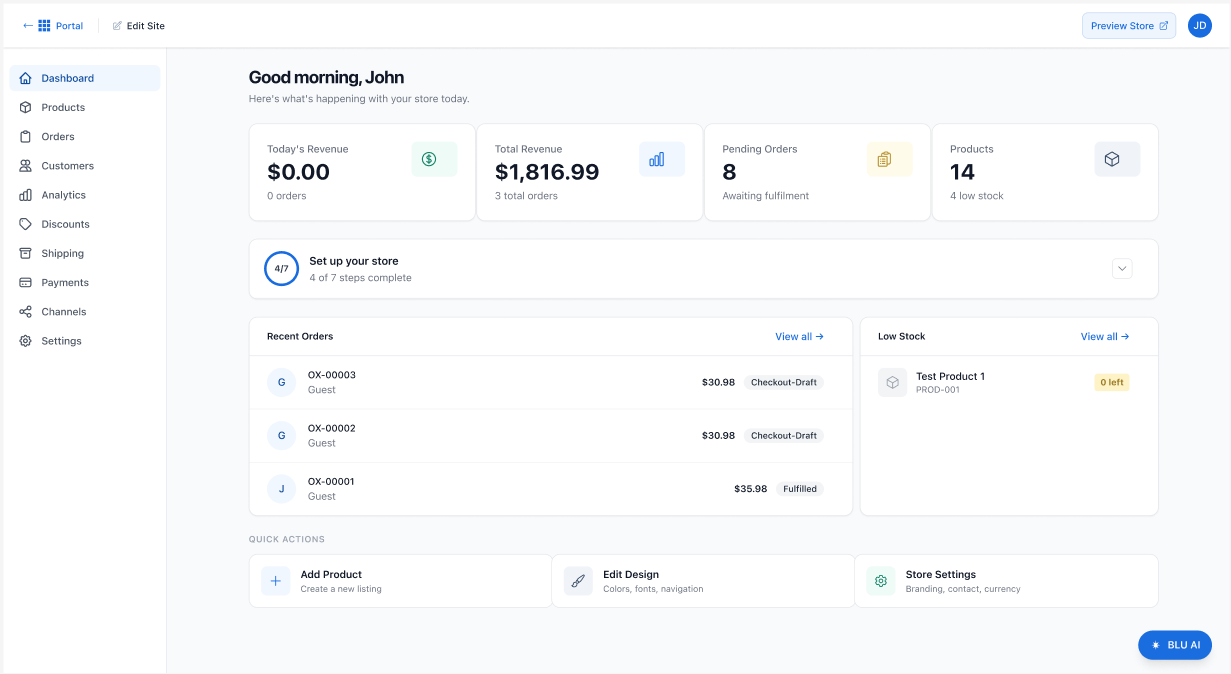
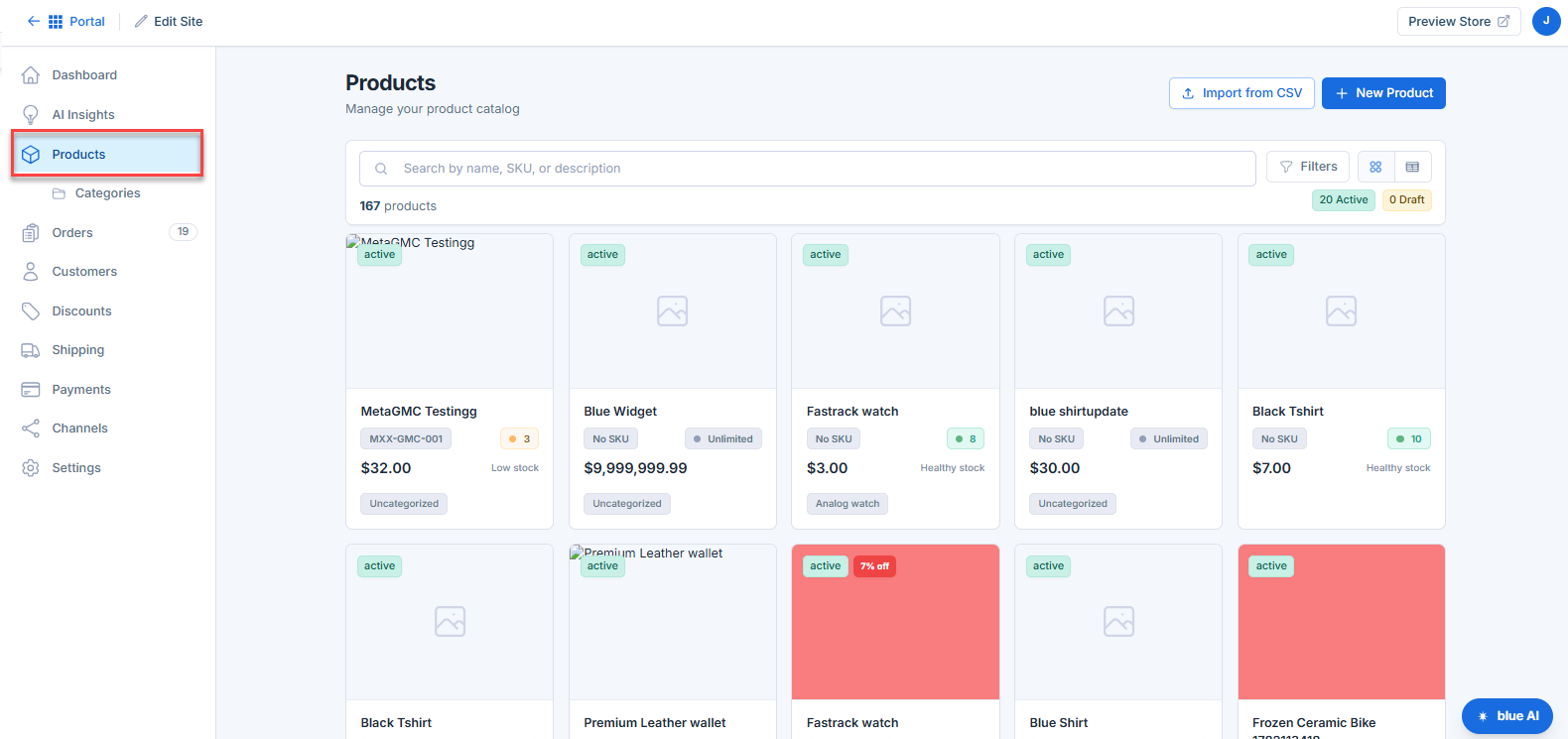
- Click Products from the left-hand menu.
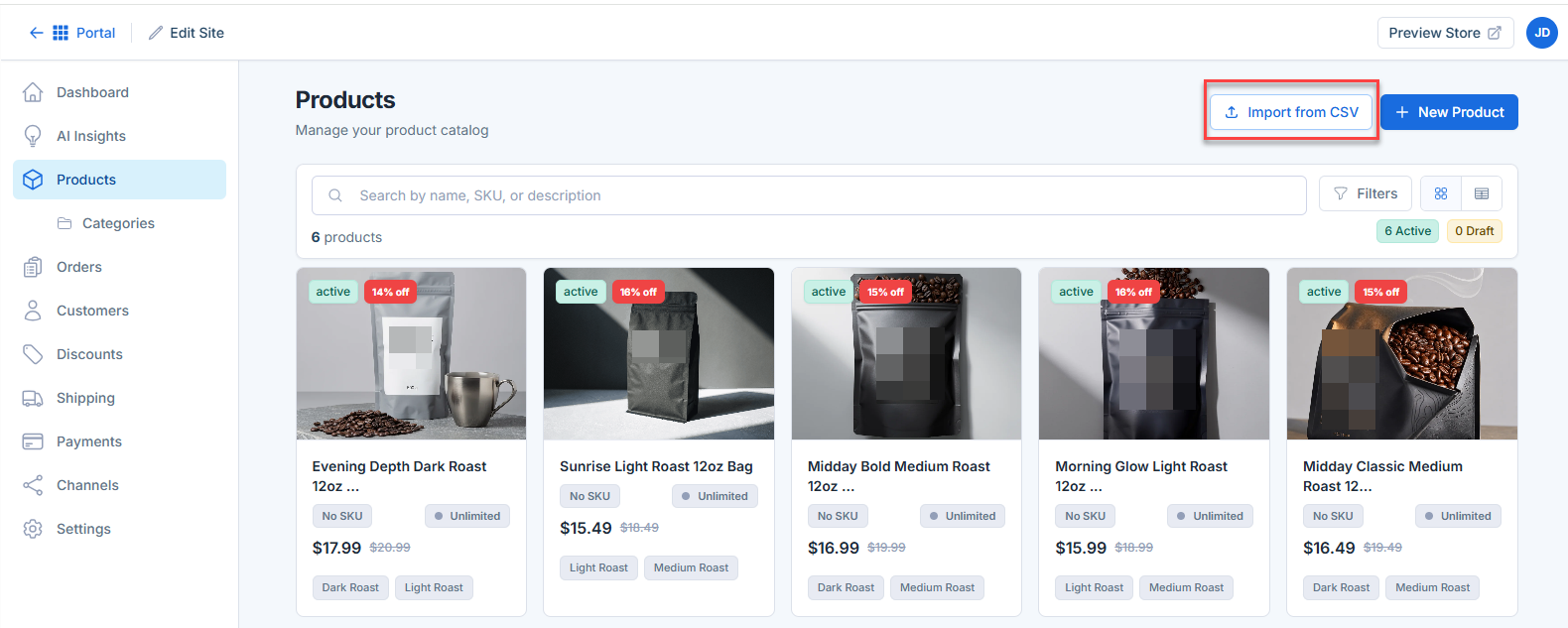
- Click theImport from CSV button.
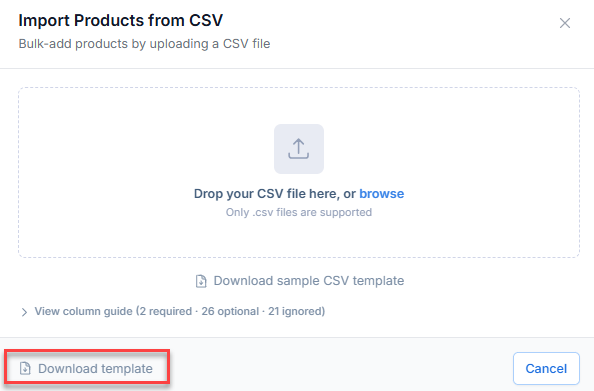
- Click Download Template. Use this file to enter your product information before importing it into your store.
- Review the file mapping and import settings.
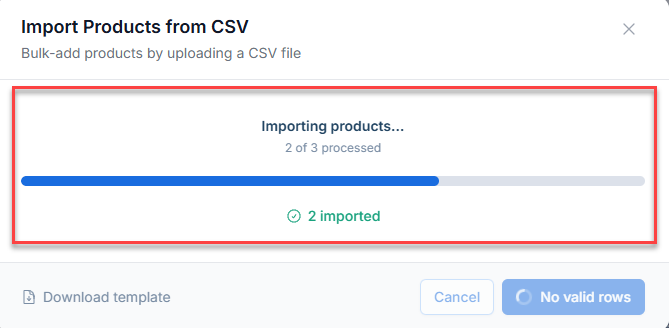
- Click Import Products to begin the process.
Verifying Imported Products
After the import is complete:
- Log in to your Bluehost Portal.
- From the left-hand menu, click the Websites tab.
- Locate your Sell Online plan. If you have multiple websites, you need to scroll down and click the Load More link.
- Click the Manage Store button next to your site.
- You will be redirected to your Bluehost AI Store Dashboard.
- Click Products from the left-hand menu.
- Review recently imported products.
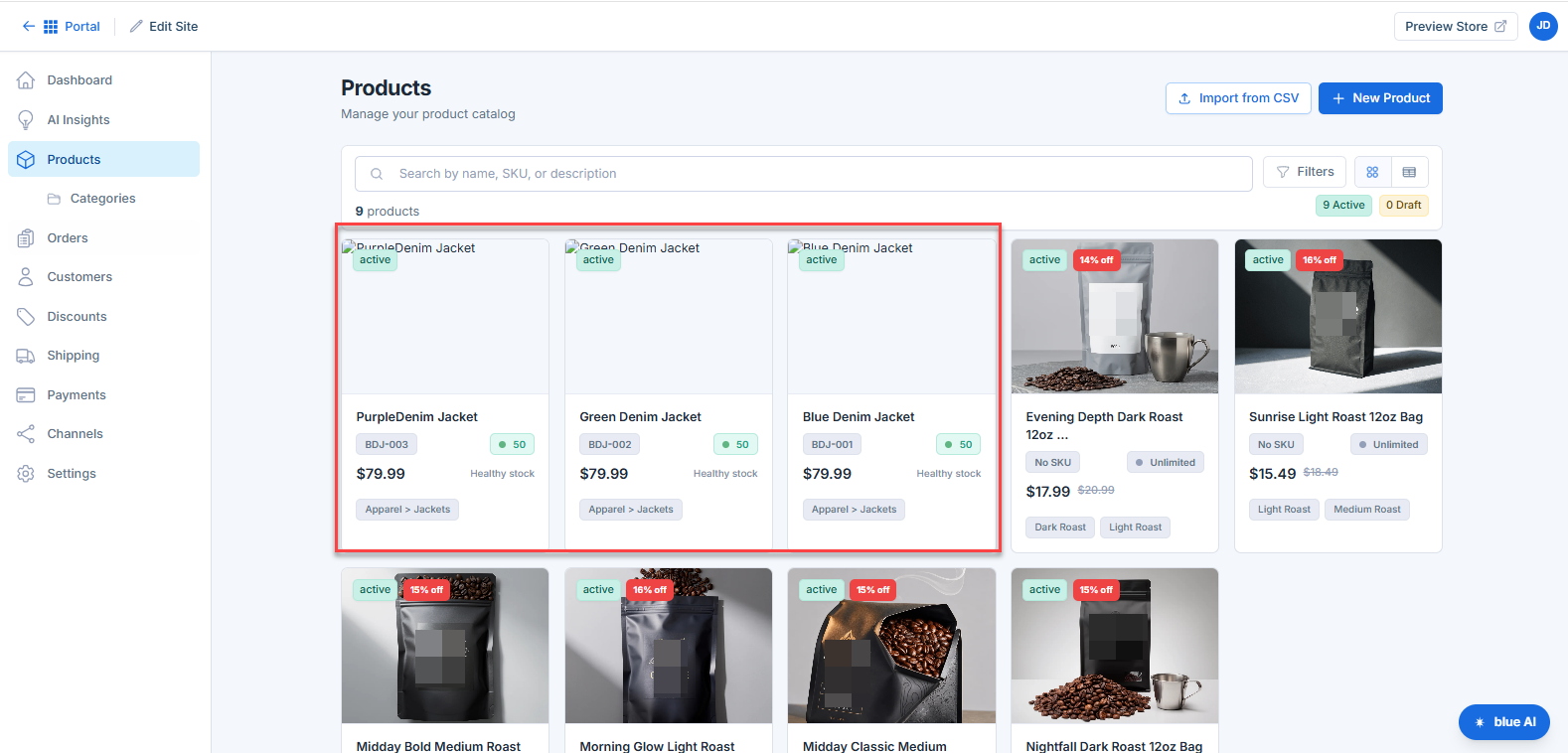
- Confirm:
- Product names are correct
- Prices display properly
- Inventory levels are accurate
- Categories and tags are assigned correctly
- Product images load successfully
- Make any necessary adjustments before publishing products.
CSV File Requirements
Before importing, ensure your CSV file meets the following requirements:
- File format must be .csv
- The first row must contain column headers
- Each product should have its own row
- Avoid special formatting, formulas, or merged cells
- Use UTF-8 encoding to prevent character display issues
- Ensure required product data is included
Recommended Product Fields
Common fields supported during import include:
- Product ID
- Type
- SKU
- Product Name
- Product Description
- Price
- Sale Price
- Product Category
- Stock Quantity
- Product Status
- Product Image URL
- Weight
- Product Type
- Tags
Note: The available fields may vary depending on your store configuration and product type.
Example CSV Format
Name,SKU,Price,Stock Quantity,Category,Description
Blue Hoodie,HOOD-001,49.99,100,Apparel,Premium cotton hoodie
Logo T-Shirt,TSHIRT-001,24.99,250,Apparel,Comfortable everyday t-shirt
Coffee Mug,MUG-001,14.99,75,Accessories,Ceramic mug
Mapping CSV Fields
After uploading your CSV file, Bluehost AI Store will prompt you to map your CSV columns to the corresponding product fields in your store.
To map fields
- Review each detected CSV column.
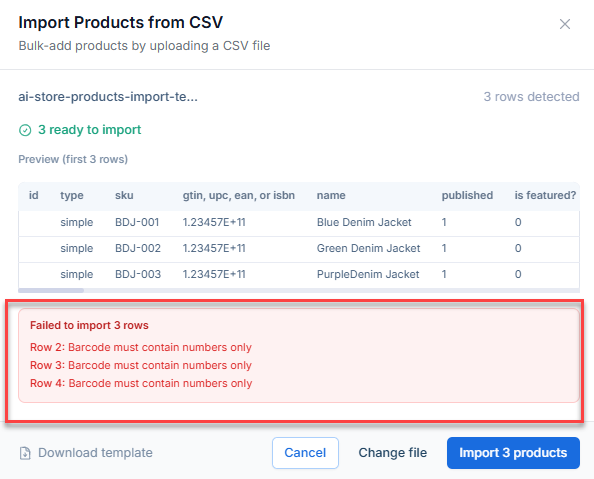
- Select the matching product field from the dropdown menu.
- Confirm all important fields are mapped correctly.
- Ignore any columns you do not wish to import.
- Continue with the import process.
Best Practices
- Ensure product names map to Product Name
- Verify prices are mapped to Price
- Confirm SKU fields match the correct SKU column
- Check inventory-related fields before importing stock quantities
- Review category mappings to keep products organized
Importing Product Variants
If your products include variants such as size, color, or style:
- Ensure variant information is included in separate columns.
- Use consistent naming conventions for attribute values.
- Verify variant fields are mapped correctly during the import process.
- Review imported products afterward to confirm variant assignments.
Examples of variant attributes:
- Size: Small, Medium, Large
- Color: Black, Blue, Red
- Material: Cotton, Polyester
Common Import Errors and Troubleshooting
Missing Required Fields
Error: Products fail to import or are skipped.
Solution:
- Verify required fields such as Product Name and Price are present.
- Check that column headers are not blank.
Incorrect Field Mapping
Error: Product information appears in the wrong fields.
Solution:
- Review the field mapping screen before importing.
- Ensure each CSV column is assigned to the correct product field.
Invalid CSV Format
Error: File upload fails or cannot be processed.
Solution:
- Save the file in CSV format (.csv).
- Remove unsupported formatting or formulas.
- Ensure the first row contains column headers.
Duplicate SKUs
Error: Products may be skipped or overwrite existing products.
Solution:
- Confirm SKU values are unique where required.
- Review existing products for duplicate SKUs before importing.
Missing Images
Error: Product images do not appear after import.
Solution:
- Verify image URLs are valid and publicly accessible.
- Confirm image URLs are mapped to the correct image field.
Data Formatting Issues
Error: Prices, inventory, or other values import incorrectly.
Solution:
- Remove currency symbols from numeric fields if required.
- Verify numbers use the correct format.
- Check for extra spaces or hidden characters in cells.
Summary
The CSV import feature in Bluehost AI Store makes it easy to add or update products in bulk. By following proper CSV formatting guidelines, correctly mapping fields, and reviewing common import errors before uploading, you can streamline inventory management and ensure your product data is imported accurately.
If you need further assistance, Bluehost Chat Support is available 24 hours a day, 7days a week while Bluehost Phone Support is available 7 days a week from 7 am-12 midnight EST.
- Chat Support - While on our website, you should see a CHAT bubble in the bottom right-hand corner of the page. Click anywhere on the bubble to begin a chat session.
- Phone Support -
- US: 888-401-4678
- International: +1 801-765-9400
You may also refer to our Knowledge Base articles to help answer common questions and guide you through various setup, configuration, and troubleshooting steps.