 ChatGPT,
  Claude,
  Gemini,
  Grok — all four for
Bluehost AI Store: Products Tab
The Products tab in the Bluehost AI Store serves as your central hub for managing your store’s inventory. It provides a streamlined and user-friendly interface where you can create, organize, and monitor your products efficiently.
Whether you're adding new items, updating existing listings, or reviewing stock levels, the Products tab gives you the tools you need to keep your catalog organized and up to date.
Key Features of the Products Tab
The Products tab includes the following features:
Products Overview
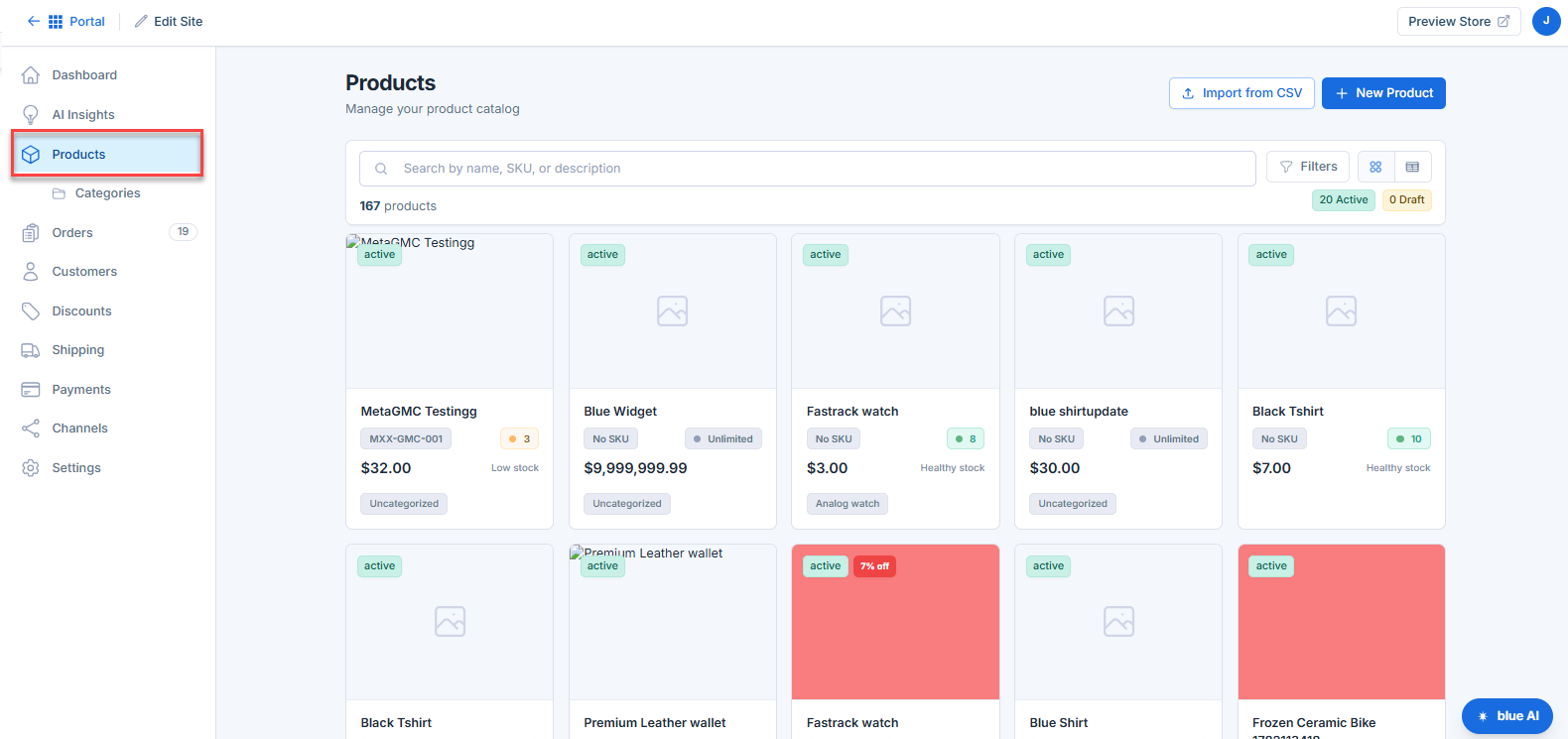
Get a quick snapshot of your inventory with a clear display of the total number of products. Products are categorized by status, such as Active and Draft, allowing you to easily track what's live and what still needs updates.
Advanced Search Functionality
Quickly find specific products using keywords, such as the product name, SKU, or description. This helps save time, especially when managing larger catalogs.
Flexible Filtering Options
Refine your product list using built-in filters. This makes it easier to focus on specific products based on criteria like status or stock levels.
Grid and List Views
Choose how you want to view your products:
- Grid View – Displays products in a visual card layout
- List View – Shows products in a detailed row format
This flexibility allows you to work in the format that best suits your workflow.
Quick Product Actions
Easily manage your inventory with quick-access tools:
- Click + New Product to add items individually. For step-by-step instructions, see Bluehost AI Store: How to Create, Edit and Delete a Product.
- Use Import from CSV to upload products in bulk. Learn more in Bluehost AI Store: How to Import Products via CSV.
These options make adding and updating products fast and efficient.
Product Status Indicators
Each product is labeled with real-time status indicators such as:
- Active
- Draft
- Low Stock
- Out of Stock
These indicators allow you to quickly identify product availability and take action when needed.
Category Management Access
Organize your catalog by accessing product categories directly from the sidebar. This helps you maintain a structured and easy-to-navigate store.
At-a-Glance Product Details
Each product card displays essential information, including:
- Product image
- Name
- SKU
- Price
- Stock status
This ensures you can quickly review product details without opening each item individually.
If your products come in multiple options, such as size, color, or style, you can configure product variants to better manage inventory and customer choices. For more information, see Bluehost AI Store: Managing Product Variants.
How to Access the Products Tab
To access the Products tab, follow these steps:
- Log in to your Bluehost Portal.
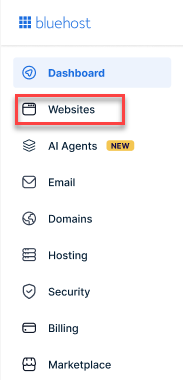
- From the left-hand menu, click the Websites tab.
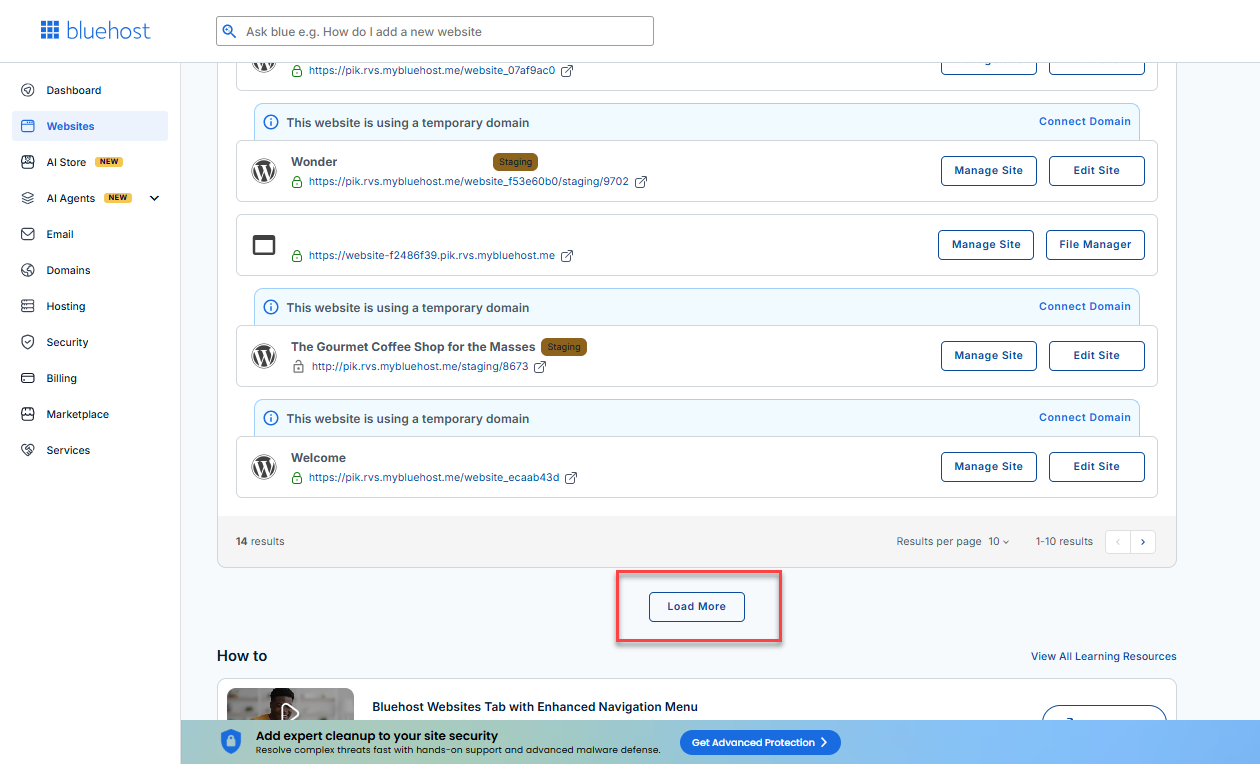
- Locate your Sell Online plan. If you have multiple websites, you need to scroll down and click the Load More link.
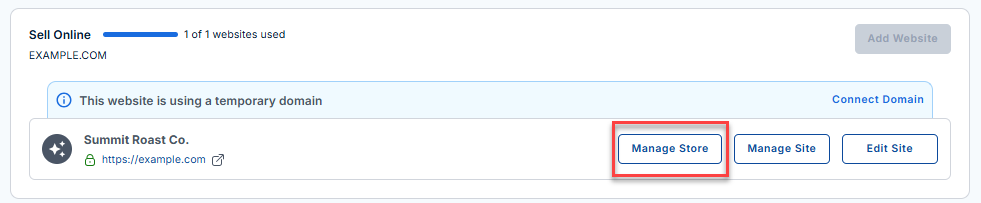
- Click the Manage Store button next to your site.
- You will be redirected to your Bluehost AI Store Dashboard.
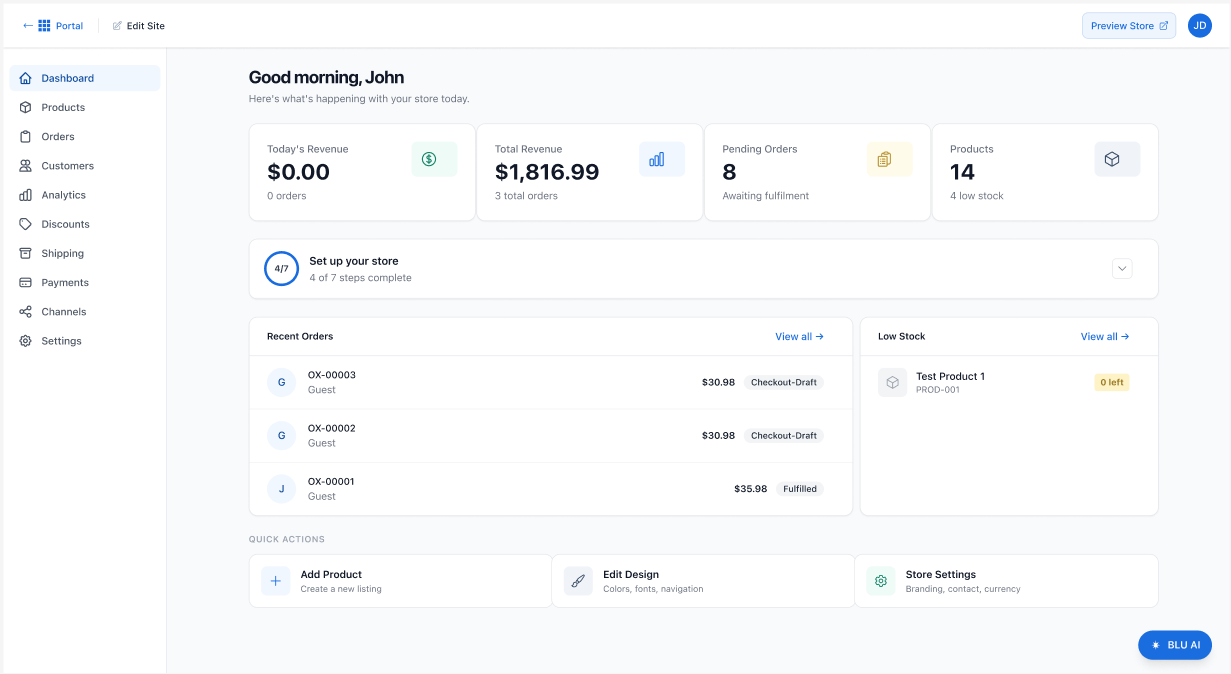
- Click the Products tab in the left-hand menu, and your store's Products page will be displayed.
To learn more about how to set up the AI Store dashboard, visit the Bluehost AI Store: Setting Up the AI Store Dashboard article.
Summary
The Products tab is the central inventory management hub of your Bluehost AI Store. Whether you're creating new products, importing product catalogs via CSV, managing product variants, or monitoring stock availability, the Products tab provides the tools needed to efficiently organize and scale your online store.
If you need further assistance, Bluehost Chat Support is available 24 hours a day, 7days a week while Bluehost Phone Support is available 7 days a week from 7 am-12 midnight EST.
- Chat Support - While on our website, you should see a CHAT bubble in the bottom right-hand corner of the page. Click anywhere on the bubble to begin a chat session.
- Phone Support -
- US: 888-401-4678
- International: +1 801-765-9400
You may also refer to our Knowledge Base articles to help answer common questions and guide you through various setup, configuration, and troubleshooting steps.