 ChatGPT,
  Claude,
  Gemini,
  Grok — all four for
 Bluehost AI Store: How to Process and Fulfill an Order
The Orders tab in your Bluehost AI Store dashboard serves as your central hub for managing customer purchases, tracking order statuses, reviewing payment information, and fulfilling orders. Whether you're tracking new sales, updating order statuses, or creating orders, it offers all the tools you need to keep your business running smoothly and organized.
This article provides step-by-step instructions for creating and managing orders in Bluehost AI Store. For additional assistance, we’ve also created a video tutorial to guide you through each step.
For more information about the Orders tab in the AI Store dashboard, please visit the Bluehost AI Store: Orders Tab article.
How to Create an Order
- Log in to your Bluehost Portal.
- From the left-hand menu, click the Websites tab.
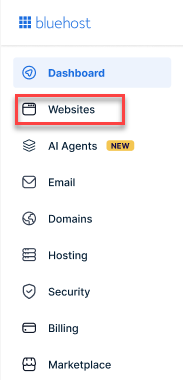
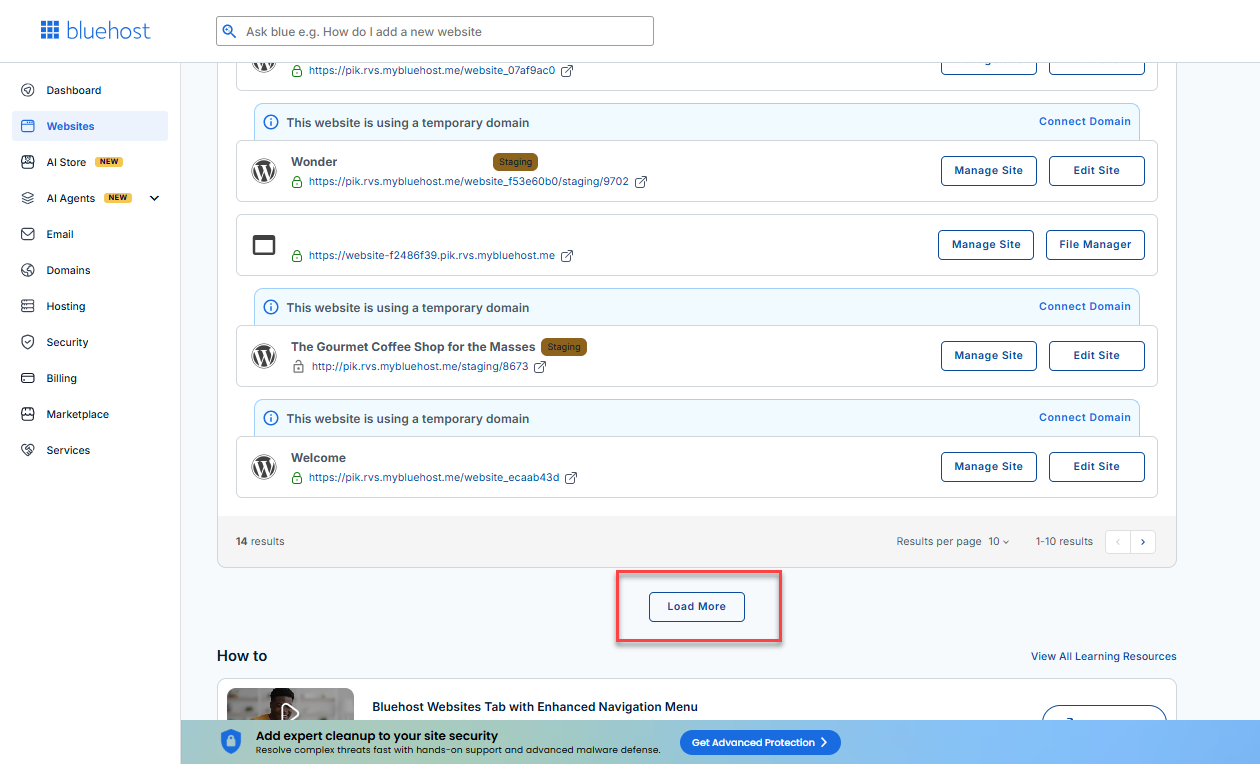
- Locate your Sell Online plan. If you have multiple websites, you need to scroll down and click the Load More link.
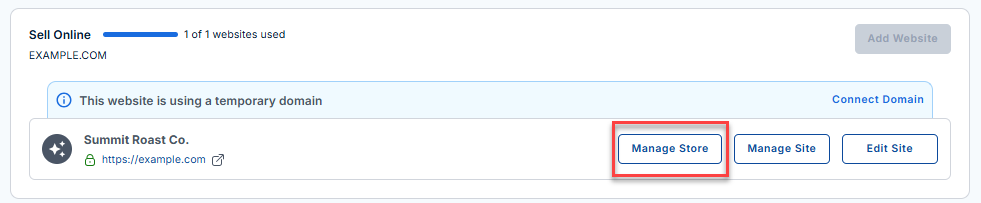
- Click the Manage Store button next to your site.
- You will be redirected to your Bluehost AI Store Dashboard.
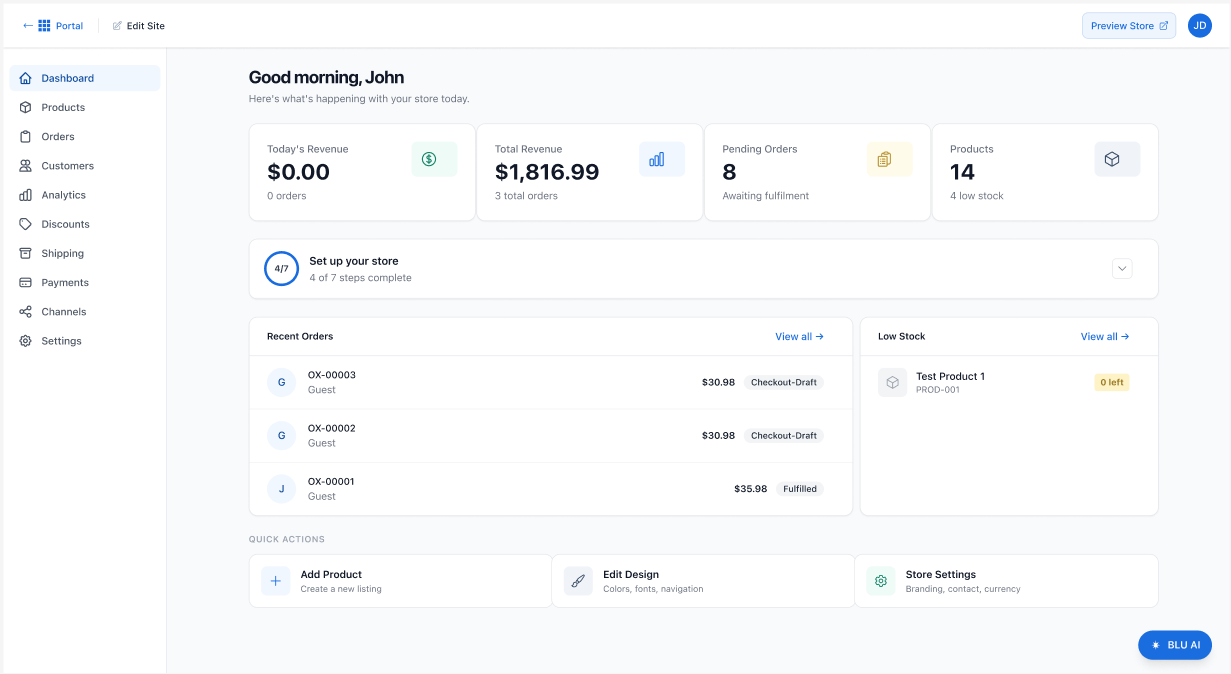
- Click Orders in the left menu.
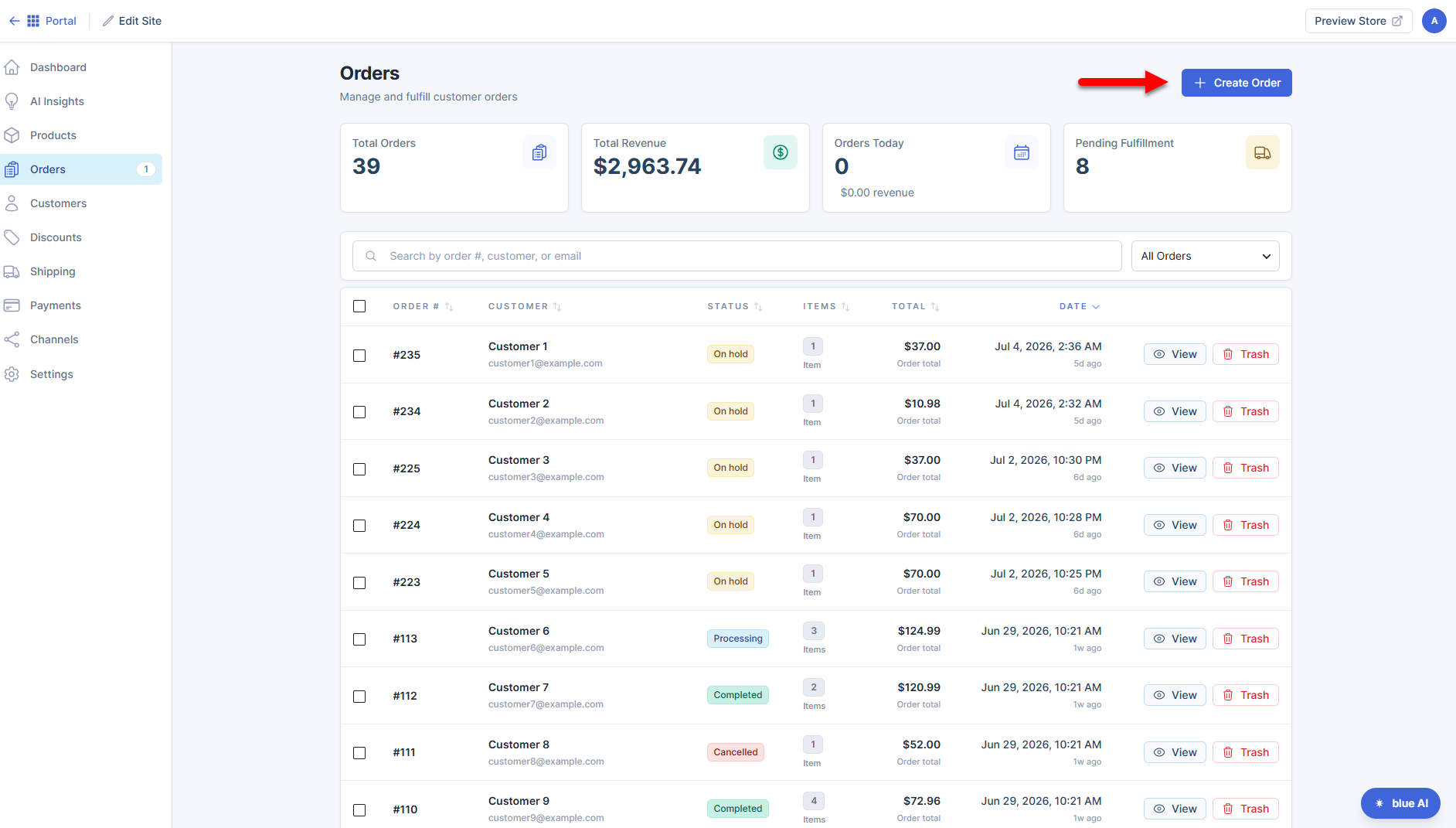
- In the Orders tab, click the + Create Order button located in the top-right corner to open the new order form.
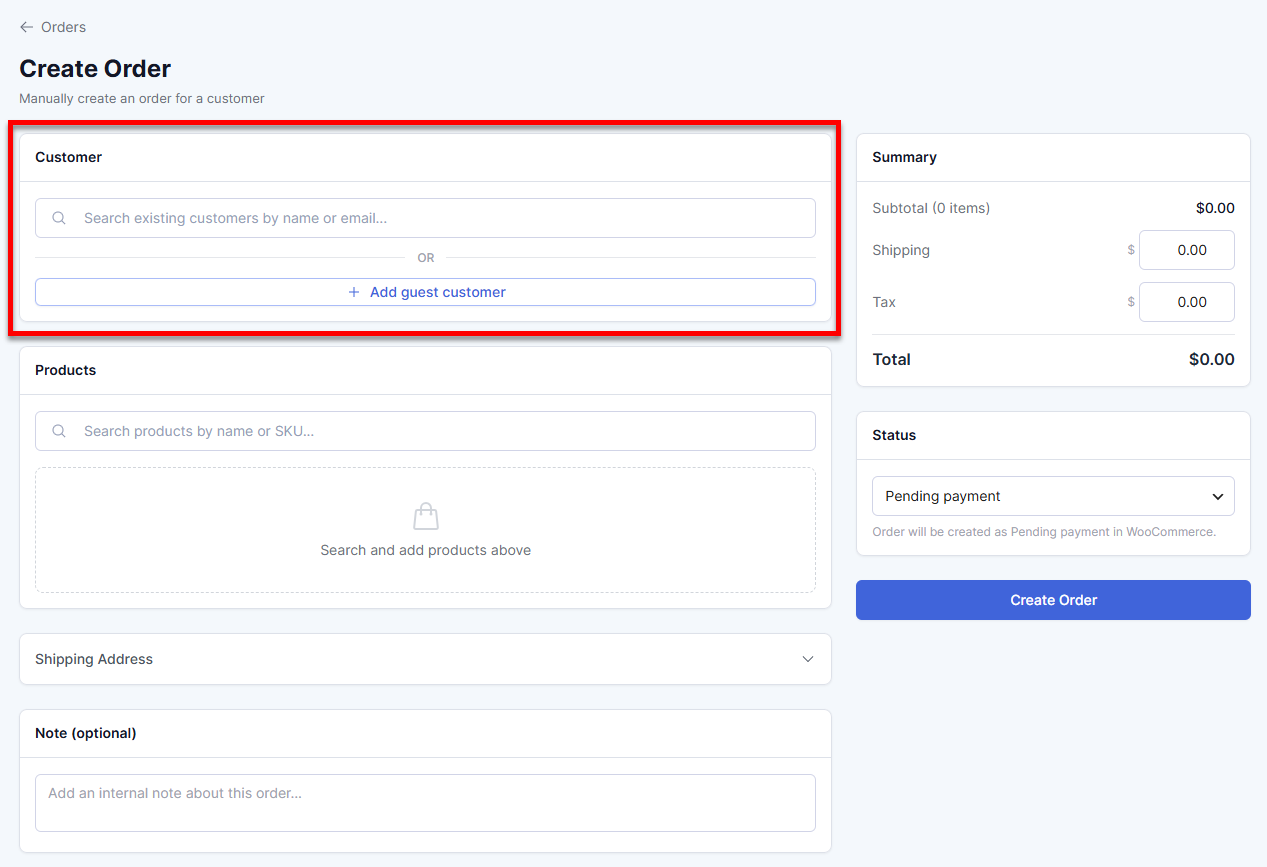
- In the Customer section, you can search for existing customers using their name or email address.
If the customer is not already in the system, you can add them by clicking on + Add Guest Customer and adding their name and email address.
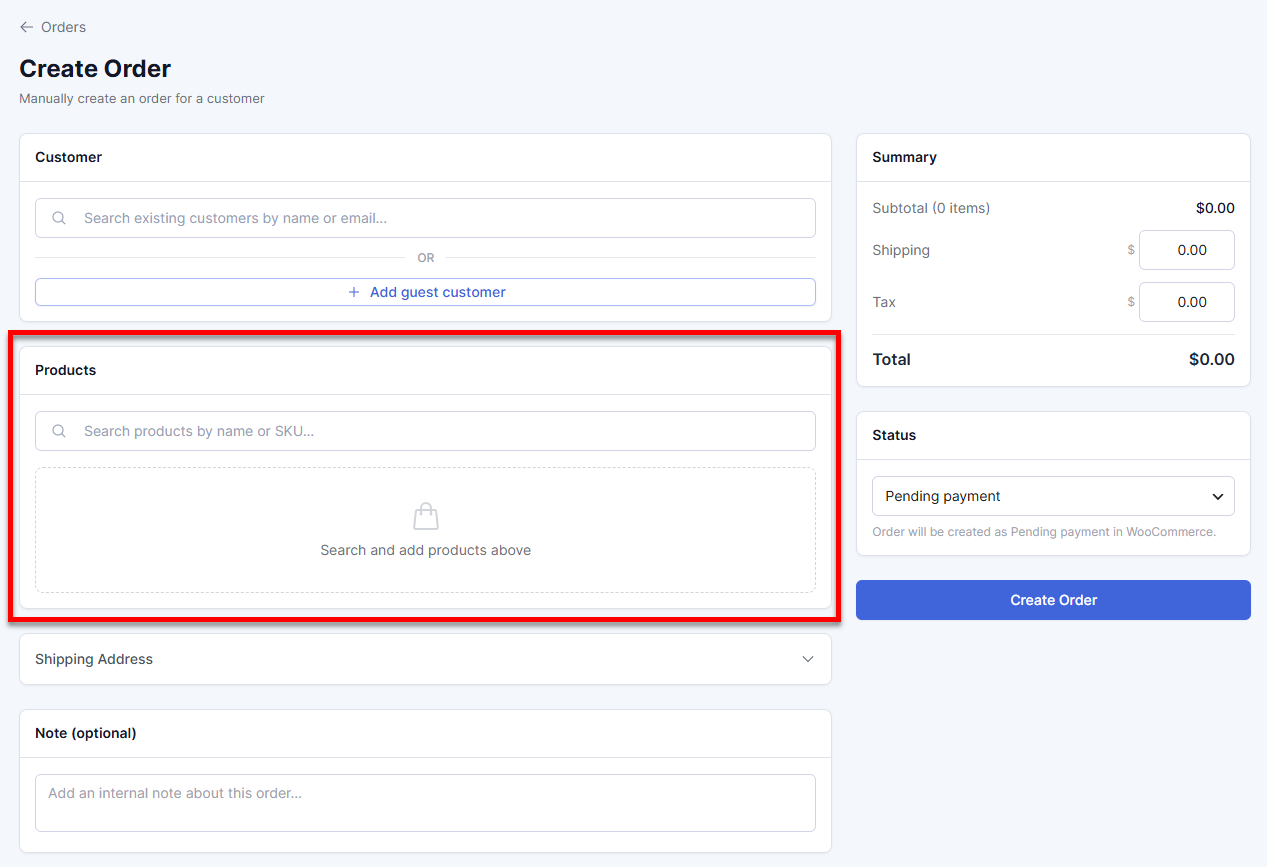
- Search and select the Products being purchased.
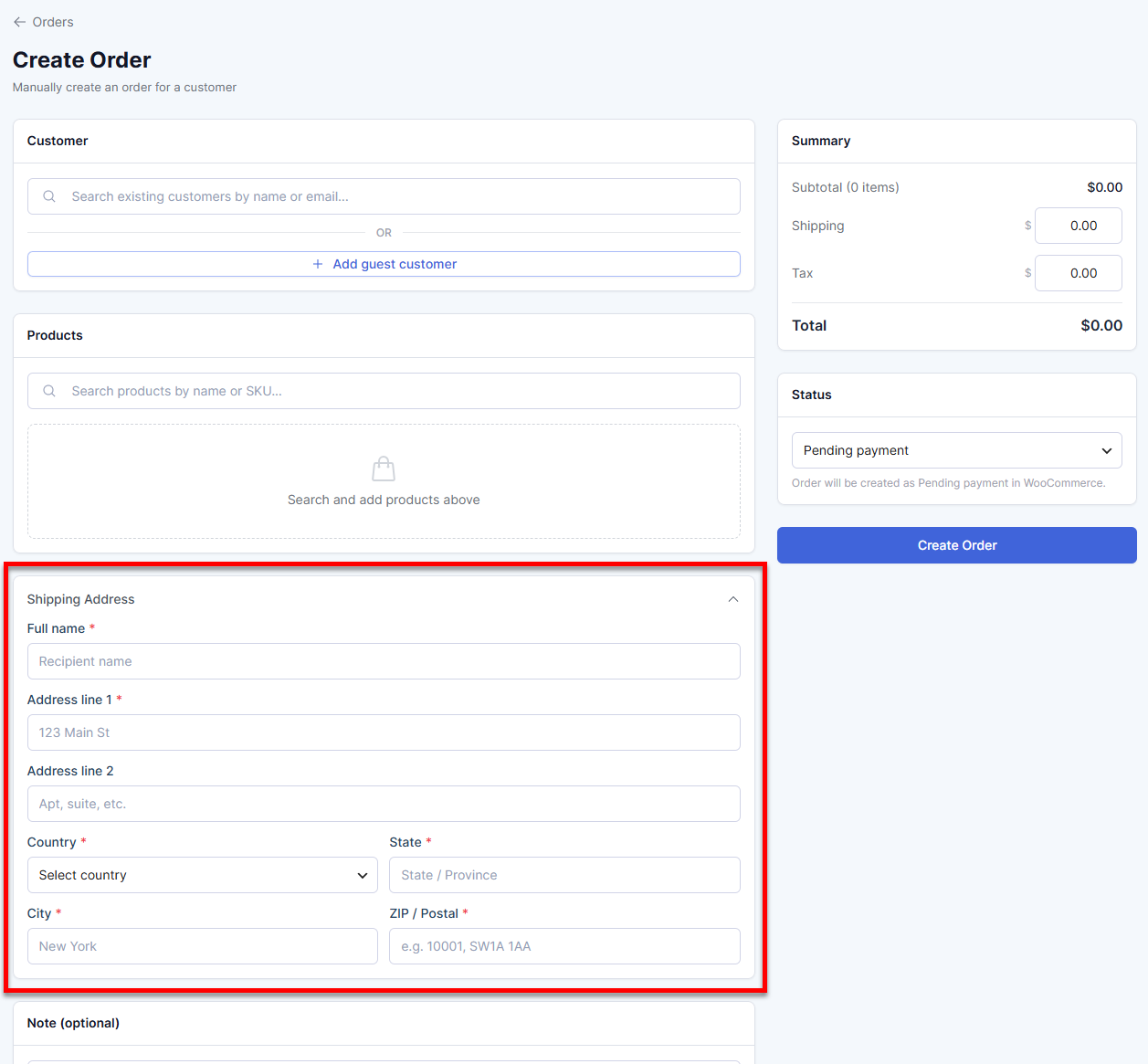
- Enter the customer's Shipping Address.
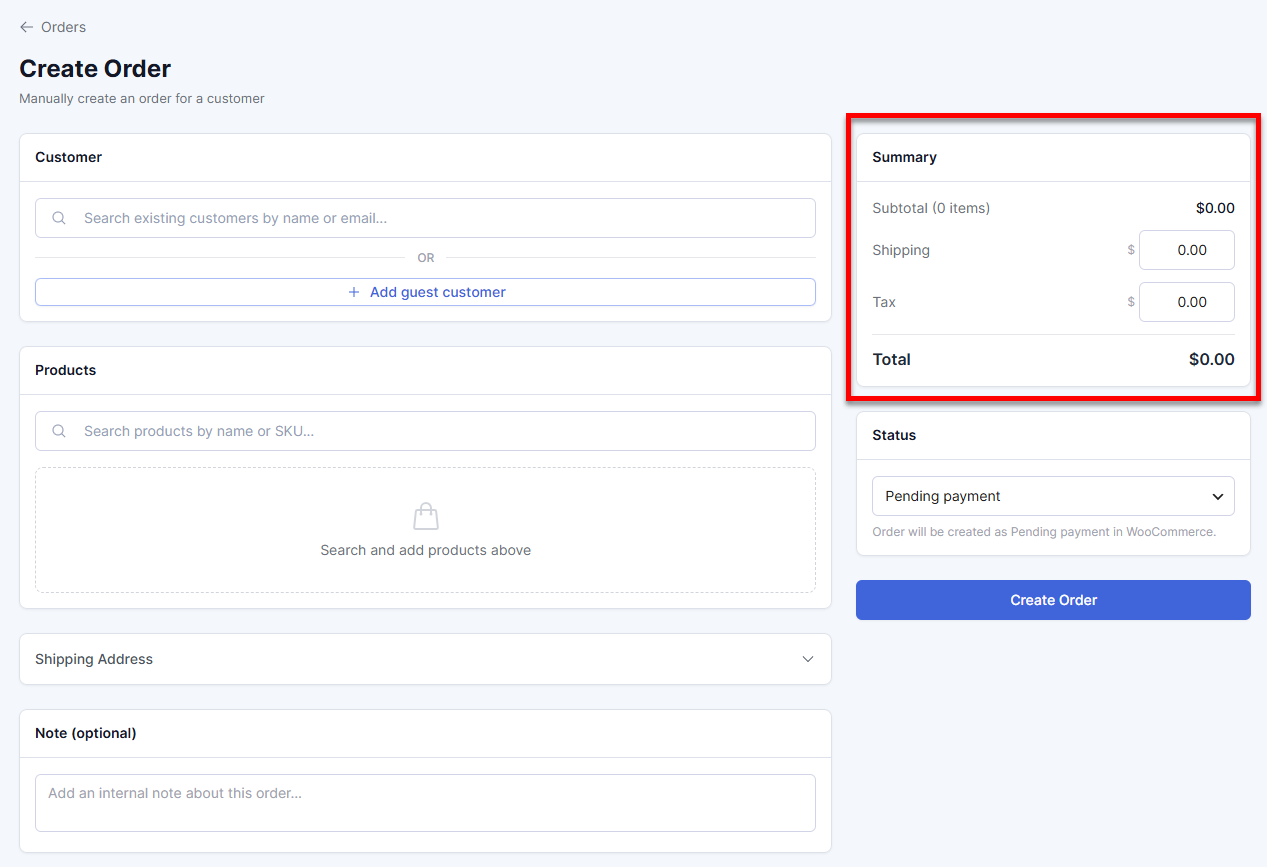
- In the Summary section, enter the Shipping charges and Tax (if applicable).
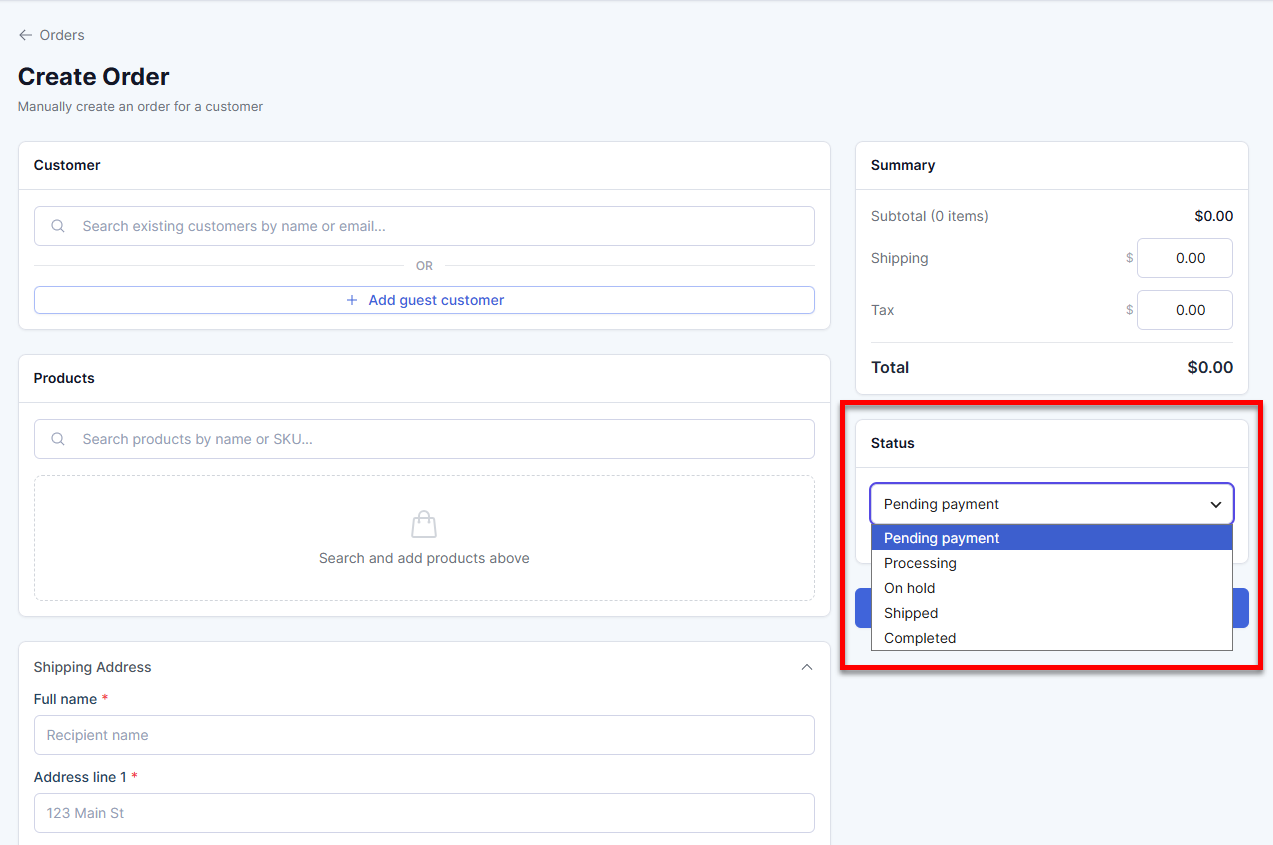
- Select the order's Status from the dropdown. The order will be tagged as "Pending payment" in WooCommerce.
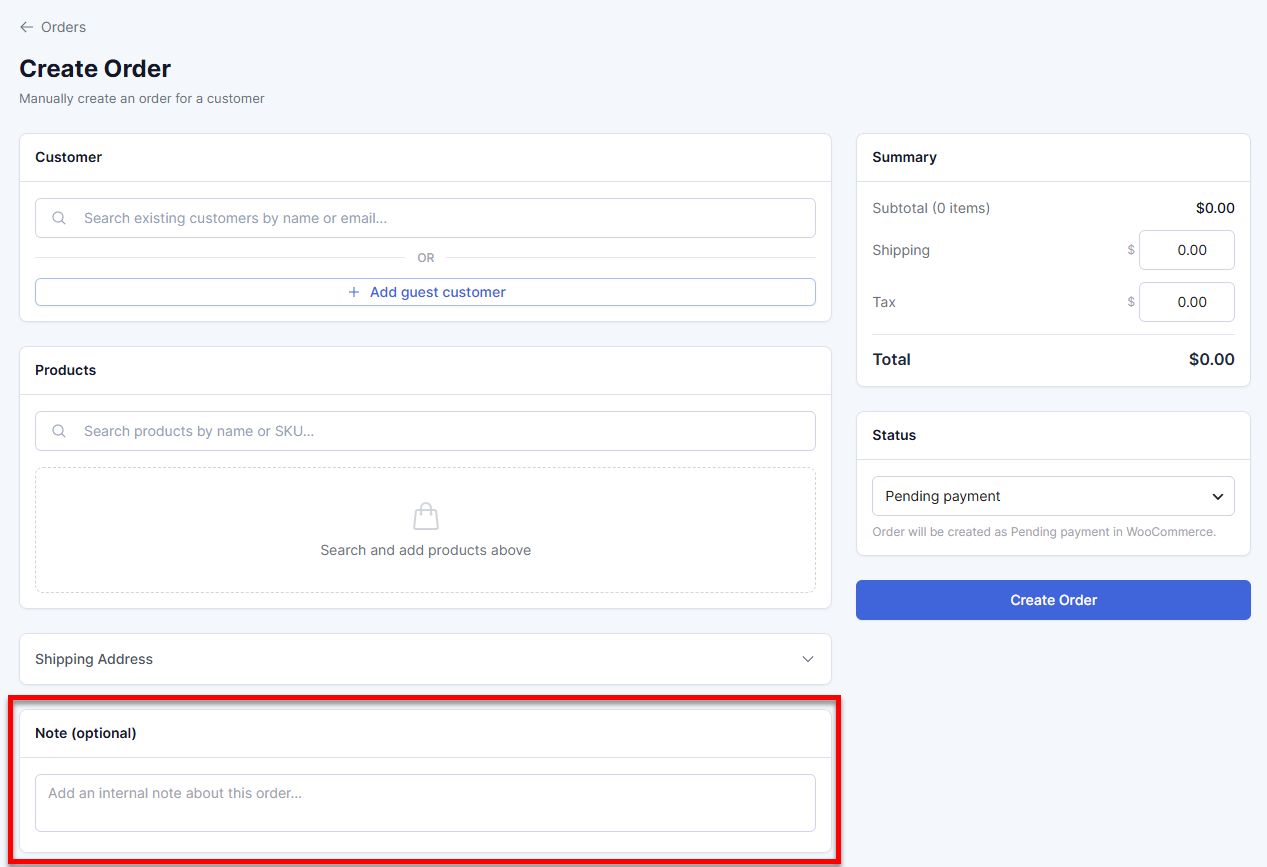
- You may also add a Note about the order. This is optional.
- Click Create Order to save the order details.
The newly created order will be added to your order list and assigned an order number.
How to View the Order Details
To view an existing order:
- In the AI Store Dashboard, click Orders in the left menu.
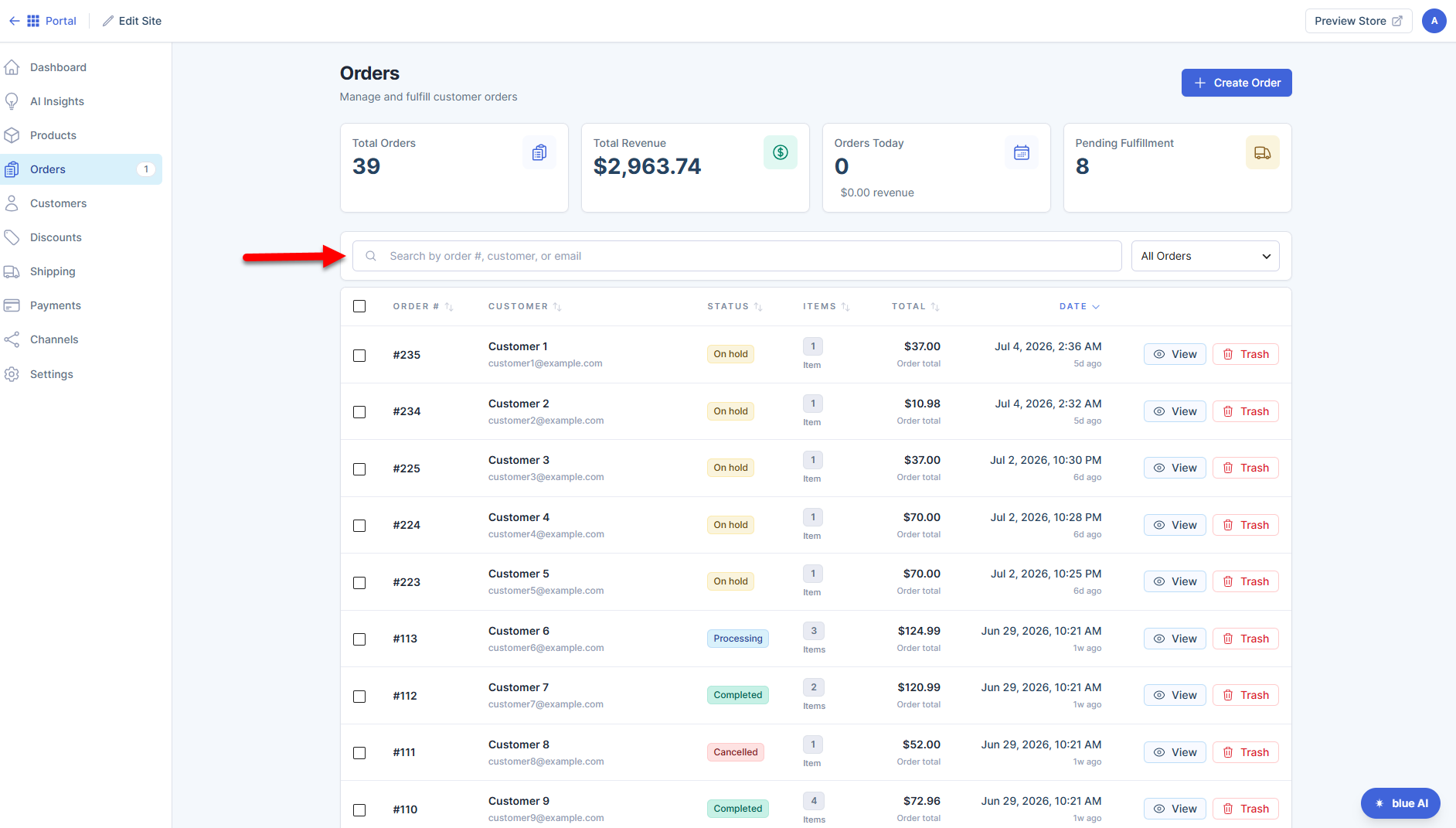
- Search for the order in the order list. You can use the search bar to look for the Order#, customer name, or email address.
- You can also filter the order based on its status.
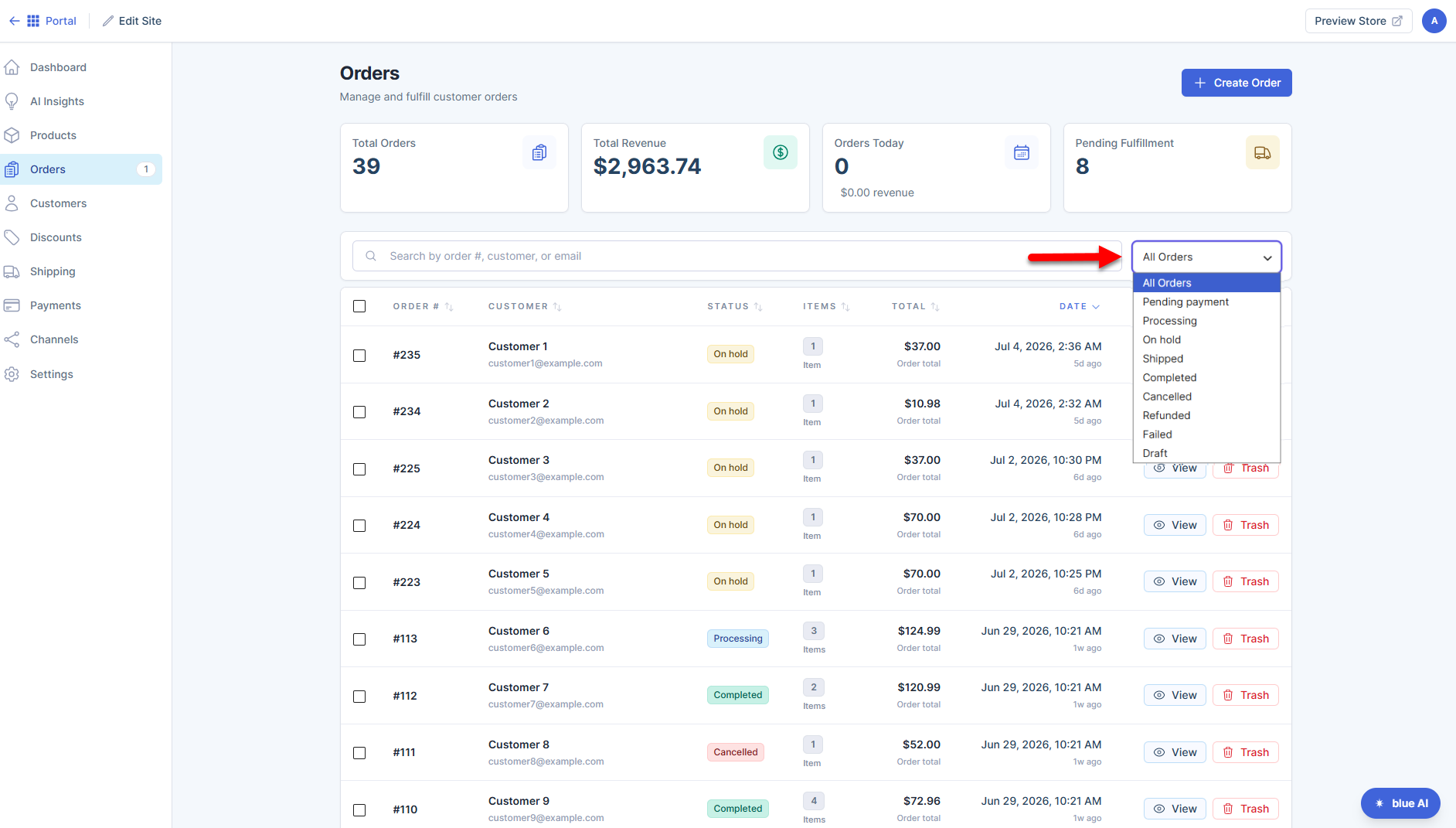
- Click the View button next to the order.
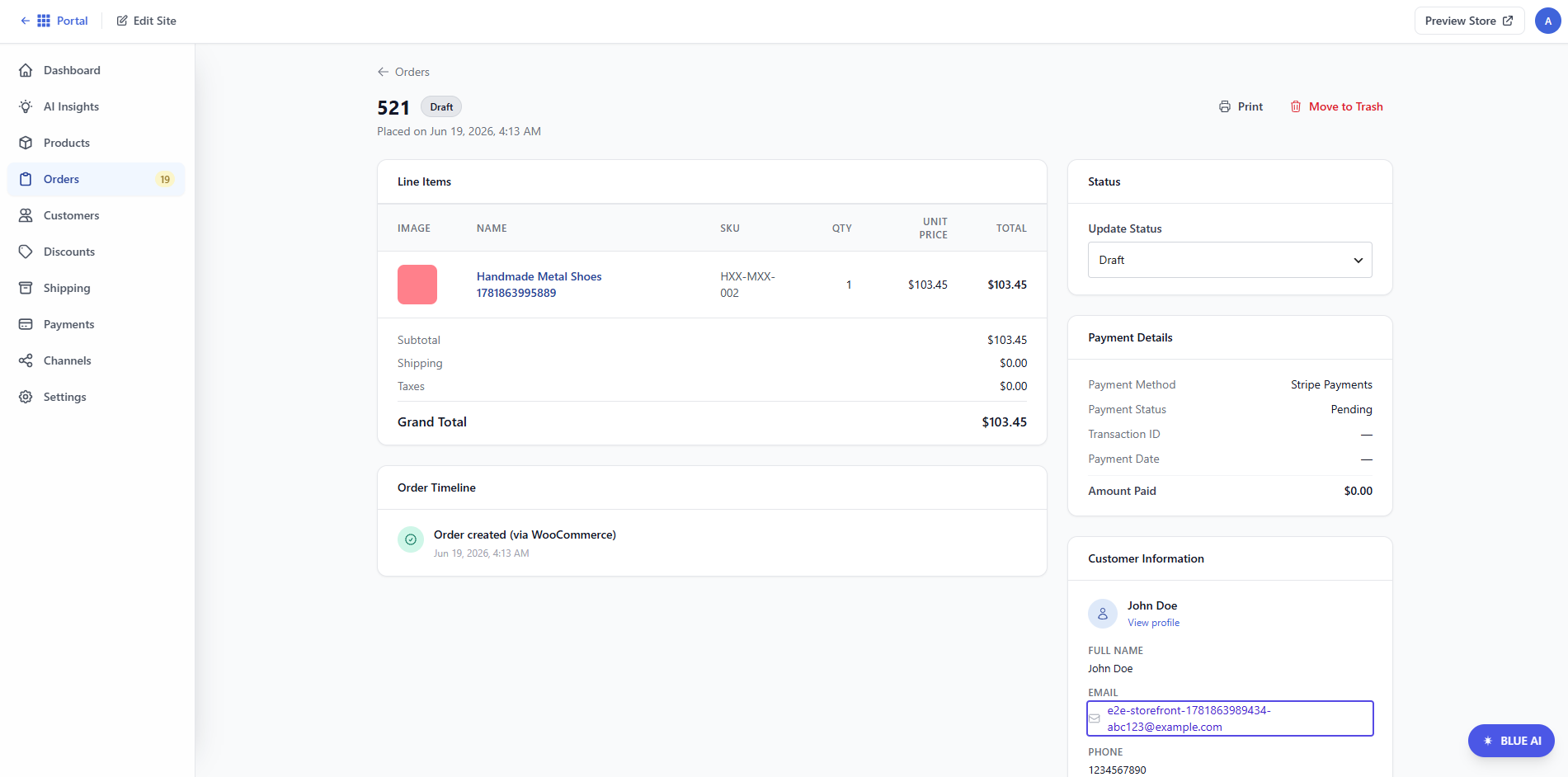
The Order# Details page will display the following:
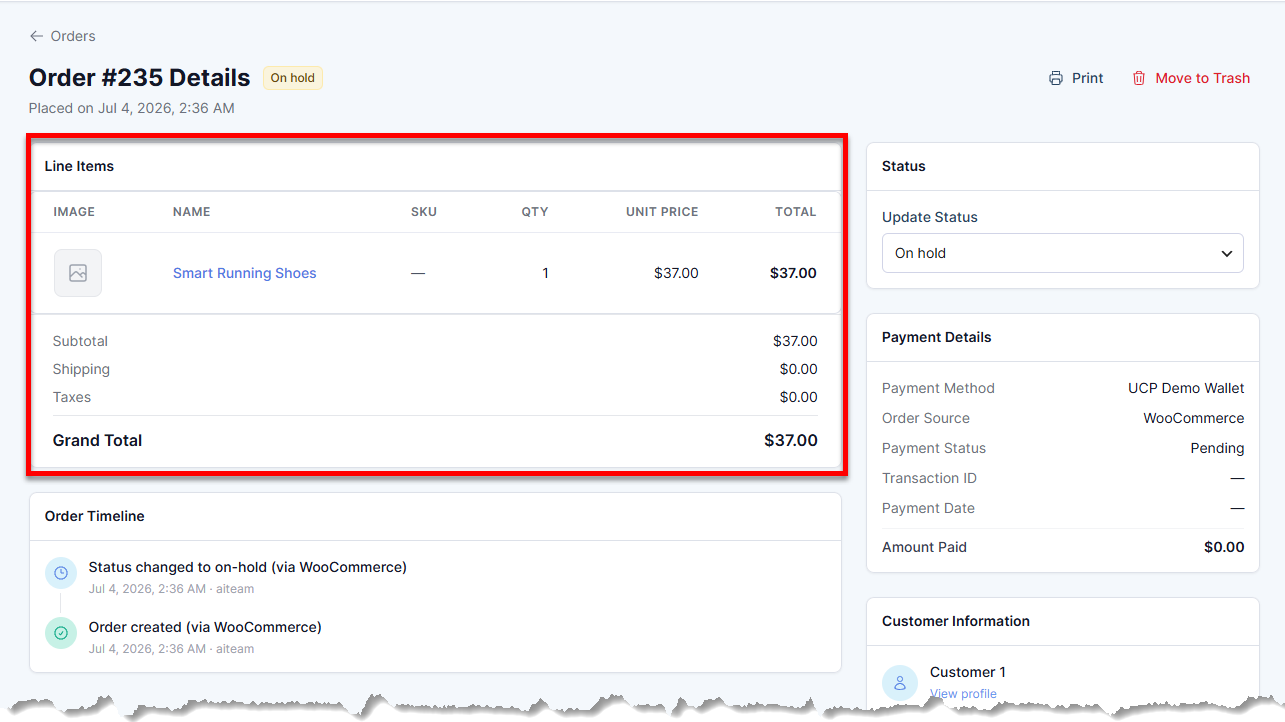
- Line items - Shows the product image, name, SKU, quantity purchased, unit price, shipping, taxes, and grand total.
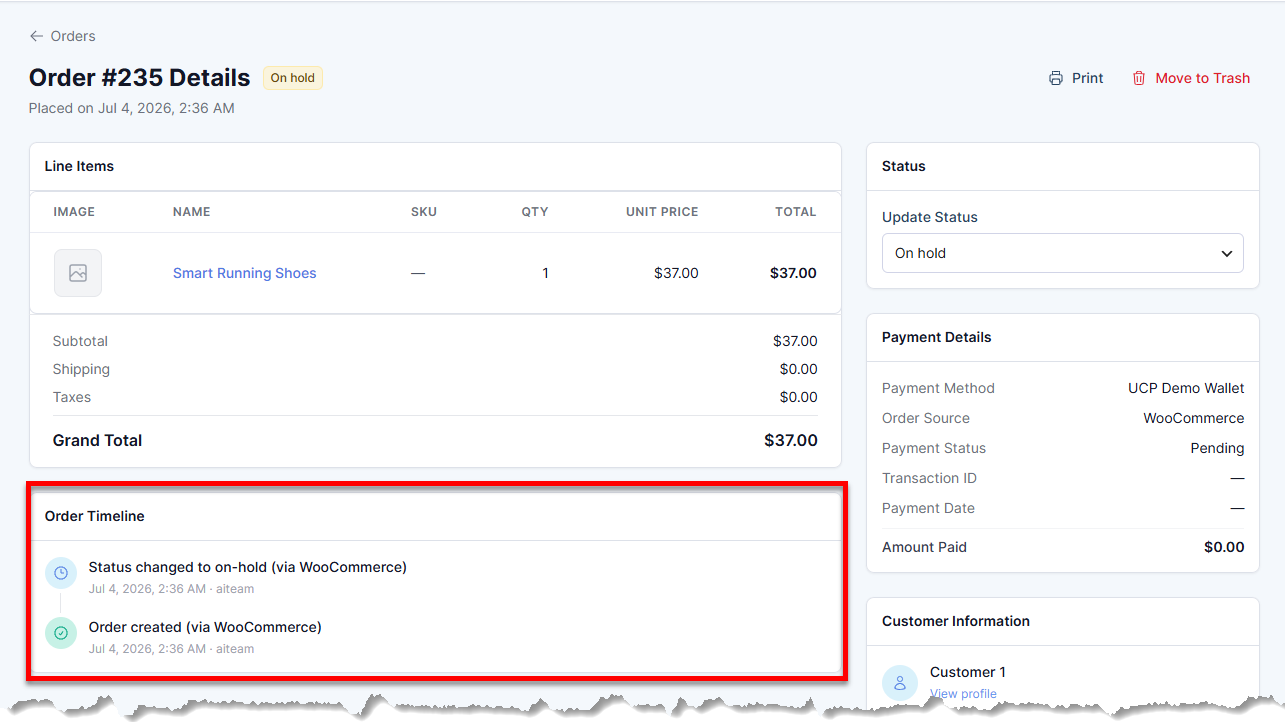
- Order timeline - Shows the date and time when the order was placed and updated.
- Status - Helps track fulfillment progress and keeps records organized.
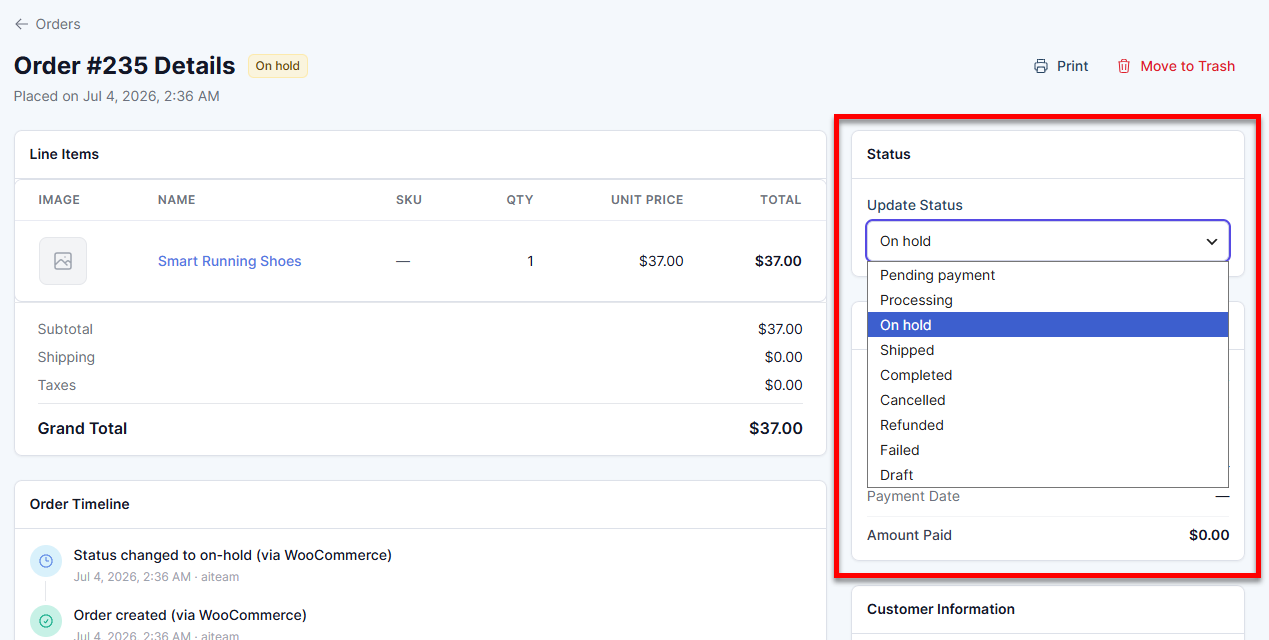
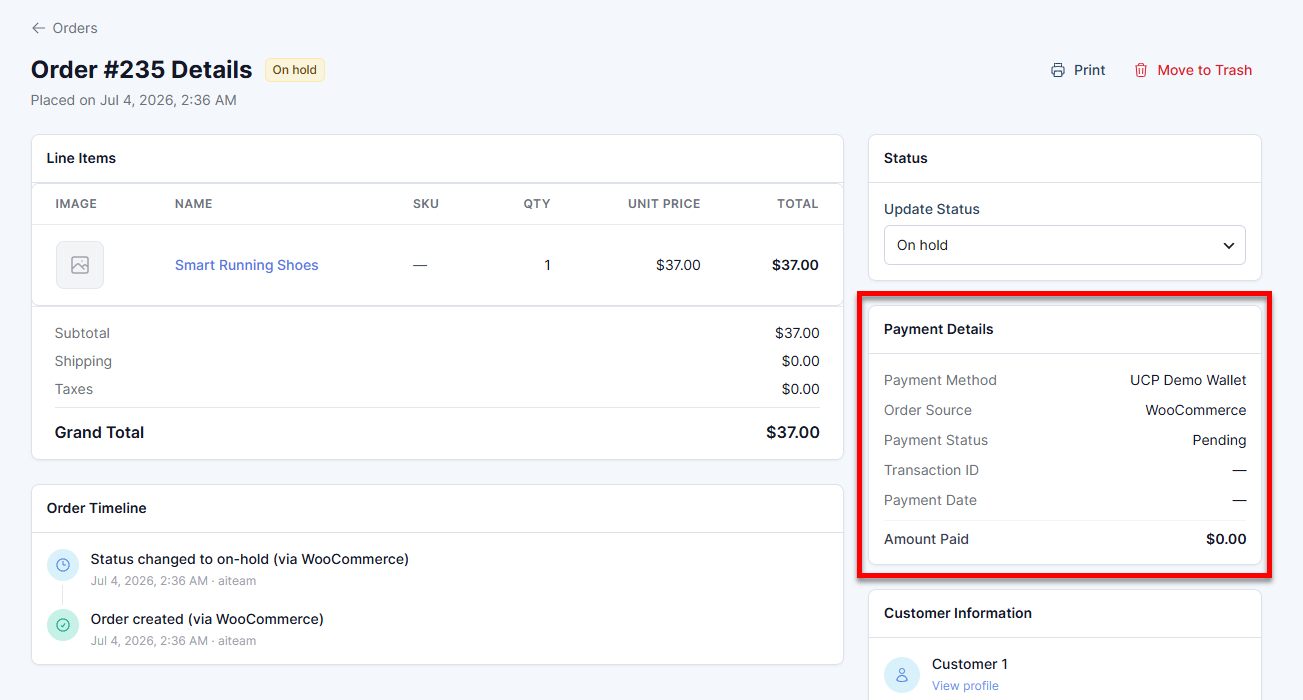
- Payment details - Shows the payment method used, order source, payment status, transaction ID, and amount paid.
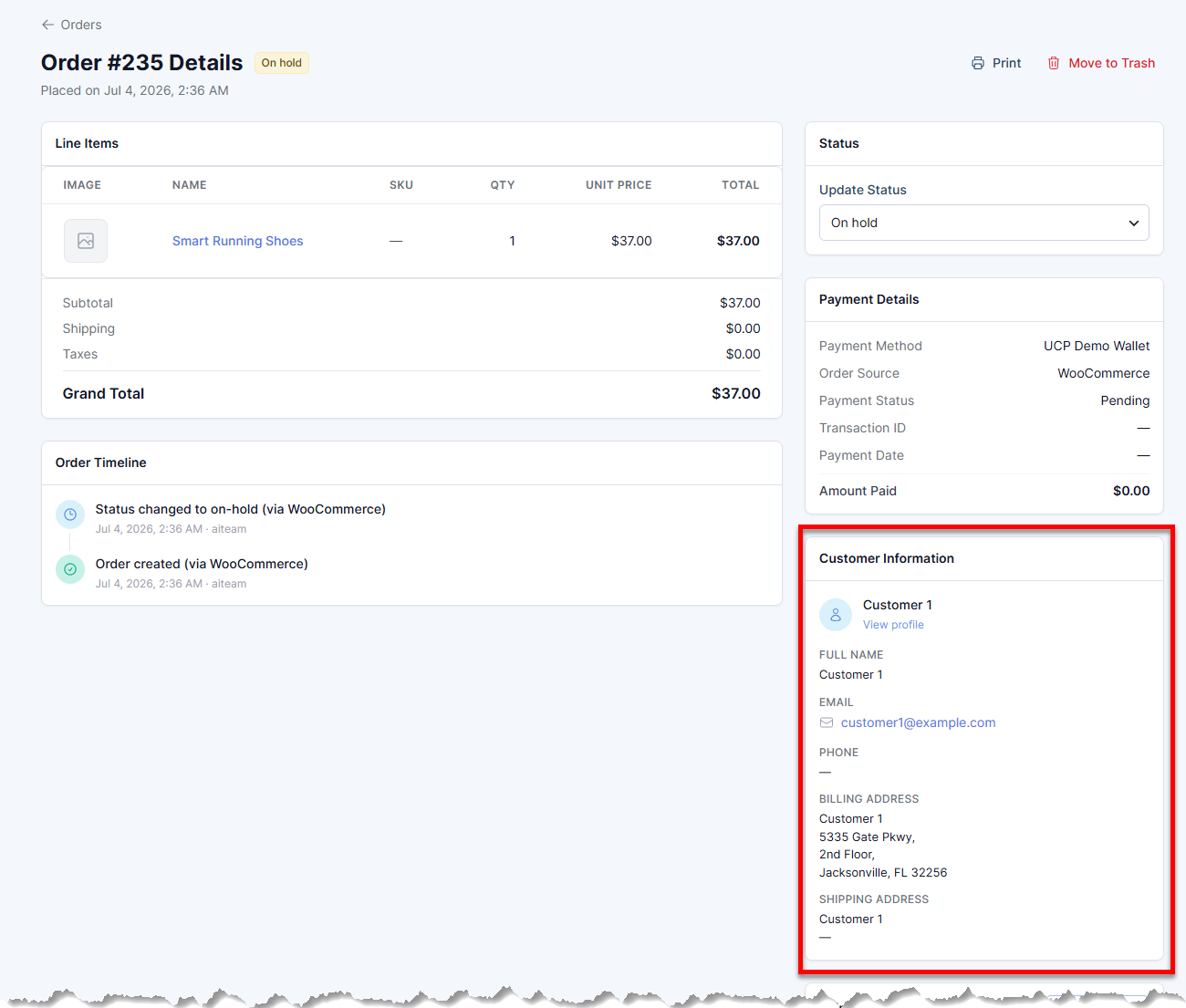
- Customer information - Shows customer name, email address, phone number (if available), billing address, and shipping address.
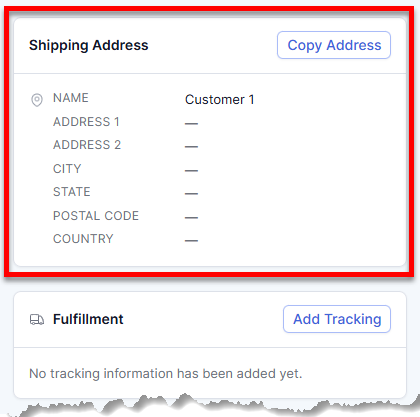
- Shipping address - Shows the customer's name and address.
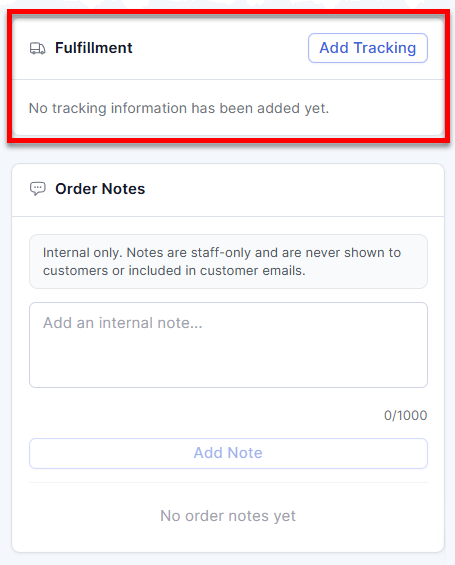
- Fulfillment - Allows you to add tracking information, manage shipment updates, and monitor fulfillment progress.
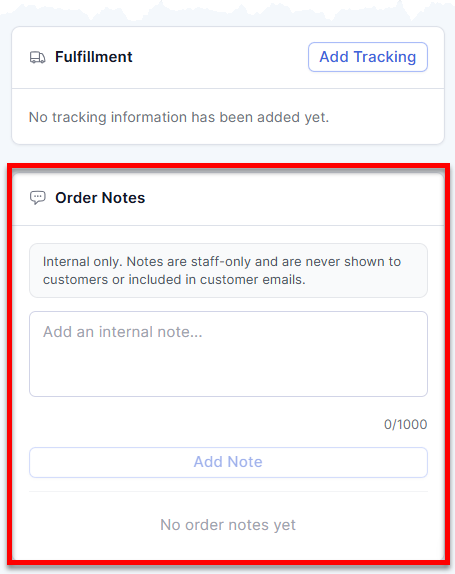
- Order notes - Records internal comments, tracks fulfillment actions, and documents customer-related information. Internal notes are not visible to customers.
How to Delete an Order
To delete an order:
- In the AI Store Dashboard, click Orders in the left menu.
- Search for the order in the order list.
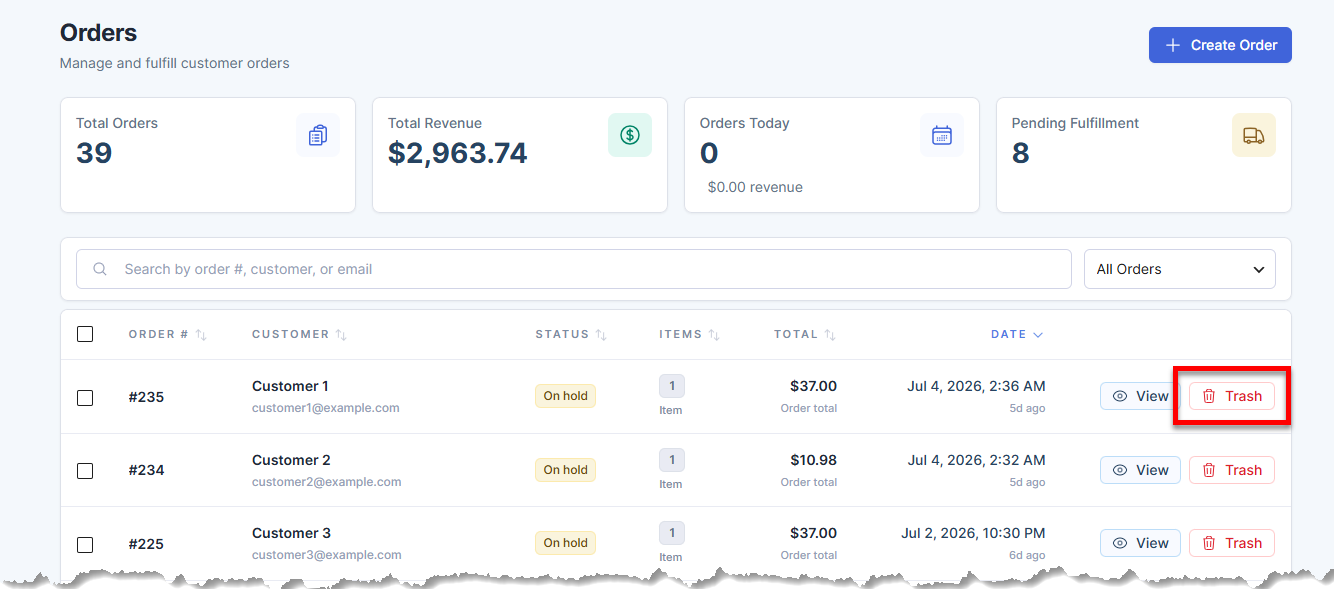
- Click the Trash button next to the order.
- In the pop-up, select Move to Trash.
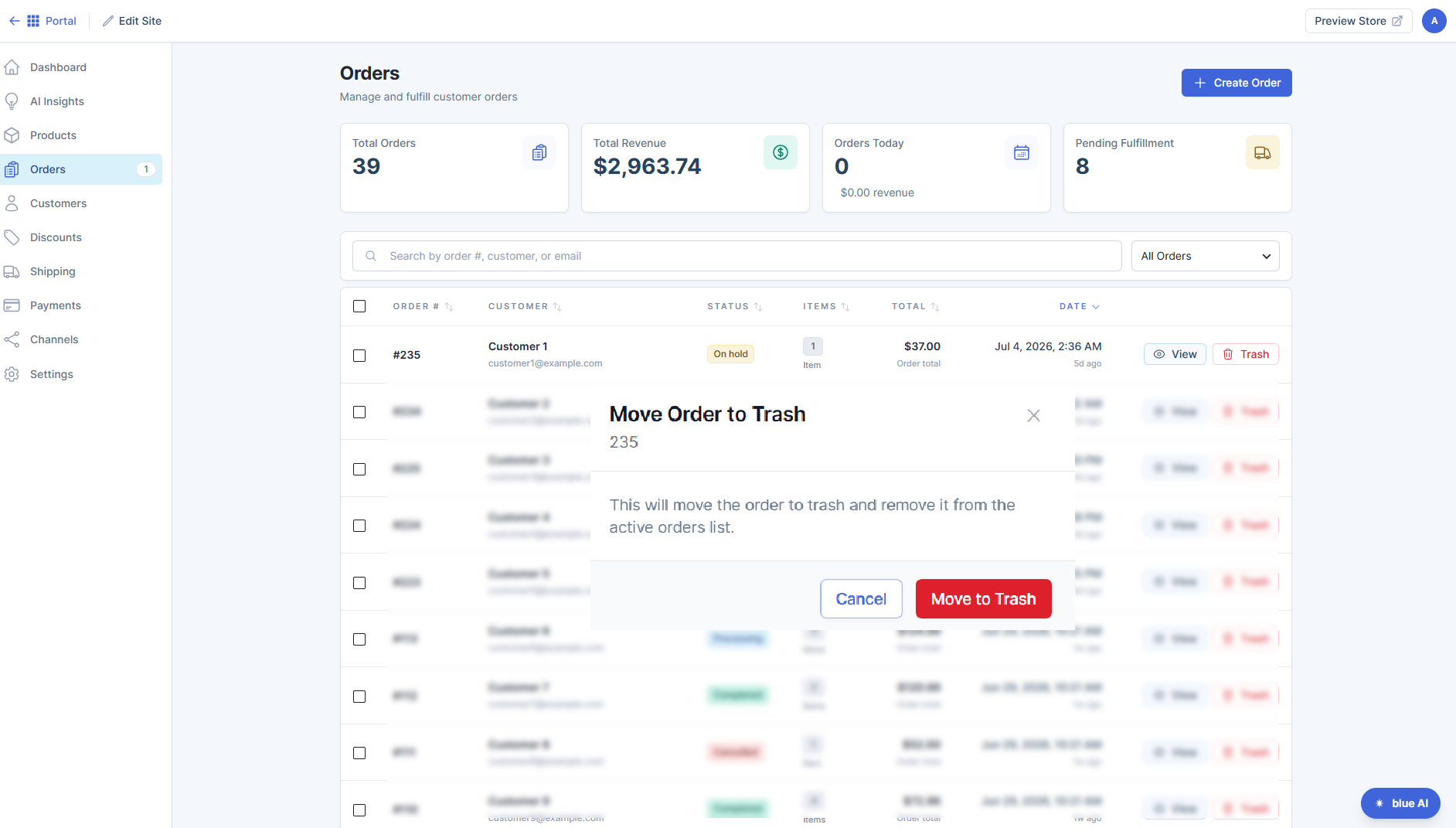
The order will be moved to trash and removed from the active orders list.
Summary
The Orders tab in the Bluehost AI Store dashboard is where you can manage customer purchases, create manual orders, track order statuses, review payment details, and fulfill orders. From the Orders page, you can quickly search for orders, filter by status, view detailed order information, and remove orders that are no longer needed. This article walks you through creating new orders, viewing order details, and deleting existing orders to help keep your store organized and running efficiently.
If you need further assistance, Bluehost Chat Support is available 24 hours a day, 7days a week while Bluehost Phone Support is available 7 days a week from 7 am-12 midnight EST.
- Chat Support - While on our website, you should see a CHAT bubble in the bottom right-hand corner of the page. Click anywhere on the bubble to begin a chat session.
- Phone Support -
- US: 888-401-4678
- International: +1 801-765-9400
You may also refer to our Knowledge Base articles to help answer common questions and guide you through various setup, configuration, and troubleshooting steps.