 ChatGPT,
  Claude,
  Gemini,
  Grok — all four for
 Bluehost AI Store: Settings Tab
The Bluehost AI Store is a management dashboard for your online store, where you can control your store's products, orders, customers, payments, shipping, and settings all in one place.
In this article, we will explain how to configure and update your store's core settings. These settings control your store's identity, customer support details, business address, and currency.
Key Features of the Settings Tab
- Store Identity Management - Define your store name, URL slug, and tagline to establish branding.
- Customer Support - Set Merchant and support contact details to ensure customers can easily reach you.
- Business Address Setup - Manage your store's address for billing, legal documentation, and shipping references.
How to Access the Settings Tab
- Log in to your Bluehost Portal.
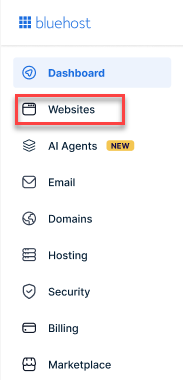
- From the left-hand menu, click the Websites tab.
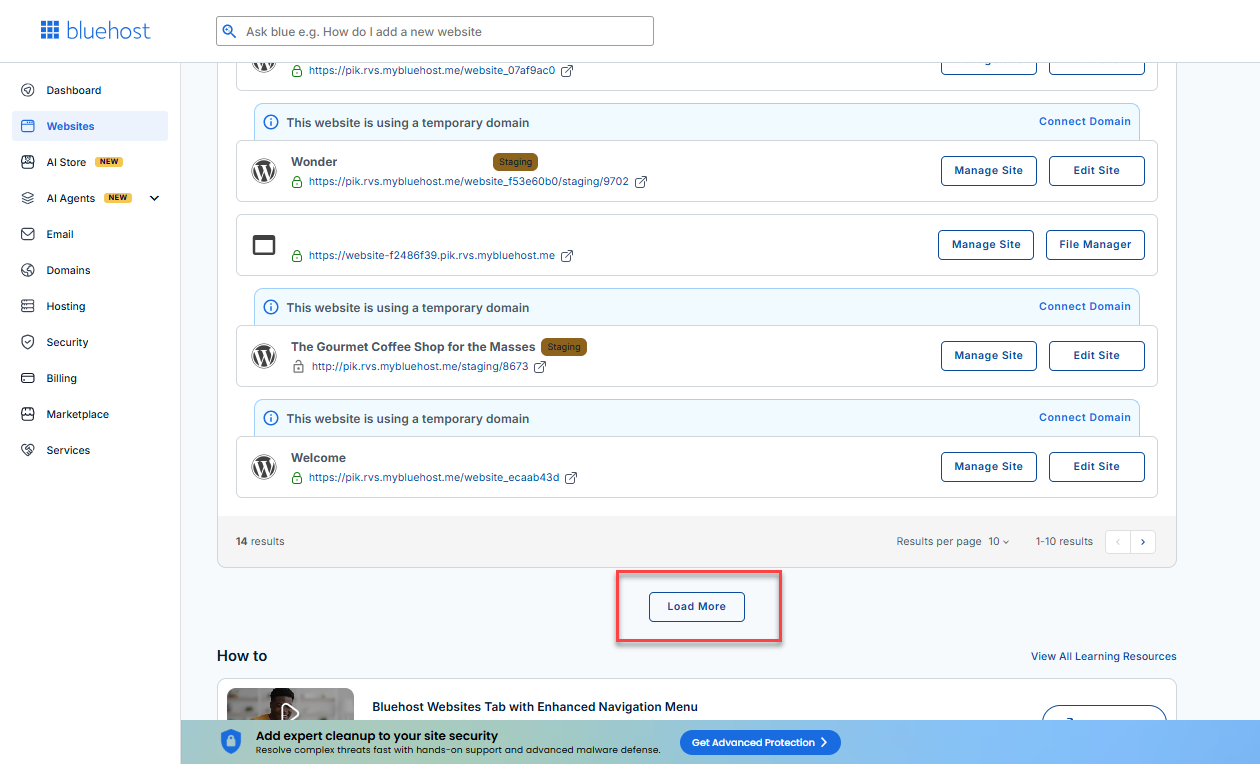
- Locate your Sell Online plan. If you have multiple websites, you need to scroll down and click the Load More link.
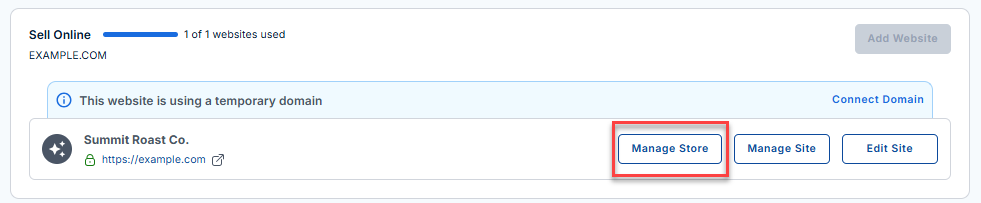
- Click the Manage Store button next to your site.
- You will be redirected to your Bluehost AI Store Dashboard.
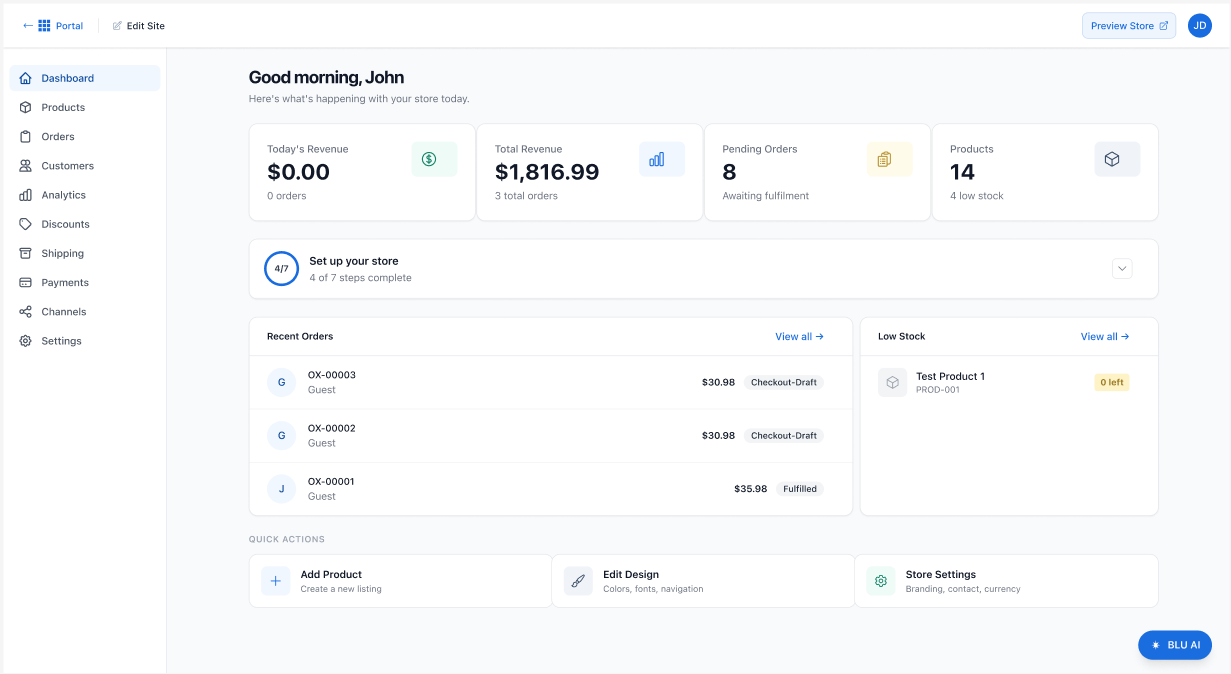
- In the dashboard, click Settings in the left menu.
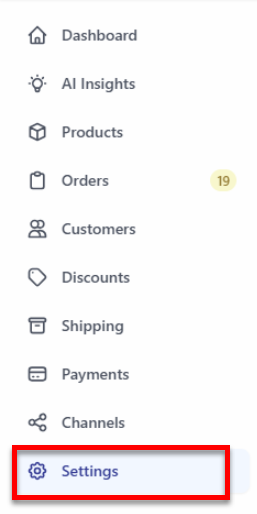
- The Settings page will open, displaying the following sections:
- Store identity
- Support channels
- Business address
- Store currency
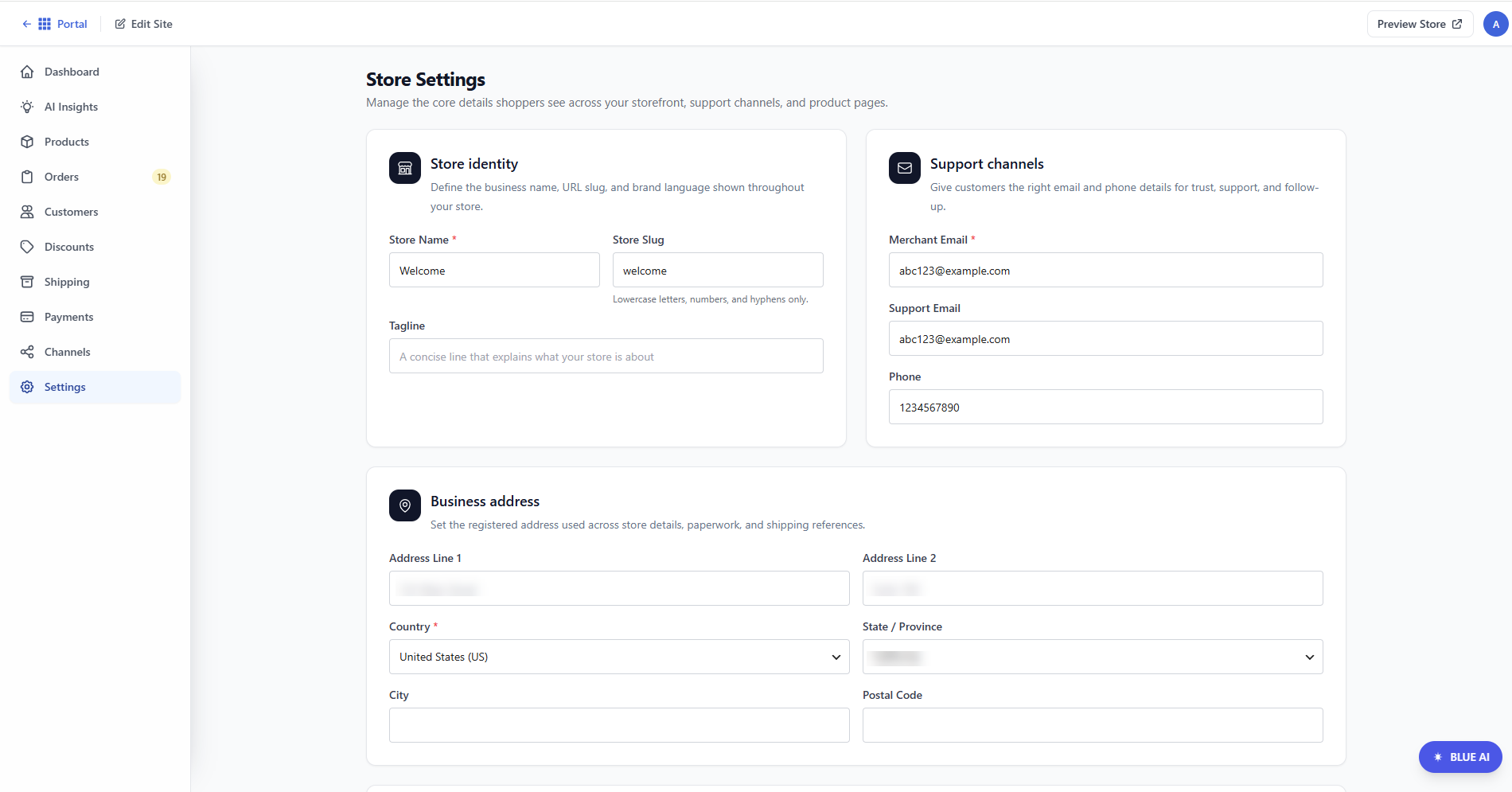
For detailed instructions on how to access the AI Store dashboard, please visit the Bluehost AI Store: Accessing the Bluehost AI Store article.
Configure the Store Identity
In this section, you can define your store's branding and public-facing details.
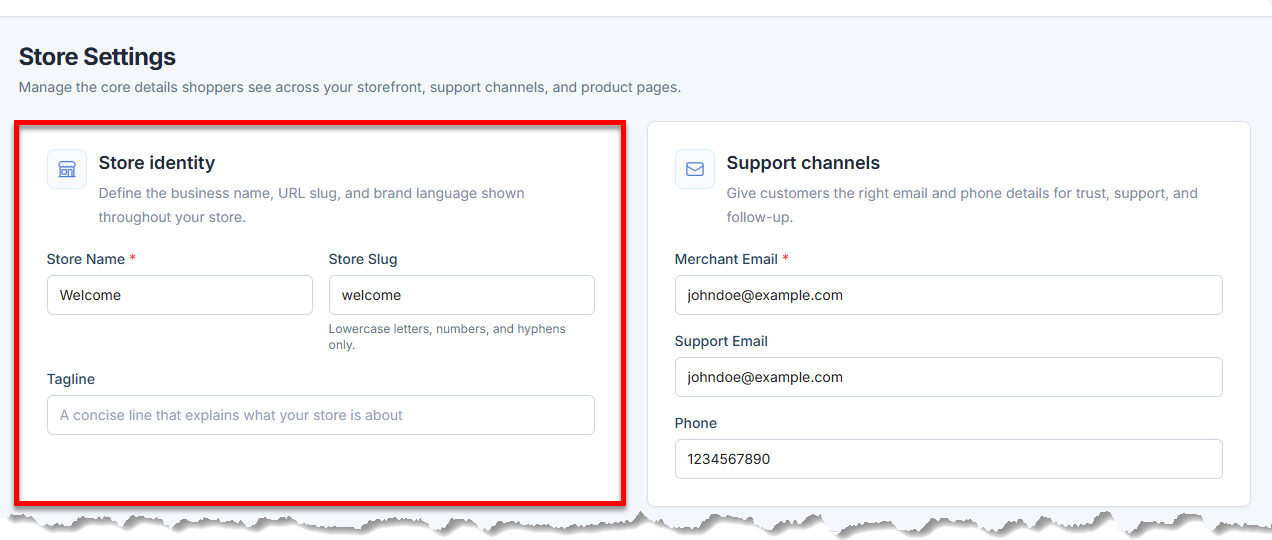
- Store Name - Enter your business name.
- Store Slug - Enter your store's URL. Note that only lowercase letters, numbers, and hyphens are allowed.
- Tagline - Enter a short description of your store.
Set Up Support Channels
Provide contact details so your customers can reach your store.
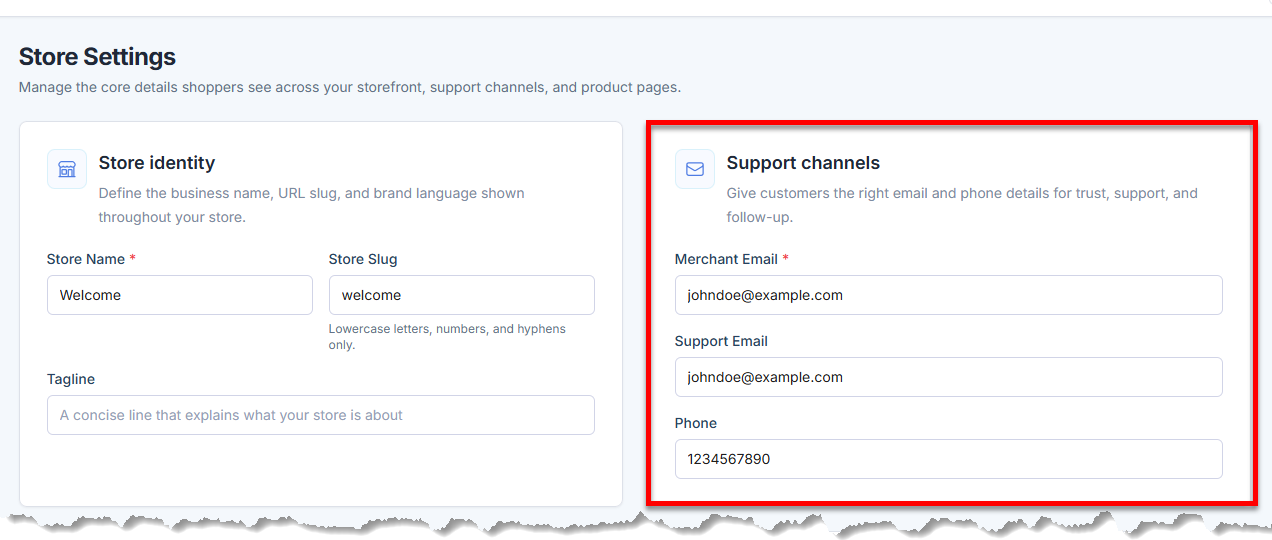
- Merchant Email - Enter your business email address (required).
- Support Email - Enter a secondary email address (optional) if it differs from the Merchant email.
- Phone Number - Enter your business phone number.
Enter Your Business Address
Add your official business address for legal, shipping, and billing purposes.
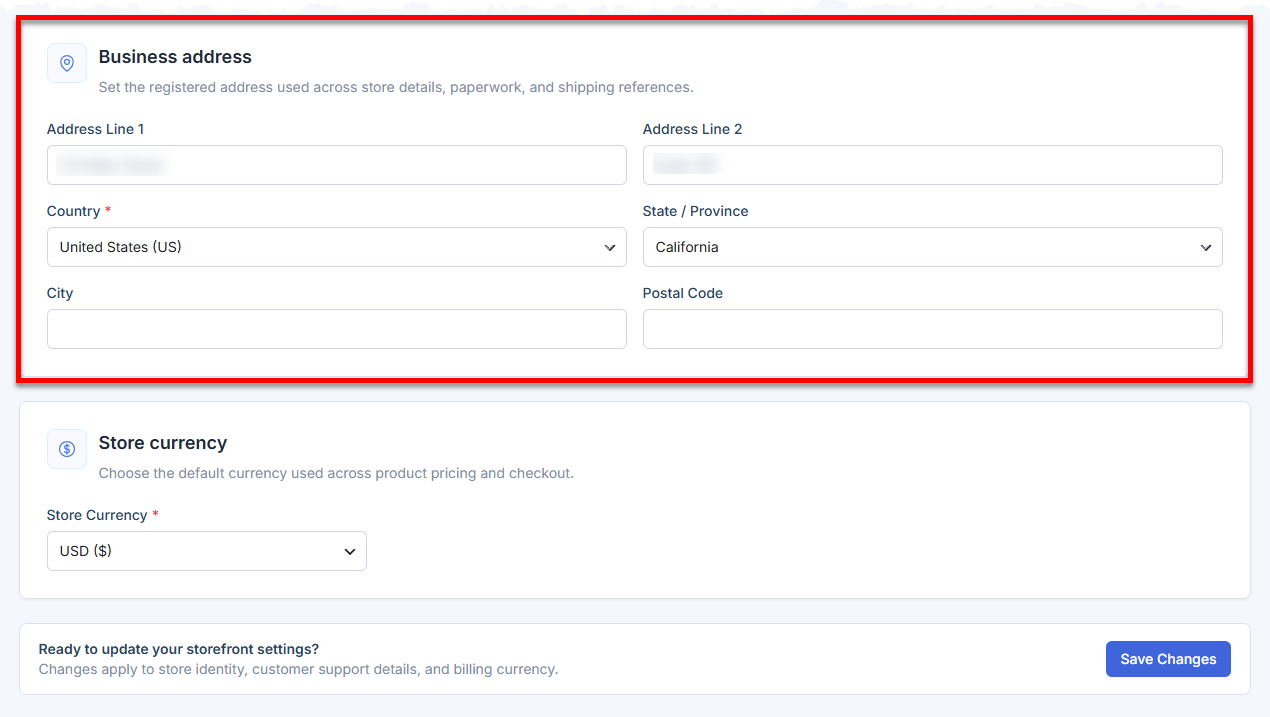
- Address Line 1 and 2
- Country
- State/Province
- City
- Postal Code
Set Store Currency
Choose the currency used for product pricing and checkout.
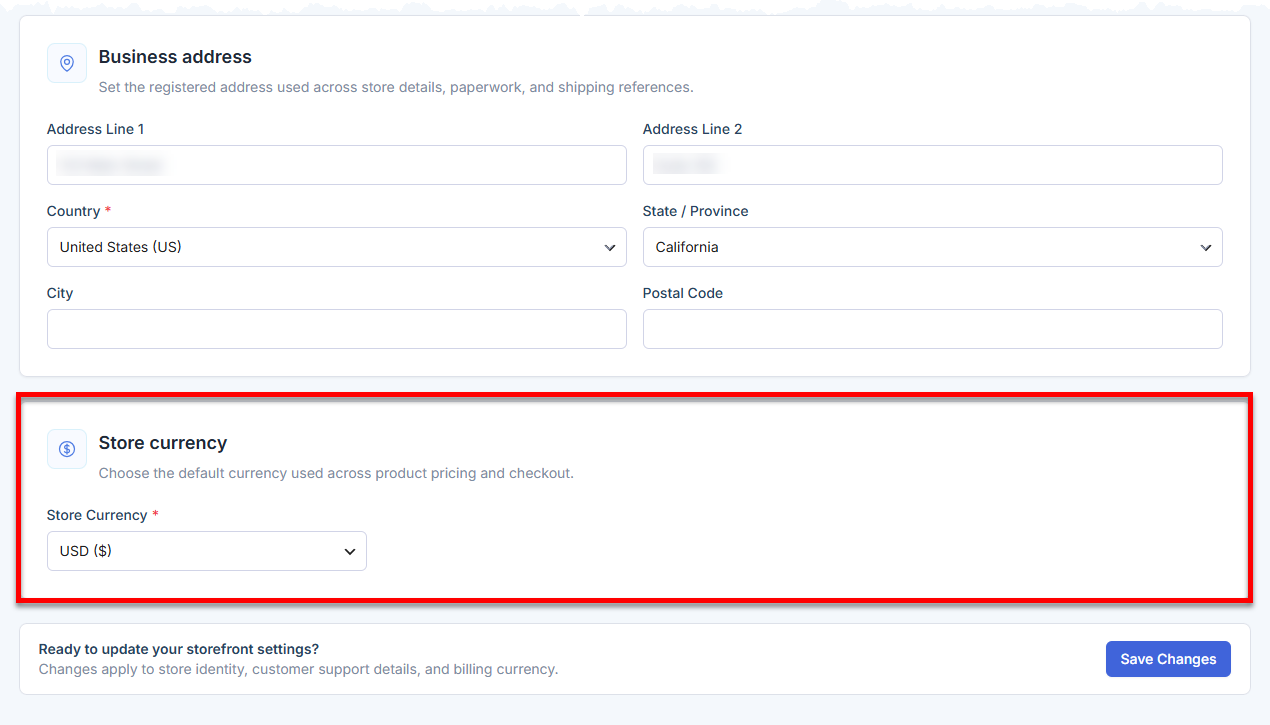
- On the Store Settings page, scroll down to the Store Currency section.
- Select your preferred currency from the dropdown.
Once you have configured your store settings, click Save Changes at the bottom of the page.
Summary
Learn how to set up your store in the AI Store dashboard. This article covers key areas like your store's name, URL, tagline, customer support, business address, and currency. Proper setup helps create a strong brand, ensures accurate contact information, and allows for correct pricing and transactions in your online store.
If you need further assistance, Bluehost Chat Support is available 24 hours a day, 7days a week while Bluehost Phone Support is available 7 days a week from 7 am-12 midnight EST.
- Chat Support - While on our website, you should see a CHAT bubble in the bottom right-hand corner of the page. Click anywhere on the bubble to begin a chat session.
- Phone Support -
- US: 888-401-4678
- International: +1 801-765-9400
You may also refer to our Knowledge Base articles to help answer common questions and guide you through various setup, configuration, and troubleshooting steps.