 ChatGPT,
  Claude,
  Gemini,
  Grok — all four for
Bluehost AI Store: Editing the AI Store Website
The Bluehost AI Store Editor allows you to update and manage your AI Store website through a chat-based interface with no coding experience required.
A monthly allocation of AI credits is included and used whenever the AI generates content or makes changes to your AI Store website. Understanding how AI credits work can help you manage usage effectively and make the most of the available credits throughout each billing cycle.
How to Edit Your AI Store Website
- Log in to your Bluehost Portal.
- Locate your AI Store website. You can find your AI Store website under the following tabs:
Dashboard tab: If you have multiple websites, use the website selector in the top-right of the page and select your AI Store website from the dropdown menu. Click Edit Site.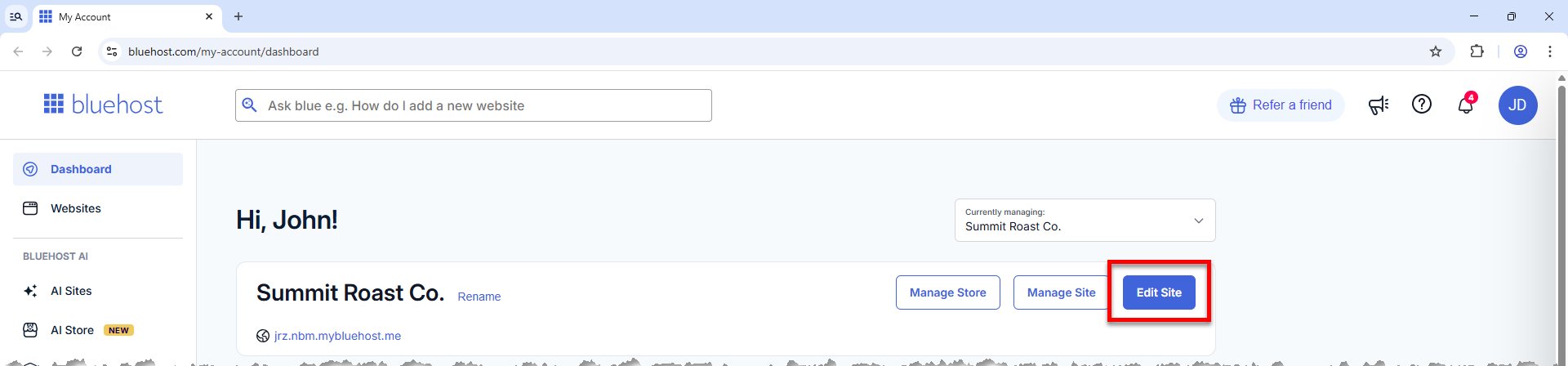
Websites tab: If you have multiple websites, scroll down and click Load More to view additional websites. Locate your AI Store website, then click Edit Store.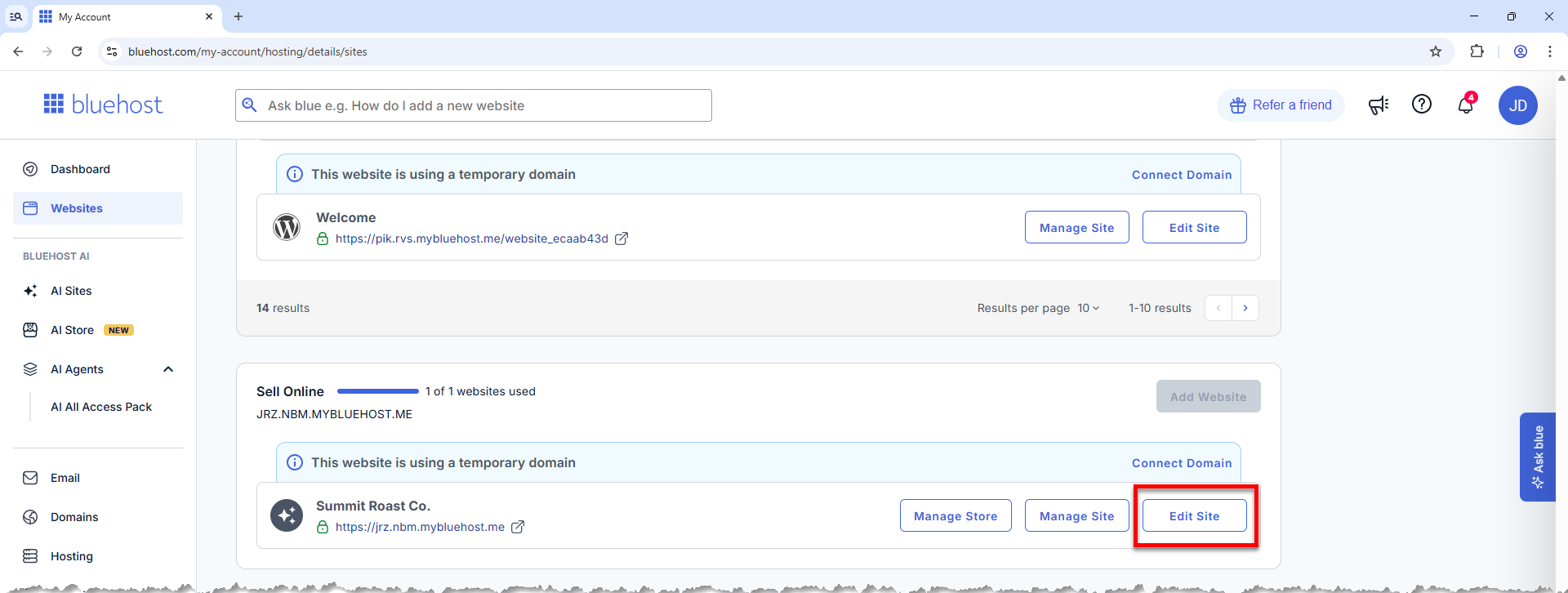
For more information on how to find your AI Store website, visit the Bluehost AI Store: Accessing the Bluehost AI Store article.
- The editor will open in a new tab.
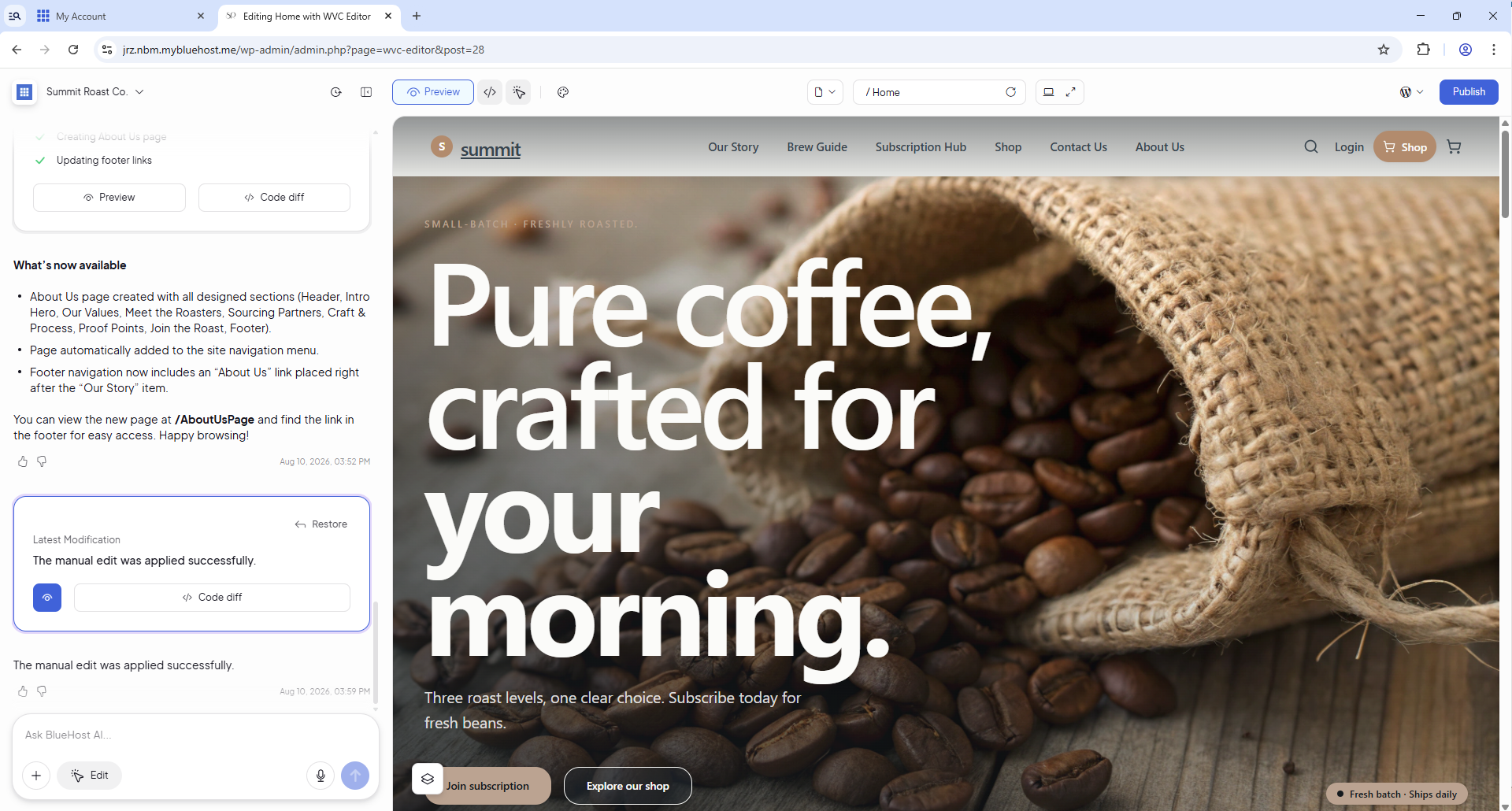
- You can make the following changes:
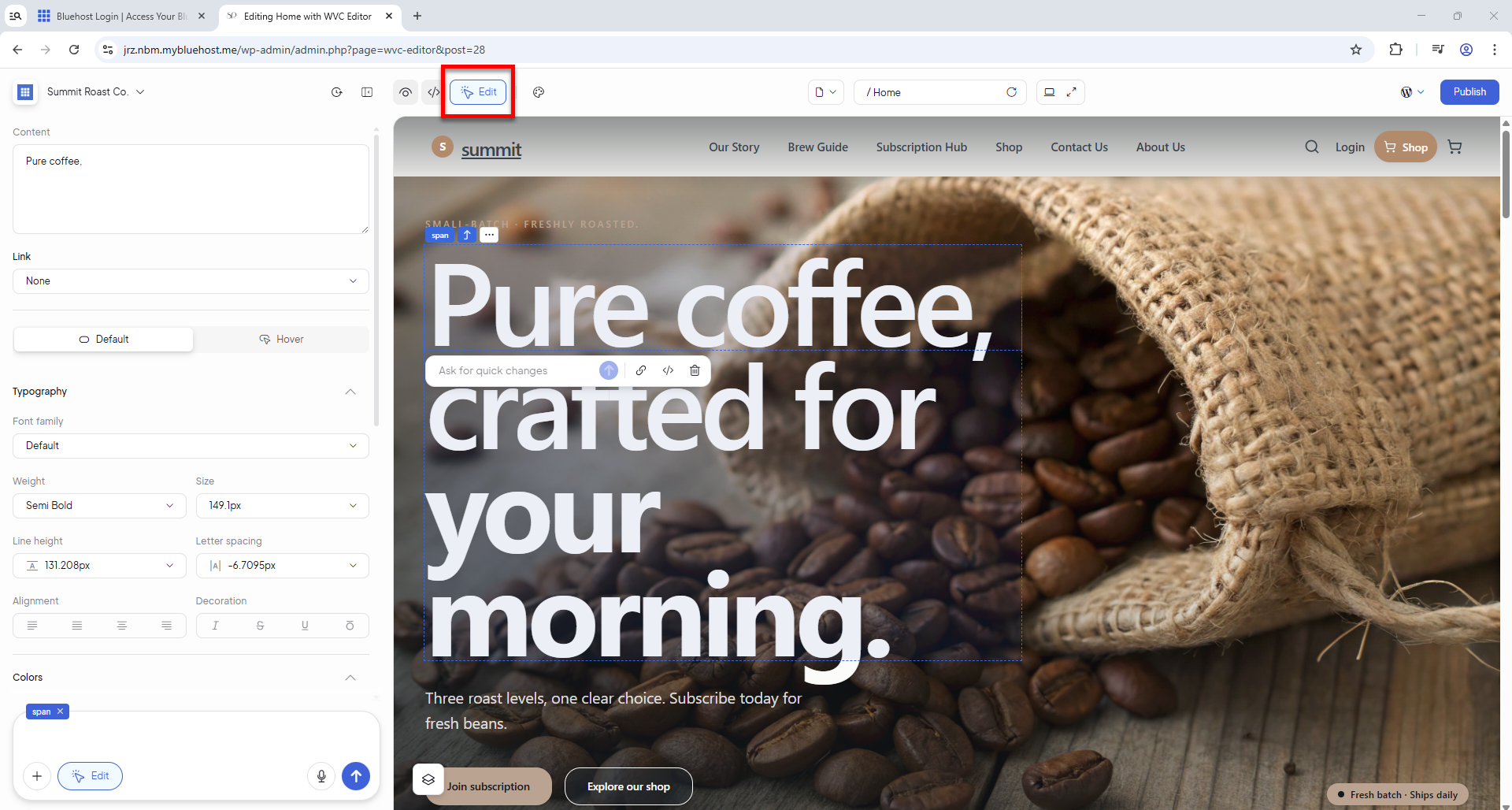
- To manually edit your website, click Edit at the top of the page, select an element in the right pane, and use the settings panel on the left.
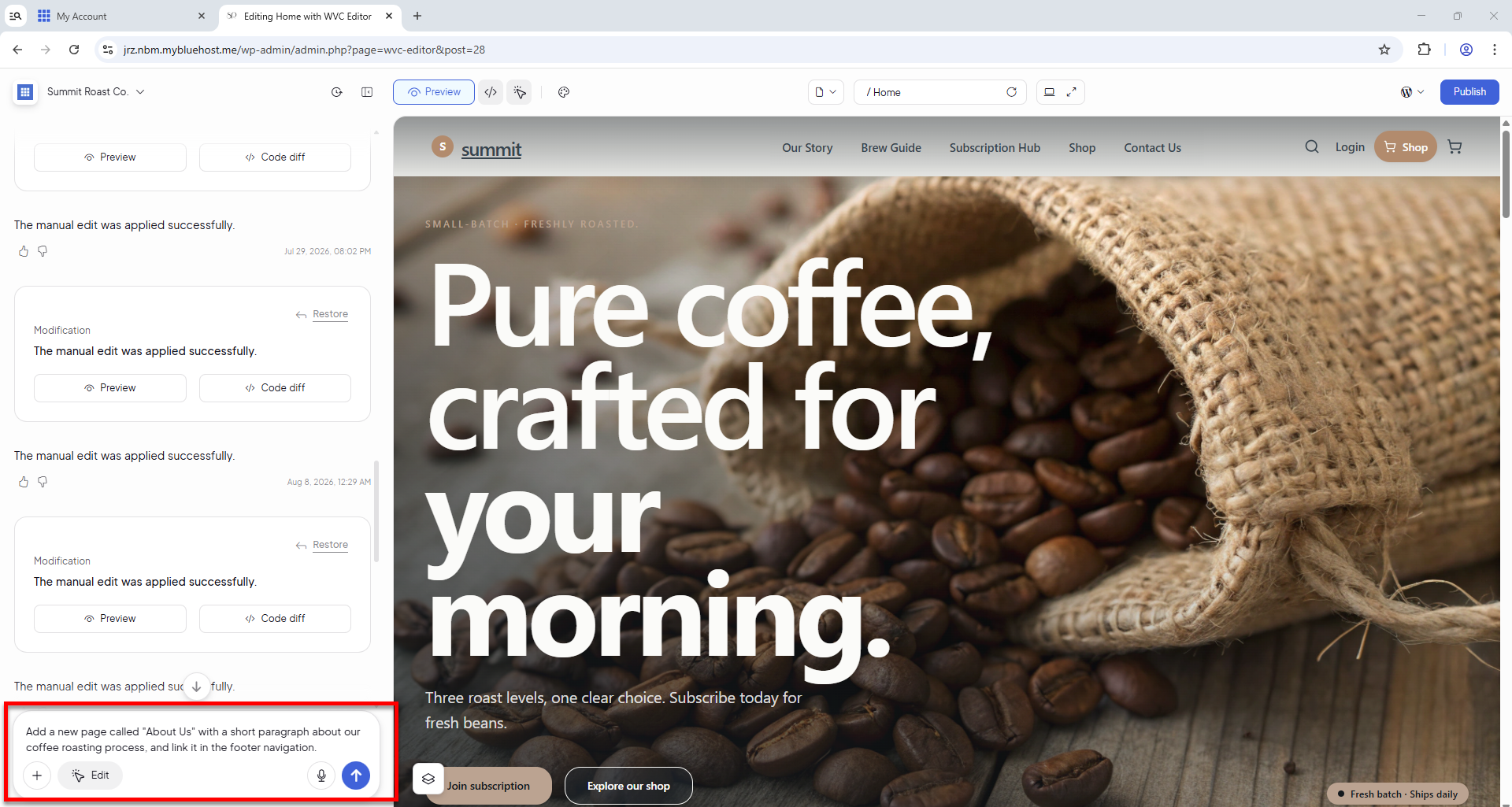
- To have AI make updates, enter your request in the chat box located in the bottom-left corner. Be as specific as possible when describing the changes you want to make.
Please note that each request submitted through the AI chat box uses one credit.
For example, Add a new page called "About Us" with a short paragraph about our coffee roasting process, and link it in the footer navigation.
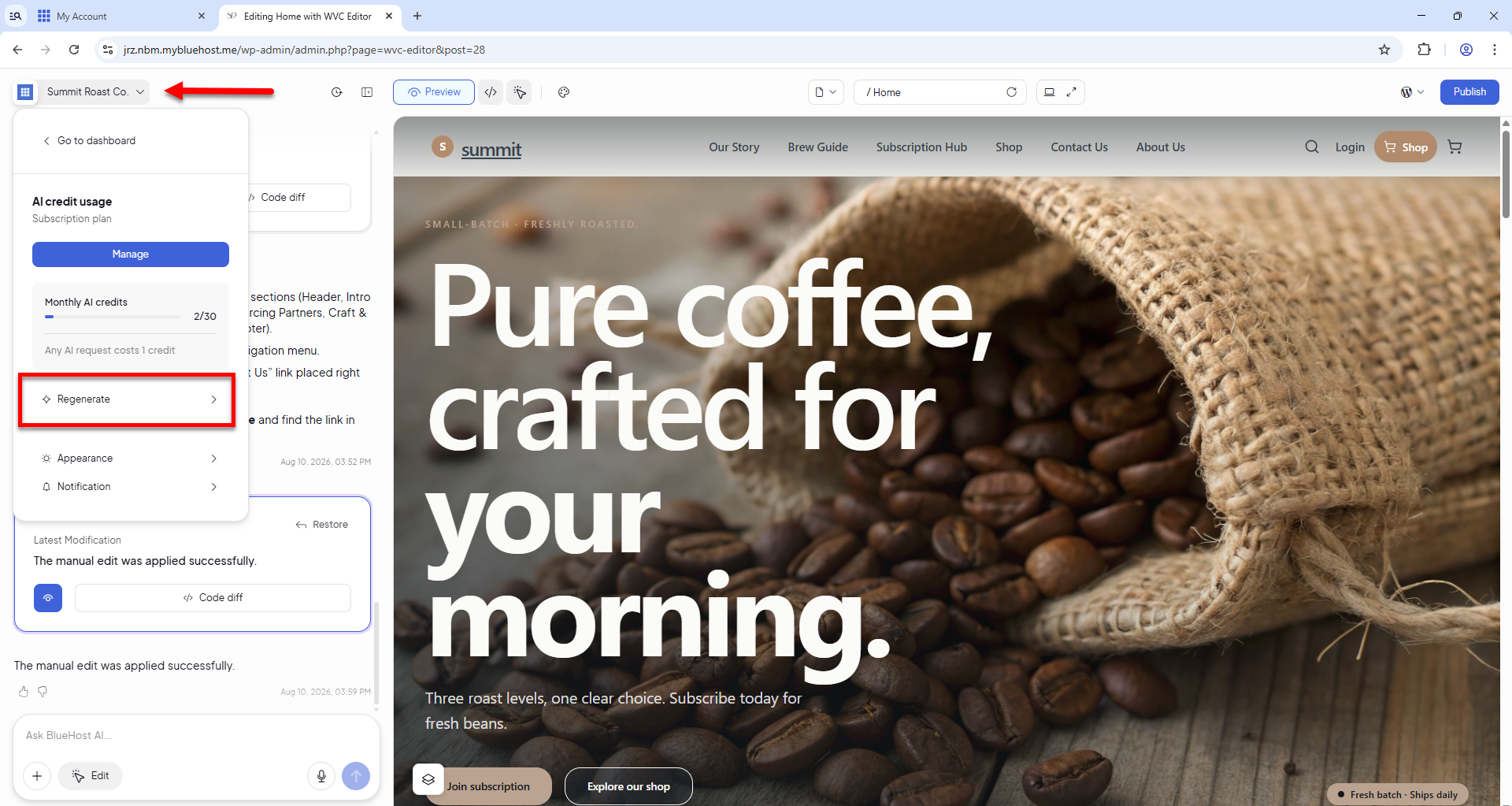
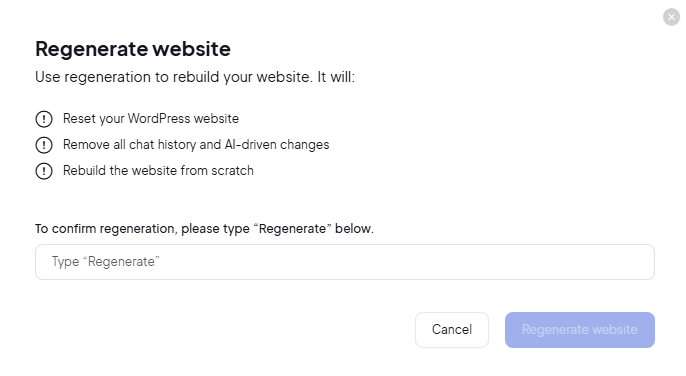
- To rebuild your website, click your website name in the top-left corner and then select Regeneration. Please note that regenerating your website rebuilds it from scratch, resets your WordPress site, removes all chat history and AI-generated changes, and consumes an additional credit.
In the pop-up, confirm by typing "Regenerate" in the text box.
- To manually edit your website, click Edit at the top of the page, select an element in the right pane, and use the settings panel on the left.
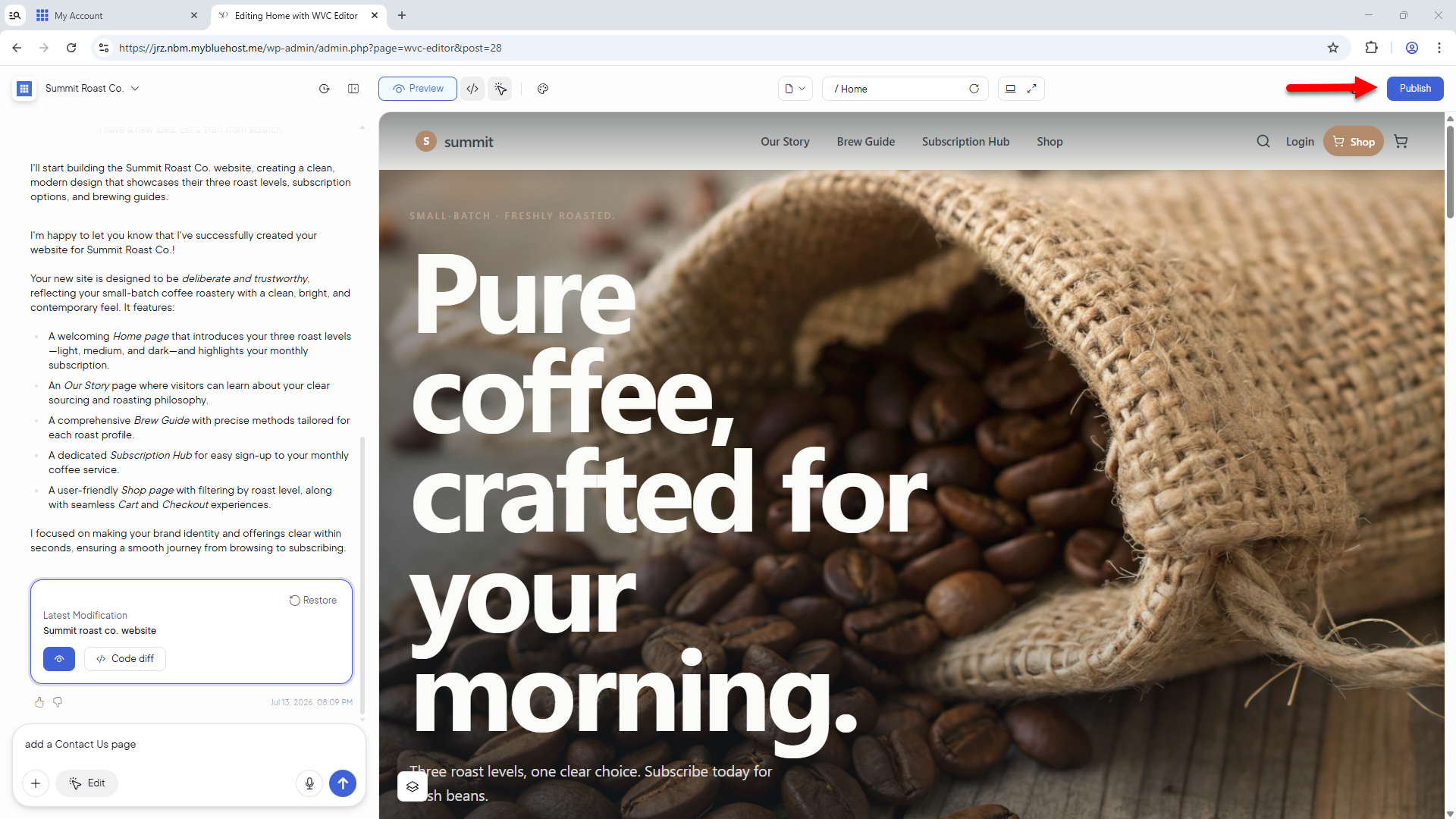
- Review your changes, then click Publish to make them visible on your live website.
- Check your credit balance to see how many requests you have remaining for the month.
Where to Find the AI Credits
To view your AI Store credits, click your website name in the top-left corner.
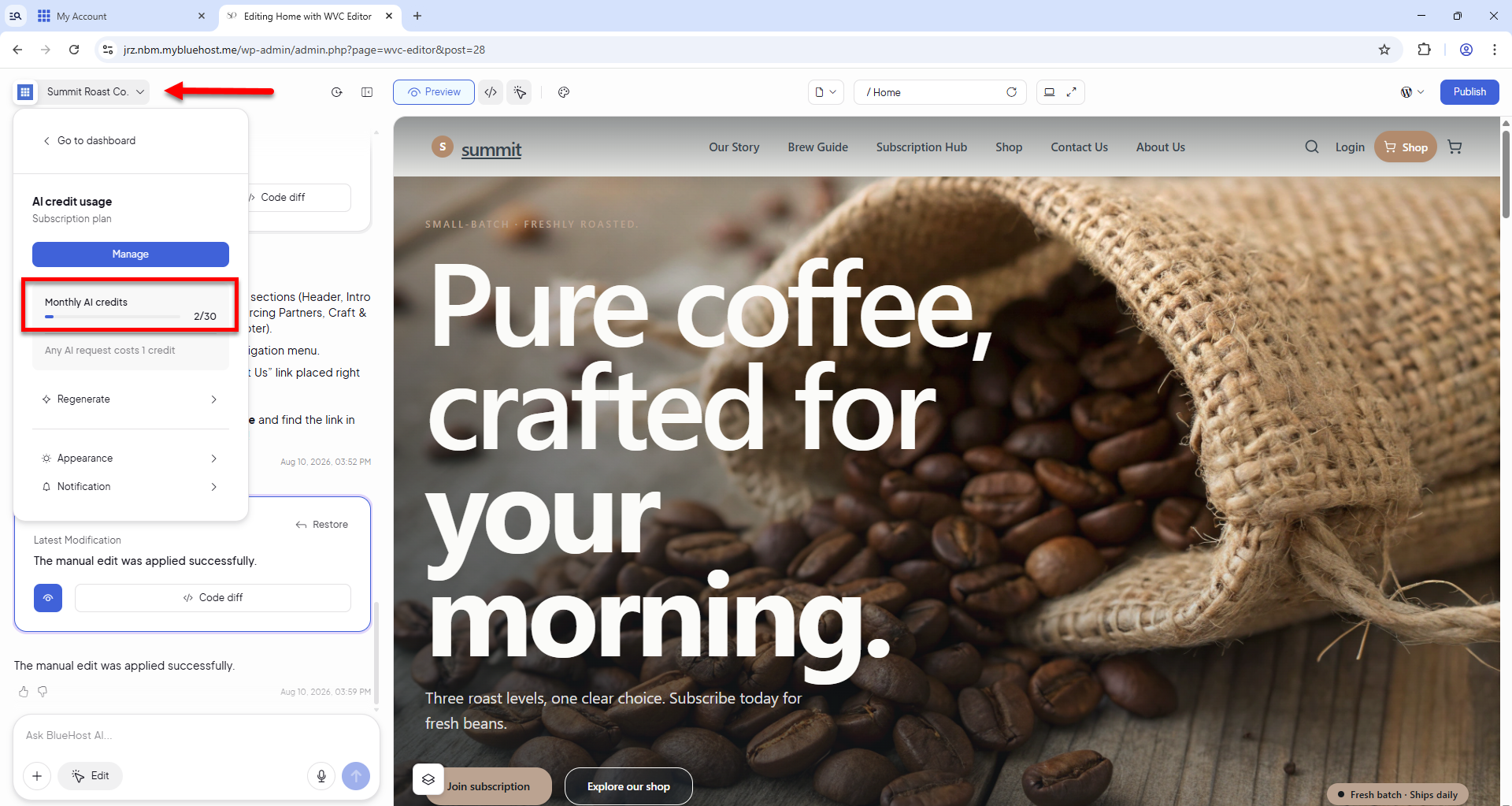
Your AI credit usage is displayed under Monthly AI Credits in the format x/30, where x represents the number of credits used out of the monthly allocation. AI credits typically reset at the beginning of each billing cycle and do not carry over to the next month.
Need help navigating your AI Store Dashboard? Visit the Bluehost AI Store: Navigating the AI Store Dashboard article.
Setting up your AI Store Dashboard? See the Bluehost AI Store: Setting Up the AI Store Dashboard article.
Summary
Learn how to edit your AI Store website using the Bluehost AI Store Editor, including making manual updates, requesting AI-generated changes, and rebuilding your site. This article also explains how AI credits are used and where to view your remaining credit balance.
If you need further assistance, Bluehost Chat Support is available 24 hours a day, 7days a week while Bluehost Phone Support is available 7 days a week from 7 am-12 midnight EST.
- Chat Support - While on our website, you should see a CHAT bubble in the bottom right-hand corner of the page. Click anywhere on the bubble to begin a chat session.
- Phone Support -
- US: 888-401-4678
- International: +1 801-765-9400
You may also refer to our Knowledge Base articles to help answer common questions and guide you through various setup, configuration, and troubleshooting steps.