 ChatGPT,
  Claude,
  Gemini,
  Grok — all four for
 How to Download Website Files and Database with Xcitium
Managing your website backups is essential to keeping your site secure, stable, and recoverable. With the Xcitium Backup Restore feature, you can easily download your website files and database whenever you need to fix issues or safeguard your data.
Access Download Restore
- Log in to your Bluehost Portal.
- In the left-hand menu, click Websites.
- Click the Manage Site button located next to the website you want to manage.

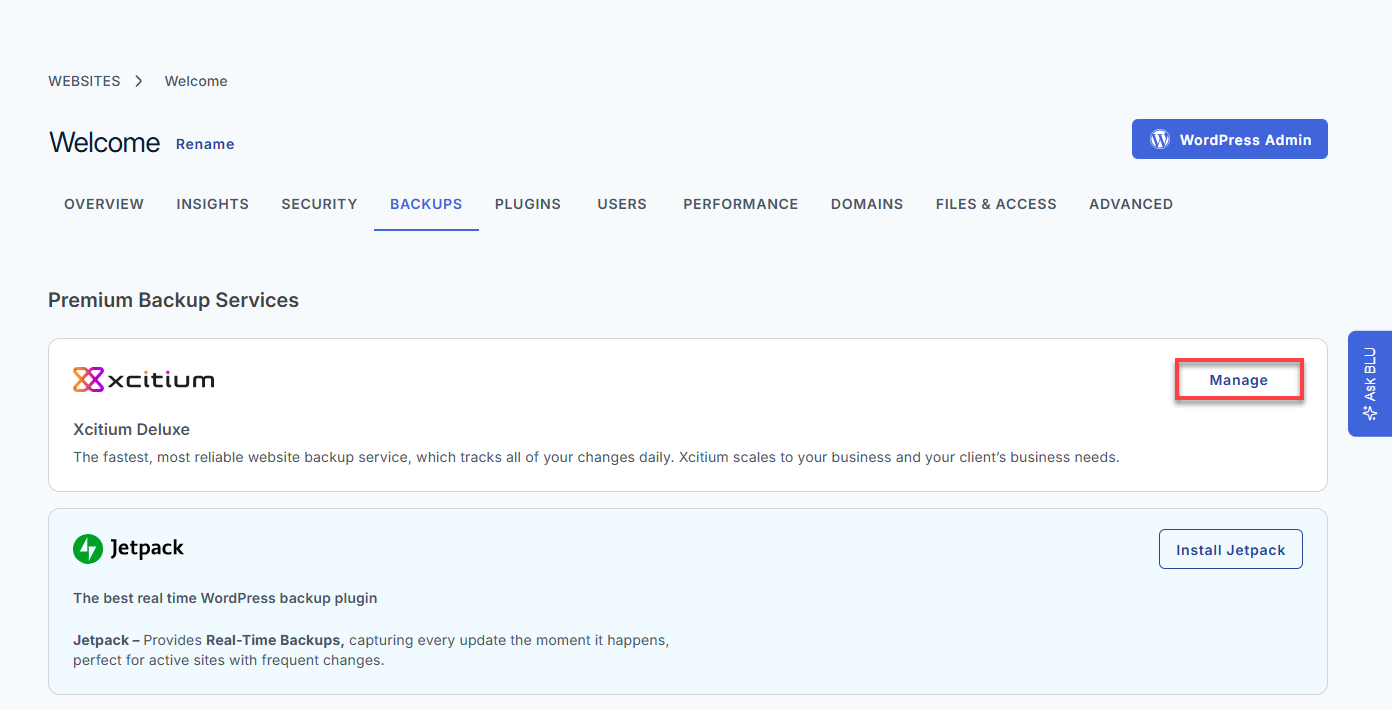
- Click Backups in the top menu.
- Under Premium Backup Services, click Manage for Xcitium.
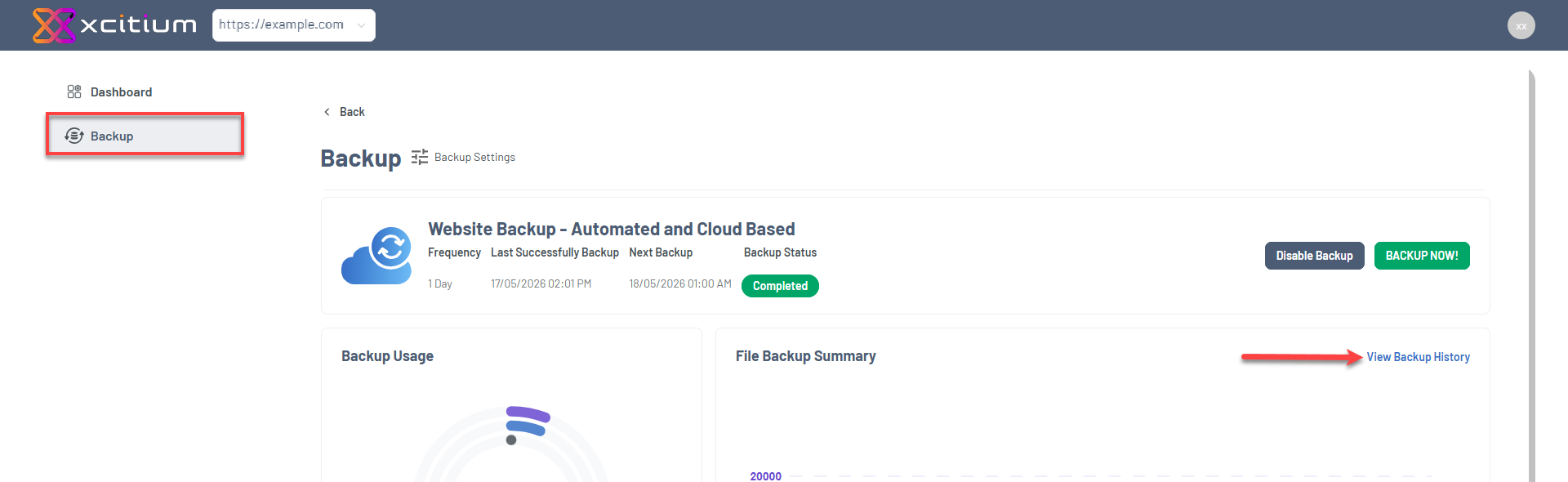
- In the Xcitium dashboard, go to Backup in the left menu.
- Click View Backup History.
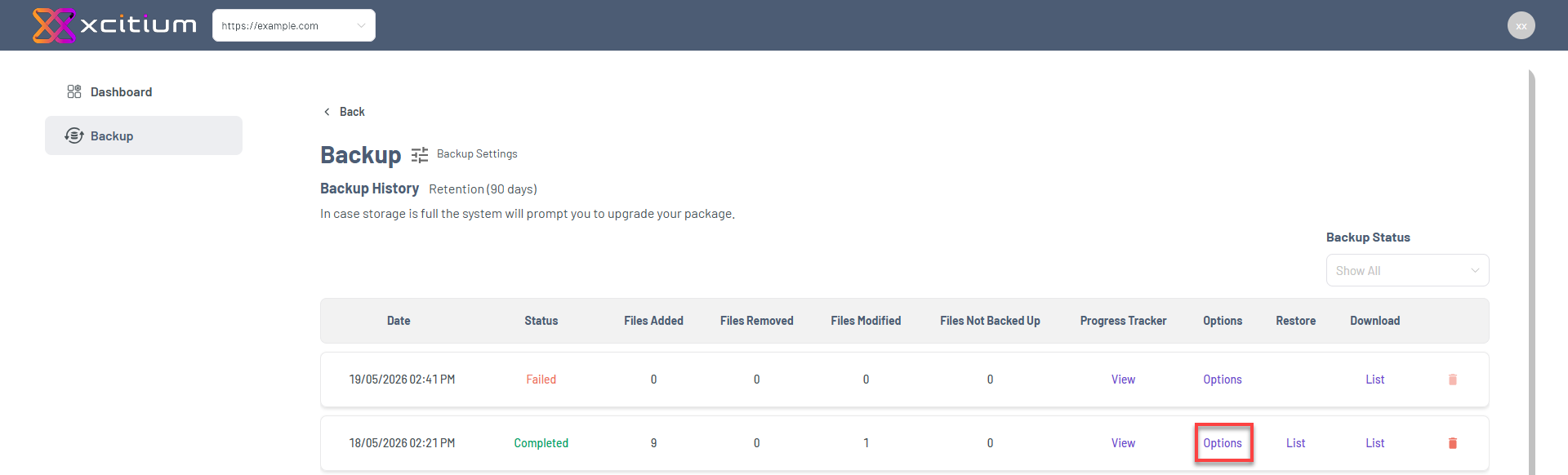
- Click Options next to the backup you want to download
Download Files and Database
You can choose what type of backup download you need:
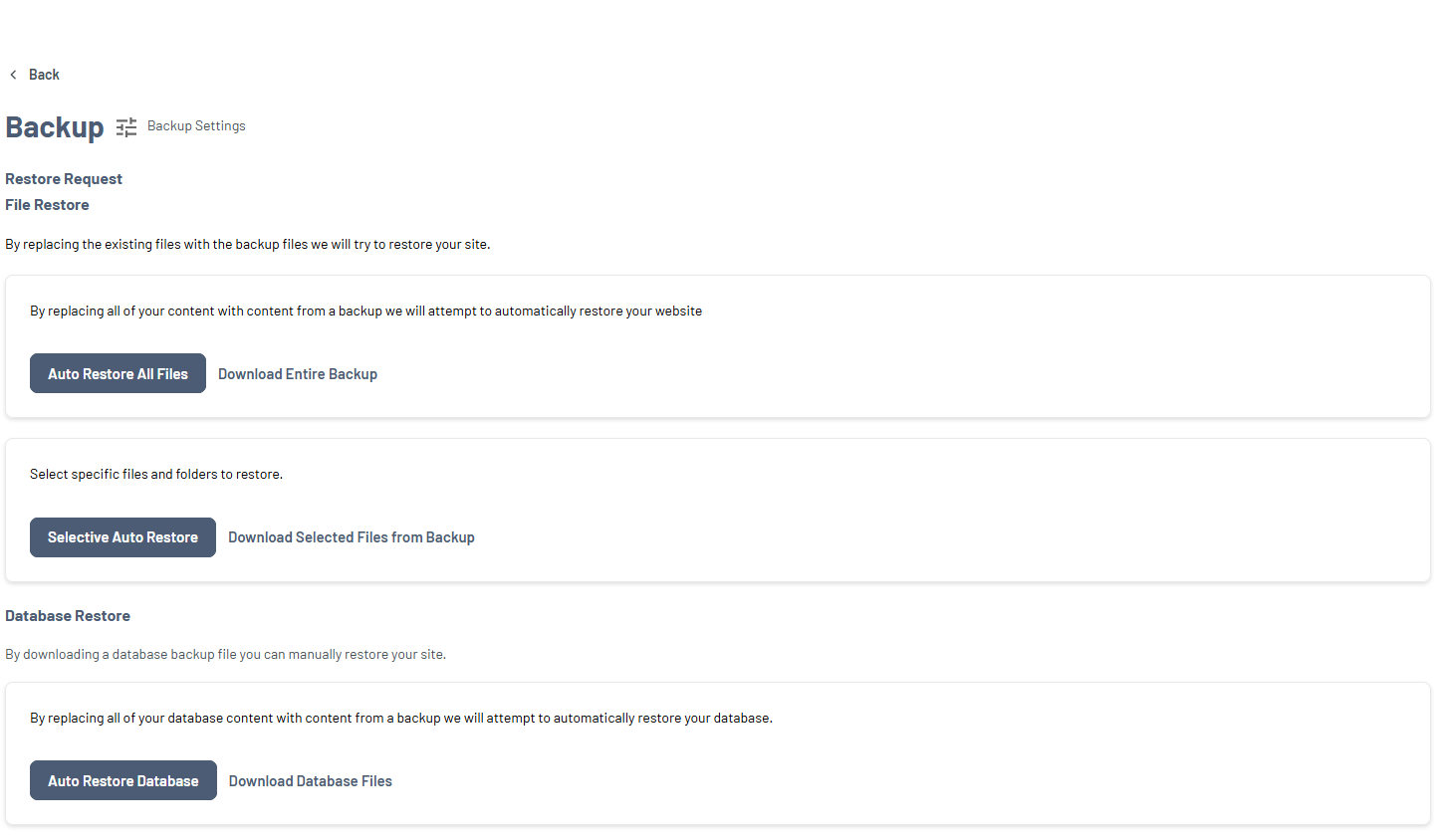
File Download Options
Option 1: Download All Files (Full Backup)
Use this option if you want a complete copy of your website files.
Best for you if:
- You need a full backup copy.
- You are preparing for a full restore.
Steps:
- Go to the File Restore section.
- Click Download Entire Backup.
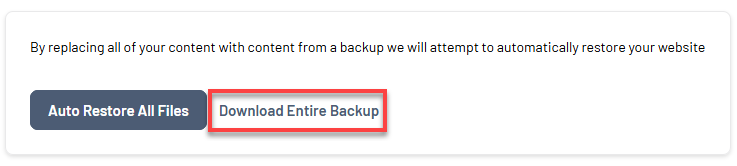
- Confirm the download action.
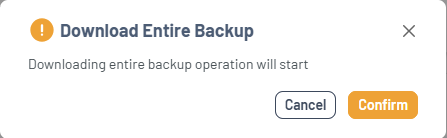
- Wait for the download to complete.
- In Backup Download, click Download to save the backup to your local device.
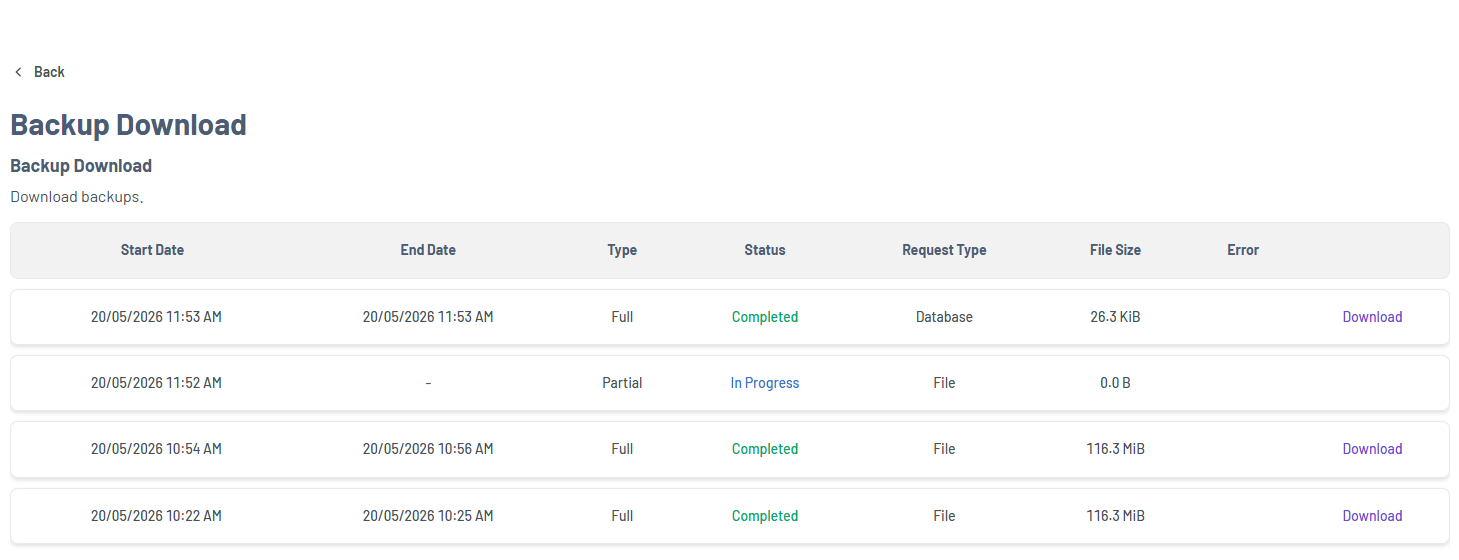
You now have a full backup of your website files.
Option 2: Download Selected Files (Partial Backup)
Use this option if you only need specific files or folders.
Best for you if:
- You want targeted file recovery.
- You only need certain assets or folders.
Steps:
- Go to the File Restore section.
- Click Download Selected Files from Backup.
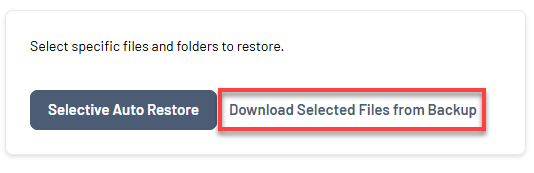
- Choose the files/folders you want to download.
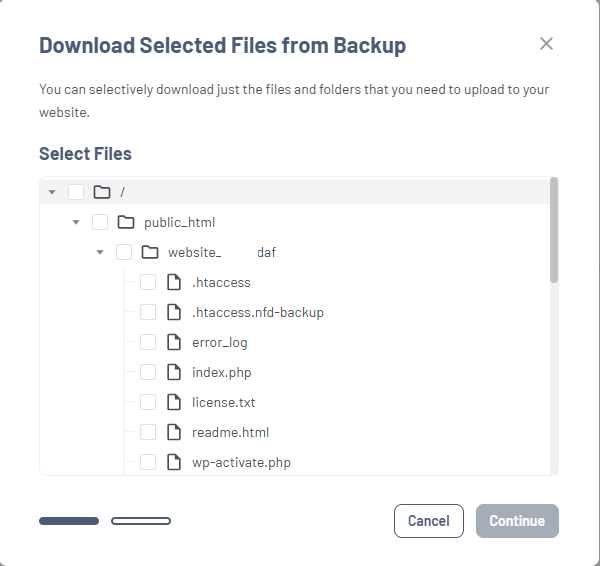
- Click Download after making your selection.
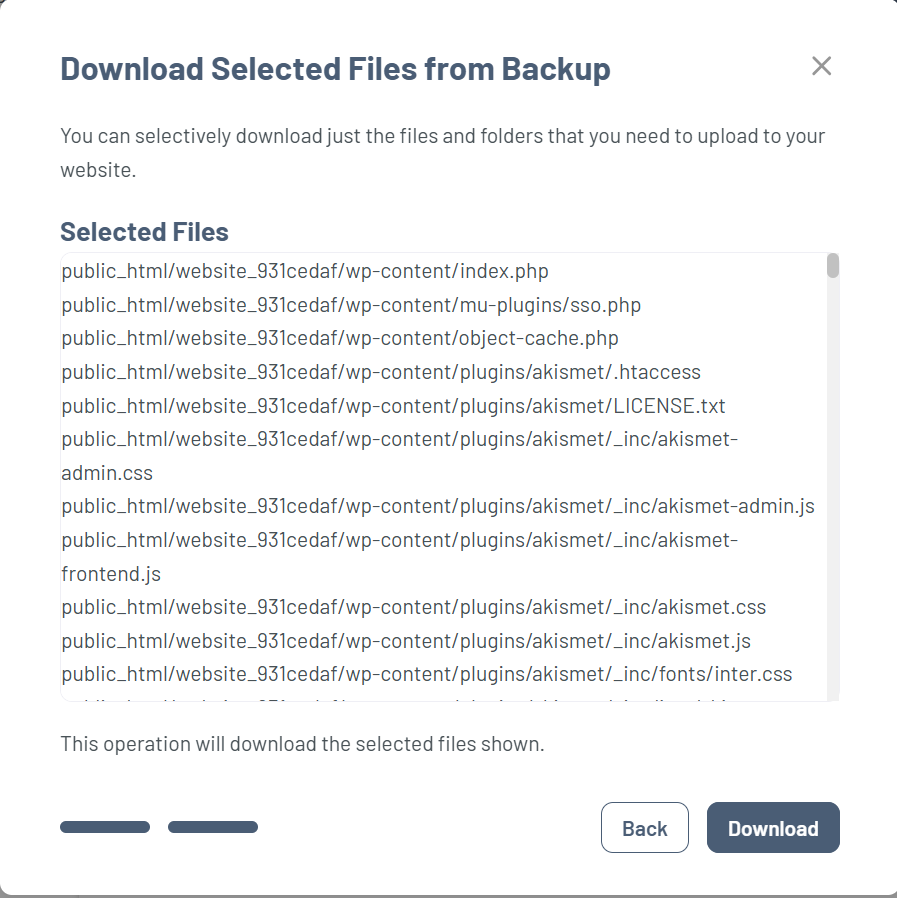
- Wait for the download to complete.
- In Backup Download, click Download to save the files locally.
You now have a partial backup of your website files.
Database Download
Use this option to download your website database, including content, users, and settings.
- Go to the Database Restore section.
- Click Download Database Files.
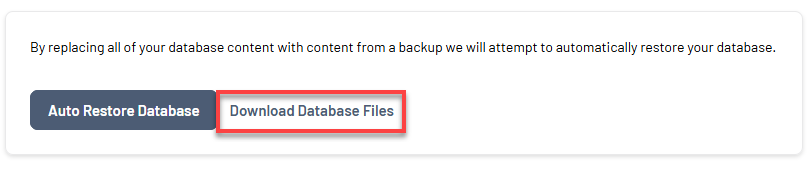
- Confirm the download action.
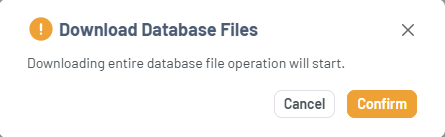
- Wait for the download to complete.
- In Backup Download, click Download to save the database to your local device.
You now have a backup of your website’s data and configurations.
Summary
Downloading your website backup ensures that you always have a safe copy of your files and data before making any changes. By consistently downloading and managing your backups, you can confidently maintain your website and quickly recover from unexpected issues.
If you need further assistance, Bluehost Chat Support is available 24 hours a day, 7days a week while Bluehost Phone Support is available 7 days a week from 7 am-12 midnight EST.
- Chat Support - While on our website, you should see a CHAT bubble in the bottom right-hand corner of the page. Click anywhere on the bubble to begin a chat session.
- Phone Support -
- US: 888-401-4678
- International: +1 801-765-9400
You may also refer to our Knowledge Base articles to help answer common questions and guide you through various setup, configuration, and troubleshooting steps.