 ChatGPT,
 Claude,
 Gemini,
 Grok — all four for
What Happens to Google Workspace When You Transfer Your Domain Away from Bluehost
If you bought Google Workspace through Bluehost and plan to move your domain to another registrar, it helps to know that your Google Workspace subscription and your domain registration are two separate products. Transferring the domain doesn't cancel Google Workspace or delete your data, but your email depends on your domain's DNS records. If those records aren't in place at your new DNS provider, your users can stop receiving email. This article explains what changes, what stays the same, and the order of steps that keeps your email working.
Note: This article covers transferring only your domain registration away from Bluehost. Your Google Workspace subscription is a separate product in your Bluehost account and isn't affected unless you cancel it.
What Stays the Same
Most of your Google Workspace setup isn't affected by a domain transfer.
- Your subscription: Google Workspace is listed as its own product in your Bluehost Renewal Center, separate from your domain, and stays active.
- Your data: Emails, Google Drive files, calendars, and contacts are stored with Google, so the transfer doesn't remove them.
- Your users: User accounts, passwords, and aliases stay as they are.
- Your Google Admin console: You can still sign in and manage Google Workspace settings as usual.
What Can Change
A few things need your attention to avoid interruptions to your email.
- DNS records: When your domain moves to a new DNS provider, the Google Workspace records in your Bluehost DNS no longer apply. Your MX, SPF, DKIM, DMARC, and Google verification records must exist at the new provider, or incoming email may bounce or fail to arrive.
- Where you manage DNS: Future DNS changes for Google Workspace, such as adding a new DKIM key, will be made at your new provider instead of in your Bluehost Account Manager.
- Renewal: Google Workspace keeps renewing separately from your domain. Make sure auto-renewal is on and your payment method is current.
Important: Your Google Workspace email only works while you own the domain and its DNS records point to Google. If the domain expires or the transfer fails and the registration lapses, your users won't be able to send or receive email, even though your Google Workspace subscription is still active.
Before You Transfer Your Domain
Complete these steps in order before you start the transfer. DNS changes can't be made once the transfer is in progress, so your email setup needs to be ready at your new provider first.
Check your registrant email address
Your EPP code and transfer approval emails go to the domain's registrant email address, so make sure you can receive mail there throughout the transfer.
Important: Don't use an email address on the domain you're transferring, such as your Google Workspace address, as the registrant email. If email is interrupted during the transfer, you could miss the transfer messages. Use a separate address, such as a personal Gmail account. Keep in mind that changing the registrant's contact details may trigger a 60-day transfer lock, so make any changes well before you plan to transfer.
Save a copy of your DNS records
Export your current DNS records so you can recreate your Google Workspace records at your new provider.
- Log in to your Bluehost Portal.
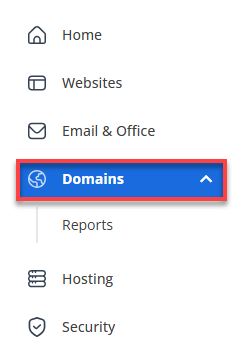
- In the left-hand menu, click Domains.
- If you have one domain in your account, you will be taken directly to the domain management panel.
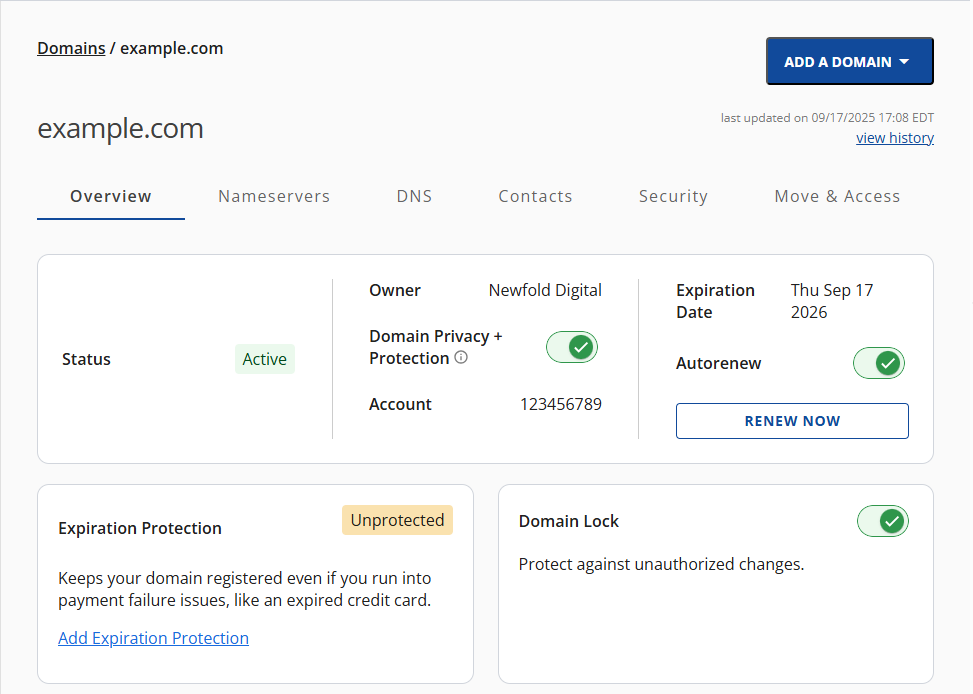
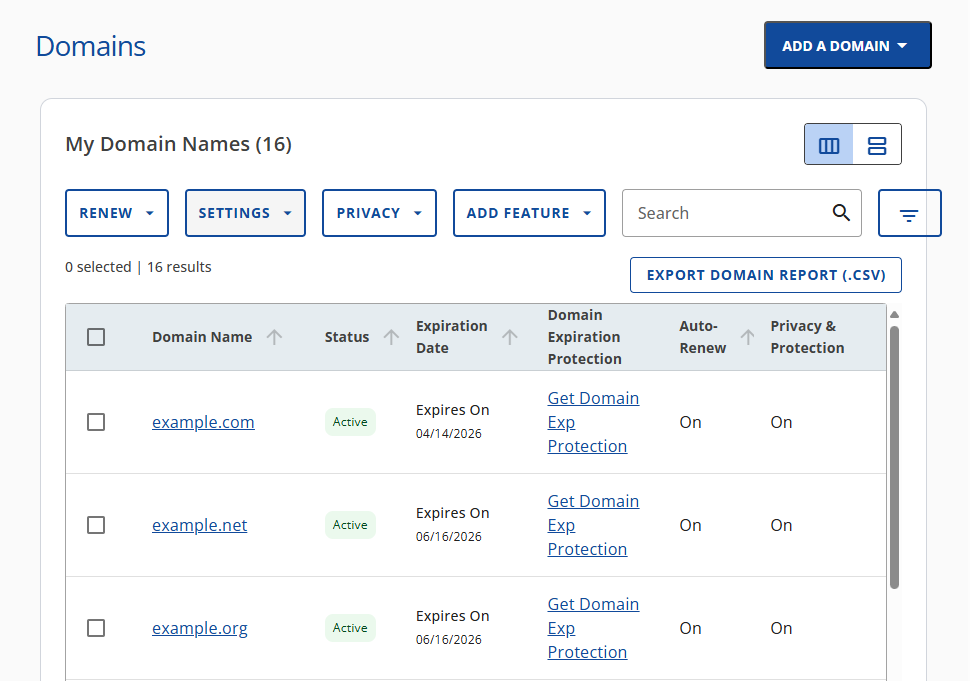
- If you have multiple domains in your account, click the domain you wish to manage to access the domain management panel.
- If you have one domain in your account, you will be taken directly to the domain management panel.
- If you have more than one domain, click the domain connected to Google Workspace.
- Click the DNS tab.

- Click the Actions menu, then select Export DNS zone.
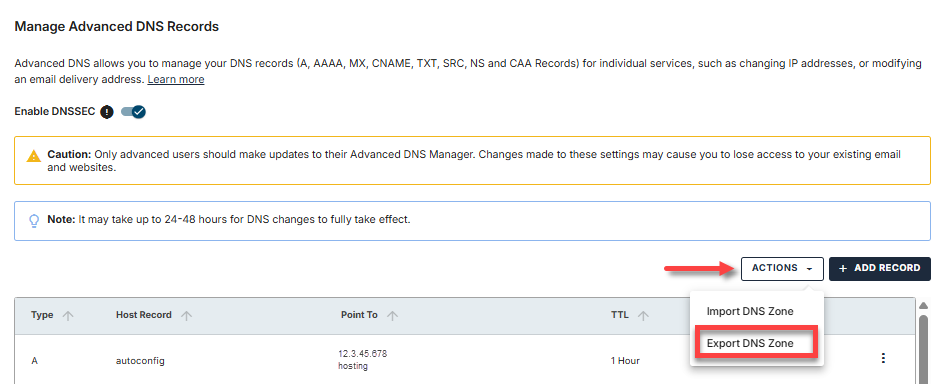
- In the pop-up, click Download DNS zone. A .txt file with all of your domain's DNS records is saved to your computer.
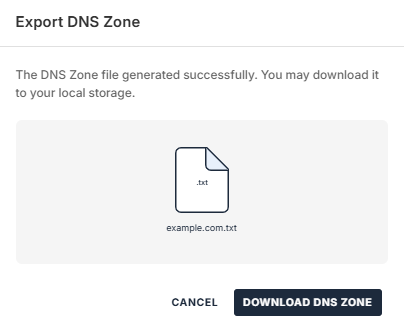
In the file, look for your Google Workspace records: MX records, and TXT records for SPF (v=spf1), DKIM (google._domainkey), DMARC (_dmarc), and Google site verification.
Add your Google Workspace records at your new DNS provider
Set up your records at the new provider before you point your domain there, so email keeps flowing when the switch happens.
- Sign in to your new registrar or DNS provider and open the DNS settings for your domain.
- Add the Google Workspace records from your exported file. The most common ones are listed below.
| Record | Type | Host | Value |
|---|---|---|---|
| Email routing | MX | @ |
smtp.google.com (priority 1) |
| SPF | TXT | @ |
v=spf1 include:_spf.google.com ~all |
| DKIM | TXT | google._domainkey |
The value from your exported file |
| DMARC | TXT | _dmarc |
The value from your exported file |
Note: Older Google Workspace setups use five MX records, starting with ASPMX.L.GOOGLE.COM, instead of the single smtp.google.com record. Copy the exact MX records from your exported file, and don't mix the two setups.
Important: When you change nameservers, all of your domain's DNS records move to the new provider, not just your Google Workspace records. Add every record from your exported file that you still need, such as A and CNAME records for your website, so your website and other services keep working.
Point your domain to the new nameservers
Once your records are set up at the new provider, switch your domain's nameservers to that provider from Bluehost.
- Log in to your Bluehost Portal.
- In the left-hand menu, click Domains.
- If you have one domain in your account, you will be taken directly to the domain management panel.
- If you have multiple domains in your account, click the domain you wish to manage to access the domain management panel.
- If you have one domain in your account, you will be taken directly to the domain management panel.
- If you have more than one domain, click the domain you want to transfer.
- Click the Nameservers tab and update the nameservers to the ones provided by your new DNS provider.
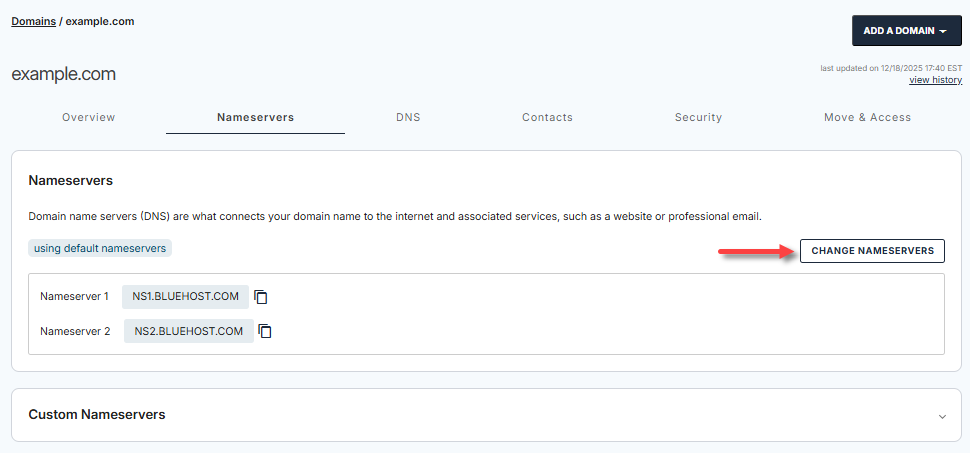
Nameserver changes can take 24 to 48 hours to fully take effect. For detailed steps, see How to Navigate the Nameservers Tab in Bluehost Portal.
Tip: Before you continue, send a test email to your Google Workspace address from an outside account to confirm mail is arriving through the new provider. You can also check your domain with the Google Admin Toolbox Check MX tool.
Check your Google Workspace renewal settings
Confirm your subscription will keep renewing on its own.
- Log in to your Bluehost Portal.
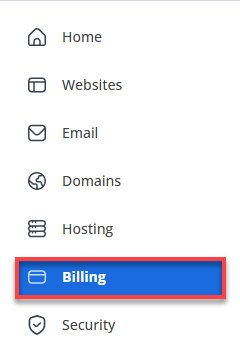
- In the left-hand menu, click Billing.
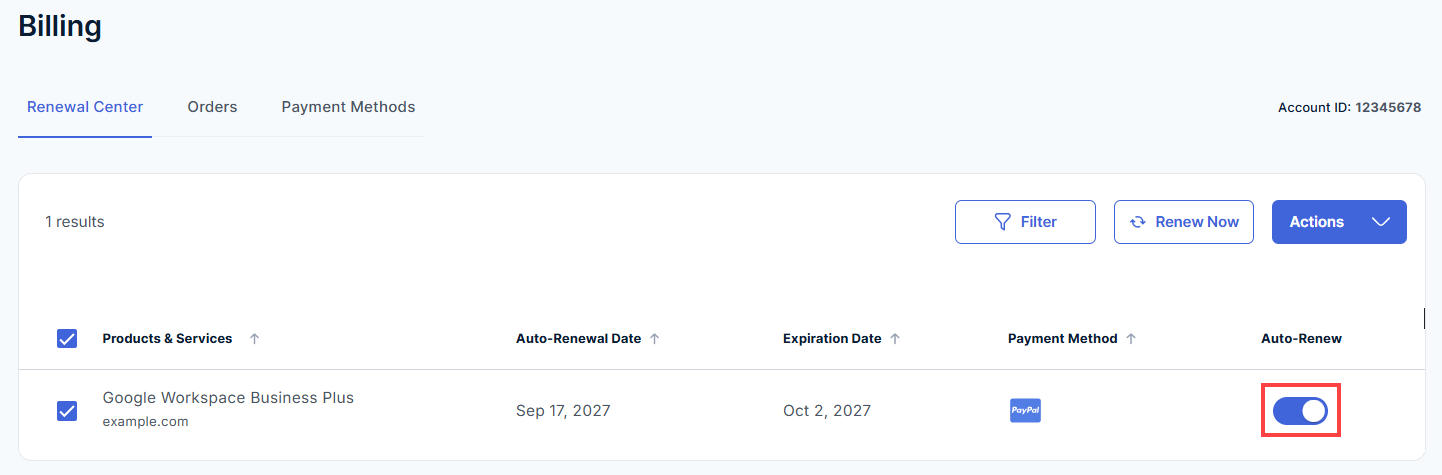
- In the Renewal Center tab, find your Google Workspace plan.
- Make sure the Auto-Renew toggle is on and the Payment Method on file is up to date.
Transfer Your Domain
With your email set up at the new provider, you're ready to unlock your domain and request its EPP (authorization) code.
Unlock your domain
Domains are locked by default to prevent unauthorized transfers, so you'll need to unlock yours first.
- Log in to your Bluehost Portal.
- In the left-hand menu, click Domains.
- If you have one domain in your account, you will be taken directly to the domain management panel.
- If you have multiple domains in your account, click the domain you wish to manage to access the domain management panel.
- If you have one domain in your account, you will be taken directly to the domain management panel.
- If you have more than one domain, click the domain you want to transfer.
- On the Overview tab, turn off the domain lock in the Domain Lock section.
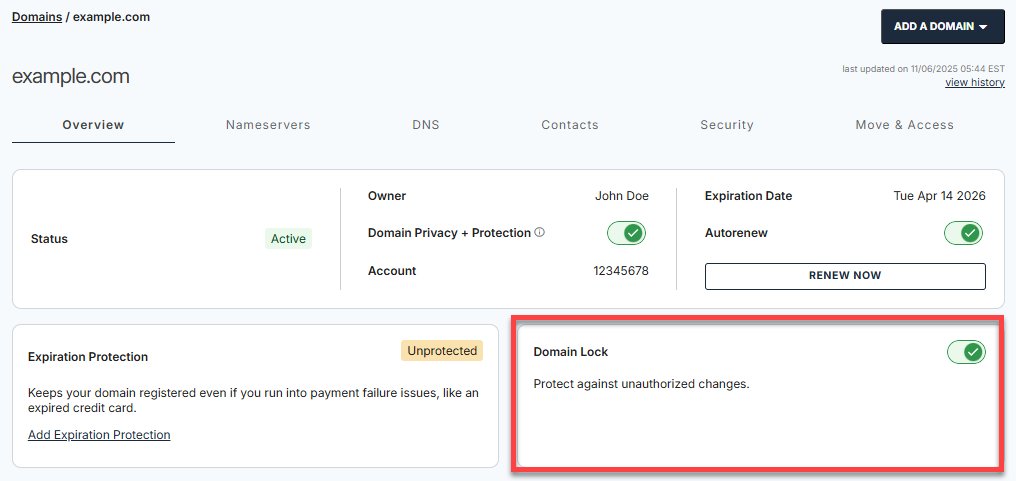
For more information, see Understanding the Different Types of Domain Locks.
Request your EPP code
Your new registrar needs this code to authorize the transfer.
- Click the Move & Access tab.

- Click Request Auth Code.
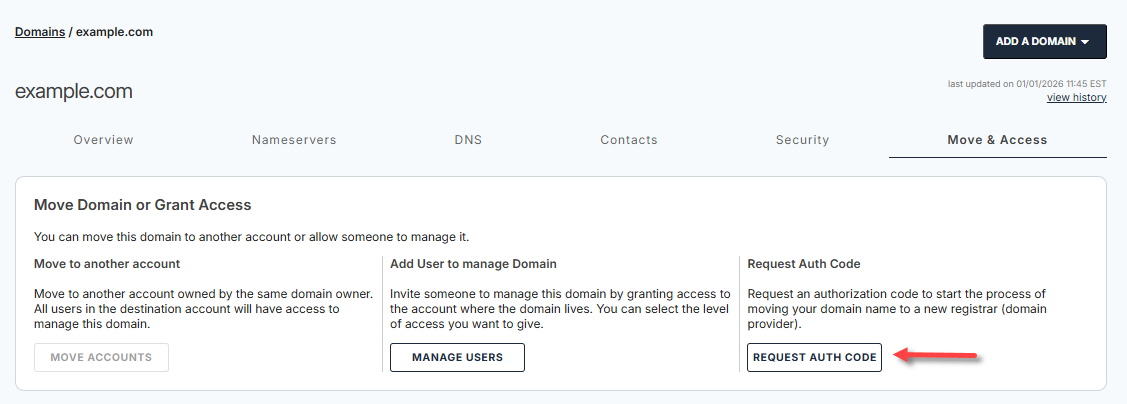
- Select the reason for the transfer, then click Continue.
- On the Request Authorization Code pop-up, click Continue With Transfer.
- On the next pop-up, click Send Auth Code.
- Check your registrant email address for the EPP code. It may take up to 24 hours to arrive.
Note: The EPP code is case-sensitive. If you copy and paste it, make sure there are no extra spaces at the beginning or end.
Start the transfer at your new registrar
Complete the transfer with your new registrar.
- Log in to your account with the new registrar and start the domain transfer.
- Enter the EPP code when prompted and follow any additional steps they require.
- Watch your registrant email for a verification message, and approve the transfer when asked.
The transfer may take a few days to complete. For full details, see How to Transfer a Domain Name to a New Registrar.
Note: Under ICANN's current Transfer Policy, a transfer may be denied within 60 days of the domain's registration or a previous transfer. Transfer rules can change, so check with your new registrar if you're not sure when your domain is eligible.
Manage Google Workspace After the Transfer
You'll continue to manage your Google Workspace subscription and users from your Bluehost Account Manager.
- Log in to your Bluehost Portal.
- From the left-hand navigation menu, click on the Email tab.
- Click the Google Workspace tab.

- You’ll be automatically redirected to the Email Management page, where you can manage your email settings and subscriptions.
- On the Email Management page, review your plan in the Email Plan Overview section and manage your users in the Users section.
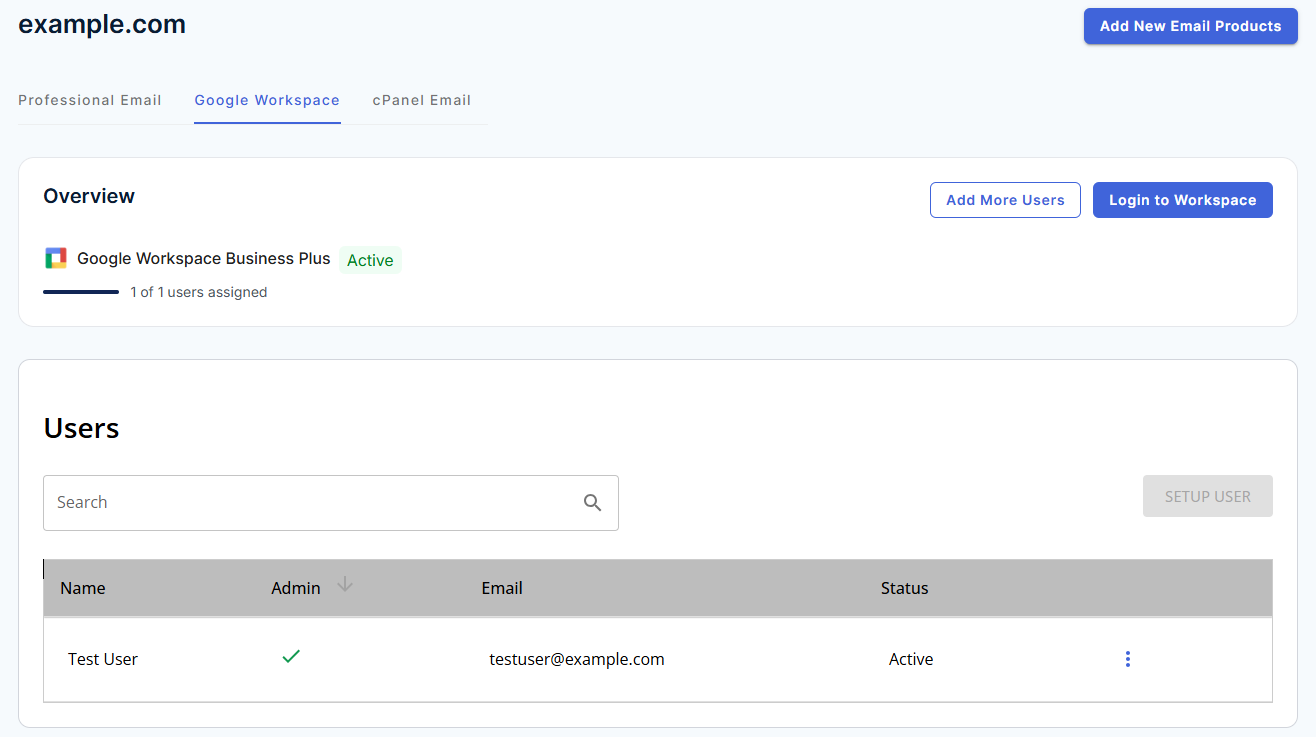
Note: The Advanced section of the Google Workspace tab still lists the MX records Google Workspace needs, but you'll add or update DNS records at your new provider instead of in Bluehost.
Frequently Asked Questions
Here are answers to common questions about Google Workspace and domain transfers.
Q: Will I Lose My Emails When I Transfer My Domain?
A: No. Your emails, files, and calendars are stored in Google Workspace, not with your domain. However, new incoming email may not arrive if your Google Workspace DNS records aren't set up at your new DNS provider.
Q: Does Transferring My Domain Cancel Google Workspace?
A: No. Google Workspace is a separate product in your Bluehost account and keeps renewing on its own schedule. If you no longer need it, you'll have to cancel it separately.
Q: Can I Move My Google Workspace Subscription Away From Bluehost Too?
A: Moving your subscription is a separate process from transferring your domain. Contact Bluehost support to review your options before making any changes, so you don't lose access to your data.
Summary
Transferring your domain away from Bluehost doesn't cancel Google Workspace or delete your data, but your email depends on your DNS records. Before you transfer, export your DNS records, add your Google Workspace records at your new provider, and update your nameservers. Then unlock your domain, request your EPP code from the Move & Access tab, and complete the transfer with your new registrar.
If you need further assistance, Bluehost Chat Support is available 24 hours a day, 7days a week while Bluehost Phone Support is available 7 days a week from 7 am-12 midnight EST.
- Chat Support - While on our website, you should see a CHAT bubble in the bottom right-hand corner of the page. Click anywhere on the bubble to begin a chat session.
- Phone Support -
- US: 888-401-4678
- International: +1 801-765-9400
You may also refer to our Knowledge Base articles to help answer common questions and guide you through various setup, configuration, and troubleshooting steps.