 ChatGPT,
 Claude,
 Gemini,
 Grok — all four for
How to Turn On 2-Step Verification for Your Google Workspace Users
2-Step Verification (2SV) adds a second check when someone signs in to a Google Workspace account, such as a security key, a prompt on their phone, or a code from an authenticator app. It can help protect your business email and files if a password is lost or stolen. As a Google Workspace administrator, you decide whether 2SV is optional or required for your team.
This article walks you through deploying 2SV for your organization in the Google Admin Console: notifying your users, allowing them to turn on 2SV, tracking enrollment, and, if you choose, enforcing it. To learn more about Google Workspace, visit the What is Google Workspace? article.
Before You Begin
- You need a super administrator account to change 2SV settings. Your first mailbox is typically your admin user.
- Sign in to the Google Admin Console at admin.google.com.
- According to Google, accounts created before December 2016 have 2SV turned on by default. For details, see Google's Deploy 2-Step Verification article.
- You can apply 2SV settings to your whole organization, or to a specific department (organizational unit) or group. If you apply settings to a group, the group's settings override the organizational unit's settings.
Step 1: Notify Your Users
Before you deploy 2SV, let your users know what to expect. Your message should explain:
- What 2SV is and why your company uses it.
- Whether 2SV is optional or required.
- If it's required, the deadline for turning it on.
- Which verification method you require or recommend.
Step 2: Allow Users to Turn On 2-Step Verification
First, let your users turn on 2SV themselves using any verification method. This does not require them to turn it on yet.
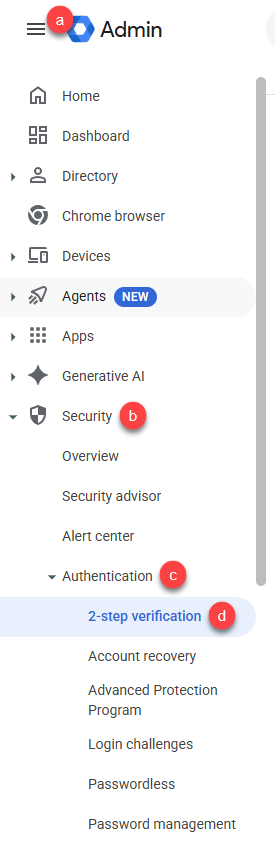
- In the Google Admin Console, go to Menu > Security > Authentication > 2-step verification.
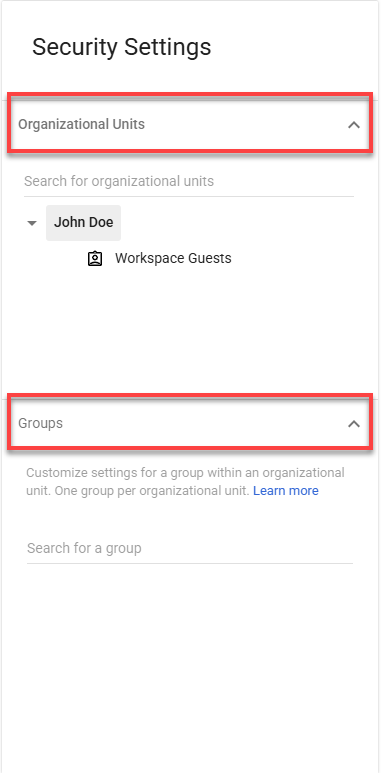
- (Optional) To apply the setting to a department or group instead of your whole organization, select an organizational unit under Organizational Units, or search for a group under Groups.
- Select Allow users to turn on 2-Step Verification.
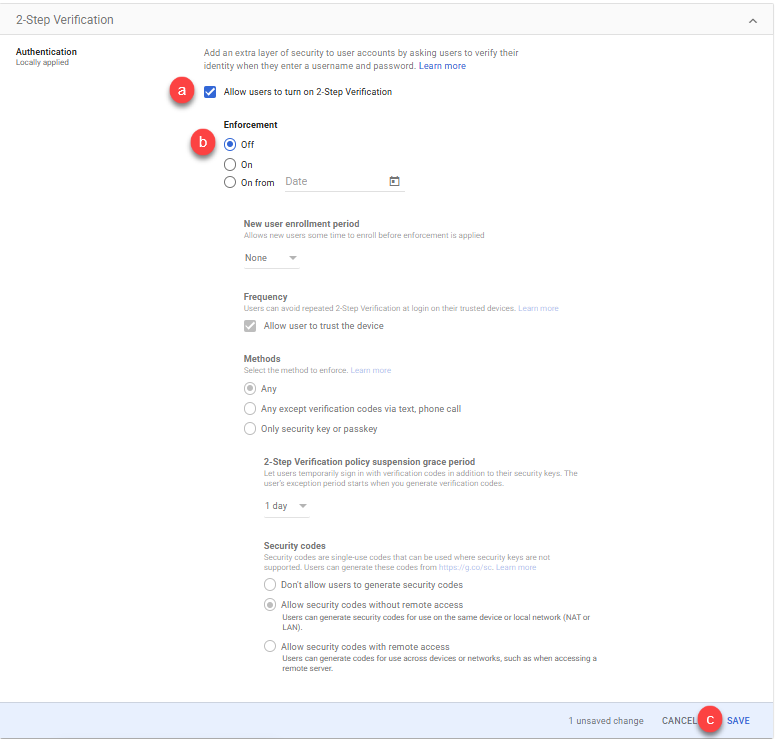
- Set Enforcement to Off.
- Click Save. If you selected an organizational unit, you may see Override instead of Save.
Step 3: Tell Your Users to Enroll
Send your users instructions for turning on 2SV in their own Google Account. Google provides a help article called Turn on 2-Step Verification that you can share with them. If you want to point users to a specific method, you can also share Google's instructions for each of these:
- Security keys
- Google prompt, text message, or phone call
- Google Authenticator app
- Backup codes
Step 4: Track Enrollment
After you notify your users, you can check how many have turned on 2SV before you decide whether to enforce it.
Track 2SV Enrollment by User
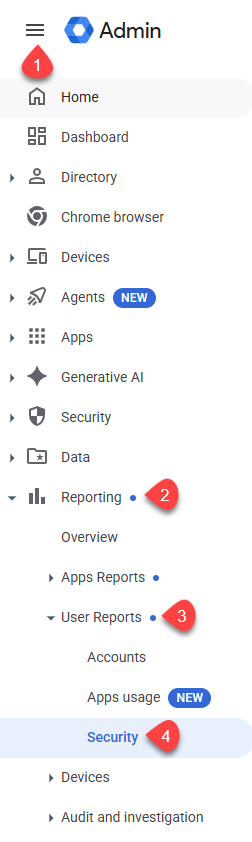
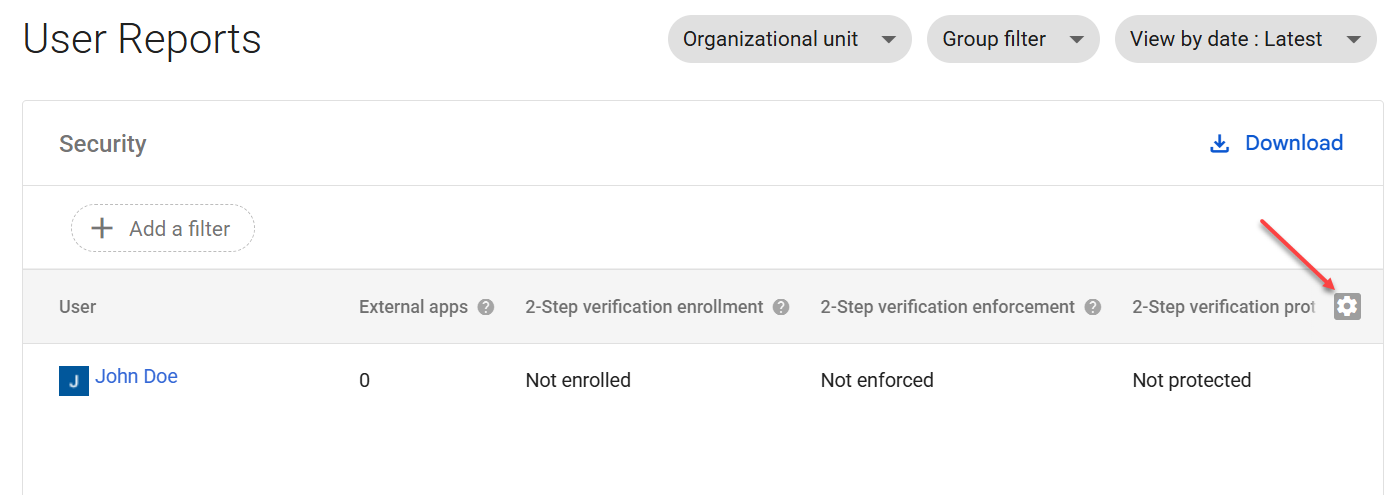
- In the Admin Console, go to Menu > Reporting > User Reports > Security. You need the Reports administrator privilege to see this page.
- (Optional) To add more data columns to the report, click the Settings (gear) icon.
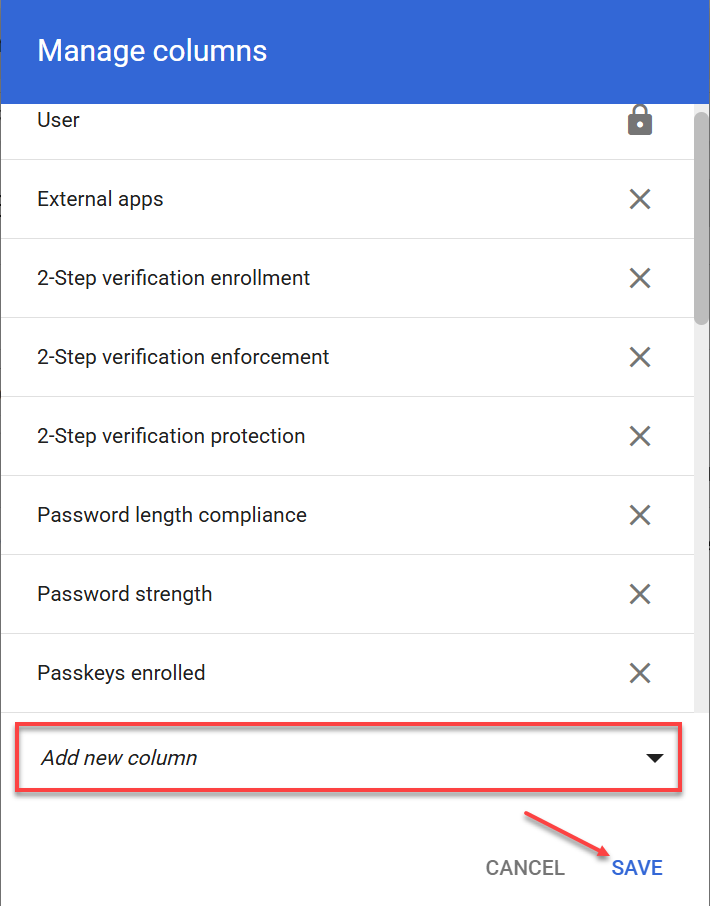
- (Optional) In the Manage columns box, click Add new column to choose a column, and then click Save.
View Enrollment Trends
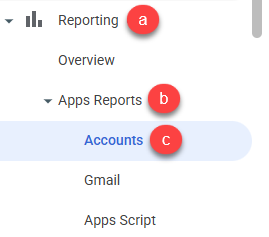
From the Admin Console Home page, go to Reporting > Apps Reports > Accounts.
Step 5: Enforce 2-Step Verification (Optional)
Enforcing 2SV requires your users to use it when they sign in. Confirm that your users are enrolled before you turn enforcement on.
- In the Admin Console, go to Menu > Security > Authentication > 2-step verification.
- (Optional) Select an organizational unit or group.
- Select Allow users to turn on 2-Step Verification.
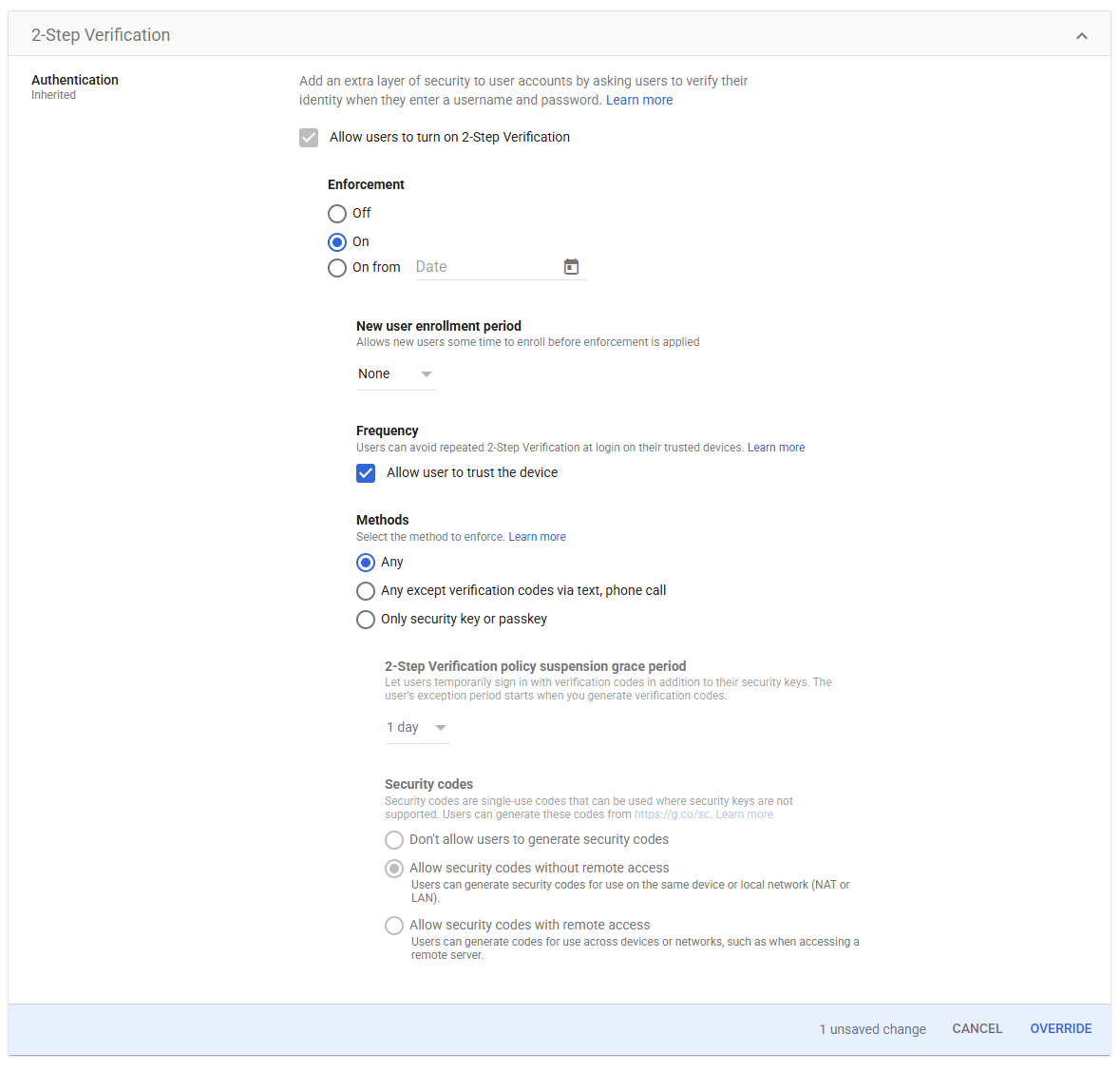
- Under Enforcement, choose when enforcement starts:
- On: Enforcement starts immediately.
- On from: Choose a start date. Users see reminders to enroll when they sign in. According to Google, enforcement can begin 24 to 48 hours after your chosen date, so use On if you need a precise start time.
- (Optional) Set a New user enrollment period from 1 day to 6 months. During this period, new users can sign in with only a password.
- (Optional) Under Frequency, select Allow user to trust the device if you want users to skip repeated 2SV prompts on devices they trust. This isn't recommended unless your users often switch devices.
- Under Methods, choose which verification methods your users can use. See the table below.
- If you chose Only security key or passkey, set the 2-Step Verification policy suspension grace period. This lets users who lose their key sign in with a backup code that you generate for them. According to Google, users can't generate their own backup codes in this mode.
- Under Security codes, choose whether to allow them and how:
- Don't allow users to generate security codes.
- Allow security codes without remote access. Codes work on the same device or local network.
- Allow security codes with remote access. Codes work on other devices or networks.
According to Google, users generate security codes at g.co/sc, the codes are valid for 5 minutes, and they are different from authenticator app codes.
- Click Save. If you selected an organizational unit, you may see Override instead.
| Method | What it allows |
|---|---|
| Any | Users can use any 2SV method. |
| Any except verification codes via text, phone call | Blocks codes sent by text message or phone call. All other methods are allowed. |
| Only security key or passkey | Users must use a security key, which now includes passkeys. |
Warning: If you choose Any except verification codes via text, phone call, users who rely on text messages or phone calls can be locked out. Tell them to switch to another method before you save. In Google's audit logs, the login_verification event can help you find affected users.
If you choose Only security key or passkey, check which users already have security keys first. Report data can take up to 48 hours to update. For real-time status, see Google's Manage a user's security settings article.
If Users Miss the Enforcement Date
If a user doesn't enroll before enforcement starts, you can add them to a group where 2SV isn't enforced. This lets them sign in, but it isn't recommended as a standard practice because it reduces the protection 2SV provides for that user. For other ways to help users who are locked out, see Google's Avoid account lockouts when 2-Step Verification is enforced by your organization article.
More Information
The steps and menu names above come from Google's documentation and may change. For the latest instructions, see Google's Deploy 2-Step Verification article. For help with Google-specific settings in the Admin Console, contact Google Workspace support.
Summary
This article explains how to deploy 2-Step Verification for your Google Workspace account. It covers notifying your users, allowing them to turn on 2SV, tracking enrollment, and optionally enforcing 2SV for your whole organization or specific departments and groups.
If you need further assistance, Bluehost Chat Support is available 24 hours a day, 7days a week while Bluehost Phone Support is available 7 days a week from 7 am-12 midnight EST.
- Chat Support - While on our website, you should see a CHAT bubble in the bottom right-hand corner of the page. Click anywhere on the bubble to begin a chat session.
- Phone Support -
- US: 888-401-4678
- International: +1 801-765-9400
You may also refer to our Knowledge Base articles to help answer common questions and guide you through various setup, configuration, and troubleshooting steps.