 ChatGPT,
  Claude,
  Gemini,
  Grok — all four for
 How to Access Your Managed VPS
This guide walks you through how to access your Managed VPS and navigate key server management features from your Bluehost account.
Access Your Managed VPS
We also created a video on how to navigate your Managed VPS from your Bluehost Portal.
- Log in to your Bluehost Portal.
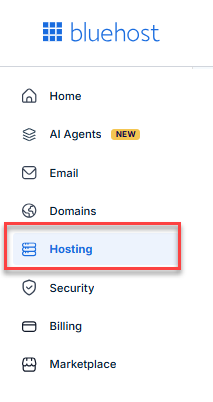
- Click on the Hosting tab.
- From the Hosting page, you’ll see a complete overview of your VPS server, including:
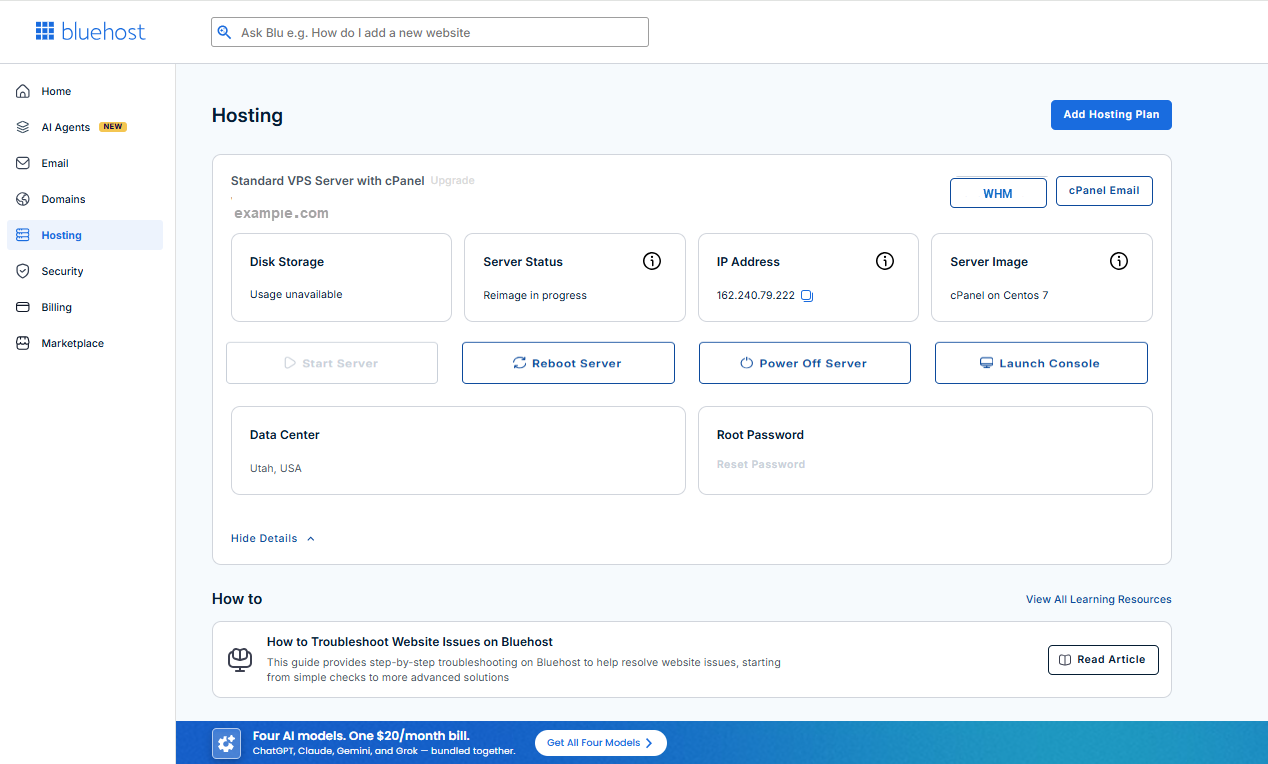
- VPS Plan
- Associated Domain Name
- Disk Storage
- Server Status
- IP Address
- Server Image
- Use Quick Server actions - you can quickly perform essential server actions:

- Reboot Server – Restart your VPS
- Power Off – Shut down your server
- Launch Console – Access your server directly
- Click View Details - here, you’ll find additional server information such as:

- Data center location
- Option to reset your root password.
Access the Webhost Manager
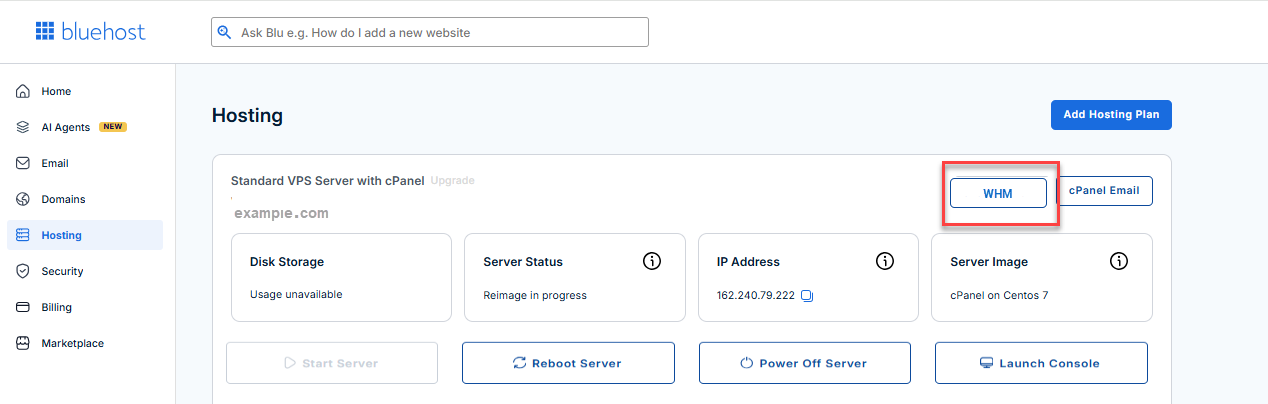
To manage your server at a deeper level, simply click the WHM button to access your Web Host Manager.
Summary
This guide explained how to access your Managed VPS and navigate essential server management features directly from your Bluehost account. From viewing key server details to performing quick actions and accessing WHM for advanced management, you’re equipped to manage your VPS.
Did you find this article helpful?