 ChatGPT,
  Claude,
  Gemini,
  Grok — all four for
 Never lose track of an important email. With Bluehost Professional Email, you can set a follow-up reminder, and you'll get a reminder email at the time you choose so you can check in on the conversation.
Follow the steps below to add, edit, or remove follow-up reminders in Professional Email webmail.
Before You Begin
Follow-up reminders come with the Professional Email Plus and Professional Email Ultra plans. To see what each plan includes, check out Bluehost Professional Email Plans Comparison. For current plans and pricing, visit Bluehost Professional Email.
| Plan | Follow-up reminders |
|---|---|
| Professional Email | Not included |
| Professional Email Plus | Included |
| Professional Email Ultra | Included |
You need:
- Your Professional Email address and password. Your Bluehost account login won't work here.
- Professional Email webmail. Follow-up reminders work in webmail, so you'll set and manage them there.
Important: Don't see the clock icon? Your plan may not include reminders. Upgrade your email plan in your Bluehost account to unlock them.
Log In to Professional Email Webmail
Option 1: Use the Login to Webmail Button
- Log in to your Bluehost Portal.
- From the left-hand navigation menu, click on the Email tab.
- Optional: In Professional Email, if multiple plans are listed, click Manage for the plan you want to use.

- You’ll be automatically redirected to the Email Management page, where you can manage your email settings and subscriptions.
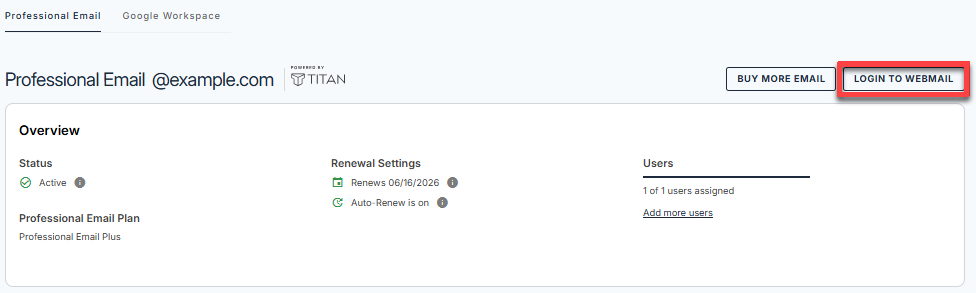
- Click the Login to Webmail button.
- Enter your Professional Email username and password.
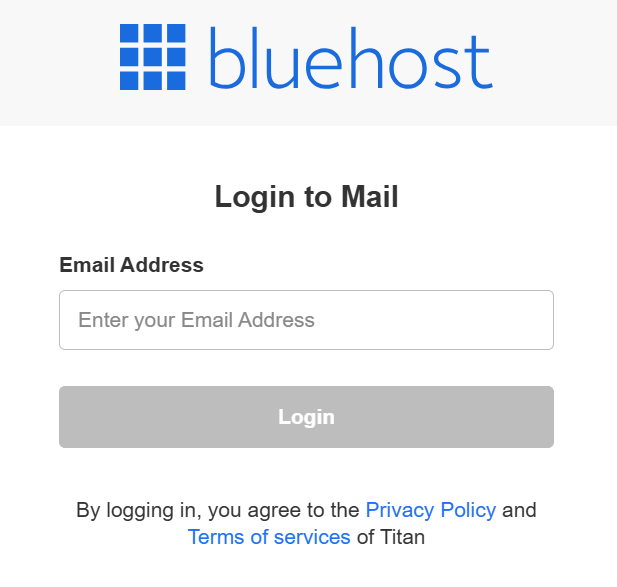
- Click Login.
Option 2: Use the Direct Login Link
- Go to the Professional Email login page.
- Enter your Professional Email username and password.
- Click Login.
Add a Reminder in Professional Email Webmail
Add a reminder while you write a new email, or to an email you already sent.
New Email
Set a reminder before you send a new email, so you know when to check back for a reply.
- Log in to Professional Email webmail.
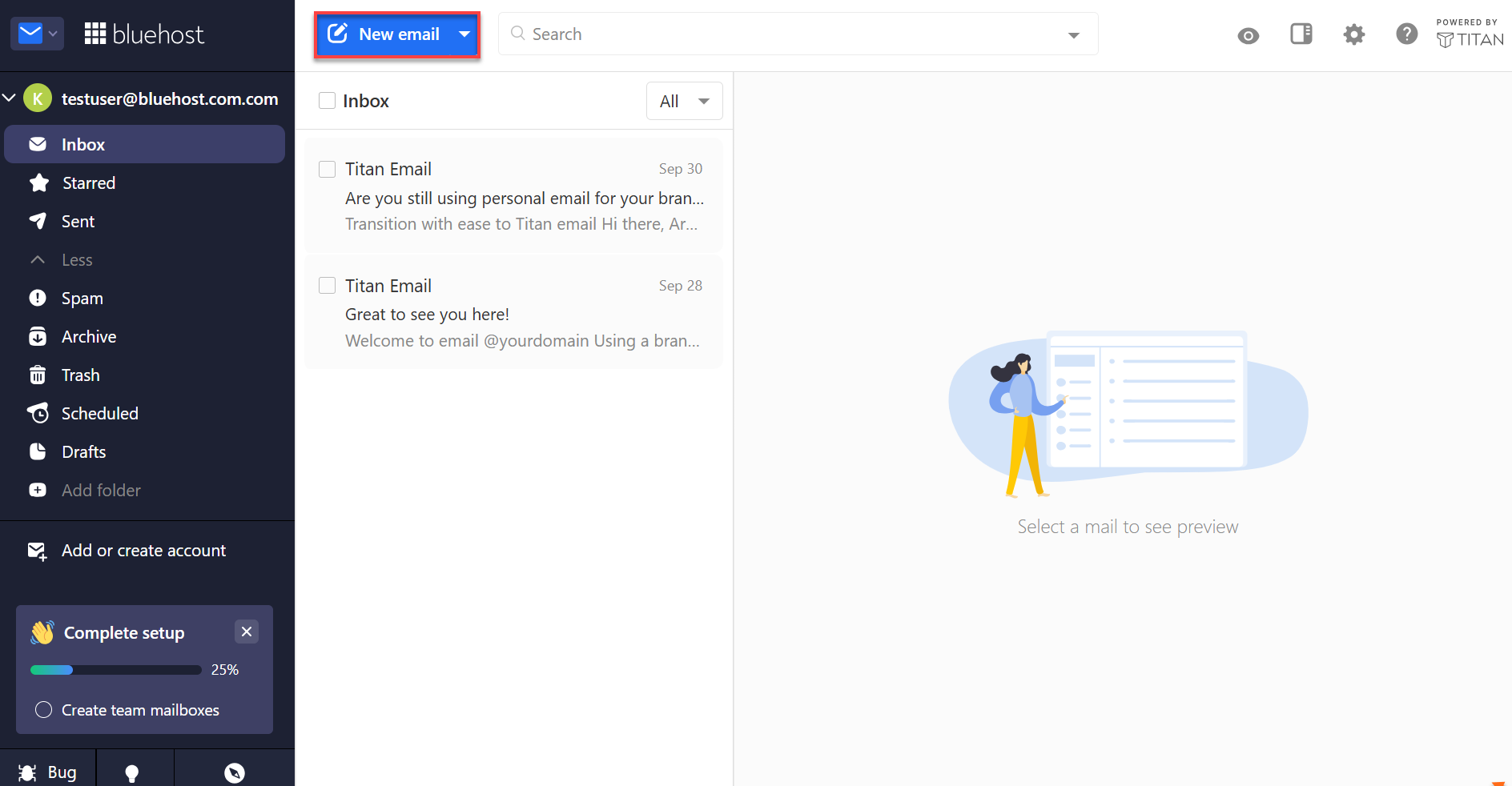
- Click New mail.
- Write your email.
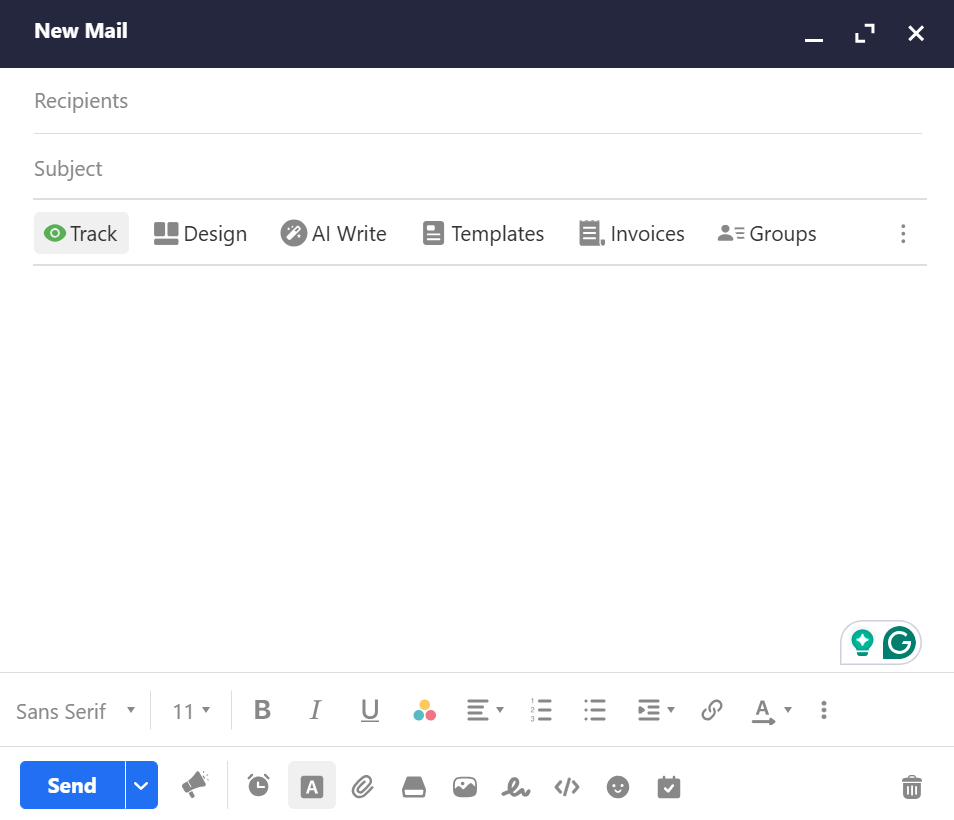
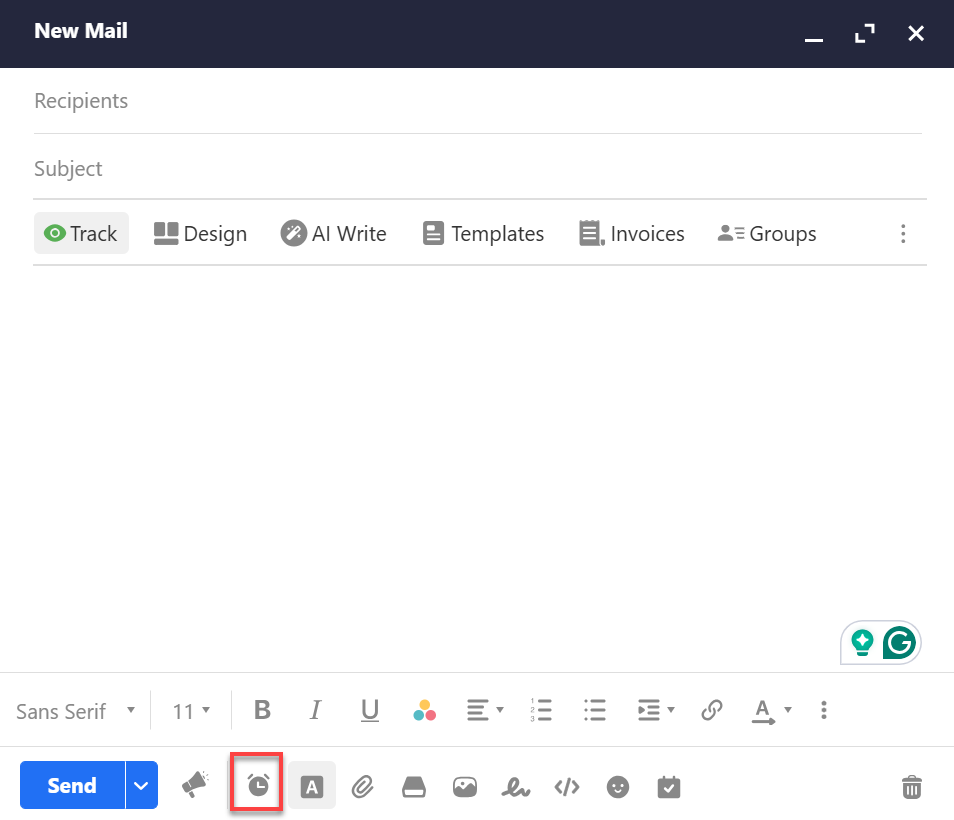
- Click the clock icon in the toolbar at the bottom of the composer.
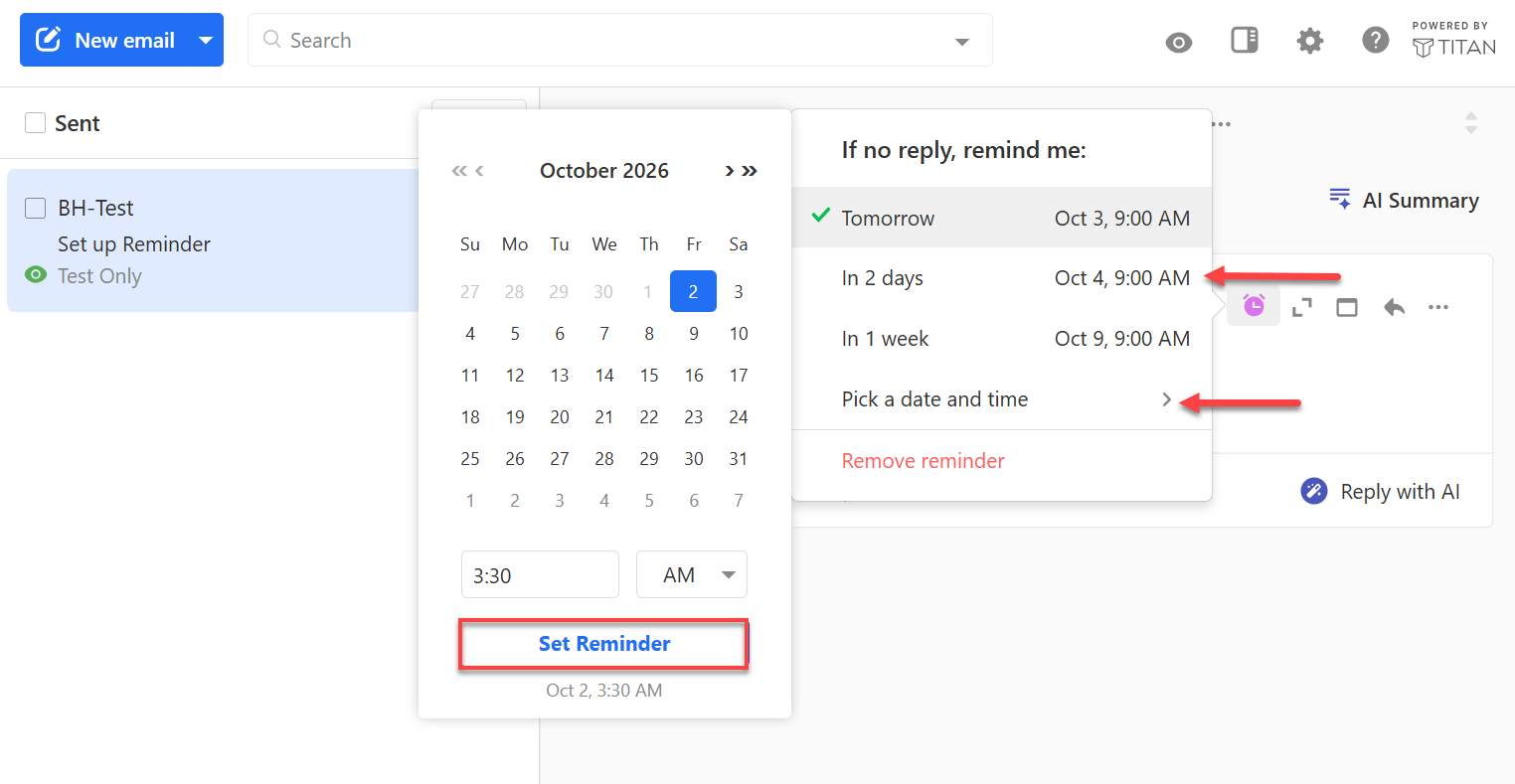
- Pick a preset time, or set a custom date and time.
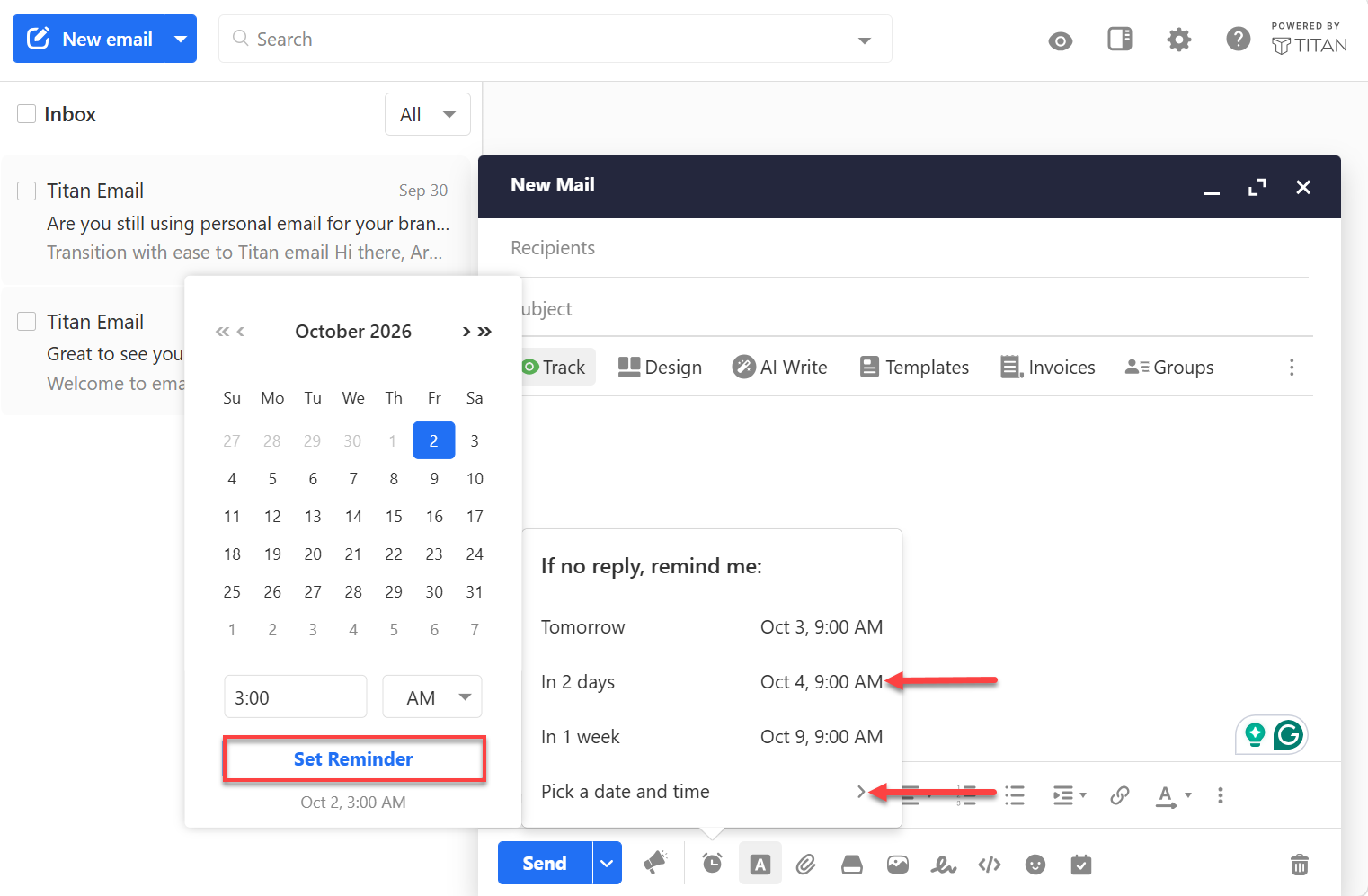
- A confirmation message will appear.

- Click Send.
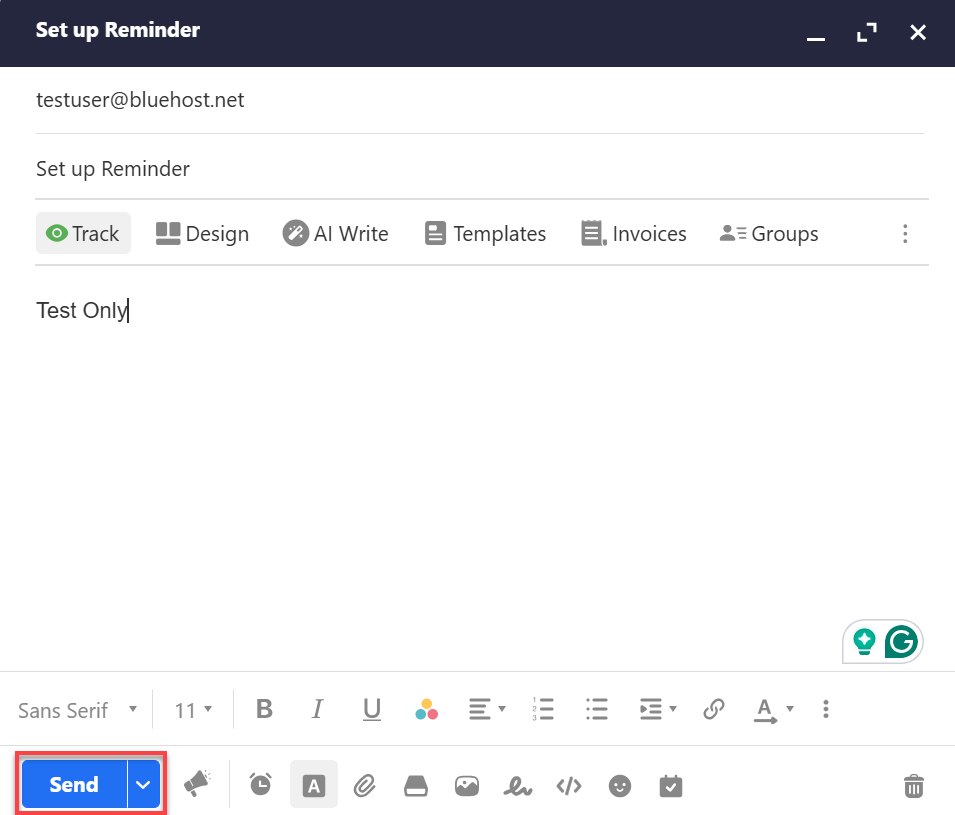
Success: The clock icon changes color when your reminder is set. At the time you chose, you'll get a reminder email.
Sent Email
Already sent the email? You can still add a reminder from your Sent folder.
- Open your Sent folder.
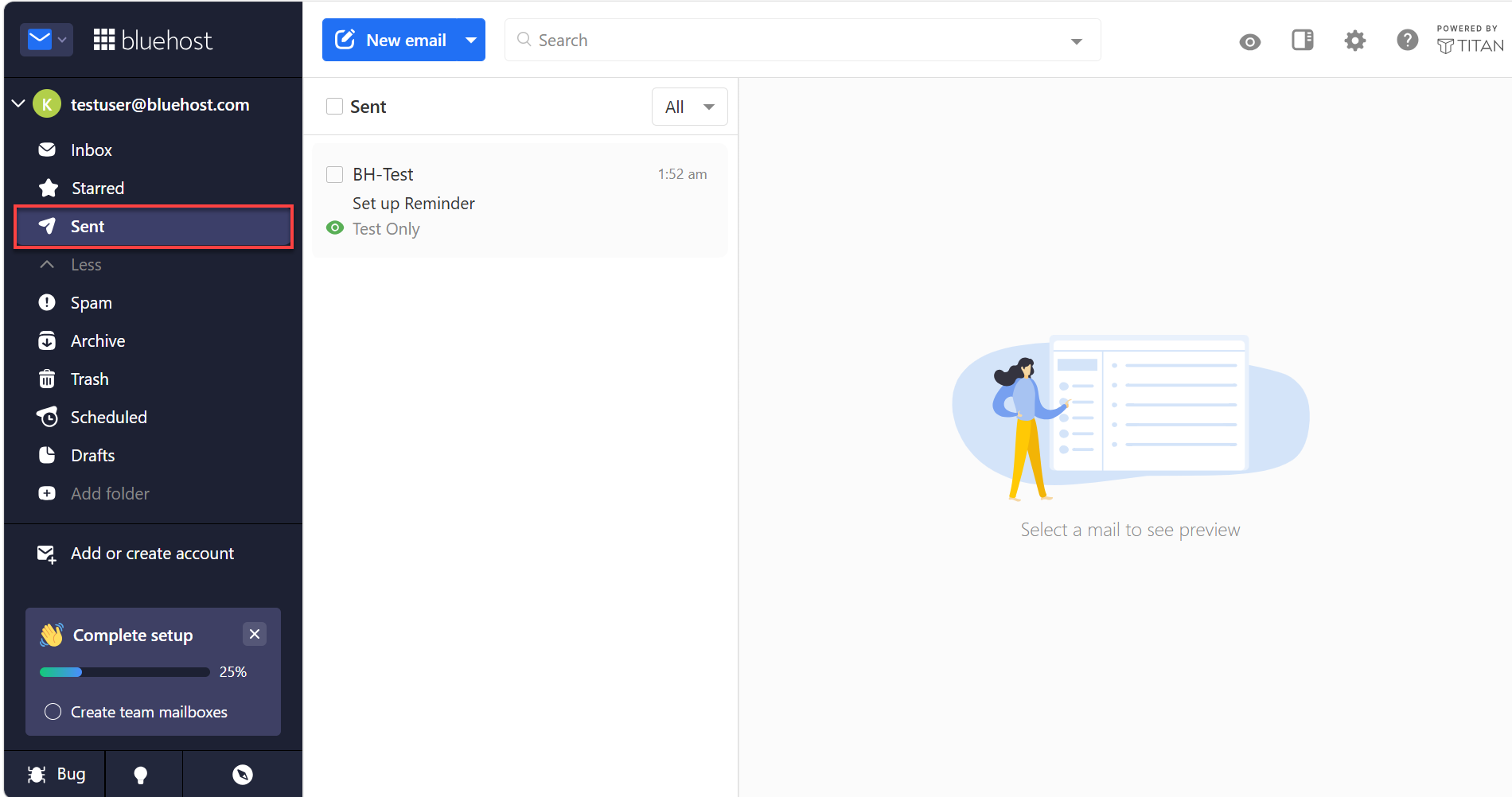
- Click the email you want to follow up on.
- Click the clock icon in the upper-right corner.
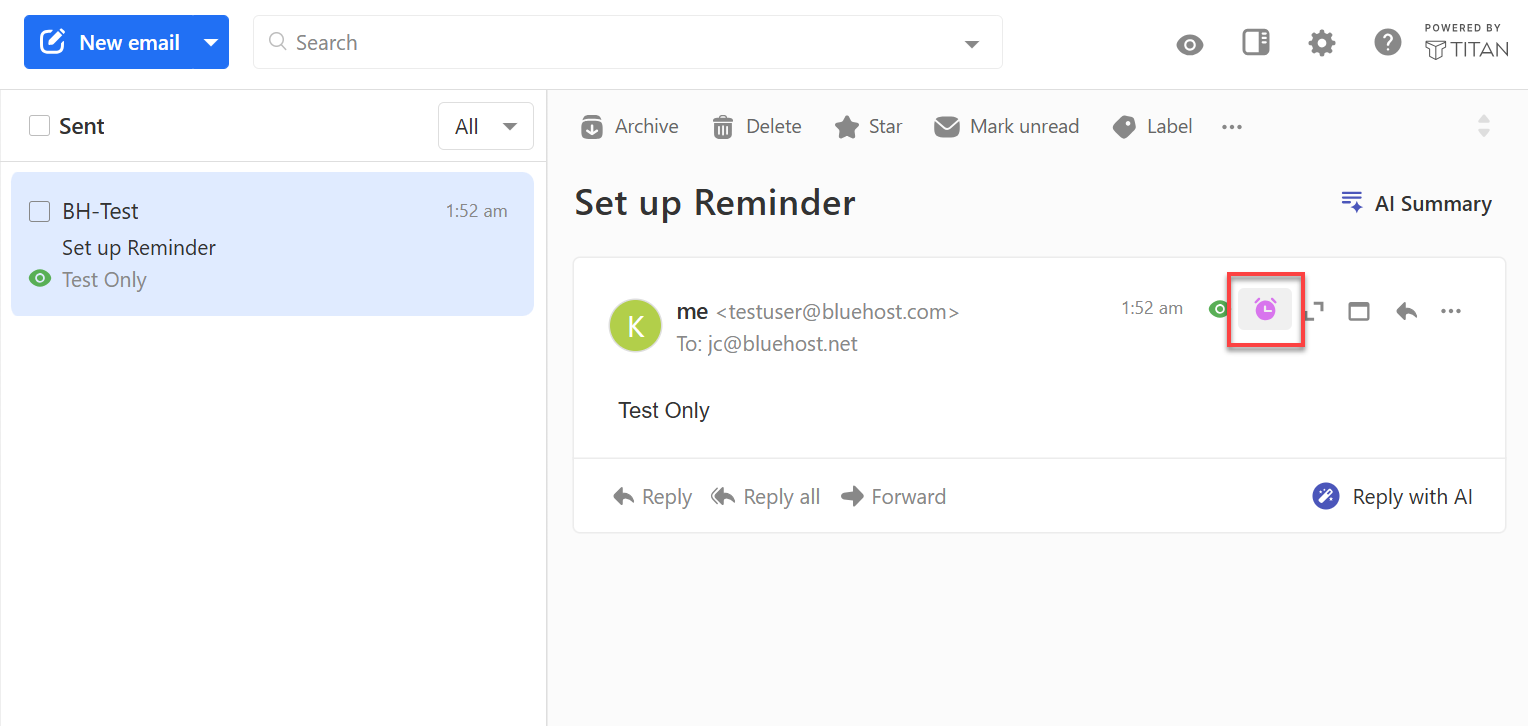
- Pick a preset time, or set a custom date and time.
Tip: Turn on read receipts too. You'll see if your recipient opened your email before you follow up.
Edit or Remove a Reminder
Look for the shaded clock icon. It marks every email with an active reminder.
Edit a Reminder
Need more time? Change when you get your reminder for an email.
- Open the email.
- Click the shaded clock icon.
- Pick a new time, and then click Set Reminder.
Remove a Reminder
Got a reply or no longer need to follow up? Remove the reminder in a few clicks.
- Open the email.
- Click the shaded clock icon.
- Click Remove reminder.
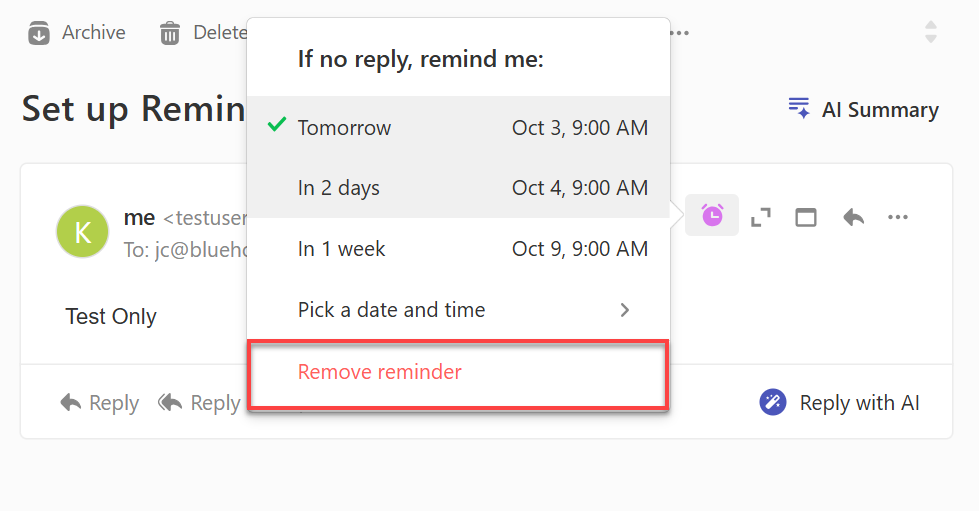
Note: Deleting an email thread also deletes its reminders.
Frequently Asked Questions
Find quick answers to common questions about follow-up reminders.
Q: Do I still get the reminder if my recipient replies?
A: Yes. You get the reminder at the time you set, reply or not. You decide if you still need to follow up.
Q: How do I get my reminder?
A: Professional Email sends a reminder email to your inbox.
Q: Can I set more than one reminder on an email?
A: No. You can set one reminder per email, and change it anytime.
Q: Why can't I find the clock icon?
A: Your plan may not include reminders. Upgrade to Professional Email Plus or Ultra to use them.
Summary
Follow-up reminders in Bluehost Professional Email help you stay on top of important conversations. Click the clock icon to add a reminder to any new email before you send it, or to an email already in your Sent folder. At the time you choose, Professional Email sends a reminder email to your inbox so you know when to check in. You can edit or remove a reminder anytime by opening the original email in webmail. Reminders are included with the Professional Email Plus and Ultra plans.
Related Articles
- Bluehost Professional Email Plans Comparison
- How to Purchase Bluehost Professional Email: Getting Started
- How to Set Up Bluehost Professional Email
- How to Access Webmail: Log into Your Email Account
For more related articles, click the online help icon on the lower left section of your webmail.
If you need further assistance, Bluehost Chat Support is available 24 hours a day, 7days a week while Bluehost Phone Support is available 7 days a week from 7 am-12 midnight EST.
- Chat Support - While on our website, you should see a CHAT bubble in the bottom right-hand corner of the page. Click anywhere on the bubble to begin a chat session.
- Phone Support -
- US: 888-401-4678
- International: +1 801-765-9400
You may also refer to our Knowledge Base articles to help answer common questions and guide you through various setup, configuration, and troubleshooting steps.