 ChatGPT,
  Claude,
  Gemini,
  Grok — all four for
 Stuck on what to say? Smart Write is an AI writing assistant built into Bluehost Professional Email. It can draft a new message from a short prompt, write a reply for you, or polish a draft you've already started. You stay in control: every result appears in your composer, so you can review and edit it before you send.
Follow the steps below to use Smart Write in Titan webmail and in the Titan Mail app for Android.
Before You Begin
Smart Write is part of the Email AI feature, which comes with the Professional Email Ultra plan. To see what each plan includes, check out Bluehost Professional Email Plans Comparison. For current plans and pricing, visit Bluehost Professional Email.
| Plan | Smart Write (Email AI) |
|---|---|
| Professional Email Pro | Not included |
| Professional Email Plus | Not included |
| Professional Email Ultra | Included |
You need:
- Your Professional Email address and password. Your Bluehost account login won't work here.
- Titan webmail, or the Titan Mail app for Android.
Note: Some Smart Write features, including Refine my draft and language selection, work only in Titan webmail. They aren't available in the Android app yet.
Important: Don't see AI Write? Smart Write is included only with the Professional Email Ultra plan. Upgrade your email plan in your Bluehost account to unlock it.
Log In to Professional Email Webmail
Option 1: Use the Login to Webmail Button
- Log in to your Bluehost Portal.
- From the left-hand navigation menu, click on the Email tab.
- Optional: In Professional Email, if multiple plans are listed, click Manage for the plan you want to use.

- You’ll be automatically redirected to the Email Management page, where you can manage your email settings and subscriptions.
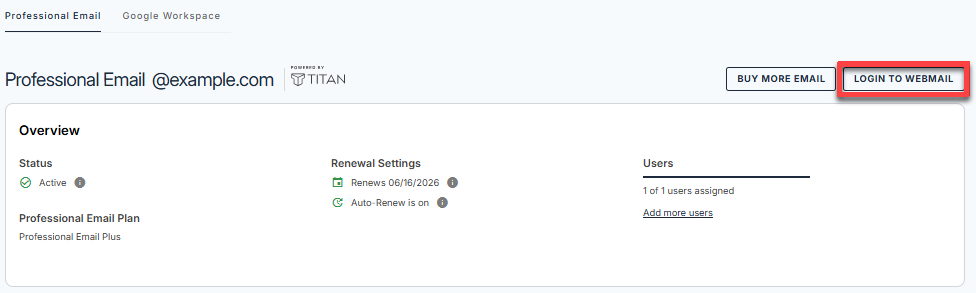
- Click the Login to Webmail button.
- Enter your Professional Email username and password.
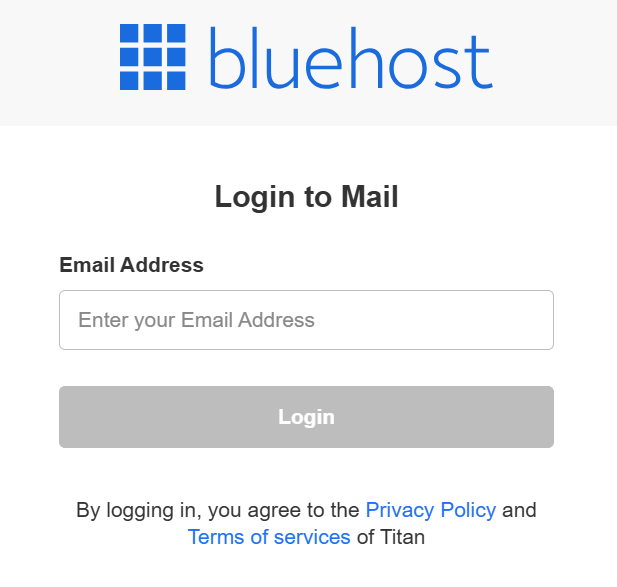
- Click Login.
Option 2: Use the Direct Login Link
- Go to the Professional Email login page.
- Enter your Professional Email username and password.
- Click Login.
Use Smart Write in Bluehost Professional Email
Draft a new message, write a reply, or polish a draft, all from the Smart Write AI window.
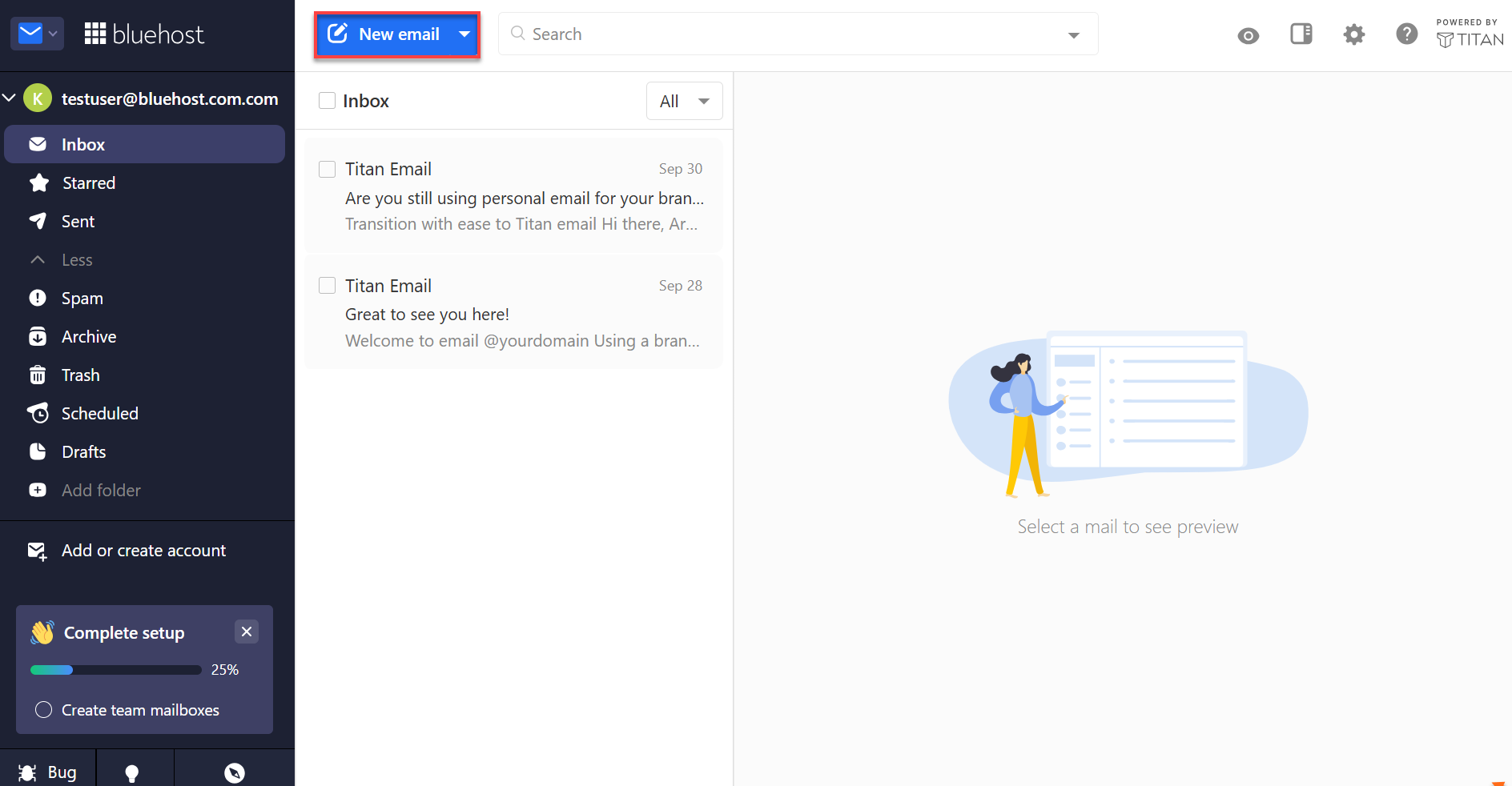
- Click New Email, or open an existing draft.
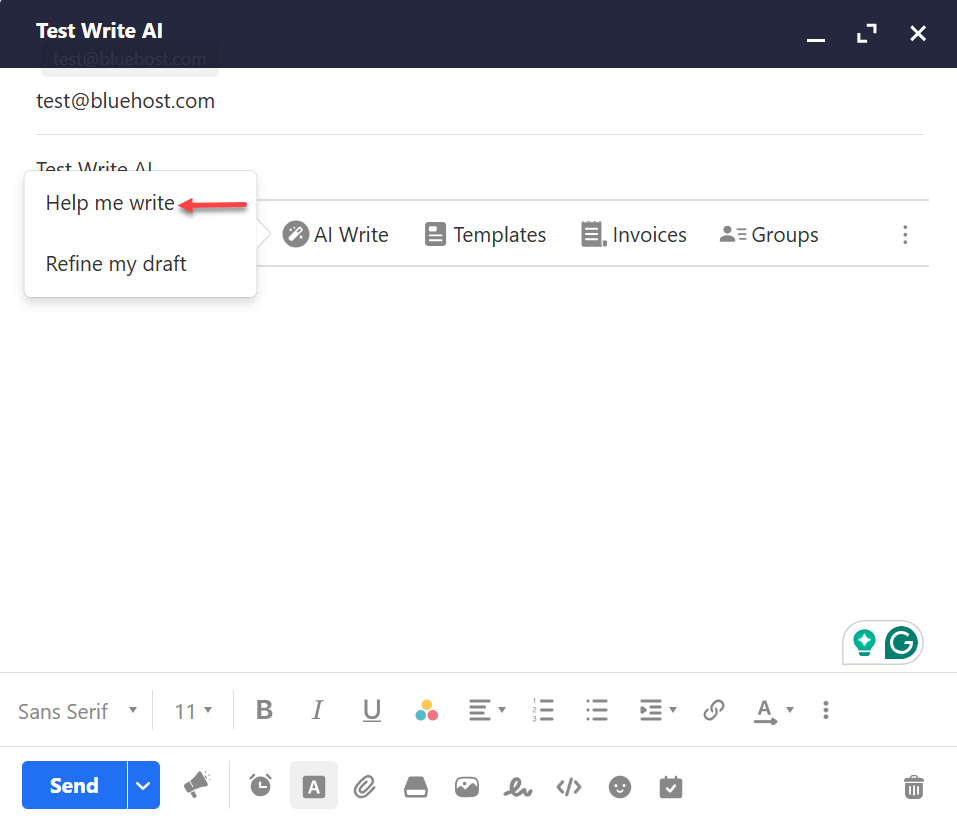
- In the toolbar below the subject line, click AI Write. A menu opens with two options:
- Help me write: Drafts a new message for you from a short prompt.
- Refine my draft: Polishes a message you've already written.
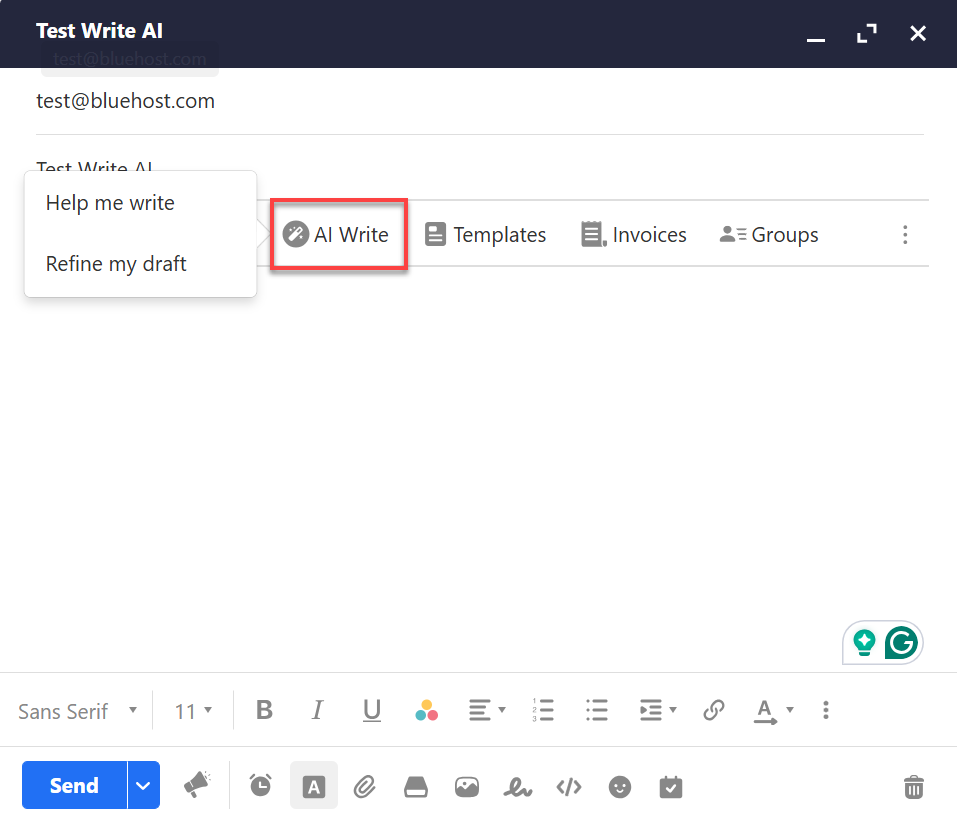
- Select Help me write.
- If this is your first time using Smart Write, click Yes, use Smart Write AI to confirm.
- The Smart Write AI window opens. Use the tab that matches what you want to do:
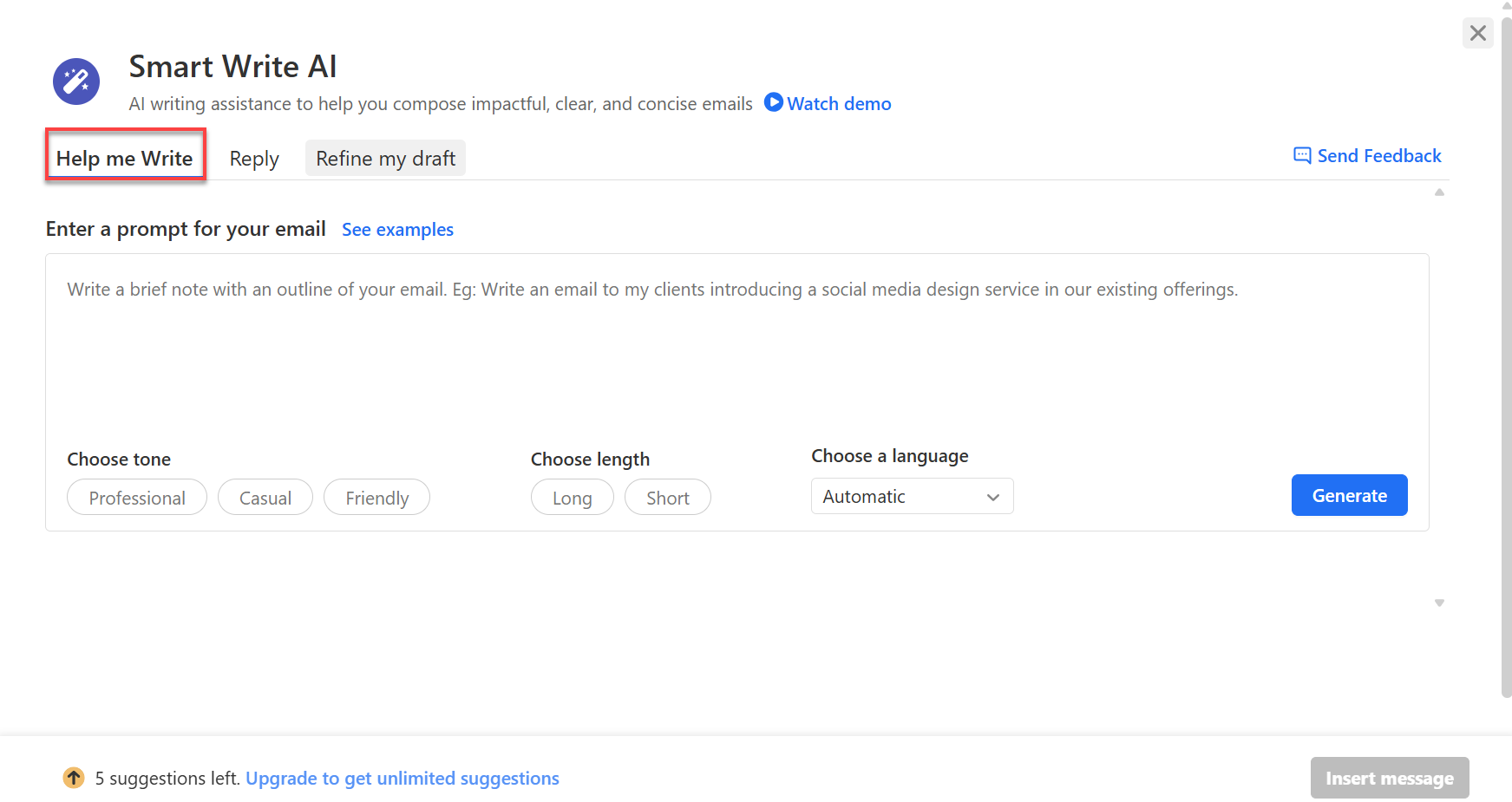
- Help me Write: Drafts a new message from a short description.
- Enter a prompt for your email: Describe what you want your message to say, up to 75 words.
- See examples: Shows sample prompts to give you ideas.
- Choose tone: Select Professional, Casual, or Friendly.
- Choose length: Select Long or Short.
- Choose a language: Keep Automatic or select the language you want.
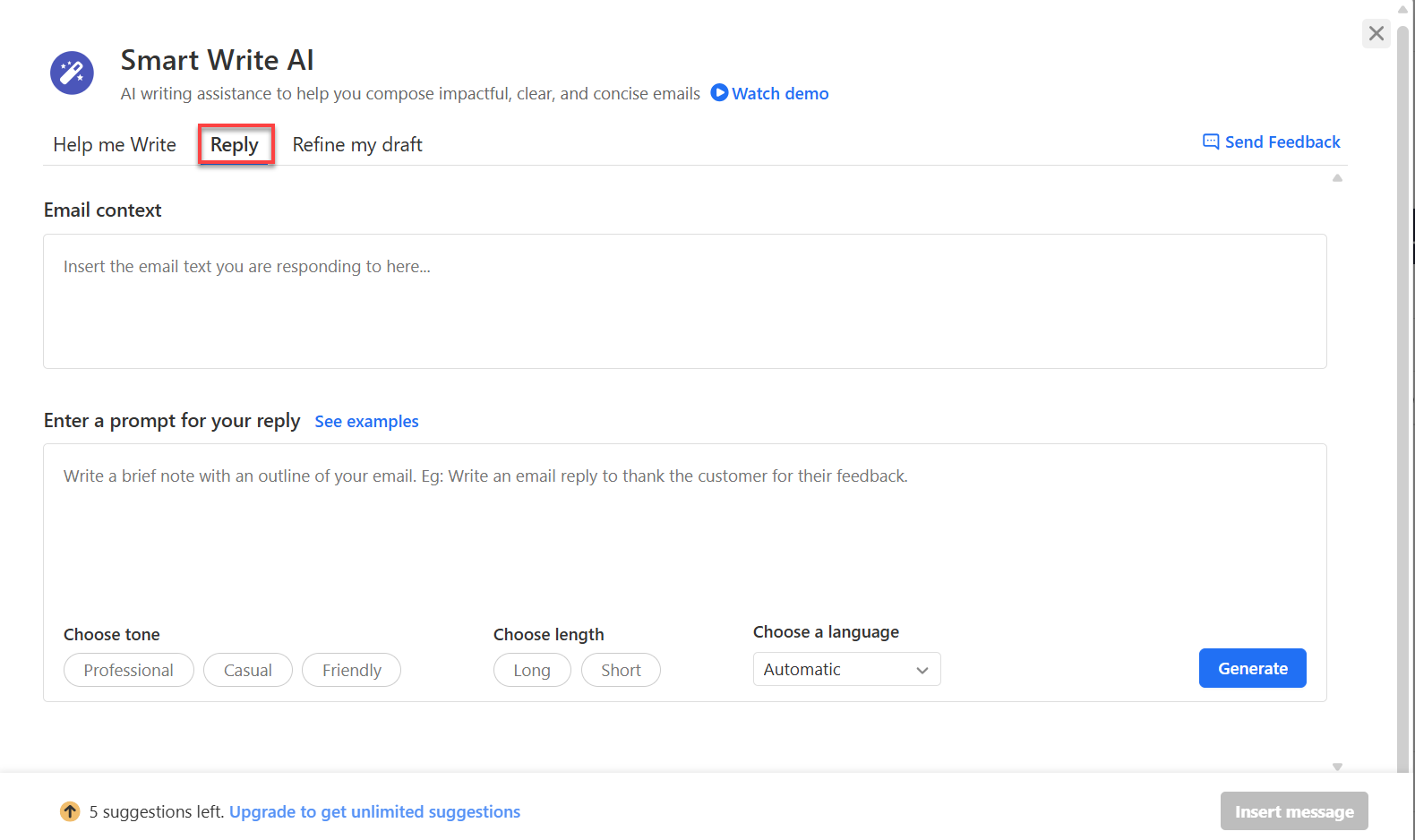
- Reply: Drafts a reply to a message you received.
- Email context: Paste or review the text of the message you're replying to, up to 1,000 words.
- Enter a prompt for your reply: Describe how you want to respond.
- See examples: Shows sample prompts to give you ideas.
- Choose tone: Select Professional, Casual, or Friendly.
- Choose length: Select Long or Short.
- Choose a language: Keep Automatic or select the language you want.
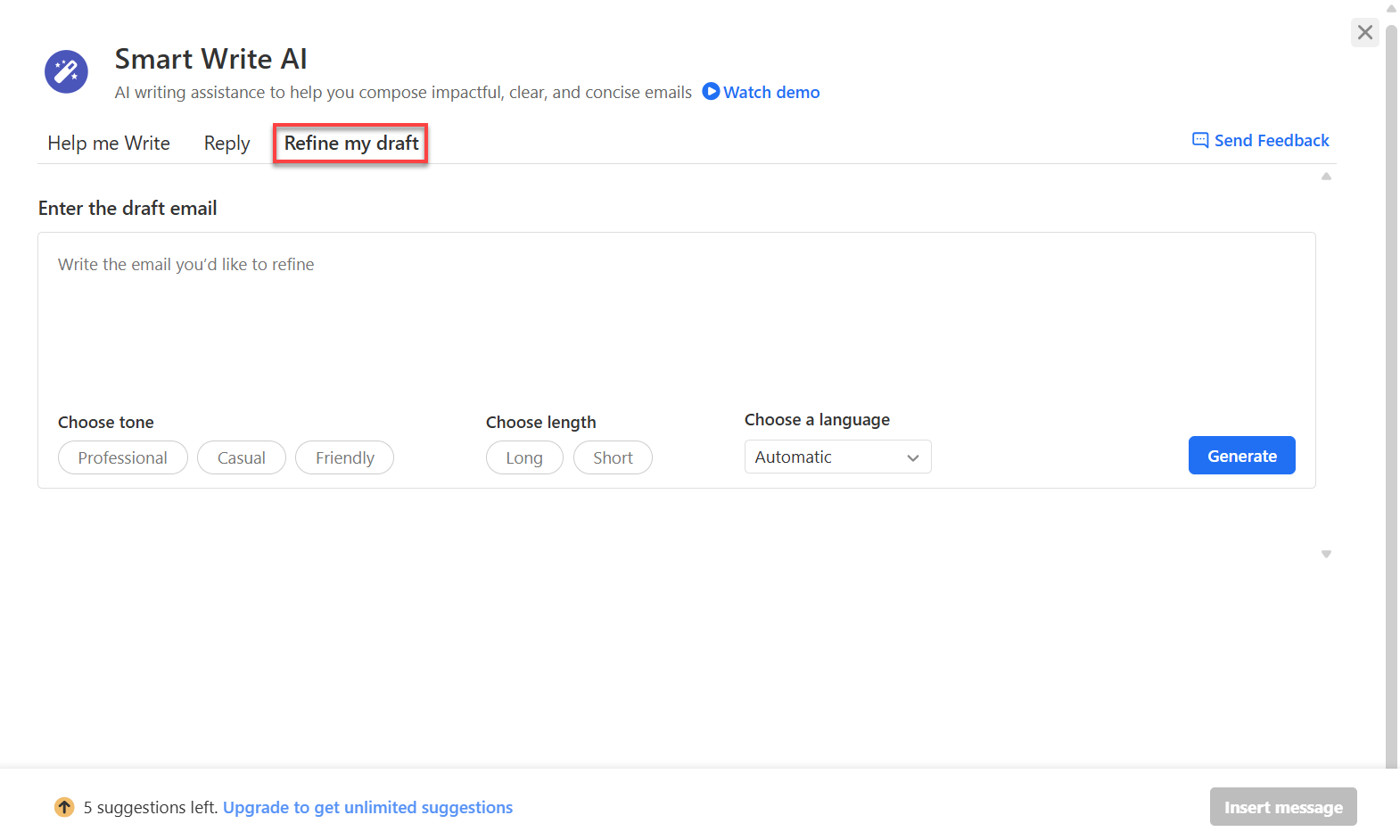
- Refine my draft: Improves the tone, grammar, structure, and clarity of a message you've already written, while keeping your original meaning.
- Enter the draft email: Type or paste the message you want to improve.
- Choose tone: Select Professional, Casual, or Friendly.
- Choose length: Select Long or Short.
- Choose a language: Keep Automatic or select the language you want.
- Help me Write: Drafts a new message from a short description.
- Fill in the fields on the tab you're using, and then click Generate.
- Review the result, and then click Insert message.
Success: Your text appears in the composer. Review it, make any edits, and send it as usual.
Note: Check the bottom of the Smart Write AI window to see how many suggestions you have left. Each time you generate a draft, it uses one suggestion. To get unlimited suggestions, click Upgrade to get unlimited suggestions.
Tips:
- Replying to a message you received? Open it and click Reply with Smart Write, or press
Ctrl + Shift + E(Cmd + Shift + Eon Mac). Smart Write opens on the Reply tab and fills in the Email context for you. - Not quite right? Click Give me another option or Regenerate to get a new version. You can do this up to two times per prompt. After that, edit your prompt and click Generate again.
Use Smart Write in the Android App
Draft a new message on the go with the Titan Mail app for Android.
- Open the Titan Mail app.
- Tap New Email.
- Tap the wand icon below the subject line.
- Enter a prompt describing the message you want to send.
- Under Writing style, choose a tone and length, and then tap Done.
- Tap Generate.
- When you're happy with the result, tap Insert.
Tip: Need inspiration? Tap the bulb icon to see example prompts.
How Your Data Is Used
Smart Write uses OpenAI's ChatGPT API to generate drafts, under OpenAI's terms of use. According to Titan, OpenAI receives only the prompts and message text you submit through Smart Write. It doesn't have access to the rest of your mailbox, doesn't use your data to train its models, and doesn't keep it for more than 30 days.
Important: AI-generated text can contain mistakes. Always review your draft for accuracy before you send it.
Frequently Asked Questions
Find quick answers to common questions about Smart Write.
Q: Does Smart Write send messages for me?
A: No. Smart Write only drafts text in your composer. You review the message and decide when to send it.
Q: Can Smart Write write in other languages?
A: Yes. In Titan webmail, use the Choose a language dropdown on any tab to pick the language for your message. Language selection isn't available in the Android app yet.
Q: Why can't I find AI Write?
A: Smart Write is included only with the Professional Email Ultra plan. Some features also work only in webmail, so switch from the Android app to webmail if you can't find them. To unlock Smart Write, upgrade to Professional Email Ultra in your Bluehost account.
Summary
Smart Write in Bluehost Professional Email helps you write clear, polished messages in less time. Click AI Write to open the Smart Write AI window, and then use the Help me Write tab to draft a new message, the Reply tab to answer a message you received, or the Refine my draft tab to polish something you've already written. Every result appears in your composer, so you can review and edit it before you send. Smart Write is included with the Professional Email Ultra plan.
Related Articles
If you need further assistance, Bluehost Chat Support is available 24 hours a day, 7days a week while Bluehost Phone Support is available 7 days a week from 7 am-12 midnight EST.
- Chat Support - While on our website, you should see a CHAT bubble in the bottom right-hand corner of the page. Click anywhere on the bubble to begin a chat session.
- Phone Support -
- US: 888-401-4678
- International: +1 801-765-9400
You may also refer to our Knowledge Base articles to help answer common questions and guide you through various setup, configuration, and troubleshooting steps.