 ChatGPT,
  Claude,
  Gemini,
  Grok — all four for
How to Purchase Google Workspace
Elevate your online experience with Bluehost by purchasing Google Workspace effortlessly through the Bluehost.com page or your Bluehost Portal. Don’t miss out!
Watch this short video for a quick guide on purchasing Google Workspace.
Purchase Google Workspace via Bluehost.com
- In your browser, visit https://www.bluehost.com.
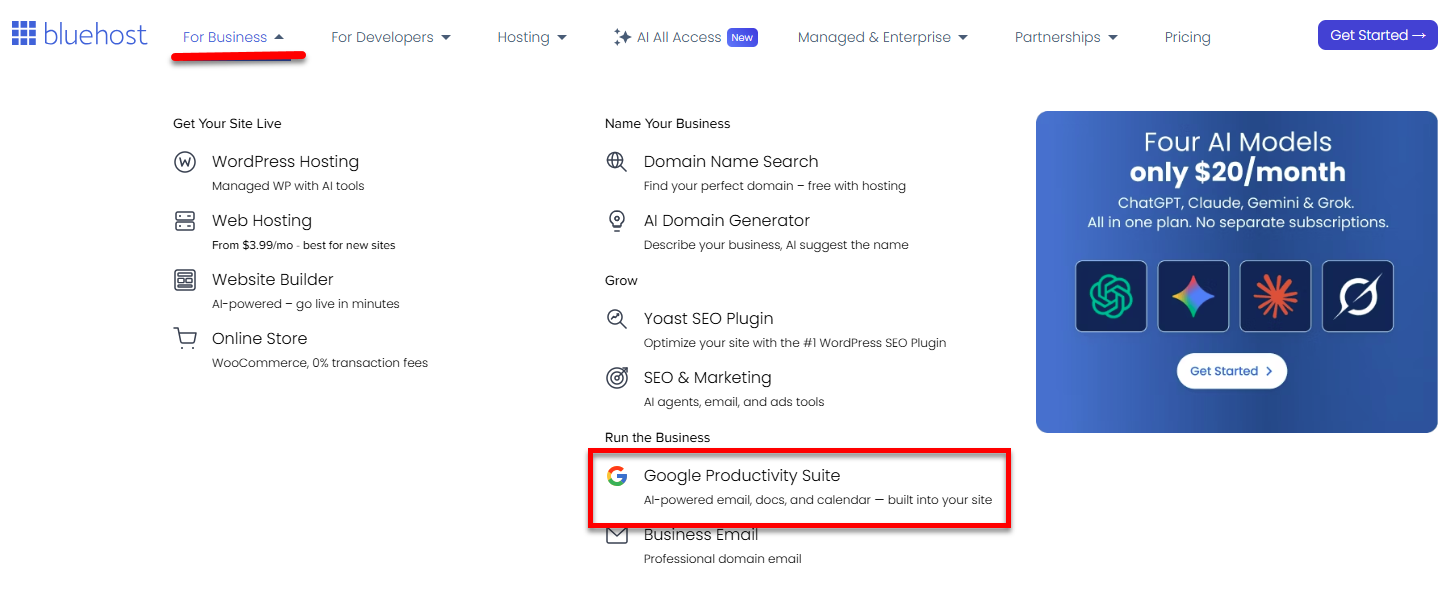
- Click the For Business tab at the top menu, then select Google Productivity Suite.
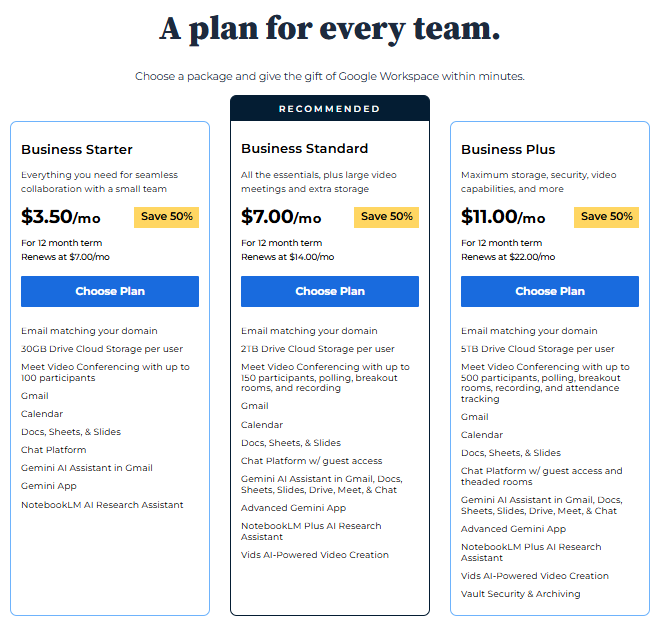
- You'll be redirected to the Bluehost Google Workspace page. Scroll down and select the Google Workspace plan that fits your business needs.
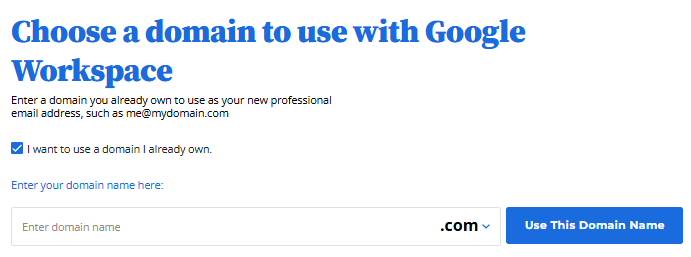
- If you already have a domain that you would like to assign to Google Workspace, please check the box that says "I want to use a domain I already own," enter your domain name, and then click the Use This Domain Name button.
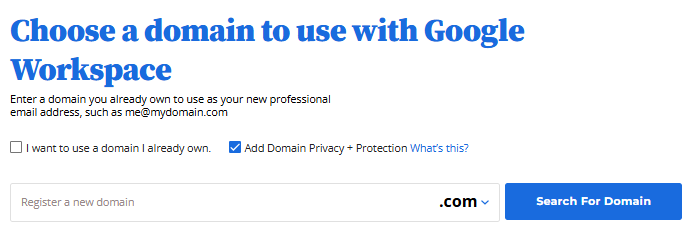
If you do not have a domain and plan to register a new one, you can do so at this step. Type in a domain name, then select Search For Domain. Add Domain Privacy + Protection while you're at it!
- On the Checkout page, you can create your Bluehost account by entering your email address and password. You may also use your social login credentials to create a new account.
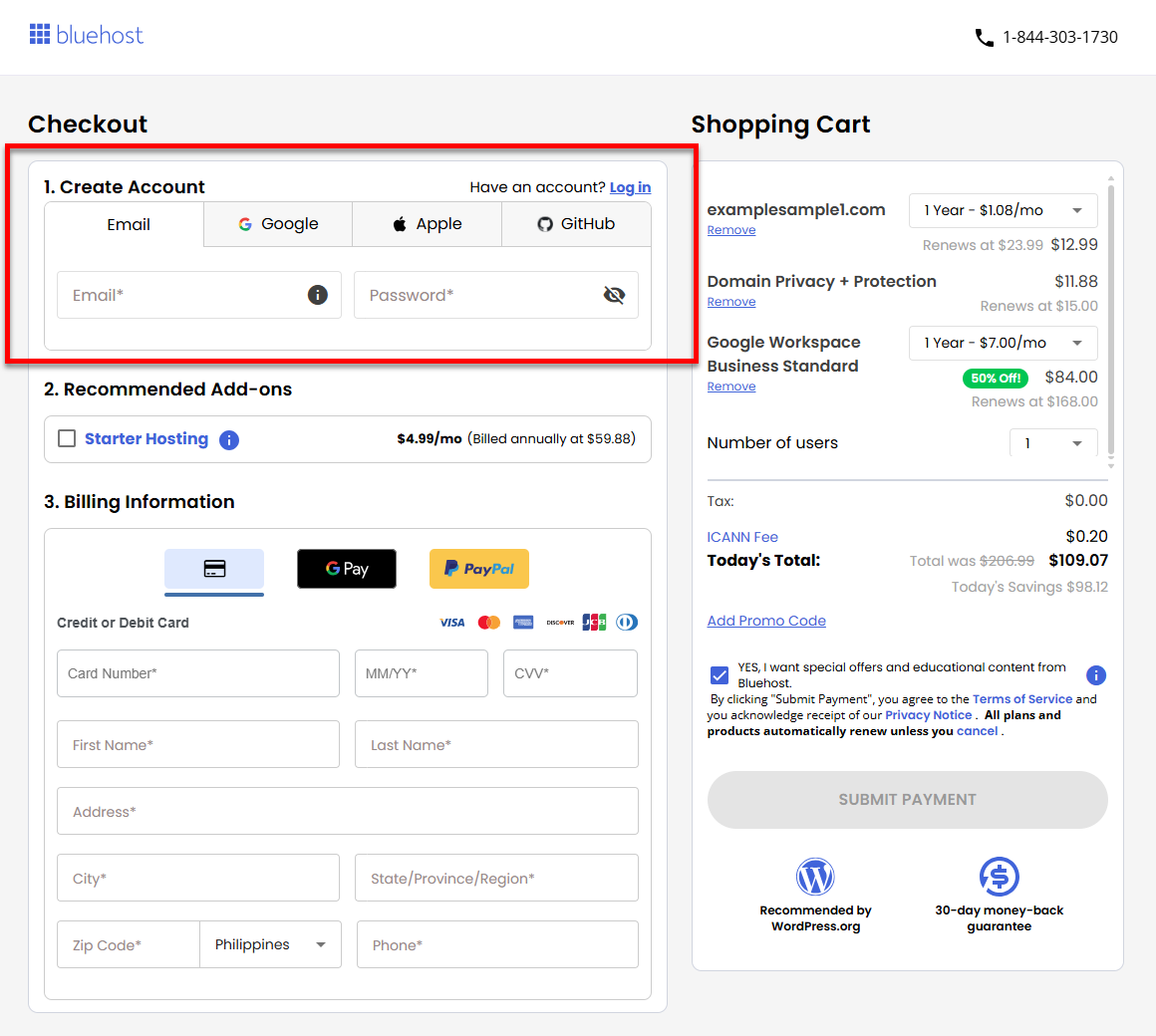
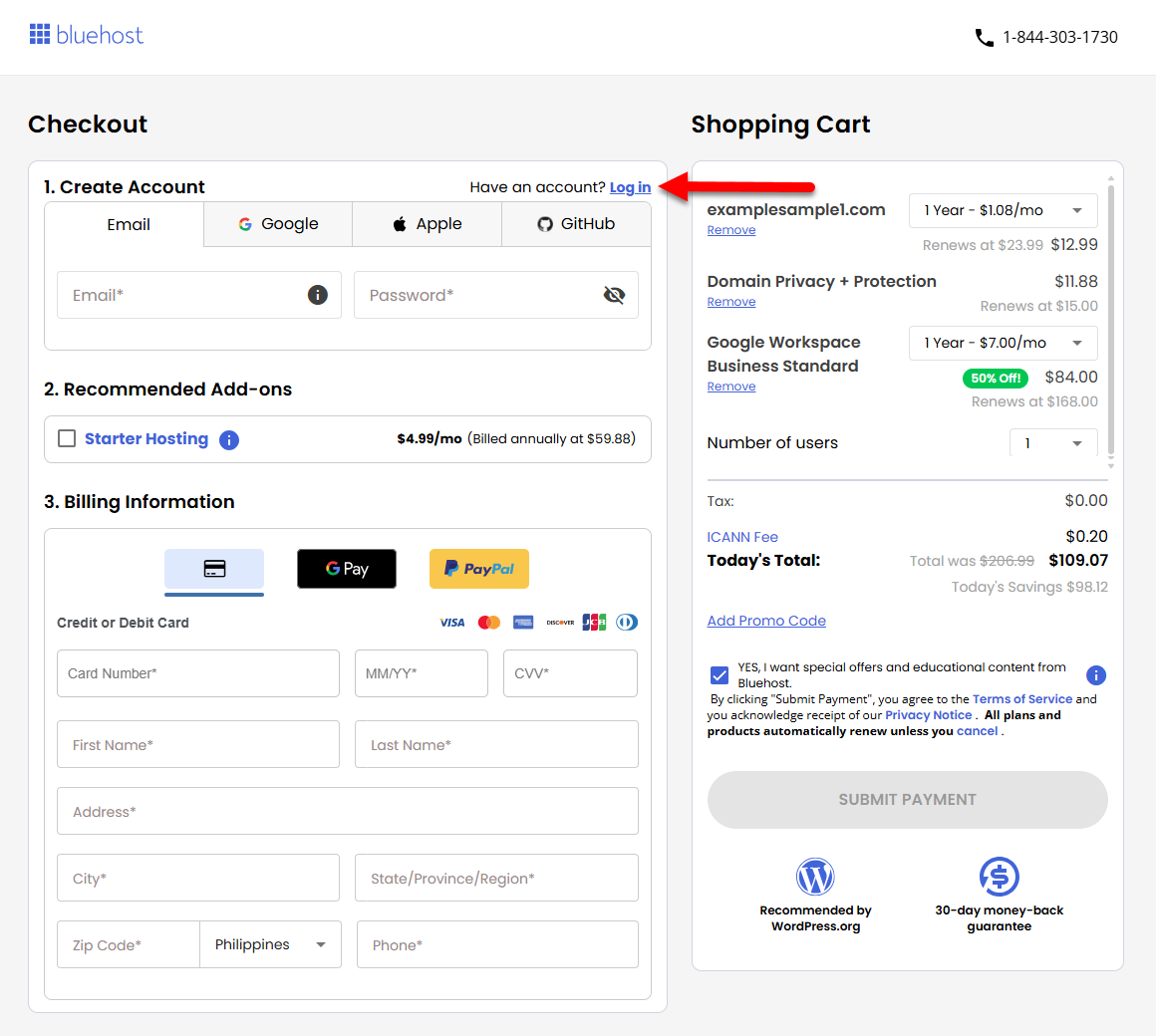
If you already have an account with us, simply Log in.
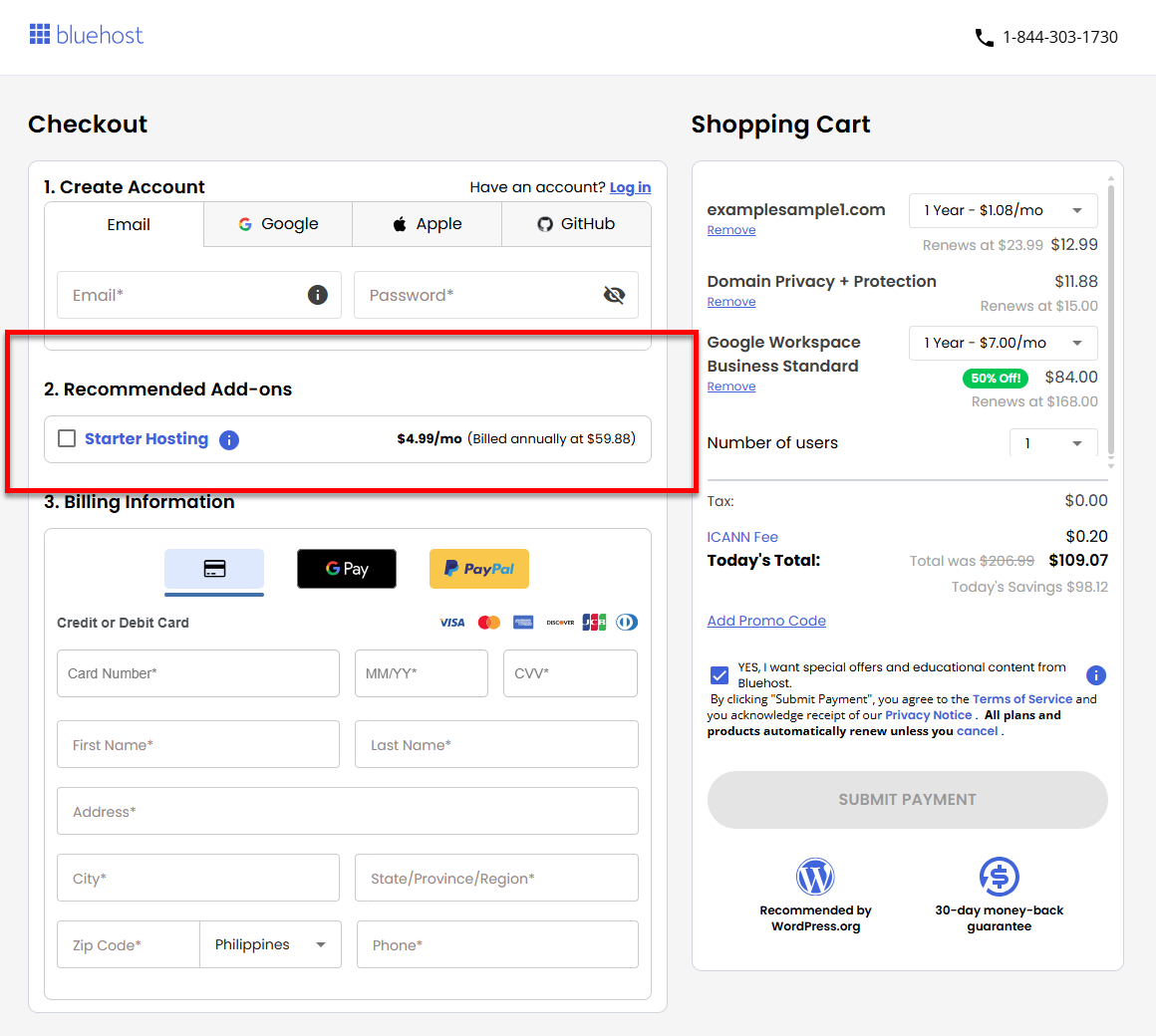
- You may also select additional add-ons, such as a hosting plan.
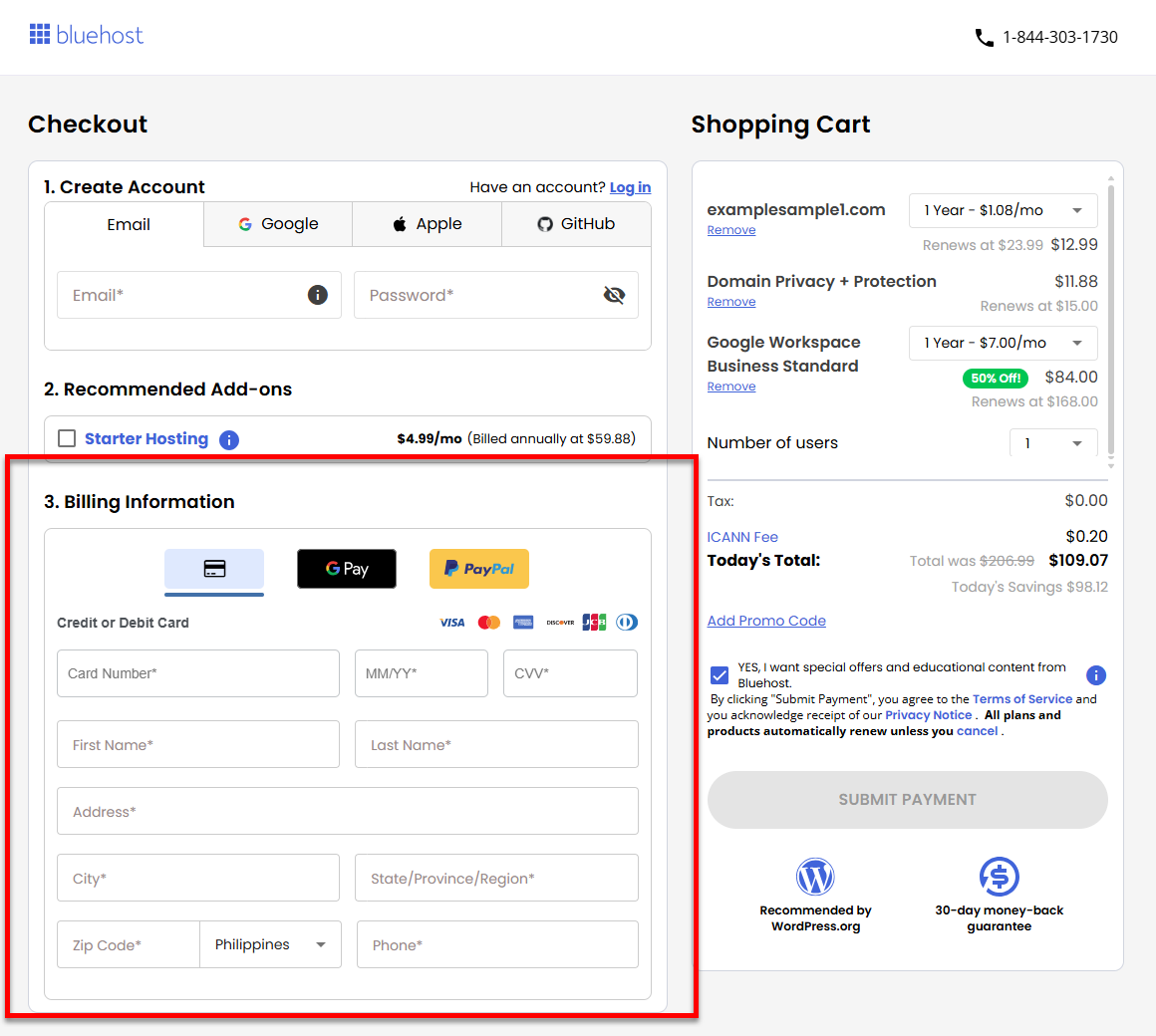
- Enter your Billing Information.
- Check the items in your Shopping Cart section and select your preferred billing terms.
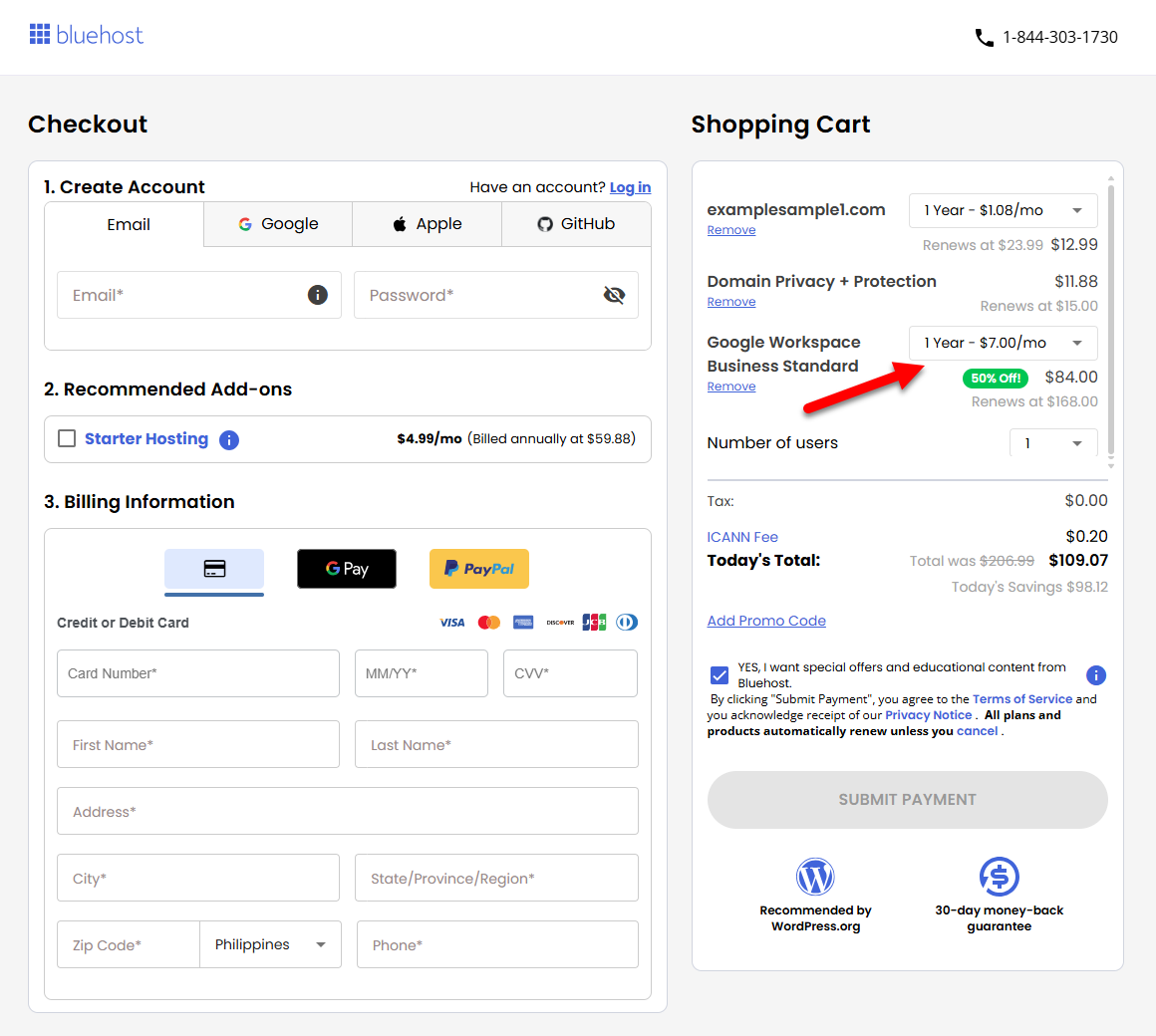
- Select your number of users from the dropdown.
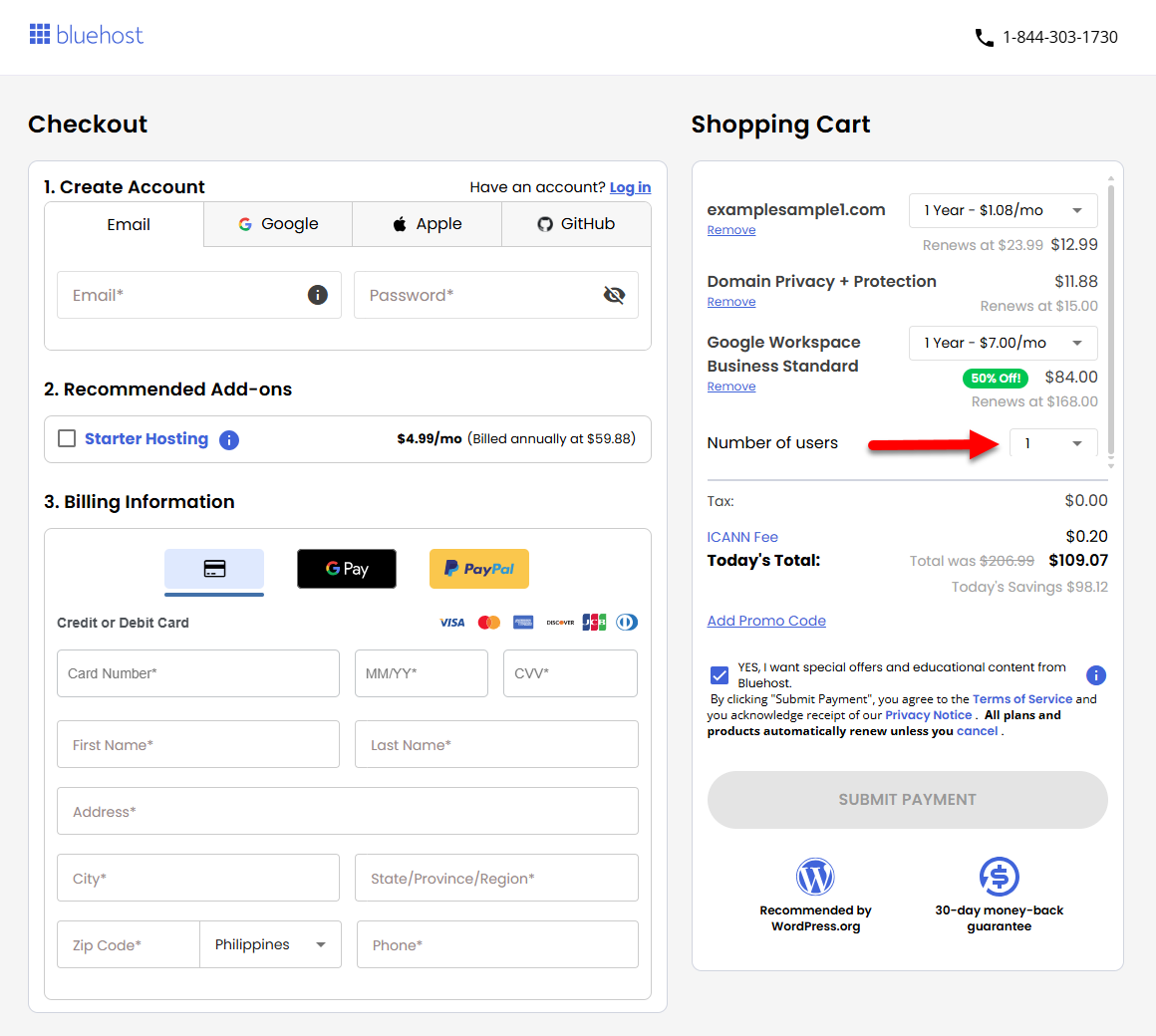
- Click Submit Payment to complete the payment transaction.
Your Google Workspace subscription is now accessible in the Email tab of your Bluehost Portal. For the setup instructions, please visit the How to Set Up Google Workspace: Initial Setup Guide article.
Purchase Google Workspace via the Bluehost Portal
There are two ways to purchase Google Workspace in your Bluehost Portal:
Via the Email Tab
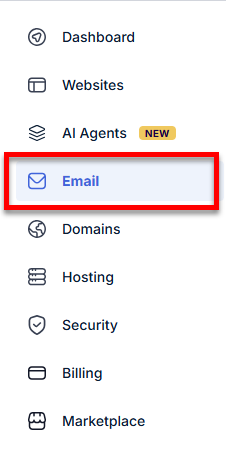
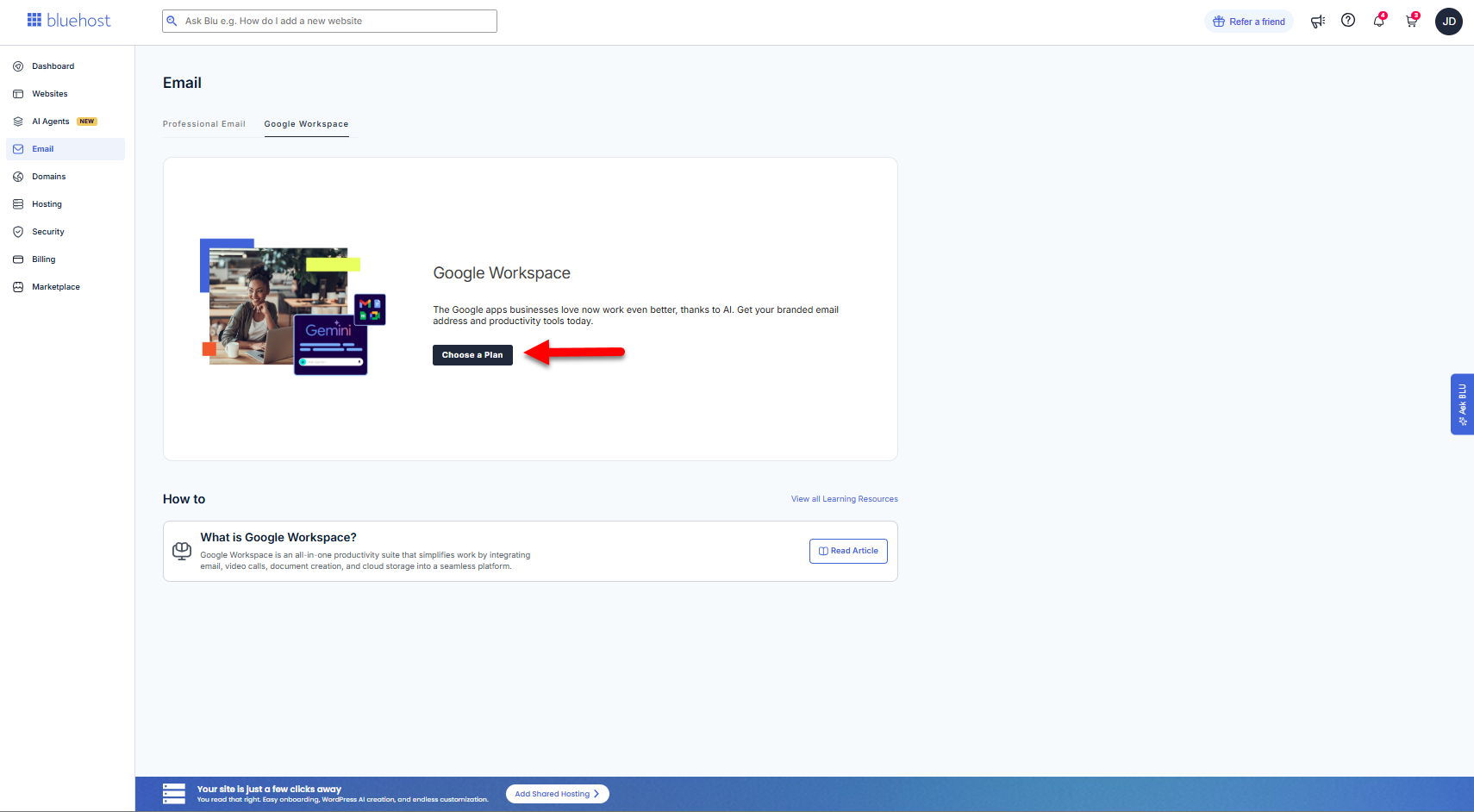
- Once logged into your Bluehost Portal, click Email in the left menu.
- Click the Google Workspace tab.
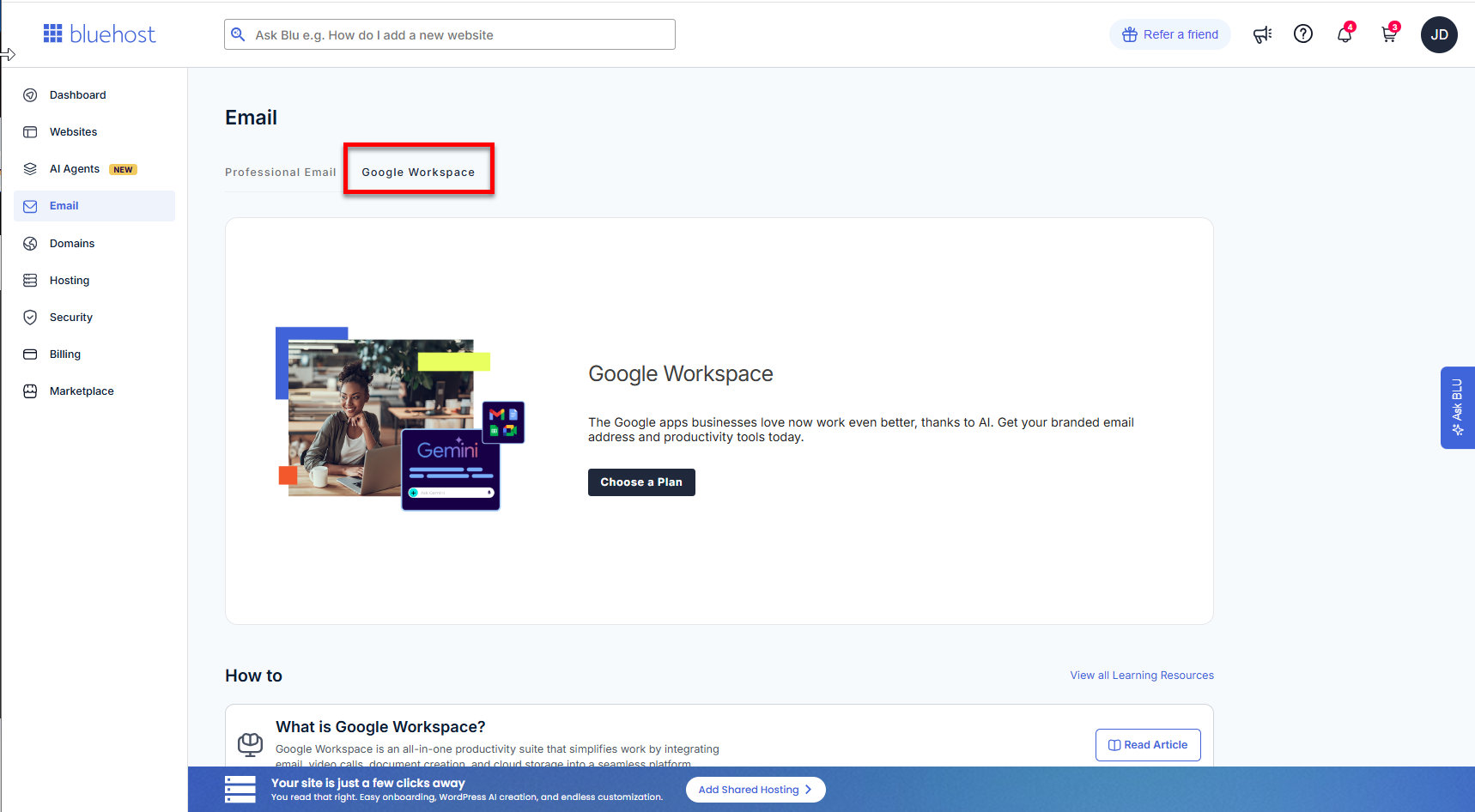
- Click the Choose Plan button.
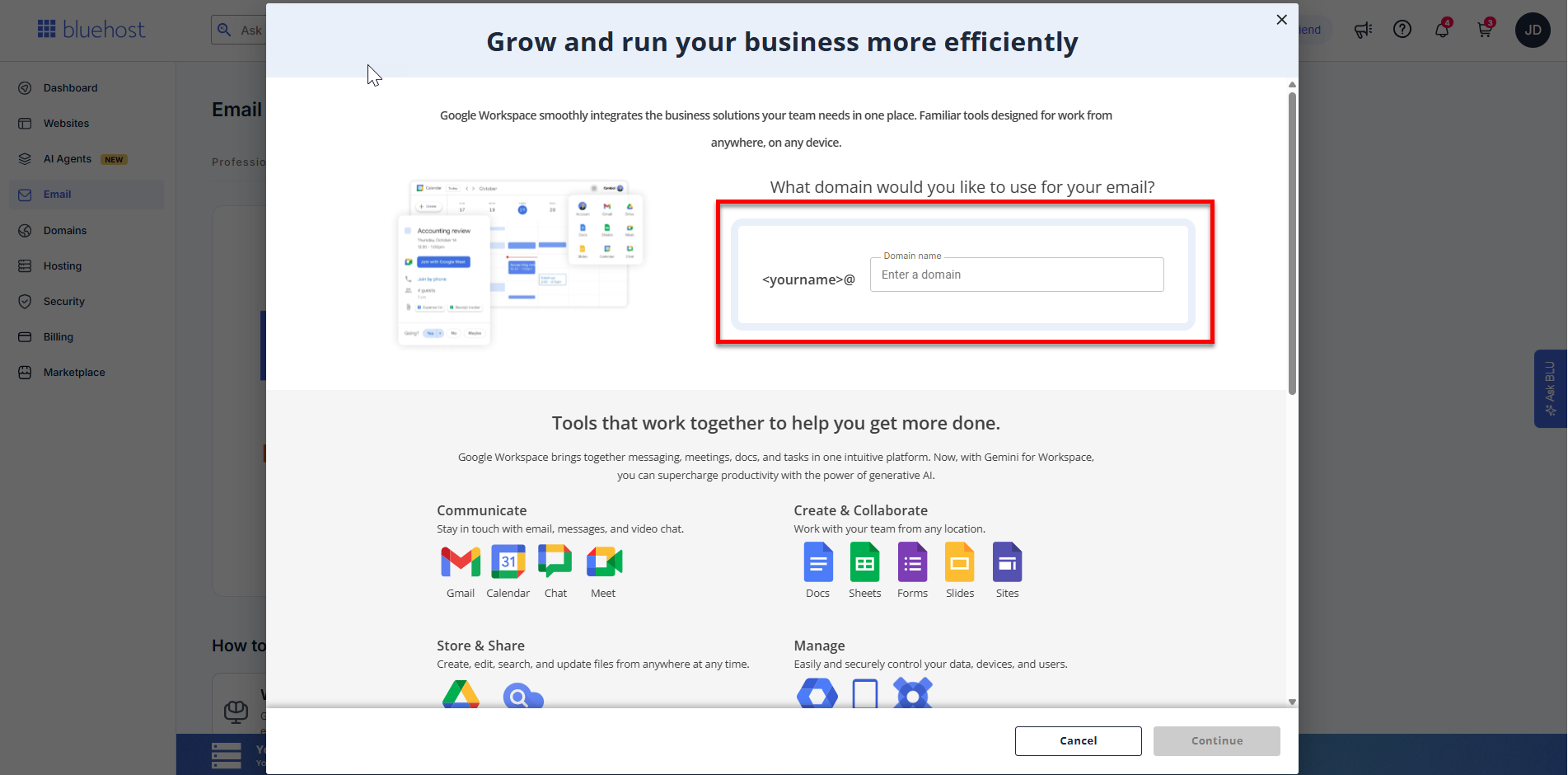
- In the pop-up, enter a domain you want to assign to Google Workspace.
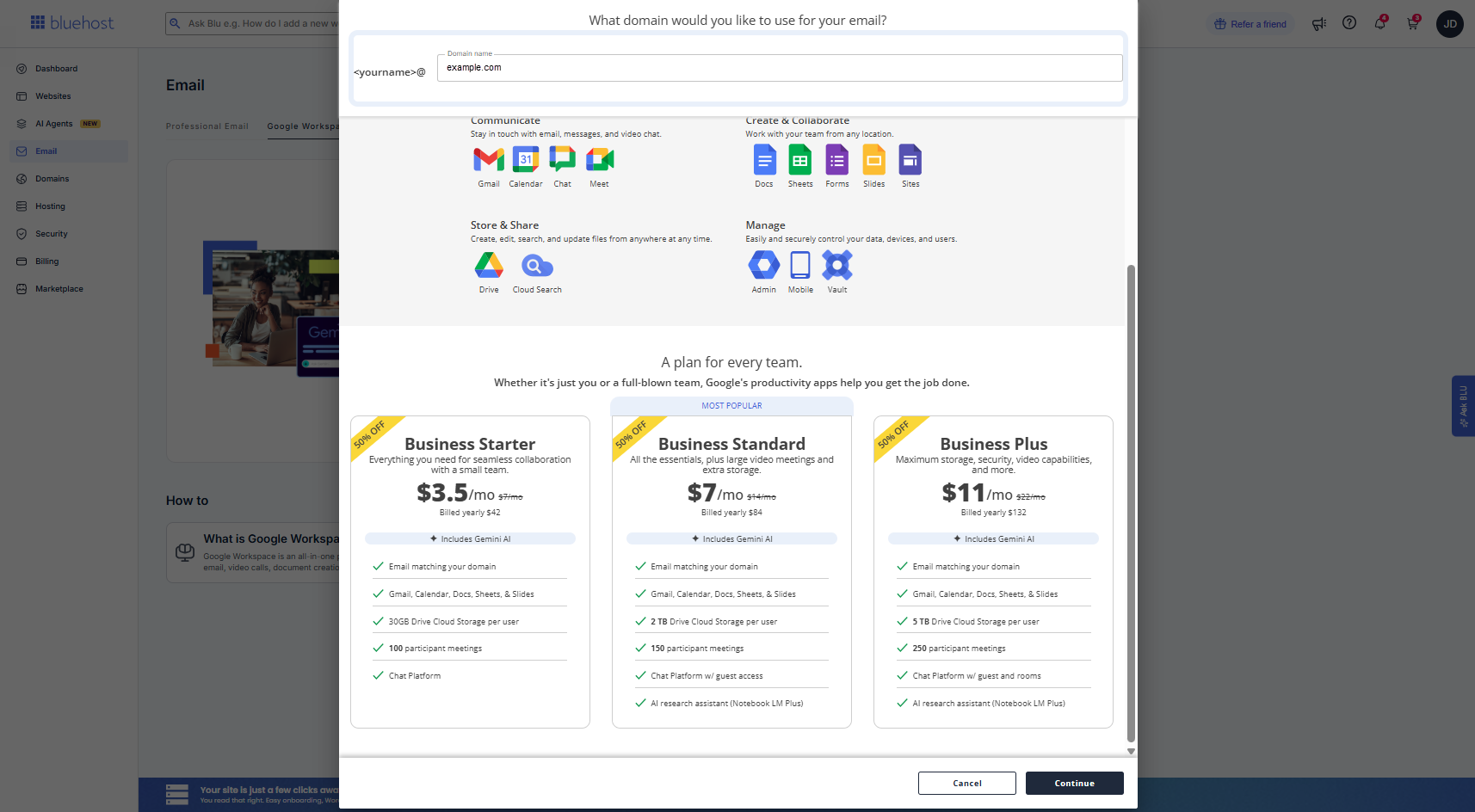
- Scroll down and click on Continue.
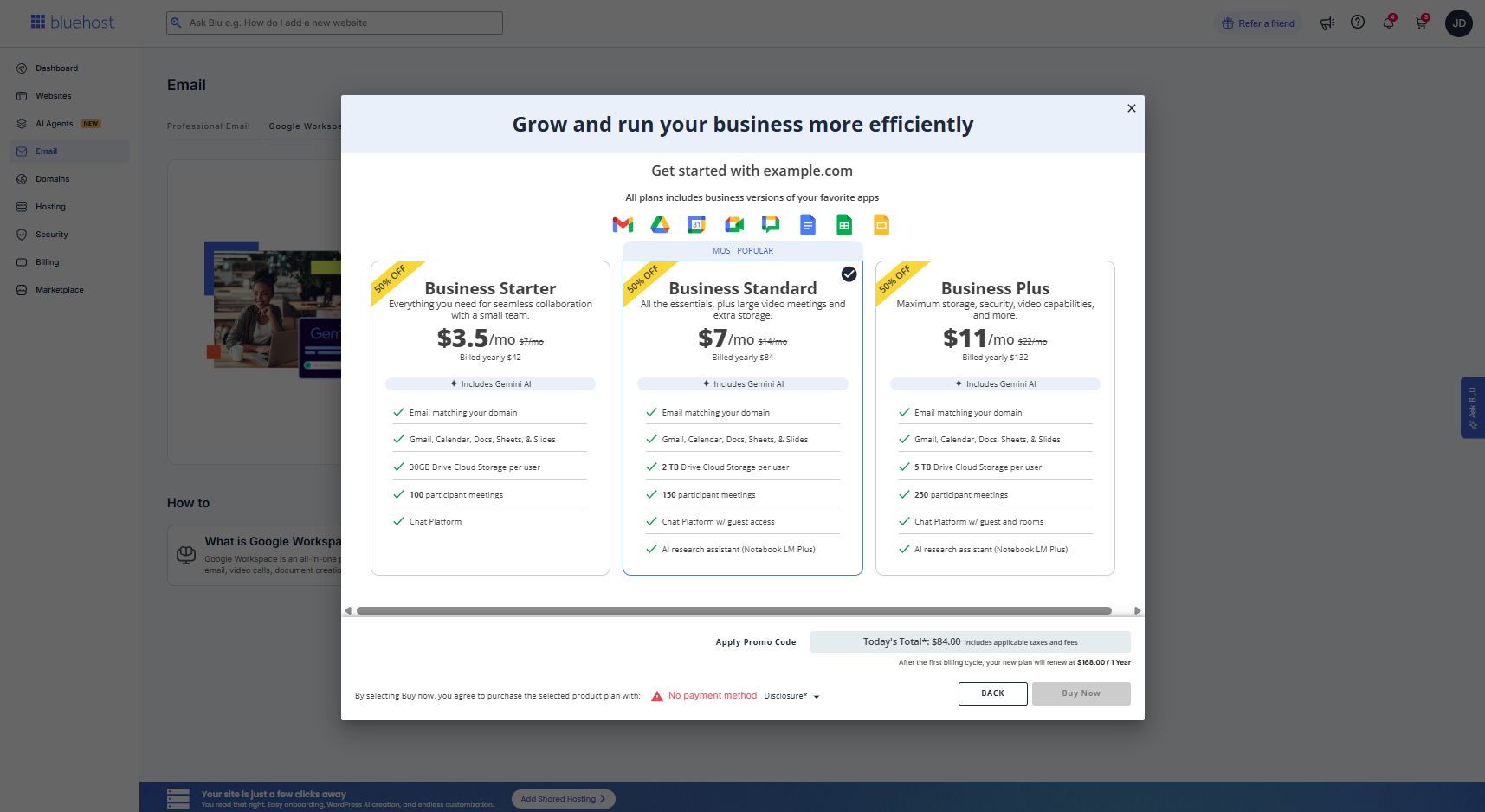
- In the next pop-up, select a Google Workspace plan, then Buy Now.
Via the Marketplace
- Log in to your Bluehost Portal.
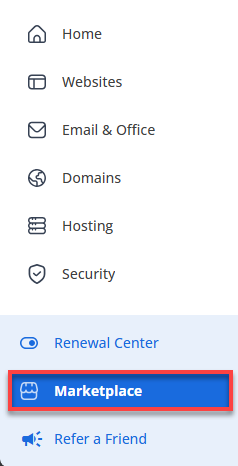
- Click Marketplace on the left-side menu.
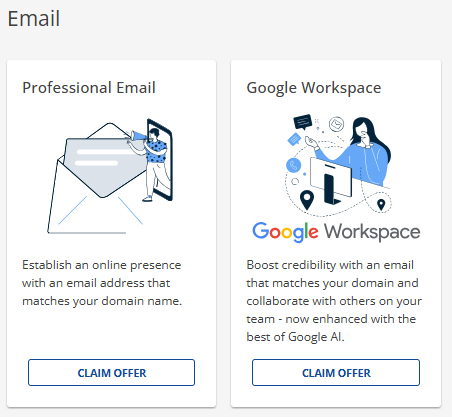
- Scroll down and look for the Email section. Click the Claim Offer button under the Google Workspace card.
- You'll be redirected to the front-of-site page. Scroll down and select a Google Workspace plan.
- If you already have a domain that you would like to assign to Google Workspace, please check the box that says "I want to use a domain I already own," enter your domain name, and then click the Use This Domain Name button.
If you don't have a domain and are considering registering a new one, you can do that at this stage. Just type in your desired domain name and select Search For Domain. Add Domain Privacy + Protection while you're at it!
- On the Checkout page, you can select add-ons, such as a hosting plan. If you don't have a payment method on file, please add one.
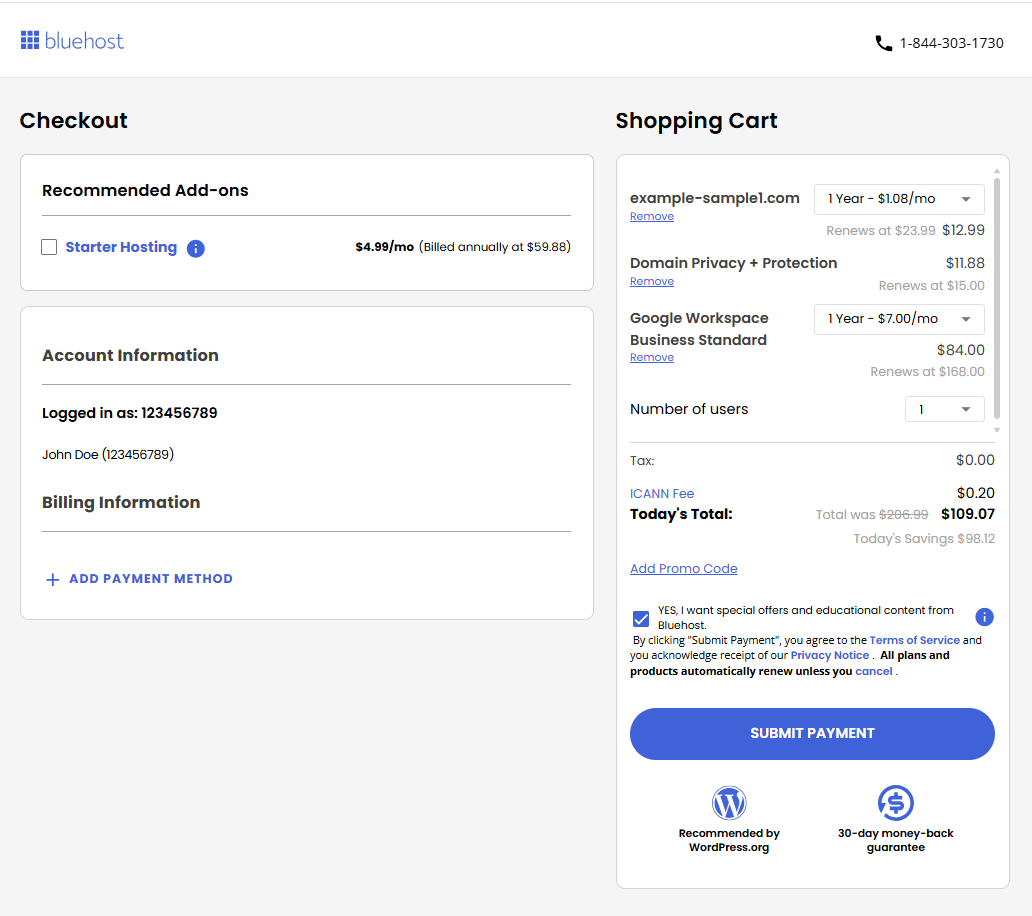
- Check the items in your Shopping Cart and select your preferred billing terms.
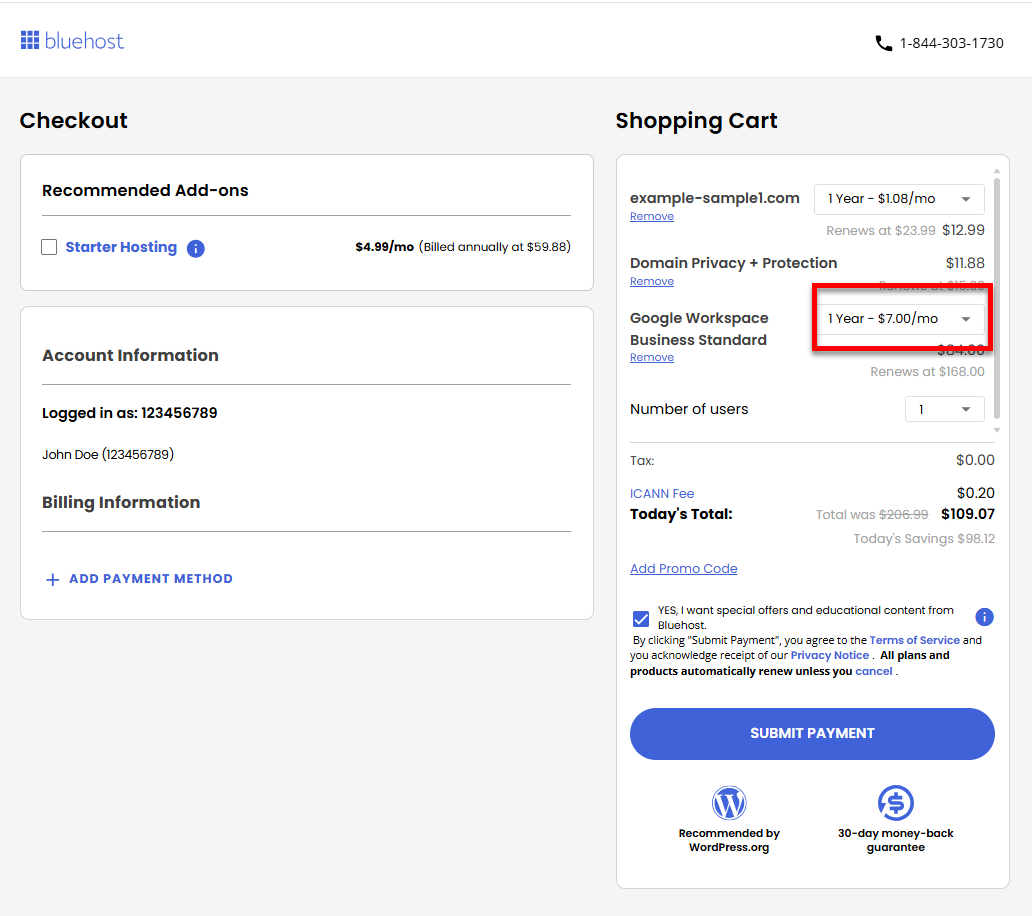
- Select your number of users from the dropdown.
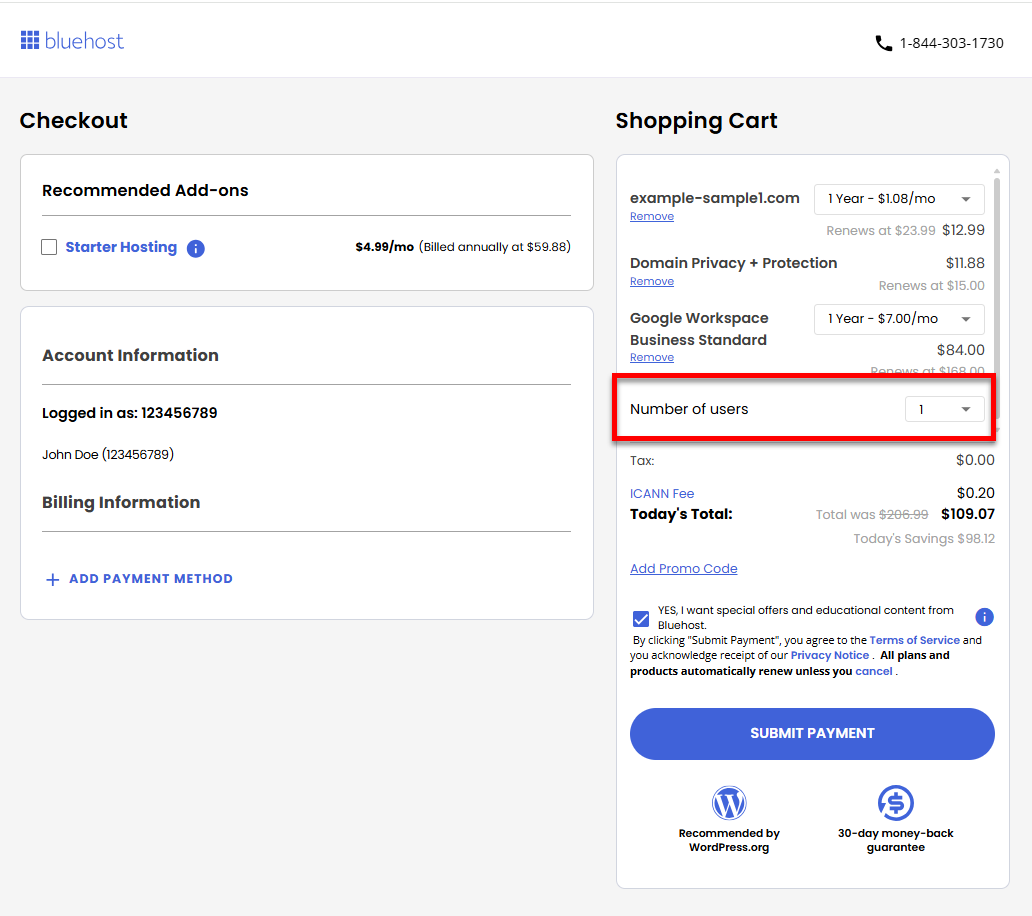
- Click Submit Payment to complete the payment transaction.
Your Google Workspace subscription is now accessible in the Email tab of your Bluehost Portal. For the setup instructions, please visit the How to Set Up Google Workspace: Initial Setup Guide article.
Summary
Learn how to purchase Google Workspace through Bluehost using two methods: directly via Bluehost.com or through the Bluehost Portal’s Email tab or Marketplace. This guide walks you through selecting a Google Workspace plan, choosing or registering a domain, adding users, and completing checkout. Once purchased, your Google Workspace account can be easily accessed and set up from your Bluehost Portal.
If you need further assistance, Bluehost Chat Support is available 24 hours a day, 7days a week while Bluehost Phone Support is available 7 days a week from 7 am-12 midnight EST.
- Chat Support - While on our website, you should see a CHAT bubble in the bottom right-hand corner of the page. Click anywhere on the bubble to begin a chat session.
- Phone Support -
- US: 888-401-4678
- International: +1 801-765-9400
You may also refer to our Knowledge Base articles to help answer common questions and guide you through various setup, configuration, and troubleshooting steps.