 ChatGPT,
  Claude,
  Gemini,
  Grok — all four for
 How to Use Softaculous Demo Before Installing a Script
Softaculous provides a quick and convenient way to explore different website applications before installing them on your hosting account. This can help you decide which script best fits your needs.
Demo a Script in Softaculous
- Log in to your Bluehost Portal.
- In the left-hand menu, click Hosting, then select My Plans.
- On the hosting details page, click the cPanel button.

- Your cPanel will open in a new tab.

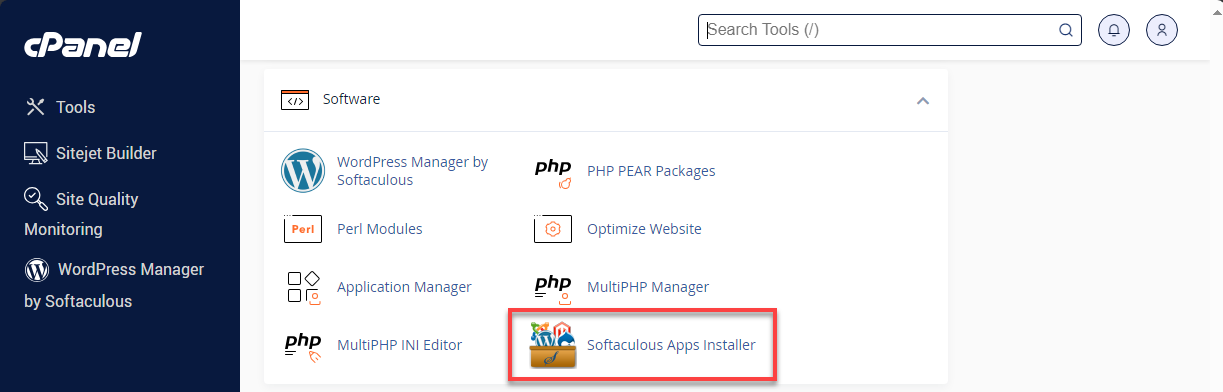
- Click on Softaculous Apps Installer under the Software section.
-
In Softaculous, browse through the list of available applications using any of the following:
- Categories in the left-hand menu
- The search bar at the top left
- Script icons that are displayed on the main dashboard
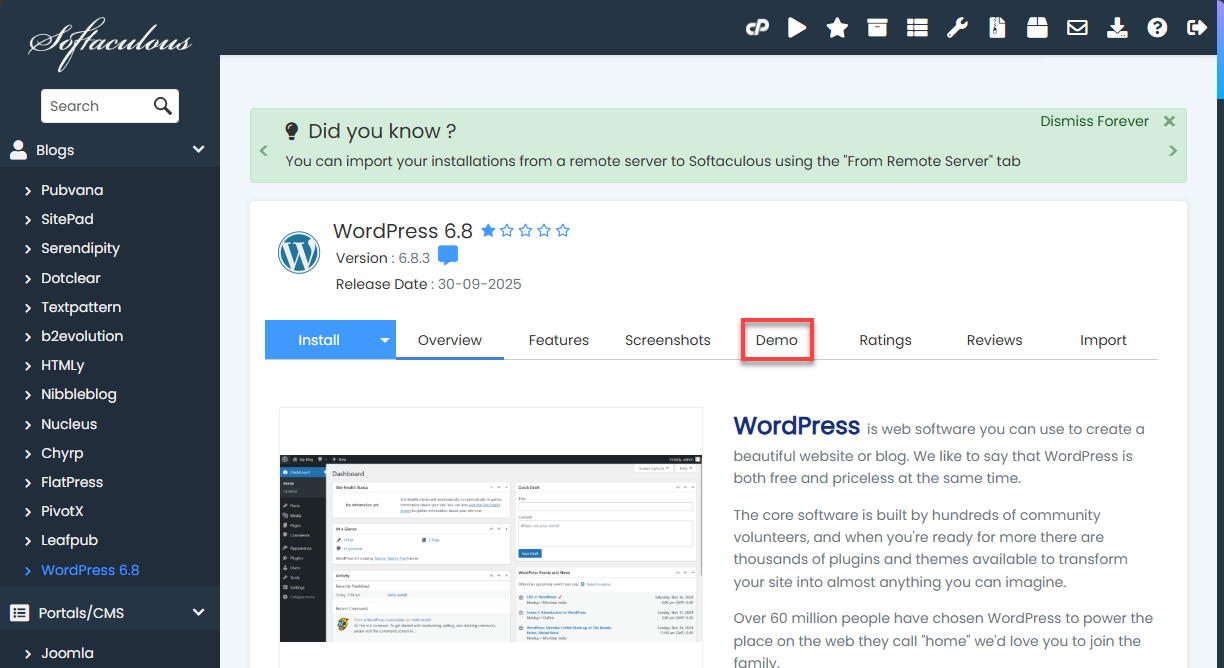
Click the script you want to preview.
(Example: WordPress) - On the script’s information page:
- Select the Demo tab.
- Softaculous will launch a fully functional demo environment for the selected application.
- Once the demo loads, you can:
- Navigate through the front‑end interface
- Review sample themes, templates, or layouts
- Explore the admin dashboard (if available)
- Test key features before installation
This allows you to get a feel for how the application works without installing anything on your hosting account.
- Select the Demo tab.
Why Use the Demo Feature?
Previewing a script before installation helps you:
- Compare applications more effectively
- Avoid unnecessary installs
- Choose the right tool for your website (e.g., WordPress, Joomla, Magento, etc.)
- Understand the interface before committing
Summary
Using the Softaculous demo feature is a simple and effective way to explore different website applications before installing them on your hosting account. Whether you're comparing platforms or testing functionality, the demo environment lets you preview each script's layout and features with no setup required. This helps you make a confident decision about which application best suits your website's needs. Once you're ready, you can return to Softaculous at any time to complete the installation process.
If you need further assistance, Bluehost Chat Support is available 24 hours a day, 7days a week while Bluehost Phone Support is available 7 days a week from 7 am-12 midnight EST.
- Chat Support - While on our website, you should see a CHAT bubble in the bottom right-hand corner of the page. Click anywhere on the bubble to begin a chat session.
- Phone Support -
- US: 888-401-4678
- International: +1 801-765-9400
You may also refer to our Knowledge Base articles to help answer common questions and guide you through various setup, configuration, and troubleshooting steps.