 ChatGPT,
  Claude,
  Gemini,
  Grok — all four for
 Importing WordPress or Apps into Softaculous
This guide explains how to bring an existing installation into Softaculous. For demonstration purposes, we’ll use a WordPress setup. Softaculous offers two different methods for importing your current installations, and we’ll walk you through each option.
Import Specific Installation
- Log in to your Bluehost Portal.
- In the left-hand menu, click Hosting, then select My Plans.
- On the hosting details page, click the cPanel button.

- Your cPanel will open in a new tab.

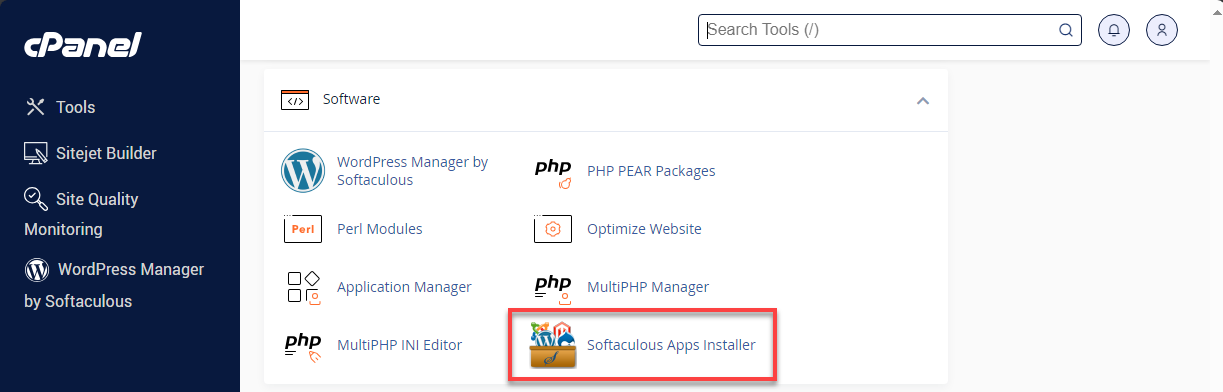
- Click on Softaculous Apps Installer under the Software section.
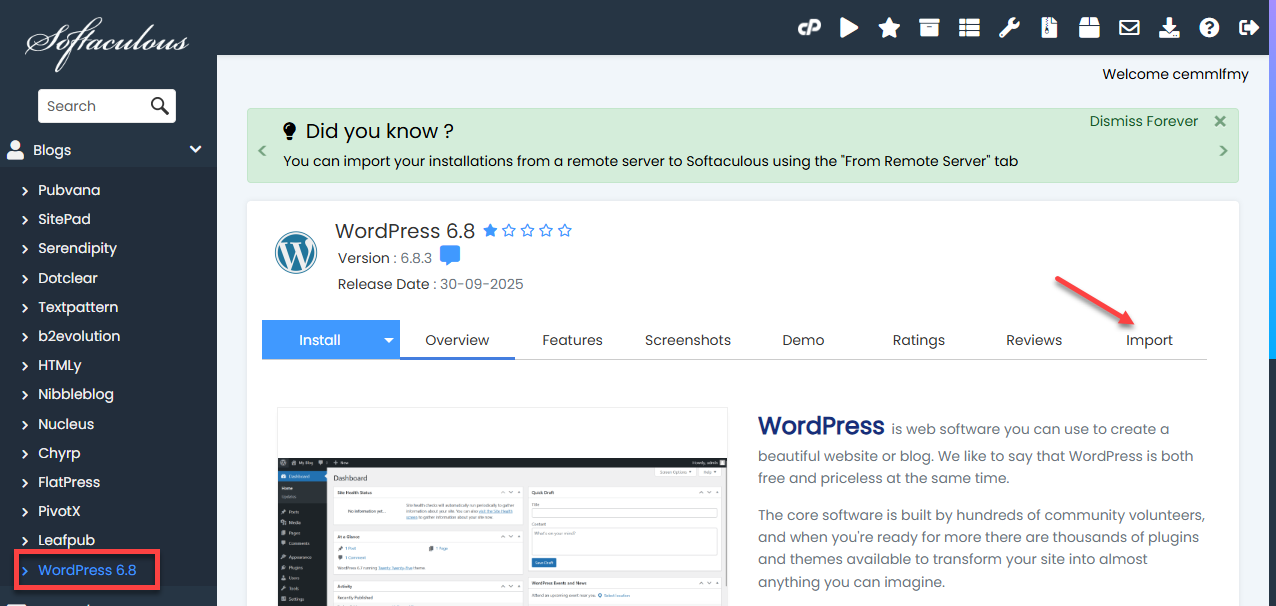
- Choose the CMS or application used to create your website. For example, WordPress is selected.
- Click Import.
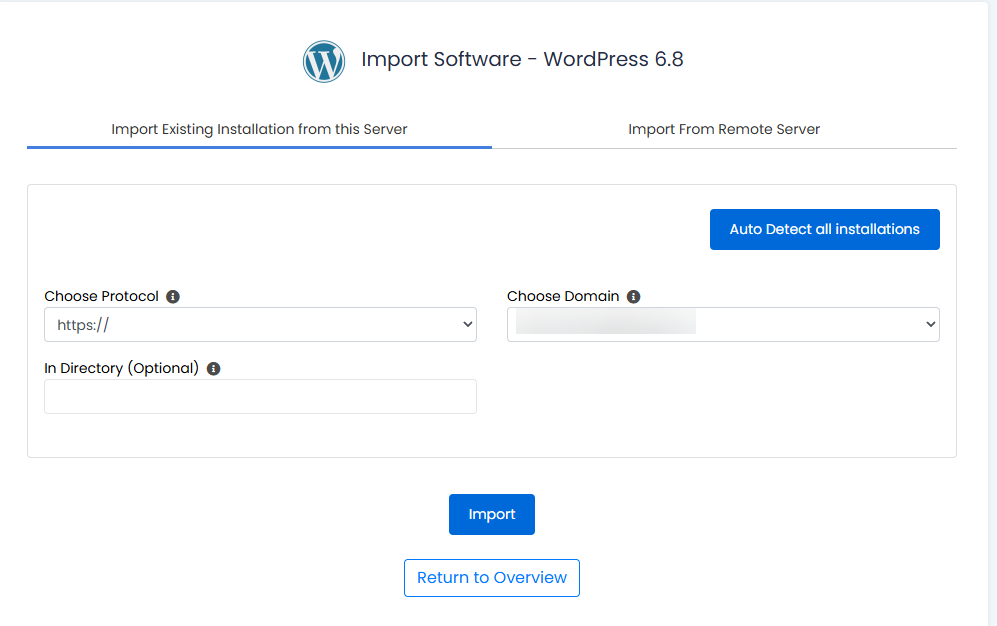
- 3 options will appear:
- Choose Protocol: Select the protocol type that your website is using.
- HTTPS: Site has SSL
- HTTP: Site doesn't have an SSL
- Choose Domain: Choose the domain where the software is currently installed.
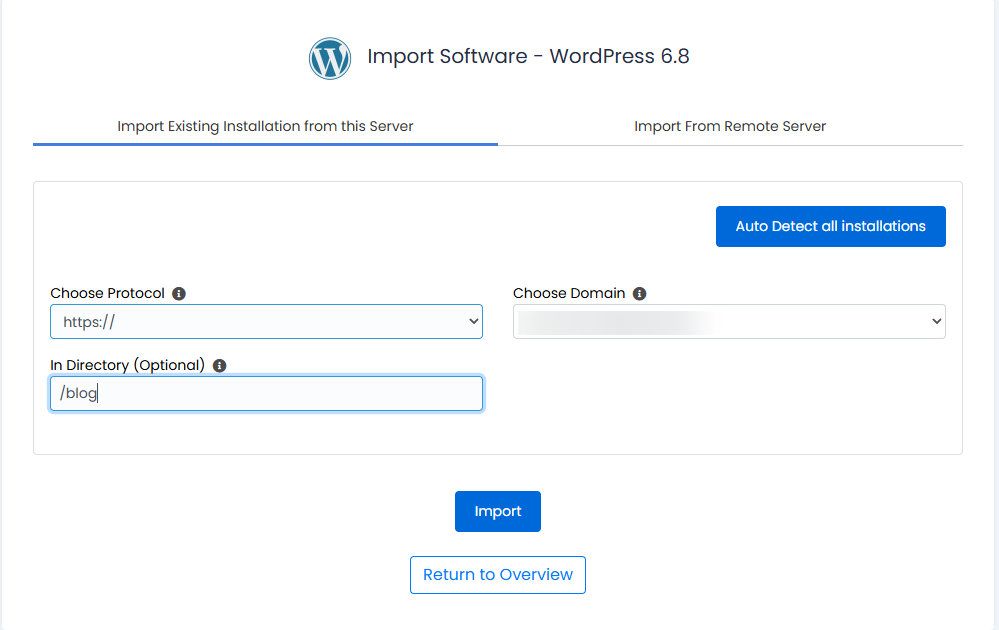
- In Directory: Go to the folder where your application is installed. If the software is located directly in public_html, you can leave the field empty. For installations placed inside a subfolder, simply type in the name of that directory. Please see the screenshots below: Software is installed in the public_html.
Software is installed in a subdirectory.
- Choose Protocol: Select the protocol type that your website is using.
- Click on Import.
- After completing the steps, your application will be successfully imported into Softaculous. From there, you’ll be able to manage the installation—such as creating backups, setting up a staging environment, and more.
Import Multiple Installations
- Log in to your Bluehost Portal.
- In the left-hand menu, click Hosting, then select My Plans.
- On the hosting details page, click the cPanel button.
- Your cPanel will open in a new tab.
- Under the Software section, click on Softaculous Apps Installer.
- Click the Import Installations icon at the top-right of the Softaculous homepage. This will scan the installations from other tools.

- You can choose Manual Installations and scan to find any supported software that was manually installed.
Summary
Importing an existing installation into Softaculous is a simple process, whether you’re adding a single site or scanning for multiple installations. Using the Import feature, you can specify your domain, protocol, and installation directory, allowing Softaculous to recognize and manage your site. Once imported, you can take advantage of Softaculous tools such as backups, staging, and streamlined management for supported applications like WordPress.
If you need further assistance, Bluehost Chat Support is available 24 hours a day, 7days a week while Bluehost Phone Support is available 7 days a week from 7 am-12 midnight EST.
- Chat Support - While on our website, you should see a CHAT bubble in the bottom right-hand corner of the page. Click anywhere on the bubble to begin a chat session.
- Phone Support -
- US: 888-401-4678
- International: +1 801-765-9400
You may also refer to our Knowledge Base articles to help answer common questions and guide you through various setup, configuration, and troubleshooting steps.