 ChatGPT,
  Claude,
  Gemini,
  Grok — all four for
 Purchase a Virtual Dedicated Server with WebAdmin Installation
WebAdmin is a web-based server control panel designed to simplify VDS management. It enables you to manage files, configure services, monitor server resources, and perform administrative functions through a secure and easy-to-use dashboard.
This article explains how to purchase a Bluehost Virtual Dedicated Server (VDS) hosting plan with WebAdmin.
Why Choose WebAdmin?
WebAdmin is a server management panel that simplifies VDS administration through a secure and intuitive dashboard. It enables you to manage users, configure domains and email accounts, monitor server health, and perform essential administrative tasks from one location.
Uses of WebAdmin
With WebAdmin, you can manage all key aspects of your VPS from a single, web-based control panel. Common tasks include:
- Manage Websites and Domains: Deploy websites, add and configure domains, and secure your sites with SSL certificates.
- Administer Email Services: Set up email accounts, manage mail settings, and help protect inboxes with spam filtering tools.
- Control Files and Content: Access, upload, edit, and organize server files through an integrated file management interface.
- Track Server Performance: Monitor resource usage, review system statistics, and keep an eye on overall server health.Strengthen Server Security: Manage access permissions, configure security controls, and create backups to help protect your data.
Whether you're managing a single website or multiple online projects, WebAdmin provides a convenient way to oversee your VPS environment without the complexity of command-line administration.
How to Purchase a Virtual Dedicated Server with WebAdmin Installation
To run and manage WebAdmin efficiently, you can start by purchasing VDS hosting from Bluehost.
- In your browser, go to https://www.bluehost.com.
- Click Host in the top menu, then select Virtual Dedicated Server.
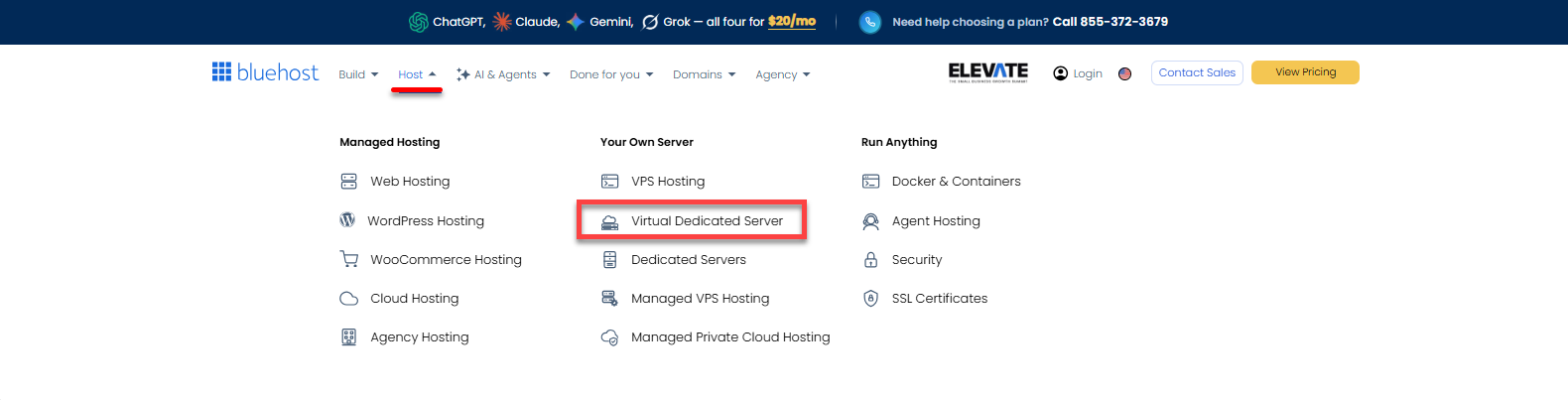
You can also go to this link directly: https://www.bluehost.com/vds-hosting.
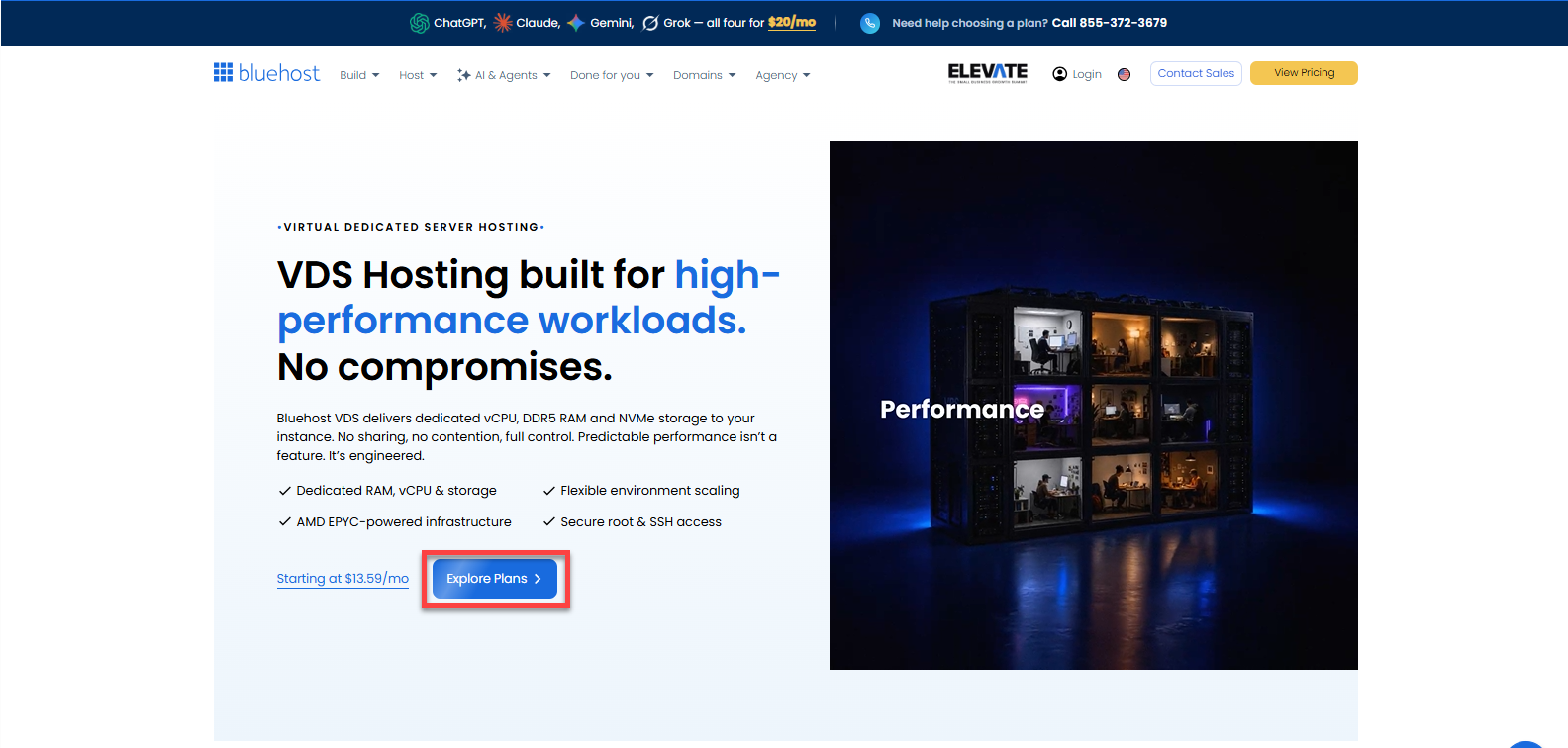
- On the Virtual Dedicated Server Hosting page, click Explore Plans. You can also scroll down to the hosting plans section.
- Choose a plan from either tab — Standard or High Performance — by clicking Choose Plan.
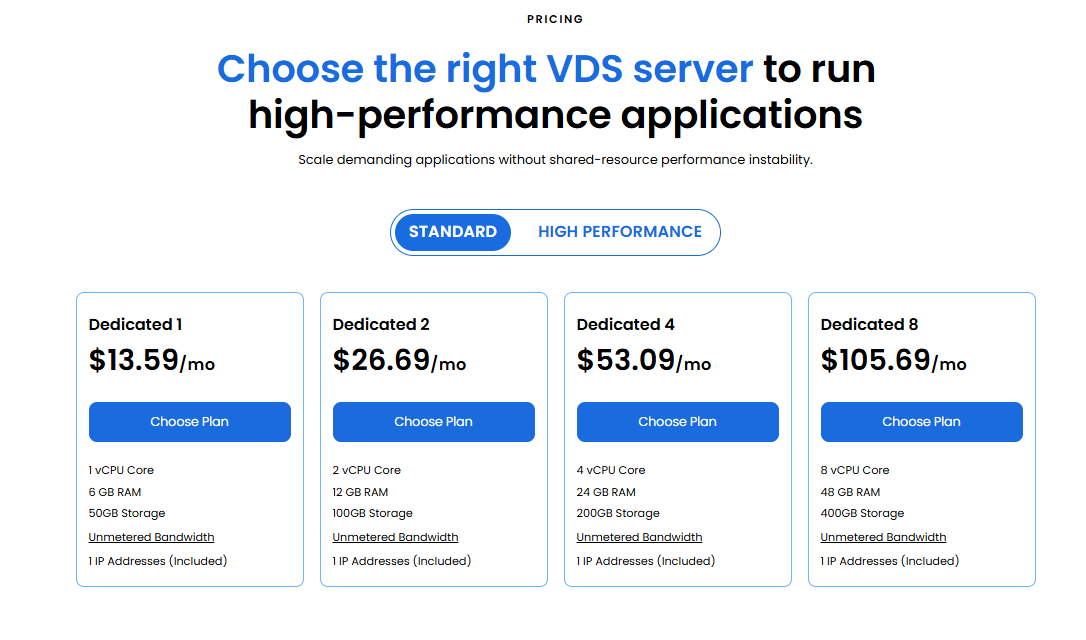
Pricing is subject to change. Please visit https://www.bluehost.com/vds-hosting for the current introductory/sign-up offer for the Bluehost Virtual Dedicated Server hosting. For the most up-to-date renewal pricing, visit your Bluehost Portal's Renewal Center. - On the next page, configure your VDS hosting to meet your requirements. The configuration options are divided into the following sections:
- Location: Select your data center in this section.
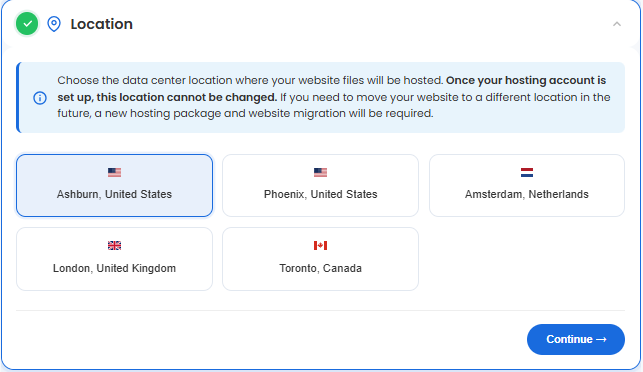
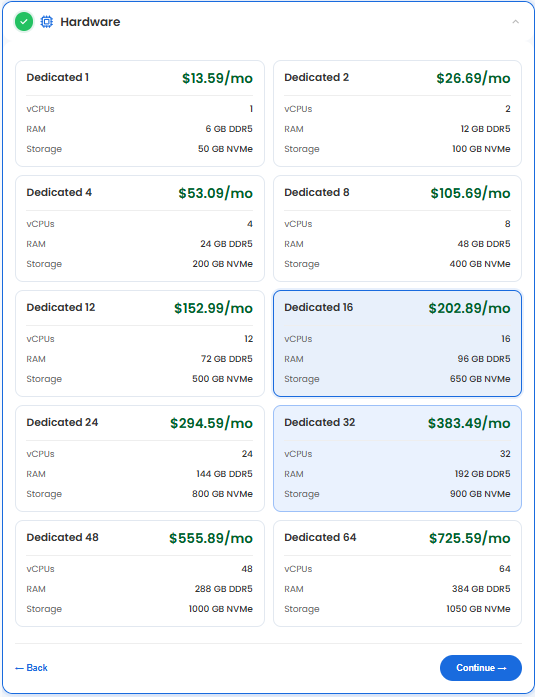
- Hardware: This section shows your pre-selected plan. You can also switch to another Virtual Dedicated Server plan in this section
- Software:
If the selected plan does not meet the app's minimum requirements, the app will be grayed out.
- Under the OS with Panel tab, click on WebAdmin.
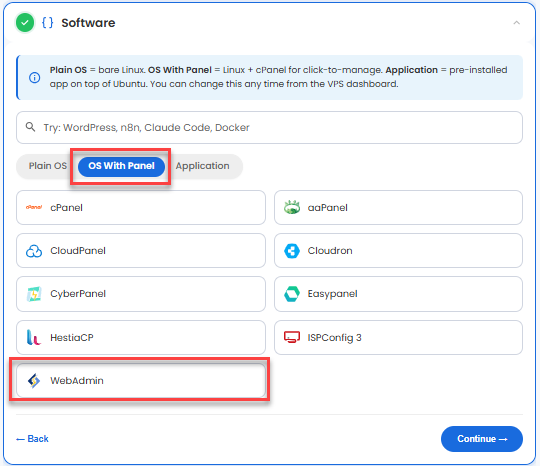
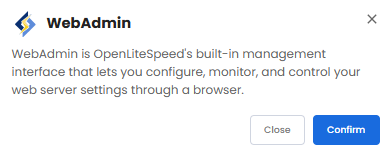
You can install only one application per purchase; the system will automatically select the best operating system for it. - In the pop-up, click Confirm.
- Under the OS with Panel tab, click on WebAdmin.
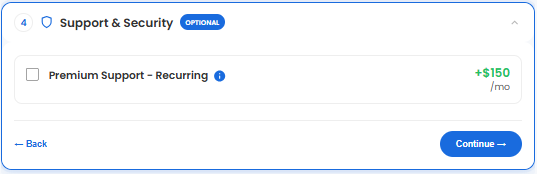
- Support & Security: You can add Premium Support - Recurring, which provides priority access to expert assistance and faster response times.
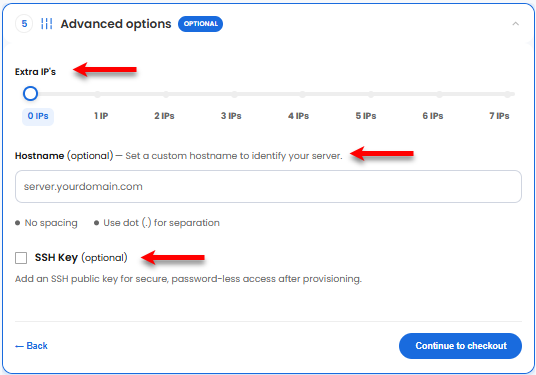
- Advanced Options:
- Extra IPs: You can add IP addresses for an additional fee. Pricing changes based on how many IPs you add.
- Hostname: Assign a custom hostname to identify your server. This is optional.
- SSH Key: Add an SSH public key for secured password-less access. This is also optional.
-
- Location: Select your data center in this section.
- Select your billing term and review your selected items on the right pane, along with the summarized total cost.
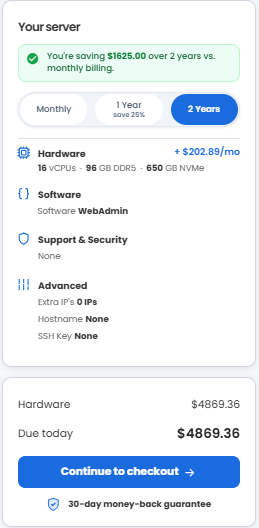
- Click Continue to checkout.
- Do the following on the Checkout page:
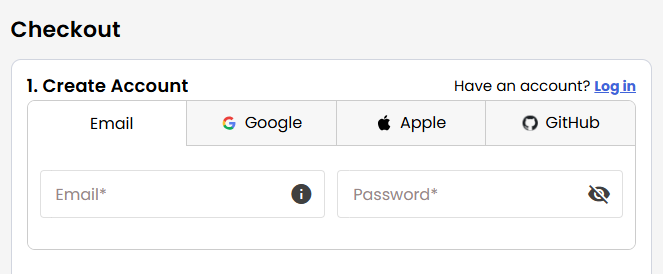
If you're new to Bluehost:- Create your Bluehost account by using your email address or by connecting with your Google, Apple, or GitHub account — whichever you prefer!
-
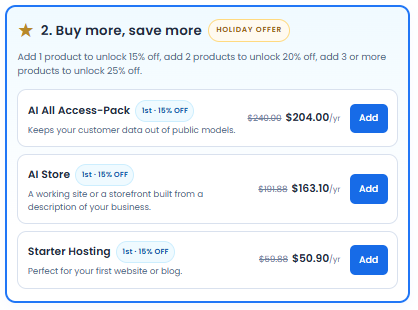
You can also purchase additional services and other essential add-ons.
- Select your preferred payment method: credit card, Google Pay, or PayPal. Enter your billing information.
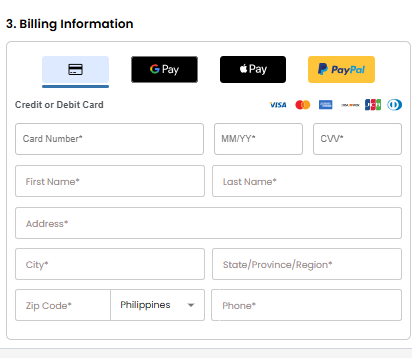
If you have an account with us, you will see your Bluehost login details when you are logged into your Bluehost Portal. If you are not logged in, please click the Log In link.
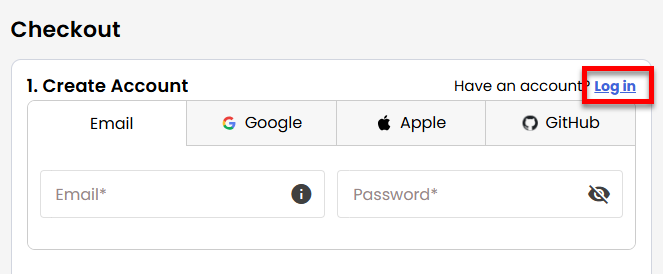
- Create your Bluehost account by using your email address or by connecting with your Google, Apple, or GitHub account — whichever you prefer!
- In the Shopping Cart, choose your billing term if you did not choose one on the previous page.
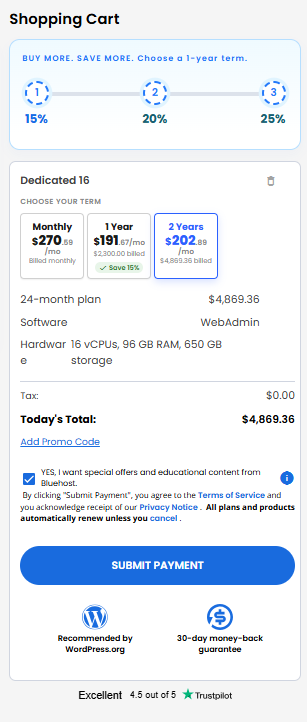
- Add a Promo code if you have one and then click Submit Payment to complete your purchase.
After completing the purchase, your VDS hosting will begin provisioning. You can access and manage your new VDS hosting in the Hosting tab of your Bluehost Portal.
How to Set Up and Manage Your OpenLiteSpeed WebAdmin
Here is your step-by-step walkthrough to access, log in, and manage your WebAdmin console.
Step 1: Access your WebAdmin Dashboard
After installation completes:
- Log in to your Bluehost Portal.
- In the left-hand menu, click Hosting, then select My Plans.
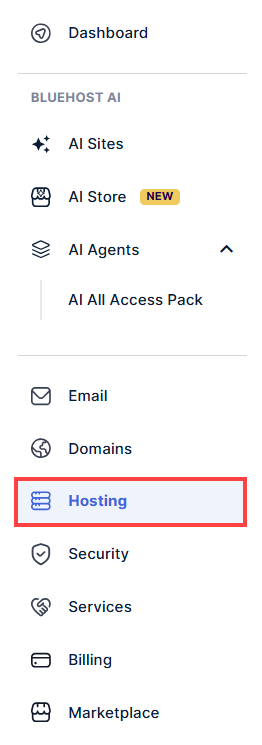
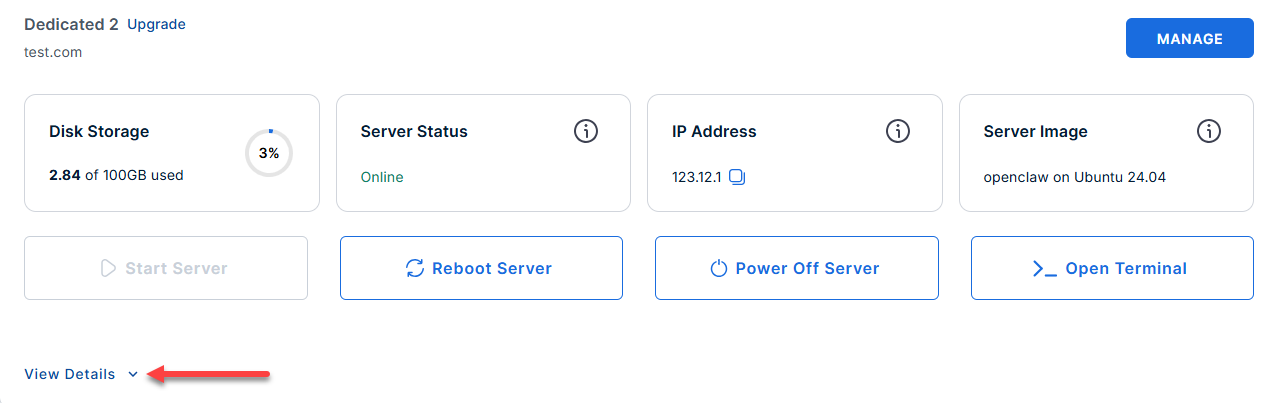
- Locate the server you want to manage, then click View Details in the bottom-left corner to expand the section and access additional server information.
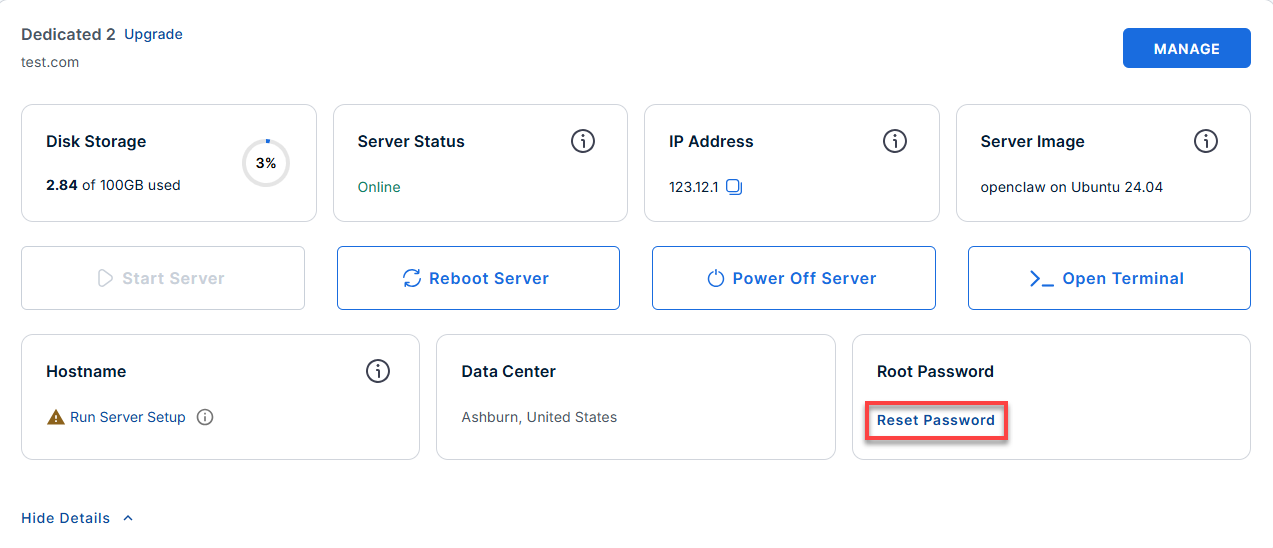
- Click the Reset Password.
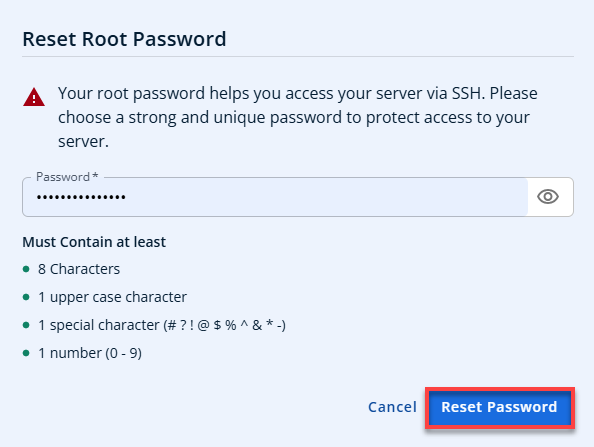
- In the pop-up window, type your new root password, then click Reset Password again to confirm and save the changes.
- Connect to your VPS via SSH.
Use your VPS IP and credentials with an SSH client, follow the prompts, and enter your root password when asked:Replaceyour_server_ipwith your actual server IP address.ssh root@your_server_ipExample Output:
Welcome to Ubuntu 24.04.4 LTS (GNU/Linux 6.8.0-124-generic x86_64) ******************************************************************************** OpenLiteSpeed WebAdmin URL: https://12.1.111.12:7080 Username: admin Password:7APJMXJxGPmkQQAuXrCp2odx Firewall: ports 22, 80, 443, 7080 open (all others blocked) Key paths: Config: /usr/local/lsws/conf/httpd_config.conf Passwords: /root/.app_passwords Readme: /root/README.md Useful commands: systemctl status lshttpd # Check service status systemctl restart lshttpd # Restart OpenLiteSpeed grep WEBADMIN_PASSWORD /root/.app_passwords To remove this message: rm -f /etc/update-motd.d/99-webadmin ******************************************************************************** - If you ever need to quickly review the system's deployment notes directly inside your server terminal, you can print out the original README file by running:
cat /root/README.md
Step 2: Retrieve Your Admin Password
Your temporary administrator password generates randomly during the server's first boot to ensure security. You can find this password in one of two ways:
- Option A: Log into your server via SSH. The login message (MOTD) automatically displays your password on the screen.
- Option B: Run the following command in your terminal to view the password file:
grep WEBADMIN_PASSWORD /root/.app_passwords
Example Output:
root@11-1-111-11:~# grep WEBADMIN_PASSWORD /root/.app_passwords
WEBADMIN_PASSWORD=7APJMXJxGPmkQQAuXrCp2odx
Step 3: Verify OpenLiteSpeed is Running
Before trying to load the web interface, make sure the OpenLiteSpeed service (lshttpd) is active and listening.
Run this status check:
- If it is active (running): You are good to go!
Example Output:
root@11-1-111-11:~# systemctl status lshttpd ● lshttpd.service - OpenLiteSpeed HTTP Server Loaded: loaded (/etc/systemd/system/lshttpd.service; enabled; preset: enabled) Active: active (running) since Fri 2026-07-10 17:30:15 UTC; 53min ago Process: 1033 ExecStart=/usr/local/lsws/bin/lswsctrl start (code=exited, status=0/SUCCESS) Main PID: 1047 (litespeed) CGroup: /system.slice/lshttpd.service ├─1047 "openlitespeed (lshttpd - main)" ├─1048 "openlitespeed (lscgid)" ├─1049 "openlitespeed (lshttpd - #01)" └─1050 "openlitespeed (lshttpd - #02)" Jul 10 17:30:12 11-1-111-11.bluehost.com systemd[1]: Starting lshttpd.service - OpenLiteSpeed HTTP Server... Jul 10 17:30:12 11-1-111-11.bluehost.com lswsctrl[1033]: [OK] Send SIGUSR1 to 763 Jul 10 17:30:15 11-1-111-11.bluehost.com systemd[1]: Started lshttpd.service - OpenLiteSpeed HTTP Server. - If it is inactive or failed: Start it up using:
systemctl start lshttpd
If WebAdmin still won't load: Run the first-boot initialization script manually to make sure everything is configured properly:
Step 4: Log Into the WebAdmin Console
Once you have your password, you can access the management interface.
- Open your web browser.
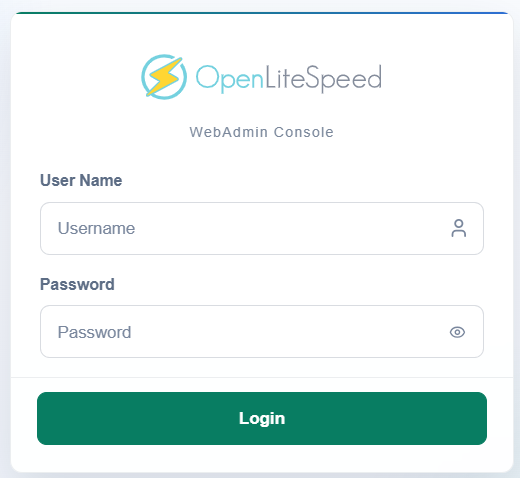
- Navigate to your server's IP address on port 7080 using HTTPS:
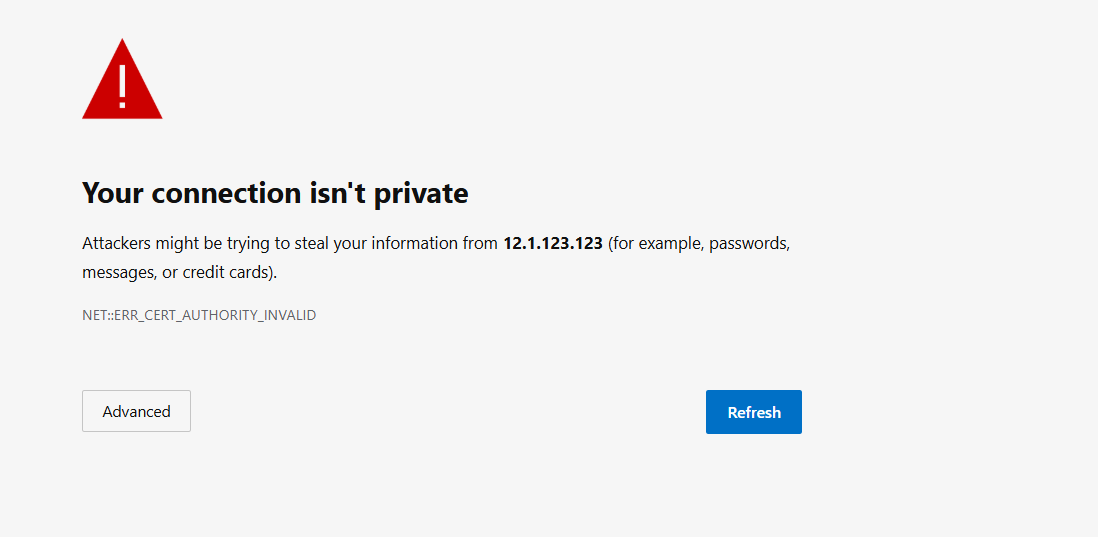
https://<your-server-ip>:7080 - Your browser will display a warning about a "self-signed certificate." You can safely bypass this warning and proceed to the site.
- Log in using the following credentials:
- Username: admin
- Password: (The password you retrieved in Step 2)
Step 5: Reset Your Password
If you ever need to reset your WebAdmin console password, run this script and follow the on-screen prompts:
Example Output:
root@11-1-111-11:~# /usr/local/lsws/admin/misc/admpass.sh

Please specify the user name of administrator.
This is the user name required to login the administration Web interface.

User name [admin]: JC

Please specify the administrator's password.
This is the password required to login the administration Web interface.

Password:
Retype password:
Administrator's username/password is updated successfully!
Post-Setup and Best Practices (Recommended)
Now that you are in, here are a few quick housekeeping tasks to secure your environment:
Monitor Live Logs
Track server errors and application behavior in real-time with these commands:
- View server errors:
- View WebAdmin traffic:
Check your firewall rules
Ensure UFW (Uncomplicated Firewall) is active and protecting your ports by running:
(Your setup should restrict access to ports 22, 80, 443, and 7080 while blocking the rest by default).
Clean up your login banner
Once you have saved your password securely, you can delete the SSH login MOTD banner so your credentials aren't exposed every time you log in via SSH:
Additional Information and Example Documentation Output
You can run cat /root/README.md to see more information and useful commands:
root@11-1-111-11:~# cat /root/README.md
# WebAdmin

## Description

WebAdmin is OpenLiteSpeed's built-in management interface that lets you configure, monitor, and control your web server settings through a browser.

It provides access to virtual host configuration, SSL management, rewrite rules, and real-time performance statistics, making it easier to administer your OpenLiteSpeed server without editing configuration files manually.

---

## Services

| Service | Port | Purpose |
|---------|------|---------|
| WebAdmin UI | 7080 | Management console (HTTPS) |
| OpenSSH | 22 | Remote access |

Ports are protected using UFW.

---

## How-to-use

### 1. Get your password

```bash
grep WEBADMIN_PASSWORD /root/.app_passwords
```

The password is also shown automatically in the SSH login MOTD.

### 2. Open WebAdmin

After the instance boots, open your browser and go to:

| URL | Purpose |
|-----|---------|
| `https://server-ip:7080` | WebAdmin management console |

Login with **username:** `admin` and the password retrieved above. Accept the self-signed certificate warning.

### 3. If WebAdmin is not accessible after boot

Run the first-boot script manually:

```bash
sudo bash /var/lib/cloud/scripts/per-instance/001_onboot
```

---

## Manage

### OpenLiteSpeed service

```bash
systemctl status lshttpd
systemctl restart lshttpd
systemctl stop lshttpd
```

### Reset WebAdmin password

```bash
/usr/local/lsws/admin/misc/admpass.sh
```

### UFW Firewall

```bash
ufw status verbose
```

### Logs

```bash
tail -f /usr/local/lsws/logs/error.log
tail -f /var/log/webadmin/webadmin.log
journalctl -u lshttpd -f
cat /var/log/cloud-init-output.log
```

---

## Security hardening

| Hardening | Detail |
|-----------|--------|
| UFW firewall | Ports 22, 80, 443, 7080 open. Default deny all incoming |
| SSH rate limiting | Port 22 set to LIMIT - brute force protection |
| Admin password | Never baked into image - generated randomly at first boot |
| Credentials file | `/root/.app_passwords` mode `0600` - root read only |
| WebAdmin TLS | Console served over HTTPS on port 7080 |

---

## Configuration files reference

| File | Purpose | Permissions |
|------|---------|-------------|
| `/usr/local/lsws/conf/httpd_config.conf` | OpenLiteSpeed main config | `0644` |
| `/root/.app_passwords` | Generated admin credentials | `0600` |
| `/var/lib/cloud/scripts/per-instance/001_onboot` | First-boot script | `0755` |
| `/etc/update-motd.d/99-webadmin` | MOTD with credentials on login | `0755` |
| `/etc/logrotate.d/webadmin` | Log rotation config | `0644` |

---

## Notes

- Admin password is never baked into the image - generated fresh on first boot and saved to `/root/.app_passwords`.
- WebAdmin uses a self-signed TLS certificate by default - replace with a valid cert for production.
- Configure HTTP (port 80) and HTTPS (port 443) listeners inside WebAdmin for production use.
- Remove the MOTD once no longer needed: `rm -f /etc/update-motd.d/99-webadmin`

---

## Links

- Manage: [Manage](https://localhost:7080/)
- OpenLiteSpeed Documentation: [https://openlitespeed.org/kb/](https://openlitespeed.org/kb/)
- WebAdmin Console Guide: [https://openlitespeed.org/kb/admin-console/](https://openlitespeed.org/kb/admin-console/)
- Ubuntu 24.04 LTS Release Notes: [https://wiki.ubuntu.com/NobleNumbat/ReleaseNotes](https://wiki.ubuntu.com/NobleNumbat
Summary
WebAdmin makes it easy to manage your Bluehost VDS through a streamlined control panel built for simplicity and control. Whether you're hosting websites, deploying applications, or managing server settings, this guide will show you how to purchase a VDS plan and access WebAdmin to begin managing your server environment.