 ChatGPT,
  Claude,
  Gemini,
  Grok — all four for
 Bluehost AI Website Builder: Dashboard Walkthrough
Welcome to Bluehost AI Website Builder—your fast track to launching a professional website! With our free trial, you can create a personalized site in just a few clicks. Simply describe your website, sign up for free, and let Bluehost AI Website Builder do the rest. When you’re ready for more features, upgrading is easy!
Accessing the Bluehost AI Website Builder Dashboard
The only way you can access the new Bluehost AI Website Builder Dashboard and our new Get Online hosting plan is by starting with the free trial. After signing up for the free trial, you’ll be directed automatically to the Bluehost AI Website Builder dashboard, where you can begin customizing your website immediately.
Why use Bluehost AI Website Builder?
Website creation is made fast, easy, and risk-free with Bluehost AI Website Builder. Maybe it's your first time launching a site, or you just want to experience what our AI can do, you’ll save time while creating a professional-looking website. Get it for free, personalize your site, and upgrade anytime for full control and advanced features!
How to Navigate Bluehost AI Website Builder Dashboard
This guide breaks down each component of the AI Website Builder interface, step-by-step, following the tools and menus available in your dashboard.
Make Quick Edits with AI
On the left side of the dashboard, you will see the Bluehost AI Assistant, your personal design support. Simply use the “Ask 10Web AI...” box to request specific design changes or content generation on the fly.
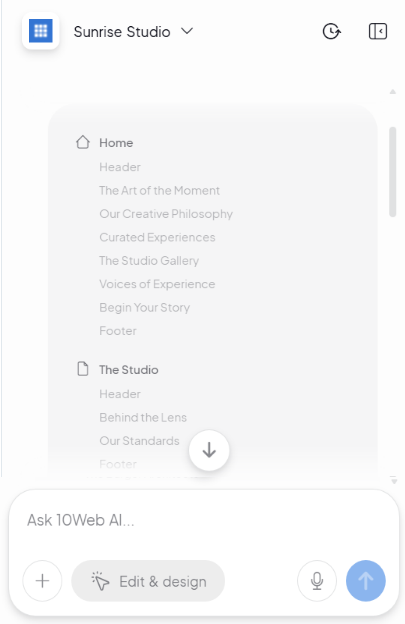
Your Main Site Management
Clicking the site name (for example: "Sunrise Studio") in the top-left corner opens the main management menu. This is your hub for administrative tasks:
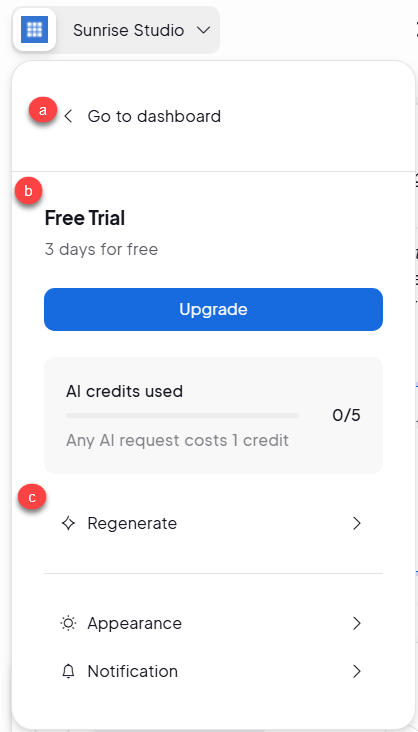
- Go to Dashboard: Exits you to the editor and returns you to your Bluehost Portal.
- Subscription Status Card: Shows subscription status, AI credits, and upgrade option.
- Settings & Customization: Option to Regenerate for fast layout refresh, toggle your site's Appearance (Light/Dark mode), or check your Notifications.
Editor Modes and Tools
In the center of the top navigation bar, you’ll find the primary interaction tools:
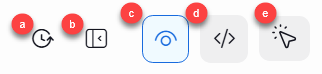
- History Icon: Allows you to view and access your previous activity or version history.
- Sidebar Toggle: Moves the clipboard to the side of the interface for better workspace management.
- Preview Mode (Eye Icon): View your site exactly as a visitor would, without the editing outlines.
- Code View (</> Icon): For advanced users who want to dive into the technical structure.
- Edit & Design (Cursor/Wand Icon): The default mode for selecting elements and changing styles.
Navigating Pages and Posts
Managing what page you are currently viewing is simple with the top dropdowns:
- Type Selector: Use the document icon dropdown to switch between viewing your Pages or your Posts.
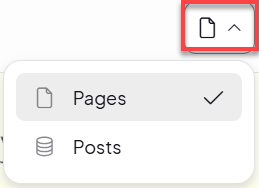
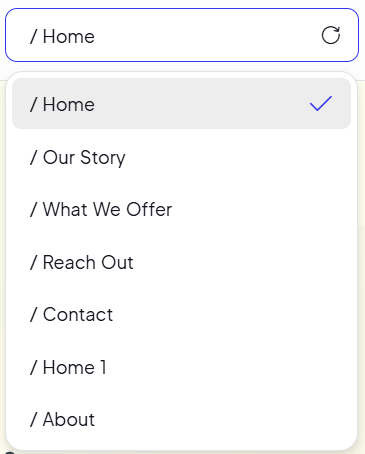
- Path Selector: The central box (for example: / Home) allows you to jump between different pages of your site, such as Our Story, What We Offer, or Contact.
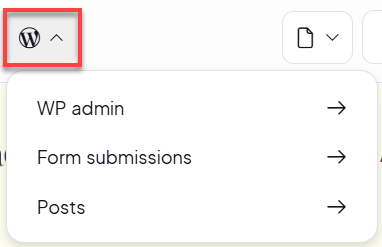
- WordPress Quick Links: The WordPress logo dropdown provides a "fast lane" to your WP Admin, Form Submissions, and individual Posts.
 To help keep your AI-generated website secure and running smoothly, access to certain WordPress Admin features is limited. You won't be able to install, deactivate, or delete plugins, or install and switch themes. These safeguards are in place to protect your website's performance, functionality, and design, ensuring everything continues to work as intended.
Finalizing and Previewing
Before you hit the Publish button, make sure everything looks perfect:

- Device Toggle: Click the Device icon to see how your site looks on a computer, Mobile, and Tablet.
- New Tab Preview: Select the arrow icon to "Open preview in new tab," allowing you to test links and animations in a real browser environment.
- Credit Balance and Upgrade: Shows your remaining AI credits and offers a quick link to upgrade your plan.
- Publish Button: Whenever you are ready with your website, click on the Publish button in the upper-right corner to get your website online!
Summary
Bluehost AI Website Builder empowers you to create, customize, and launch your website quickly and easily. Start with a free trial, describe your vision, and let AI do the heavy lifting. Sign up with your email, explore the builder dashboard, and upgrade once your 14-day trial ends to enjoy more features. It’s the easiest way to get your website online with no upfront commitment during the trial.
If you need further assistance, Bluehost Chat Support is available 24 hours a day, 7days a week while Bluehost Phone Support is available 7 days a week from 7 am-12 midnight EST.
- Chat Support - While on our website, you should see a CHAT bubble in the bottom right-hand corner of the page. Click anywhere on the bubble to begin a chat session.
- Phone Support -
- US: 888-401-4678
- International: +1 801-765-9400
You may also refer to our Knowledge Base articles to help answer common questions and guide you through various setup, configuration, and troubleshooting steps.